


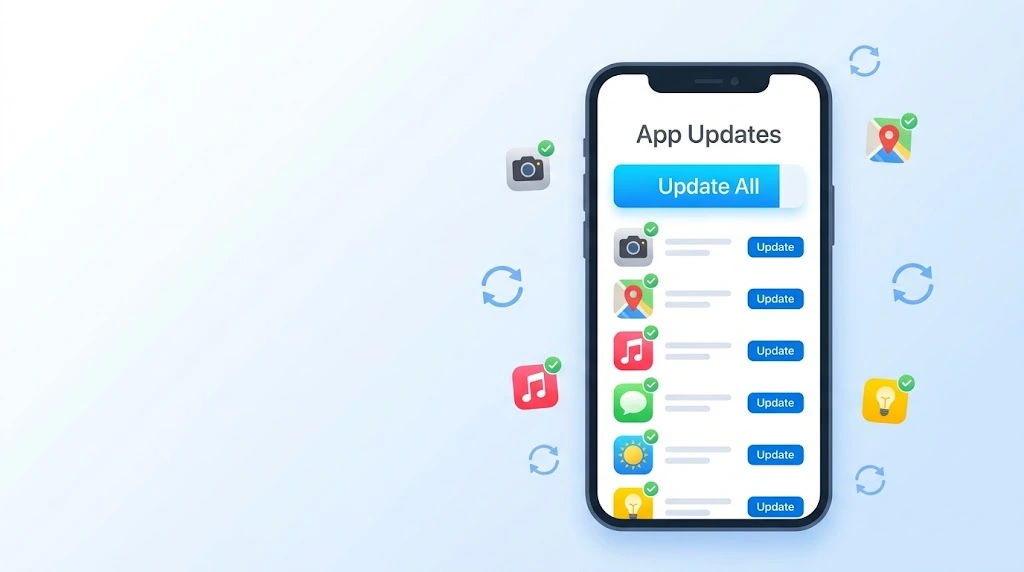
Old apps can crash, drain your battery, and miss important security fixes. This guide shows you how to update iPhone apps in a few taps, whether you are a beginner or just want a faster way. You will also learn how to turn on automatic updates and fix apps that refuse to update.
Quick answer: Open the App Store, tap your profile picture, scroll to the update list, then tap Update All (or Update next to one app).
Quick Answer: How to Update iPhone Apps in 3 Steps
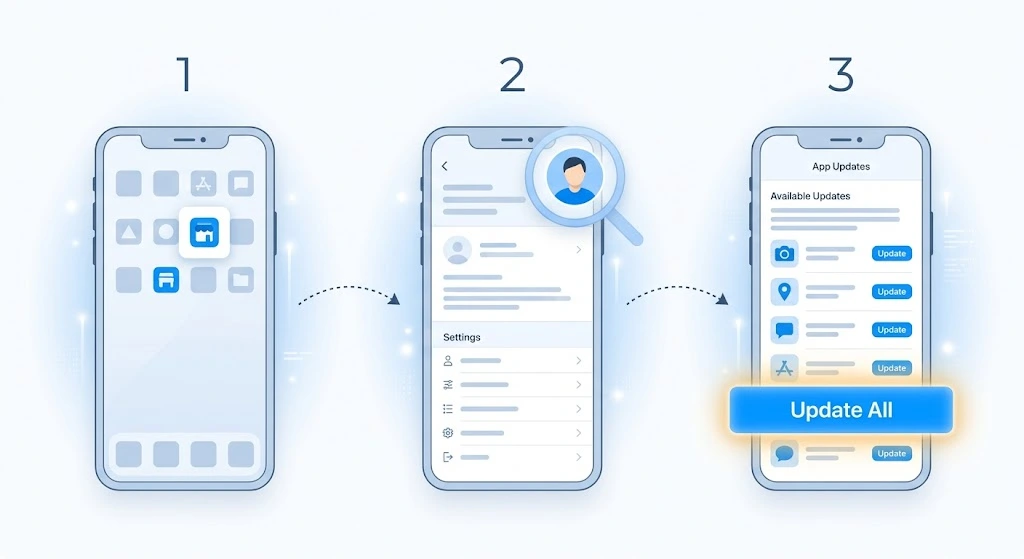
Here is the fastest way to get the latest version of your apps:
- Open the App Store on your iPhone.
- Tap your profile picture in the top-right corner.
- Scroll down to the list of available updates. Tap Update All, or tap Update next to a single app.
That is it. Your iPhone downloads each update and installs it for you. When an app finishes, the button changes from Update to Open.
Key takeaway: You do not need to delete or reinstall an app to update it. Your data and settings stay in place.
Why You Should Keep Your iPhone Apps Updated
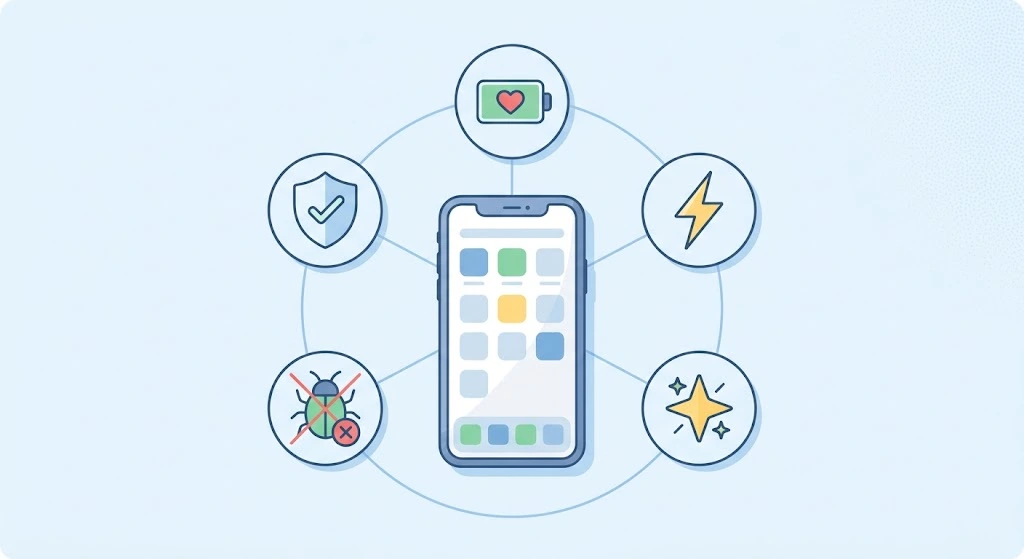
You might wonder if updates are worth the effort. They are. Here is what you gain each time you update:
- Security fixes. Developers patch weak spots that attackers could use. This matters most for banking, email, and shopping apps.
- Bug fixes. Crashes, freezing, and strange glitches often disappear after an update.
- New features. Apps add tools, filters, widgets, and design changes.
- Better speed and battery life. Newer versions are often tuned to run smoother.
- Compatibility. When Apple releases a new iOS version, developers update their apps to match. An old app may stop working right if you skip updates.
Think of it like car maintenance. A quick check now saves bigger trouble later.
If your phone feels slow or hot, outdated apps may be part of the cause. You can also read our guide on why your iPhone is overheating to rule out other problems.
How to Update Apps on iPhone Manually
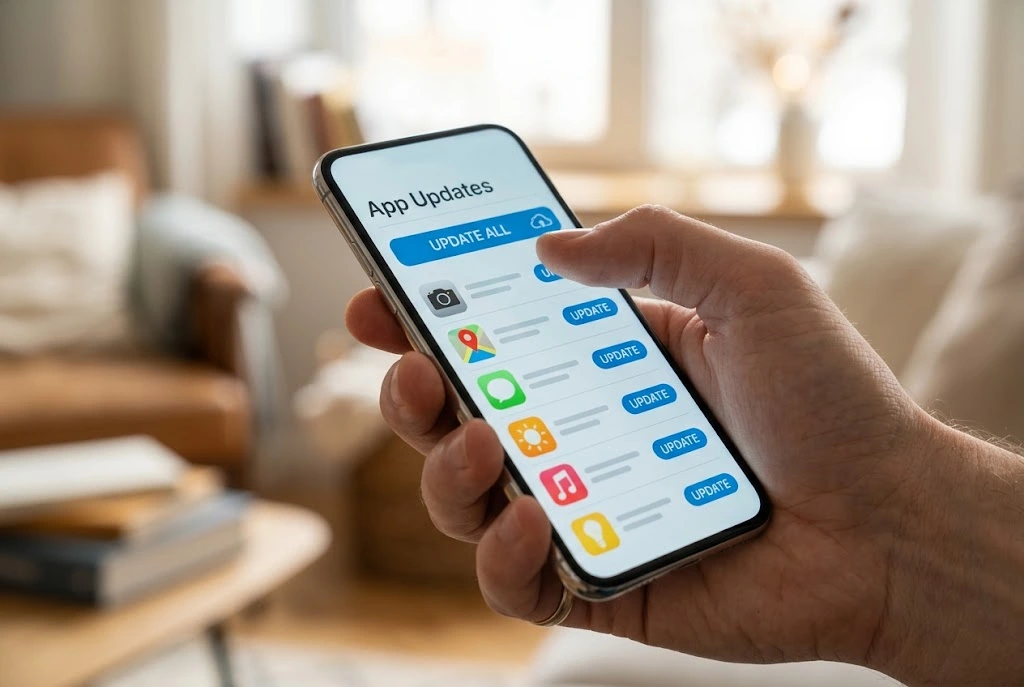
Manual updates give you full control. You choose when to update and which apps to update. This is helpful if you want to avoid downloads on a slow connection or check what is changing first.
Apple confirms this approach in its own support article. According to Apple Support:
“On your iPhone and iPad, apps that you download from the App Store automatically update by default.” — Apple Support
That means many apps may already be current. Still, it is smart to check by hand from time to time, especially if an app is acting up.
Update All Apps at Once
This is the quickest method when you have many pending updates.
- Open the App Store.
- Tap your profile picture (top-right corner).
- Scroll down to the App Updates section. You may see a heading such as Available Updates or Upcoming Automatic Updates, depending on your settings.
- Pull down on the screen to refresh the list. This makes sure you see the newest updates.
- Tap Update All.
Your iPhone starts downloading the apps. You can watch the progress on each app icon on your Home Screen too.
Note: Large updates can take a few minutes. Stay on Wi-Fi and keep your battery above 20% for the smoothest experience.
Update a Single App
Sometimes you only need one app, such as a banking app or a game that just got a big patch.
- Open the App Store.
- Tap your profile picture.
- Find the app in the update list.
- Tap Update next to its name.
You can also do this from the app’s own page:
- Open the App Store and tap Search.
- Type the app name and open its page.
- If you see Update instead of Open, tap Update.
This second method is handy when you do not see the app in your update list.
See What’s New Before You Update
Not sure if an update is worth it? Tap More under the app’s name in the update list. You will see the release notes, which explain what changed. Developers often list bug fixes, new features, and compatibility changes there.
Quick tip: If an app is crashing, look for words like “fixed crash” or “improved stability” in the notes. That is often a sign the update will help.
How to Turn On Automatic App Updates
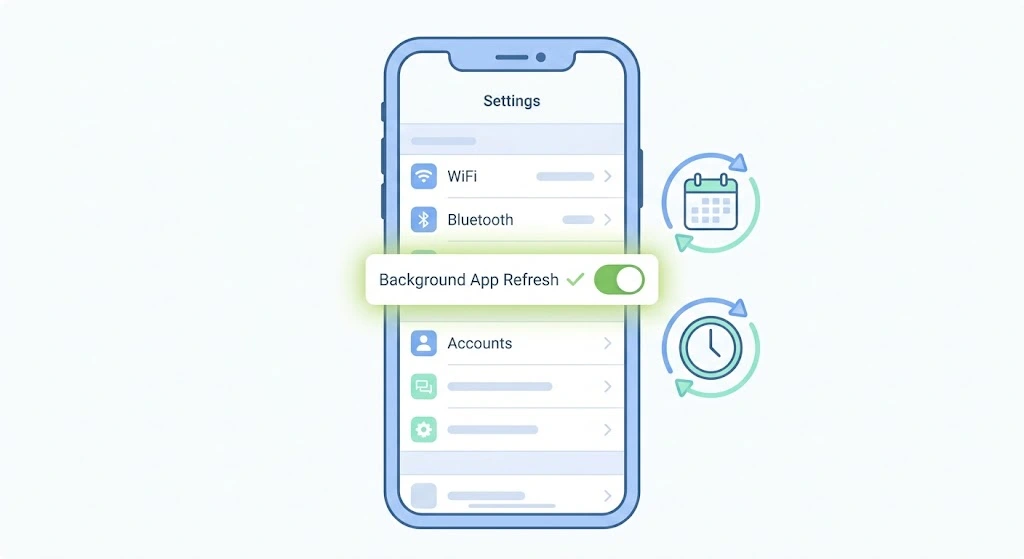
Automatic updates save time. Your iPhone installs new app versions in the background, so you do not have to think about it. This is the best option for most beginners.
Enable App Updates in Settings
- Open the Settings app.
- Scroll down and tap Apps, then tap App Store. (On iOS 17 or earlier, tap App Store directly in Settings.)
- Under Automatic Downloads, turn on App Updates.
That is all. When developers release new versions, your iPhone downloads them for you when conditions are right, such as when you are connected to Wi-Fi.
Apple describes the same toggle in its support article. The App Updates switch controls whether updates install without you tapping anything. You can turn it off at any time if you prefer to update by hand.
Choose Wi-Fi Only or Cellular Data
Apps can be large. To protect your data plan, check your cellular settings:
- Go to Settings > Apps > App Store.
- Scroll to Cellular Data.
- Review the options for Automatic Downloads and App Downloads.
Depending on your iOS version, you can choose to always allow downloads, ask before large downloads, or ask every time. If you have a limited plan, pick the option that asks first. You can also read our guide on how to check data usage on iPhone to see which apps use the most.
Note: Some iPhone plans and countries have different options. If you do not see a setting listed here, update iOS first and look again.
Can You Pick Which Apps Update Automatically?
Not really. The automatic setting applies to all your App Store apps. If you want more control over one important app, turn off automatic updates and update that app manually instead.
Manual vs. Automatic Updates: Which Is Better?
Both methods work well. The right choice depends on how you use your iPhone.
| Feature | Manual Updates | Automatic Updates |
|---|---|---|
| Effort | You tap Update each time | None after setup |
| Control | Full control over timing and apps | Limited control |
| Security | Depends on how often you check | Fast, because fixes arrive quickly |
| Data use | You decide when to download | Can use data if cellular is allowed |
| Risk of a buggy update | Lower (you can read notes first) | Slightly higher |
| Best for | Cautious users, limited data plans | Busy users, beginners |
Our suggestion: Keep automatic updates on for most apps. Check your App Store manually once a week or once a month for anything that got missed. This gives you the best balance of safety and control.
How to Update iPhone Apps Without Wi-Fi
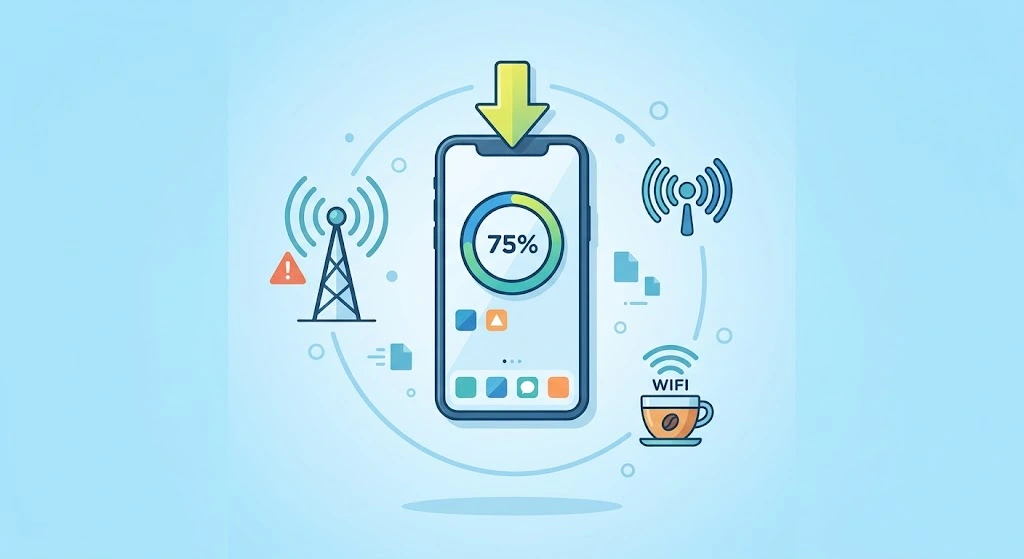
No Wi-Fi nearby? You still have options.
Use Cellular Data
Your iPhone can update apps over cellular data if your settings allow it. Large downloads may show a prompt that asks if you want to continue. Tap Download if you are happy to use your data.
Warning: App updates can use a lot of data. If you have a small plan, wait for Wi-Fi or update only the apps you need.
Use a Personal Hotspot
You can borrow another phone’s internet:
- Turn on Personal Hotspot on the other phone.
- On your iPhone, go to Settings > Wi-Fi and join that hotspot.
- Open the App Store and tap Update All.
Use a Public Wi-Fi Network
Libraries, cafes, and many stores offer free Wi-Fi. This is fine for app updates. Avoid logging in to banking apps on public Wi-Fi while you wait.
Check Your Connection Before You Start
A weak connection is one of the most common reasons updates fail. If your internet seems unstable, read our fix for network problems before you try again.
How to Update Apps on an Older iOS Version
Steps look a little different on older versions of iOS. Here is a quick comparison.
| iOS Version | Where to Find App Updates | Where to Turn On Auto Updates |
|---|---|---|
| iOS 18 and later (including iOS 26) | App Store > profile picture > App Updates | Settings > Apps > App Store > App Updates |
| iOS 13 to iOS 17 | App Store > profile picture > Available Updates | Settings > App Store > App Updates |
| iOS 12 and earlier | App Store > Updates tab | Settings > iTunes & App Store > Updates |
Note: Menu names can vary slightly between releases, so look for the same wording rather than the exact position.
What If Your iPhone Is Too Old for the Newest App?
Sometimes an app says it needs a newer iOS version. If your iPhone cannot run that iOS, the App Store may offer an older compatible version of the app instead. If it does not, you may need to use the older version you already have, or consider a newer phone.
Before you decide, check which version of iOS you are running. Go to Settings > General > About and look at iOS Version. If a newer iOS is available for your model, our guide to updating your iPhone to the latest iOS walks you through it. You can also check which model you own with our guide on what iPhone you have.
iPhone Apps Won’t Update? Fixes That Work
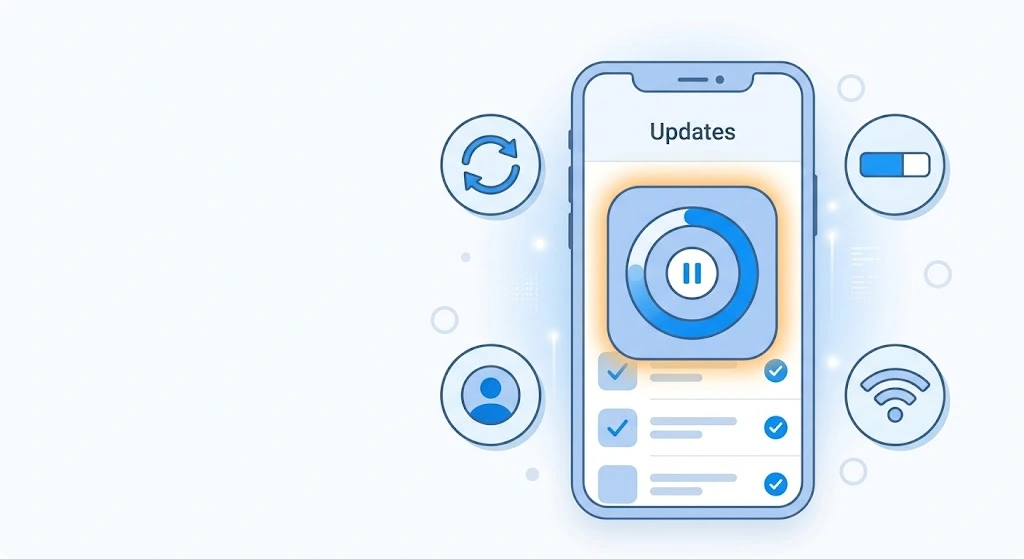
Sometimes an update gets stuck or never starts. Do not worry. These problems usually have simple fixes. Work through them in this order.
| Problem | Most Likely Cause | Quick Fix |
|---|---|---|
| Update All button missing | List needs a refresh | Pull down on the screen to refresh |
| Update stuck on “Waiting” | Slow network or queue | Pause and resume the download |
| Not enough storage | Phone is full | Delete unused apps and files |
| Update fails or errors | Wrong Apple ID or payment issue | Sign in with the right account |
| Nothing happens | Software glitch | Restart your iPhone |
The Update All Button Is Missing
This is a common issue. Try these steps:
- Open the App Store and tap your profile picture.
- Pull down on the list to refresh it.
- Wait a few seconds for the list to load.
- If Update All still does not appear, close the App Store and open it again.
Sometimes the button disappears because there are no pending updates, or because your iPhone is already installing them automatically. In that case, look for the heading Upcoming Automatic Updates and check your downloads.
Update Stuck on “Waiting” or “Pending”
When an app shows Waiting, it is usually in line behind other downloads. Give it a few minutes first. If nothing moves:
- Tap the app icon on your Home Screen to pause the download.
- Tap it again to resume.
- Check your Wi-Fi connection. Switch to another network if possible.
- Restart your iPhone and try again.
Our guide on how to restart an iPhone covers every model if you need help.
Apple’s servers can also have a hiccup now and then. If many apps are stuck at once, wait an hour and try again.
Not Enough Storage
Apps need free space to download and install. If your iPhone is nearly full, the update may fail.
Try these steps:
- Go to Settings > General > iPhone Storage and see what takes the most space.
- Delete apps you no longer use.
- Offload big apps you rarely open. This keeps your data but removes the app itself.
- Clear cache for Safari and other apps. Our guide on how to clear cache on iPhone shows you how.
- Delete duplicate or old photos. See our guide on how to delete duplicate photos on iPhone.
For a deeper look, read our full guide to iPhone storage.
Tip: Aim for at least a few gigabytes of free space before you run a big batch of updates.
Wrong Apple ID or Payment Problem
Apps update using the Apple ID that downloaded them. If you used a different account in the past, the App Store may ask you to sign in again.
- Open the App Store and tap your profile picture.
- Check that you are signed in to the right Apple ID.
- If you are asked for a password, enter it.
- Make sure your payment method is current. An unpaid balance can block downloads and updates.
If you are new to Apple accounts, our guide on how to create an Apple ID can help. If you forgot your password, see how to change your Apple ID password.
Restart the App or Your iPhone
A quick restart clears many small glitches.
- Close the App Store by swiping up (or double-pressing the Home button on older models). Our guide on how to close apps on iPhone shows each model.
- Restart your iPhone.
- Open the App Store and try the update again.
Reset Your Network Settings (Last Resort)
If downloads keep failing even on good Wi-Fi, a network reset may help. This removes saved Wi-Fi passwords, so use it only if other fixes did not work. Follow our guide on how to reset network settings on iPhone step by step.
Still Not Working?
If an app still will not update:
- Delete the app and reinstall it from the App Store. Make sure its data is backed up first, because some apps store data only on your phone.
- Check for an iOS update. An outdated iOS version can block newer apps.
- Contact the app developer if only one app fails. The problem may be on their side.
Before You Update: Quick Safety Tips
Updates are safe for most people. A few habits make them even safer.
- Back up your iPhone first. This protects your data if something goes wrong. See our guide on how to back up iPhone.
- Use trusted networks. Avoid unknown public Wi-Fi when you sign in to accounts.
- Download only from the App Store. Do not install apps from random links or pop-ups.
- Watch out for fake “update” alerts. A real app update never asks for your password in a web page or text message. If a pop-up says your phone is infected and tells you to update, close it.
- Read the release notes for apps you rely on, such as banking or work tools.
- Keep your charger handy. Do not let your battery die mid-update.
Warning: Some apps in the App Store claim to “update apps” for you. You do not need these. The built-in App Store already does the job for free.
People Also Ask
Is it safe to update all apps at once?
Yes, for most people. Tapping Update All is safe and normal. If you worry about a certain app, update that one later after reading its release notes.
How often should I update my iPhone apps?
Update as soon as new versions are available, or at least once a month. Turning on automatic updates means you never have to remember.
Will updating apps delete my data?
No. A normal update keeps your data, logins, and settings. A backup is still smart before big changes.
Do app updates use a lot of data?
They can. Updates for big apps like games and video apps may be hundreds of megabytes. Use Wi-Fi when you can.
Why does my iPhone say “Update Requested”?
It means your iPhone is waiting its turn to start the download. It usually clears up on its own in a few minutes. If it does not, pause and resume the download or restart your iPhone.
FAQs
1. How do I update all apps on my iPhone at once?
Open the App Store, tap your profile picture, and scroll to the update list. Pull down to refresh it, then tap Update All. Your iPhone downloads each app one after another.
2. Why won’t my iPhone apps update?
The most common reasons are low storage, a weak internet connection, or a signed-in Apple ID problem. Free up space, switch networks, and restart your iPhone. If one app still fails, delete and reinstall it.
3. Can I update iPhone apps using cellular data?
Yes. Your iPhone can update apps on cellular data if your App Store settings allow it. Large updates may ask for your permission first. Use Wi-Fi if your data plan is small.
4. How do I turn on automatic app updates on iPhone?
Go to Settings > Apps > App Store (or Settings > App Store on older iOS) and turn on App Updates under Automatic Downloads. Your iPhone then installs new versions in the background.
5. Do I need to update apps after updating iOS?
You do not have to, but it is a good idea. New iOS versions can change how apps behave, and developers often release updates to match. Check the App Store after any major iOS update.
6. Where do I find the Update All button on iPhone?
It sits at the top of the update list in the App Store. Tap your profile picture to reach the list. If you do not see it, pull down to refresh the page.
Conclusion
Now you know how to update iPhone apps the easy way. Open the App Store, tap your profile picture, and tap Update All. For hands-free updates, turn on App Updates in Settings. And if something goes wrong, free up storage, check your connection, restart your iPhone, and confirm your Apple ID.
Try it today. It takes less than a minute, and your apps will run faster and safer.
Want to keep your iPhone running well? Try these next:
- How to update your iPhone to the latest iOS
- How to free up iPhone storage
- How to back up your iPhone
- iPhone battery draining fast? Here is the fix
Sources
- Apple Support: How to manually update apps from the App Store
- Apple Support: Update your iPhone or iPad
- Apple Support: If you can’t update or restore your iPhone

