



Ever switched phones and realized your photos were gone? Or watched your iPhone crash and wondered if your contacts survived? Knowing how to back up iPhone is one of the simplest things you can do and one of the most important. This guide walks you through every backup method available in 2026, so your data stays safe no matter what happens.
Key Takeaways
- You can back up your iPhone using iCloud, Mac (Finder or iTunes), or a Windows PC.
- iCloud backup is the easiest and works wirelessly — but requires enough free storage.
- Mac and PC backups store everything locally and are often faster for large phones.
- You should back up your iPhone before any major update, repair, or phone swap.
- Automatic backups can run daily in the background with zero effort on your part.
Why Backing Up Your iPhone Really Matters

Your iPhone holds a lot. Photos, contacts, messages, app data, passwords, health records, notes — all of it lives on one device. If that device breaks, gets stolen, or needs a factory reset, everything on it can disappear in seconds.
A backup is your safety net. It’s a copy of everything stored in a place where your iPhone can reach it again, even if the original is gone.
Here are the most common situations where a backup saves you:
- Before you update your iPhone — updates are safe, but a backup protects you if something goes wrong
- Before a repair or screen replacement — technicians may need to wipe your phone
- When switching to a new iPhone — restore your backup and pick up exactly where you left off
- After accidental data deletion — restore an older backup to recover lost files
- If your phone is lost or stolen — your data lives on, even if your device doesn’t
The good news: backing up takes less than five minutes once you know how.
Which iPhone Backup Method Is Right for You?
There are three main ways to back up iPhone data. Each one works differently, and each has its own strengths.
| Backup Method | Storage Location | Requires Wi-Fi | Requires a Computer | Best For |
|---|---|---|---|---|
| iCloud | Apple’s servers (cloud) | Yes | No | Everyday wireless backups |
| Mac (Finder) | Your Mac’s hard drive | No | Yes (Mac) | Full local backup, faster restores |
| Mac (iTunes / macOS Mojave) | Your Mac’s hard drive | No | Yes (older Mac) | Older Mac systems |
| Windows PC (iTunes) | Your PC’s hard drive | No | Yes (PC) | Windows users who prefer local storage |
Quick recommendation:
- If you want zero effort → use iCloud with automatic backup turned on
- If you want full control and speed → use your Mac or PC
- If you want both → use iCloud daily and do a Mac backup before big changes
How to Back Up iPhone to iCloud
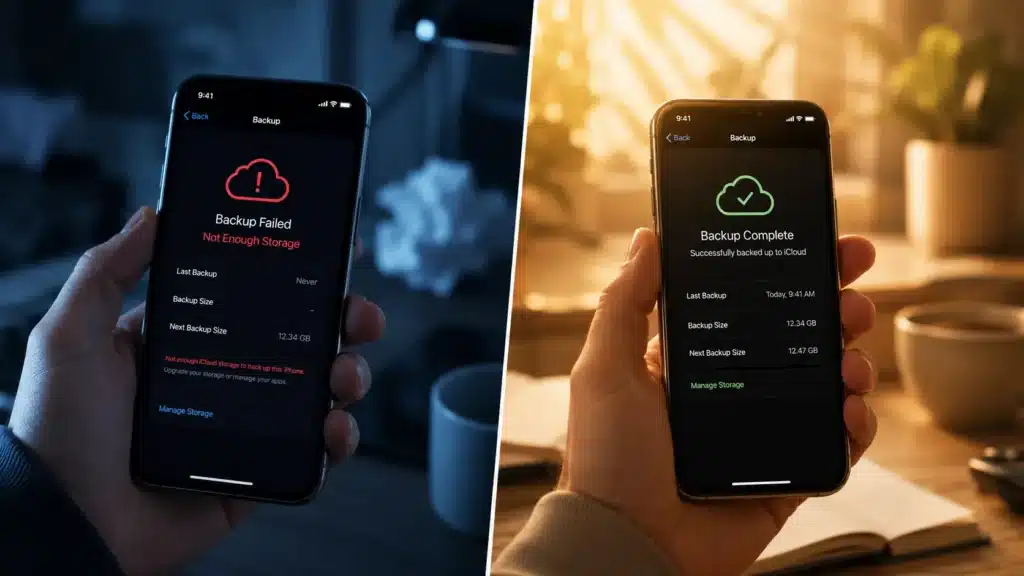
iCloud backup is the most popular method. It works wirelessly, runs automatically once set up, and stores everything in Apple’s secure cloud. Here’s how to do it.
What You Need Before You Start
Before you run an iCloud backup, make sure you have:
- A Wi-Fi connection (iCloud backup doesn’t work on cellular data)
- Enough iCloud storage — Apple gives you 5 GB free, which often isn’t enough for a full backup
- Your iPhone charged or plugged in — backups can drain your battery
- Your Apple ID signed in — go to Settings → [Your Name] to confirm
💡 Note: If you’re running low on iCloud space, free up iPhone storage before starting your backup. That creates more room for what matters.
Step-by-Step: iCloud Backup
Here’s exactly how to manually run an iCloud backup right now:
- Open the Settings app on your iPhone.
- Tap your name at the top (your Apple ID profile).
- Tap iCloud.
- Scroll down and tap iCloud Backup.
- Make sure the iCloud Backup toggle is turned on (it should appear green).
- Tap Back Up Now.
- Stay connected to Wi-Fi and wait for the backup to finish.
You’ll see a progress bar and a message that reads “Backing up…” Keep your screen on and stay on Wi-Fi until it’s done.
When it finishes, you’ll see the time and date of your Last Successful Backup right below the button. That’s your confirmation it worked.
⚠️ Warning: Do not close the Settings app or disconnect from Wi-Fi mid-backup. Doing so can interrupt the process and leave you with an incomplete backup.
How to Turn On Automatic iCloud Backup
You don’t need to manually run a backup every day. Once automatic backup is on, your iPhone backs itself up every night — quietly, in the background.
To enable it:
- Go to Settings → [Your Name] → iCloud → iCloud Backup.
- Toggle iCloud Backup to the ON position (green).
- That’s it. Your iPhone will back up automatically whenever it’s:
- Locked
- Plugged into power
- Connected to Wi-Fi
According to Apple Support, “iCloud automatically backs up your iPhone daily when your device is connected to power, locked, and connected to Wi-Fi.” This means a nightly charge on your bedside table is all it takes.
How Much iCloud Storage Do You Need?
Apple includes 5 GB of free iCloud storage with every Apple ID. That sounds like a lot — but a modern iPhone with photos, videos, and apps can easily need 10–50 GB for a full backup.
If you run out of space, iCloud simply stops backing up. You won’t always get a warning until it’s too late.
Your options:
- Upgrade your iCloud plan — Apple offers 50 GB ($0.99/month), 200 GB ($2.99/month), and 2 TB ($9.99/month) through iCloud+
- Reduce backup size — turn off backup for large apps you don’t need (Settings → iCloud → iCloud Backup → Choose Data to Back Up)
- Switch to a local backup on your Mac or PC for free
How to Back Up iPhone on a Mac
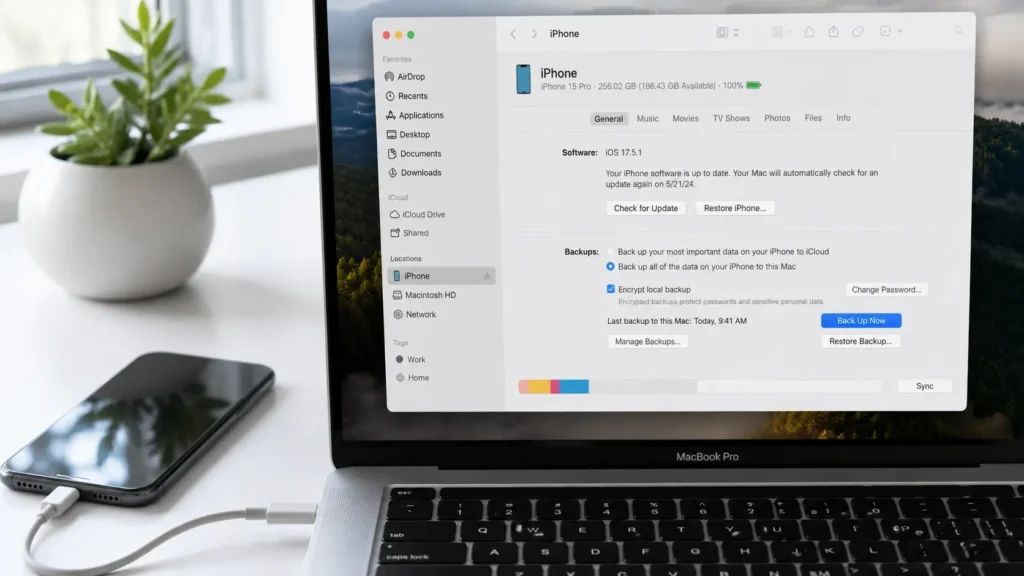
Backing up to your Mac stores a full copy of your iPhone directly on your computer. It’s free, fast, and doesn’t depend on your internet speed. The steps vary slightly based on which version of macOS you’re running.
Using Finder (macOS Catalina or Later)
If your Mac runs macOS Catalina (10.15) or later, iTunes is no longer used. Instead, iPhone backups happen right inside the Finder app.
Here’s how to back up iPhone using Finder:
- Connect your iPhone to your Mac using a USB cable (or USB-C cable for newer models).
- Open a Finder window. Your iPhone will appear in the left sidebar under Locations.
- Click on your iPhone name.
- If prompted, tap Trust on your iPhone and enter your passcode.
- At the top of the Finder window, click the General tab.
- Under the Backups section, select “Back up all of the data on your iPhone to this Mac.”
- Click Back Up Now.
Wait for the progress bar in the Finder window to complete. When it finishes, you’ll see the date and time of your last backup beneath the button.
💡 Tip: For extra security, check the box that says “Encrypt local backup.” This saves your saved passwords, health data, and Wi-Fi settings too — things a standard backup doesn’t include.
Using iTunes (macOS Mojave or Earlier)
If your Mac still runs macOS Mojave (10.14) or an older version, you’ll use iTunes instead of Finder. The steps are nearly identical.
- Open iTunes on your Mac.
- Connect your iPhone with a USB cable.
- Click the iPhone icon that appears near the top left of iTunes.
- Under the Summary tab, find the Backups section.
- Select “This Computer” under the Automatically Back Up heading.
- Click Back Up Now.
iTunes will back up your iPhone to your Mac. You’ll see a progress bar at the top of the iTunes window while it runs.
💡 Note: After the backup completes, go to iTunes → Preferences → Devices to confirm the backup appears with the correct timestamp.
Should You Encrypt Your Mac Backup?
Whether you use Finder or iTunes, you’ll see an option to Encrypt local backup. Here’s what that means and why it matters.
| Standard Backup | Encrypted Backup | |
|---|---|---|
| Photos and media | ✅ Included | ✅ Included |
| Contacts and messages | ✅ Included | ✅ Included |
| Health and activity data | ❌ Not included | ✅ Included |
| Saved passwords and keychain | ❌ Not included | ✅ Included |
| Wi-Fi settings | ❌ Not included | ✅ Included |
| Password required to restore | ❌ No | ✅ Yes |
Bottom line: If you want a complete backup — especially one you could fully restore to a new iPhone — encrypted backups are the smarter choice. Just make sure to remember or save the password you set. Apple cannot recover it for you.
How to Back Up iPhone to a Windows PC
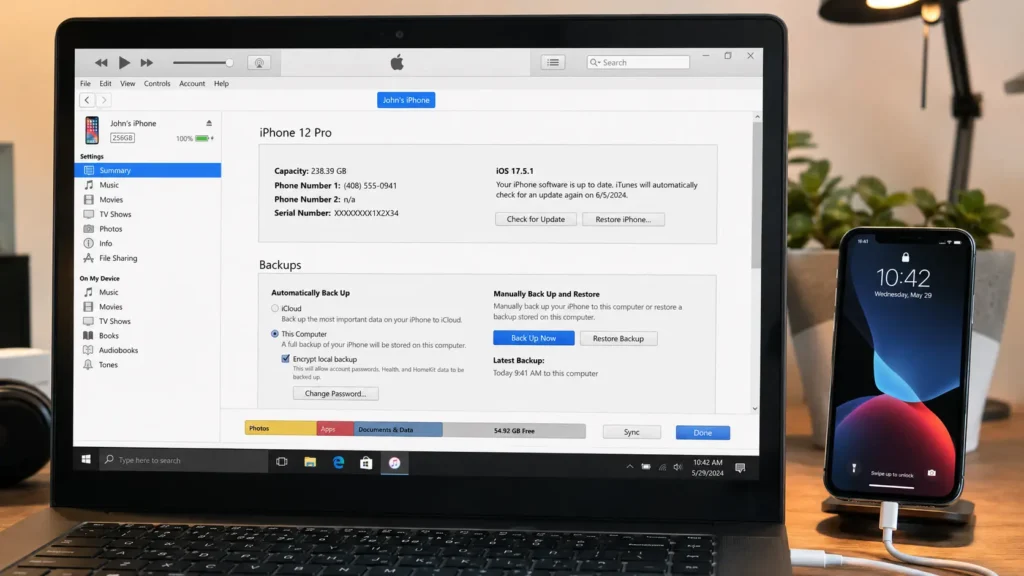
Windows users can back up their iPhone using iTunes for Windows, which you can download for free from Microsoft’s website. The process is similar to the Mac iTunes method — connect your iPhone, open iTunes, and click Back Up Now.
For the complete step-by-step Windows walkthrough, including how to find your backup files and fix common errors, see the full guide: iPhone backup to PC.
How to Check If Your iPhone Backup Worked
After any backup — iCloud or Mac — it’s worth verifying it actually completed. Here’s how to check each one.
To check your iCloud backup:
- Go to Settings → [Your Name] → iCloud → iCloud Backup.
- Look for the “Last Successful Backup” line.
- It will show you the exact date and time of your most recent backup.
To check your Mac backup (Finder):
- Open Finder and click your iPhone in the sidebar.
- Click the General tab.
- The backup date appears under the Backups section.
To check your Mac backup (iTunes):
- Open iTunes → Preferences → Devices.
- You’ll see a list of all backups with their dates and device names.
If the backup date is recent and matches when you expected, you’re good. If it looks old or you don’t see one at all, run a new backup manually.
Tips to Avoid Common iPhone Backup Mistakes
Even experienced iPhone users make these mistakes. Here’s how to avoid the most common ones.
- Don’t rely on only one backup method. iCloud is convenient, but a local Mac or PC backup is your insurance policy if your iCloud account is compromised.
- Back up before every major update. Always run a manual backup before you update your iPhone to a new iOS version.
- Check your iCloud storage regularly. A full iCloud plan means your automatic backups silently fail. Set a reminder to check it monthly.
- Don’t forget to encrypt your local backups. An unencrypted backup on your Mac leaves out health data and passwords.
- Use a quality cable. Cheap or damaged USB cables can interrupt a backup mid-way through. Always use an Apple-certified cable.
- Back up before trading in or selling. Never hand over or recycle an iPhone without first creating a full backup and erasing your device.
- Large photo libraries slow things down. If your backup takes forever, consider freeing up iPhone storage by offloading unused apps or moving photos to your computer first.
Frequently Asked Questions
How do I back up my iPhone automatically?
Turn on automatic iCloud backup by going to Settings → [Your Name] → iCloud → iCloud Backup and toggling iCloud Backup on. Once enabled, your iPhone backs up every night automatically when it’s locked, plugged in, and connected to Wi-Fi. You don’t need to do anything else.
How does iPhone backup work?
An iPhone backup creates a snapshot of your data — photos, contacts, messages, app data, settings, and more — and saves it either to iCloud or to a local computer. When you restore a backup, your iPhone pulls all that data back and rebuilds your phone exactly as it was. iCloud backups happen wirelessly; Mac and PC backups use a USB cable. According to Apple’s support documentation, the backup includes nearly everything except data that’s already in iCloud (like iCloud Photos or iCloud Drive files, which sync separately).
How do I back up an old iPhone before switching to a new one?
The process is the same as any backup. Go to Settings → [Your Name] → iCloud → iCloud Backup → Back Up Now. Do this while still on your old iPhone. Then, during setup of your new iPhone, choose “Restore from iCloud Backup” and sign in with the same Apple ID. Your new phone will pull everything from that backup. For the cleanest transfer, make sure the backup completed successfully before you wipe or trade in your old device.
What’s the difference between iCloud backup and iCloud sync?
These are two different things. iCloud sync (like iCloud Photos or iCloud Drive) keeps certain data continuously updated across all your Apple devices in real time. iCloud backup is a full snapshot of your iPhone taken at a specific moment in time. Apps and data that already sync to iCloud — like your photos if iCloud Photos is on — may not be duplicated in the backup, since they’re already safely stored in the cloud.
How long does an iPhone backup take?
It depends on how much data you have. A first-time iCloud backup for a phone with lots of photos can take 30 minutes to several hours on a slow Wi-Fi connection. After that first backup, subsequent backups are incremental — meaning only new or changed data gets uploaded. Those typically finish in under 5 minutes. Mac and PC backups over USB are generally faster than Wi-Fi-based iCloud backups for large data sets.
How much does it cost to back up my iPhone?
iCloud backup is free for up to 5 GB of storage. If your backup is larger than 5 GB — which is common — you’ll need to upgrade to a paid iCloud+ plan. Plans start at $0.99/month for 50 GB. Backing up to your Mac or PC using Finder or iTunes is completely free and uses your computer’s hard drive instead of the cloud. Check Apple’s iCloud pricing page for current plan details.
Conclusion
Knowing how to back up iPhone doesn’t require any technical skill it just requires doing it. Whether you prefer the convenience of iCloud, the reliability of a Mac backup, or the flexibility of a Windows PC, each method keeps your data safe in a different way.
The best approach? Use iCloud for daily peace of mind, and run a manual Mac backup before anything important — like a major iOS update, a repair, or a phone upgrade.
Set up automatic iCloud backup today, plug your iPhone into your Mac once a month, and you’ll never have to worry about losing your data again. Your photos, contacts, messages, and memories are worth the five minutes it takes.

