


Is your iPhone screen not responding to touch right when you need it most? You are not alone. This is one of the most common problems iPhone users face — and the good news is that most cases are fixable at home, without any special tools.
In this guide, you will find 10 proven fixes that work on all modern iPhone models, including iPhone 11, 12, 13, 14, 15, 16, and 17. Whether your screen is completely frozen, partially unresponsive, or acting erratically, we have got you covered.
Why Is Your iPhone Screen Not Responding to Touch?
Before jumping into the fixes, it helps to understand what is causing the problem. Your iPhone touch screen not working can be the result of either a software issue or a hardware problem.
Software Causes
- A bug introduced by a recent iOS update
- An app running in the background that is consuming all touch input resources
- Corrupted system settings or a temporary software glitch
- Incomplete or failed iOS installation
Hardware Causes
- Digitizer damage from dropping your iPhone — even if the glass looks fine, the internal touch sensor layer can fracture
- Loose or disconnected display cable, especially after a previous screen repair
- Water or liquid exposure corroding the touch controller chip
- Overheating caused by direct sunlight or extended gaming sessions
💡 Quick Rule of Thumb: If your screen stopped working right after a drop or water exposure, suspect hardware. If it happened after an update or app install, it is most likely software — and much easier to fix.
Fix 1 Clean the Screen and Your Hands
⏱ Takes: 1 minute | Risk: None
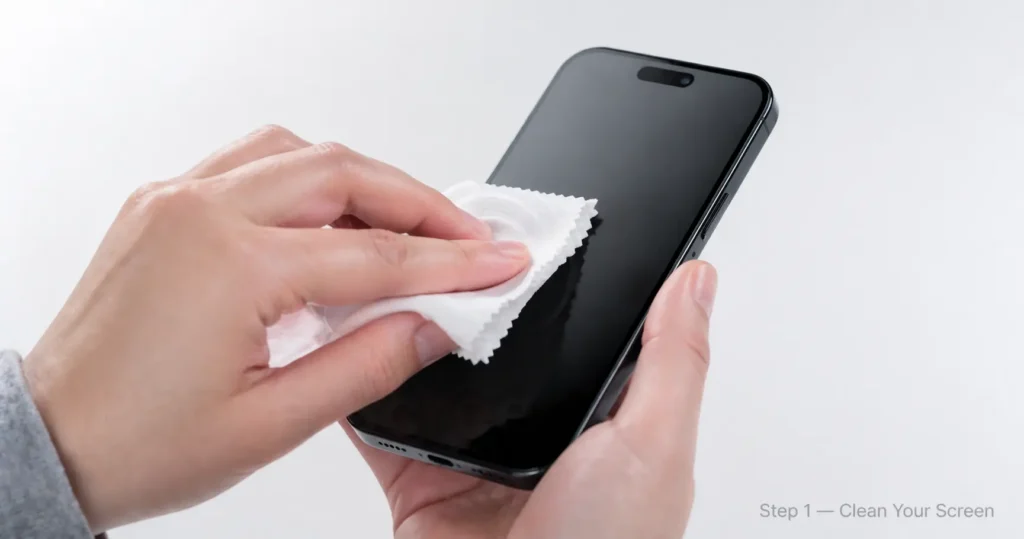
This sounds obvious, but it is the most overlooked fix. Your iPhone screen not working could simply be caused by oil, sweat, or dirt blocking the touch sensor.
How to do it:
- Power off your iPhone.
- Use a clean, dry microfiber cloth to gently wipe the screen.
- Make sure your fingers are dry and clean before touching the screen again.
- Avoid using paper towels, rough cloths, or chemical sprays — they can damage the screen’s electrostatic layer.
⚠️ Warning: Never use alcohol wipes or window cleaners on your iPhone display. They can permanently damage the anti-glare and touch-sensitive coating.
Fix 2 Remove Your Screen Protector or Case
⏱ Takes: 2 minutes | Risk: None
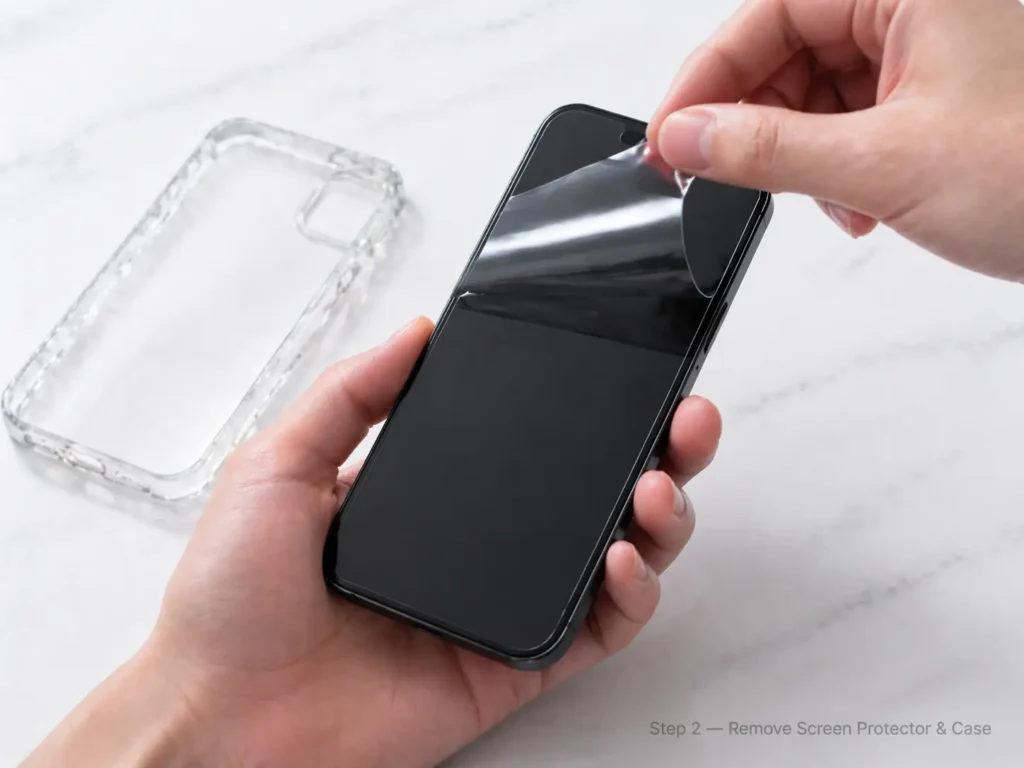
A poorly fitted or thick third-party screen protector can interfere with touch sensitivity, causing your iPhone touch screen not responding issue.
Steps:
- Carefully peel off your screen protector from one corner.
- Remove your iPhone case as well.
- Clean the screen with a microfiber cloth.
- Test the touchscreen without any accessories.
If the screen works normally without the protector, your screen protector is the culprit. Consider replacing it with a high-quality one.
💡 Tip: Always buy screen protectors that are specifically designed for your iPhone model. A generic protector can be slightly thicker or misaligned, reducing touch accuracy.
Fix 3 Charge Your iPhone
⏱ Takes: 5–10 minutes | Risk: None
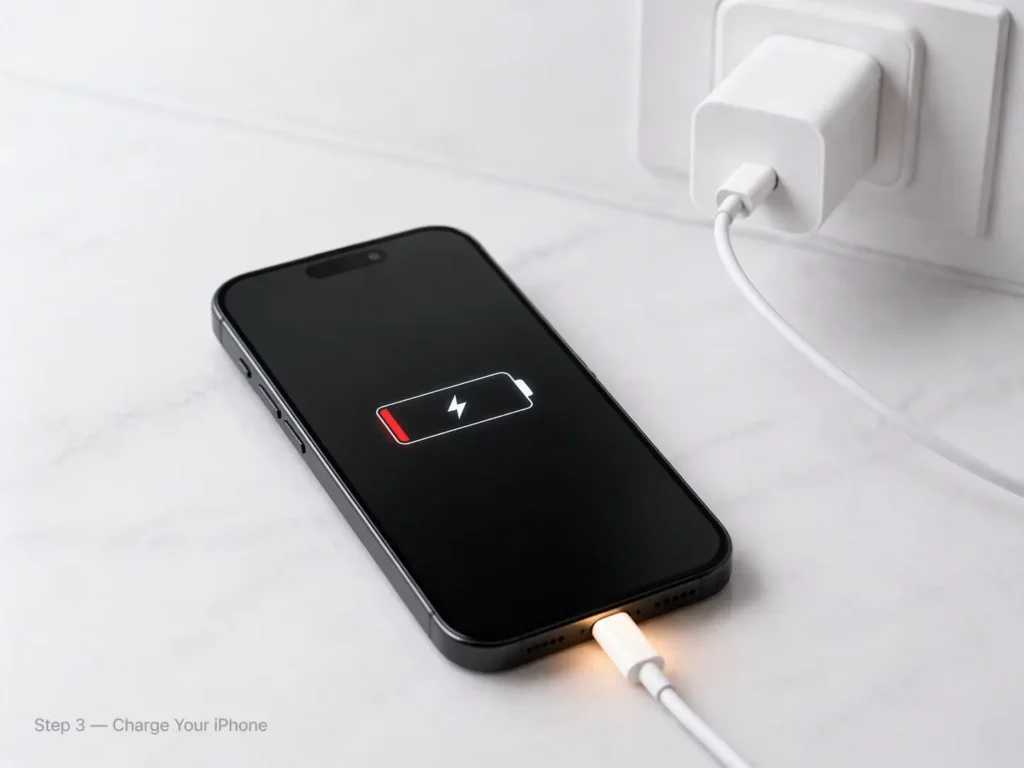
A very low battery can sometimes cause the iPhone screen to become unresponsive. iPhones running on critical battery levels may disable some functions — including screen responsiveness — to preserve power.
Steps:
- Connect your iPhone to its original Apple charger.
- Wait 5–10 minutes before trying to use the screen.
- If the screen flickers when plugged in, the charging port or cable may also be faulty.
⚠️ Note: Always use an Apple-certified (MFi) charger. Third-party or counterfeit chargers can cause irregular voltage, which may actually worsen screen issues.
Fix 4 Force Restart Your iPhone
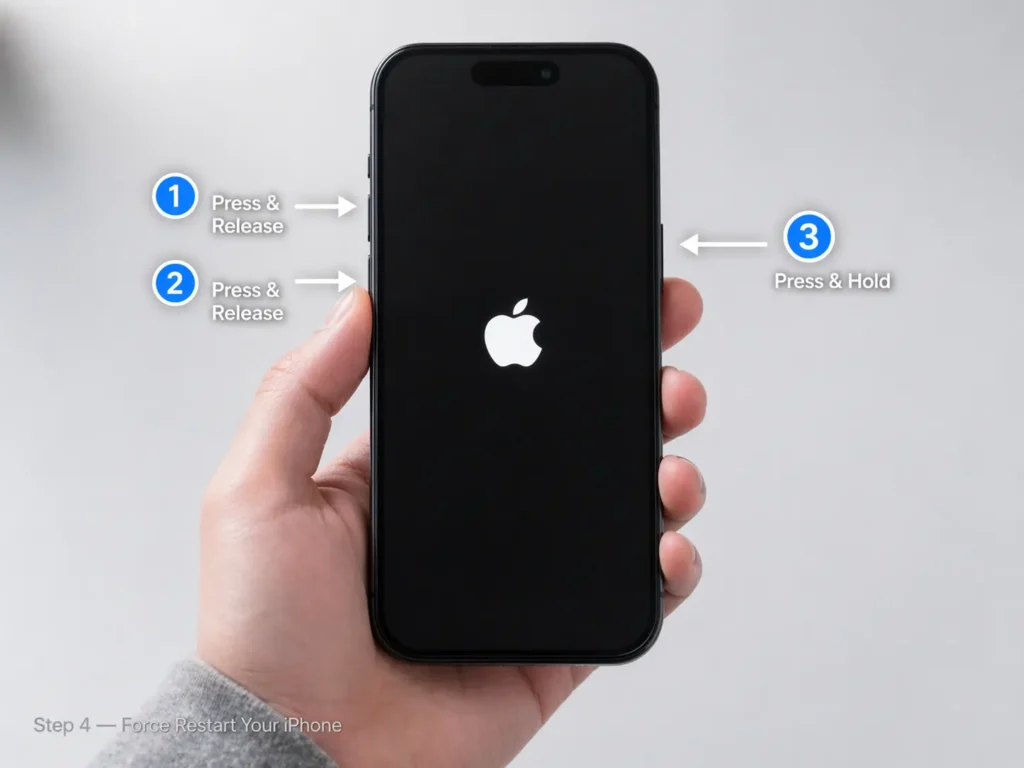
⏱ Takes: 30 seconds | Risk: None — your data is safe
This is the single most effective fix for an iPhone screen frozen and unresponsive. A force restart clears temporary memory and kills frozen processes — without deleting any of your data.youtube+1
The steps differ depending on your iPhone model:
iPhone 8, X, XS, XR, 11, 12, 13, 14, 15, 16, 17 (Face ID models)
- Quickly press and release the Volume Up button.
- Quickly press and release the Volume Down button.
- Press and hold the Side (Power) button.
- Keep holding until the Apple logo appears, then release.
iPhone 7 / 7 Plus
- Press and hold both the Volume Down button and the Sleep/Wake button at the same time.
- Release when the Apple logo appears.
iPhone 6s or older (with Home button)
- Press and hold both the Home button and the Sleep/Wake button simultaneously.
- Release when the Apple logo appears.
💡 Pro Tip: For more detailed instructions on restarting any iPhone model, check out our full guide: How to Restart iPhone.
Fix 5 Update iOS to the Latest Version
⏱ Takes: 10–30 minutes | Risk: Very Low
An outdated iOS version is a known cause of iphone touch screen not responding issues. Apple regularly releases updates that patch bugs affecting screen responsiveness — including issues reported after major iOS updates.
If your screen is partially working:
- Go to Settings → General → Software Update.
- If an update is available, tap Download and Install.
- Connect to Wi-Fi and make sure your battery is above 50%.
If your screen is completely unresponsive:
- Connect your iPhone to a computer.
- Open Finder (Mac) or Apple Devices app (Windows PC).
- Select your iPhone and click Check for Update.
💡 According to Apple Support, many touchscreen issues reported after major iOS updates are resolved with the next minor patch release. Always keep your iPhone up to date.
Fix 6 Enable AssistiveTouch to Navigate Without Touch
⏱ Takes: 2 minutes | Risk: None
If my iPhone screen is not responding to touch at all, AssistiveTouch lets you control your iPhone using a floating on-screen button — no physical touchscreen needed for navigation.
How to enable via Siri (if your screen is totally unresponsive):
- Activate Siri by saying “Hey Siri”.
- Say: “Turn on AssistiveTouch”.
- A floating button will appear on your screen.
How to enable via Settings (if you have partial touch):
- Go to Settings → Accessibility → Touch.
- Toggle AssistiveTouch to ON.
💡 Bonus Tip: Once AssistiveTouch is active, you can use it to restart your device, take screenshots, or even back up your data — all without needing a fully responsive screen.
Fix 7 Reset All Settings
⏱ Takes: 5 minutes | Risk: Low — resets preferences but keeps your data
If a software misconfiguration is causing your iPhone screen not responding to touch, resetting all settings often resolves it. This clears Wi-Fi passwords, display settings, and other preferences — but does NOT delete your photos, apps, or files.
Steps:
- Open Settings → General.
- Scroll down and tap Transfer or Reset iPhone.
- Tap Reset → Reset All Settings.
- Enter your passcode and confirm.
- Your iPhone will restart. Test the touchscreen.
⚠️ Important: You will need to re-enter your Wi-Fi passwords and reconfigure some display preferences after this step.
Fix 8 Restore iPhone via iTunes or Finder
⏱ Takes: 30–60 minutes | Risk: Medium — may delete data if not backed up
If the above fixes did not work, restoring your iPhone via a computer can resolve deeper iphone screen not working software issues.
Before you start: Make sure your data is backed up to iCloud or your computer. Check out our guide on iPhone Backup to PC for help.
Steps:
- Connect your iPhone to a Mac (Finder) or Windows PC (Apple Devices app / iTunes).
- Put your iPhone in Recovery Mode:
- Press and quickly release Volume Up → press and quickly release Volume Down → press and hold the Side button until the Recovery Mode screen appears.
- On your computer, click Update first (this preserves your data).
- If Update does not work, click Restore as a last resort.
💡 Apple User Guide Note: “Recovery mode allows your iPhone to be updated or restored when you can’t use the normal software update process.”
Fix 9 Factory Reset as a Last Resort
⏱ Takes: 15–30 minutes | Risk: High — erases all data
If none of the above solutions resolved your how to fix iphone screen not responding problem, a full factory reset may be necessary. This wipes everything and returns your iPhone to its out-of-box state.
⚠️ Warning: This will permanently erase all your data. Only proceed if you have a current backup.
If you have partial screen access:
- Go to Settings → General → Transfer or Reset iPhone.
- Tap Erase All Content and Settings.
- Enter your Apple ID password to disable Activation Lock.
- Confirm and wait for the reset to complete.
If your screen is completely unresponsive:
- Use the Restore option via iTunes or Finder (Fix 8 above).
For a full step-by-step walkthrough, read our detailed guide: How to Factory Reset iPhone.
Fix 10 Contact Apple Support or Visit a Repair Shop
⏱ Takes: Varies | Risk: None
If your iPhone screen is still unresponsive after trying all of the above, the problem is almost certainly hardware-related. This can include a damaged digitizer, a cracked internal touch layer, or water damage to the logic board.itechrepairs.com+1
Signs it is a hardware problem:
- The screen was unresponsive immediately after a drop or impact
- Water or liquid entered the device
- Only part of the screen responds to touch (dead zones)
- The problem started after a third-party repair
Your options:
- Apple Support: Book a Genius Bar appointment at your nearest Apple Store.
- Apple Authorized Repair: Get a certified repair that keeps your warranty valid.
- Independent Repair Shop: Often cheaper, but make sure they use genuine or high-quality parts.
Need help finding professional repair? Check our guide: iPhone Repair Near Me.
You can also start a support request directly at: Apple Support — iPhone Screen Issues
For real-world advice from other users, the Apple Discussions Community thread on unresponsive screens has hundreds of useful tips from fellow iPhone owners.
10 Fixes at a Glance
| Fix | Time Needed | Data Risk | Best For |
|---|---|---|---|
| Clean Screen | 1 min | None | Dirty/oily screen |
| Remove Screen Protector | 2 min | None | After buying new protector |
| Charge iPhone | 10 min | None | Very low battery |
| Force Restart ⭐ | 30 sec | None | Most common fix |
| Update iOS | 10–30 min | None | After iOS update issues |
| AssistiveTouch | 2 min | None | Fully unresponsive screen |
| Reset All Settings | 5 min | Low | Software glitch |
| Restore via iTunes | 30–60 min | Medium | Persistent software issue |
| Factory Reset | 15–30 min | High | Last software resort |
| Contact Apple | Varies | None | Hardware damage |
Frequently Asked Questions
How do I restart my iPhone without a touchscreen?
If your screen is completely unresponsive, use the physical buttons to force restart. For iPhone 8 and later: quickly press Volume Up, then Volume Down, then hold the Side button until the Apple logo appears. You can also activate Siri by voice and say “Restart my iPhone.”
Why is my iPhone screen not responding to touch?
The most common reasons are a temporary software glitch (fixed by force restarting), a faulty or dirty screen protector, an iOS bug, or physical damage to the digitizer from a drop or water exposure.itechrepairs.com+1
Can an iPhone screen not responding to touch be fixed with a reset?
Yes, in many cases. A force restart fixes the majority of software-related issues. If that does not work, Reset All Settings or a full factory restore can resolve deeper software conflicts — but only if the issue is not hardware damage.
What should I do if my iPhone touchscreen is completely unresponsive?
Start with a force restart (no data loss). If that fails, connect to a computer and restore via Finder or iTunes. If the problem persists after a restore, the issue is hardware and you should visit an Apple Store or authorized repair shop.
Why is my iPhone 13 / iPhone 11 screen not responding to touch?
These models are susceptible to digitizer issues after drops, even when the glass looks intact. Software-related unresponsiveness is also common after major iOS updates on these models. Start with a force restart, then update iOS, then consider a hardware inspection.
My iPhone 16 screen is not responding is this a known issue?
Some iPhone 16 users reported touch issues after specific iOS updates, which Apple resolved in subsequent patches. Check Settings → General → Software Update immediately to see if a fix is available. If you are on the latest iOS and the problem persists, contact Apple Support.
You can also read real user experiences in this community thread on Microsoft Tech Community where iPhone users share similar problems and solutions.
Wrapping Up
Dealing with an iPhone screen not responding to touch is frustrating, but it is almost always fixable. Here is a quick recap of where to start:
- Try Fix 4 (Force Restart) first — it solves the problem in the majority of cases with zero risk to your data.
- If that fails, update iOS and Reset All Settings before moving on to more drastic steps.
- Only proceed to a factory reset if you have tried everything else — and always back up first.
- If your iPhone was dropped or exposed to water, skip to Fix 10 and get a hardware inspection.
With a little patience and these steps, your iPhone should be back to normal in no time. If you found this guide helpful, you might also want to explore:
- 👉 How to Restart iPhone — for all models
- 👉 How to Factory Reset iPhone — step-by-step
- 👉 iPhone Repair Near Me — when you need professional help
Have a fix that worked for you? Share it in the comments below — your tip might help another iPhone user!

