


Learning how to change email password on iPhone is easier once you know one simple rule: the new password is set with your email provider, not in your iPhone settings. After that, you tell your iPhone the new password so Mail can keep working. This guide walks you through both steps for Gmail, Outlook, Yahoo, and iCloud, even if you are new to iPhone.
Quick answer: Here is how to change email password on iPhone: first change it on your provider’s website (Gmail, Outlook, Yahoo, or Apple Account). Then open Settings > Mail > Accounts on your iPhone, tap your account, and sign in again with the new password.
Change vs. Update: What Is the Difference?
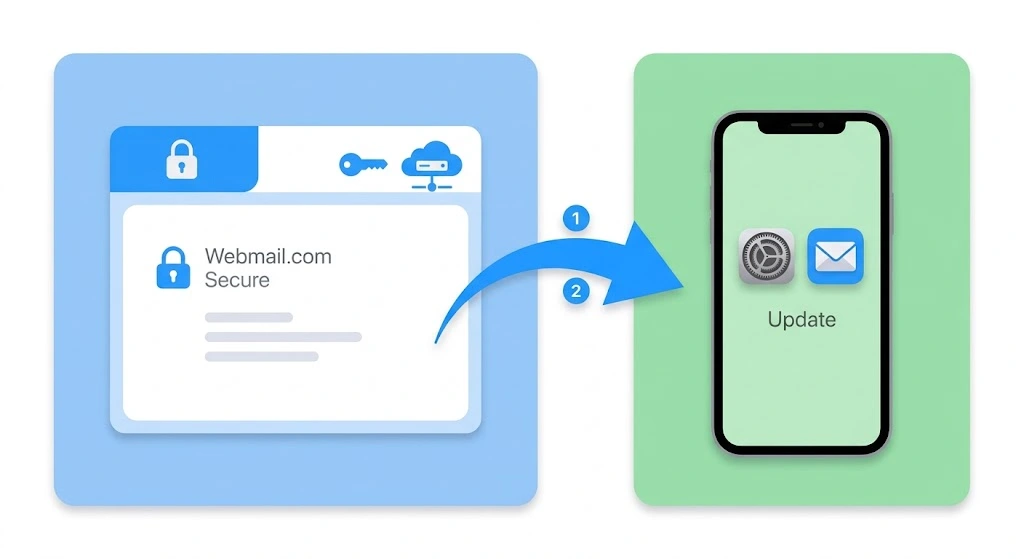
Most people search for “change email password on iPhone” and expect a button inside Settings that does it all. That button does not exist for most email accounts. Two separate jobs are hiding behind that one search, and mixing them up is the number one reason people get stuck.
| Job | Where you do it | What it does |
|---|---|---|
| Change your password | Your email provider’s website or app (Gmail, Outlook, Yahoo, Apple Account) | Sets a brand-new password on the email server |
| Update your password | Your iPhone, in Settings > Mail | Tells your iPhone the new password so Mail can keep syncing |
You need both. That is why learning how to change email password on iPhone always starts at the provider, not in Settings. If you only do the second one, your iPhone will just store a password that your email provider does not recognize.
Why changing it on the iPhone alone does not work
Your iPhone is only a messenger. It carries your email address and password to the server and brings your messages back. The real password lives with your provider. An Apple Support Community answer on this exact problem says the same thing: changing a password on the iPhone does not change the one your email server uses, so you must sign in to your provider’s website and change it there.
Apple Support explains (in its Mail guidance, written for Mac but true on iPhone too) that Mail asks for your password when your provider stops accepting the one saved on your device. In other words, a stale password is the cause, and a fresh one is the cure.
Before you start
Get these ready. It takes about five minutes.
- Your current email password (or access to your recovery phone or email, if you forgot it)
- A Wi-Fi or cellular connection
- A second device or a browser, in case your provider sends a verification code
- A password manager or a safe place to save the new password
Heads up: once you change your password, every device that uses this email account (iPad, Mac, work laptop) will ask for the new password too.
Which Settings path should you use? On iOS 18 and later, Mail settings live under Settings > Apps > Mail. On older versions, tap Settings > Mail. Both paths lead to the same Accounts list.
How to Change Email Password on iPhone by Provider
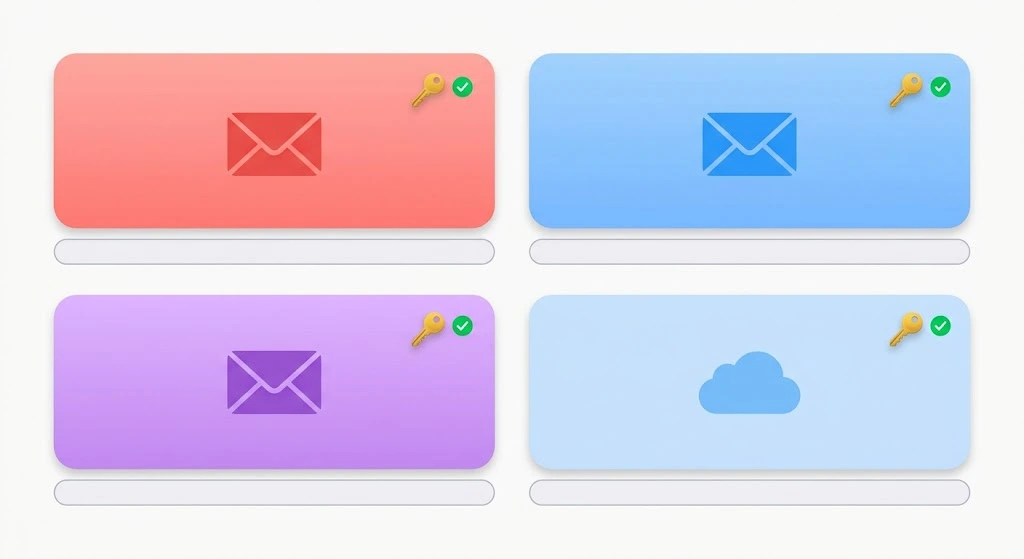
Start here. This is how to change email password on iPhone, provider by provider. Pick the one you use, set the new password, and then move to the next section. You can do every step below in Safari on your iPhone, so you do not need a computer.
| Provider | Where you change it | Good to know |
|---|---|---|
| Gmail | Google Account > Security | Needs an app-specific password if you use older sign-in methods |
| Outlook, Hotmail, Live | Microsoft account security page | Same password as your Microsoft account |
| Yahoo Mail | Yahoo Account security page | Turn off Account Key first if you do not see the option |
| iCloud Mail | iPhone Settings > your name | Same password as your Apple Account |
Change your Gmail password
- Open Safari and go to your Google Account security page, or open the Gmail app and tap your profile picture.
- Tap Manage your Google Account, then Security.
- Tap Password. Google may ask you to sign in again.
- Type your new password, type it again to confirm, and tap Change password.
Google also keeps an official walkthrough for iPhone and iPad, so check Google’s guide to changing or resetting your Gmail password if your screen looks different.
Change your Outlook.com or Hotmail password
Your Outlook.com password is the same as your Microsoft account password. That means one change covers every Microsoft service you use.
- Go to account.microsoft.com in Safari and sign in.
- Open Security, then tap Change password.
- Verify your identity if Microsoft sends you a security code.
- Enter your current password, then your new password, and save it.
Microsoft explains the full process in its guide to changing your password in Outlook.com.
Change your Yahoo Mail password
- Sign in to the Yahoo Account security page in Safari.
- Tap Change password.
- Enter a new password and tap Continue.
Using the Yahoo Mail app instead? Tap your profile icon, then Manage Accounts, Account info, Security, and finally Change password. If you cannot find that option, Yahoo says you may have Account Key turned on, so you must turn it off first. See Yahoo’s help page on resetting or changing your password for the latest steps.
Change your iCloud Mail password
iCloud Mail does not have its own password. It uses your Apple Account password, so you change it right on your iPhone.
- Open Settings and tap your name at the top.
- Tap Sign-In & Security, then Change Password.
- Enter your iPhone passcode, then your new password.
Need more detail? Read our guide on how to change your Apple ID password. Because iCloud Mail is built into your iPhone, it usually picks up the new password by itself, so you may be able to skip the next section.
Warning: Never use the same password for your email and other accounts. Your email can reset almost every other login you own.
How to Update Your New Password in iPhone Mail
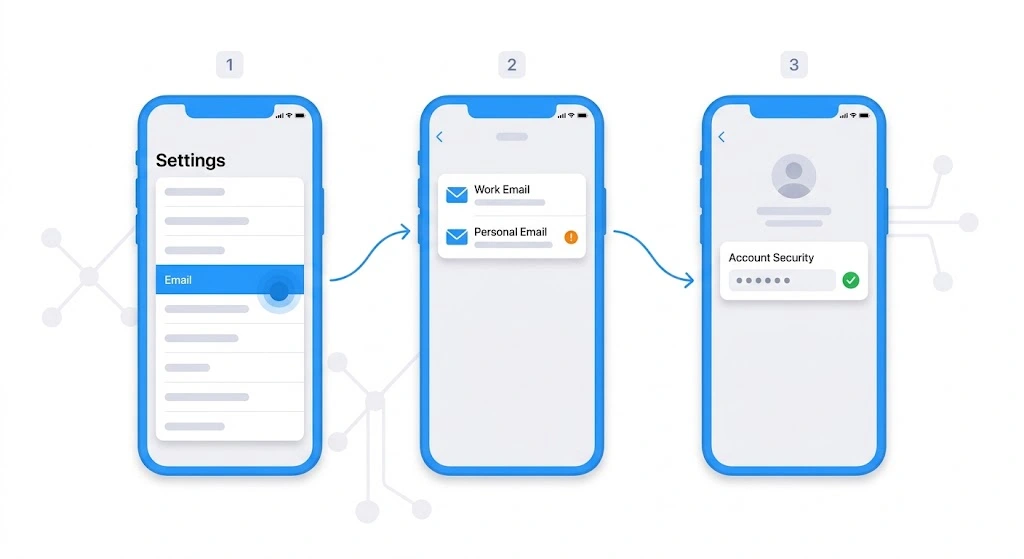
Now your provider knows the new password. Next, your iPhone needs it too. Finish how to change email password on iPhone by teaching Mail the new one. Here is how to update email password on iPhone so Mail syncs again.
Good news: the steps are the same on every iPhone, whether it has Face ID or a Home button. Only your iOS version changes where the menu sits.
Method 1: Sign in when your iPhone asks
After you change a password, iPhone often shows a message like “Enter password” or “Cannot get mail.” This is the fastest fix.
- Open Settings.
- Tap Apps, then Mail (on older iOS, tap Mail directly).
- Tap Mail Accounts (or Accounts).
- Tap the account that shows a warning or asks for a password.
- Tap Sign In or Re-enter Password and follow the prompts with your new password.
For many Gmail, Outlook, and Yahoo accounts, a secure sign-in window from the provider opens. Sign in there, and the account links itself again.
Method 2: Type the new password manually
If you do not see a prompt, you can add the password yourself. This works best for accounts set up with IMAP, such as a work or website email.
- Go to Settings > Mail > Accounts (Settings > Apps > Mail > Mail Accounts on newer iOS).
- Tap your email account, then tap the account name at the top.
- Find the Password field under Incoming Mail Server and type the new password.
- Go back and tap Outgoing Mail Server, then Primary Server.
- Type the new password in the Password field there too.
- Tap Done or Save.
Why twice? Email uses one login to receive mail and another to send it. Apple Support Community experts point out that you may need to update both the incoming and outgoing passwords. If you only fix one, you may receive mail but fail to send it.
Check that it worked
- Open the Mail app and pull down to refresh your inbox.
- Send a quick email to yourself.
- Watch for the red “Cannot Get Mail” or password pop-up. If it is gone, you are done.
Tip: If the account fields look empty or you cannot find a password box (common with Yahoo and Gmail), skip to the next section. Removing and re-adding the account solves it almost every time.
How to Remove and Re-Add Your Email Account
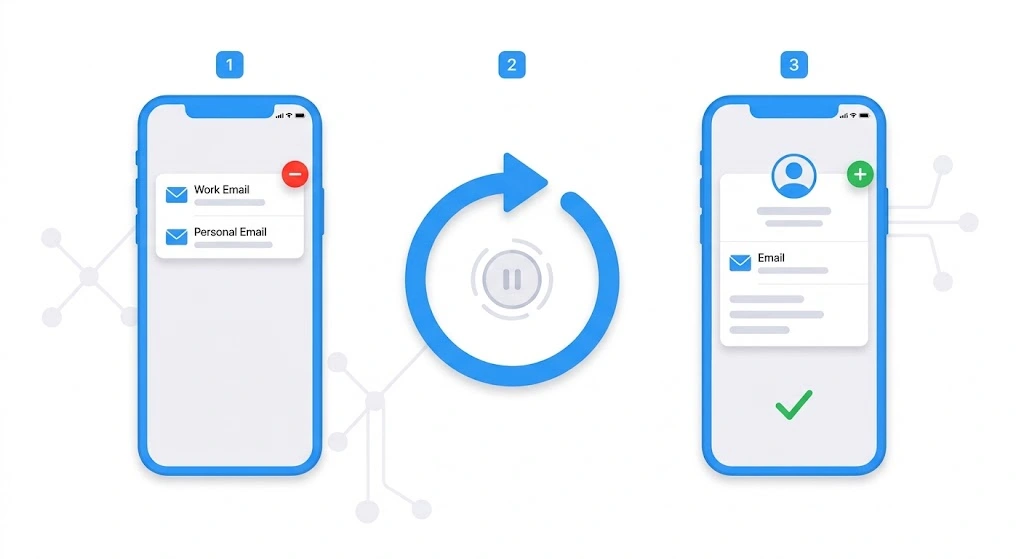
Sometimes iPhone Mail keeps the old password no matter what you type, even after you follow how to change email password on iPhone steps perfectly. When that happens, the cleanest fix is to delete the account and add it again. Apple Support Community specialists suggest this exact fix for password problems, and it is the one most people end up using.
Is it safe?
Mostly, yes. Your emails live on your provider’s server, not only on your iPhone. Removing the account takes the copy off your phone. It does not delete your messages from Gmail, Outlook, Yahoo, or iCloud.
| What happens when you delete the account | Result |
|---|---|
| Emails stored on the provider’s server | Stay safe and come back when you re-add the account |
| Mail, contacts, calendars, or notes synced from this account | Disappear from your iPhone for now, then sync back |
| Emails saved only in a local “On My iPhone” folder | May be lost, so move or copy them first |
Before you delete: sign in to your provider’s website in Safari and confirm your messages are there. That takes one minute and removes the worry.
Delete the account
- Open Settings > Mail > Accounts (or Settings > Apps > Mail > Mail Accounts).
- Tap the email account that has the problem.
- Scroll down and tap Delete Account.
- Confirm by tapping Delete from My iPhone.
- Restart your iPhone. This clears small glitches and takes about 30 seconds.
Add it back with the new password
- Go to Settings > Mail > Accounts > Add Account.
- Choose your provider (Google, Microsoft Outlook, Yahoo, or iCloud). For anything else, tap Other and then Add Mail Account.
- Enter your email address and your new password.
- Tap Next and wait while iPhone verifies the account.
- Choose what to sync (Mail, Contacts, Calendars, Notes) and tap Save.
Want a full walkthrough with screenshots? See our guide on how to add an email account to your iPhone.
Note: If your provider does not support automatic setup, you may need the incoming and outgoing server names and ports. Check your provider’s support page for iPhone settings.
Gmail and Outlook Apps, and App-Specific Passwords
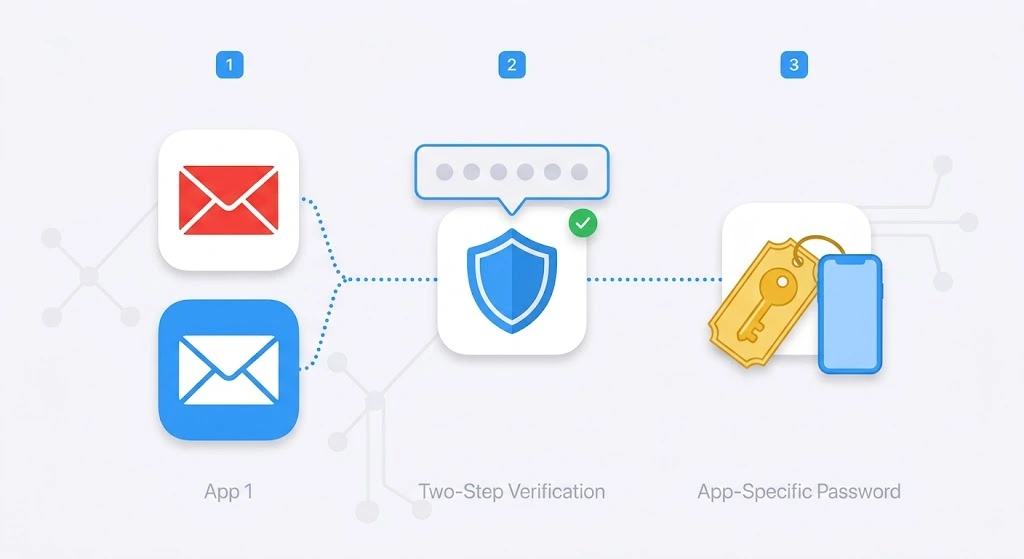
Not everyone uses the built-in Mail app, so how to change email password on iPhone looks a little different in other apps. If you read email in the Gmail or Outlook app, the steps are a little different. And if you use two-step verification, one extra password may be waiting for you.
How to update your password in the Gmail or Outlook app
These apps keep their own login, separate from the Mail app. After a password change, they usually ask you to sign in again.
- Open the Gmail or Outlook app.
- When the “Sign in again” or “Password changed” message appears, tap it.
- Enter your new password and confirm any verification code.
- If no message appears and mail stops loading, tap your profile picture and choose Sign out or Remove account.
- Sign in again with the new password.
Microsoft notes that Outlook Mobile will prompt you for your latest password after a change, so you rarely need to hunt through menus.
Do you need an app-specific password?
Sometimes your regular password will not work in the Mail app, even when it is correct. This happens when two-step verification (also called two-factor authentication) is on for some providers, such as AOL or older Gmail setups.
In that case, your provider gives you a special password just for apps. You paste that code into your iPhone instead of your normal password.
| Provider | Do you usually need one? | What to do |
|---|---|---|
| Gmail | Rarely. The Google sign-in window handles it | Use the sign-in window. If you add Gmail manually, create an app password in your Google Account |
| Outlook.com | Rarely | Use the Microsoft sign-in window |
| Yahoo | Sometimes | Generate an app password in Yahoo Account security |
| AOL | Often | Generate an app password, then enter it as your password |
| iCloud Mail | Only for non-Apple apps | Create an app-specific password in your Apple Account |
Apple Support Community members have seen this with AOL: the password was right, but Mail kept refusing it until an app-specific password was used.
Pro tip: If you see “incorrect password” and you are sure it is right, the real cause is often a missing app-specific password, not a typo.
Mail Keeps Asking for a Password: Fixes
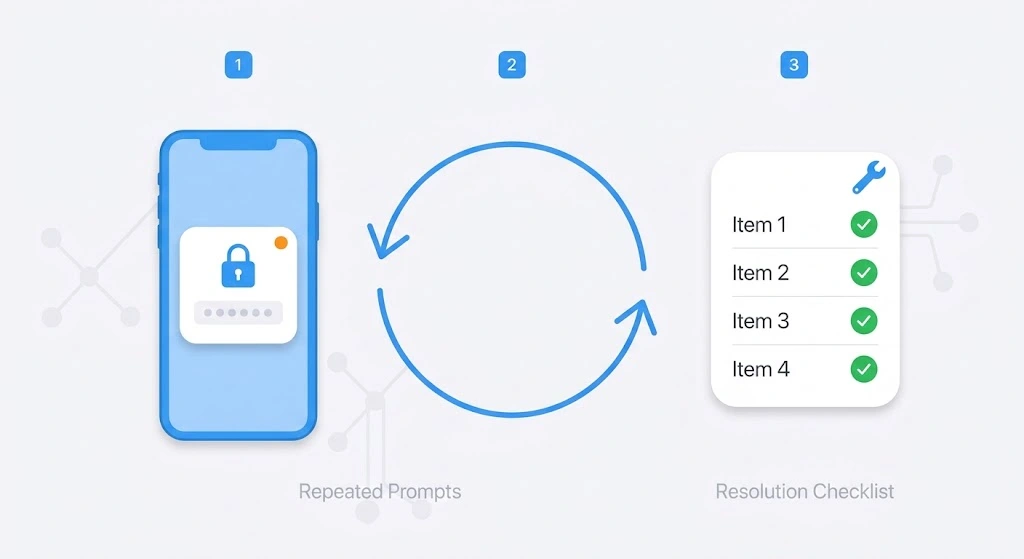
You followed how to change email password on iPhone, updated your phone, and Mail still asks again and again. Do not worry. This is one of the most common email problems, and it has a clear fix for each cause.
| What you see | Likely cause | Try this |
|---|---|---|
| “Enter password” pop-up keeps returning | Old password still saved | Sign in again from Settings > Mail > Accounts |
| “Cannot Get Mail” | Wrong or expired password | Test your login in Safari, then update it |
| “No password provided” | Mail lost the saved password | Delete the account, restart, add it back |
| Can receive but not send | Outgoing password not updated | Update the Outgoing Mail Server password |
| Works in Safari but not in Mail | App-specific password needed | Create one with your provider |
1. Test your password in Safari first
Open your provider’s webmail in Safari and sign in. If it fails, the password is wrong, so reset it with your provider. If it works, your iPhone just needs the update.
2. Turn the Mail switch off and on
- Go to Settings > Mail > Accounts and tap the account.
- Turn the Mail switch off.
- Wait about 10 seconds, then turn it on again.
This refreshes the connection and often triggers a clean sign-in request.
3. Restart your iPhone
A restart clears small Mail glitches. Hold the side button and a volume button until the slider appears, then drag it. Turn the phone back on after 30 seconds.
4. Remove and re-add the account
If nothing else works, repeat the steps in the remove and re-add section. One Apple Support Community user fixed a “No password provided” error by deleting the account and restarting the iPhone before adding it again.
5. Check your connection
A weak signal can look like a password problem. Switch between Wi-Fi and cellular, or try another network. If Mail still will not connect, reset your network settings. Note that this also forgets your saved Wi-Fi passwords.
6. Update iOS
Bug fixes for Mail often arrive in system updates. Go to Settings > General > Software Update. If you need help, read our guide to updating your iPhone.
7. Ask your provider
If your account was hacked, locked, or blocked after too many failed tries, your provider must unlock it. Contact their support team and follow the account recovery steps.
Tips for a Strong Email Password
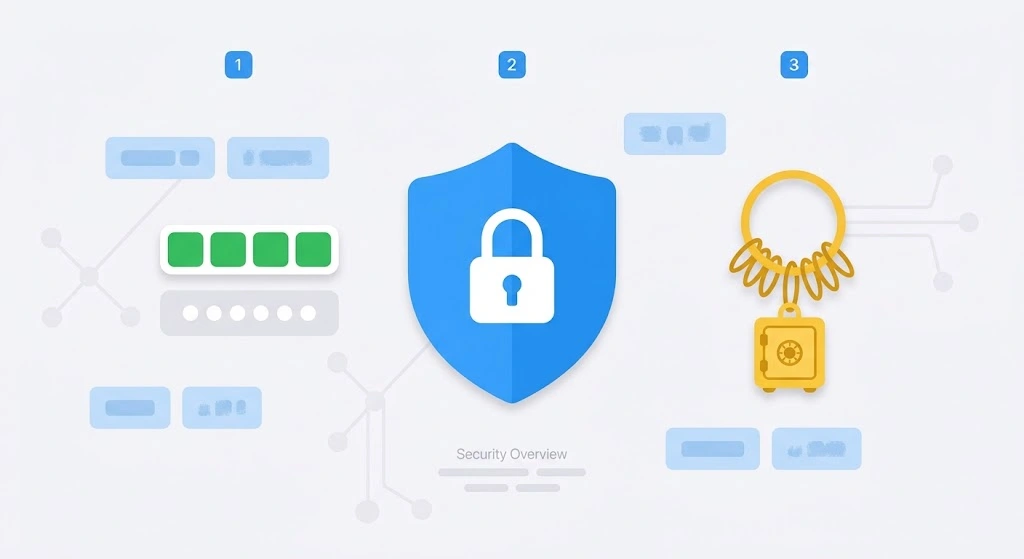
Your email is the master key to your online life. Anyone who gets in can click “Forgot password” on your bank, shopping, and social accounts. So the last part of how to change email password on iPhone safely is picking a password that is hard to guess.
What makes a password strong
- Make it long. Aim for at least 12 characters. Length beats complexity.
- Use a passphrase. Link three or four random words, then add a number or symbol.
- Keep it unique. Never reuse your email password anywhere else.
- Skip personal details. Avoid birthdays, pet names, and phone numbers.
- Turn on two-step verification. A code on your phone blocks most break-ins, even if someone learns your password.
| Weak password | Why it is weak | Stronger style (example only) |
|---|---|---|
| password123 | Very common and easy to guess | Purple-Coffee-Bridge-47! |
| iloveyou | Found on every “worst passwords” list | Candle.Mountain.Seven.Tiger |
| Fatima1990 | Name plus birth year | A random phrase you never use elsewhere |
Do not copy these examples. Create your own.
Save it safely
You do not need to remember every password. Your iPhone can store them for you in the Passwords app and iCloud Keychain, and fill them in when you sign in. Learn how to look them up later in our guide on how to find passwords on your iPhone.
Safety warnings
- Never type your password after tapping a link in an email. Scammers copy the look of Gmail, Outlook, and Apple sign-in pages. Go to the site yourself instead.
- Never share a verification code, even with someone who says they work for your email provider.
- If you think you were hacked, change your password first on a device you trust. Then check your account’s recovery phone number, recovery email, and any forwarding rules you do not recognize.
- Update your other devices. An old password on your iPad or Mac can cause repeated lockouts.
FAQs
How to change email password on iPhone: what is the fastest way?
Change it first on your email provider’s website or app, such as Google, Microsoft, or Yahoo. Then open Settings > Mail > Accounts, tap your account, and sign in again with the new password. For iCloud Mail, change your Apple Account password in Settings > your name > Sign-In & Security.
Can I change my Gmail password directly from the iPhone Mail app?
No. The Mail app only stores your password. To change it, go to your Google Account security page in Safari or the Gmail app, then update the new password in Settings > Mail > Accounts.
Why does my iPhone keep asking for my email password?
Your saved password is probably out of date, or your provider no longer accepts it. Sign in again from Settings, check your login in Safari, or remove and re-add the account.
Will I lose my emails if I delete and re-add my account?
Usually not. Messages for Gmail, Outlook, Yahoo, and iCloud stay on the provider’s server. Emails saved only in an “On My iPhone” folder can be lost, so move them first.
What is an app-specific password, and do I need one?
It is a separate password that your provider creates for one app. You may need it when two-step verification is on and your normal password is rejected, which is common with AOL and Yahoo.
How do I update my email password on iPhone if I forgot it?
You cannot update what you do not know. First reset it with your provider’s “Forgot password” option, which uses your recovery phone or email. Then enter the new password in Settings > Mail > Accounts.
Conclusion
Now you know how to change email password on iPhone, and it only takes a few minutes. Here is the whole process in one list:
- Change your password on your email provider’s website or app.
- Update it in Settings > Mail > Accounts and sign in again.
- If Mail still complains, remove and re-add the account.
- Use an app-specific password if your provider asks for one.
- Save the new password in a password manager and turn on two-step verification.
Go ahead and try it now. Start with your provider’s security page, then finish in Settings. Once Mail syncs again, you are all set.
Keep exploring:
- How to add an email account to your iPhone
- How to change your Apple ID password
- How to find saved passwords on your iPhone

