


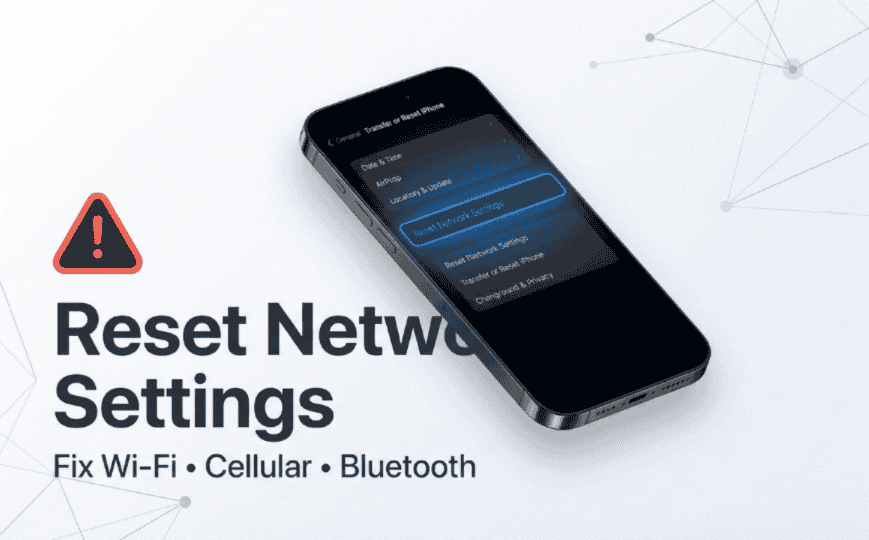
The 60‑Second Fix (Step-by-Step)
If your Wi‑Fi keeps failing, cellular data is stuck, or Bluetooth won’t pair, iphone reset network settings is the fastest “clean slate” fix that doesn’t erase your apps or photos.
Steps (iOS 15–iOS 26):
- Open Settings
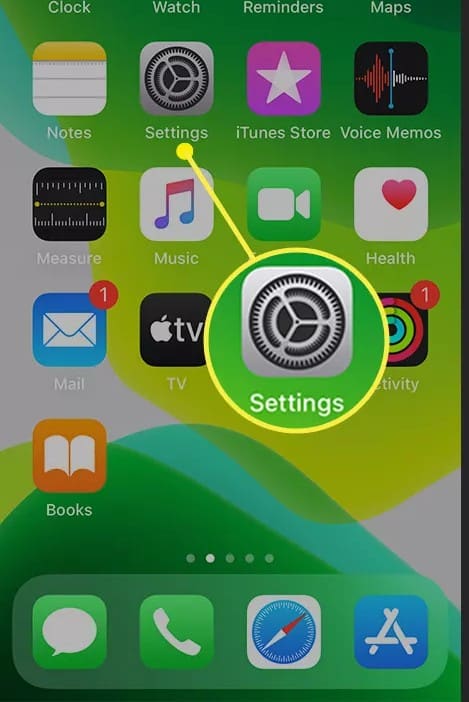
- Tap General
- Tap Transfer or Reset iPhone
- Tap Reset
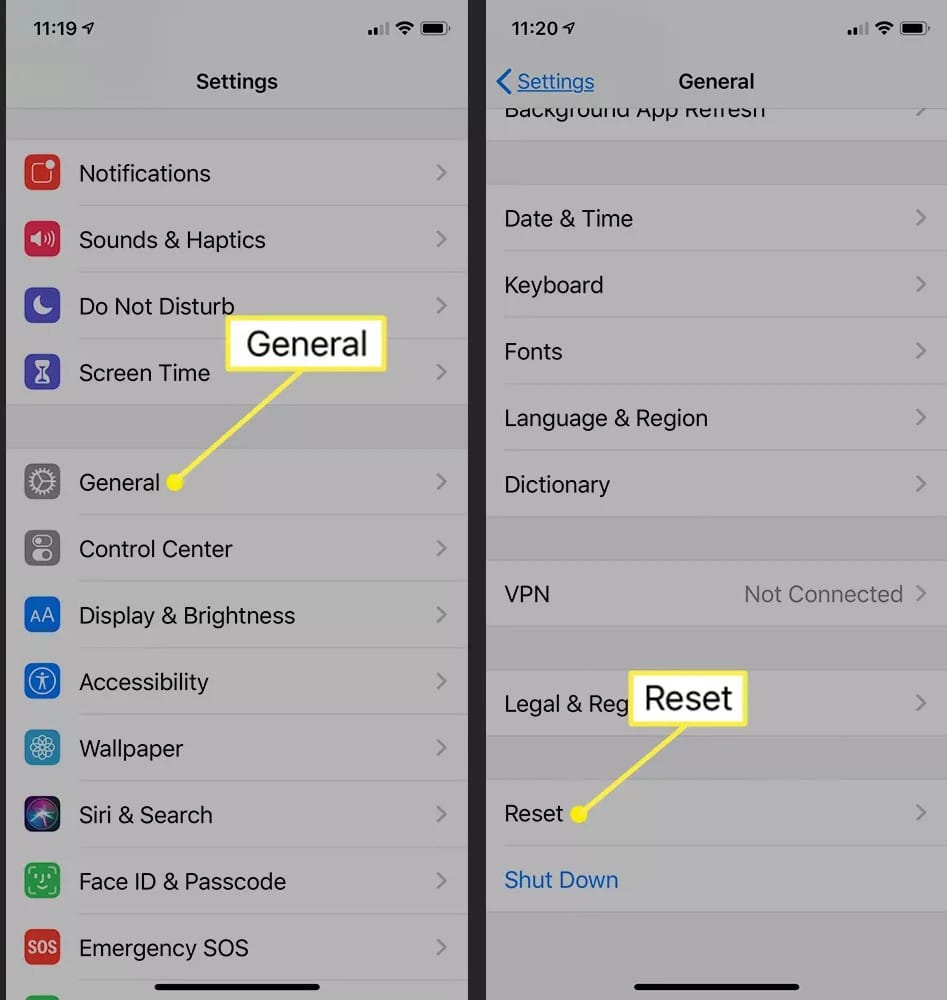
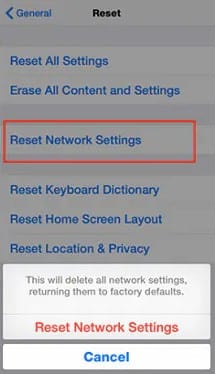
- Tap Reset Network Settings
- Enter your passcode
- Your iPhone restarts, then you reconnect to Wi‑Fi and devices
Apple describes this reset as clearing Wi‑Fi networks and passwords, cellular settings, and VPN/APN settings Apple Support. Verizon’s help page shows the same flow Verizon Support. iFixit notes that on newer iOS versions you may need to tap Reset first before seeing Reset Network Settings iFixit.
Warning (read this before you tap Reset): This will delete saved Wi‑Fi passwords and some network profiles. If you don’t know your Wi‑Fi password, find it first or be ready to ask someone.
What “Reset Network Settings”
Let’s answer the big question: what does reset network settings do on iPhone?
When you run iphone reset network settings, iOS rebuilds your network-related configuration files and returns key connectivity settings to default. Consequently, it can remove broken or conflicting values that cause random drops, failed joins, or “connected but no internet.”
It typically resets:
- Saved Wi‑Fi networks and passwords
- Cellular-related settings (carrier/network preferences stored by iOS)
- VPN and APN settings (including many work/school profiles) Apple Support
- Bluetooth pairings are commonly impacted because your connection database is rebuilt (many users need to re-pair accessories afterward)
It does not:
- Delete photos, messages, apps, or Apple ID data
- Factory reset your phone
- Fix a broken router, dead SIM/eSIM, or a carrier outage
Think of it like clearing a jammed “connection memory.” It’s not magic, but it’s one of the highest win-rate fixes for weird network behavior.
Pro‑Tip: If the issue started right after iOS updating, new VPN/security apps, or travel roaming changes, reset network setting iphone is often the cleanest way to undo hidden conflicts.
When You Should Use It
Use reset network settings on iphone when the problem is persistent, but not clearly hardware damage.
Common “yes, do it” situations:
- Wi‑Fi asks for the password repeatedly, even when it’s correct
- iPhone says “Connected” but nothing loads
- Cellular data shows bars but apps won’t refresh
- Bluetooth audio stutters or AirPods refuse to reconnect
- Personal Hotspot connects, then drops instantly
- After switching carriers, eSIM, or SIM cards
- After installing VPN/security software (Apple even recommends uninstalling some security/VPN tools for testing) Apple Support
When you should not jump straight to it:
- One-time hiccup: try a restart first
- Your router is down for everyone: that’s not your iPhone
- You don’t have Wi‑Fi passwords and can’t retrieve them easily
This is why I call iphone network reset a “smart nuke.” It’s safe, but it’s still a nuke.
Before You Reset: Fast Checks That Often Fix It
Do these quick checks first. They’re faster than re-entering passwords.
- Toggle Airplane Mode ON for 10 seconds, then OFF
This forces the modem stack to re-register with towers and reinitialize radios. - Turn Wi‑Fi OFF/ON, then try the network again
If it still fails, “Forget This Network” can help when only one Wi‑Fi is broken. - Restart your iPhone
A restart refreshes the radio services without wiping stored network data. - Check VPN/security apps
Apple notes that third‑party VPN/security tools can interfere; they recommend uninstalling temporarily (not just disabling) to test Apple Support.
If you’ve done these and the issue returns, network reset iphone becomes the next clean step.
How to Reset Network Settings on iPhone
If you’re searching how to reset network settings on iphone, here is the most current path that matches Apple and carrier documentation.
iOS 15–iOS 26 Path
- Settings → General
- Transfer or Reset iPhone
- Tap Reset
- Tap Reset Network Settings
- Enter passcode → confirm
Apple’s Wi‑Fi troubleshooting article uses the same flow Apple Support. Verizon documents the same steps Verizon Support. iFixit also highlights that “Transfer or Reset iPhone” is the newer label iFixit.
If You Don’t See the Reset Option
- Make sure you’re under General → Transfer or Reset iPhone
- On some iOS versions, you must tap Reset first to reveal Reset Network Settings iFixit
This is the complete network reset steps for iphone flow. No extra apps needed.
What You’ll Lose After a Network Reset
Here’s the honest breakdown. People hesitate because they fear data loss. You won’t lose personal data, but you will lose convenience.
You will lose:
- Saved Wi‑Fi networks + passwords
- Many VPN/APN configurations (especially corporate profiles) Apple Support
- Some Bluetooth device pairings may need re-pairing
You will keep:
- Photos, messages, notes, apps
- Apple Pay cards
- Face ID/Touch ID
- Your Apple ID sign-in
- Your data plan (but you may need to reconfigure some carrier settings in rare cases)
This is why reset network settings iphone is often recommended before bigger actions like reset all settings or “Erase All Content and Settings.”
Warning: If your iPhone is managed by a school or company, Apple advises checking with IT before resetting network settings Apple Support. You could lose required profiles.
Before vs After: What Improves
| Issue you see | After iphone reset network settings | Why |
|---|---|---|
| Wi‑Fi connects but “No Internet” | Often improves | Clears corrupted Wi‑Fi config + forces fresh join Apple Support |
| Can’t join one specific Wi‑Fi | Sometimes improves | Removes saved password/certs; reauth may fix |
| Cellular bars but no data | Often improves | Rebuilds cellular network settings and cached values |
| Bluetooth pairing failures | Often improves | Fresh pairing database reduces conflicts |
| Router outage / ISP down | No change | The problem isn’t on the iPhone |
| Hardware antenna damage | No change | Reset can’t fix physical issues |
iOS Version Differences
| iOS version range | Menu wording you’ll see | Notes |
|---|---|---|
| iOS 15–iOS 26 | Transfer or Reset iPhone → Reset → Reset Network Settings | Current standard path Apple Support |
| Older iOS (varies) | Often General → Reset | iFixit notes older layouts and newer “Reset” sub-menu behavior iFixit |
If you’re writing down how to do a network reset on iOS devices, this table keeps it simple across versions.
Troubleshooting If the Reset Didn’t Work
If you tried iphone reset network settings and the same failure comes back quickly, that’s a clue: it may not be a settings problem.
Try this order:
- Test another Wi‑Fi network
If your phone connects elsewhere, your router settings/firmware may be the issue. Apple recommends updating router firmware and checking compatibility Apple Support. - Disable/uninstall VPN/security apps temporarily
Apple specifically calls out third‑party network/security tools as a cause of connectivity issues Apple Support. - Check for SIM/eSIM problems
A weak SIM, incorrect eSIM provisioning, or carrier outage can mimic software failure. - Consider “Reset All Settings” (only if needed)
This is bigger than reset network settings on iphone. It resets many system settings (wallpaper, layout preferences, privacy prompts) but still doesn’t erase data. Use it only when multiple system behaviors are broken. - Escalate to Apple Support / Carrier
If Wi‑Fi is fine but cellular isn’t, your carrier can reprovision. If nothing works, hardware diagnostics may be needed.
FAQs: Network Reset on iPhone
1) What does reset network settings do on iPhone?
It clears saved Wi‑Fi networks and passwords, resets cellular settings, and removes VPN/APN settings so iOS can rebuild a clean network configuration Apple Support.
2) What does resetting network settings do on iPhone?
It restores network-related settings to defaults and forces you to reconnect to Wi‑Fi and reconfigure some network services like VPN Apple Support.
3) What does reset network settings do iPhone?
It fixes many connection glitches by wiping corrupted or conflicting network data while keeping your personal content intact Apple Support.
4) What does resetting the network settings on iPhone do?
It resets Wi‑Fi, cellular, and VPN/APN settings. Apple notes it may be needed when you can’t connect to Wi‑Fi Apple Support.
5) What reset network setting do on iPhone?
It removes stored network configurations so the iPhone can start fresh, which often resolves stubborn Wi‑Fi/cellular problems Apple Support.
6) Why won’t my iPhone turn off?
Most commonly, a button is stuck, a case is pressing the buttons, or the system is temporarily frozen. If the UI is unresponsive, try a force restart (model-specific).
7) Can I turn off my iPhone without the power button?
Yes. You can use Settings or the on-screen controls (depending on iOS version) to shut down without the side button.
8) What’s the difference between restarting and turning off?
Restarting reboots iOS immediately. Turning off fully powers down until you manually start it again. Restarting is faster; turning off can help when the system feels “stuck.”
9) How long should I wait before turning my iPhone back on?
Wait about 10–30 seconds. That gives background power states time to fully drop.
10) Will turning off my iPhone delete anything?
No. Powering off does not erase data.
Authoritative References
- Apple Support – Reset iPhone settings / Wi‑Fi troubleshooting
- Verizon Support – Apple iPhone: Reset Network Settings
- iFixit – How to Reset Network Settings (iPhone)
Final Tips
If this guide on iphone reset network settings solved your Wi-Fi, cellular, or Bluetooth issues, save it — you’ll probably help a friend or family member with the same problem later.
Whenever you hit mysterious network glitches again:
- Rule out outages and router issues.
- Try the light fixes.
- Then use a clean, confident network reset with the steps above.
Bookmark this page, and after you’ve confirmed everything is working, explore the rest of your site’s iPhone tutorials — especially the Network category and guides like How to Block Spam Calls on iPhone and How to Connect AirPods to iPhone — to keep your iPhone running smoothly every day.

