


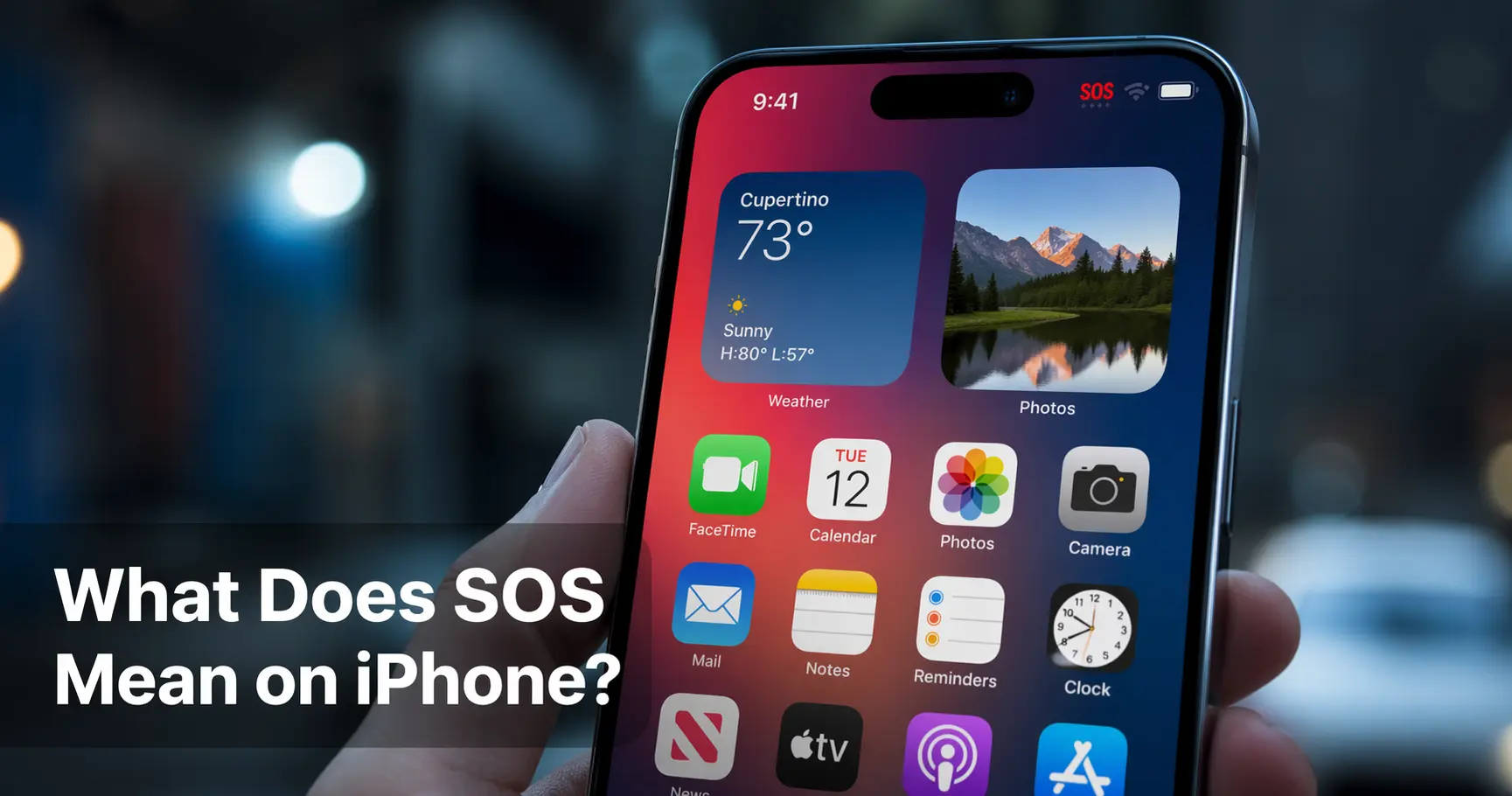
Have you ever picked up your iPhone and noticed the word SOS sitting in the top corner of your screen — right where your signal bars usually are? That small word can feel alarming, especially if you’ve never seen it before. But don’t panic. It’s more common than you think, and almost always fixable.
So, what does SOS mean on iPhone? It means your iPhone has lost its connection to your carrier’s cellular network. You can no longer make regular calls, send standard text messages, or use mobile data. However — and this is the important part — you can still call emergency services like 911, 999, or 112, because your iPhone will borrow any available nearby network to connect you.
💡 Quick Answer: What does SOS mean on iPhone? It means your phone has no active carrier connection. Only emergency calls are available until the issue is resolved.
In this complete guide, you’ll learn exactly what does SOS mean on iPhone, why it happens, what you can and can’t do while it’s showing, and — most importantly — how to fix it in minutes. Whether your iPhone says “SOS,” “SOS Only,” or it’s stuck in SOS mode, this guide covers everything.
What Does SOS Mean on iPhone? The Full Explanation
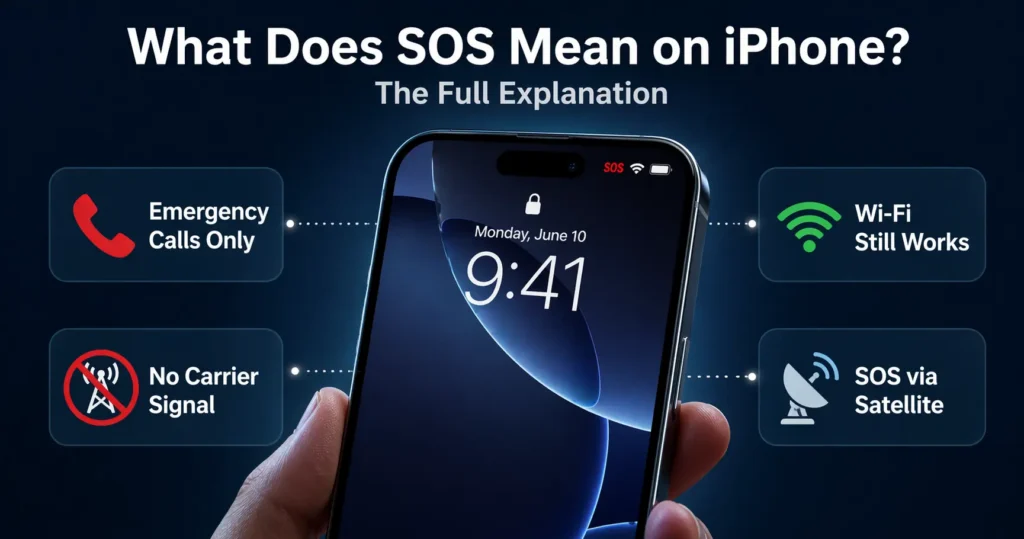
Understanding what does SOS mean on iPhone starts with knowing how your phone connects to the world. Your iPhone constantly communicates with your carrier’s cell towers to send calls, texts, and data. When that connection breaks — for any reason — your iPhone switches into a limited mode and displays SOS in the status bar.
The letters SOS originally stood for Save Our Souls, the classic international distress signal. Apple uses this term to tell you your iPhone is in a restricted state where only emergency communication is possible.
Here’s a simple breakdown of what SOS means for your phone right now:
- 📵 No regular calls — you can’t dial friends, family, or work
- 📵 No SMS or standard texts — messages won’t send via cellular
- 📵 No mobile data — social media, browsers, and apps won’t work on cellular
- ✅ Emergency calls still work — 911, 999, 112, or your local emergency number goes through
- ✅ Wi-Fi still works — everything that runs on Wi-Fi continues normally
This exists for your safety. Even without your carrier’s signal, your iPhone will find any available network nearby to connect you to emergency services.
SOS vs SOS Only What’s the Difference?
A very common question people ask after understanding what does SOS mean on iPhone is: “Why does mine say ‘SOS Only’ instead of just ‘SOS’?”
The truth is — they mean exactly the same thing. Apple simply changed the label between iOS versions.
| Status Bar Text | What It Means | iOS Version |
|---|---|---|
| SOS Only | No carrier; emergency calls only | iOS 15 and earlier |
| SOS | Same meaning — updated label | iOS 16 and later |
| No Service | No network found — not even for emergencies | Any version |
| Searching… | iPhone is actively scanning for a network | Any version |
Starting with iOS 16, Apple replaced “SOS Only” with simply “SOS.” So if you have an older iPhone running iOS 15, you’ll see “SOS Only.” On anything newer, you’ll see “SOS.” Both are the same situation — limited to emergency calls only.
💡 Expert Tip (Apple Support): “If you see SOS in the status bar, you can still make emergency calls even without carrier service — your iPhone uses any available network.”
Why Does Your iPhone Show SOS?
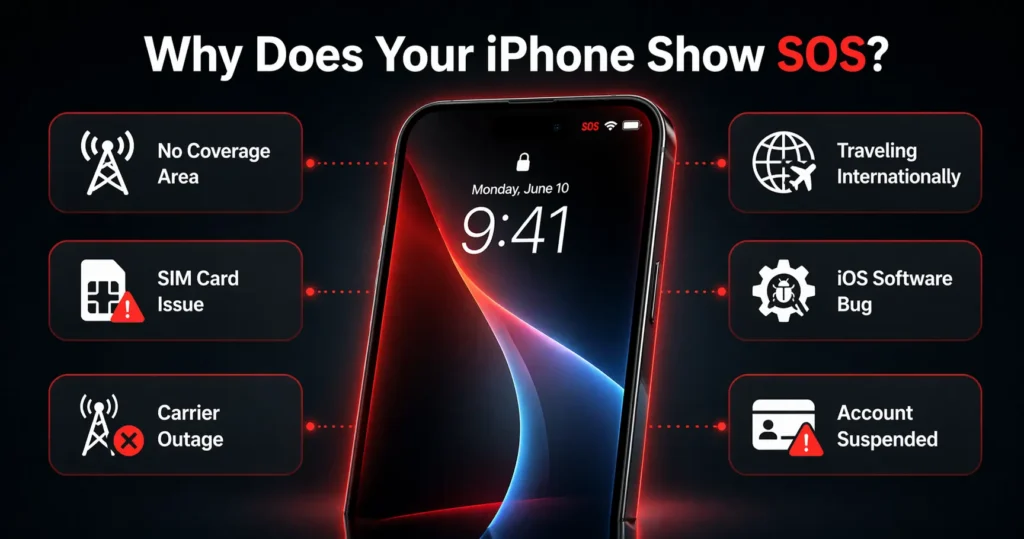
Now that you know what does SOS mean on iPhone, let’s look at the most common reasons it appears. Knowing the cause helps you find the right fix faster.
1. You’re in a Low or No Coverage Area
The most frequent cause. If you’re in a basement, rural area, remote location, thick-walled building, or far from cell towers, your iPhone simply can’t find your carrier’s signal. Move to an open area or near a window, and the SOS should disappear on its own.
2. Your SIM Card Has an Issue
A damaged, dirty, or improperly inserted SIM card can trigger SOS mode. Your iPhone needs a working SIM to authenticate with your carrier.
Signs the SIM card might be the problem:
- SOS appeared right after inserting a new SIM
- SOS started after you dropped your iPhone
- You recently switched carriers
3. Your Carrier Is Having an Outage
Sometimes the problem has nothing to do with your phone. Carrier outages affect thousands of users at once and push iPhones into SOS mode across entire regions. Check your carrier’s website or social media to see if there’s a reported outage in your area.
4. You’re Traveling Internationally
If you’re abroad and Data Roaming is turned off — or your carrier doesn’t have roaming agreements in that country — your iPhone may show SOS because it can’t authenticate on local networks.
5. An iOS Software Bug
A software glitch — especially common right after major iOS updates — can temporarily cause the SOS status to appear even when you’re in a strong coverage area. A simple restart usually clears this.
6. Your Account Has Been Suspended
If your carrier has suspended your account due to an unpaid bill, a security flag, or an account issue, your line may be deactivated — pushing your iPhone into SOS mode. Contact your carrier to verify your account status.
What Can You Still Do in SOS Mode?
Once you understand what does SOS mean on iPhone, the next logical question is: “What can I actually do while my phone shows SOS?”
✅ What Works in SOS Mode:
- Emergency calls — 911, 999, 112, or your local emergency number
- Wi-Fi browsing — Safari, Chrome, and all apps work normally over Wi-Fi
- WhatsApp, Telegram, FaceTime — all work over Wi-Fi
- iMessage over Wi-Fi — you can send and receive iMessages if connected to Wi-Fi
- Downloaded content — offline music, podcasts, and saved files still work
❌ What Doesn’t Work in SOS Mode:
- Regular phone calls over cellular
- Standard SMS (green bubble) text messages
- Mobile data (4G/5G/LTE)
- Visual Voicemail
- Carrier-dependent features
Pro Tip: If you’re stuck in SOS mode and need to communicate urgently, connect to any available Wi-Fi network immediately. WhatsApp and FaceTime will let you make calls and send messages without needing cellular service at all.
How to Get Your iPhone Out of SOS Mode
This is the most important section. Follow these steps in order. Most people fix the SOS issue by step 3 or 4. Work through them patiently.
✅ Step 1: Toggle Airplane Mode On and Off
This is the fastest and most effective first step. It forces your iPhone to drop and re-establish its connection to the nearest cell tower.
- Open Settings
- Tap Airplane Mode — turn it ON
- Wait 20–30 seconds
- Tap Airplane Mode again — turn it OFF
- Wait 1–2 minutes for your iPhone to reconnect
You can also do this from Control Center — swipe down from the top-right corner and tap the airplane icon.
✅ Step 2: Restart Your iPhone
A restart clears temporary software bugs that can cause SOS mode.
iPhone X, 11, 12, 13, 14, 15, 16:
- Press and hold the Side button + Volume Down together
- Slide to power off
- Wait 30 seconds → press the Side button to turn on
iPhone SE (2nd/3rd generation):
- Press and hold the Side button
- Slide to power off → wait 30 seconds → restart🔗 For a full model-by-model walkthrough, check out our guide: How to Restart iPhone — Complete Guide for All Models
✅ Step 3: Check for a Carrier Settings Update
Apple releases carrier settings updates regularly to improve network compatibility. An outdated carrier profile can cause connectivity issues.
- Go to Settings → General → About
- Wait 10–15 seconds
- If an update is available, a pop-up appears automatically
- Tap Update
This takes under a minute and often resolves SOS issues instantly.
✅ Step 4: Enable Data Roaming (If You’re Traveling)
If you’re outside your home country and seeing SOS:
- Go to Settings → Cellular (or Mobile Data)
- Tap Cellular Data Options
- Toggle Data Roaming to ON
⚠️ Warning: Data roaming may incur extra charges. Always check your carrier’s international plan before enabling this.
✅ Step 5: Reset Network Settings
If the above steps haven’t worked, resetting your network settings is the most powerful software fix available.
⚠️ Note: This will erase all saved Wi-Fi passwords, VPN configurations, and Bluetooth pairings. You’ll need to re-enter Wi-Fi passwords afterward.
- Go to Settings → General → Transfer or Reset iPhone
- Tap Reset → Reset Network Settings
- Enter your passcode if prompted
- Tap Reset Network Settings to confirm
- Your iPhone restarts — wait for it to search for your carrier🔗 Read our in-depth guide: iPhone Reset Network Settings — What It Does & How to Do It (2026)
✅ Step 6: Remove and Reinsert the SIM Card
A loose or dirty SIM card is a common but overlooked cause of SOS mode.
- Find the SIM tray on the right side of your iPhone
- Use a SIM ejector tool (or a straightened paperclip)
- Gently eject the SIM tray
- Remove the SIM card and inspect it for damage or debris
- Wipe it gently with a clean, dry cloth
- Reinsert it carefully — make sure it clicks into place
- Wait for your iPhone to detect the SIM
If the SIM card is visibly cracked, bent, or corroded, contact your carrier for a free replacement SIM.
✅ Step 7: Update iOS
Running an outdated iOS version can cause network-related bugs, including unexpected SOS mode.
- Go to Settings → General → Software Update
- Tap Download and Install if an update is available
- Make sure you have at least 50% battery or are plugged into power🔗 Need help? See our full walkthrough: How to Update Your iPhone to the Latest iOS (2026)
✅ Step 8: Contact Your Carrier
If you’ve tried everything and your iPhone still shows SOS, the issue is likely on your carrier’s side. Call customer support or visit a store. They can:
- Verify your account is active and in good standing
- Check if your SIM is properly registered on their system
- Push a network reset from their end
- Issue a free replacement SIM card
The Emergency SOS Feature What It Actually Does
Here’s something important: what does SOS mean on iPhone in your status bar is completely different from the Emergency SOS feature built into your iPhone. They share the same name but serve very different purposes.
The Emergency SOS feature is a deliberate, lifesaving tool that lets you quickly call emergency services — even from a locked iPhone.
How to activate Emergency SOS:
- Rapid method: Press the Side button 5 times quickly
- Hold method: Press and hold the Side button + either Volume button simultaneously
Your iPhone shows a countdown. If you continue holding, it automatically dials the local emergency number.
What happens after the call:
- ✅ Your iPhone calls local emergency services automatically
- ✅ Your GPS location is shared with your emergency contacts
- ✅ Your Medical ID becomes visible on the lock screen for first responders⚠️ Important: Only activate Emergency SOS in genuine emergencies. Accidental calls waste emergency resources and may have legal consequences depending on your country.
Emergency SOS via Satellite iPhone 14 and Later
Apple took the answer to “what does SOS mean on iPhone” to a whole new level with iPhone 14. Even if you have zero cellular signal and no Wi-Fi — you can still reach emergency services via satellite.
| Feature | Emergency SOS (Cellular) | Emergency SOS via Satellite |
|---|---|---|
| Needs cellular signal | Yes | No |
| Works in remote areas | No | Yes |
| Speed | Instant | 15–30 seconds |
| Available on | iPhone 5 and later | iPhone 14 and later |
| Cost | Free (carrier dependent) | Free (2 years post-purchase) |
How to use Emergency SOS via Satellite:
- Go outdoors — you need a clear view of the sky
- Press Side button + Volume button to open Emergency SOS
- Tap Emergency Text via Satellite
- Follow the on-screen arrows to aim your iPhone at a satellite
- Answer the short guided questions about your emergency
- Your message is relayed via satellite to emergency responders
This feature is available free for 2 years after purchase on eligible iPhone 14, 15, and 16 models in supported countries.
SOS on iPhone Common Scenarios & Fixes
| Scenario | Most Likely Cause | Recommended Fix |
|---|---|---|
| SOS at home | Carrier outage or SIM issue | Restart + check carrier status |
| SOS while traveling abroad | Data Roaming disabled | Enable Data Roaming in Settings |
| SOS right after iOS update | Software bug | Toggle Airplane Mode → Restart |
| SOS with new SIM card | SIM not activated | Call carrier to activate SIM |
| SOS in rural/remote area | No coverage | Move to open area |
| SOS constantly, everywhere | Account suspended or antenna issue | Contact carrier → Visit Apple Store |
When Should You Be Concerned About SOS?
Understanding what does SOS mean on iPhone also means knowing when it’s a minor inconvenience versus a serious problem.
Don’t worry if:
- ✅ SOS appears briefly while traveling or in a basement
- ✅ It disappears after a restart or Airplane Mode toggle
- ✅ Your area has known poor coverage
Take action if:
- 🔴 SOS appears constantly, even at home or in good coverage areas
- 🔴 SOS appeared immediately after dropping your iPhone — possible antenna damage
- 🔴 SOS started after a carrier or SIM change — compatibility issue
- 🔴 None of the 8 steps above resolved the issue
In these cases, visit an Apple Store or authorized repair center to have your iPhone’s internal antenna and SIM slot professionally inspected.
People Also Ask What Does SOS Mean on iPhone?
What does SOS mean on iPhone?
What does SOS mean on iPhone is simple: your iPhone has lost connection to your carrier’s cellular network. You can only make emergency calls (911, 999, 112) until the connection is restored. Wi-Fi still works normally.
Why is my phone in SOS mode for no reason?
Your iPhone can show SOS unexpectedly due to a carrier outage, a minor iOS software glitch, or a loose SIM card. Start by toggling Airplane Mode and restarting your phone. Most of the time, the issue resolves within minutes.
How do I get my iPhone out of SOS mode?
Follow these steps: (1) Toggle Airplane Mode, (2) Restart your iPhone, (3) Check for Carrier Settings Update, (4) Enable Data Roaming if abroad, (5) Reset Network Settings, (6) Reseat your SIM card. One of these will fix the issue in almost every case.
Can I still use Wi-Fi when my iPhone says SOS?
Yes — completely. SOS mode only affects your cellular connection. Wi-Fi works perfectly. You can browse the internet, use WhatsApp, FaceTime, iMessage over Wi-Fi, and stream content without any restrictions.
What’s the difference between SOS and No Service on iPhone?
SOS = your iPhone can still make emergency calls through another carrier’s network. No Service = your iPhone can’t find any network at all — not even for emergencies. SOS is a slightly better situation than No Service.
Why does my iPhone say SOS only when I travel?
When traveling internationally, your iPhone needs Data Roaming enabled to connect to local networks through your carrier’s agreements. Without it, your phone shows SOS because it can’t authenticate on foreign networks. Go to Settings → Cellular → Cellular Data Options → enable Data Roaming.
Is the SOS status bar the same as Emergency SOS?
No — they’re different. SOS in the status bar is a network indicator showing no carrier connection. Emergency SOS is a feature you intentionally activate to call emergency services. They share the name but serve completely different functions.
Final Thoughts
So now you know exactly what does SOS mean on iPhone — and you’re ready to handle it confidently the next time it appears.
To recap: what does SOS mean on iPhone is your device’s way of telling you it’s lost cellular connection to your carrier. It’s not a sign your iPhone is broken. It’s a safety feature designed to keep you reachable to emergency services no matter where you are.
Key takeaways:
- ✅ SOS = no carrier connection, emergency calls only
- ✅ “SOS” and “SOS Only” mean the same thing
- ✅ Wi-Fi works perfectly in SOS mode
- ✅ Most fixes take less than 5 minutes
- ✅ iPhone 14+ can reach emergency services even with zero signal via satellite
- ✅ If nothing works, contact your carrier or visit Apple Support
The next time your iPhone shows SOS, don’t panic — work through the 8 steps in this guide and you’ll be back to full signal quickly.
💬 Did this guide help you fix SOS on your iPhone? Drop a comment below and tell us which step worked for you — your experience might help someone else going through the same thing!
External References
- Apple Support — Use Emergency SOS on iPhone:
- Apple Support — Emergency SOS via Satellite:
- Apple Support — SOS or No Service in Status Bar:
Last Updated: April 2026 | iphonetonic.com

