


Why Is Your iPhone Battery Draining So Fast?
If your iPhone battery draining fast, you’re not alone. Millions of iPhone users search for this exact problem every month, especially after installing a major iOS update. The good news? Most battery drain issues are fixable without a trip to the Apple Store.
Before you panic, it’s important to understand why your iPhone battery drains quickly. The culprit is rarely a single setting. Instead, it’s usually a combination of background activity, outdated apps, network signals, and iOS system tasks running silently behind the scenes.
iOS 26 Update and Background System Indexing
Every year, Apple releases a major iOS update that brings new features, security patches, and design changes. But here’s what Apple doesn’t always advertise: your iPhone works overtime after an update.
When you install iOS 26, the system re-indexes your files, rebuilds app databases, and optimizes battery algorithms. This process is normal, but it can make your iPhone battery drain too fast for the first 24 to 72 hours.
Expert Note: According to Apple Support, “After an iOS update, your device may take up to 48 hours to finish background tasks. This temporary battery drain is expected and should resolve on its own.”
Battery-Draining Apps You Need to Watch
Some apps are notorious for eating battery life. Social media apps with auto-play videos, navigation apps using GPS constantly, and even messaging apps with frequent background refresh can cause your iPhone battery to drain faster than usual.
Here’s a quick look at common offenders:
| App Category | Why It Drains Battery | Quick Fix |
|---|---|---|
| Social Media | Auto-play videos, constant refresh | Disable background refresh |
| Navigation | GPS + screen always on | Use only when needed |
| Streaming | High brightness + audio/video processing | Lower quality, use Wi-Fi |
| Games | GPU-intensive graphics | Close when not playing |
| Push notifications every second | Switch to Fetch |
Network Signal and 5G/LTE Power Consumption
Poor cellular signal is a silent battery killer. When your iPhone struggles to find a strong 5G or LTE signal, it boosts power to the antenna. The result? Your iPhone battery drains fast overnight even when you’re not using it.
If you live in an area with weak coverage, your iPhone might burn through 20% or more while you sleep.
How to Check What’s Killing Your iPhone Battery
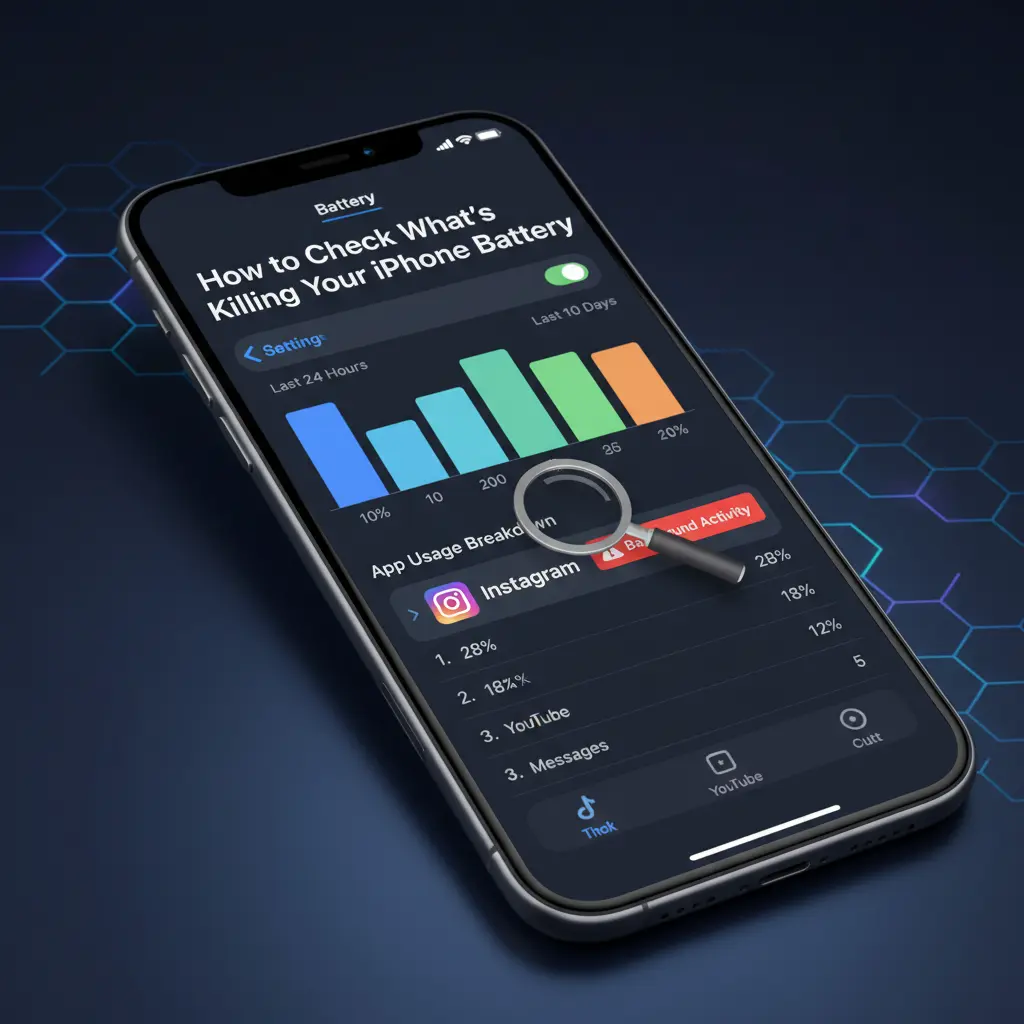
You can’t fix what you can’t measure. Apple built a powerful tool right into iOS that shows exactly where your battery life goes. Here’s how to use it.
Using the iOS 26 Battery Usage Chart
- Open Settings on your iPhone.
- Tap Battery.
- Look at the Last 24 Hours and Last 10 Days charts.
The bars show when your battery dropped and what caused it. If you see a steep drop at 2 AM, something is running in the background.
Reading Battery Insights and Suggestions
Below the chart, iOS 26 offers Battery Insights. These are personalized suggestions based on your usage. You might see messages like:
- “Background Activity for Instagram was 45%.”
- “Your screen brightness is above average.”
- “Location Services used 30% of battery yesterday.”
Pro Tip: Tap on any app name to see a breakdown of Screen On vs. Background time. If an app shows heavy background activity, that’s your target.
Identifying Background Activity vs. Screen-On Usage
| Usage Type | What It Means | Action Needed |
|---|---|---|
| Screen On | You were actively using the app | Normal if usage is high |
| Background | App ran while screen was off | Disable background refresh for this app |
If an app like Instagram or Facebook shows 2 hours of background time but only 30 minutes of screen time, it’s a red flag. Your iPhone battery is draining quickly because that app refuses to sleep.
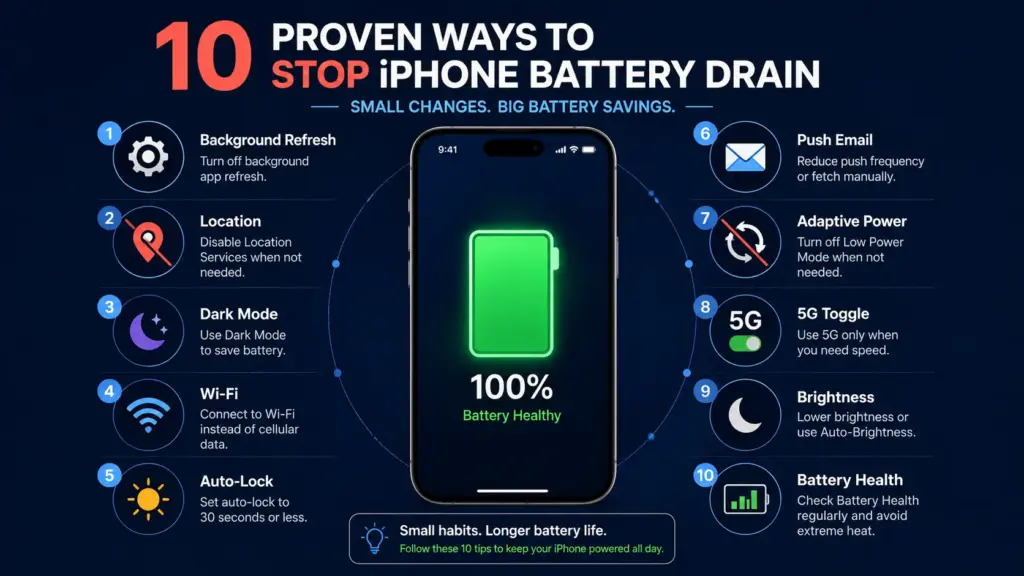
10 Proven Ways to Stop iPhone Battery Drain (2026)
Now that you know the cause, let’s fix it. These methods are tested on iOS 26 and work across iPhone 12, 13, 14, 15, and 16 series.
1. Enable Adaptive Power Mode (iPhone 15 Pro & Newer)
Apple introduced Adaptive Power Mode in iOS 26 for iPhone 15 Pro and newer models. Unlike Low Power Mode, this feature learns your daily routine and reduces background tasks during hours you typically don’t use your phone.
How to enable it:
- Go to Settings > Battery.
- Tap Adaptive Power Mode.
- Toggle it On.
2. Turn Off Background App Refresh for Unused Apps
Background App Refresh lets apps update content even when closed. It’s useful for email, but unnecessary for games and shopping apps.
Steps:
- Open Settings > General > Background App Refresh.
- You’ll see a list of every app.
- Toggle Off for apps you don’t need updating silently.
Keep it ON for: Mail, Messages, Weather, and banking apps.
Turn it OFF for: Games, social media, shopping, and news apps.
3. Disable Location Services and Significant Location Changes
GPS is one of the biggest battery drains. Many apps request your location “Always” when “While Using” is enough.
Steps:
- Go to Settings > Privacy & Security > Location Services.
- Review each app. Change “Always” to “While Using App” or “Never.”
- Scroll down and tap System Services.
- Disable Significant Locations and iPhone Analytics unless you need them.
4. Reduce Screen Brightness and Set Auto-Lock to 30 Seconds
Your screen is the #1 battery consumer. iOS 26 has improved auto-brightness, but manual tweaks help.
Steps:
- Open Settings > Display & Brightness.
- Enable Auto-Brightness.
- Set Auto-Lock to 30 seconds.
Quick Tip: Use Dark Mode if you have an OLED iPhone (iPhone 12 and newer). OLED screens turn off black pixels completely, saving noticeable battery.
5. Update All Apps to iOS 26-Compatible Versions
Outdated apps are not optimized for the new iOS. They may crash, freeze, or run inefficient background code.
Steps:
- Open App Store.
- Tap your profile picture (top right).
- Tap Update All under Pending Updates.
6. Switch from Push to Fetch Email (Every 30 Minutes)
Push email keeps a constant connection to the server. Fetch checks at set intervals. The difference in battery life is significant.
Steps:
- Go to Settings > Mail > Accounts > Fetch New Data.
- Toggle Push to Off.
- Under “Fetch,” select Every 30 Minutes.
7. Reset Network Settings to Fix Signal Drain
If your iPhone battery suddenly draining fast started after a network change, resetting network settings can help.
Steps:
- Go to Settings > General > Transfer or Reset iPhone.
- Tap Reset > Reset Network Settings.
- Enter your passcode.
Note: This erases saved Wi-Fi passwords. You’ll need to re-enter them.
8. Check Battery Health and When to Replace It
If your battery is physically worn out, no software fix will help. You need to learn how to check your iPhone battery health to see if it’s time for action.
Steps:
- Go to Settings > Battery > Battery Health & Charging.
- Look at Maximum Capacity.
| Battery Health | Status | What to Do |
|---|---|---|
| 100% – 90% | Excellent | No action needed |
| 89% – 80% | Good | Monitor closely |
| 79% or below | Service Recommended | Consider iPhone battery replacement |
9. Use Wi-Fi Instead of Cellular Data When Possible
5G and LTE use more power than Wi-Fi. If you’re at home or the office, connect to Wi-Fi. Your iPhone won’t waste energy searching for cell towers.
Bonus Tip: If you have poor cellular signal at home, enable Wi-Fi Calling in Settings > Phone > Wi-Fi Calling. This routes calls through Wi-Fi and saves battery.
10. Factory Reset as the Last Resort (With Backup)
If nothing works, a factory reset eliminates software bugs. But back up first.
Steps:
- Go to Settings > General > Transfer or Reset iPhone.
- Tap Erase All Content and Settings.
- Follow the prompts.
- Restore from iCloud or computer backup during setup.
iPhone Battery Draining After iOS 26 Update: Is It Normal?
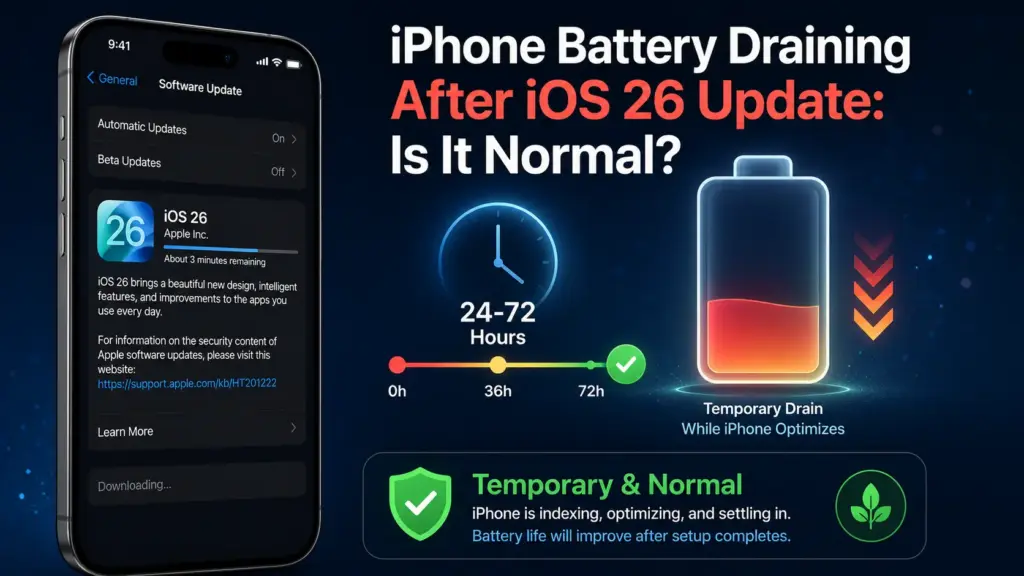
Yes — temporarily. Apple confirmed that post-update battery drain is expected for 24 to 72 hours. The system is optimizing itself.
Apple’s Official Statement on Post-Update Battery Drain
“After updating, your iPhone may feel warm and battery life may seem shorter for up to 48 hours. This is normal as the system completes background tasks.” — Apple Support
How Long Does Background Indexing Take?
| iPhone Model | Estimated Indexing Time |
|---|---|
| iPhone 16 / 16 Pro | 12–24 hours |
| iPhone 15 / 15 Pro | 24–36 hours |
| iPhone 14 / 14 Pro | 24–48 hours |
| iPhone 13 and older | 36–72 hours |
If your iPhone battery drains quickly after this window, follow the 10 steps above.
When Should You Replace Your iPhone Battery?
Software fixes have limits. A degraded battery needs physical replacement.
Understanding Battery Health Percentage
- Peak Performance Capability: If you see “Your battery is currently supporting normal peak performance,” you’re fine.
- Performance Management Applied: If you see a message about unexpected shutdowns, the system is throttling your iPhone to prevent crashes. This means your battery is struggling.
Official Apple Replacement vs. Third-Party Options
| Option | Price Range | Warranty | Risk Level |
|---|---|---|---|
| Apple Store / Authorized Service | $69–$99 | 90 days | Zero risk |
| Third-Party Repair Shop | $40–$70 | Varies | Medium risk |
| DIY Kit | $25–$50 | None | High risk |
Recommendation: Always use Apple or an Authorized Service Provider if your iPhone is under warranty or AppleCare+. If your iPhone is not charging properly even after cleaning the port, a battery replacement is likely the fix.
FAQ: iPhone Battery Draining Fast
Why is my iPhone battery draining so fast after the iOS 26 update?
Apple states that post-update indexing is normal and temporary. Background tasks like file indexing and app updates run for 24–72 hours after installation. If the drain continues after 3 days, check your Battery Usage chart for rogue apps.
How do I check which app is draining my iPhone battery?
Go to Settings > Battery > View All Battery Usage. Look for apps with high “Background Activity” percentages. Tap any app to see its Screen On vs. Background breakdown.
Does Low Power Mode actually save battery life?
Yes. Low Power Mode reduces or disables Mail fetch, Hey Siri, Background App Refresh, and visual effects. It can extend your battery life by several hours in a pinch.
Is it normal for iPhone battery to drain overnight?
A 5–10% overnight drain is normal. If it exceeds 20%, check for Background App Refresh, Location Services, or poor signal strength forcing your iPhone to boost antenna power.
When should I replace my iPhone battery?
Apple recommends replacement when Battery Health shows “Service” or drops below 80% capacity, especially on iPhone 14 and earlier. Learn how to check your iPhone battery health to know for sure.
My iPhone battery drains quickly only when I’m outside. Why?
Poor cellular signal is the likely cause. When your iPhone struggles to connect to 5G or LTE towers, it increases antenna power. Use Wi-Fi when possible, or switch to 4G/LTE instead of 5G in weak signal areas.
Conclusion
An iPhone battery draining fast is frustrating, but it’s rarely a mystery. Start by checking your Battery Usage chart in Settings. Look for apps with abnormal background activity, disable unnecessary Location Services, and turn off Background App Refresh for apps that don’t need it.
If your iPhone battery drains faster than usual after updating to iOS 26, give it 48–72 hours. The system is working behind the scenes. After that, the 10 fixes in this guide will restore your battery life.
Still struggling? Check your iPhone battery health first. If it’s below 80%, it may be time to consider an iPhone battery replacement to get your device back to peak performance.
External Links
- Apple Support — iPhone Battery and Performance
- CNET — iOS 26.5 Battery Drain: What Users Are Saying
- Mashable — iPhone Battery Draining Fast After iOS 26 Update

