


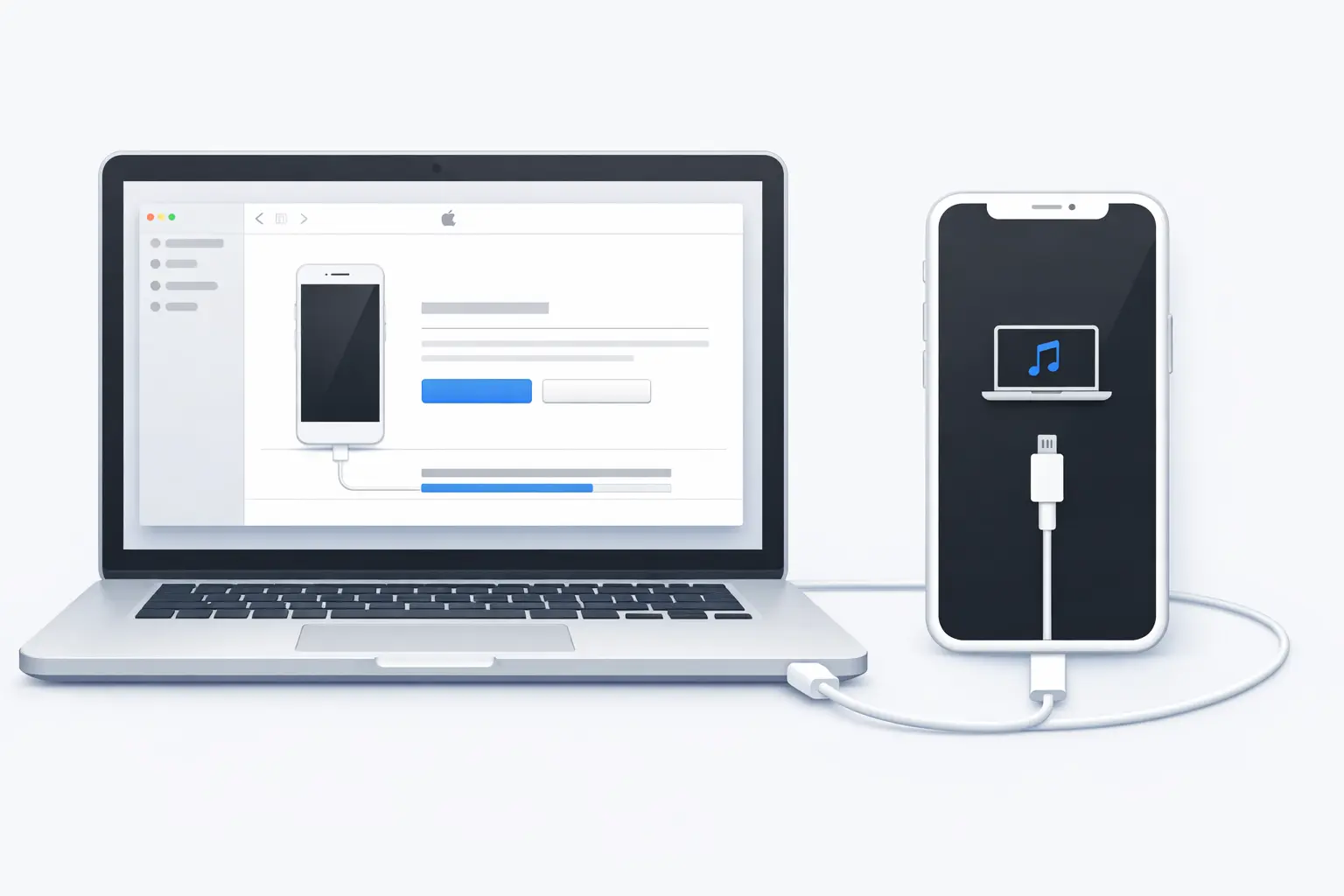
An iTunes restore iPhone guide starts with one choice: which app you use. On a Mac, you use Finder. On a Windows PC, you use the Apple Devices app, and iTunes is only for PCs without it and for Macs on macOS Mojave or earlier.
This guide covers the three things people usually mean by an iTunes restore: restoring from a backup, restoring to factory settings, and restoring in recovery mode. It also covers locked iPhones, data recovery, and common errors. Apple’s own instructions are on its official restore page, and this guide follows the same steps with model-by-model buttons and fixes added.
Important Warning: A restore to factory settings erases everything on your iPhone. Back up first, and only restore an iPhone you own or have permission to reset.
iTunes Restore iPhone: Which App Should You Use?
| Your computer | App to use |
| Windows PC | Apple Devices app |
| Windows PC without the Apple Devices app | iTunes |
| Mac with macOS Catalina or later | Finder |
| Mac with macOS Mojave or earlier | iTunes |
Note: On a Mac with macOS Catalina or later, you won’t find iTunes for this job. Finder does it.
Which Restore Do You Need?
| Situation | What to do |
| You got a new or repaired iPhone | Restore from a backup |
| You are selling the iPhone or want a clean start | Restore to factory settings |
| The iPhone is stuck on the Apple logo or shows “Connect to computer” | Use recovery mode, then restore |
| You forgot the passcode | Reset the iPhone, then restore a backup |
Preparations Before Restoring Your iPhone
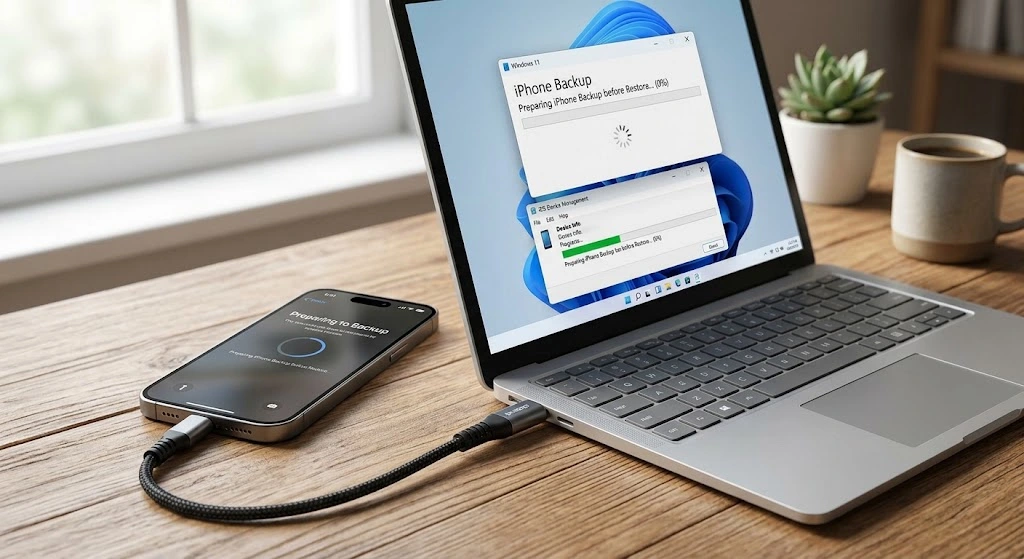
1. Update your Mac or PC, and install the latest Apple Devices app or iTunes.
2. Back up first. Our guides on how to back up iPhone and iPhone backup to PC cover every method, and Apple explains how to back up your iPhone, iPad, and iPod touch.
3. Encrypt a computer backup if you want your Health, Activity and Keychain data. Apple says computer backups don’t include them unless the backup is encrypted. Write the password down. Apple’s backup methods page has the details.
4. Free up space on your computer if it warns that there isn’t enough disk space.
5. Keep the iPhone charged and use a stable internet connection, because the computer downloads iOS software.
6. Turn off Find My iPhone before a factory restore. Go to Settings → [Your Name] → Find My → Find My iPhone and enter your Apple Account password.
7. Use a good USB cable and plug it into the computer’s own USB port, not a keyboard or USB hub.
| Quick Tip: Check your model in Settings → General → About before you start. You need it to pick the right recovery mode buttons later. |
Step-by-Step iTunes Restore iPhone From a Backup
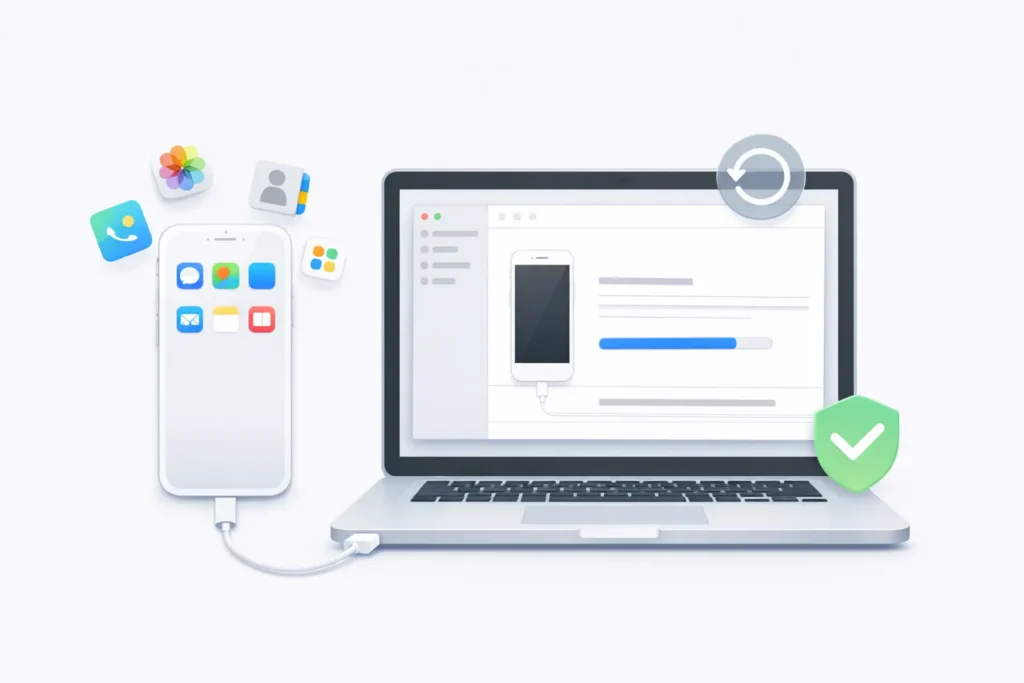
Restore an iPhone from a backup saved on a Windows PC or Mac using Apple Devices, Finder, or iTunes. You may need the password if the backup is encrypted.
Step 1 Open the right app
Open Finder on a Mac or the Apple Devices app on Windows. Use iTunes if your Windows PC does not have Apple Devices, or if your Mac runs macOS Mojave or earlier.
Step 2 Connect your iPhone
Connect your iPhone to the computer with a USB cable. If asked, enter your passcode or tap Trust This Computer on the iPhone.
Step 3 Select your iPhone
Select your iPhone in the Finder window, the Apple Devices sidebar, or the iTunes window.
Step 4 Choose Restore Backup
Click Restore Backup. Do not choose Restore iPhone unless you want to erase the device and install the latest version of iOS.
Step 5 Select a backup
Check the date and size of each available backup, then choose the backup you want to restore.
Step 6 Start the restore
Click Restore. If the backup is encrypted, enter the backup password when asked.
Step 7 Wait for the sync to finish
Keep the iPhone connected after it restarts. Wait until the restore and sync finish before disconnecting the cable.
Warning: Don’t unplug the iPhone while the computer is still restoring or syncing. Wait until Finder or Apple Devices says it’s done.
If a message says your software is too old, update the iPhone first. Apple’s guide to restoring from a backup has the official steps.
How to Factory Reset iPhone With iTunes or Finder
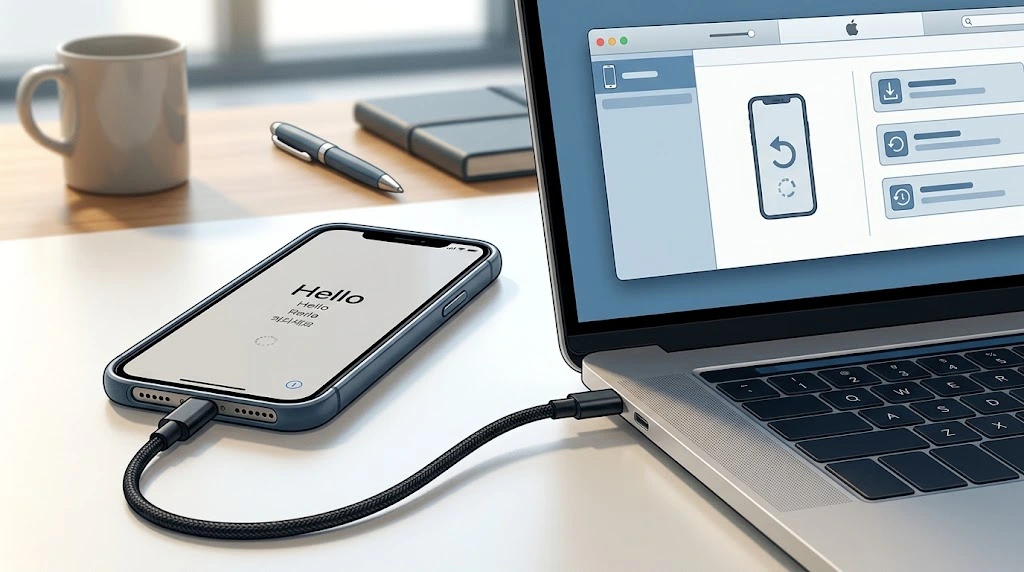
An iTunes restore iPhone to factory settings erases all information and settings and installs the latest version of iOS. Back up first.
1. Prepare your device as described above.
2. Connect your iPhone to the computer. If it shows “Allow accessory to connect?”, click Allow.
3. Open Finder (Mac) or the Apple Devices app (Windows) and select your iPhone.
4. If asked, enter your passcode or tap Trust This Computer on the iPhone.
5. Click Restore iPhone, then click Restore again to confirm.
When it finishes, the Hello screen appears. Apple documents these steps in Restore your iPhone to factory settings using a computer.
Note: Restoring an iPhone does not delete its eSIM. Erase the eSIM separately if you need to.
If your iPhone works normally, you can erase it without a computer. See our guide on how to factory reset iPhone or our overview of soft, force and factory reset.
How to Put iPhone in Recovery Mode and Restore
Use recovery mode if your iPhone shows the Apple logo for several minutes with no progress bar, or if you see the Connect to computer screen. If the iPhone only freezes on the logo, try our fixes for an iPhone stuck on the Apple logo first.
1. Update your Mac, or install the latest Apple Devices app on a PC.
2. Connect your iPhone to the computer with a USB cable.
3. Open Finder or Apple Devices.
4. Keep the iPhone connected and use the buttons for your model:
| iPhone model | Buttons |
| iPhone 8 or later, including iPhone SE (2nd generation and later) | Press and release Volume Up, then Volume Down. Then hold the side button until you see “Connect to computer”. |
| iPhone 7 and iPhone 7 Plus | Hold the top (or side) button and Volume Down together until you see “Connect to computer”. |
| iPhone 6s or earlier, including iPhone SE (1st generation) | Hold the Home button and the top (or side) button together until you see “Connect to computer”. |
5. Find your iPhone on the computer. When Update or Restore appears, choose Update first.
6. Wait while the computer downloads the software, then set up your iPhone.
Quick Tip: Update keeps your data. Choose Restore only if updating doesn’t work, because it reinstalls iOS and erases everything.
If the download takes more than 15 minutes, your iPhone may exit the “Connect to computer” screen. Let the download finish, then put the iPhone in recovery mode again. See Apple’s If you can’t update or restore your iPhone and its article on an iPhone frozen on the Apple logo.
How to Restore a Disabled or Locked iPhone
If you forgot your passcode, work through Apple’s options in this order:
1. Try Passcode Reset first.
2. If that isn’t available, reset the iPhone without a computer. On the Security Lockout screen, tap Start iPhone Reset, enter your Apple Account password, then tap Erase iPhone.
3. If neither works, use a computer. Put the iPhone in recovery mode with the steps above. On a Mac, select your iPhone in Finder and choose Restore. On Windows, open Apple Devices, select your iPhone, select General, then Restore.
Your computer downloads the iOS software for you in these steps. Restore a backup during setup and set a new passcode. Apple’s guides cover resetting a forgotten passcode and using a computer to reset your iPhone.
Important Warning: These steps erase all data on the iPhone. Without a backup, there is nothing to bring back.
Can You Recover Data After an iPhone Restore?
Treat an iTunes restore iPhone as permanent. The only reliable way back to your data is a backup made before the restore.
- iCloud backup: pick the backup on the Transfer Your Apps & Data screen. Look at the date and size, and tap Show All Backups if the one you want isn’t listed.
- Computer backup: choose Restore Backup and enter the password if it’s encrypted.
- Health and Activity data: these restore from an encrypted computer backup, not an unencrypted one.
- Content stored in iCloud: photos, music and apps download again when the iPhone stays on Wi-Fi and power after setup.
Warning: If you set up the iPhone as new by mistake, the new iCloud backups can overwrite older ones. Erase the iPhone and restore as soon as possible. See Apple’s page on a failed iCloud restore.
Apple’s restore guides have no step for recovering data when no backup exists, so check for a backup before you erase.
Disadvantages of iTunes Restore and Alternatives
An iTunes restore iPhone has real drawbacks. It erases the iPhone, needs a computer, and can take a long time if the iOS download is slow. It also needs free disk space and up-to-date software, and it can fail on a bad cable or old iTunes. After a backup restore, you sign in to your Apple Account to restore apps and purchases.
| Method | What happens to your data | Needs a computer |
| Update (recovery mode) | Keeps your data | Yes |
| Restore Backup | Brings back the saved backup | Yes |
| Restore iPhone | Erases everything | Yes |
| Erase All Content and Settings, then iCloud restore | Erases, then restores the iCloud backup | No |
| Passcode Reset or on-device reset | Erases the iPhone if needed | No |
iTunes Restore iPhone Errors and Fixes
If your iTunes restore iPhone fails, work through these in order. They follow Apple’s guidance for update and restore errors.
1. Update your Mac, or install the latest Apple Devices app or iTunes on Windows.
2. Unlock the iPhone and plug it straight into the computer’s USB port, not a keyboard or hub.
3. Try a different Apple USB cable and another USB port, or a different computer.
4. Restart the computer, then restart the iPhone.
5. For errors 2, 4, 6 or 1611, check third-party security software first, then the USB connection. Apple lists the other codes on its iOS update and restore errors page.
6. If the restore says it needs newer software, update the iPhone first. See Apple’s guide to restoring a device that needs a newer iOS.
7. If the iPhone is stuck on the Apple logo or won’t respond, use recovery mode. If a button is stuck or the error remains, contact Apple Support.
Quick Tip: Try a different cable and USB port before anything else. They are the cheapest fixes on Apple’s list.
Restore Your iPhone After a Repair
After an Apple Store or Authorized Service Provider repair, you might need to restore from an iCloud backup, a computer backup, or set up as new.
Note: If you set it up as new and later want an older iCloud backup, erase the iPhone and restore soon.
Where to Get the Apple Devices App
On Windows, install Apple Devices from Apple. The Apple Devices User Guide for Windows explains how to back up, restore and factory reset. On a Mac with macOS Catalina or later, Finder is built in. To copy pictures only, see transferring photos from iPhone to PC.
FAQ
Can I restore an iPhone without losing data?
Yes, if you choose Restore Backup and pick a recent backup. Restore iPhone erases everything.
Is an iTunes restore iPhone still needed?
Not for most people. You can restore an iPhone with iTunes only on a Windows PC without Apple Devices or on an older Mac. Apple’s current steps use Finder on Mac and the Apple Devices app on Windows.
Should I choose Update or Restore in recovery mode?
Try Update first. Restore reinstalls iOS and erases all your data.
Does restoring remove my eSIM?
No. You can erase the eSIM separately.
Conclusion
For most iPhones, an iTunes restore iPhone now means Finder on Mac or Apple Devices on Windows. Back up first, pick the right type of restore, and try Update before Restore if the iPhone won’t start. For related help, see how to back up iPhone and how to factory reset iPhone.
Sources: Apple Support: Restore to factory settings using a computer · Restore from a backup · If you can’t update or restore · Update and restore errors
Last updated: October 2026

