


Quick Answer: To reset an iPhone, use a normal restart for small glitches, a force restart if the screen is frozen, or a factory reset if you are selling it, giving it away, or fixing a serious software problem. A restart and force restart do not delete data. A factory reset erases everything.
How to reset iPhone depends on what is wrong with it. If your iPhone is slow or an app is stuck, restart it first. If the screen is frozen or black, force restart it. If you want to erase the phone completely, use Erase All Content and Settings after making a backup.
This guide explains every safe option for iPhone 17, iPhone 17 Pro, iPhone 17 Pro Max, iPhone 16, iPhone 15, and older models. It also explains what happens to your photos, Apple Account, eSIM, and backups before you reset anything.
How to Reset iPhone: Choose the Right Option
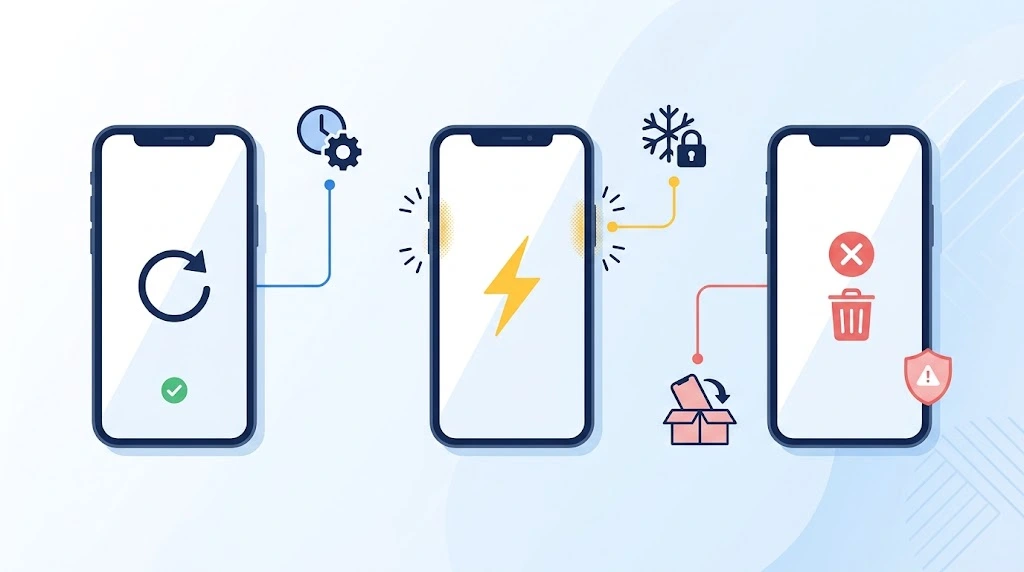
The word “reset” can mean different things. Choosing the right option helps you solve the problem without deleting your data by mistake.
| Your situation | Best option | Deletes data? | Works on iPhone 17? |
|---|---|---|---|
| Apps freeze or the iPhone feels slow | Restart your iPhone | No | Yes |
| Screen is frozen, black, or unresponsive | Force restart | No | Yes |
| You are selling or giving away the phone | Factory reset | Yes | Yes |
| You forgot the passcode | Erase from the lock screen or restore with a computer | Yes | Yes |
| Wi-Fi, Bluetooth, or cellular has problems | Reset Network Settings | No personal data | Yes |
Important: Do not factory reset your iPhone because one app is frozen. Try a normal restart or force restart first. A factory reset erases photos, messages, apps, passwords, accounts, and settings.
If only your Wi-Fi, Bluetooth, or cellular connection is causing trouble, use our guide to reset iPhone network settings instead. It is much less drastic than erasing the whole phone.
Before You Reset Your iPhone

A soft reset and force restart are safe because they do not erase your data. However, you should prepare carefully before a factory reset.
Back up your important data
Back up your iPhone before erasing it. A backup can save your photos, contacts, messages, app data, and settings.
Back up with iCloud:
- Open Settings.
- Tap your name at the top.
- Tap iCloud > iCloud Backup.
- Turn on iCloud Backup if needed.
- Tap Back Up Now and stay on Wi-Fi until it finishes.
Back up with a computer:
- Connect your iPhone using a USB cable.
- Open Finder on a Mac or the Apple Devices app on a Windows PC.
- Select your iPhone.
- Choose Back Up Now.
- Wait until the backup finishes before disconnecting the cable.
Read our complete How to Back Up iPhone guide if you need help choosing between iCloud and a computer backup.
Turn off Find My before selling
If you are selling, trading in, or giving away your iPhone, sign out of your Apple Account and turn off Find My. This removes Activation Lock for the next owner.
- Open Settings > [Your Name].
- Scroll down and tap Sign Out.
- Enter your Apple Account password when asked.
- Follow the on-screen instructions.
For more detail, see How to Turn Off Find My iPhone.
Safety tip: Do not give your iPhone to anyone until you see the Hello screen after erasing it. This confirms that your personal data is gone and Activation Lock has been removed correctly.
How to Restart an iPhone Without Losing Data
A normal restart, also called a soft reset, turns your iPhone off and back on. It can fix slow performance, minor software glitches, or apps that stop responding. It does not remove your photos, apps, messages, or settings.
Restart an iPhone with Face ID
This applies to iPhone X and later, including iPhone 11, 12, 13, 14, 15, 16, iPhone 17, iPhone 17 Pro, and iPhone 17 Pro Max.
- Press and hold the Side button and either Volume button.
- Wait until the power-off slider appears.
- Drag the slider to turn off the iPhone.
- Wait about 30 seconds.
- Press and hold the Side button until the Apple logo appears.
Restart an iPhone with a Home button
This applies to iPhone SE (1st, 2nd, and 3rd generation), iPhone 8, iPhone 7, iPhone 6s, and older Home-button models.
- Press and hold the Side button or Top button.
- Drag the power-off slider.
- Wait about 30 seconds.
- Press and hold the Side or Top button until you see the Apple logo.
How to Force Restart an iPhone
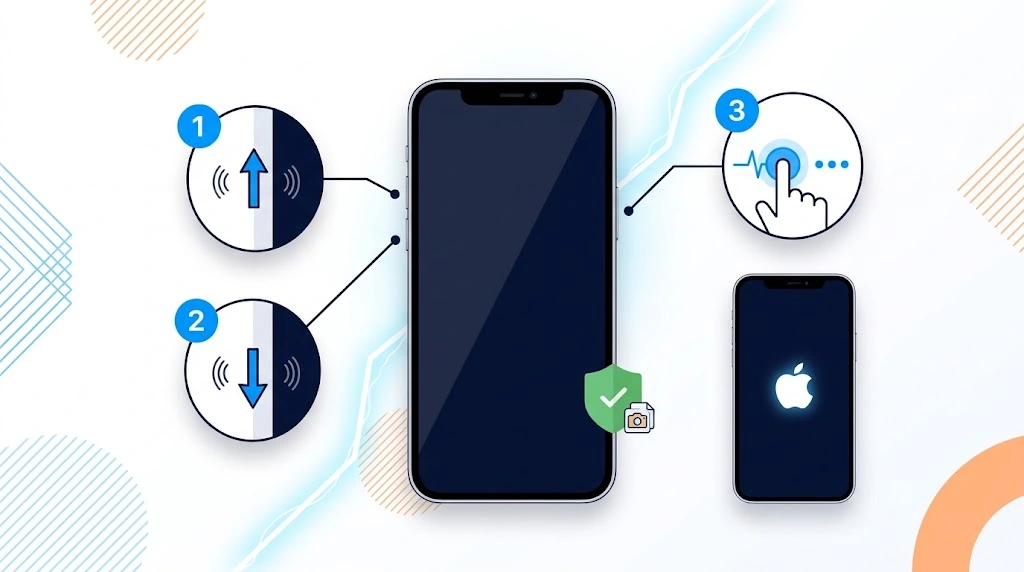
A force restart is also called a hard reset, force reset, or hard reboot. Use it when your iPhone screen is frozen, black, stuck on the Apple logo, or does not respond to touch. It does not erase your data.
Quick Answer for iPhone 17 and newer: Quickly press Volume Up, quickly press Volume Down, then press and hold the Side button until the Apple logo appears. Keep holding the Side button even if the power-off slider appears.
Force restart iPhone 17, 17 Pro, 17 Pro Max, and iPhone 8 or later
These steps work for iPhone 17, iPhone 17 Pro, iPhone 17 Pro Max, iPhone 16, iPhone 15, iPhone 14, iPhone 13, iPhone 12, iPhone 11, iPhone X, iPhone XR, iPhone XS, iPhone SE (2nd generation), iPhone SE (3rd generation), and iPhone 8.
- Quickly press and release the Volume Up button.
- Quickly press and release the Volume Down button.
- Press and hold the Side button.
- Keep holding the Side button until the Apple logo appears.
- Release the button when you see the Apple logo.
Force restart iPhone 7 or iPhone 7 Plus
- Press and hold the Volume Down button and the Side button together.
- Keep holding both buttons until the Apple logo appears.
- Release both buttons.
Force restart iPhone 6s, iPhone SE (1st generation), or earlier
- Press and hold the Home button and the Side button or Top button together.
- Keep holding the buttons until the Apple logo appears.
- Release both buttons.Tip: You may see the power-off slider while doing a force restart. Ignore it. Keep holding the final button or button combination until the Apple logo appears.
If your iPhone stays on the Apple logo after a force restart, follow our iPhone stuck on Apple logo fixes before choosing a factory reset.
Is a Hard Reset the Same as a Force Restart?
Yes. For an iPhone, the terms hard reset, force reset, hard reboot, and force restart usually mean the same thing: using physical buttons to restart an iPhone that is frozen or unresponsive.
A hard reset does not erase your photos, messages, apps, passwords, or settings. Only a factory reset removes your data.
| Reset type | Uses buttons? | Deletes data? | Best for |
|---|---|---|---|
| Soft reset | Yes or Settings | No | Small glitches and slow performance |
| Hard reset / force restart | Yes | No | Frozen or black screen |
| Factory reset | Settings, computer, or Find My | Yes | Selling, serious problems, forgotten passcode |
How to Restart an iPhone With Broken Buttons

If the screen still works but your Side button or Volume buttons are broken, use AssistiveTouch for a normal restart.
- Open Settings.
- Tap Accessibility > Touch > AssistiveTouch.
- Turn on AssistiveTouch.
- Tap the on-screen AssistiveTouch button.
- Tap Device > More > Restart.
- Tap Restart to confirm.
This is a soft reset. It does not work if your screen is completely frozen. If your screen is broken or you need other ways to power the phone down, see How to Turn Off iPhone Without Screen.
How to Factory Reset an iPhone
A factory reset, also called Erase All Content and Settings, deletes all personal information from your iPhone and returns it to the setup screen. Use it only after you back up important data.
Factory reset using Settings
Use this option when you can unlock your iPhone and open Settings.
- Open Settings.
- Tap General.
- Tap Transfer or Reset iPhone.
- Tap Erase All Content and Settings.
- Tap Continue.
- Enter your iPhone passcode when asked.
- Enter your Apple Account password if asked.
- Choose what to do with your eSIM plan.
- Tap Erase iPhone to confirm.
- Wait until the iPhone restarts to the Hello screen.
Apple confirms that Erase All Content and Settings removes personal data, apps, accounts, and settings. It also turns off services such as Find My, iMessage, FaceTime, and Apple Pay on the erased device. See Apple’s official factory-reset instructions for Apple’s current guidance.
Should You Keep or Erase Your eSIM?
During a factory reset, your iPhone may ask whether you want to keep or erase your eSIM. Read the prompt carefully before confirming.
| Your situation | What to choose |
|---|---|
| You will keep using the same iPhone and phone number | Keep your eSIM |
| You are selling, trading in, or giving away the iPhone | Erase your eSIM |
| You are not sure | Contact your carrier before erasing the plan |
Important: If you erase an eSIM, you may need to contact your carrier to activate your mobile plan again. Do not erase it by accident if you still need the number on the same device.
How to Factory Reset an iPhone With a Computer
Use a computer reset when you forgot your passcode, your iPhone is disabled, the screen will not work, or Settings will not open.
- Update your Mac or Windows PC.
- Back up your iPhone first if you still can access it.
- Connect your iPhone using a USB cable.
- Open Finder on a Mac or the Apple Devices app on a Windows PC.
- Select your iPhone when it appears.
- Click Restore iPhone.
- Click Restore again to confirm.
- Keep your iPhone connected while the computer erases it and installs the latest available iOS.
- Set up the device when the Hello screen appears.
If you cannot select the iPhone because you forgot the passcode, put it in Recovery Mode first. For iPhone 8 and later, quickly press Volume Up, quickly press Volume Down, then keep holding the Side button until the recovery-mode screen appears.
Apple’s official computer-restore guide confirms that restoring erases your information and settings and installs the latest available software. Use Apple’s guide to restore an iPhone with a computer for the current recovery-mode instructions.
How to Reset iPhone Without a Passcode
You can reset an iPhone without its passcode, but you cannot do it without erasing the device. Apple Account verification is still required because Activation Lock protects lost and stolen iPhones.
Option 1: Erase from the lock screen
On supported iPhone versions, you may see Forgot Passcode? or Erase iPhone after several incorrect attempts.
- Keep entering an incorrect passcode until you see the lockout screen.
- Tap Forgot Passcode? or Erase iPhone.
- Follow the on-screen instructions.
- Enter your Apple Account password when asked.
- Let the iPhone erase and restart.
Option 2: Use Recovery Mode and a computer
If the lock-screen option does not appear, use the computer restore method above. Put the iPhone in Recovery Mode, then choose Restore in Finder or Apple Devices.
Option 3: Erase it with Find My
If Find My was enabled before the phone was locked, you can erase it remotely through iCloud.com or the Find My app on another Apple device.
How to Erase an iPhone Remotely With Find My
Use remote erase if your iPhone is lost, stolen, or not physically with you.
- Go to iCloud.com/find in a web browser, or open the Find My app on another Apple device.
- Sign in with your Apple Account.
- Select your iPhone from the device list.
- Choose Erase This Device or Erase iPhone.
- Confirm the erase request.
If the iPhone is offline, the erase starts the next time it connects to the internet. Do not remove the device from your Apple Account until you are certain you will not recover it; leaving it on your account keeps Activation Lock active.
For help signing in or locating your device, read our Find My iPhone login guide.
Common iPhone Reset Problems and Fixes
My iPhone will not finish the factory reset
- Charge the iPhone to at least 50%.
- Connect to stable Wi-Fi if you are erasing through Settings.
- Check that you know your Apple Account password.
- Restart the phone, then try the erase again.
- If Settings keeps failing, use Finder or Apple Devices on a computer.
My iPhone is stuck in Recovery Mode
First, force restart the iPhone. If the recovery screen returns, connect it to Finder or Apple Devices and choose Update before choosing Restore. Update attempts to reinstall iOS without erasing data; Restore erases the iPhone.
My iPhone is still Activation Locked after a reset
A factory reset does not remove Activation Lock if Find My was enabled. You need the Apple Account email and password that were previously used on the device. If you bought the phone second-hand, the original owner must remove it from their Apple Account.
I only need to fix Wi-Fi or Bluetooth
Do not erase the whole iPhone. Go to Settings > General > Transfer or Reset iPhone > Reset > Reset Network Settings. This removes saved Wi-Fi networks, passwords, VPN settings, and cellular settings, but it does not delete photos, apps, or messages. Our iPhone Reset Network Settings guide explains exactly what changes.
FAQ: How to Reset iPhone
Does restarting an iPhone delete anything?
No. A normal restart, soft reset, and force restart do not delete photos, messages, apps, accounts, or settings. Only a factory reset erases your data.
How do I force restart iPhone 17?
Quickly press and release Volume Up, quickly press and release Volume Down, then press and hold the Side button until the Apple logo appears. This does not delete data.
Can I factory reset an iPhone without the passcode?
Yes, but the reset erases the iPhone. Use the Forgot Passcode or Erase iPhone option on the lock screen when available, or restore the phone with Recovery Mode and Finder or Apple Devices.
What is the difference between hard reset and factory reset?
A hard reset is a force restart. It only restarts the phone and keeps your data. A factory reset erases the iPhone completely and returns it to the Hello setup screen.
Should I remove my eSIM before selling my iPhone?
Yes. During the factory-reset process, choose to erase the eSIM if you are selling, trading in, or giving away the phone. This removes your cellular plan from that device.
Can I reset an iPhone with buttons only?
You can force restart an iPhone with buttons, but buttons alone cannot perform a full factory reset. A full erase requires Settings, a computer, or Find My.
What should I do before selling an iPhone?
Back up your data, sign out of your Apple Account, turn off Find My, erase all content and settings, erase the eSIM, and confirm that the Hello screen appears. Then remove the phone from your physical SIM card if it has one.
Final Thoughts
You now know how to reset iPhone safely in every common situation. Start with a normal restart for small problems. Use a force restart for a frozen or black screen. Use a factory reset only when you are ready to erase the device, such as before selling it or when a serious software problem remains.
Before any factory reset, make a backup and decide what to do with your eSIM. If you are setting up a replacement phone after the reset, follow our How to Transfer iPhone to iPhone guide so your apps, photos, and settings move safely to the new device.

