


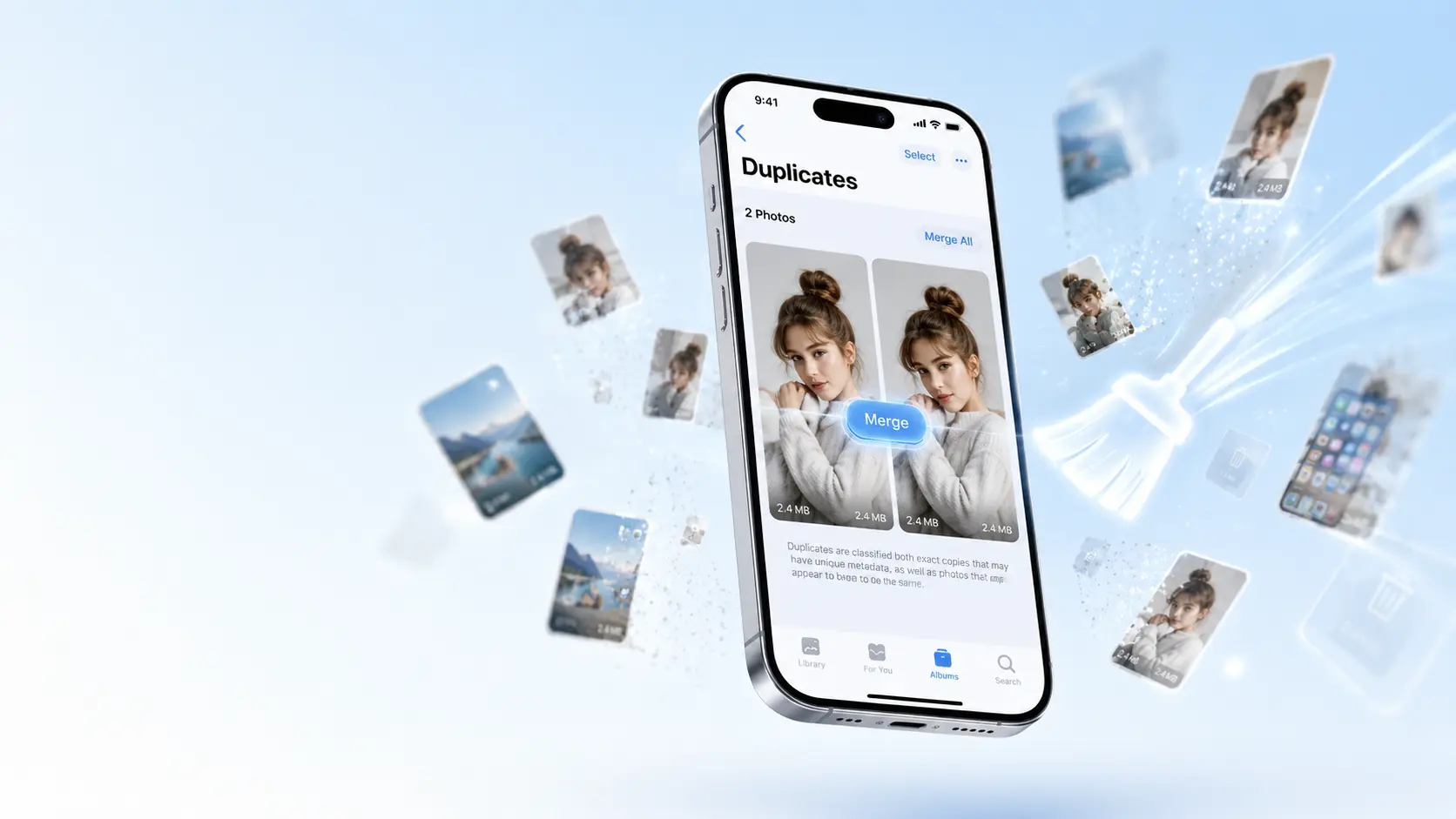
If your iPhone storage is mysteriously full, you are not the only one frustrated. One of the biggest hidden culprits behind those “Storage Almost Full” warnings is duplicate photos — extra copies from WhatsApp downloads, burst shots, screenshots, and iCloud sync loops. Learning how to delete duplicate photos on iPhone can free up gigabytes of space without forcing you to erase a single precious memory.
In this complete guide, you will discover how to find duplicate photos on iPhone using Apple’s built-in iOS tools, remove duplicate photos iPhone free with trusted third-party apps, and prevent duplicates from flooding your library again. Whether you are running the latest iOS 18 or holding onto an older model like the iPhone 13, these methods work for every user.
Why Your iPhone Has So Many Duplicate Photos
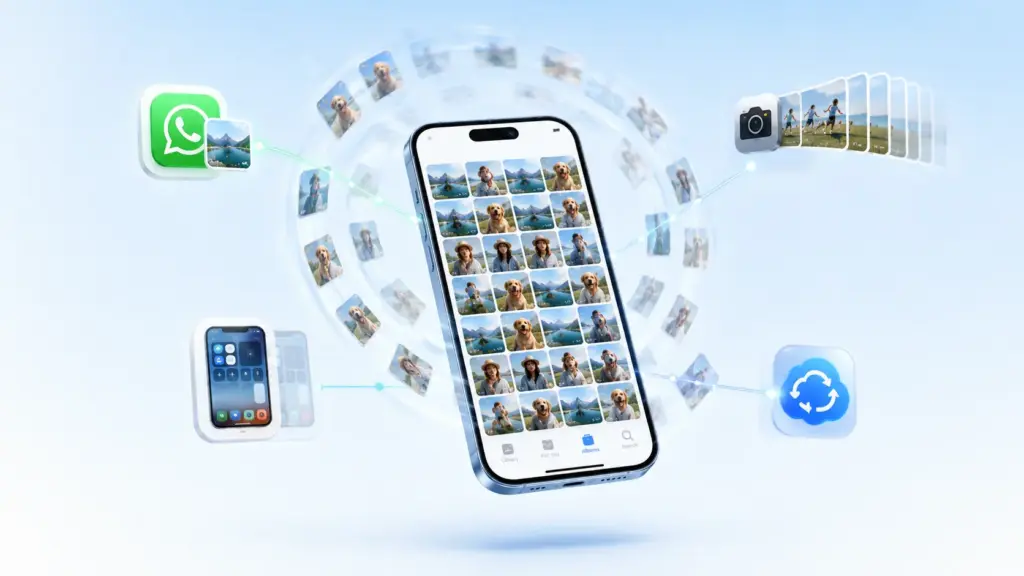
Before you start removing duplicate photos on iPhone, it helps to understand exactly where they come from. When you know the source, prevention becomes effortless.
Messaging Apps Are the #1 Culprit
Apps like WhatsApp, Telegram, Signal, and even Messages often save every image you receive directly to your Photos library. If a friend sends the same birthday photo to three different group chats, you now have three identical copies eating up space. Over a year, this habit alone can generate thousands of unnecessary files.
Quick tip: In WhatsApp, go to Settings > Chats and turn off Save to Camera Roll to stop auto-downloads immediately. In Telegram, navigate to Settings > Data and Storage > Save to Gallery and disable it.
Burst Mode and Screenshots
That perfect action shot you captured in Burst Mode? It likely created 15 to 30 frames. If you picked the best one but forgot to delete the rest, they are still sitting in your library, often buried beneath newer photos. Screenshots are another silent space hog — especially if you take multiple shots of the same screen to “get the lighting right” or capture a fleeting notification.
iCloud Sync Loops and Shared Libraries
Sometimes, enabling iCloud Photos on multiple devices creates confusion. A photo edited on your iPad might sync back to your iPhone as a new version, leaving the original untouched. If you use iCloud Shared Library with family members, the same photo might exist in your personal library and the shared pool, effectively doubling its footprint on your device.
Email Attachments and Downloads
When you save an image from Mail or Safari, it lands in your camera roll. If you download the same attachment twice because the first attempt seemed slow, you have created a duplicate without realizing it.
Expert Insight: According to Apple Support, “The Photos app makes it easy to find and merge duplicate photos and videos in your library.” This built-in intelligence runs entirely on your device using on-machine learning, meaning your images are never uploaded to Apple’s servers during the scan.
How Duplicate Photos Affect Performance
You might think duplicates only waste iPhone storage, but the impact goes deeper.
Slower backups: Every duplicate photo gets backed up to iCloud, consuming your precious 5 GB free tier (or your paid plan) and making nightly backups take longer.
Longer photo loading times: A cluttered library forces the Photos app to index more files. When you open the app, thumbnails take longer to populate, especially on older devices.
Reduced battery life: Background processes that sync, index, and analyze thousands of extra photos use CPU cycles. Over time, this contributes to faster battery drain.
Cluttered search results: When you search for “dog” or “beach,” duplicates crowd the results, making it harder to find the actual photo you want.
Method 1: Use the Built-In Duplicates Album (iOS 16+)
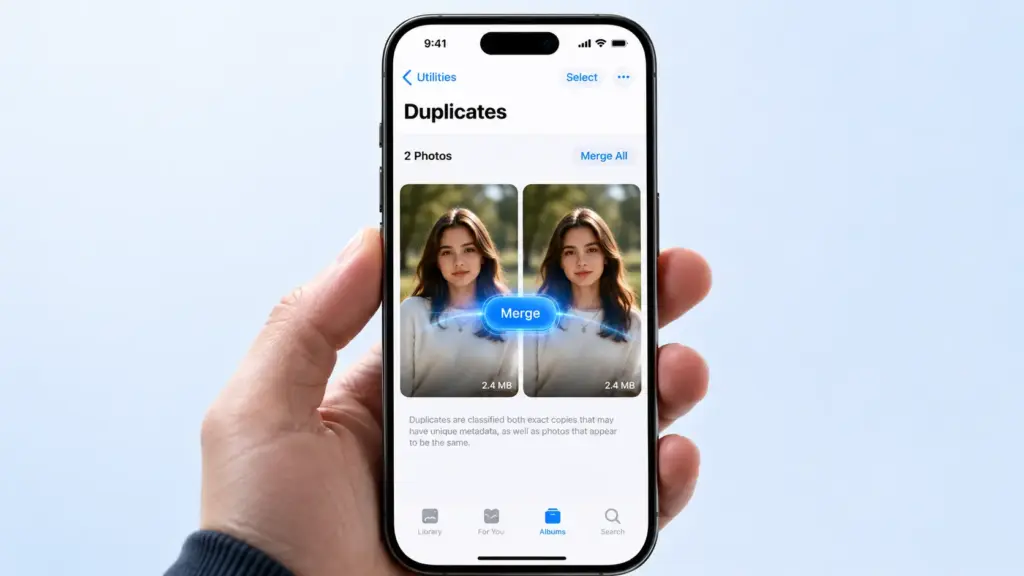
The easiest and safest way to remove duplicate photos iPhone free is to use Apple’s own tool. Starting with iOS 16, Apple added a dedicated Duplicates album under the Utilities section. In iOS 18, this feature is faster, more accurate, and better at detecting near-duplicates than ever before.
Step-by-Step Guide
- Open the Photos app on your iPhone.
- Tap Albums at the bottom of the screen.
- Scroll down to the Utilities section.
- Tap Duplicates.
- You will see groups of duplicate photos and videos side by side.
- Tap Merge next to any set of duplicates.
- The iPhone automatically keeps the highest-quality version and moves the rest to Recently Deleted.
That’s it. You just learned the fastest way for how to delete duplicate photos on iPhone without installing a single app or paying a cent.
What If the Duplicates Album Is Not Showing?
If you do not see the Duplicates album, do not panic. Your iPhone needs time to analyze your entire photo library. This process happens in the background while your device is locked and charging.
To speed it up:
- Keep your iPhone plugged in overnight.
- Make sure Low Power Mode is off.
- Connect to Wi-Fi so background tasks are not restricted by cellular data limits.
- Avoid force-quitting the Photos app.
For very large libraries (10,000+ photos), the initial scan can take 24 to 48 hours. Be patient — the album will appear automatically once the analysis is complete. If it still does not show after three days, restart your iPhone and ensure you are running iOS 16.0 or later.
Understanding the Merge Process
When you tap Merge, iOS performs three checks automatically:
- Resolution: It keeps the image with the most pixels.
- Metadata: It preserves the version with the richest data (location, Live Photo, depth map).
- Format: If one copy is HEIF and another is JPEG, iOS generally keeps the more efficient HEIF version.
The rejected copies move to Recently Deleted, where they stay for 30 days. To reclaim space immediately, you must manually empty that album.
Limitations of the Built-In Tool
Apple’s tool is excellent for exact duplicates, but it has blind spots you should know:
- It may miss similar photos (two shots of the same sunset with slightly different angles).
- It does not detect blurry photos or redundant screenshots unless they are pixel-perfect copies.
- It cannot bulk-merge your entire library with one tap; you review and merge sets individually.
- It struggles with Live Photos that have different key frames but identical image data.
If you need deeper cleaning, the next methods are for you.
Method 2: How to Find and Delete Duplicates Manually
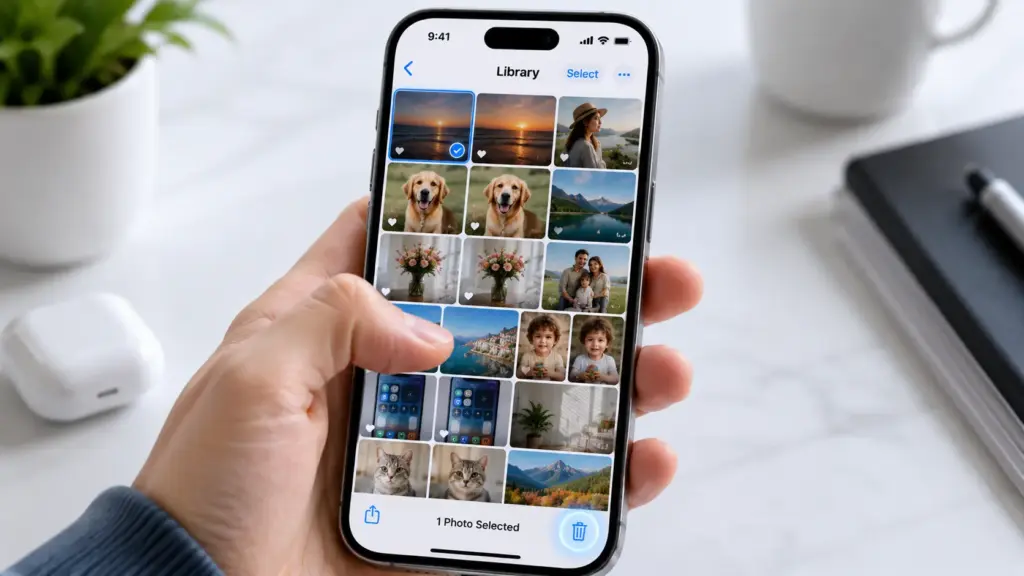
Sometimes, you want full control. Maybe the built-in tool missed a near-duplicate, or you prefer to review every image yourself before hitting delete. Here is how to find duplicate photos the old-fashioned way.
Use the Search Tab
- Open Photos and tap the Search tab.
- Type a keyword like “beach,” “dog,” “receipt,” or “screenshot.”
- iOS uses on-device machine learning to group visually similar images together.
- Review the results carefully and delete the extras.
This method works surprisingly well for screenshots and documents, where duplicates are often obvious.
Sort by Date and Location
- Go to the Library tab and tap All Photos.
- Tap the More button (three dots) and choose Filter.
- Browse chronologically to spot obvious doubles taken seconds apart.
- If you have Location Services enabled for the camera, check the map view. Two pins in the exact same spot within the same minute often indicate a duplicate.
Handle Live Photos Carefully
Live Photos save 1.5 seconds of video before and after the shot. If you have two Live Photos of the same moment, they might not show up in the Duplicates album because their video segments differ slightly. Manually compare them by pressing and holding each thumbnail.
Warning: Manual deletion is time-consuming. If your library contains 5,000+ photos, budget at least 90 minutes for this task. For most busy users, a dedicated app is a far better investment of time.
Method 3: Best Free Apps to Remove Duplicate Photos
When the built-in tool falls short, third-party apps step in. The best part? Several excellent options are completely free and safe to use.
Top Free Duplicate Photo Cleaners for iPhone
| App Name | Price | Best For | Key Feature | Limitations |
|---|---|---|---|---|
| Clever Cleaner | Free | Exact duplicates | One-tap merge; no account needed | Contains ads; basic interface |
| Remo Duplicate Photos | Free | Large libraries | Scans 10,000+ photos in under 2 minutes | Misses some similar shots |
| Google Photos | Free | Cross-platform users | 15 GB cloud backup + duplicate hints | Requires uploading your library |
| Duplicate Photos Fixer | Free (with IAP) | Similar photo detection | Adjustable similarity threshold | Free version limited to 15 duplicates/day |
How to Use Clever Cleaner (Recommended Free Option)
Clever Cleaner remains the most popular remove duplicate photos iPhone free app in 2026. It is lightweight, requires no account, and processes everything on your device.
- Download Clever Cleaner from the App Store.
- Open the app and grant All Photos access when prompted.
- Tap Scan Duplicates on the home screen.
- The app groups duplicates and pre-selects the lower-quality copy in each set.
- Review the groups. Tap the checkmark to confirm deletion.
- The app moves selected photos to your Recently Deleted album.
- Open the native Photos app, go to Albums > Recently Deleted, and tap Delete All to permanently free up space.
Pro Tip: Always back up your iPhone before running any bulk deletion tool. Even trusted apps can make mistakes, and once you empty Recently Deleted, recovery is only possible through a prior backup.
Google Photos: The Hidden Gem
Did you know Google Photos can help you get rid of duplicate photos on iPhone? While its main job is cloud backup, the service occasionally flags duplicate uploads and offers cleanup suggestions.
- Install Google Photos from the App Store.
- Sign in and enable backup over Wi-Fi.
- Once your library syncs, go to Library > Utilities.
- Look for the Free up space option.
- The app suggests deleting device copies of photos already safely stored in the cloud.
Important caveat: This removes photos from your iPhone but keeps them in Google’s cloud. If you ever cancel your Google account or lose access, those photos could disappear. Always maintain a local backup or an iCloud backup alongside Google Photos.
Method 4: Premium Apps for Power Users
If you are serious about iPhone storage management, premium apps offer AI-powered detection that free tools simply cannot match.
Best Premium Duplicate Photo Cleaners
| App Name | Price | Best For | Standout Feature | Privacy |
|---|---|---|---|---|
| CleanMyPhone | $4.99/week | Similar & blurry photos | AI similarity engine + year scan | On-device only |
| LuminaClean | $3.99/month | Event-based scanning | Groups photos by year and trip | On-device only |
| Gemini Photos | $4.99 one-time | Quick seasonal cleanups | Smart selection algorithm | On-device only |
CleanMyPhone: Best Overall
CleanMyPhone uses on-device AI to detect not just exact duplicates, but similar photos, blurry shots, duplicate Live Photos, and even duplicate videos.
Why power users love it:
- Privacy-first architecture: All scanning happens locally on your iPhone. Nothing ever uploads to the cloud.
- Smart merge: The algorithm keeps the best shot based on focus sharpness, lighting balance, and whether subjects have their eyes open.
- Year scan: You can clean entire years in one tap, perfect for post-vacation library dumps.
- Blurry detection: It finds photos where you accidentally moved the camera and suggests deletion.
The downside: The weekly subscription adds up over time. If you only clean your library once or twice a year, a one-time purchase app like Gemini Photos is more economical in the long run.
When to Choose a Premium App
Consider investing in a paid duplicate cleaner if:
- Your library contains over 20,000 photos or videos.
- You frequently shoot in Burst Mode or capture Live Photos.
- Your camera roll is flooded with screenshots, memes, and document scans — not just traditional camera photos.
- You want a single dashboard to clear cache, manage large files, and clean duplicates simultaneously.
iOS 18 Photos App: What Changed in 2026
Apple continuously refines the Photos experience. In iOS 18, several under-the-hood improvements make removing duplicate photos on iPhone smoother than previous versions.
Faster background indexing: The Duplicates album now populates up to 40% faster on libraries larger than 50,000 items, according to user benchmarks.
Improved Similar Photos grouping: While not advertised as a “duplicate” feature, iOS 18’s enhanced Search tab now clusters visually similar images more accurately. Searching for “document” or “receipt” groups near-duplicates together, making manual review easier.
Better Live Photo handling: The system now recognizes when two Live Photos share identical image data but different key frames, flagging them for your review.
iCloud Shared Library integration: Duplicates detected across your personal library and a shared library are now labeled clearly, so you do not accidentally delete a photo your partner wants to keep.
How to Prevent Duplicate Photos in the Future
Cleaning is great, but prevention is better. Here is how to stop duplicates before they start.
Turn Off Auto-Save in Messaging Apps
- WhatsApp: Settings > Chats > Save to Camera Roll > Off
- Telegram: Settings > Data and Storage > Save to Gallery > Off
- Messages: Settings > Messages > Shared with You > limit to specific apps or turn off entirely
This single change can reduce incoming duplicates by 70% or more.
Manage Burst Mode Like a Pro
After taking a burst shot:
- Open the burst in the Photos app.
- Tap Select at the bottom.
- Swipe through the frames and choose your favorite.
- Tap Done and select Keep Only 1 Favorite.
This instantly deletes the other 19+ frames and prevents them from syncing to iCloud.
Optimize iCloud Photos Settings
Go to Settings > [Your Name] > iCloud > Photos and choose:
- Optimize iPhone Storage: This keeps small previews on your device and full-resolution versions in iCloud. It reduces the local impact of duplicates because only lightweight thumbnails remain on your phone.
- Download and Keep Originals: Only choose this if you have ample local storage (128 GB or more with plenty of free space).
Use One Import Method Only
If you transfer photos from iPhone to PC and then sync them back through iTunes or Finder, you risk creating duplicates. Stick to one workflow:
- Either rely entirely on iCloud Photos across all your Apple devices.
- Or use AirDrop / USB manual transfers — never both for the same album.
Be Careful with AirDrop
AirDrop is convenient, but if you send the same photo to yourself twice because the first attempt seemed slow, you create a duplicate. Check your camera roll immediately after large AirDrop sessions.
People Also Ask
Here are direct answers to the most common questions people ask when searching how to delete duplicate photos on iPhone.
How do I delete duplicate photos on my iPhone for free?
You can delete duplicates for free using the built-in Duplicates album in iOS 16 or later. Go to Photos > Albums > Duplicates (under Utilities) and tap Merge next to each set. This keeps the best copy and moves the rest to Recently Deleted.
Why are my duplicate photos not showing on iPhone?
The Duplicates album needs time to analyze your entire library using on-device processing. Keep your iPhone charged and connected to Wi-Fi. For libraries with 10,000+ items, this analysis can take 24 to 48 hours. Do not force-quit the Photos app during this time.
Will deleting duplicate photos free up iCloud storage?
Yes, but only after you empty the Recently Deleted album. When you merge duplicates, the rejected copies move there first and continue counting against your iCloud quota for 30 days. To reclaim space immediately, go to Photos > Albums > Recently Deleted > Delete All.
How to delete duplicate photos on iPhone 13?
The process is identical to newer models. Open Photos > Albums > Duplicates and merge. If you do not see the Duplicates album, update to the latest iOS version via Settings > General > Software Update. The iPhone 13 fully supports this feature on iOS 16 and later.
Is there an Apple-approved app to remove duplicates?
Apple does not officially endorse third-party cleaners. The safest and most private option is the built-in iOS Duplicates album. If you need advanced features, choose apps that process photos on-device and do not require uploading your library to external servers.
Can I delete duplicates without deleting the original?
Yes. When you use the Merge function, iOS automatically keeps the highest-resolution original and only moves the lower-quality duplicates to Recently Deleted. You are never at risk of losing the best version.
FAQ
Q1: Can I recover photos if I delete them by mistake?
Yes. Deleted photos sit in the Recently Deleted album for 30 days. During this window, you can restore them with one tap. If you need them after 30 days, you can recover deleted photos from an iCloud or iTunes backup — but only if you made a backup before cleaning.
Q2: Does merging duplicates reduce photo quality?
No. iOS always keeps the highest-resolution version when you merge. The lower-quality copies, smaller files, or compressed versions are the ones moved to Recently Deleted. Your best photo remains untouched.
Q3: How often should I clean duplicate photos?
For active photographers and social media users, every 3 to 6 months is ideal. If you rarely take photos outside special occasions, a yearly cleanup before the holidays is sufficient. Set a recurring reminder in your Calendar app.
Q4: Can Siri help me delete duplicate photos?
Not directly. Siri can open the Photos app for you, but you must manually select and delete duplicates. No third-party app currently integrates with Siri for bulk deletion due to Apple’s privacy restrictions on photo access.
Q5: Do duplicate photo cleaners work on iPad too?
Yes. Most apps mentioned here are universal iOS apps available on iPhone and iPad. The built-in Duplicates album also appears on iPadOS 16 and later under Photos > Albums > Duplicates.
Q6: Will deleting duplicates affect my shared albums?
No. Shared albums in iCloud are separate entities from your personal library. Deleting a duplicate from your camera roll does not remove it from a shared album you created earlier. However, if you delete a photo within a shared album, it disappears for all participants.
Conclusion
You now know how to delete duplicate photos on iPhone using every method available — from Apple’s free, privacy-safe built-in tool to powerful premium apps that use AI. Start with the Duplicates album in iOS 18. It requires zero downloads, costs nothing, and keeps your data on your device. If you need deeper cleaning for similar shots, blurry frames, and massive libraries, apps like Clever Cleaner (free) or CleanMyPhone (premium) will finish the job.
Remember: Always back up first. A quick iPhone backup takes five minutes and protects you from permanent regret. Storage management is not just about deleting; it is about preserving what matters.
Take ten minutes today to open your Photos app and check the Duplicates album. You might be shocked how many gigabytes you can reclaim in just a few taps. Your storage, your battery life, and your sanity will thank you.
External Links Used:
- Apple Support — Organize and find photos
- PCMag — How to Delete Duplicate Photos on iPhone
- CNET — Best iPhone Photo Storage Apps
Internal Links Used:

