



You tap the wrong button. Your heart skips a beat. Those vacation photos? Gone. Those baby pictures? Vanished. If you are wondering how to recover deleted photos on iPhone, take a deep breath. You are not alone, and in most cases, your photos are not truly gone yet.
Apple builds multiple safety nets into iOS 18. Some methods take 30 seconds. Others take 30 minutes. This guide walks you through every option — from the easiest fix to the last resort. You do not need to be a tech expert. You just need your iPhone, a little patience, and this step-by-step walkthrough.
Whether you deleted something yesterday or last month, one of these five methods should help you get your memories back.
Method 1: Check the Recently Deleted Album
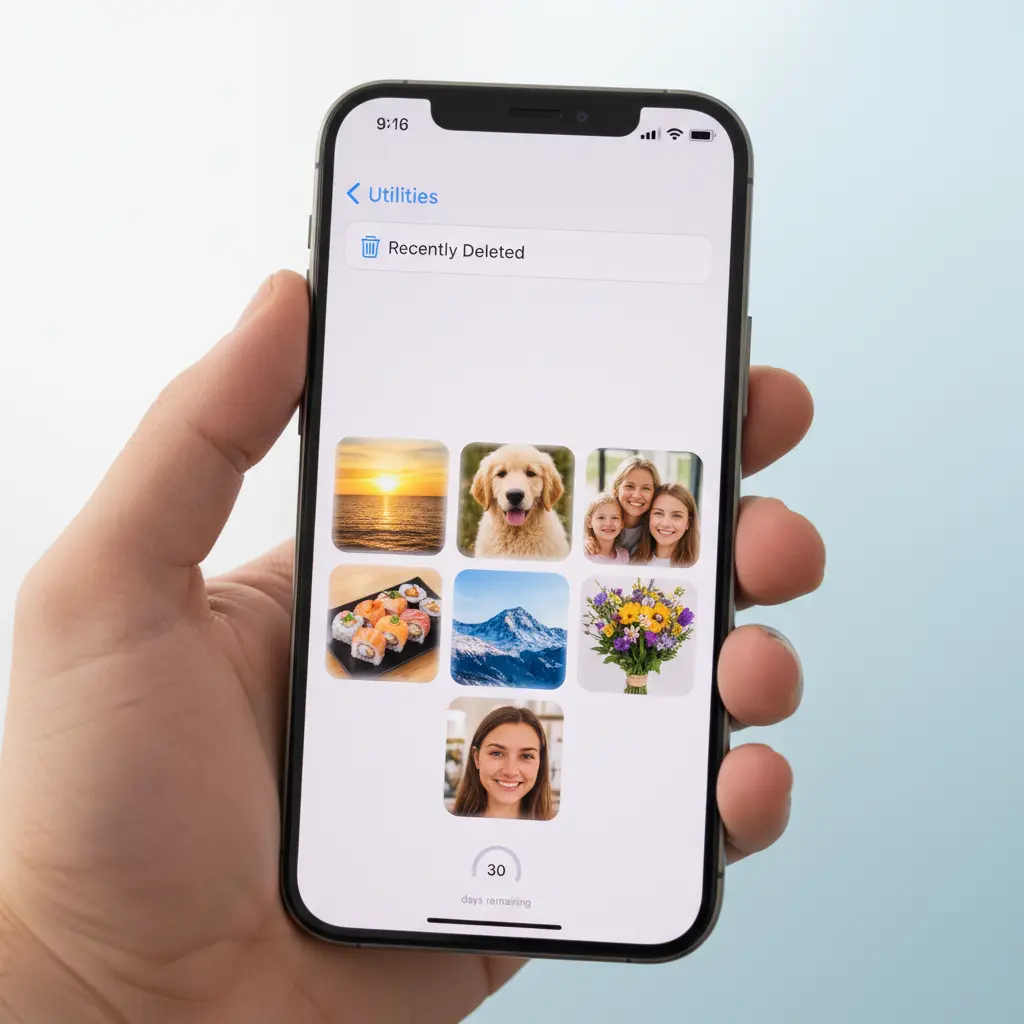
This is the fastest way to recover deleted photos on iPhone. When you delete a photo, iOS does not erase it immediately. Instead, it moves the image to a hidden folder called Recently Deleted. Your photos sit there for 30 days before permanent removal.
How to Find Recently Deleted Photos on iPhone
- Open the Photos app.
- Tap Albums at the bottom.
- Scroll down to Utilities.
- Tap Recently Deleted.
- Use Face ID, Touch ID, or your passcode to unlock the folder.
- Tap Select in the top-right corner.
- Choose the photos you want back.
- Tap Recover at the bottom-right.
Your photos will return to their original albums instantly.
Expert Tip: According to Apple Support, photos and videos stay in Recently Deleted for 30 days. After that, Apple removes them permanently from your device — but not necessarily from iCloud if you have iCloud Photos enabled.
What If the Photos Are Not There?
If your photos are missing from Recently Deleted, it means one of three things:
- 30 days have passed since deletion.
- You manually emptied the Recently Deleted folder.
- The photos were never saved to your Camera Roll (for example, they came from a message or app cache).
Do not panic. Move to Method 2 or Method 3.
Method 2: Recover from iCloud.com Without Resetting

Here is some good news. If you use iCloud Photos, your deleted pictures might still live on Apple’s servers — even if they are gone from your iPhone. You can check this without touching your phone’s settings.
Steps to Recover Photos via iCloud.com
- On your computer or another device, open a browser.
- Go to icloud.com and sign in with your Apple ID.
- Click Photos.
- Click Recently Deleted in the sidebar.
- Select the photos you want.
- Click Recover.
The photos will reappear on all your Apple devices connected to the same iCloud account.
Important: This only works if iCloud Photos was turned on before you deleted the images. If you never enabled it, your photos were not synced to the cloud.
iCloud Photos vs. iCloud Backup
Many people confuse these two. Here is the simple difference:
| Feature | iCloud Photos | iCloud Backup |
|---|---|---|
| What it saves | Individual photos and videos | Entire phone snapshot |
| Access method | Photos app or icloud.com | Restore entire device only |
| Recently Deleted? | Yes, 30 days | No separate folder |
| Requires reset? | No | Yes |
If you want to restore permanently deleted photos iPhone users often miss, checking iCloud.com is your best free option without resetting anything.
Method 3: Restore from an iCloud Backup
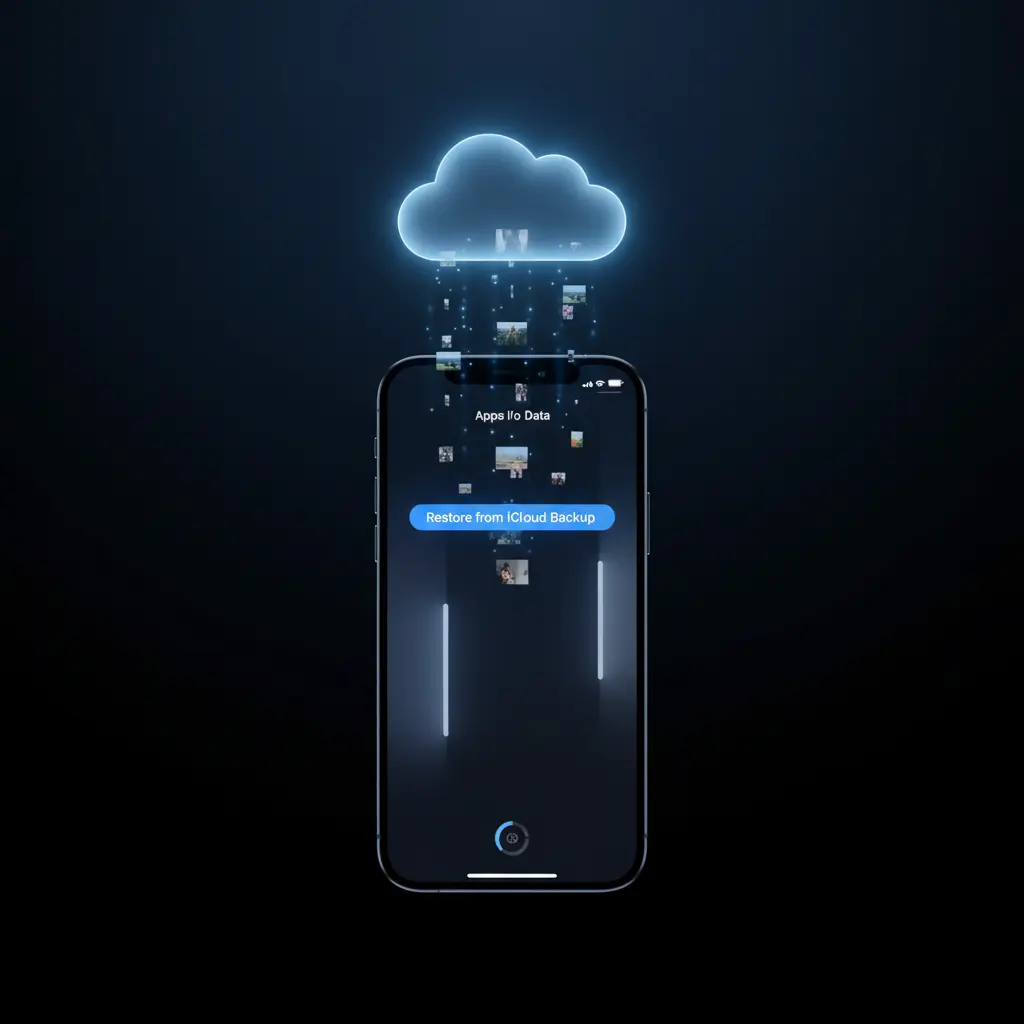
Sometimes, your photos are gone from both your iPhone and iCloud.com. But if you have iCloud Backup turned on, your phone saves a full snapshot every night while charging. That snapshot includes your photos.
How to Retrieve Deleted Photos on iPhone from iCloud Backup
Warning: This method erases your current iPhone data and replaces it with an older backup. Anything created after the backup date will disappear. Make sure you save new photos, messages, or contacts somewhere safe first.
- Open Settings > [Your Name] > iCloud > Manage Account Storage > Backups.
- Check the date of your latest backup. Make sure it is from before you deleted the photos.
- Go back to Settings > General > Transfer or Reset iPhone > Erase All Content and Settings.
- Follow the setup prompts until you reach Apps & Data.
- Tap Restore from iCloud Backup.
- Sign in and choose the backup date you verified in Step 2.
Your iPhone will restart and download the backup. This can take 30 minutes to several hours depending on your internet speed and backup size.
Expert Quote: “Restoring from a backup is like turning back time on your device. It is powerful, but it is not surgical. You cannot pick and choose which photos to recover — you get everything from that day,” notes Apple’s official iPhone User Guide.
If you are not comfortable erasing your phone, skip to Method 4.
Method 4: Restore from iTunes or Finder Backup
Before iCloud Backup became popular, most people backed up their iPhones to a computer using iTunes (Windows) or Finder (Mac). If you ever connected your iPhone to a computer and clicked “Back Up Now,” your photos might be sitting on that hard drive.
Recovering Deleted Photos from iPhone via Finder (Mac)
- Connect your iPhone to your Mac using a USB cable.
- Open Finder (on macOS Catalina or later).
- Select your iPhone in the sidebar.
- Click Restore Backup.
- Choose the backup that predates your photo deletion.
- Click Restore and wait.
Retrieving Deleted Photos on iPhone via iTunes (Windows)
- Connect your iPhone to your PC.
- Open iTunes.
- Click the small iPhone icon near the top-left.
- Click Restore Backup.
- Pick the correct backup file.
- Click Restore and keep your device connected.
Encrypted vs. Unencrypted Backups
| Backup Type | Password Required? | Includes Health/Keychain? |
|---|---|---|
| Unencrypted | No | No |
| Encrypted | Yes | Yes |
If you set a backup password in the past, you will need to enter it now. There is no way around this — Apple does not store your backup password.
This method is excellent for restoring permanently deleted photos iPhone users thought were gone forever. As long as the backup exists on your computer, your photos are recoverable.
Method 5: Use Third-Party Recovery Software
Let us be honest. If your photos are not in Recently Deleted, not in iCloud, and not in a computer backup, your options shrink. Third-party recovery tools claim to scan your iPhone’s storage and find traces of deleted files.
Do These Tools Actually Work?
Here is the truth. On modern iPhones running iOS 17 or iOS 18, this is extremely difficult. Apple uses strong encryption. When you delete a file, iOS marks that space as “free” and often overwrites it quickly. If you act within hours of deletion, some tools might find fragments. After a day or two, the chances drop dramatically.
Popular iPhone Photo Recovery Tools
| Software | Platform | Price Range | Best For |
|---|---|---|---|
| Dr.Fone | Windows/Mac | $50–$80 | User-friendly interface |
| Tenorshare UltData | Windows/Mac | $50–$70 | Deep scan mode |
| iMyFone D-Back | Windows/Mac | $40–$60 | Preview before recovery |
How to Use Recovery Software (General Steps)
- Download the software to your computer. Do not install it on your iPhone.
- Connect your iPhone via USB.
- Choose Recover from iOS Device.
- Let the software scan your phone. This may take 20–60 minutes.
- Preview found photos.
- Select the ones you want and click Recover to Computer.
Safety Warning: Never give your Apple ID password to any third-party app. Legitimate recovery software scans your local device or backup files. It does not need your iCloud credentials.
If you want to recover permanently deleted photos iphoto style (from older Mac libraries), these tools also scan older iTunes backup formats.
How to Prevent Losing Photos Again
Recovering photos is stressful. Preventing loss is easy. Here are three habits that take less than five minutes to set up.
1. Enable iCloud Photos
Go to Settings > [Your Name] > iCloud > Photos > Toggle on iCloud Photos. This syncs every photo to Apple’s servers automatically. Even if you drop your phone in the ocean, your photos are safe.
2. Set Up Automatic iPhone Backup
Learn how to back up iPhone data the right way. Use both iCloud Backup and occasional computer backups. Redundancy is your friend.
3. Export Photos to a Computer Regularly
Every few months, transfer photos from iPhone to PC or Mac. This creates an offline archive that no cloud glitch can touch. You can also keep an iPhone backup to PC using iTunes or Finder for extra peace of mind.
Pro Tip: Turn on Optimize iPhone Storage in your iCloud Photos settings. This keeps small previews on your phone and full-resolution files in the cloud. It saves space and ensures everything is backed up.
Quick Comparison Table
Not sure which method to try first? Use this table.
| Method | Difficulty | Time Needed | Requires Reset? | Success Rate |
|---|---|---|---|---|
| Recently Deleted Album | Very Easy | 1 minute | No | Very High |
| iCloud.com | Easy | 5 minutes | No | High |
| iCloud Backup | Moderate | 1–3 hours | Yes | High |
| iTunes/Finder Backup | Moderate | 30–60 min | Yes | High |
| Third-Party Software | Hard | 30–90 min | No | Low-Medium |
Start from the top and work your way down. Most people solve their problem with Method 1 or Method 2.
FAQ
Can I recover permanently deleted photos from my iPhone?
Yes, but only if you have a backup created before the deletion. Check iCloud.com, iCloud Backup, or iTunes/Finder backups. Without a backup, third-party tools offer limited success on iOS 18.
How long do deleted photos stay on iPhone?
Deleted photos remain in the Recently Deleted album for 30 days. After that, Apple removes them permanently from your device unless they are stored in an iCloud or computer backup.
Can I restore recently deleted photos iPhone without resetting?
Absolutely. Check the Recently Deleted album in your Photos app, or log into iCloud.com and check the Recently Deleted folder there. Both methods recover photos instantly without erasing your phone.
Does iCloud Photos keep deleted photos?
Yes. When iCloud Photos is enabled, deleted photos move to Recently Deleted in iCloud for 30 days. You can access them via iCloud.com or the Photos app on any synced device.
Is iPhone photo recovery software safe?
Reputable tools like Dr.Fone and Tenorshare are generally safe if downloaded from official websites. However, never provide your Apple ID password to any app. Always try official Apple methods first.
What should I do if I accidentally erase my iPhone while trying to recover photos?
If you erase iPhone data during the process, stop using the device immediately. If you have an iCloud or iTunes backup, you can restore everything. If not, contact Apple Support for guidance.
Conclusion
Losing photos feels awful. But as you now know, how to recover deleted photos on iPhone is not a mystery. It is a process. Start with the Recently Deleted album. Check iCloud.com next. If those fail, turn to your backups — iCloud or computer. Only consider third-party software if every other door is closed.
The best recovery strategy is prevention. Take two minutes today to confirm iCloud Photos is on. Run a backup tonight. Your future self will thank you.
If you found this guide helpful, check out our tutorials on how to back up iPhone data and how to transfer photos from iPhone to PC for long-term peace of mind.
External Links Used:

