


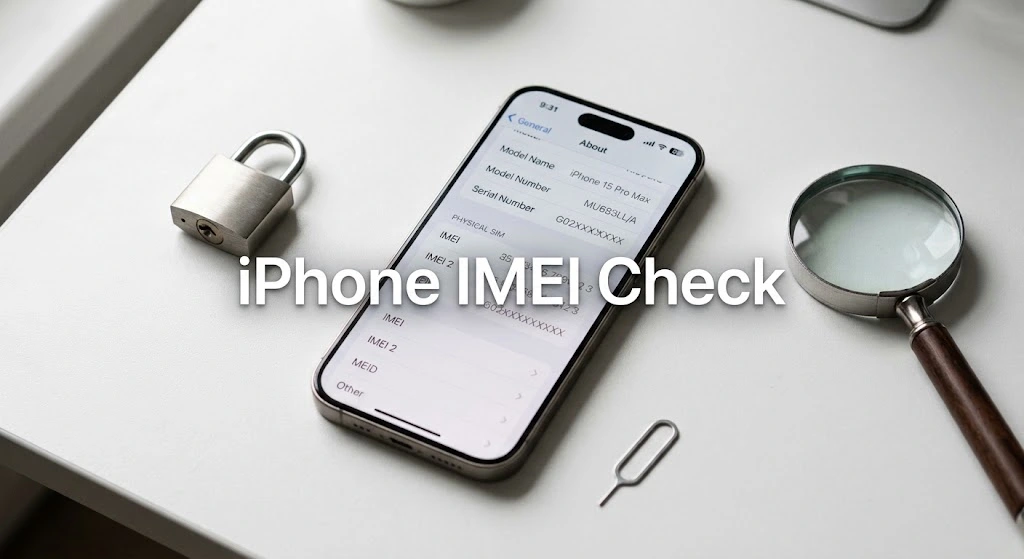
Want to buy a used iPhone or check if your current device is safe? An iPhone IMEI check is the fastest way to verify authenticity, avoid stolen devices, and confirm iCloud status before you spend money or sell your phone.
In this guide, you’ll learn exactly how to find your IMEI, use free checker tools, and understand what the results actually mean for your security.
What is an iPhone IMEI Number?
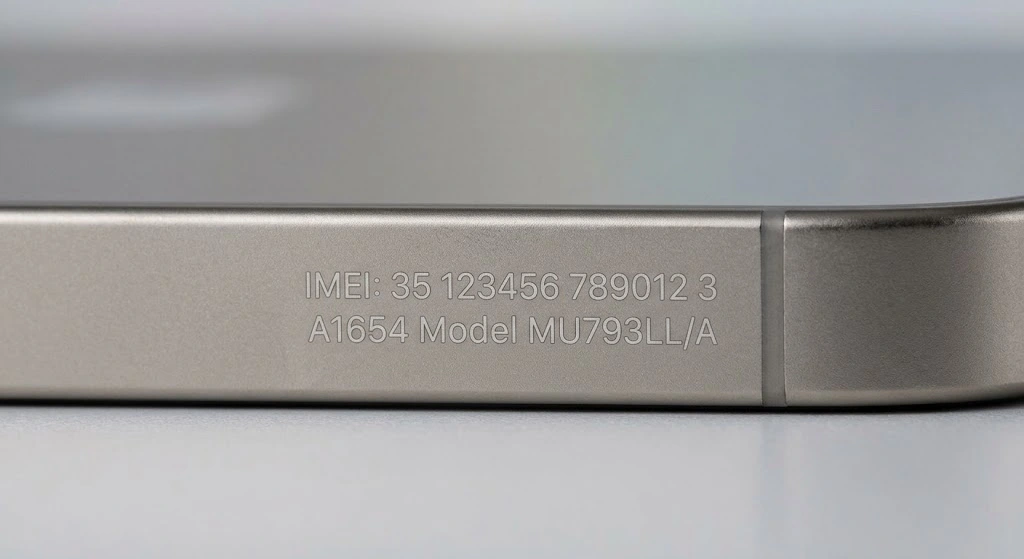
Your IMEI (International Mobile Equipment Identity) is a unique 15-digit code that identifies your specific iPhone. Think of it as your phone’s fingerprint—no two devices share the same number.
This code helps carriers and law enforcement track devices, block stolen phones, and verify authenticity. You’ll need it when unlocking your phone, checking warranty status, or buying a used device.
Note: Your IMEI is different from your serial number. The serial number identifies your device to Apple, while the IMEI identifies it to cellular networks worldwide.
Why You Should Check Your iPhone IMEI
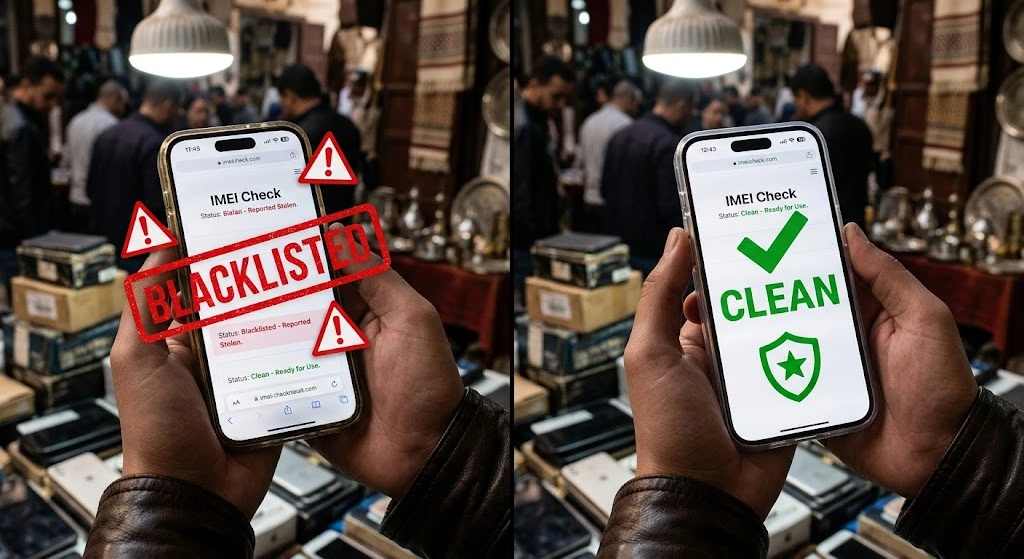
Running an iPhone IMEI check protects you from expensive mistakes. Here’s why it matters:
- Verify authenticity: Confirm you’re buying a genuine Apple device, not a counterfeit.
- Check iCloud Activation Lock: Make sure the previous owner signed out of their account.
- Avoid blacklisted phones: Steer clear of devices reported stolen or lost.
- Confirm carrier compatibility: Ensure the phone works with your network.
If you’re shopping for a refurbished iPhone, this step is non-negotiable. It takes two minutes and can save you hundreds of dollars.
How to Find Your iPhone IMEI Number
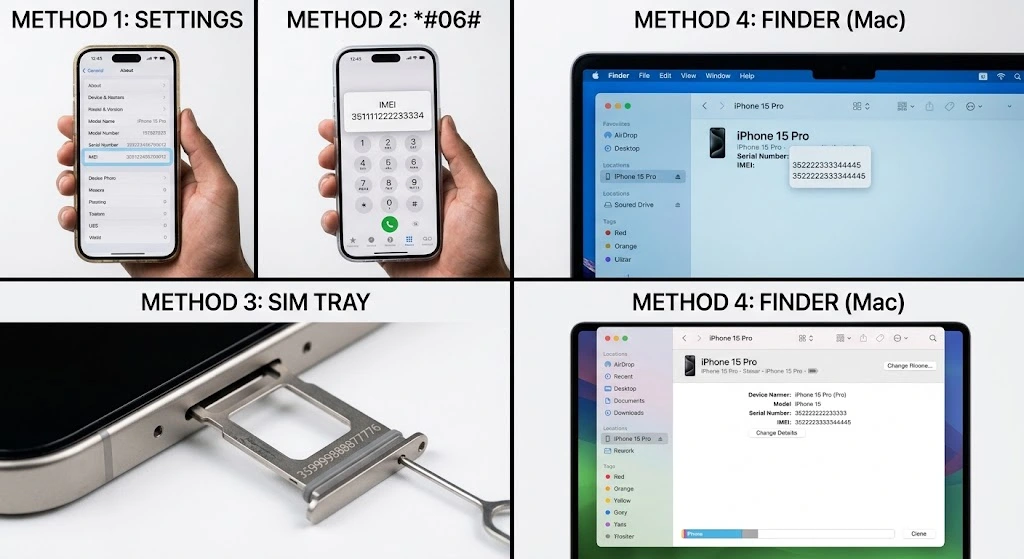
You can locate your IMEI in several ways. Pick the method that works best for your situation.
Method 1: Settings App (Easiest)
- Open Settings.
- Tap General.
- Tap About.
- Scroll down to find IMEI. Tap and hold to copy it.
Works on all iPhone models running iOS 15 or later.
Method 2: Dial *#06#
- Open the Phone app.
- Dial *#06#.
- Your IMEI appears immediately on the screen.
This works even if your iPhone doesn’t have a SIM card installed.
Method 3: On the Device Itself
- iPhone 6s and earlier: Check the back of the phone.
- iPhone 7 to iPhone 14: Look on the SIM tray.
- iPhone 15 and later: Check the engraving on the back glass or in Settings.
Method 4: Via Finder or iTunes
Connect your iPhone to a Mac or PC:
- macOS Catalina or later: Open Finder, select your iPhone, and click the phone number field to reveal the IMEI.
- Windows or older macOS: Open iTunes, click the device icon, and view the summary tab.
Pro Tip: Take a screenshot of your IMEI and email it to yourself. You’ll need it if your phone is ever lost or stolen.
Best Free iPhone IMEI Check Tools
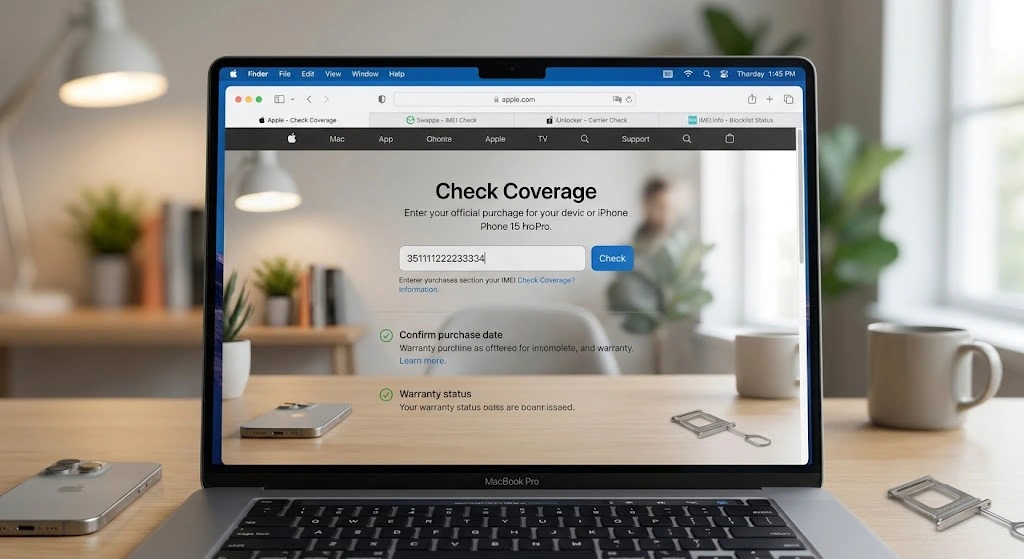
Once you have your number, use these trusted tools to run your iPhone IMEI check. Each offers slightly different data, so try two for confirmation.
| Tool | Best For | Cost | Key Data |
|---|---|---|---|
| Apple Check Coverage | Official warranty status | Free | Warranty, purchase date |
| IMEICheck.com | Detailed device history | Free basic | Model, capacity, blacklist |
| iUnlocker | Carrier unlock status | Free | Lock status, simlock |
| Swappa | Buying/selling safety | Free | Blacklist, activation lock |
| IMEI.info | Comprehensive lookup | Free basic | Full device specs |
Step-by-Step: Running Your First Check
- Copy your IMEI from Settings (15 digits, no spaces).
- Visit Apple’s Check Coverage page first to verify warranty status.
- Enter your IMEI in the search field and submit.
- Review the results for model, storage, and coverage.
- Cross-check with Swappa or iUnlocker for blacklist and activation lock status.
Expert Insight: According to Apple Support, you should always verify that Activation Lock is disabled before purchasing a used device. If the seller refuses to provide the IMEI, walk away immediately.
How to Read Your IMEI Check Results
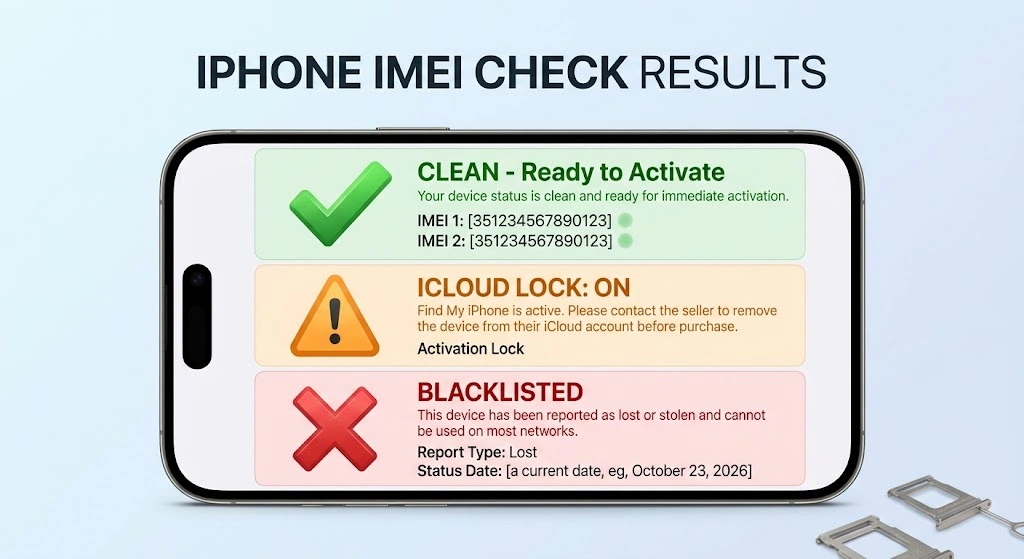
Understanding your results prevents bad purchases. Here’s what the status codes mean:
Clean vs. Blacklisted
- Clean: The device is clear to activate on any carrier.
- Blacklisted: The phone was reported lost or stolen. It cannot connect to most cellular networks.
iCloud Activation Lock
- ON: The previous owner’s Apple ID is still linked. You cannot set up the phone.
- OFF: The device is ready for a new Apple ID.
Carrier Lock Status
- Unlocked: Works with any carrier.
- Locked: Only works with the original carrier (e.g., AT&T, Verizon).
Before buying, also check if your iPhone is carrier unlocked to avoid surprises. If you’re selling, remember to turn off Find My iPhone and complete a factory reset to remove Activation Lock.
Common IMEI Issues and Fixes
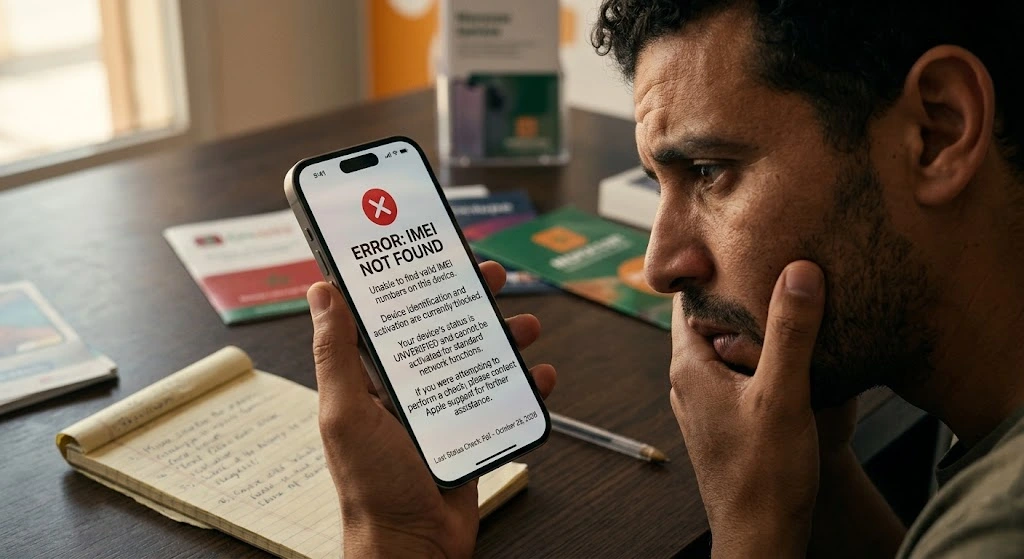
Even with a valid IMEI, you might hit snags. Here’s how to handle them.
IMEI Not Found
If a tool returns “invalid” or “not found”:
- Double-check for typos (15 digits exactly).
- Remove any spaces or dashes.
- Try Apple’s official checker first—if Apple recognizes it, third-party tools should too.
Blacklisted iPhone
If your device shows as blacklisted but you own it legitimately:
- Contact your carrier immediately.
- Provide proof of purchase to remove the block.
- If bought used, request a refund from the seller.
Warning: Do not attempt to change or “fix” an IMEI yourself. This is illegal in the United States under FCC regulations and can permanently brick your device.
IMEI Changed After Repair
If your IMEI changed after a screen or battery replacement:
- Contact the repair shop immediately.
- Verify they used genuine Apple parts.
- Check your iPhone warranty check status, as unauthorized repairs may void coverage.
FAQ
What is the difference between IMEI and serial number on iPhone?
Your serial number identifies your device to Apple for warranty and support. Your IMEI identifies your phone to cellular networks globally. You need the IMEI to check carrier blacklist status; you need the serial number for Apple warranty checks.
Can I check iPhone IMEI for free?
Yes. Apple’s Check Coverage tool, Swappa, and iUnlocker all offer free basic IMEI checks. Paid reports provide deeper history but aren’t necessary for most users.
How do I know if my iPhone IMEI is blacklisted?
Enter your IMEI at Swappa’s checker or IMEI.info. If the status shows “blacklisted” or “blocked,” the phone was reported lost or stolen and won’t work on most networks.
What does iCloud Activation Lock mean in IMEI check?
Activation Lock ties the iPhone to an Apple ID. If the check shows “ON,” the previous owner must sign out via Find My iPhone before you can use the device. Never buy a phone with Activation Lock enabled.
Is it safe to share my iPhone IMEI number?
Generally, yes. Sharing your IMEI is safe for verification purposes with buyers, carriers, or official tools. However, avoid posting it publicly on social media where it could be copied for fraudulent listings.
Conclusion
Running an iPhone IMEI check takes less than five minutes but protects you from buying stolen property, locked devices, or counterfeits. Start by finding your IMEI in Settings, verify it through Apple’s official tool, and cross-check with a free service like Swappa.
Whether you’re buying, selling, or just verifying your current device, this simple step ensures your iPhone is legitimate and ready to use.
Next steps:
- Identify your iPhone model to confirm specs match the IMEI report
- Check your iPhone battery health if buying used
- Review our refurbished iPhone buying guide for more safety tips

