


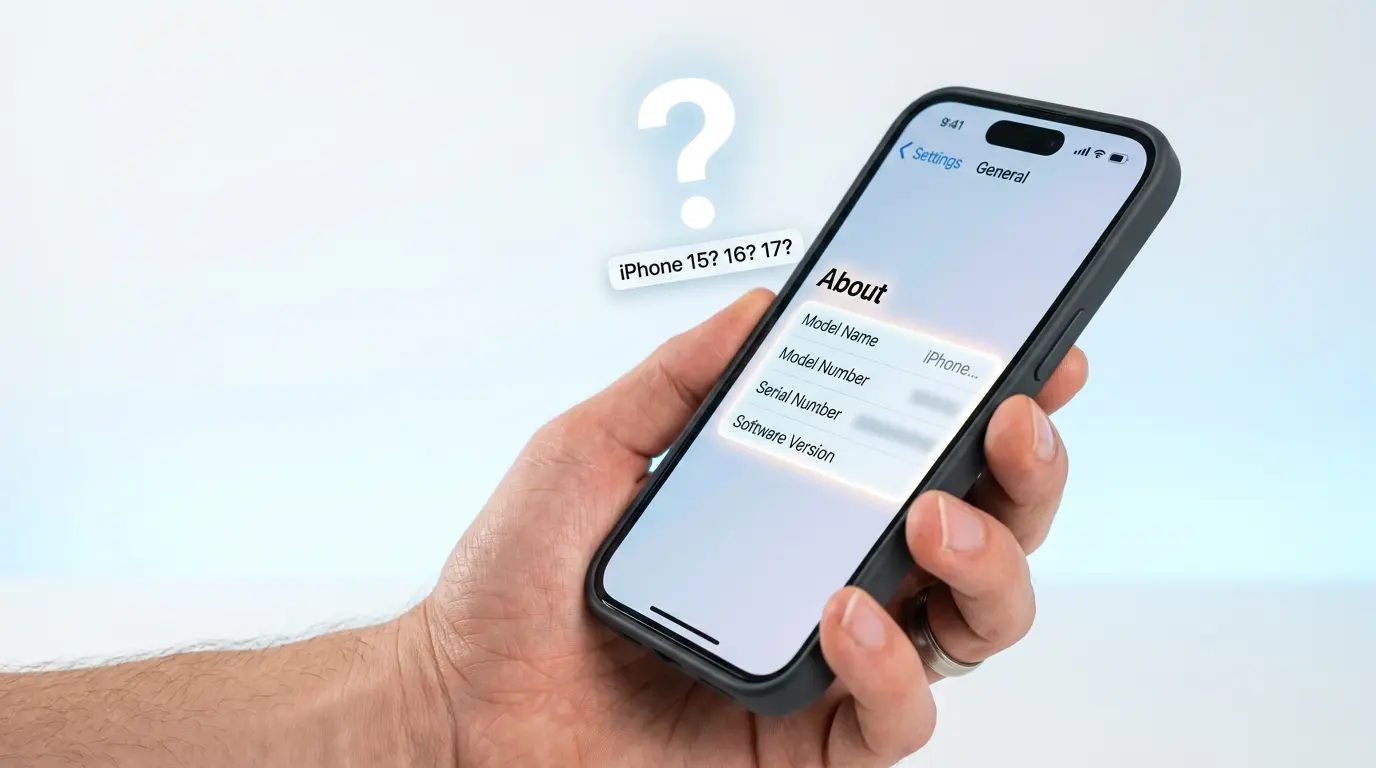
If you’ve ever picked up your phone and wondered, “what iPhone do I have?” — you’re not alone. Millions of people need to answer this exact question before installing a software update, buying a case, checking their warranty, or selling their old device.
The good news is that finding out what iPhone you have takes less than a minute — even if your screen is cracked, your battery is dead, or you’ve never opened the Settings app before. In this guide, you’ll find five simple, beginner-friendly methods to identify your exact iPhone model.
Why It Matters to Know What iPhone You Have
Knowing the answer to “what iPhone do I have” isn’t just trivia — it affects several real decisions:
- Software updates — not every iPhone supports the newest iOS version.
- Accessories — cases, screen protectors, and chargers are model-specific.
- Repairs — technicians need your exact model and serial number to find the right parts.
- Resale or trade-in — buyers base offers on your exact model and storage size.
- Buying used — confirming the model helps you avoid overpaying for an older device.
A quick check now can save you time, money, and a lot of confusion later.
Method 1: Check Your iPhone Model in Settings (Fastest Way)
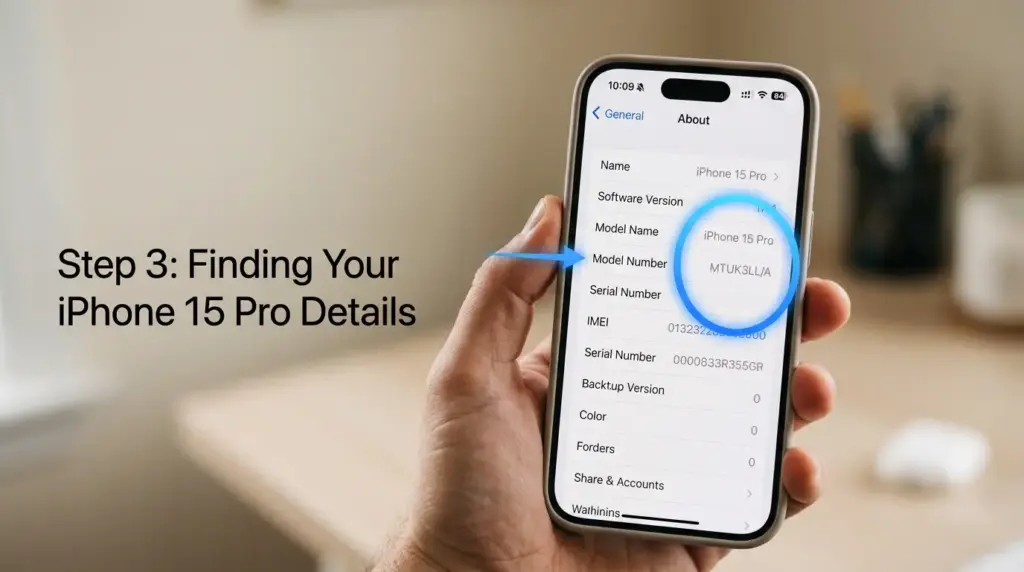
This is the easiest and most accurate way to answer what iPhone do I have. Apple builds this information directly into iOS, so you don’t need any extra tools.
Step-by-Step Guide
- Open the Settings app.
- Tap General.
- Tap About.
- Look for Model Name — this tells you exactly which iPhone you own (for example, “iPhone 15 Pro Max”).
- Tap the Model Number field once to switch between the part number and the model number.
Tip from Apple’s support documentation: Tapping the Model Number field toggles between the part number (which encodes storage, color, and region) and the actual model number, which always starts with the letter A. This A-number is the one technicians and Apple Support use for repairs and lookups.
Model Name vs. Model Number vs. Part Number
Your iPhone actually has three different identifiers, and people often mix them up:
| Identifier | Example | What It Tells You | When You Need It |
|---|---|---|---|
| Model Name | iPhone 15 Pro Max | The marketing name shown in ads and Settings | General use, checking specs |
| Model Number (A-number) | A2849 | Apple’s internal hardware code | Repairs, accessories, official lookups |
| Part Number | MTQX3LL/A | Storage size, color, and region code | Confirming exact configuration |
Key takeaway: Most people only need the Model Name. But if you’re ordering parts, checking cellular bands, or doing an official Apple lookup, you’ll want the A-number.
Method 2: Find the Model Number on Your Device
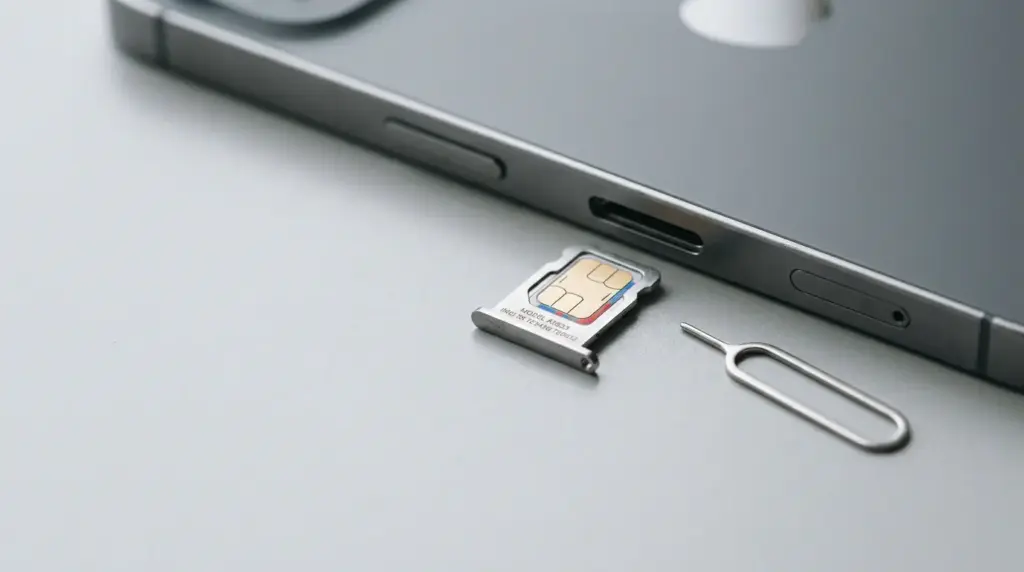
If your iPhone won’t turn on — or you just want a second confirmation — the model number is also etched directly on the hardware.
iPhone 8 and Earlier
- Flip your iPhone over.
- Look near the bottom of the back panel.
- You’ll see small text reading something like “Model A1863”.
iPhone X Through iPhone 13
- Remove the SIM tray using a SIM eject tool or a bent paperclip.
- Look at the top of the tray — the A-number is engraved there.
- Use a flashlight or magnifying glass if the text is too small to read.
iPhone 14 and Later (US Models)
- US versions of the iPhone 14 and newer don’t have a physical SIM tray, since they use eSIM only.
- Check the regulatory text on the back of the device near the bottom — the A-number is included there in fine print.
Note: No SIM tray and no engraved number on the back? Don’t worry — that’s actually a clue in itself. It tells you the device is likely an iPhone 14 or newer, US model. Move on to Method 3 to narrow it down further.
Method 3: Identify Your iPhone Without Turning It On
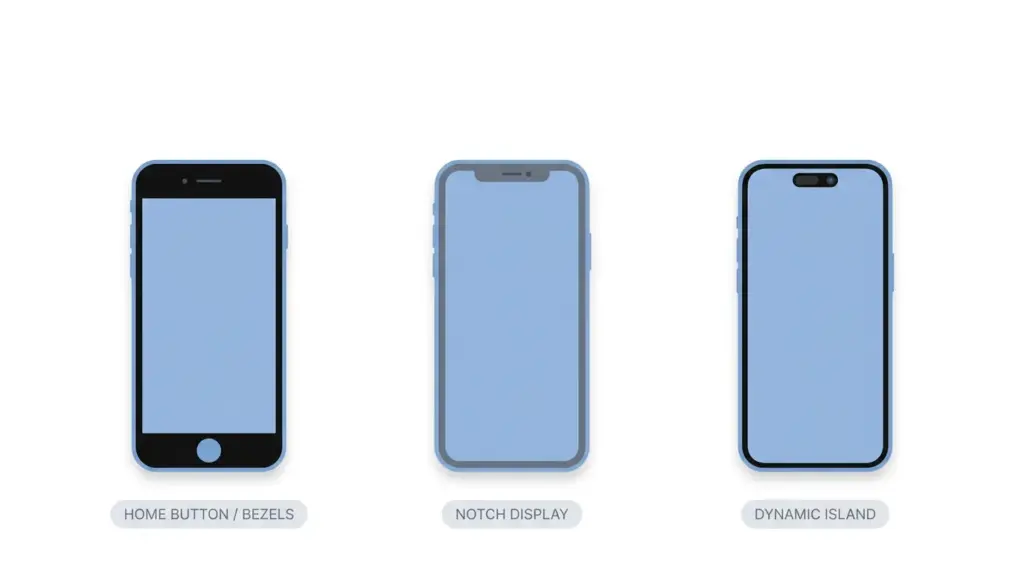
This is one of the most useful tricks for figuring out what iPhone do I have when the device is broken, has a dead battery, or won’t power on at all. You can identify it just by its physical design.
Look at the Front
| Design Feature | What It Means | Likely Models |
|---|---|---|
| Round Home Button + thick bezels | Touch ID, older design | iPhone 6, 6s, 7, 8, SE (2nd/3rd gen) |
| Notch at the top | Face ID, full-screen design | iPhone X, XS, XR, 11, 12, 13 |
| Dynamic Island (pill-shaped cutout) | Newest Face ID design | iPhone 14 Pro and all 15/16/17 models |
| No Home Button, no notch, no island | Earlier all-screen Face ID | iPhone 14 (non-Pro) |
Check the Charging Port
This single detail can instantly separate two very similar-looking iPhones:
- Lightning port → iPhone 14 and earlier, plus iPhone SE (3rd gen).
- USB-C port → iPhone 15, 16, and 17 series.
Quick win: The base iPhone 14 and iPhone 15 look nearly identical from the front. The charging port is the fastest way to tell them apart.
Check the Camera Layout
- Single lens → iPhone SE (all generations), iPhone XR, iPhone 16e.
- Dual lens (vertical) → iPhone 11, 12, 13 (non-Pro).
- Dual lens (diagonal) → iPhone 13 mini, iPhone 14 (non-Pro).
- Triple lens (triangle arrangement) → Pro and Pro Max models, iPhone 11 Pro and later.
Screen Size Quick Guide
| If it feels… | It’s probably… |
|---|---|
| Very small (4.0″) | iPhone SE (1st gen) |
| Small (4.7″) | iPhone SE (2nd/3rd gen), iPhone 8, iPhone 7 |
| Medium (5.4″–6.1″) | iPhone 12 mini/13 mini, or standard 12–17 series |
| Large (6.5″–6.7″) | Plus and Pro Max models |
Safety note: Visual identification gives you a strong estimate, but a few models share very similar designs. When possible, confirm with the Model Number or serial number for full accuracy.
Method 4: Use Your iPhone’s Serial Number

Every iPhone has a unique serial number that can confirm its exact model, manufacturing details, and warranty status. This is the most reliable way to double-check what iPhone model you have.
How to Find Your Serial Number
- Go to Settings > General > About.
- Scroll down to Serial Number.
- Tap and hold to copy it.
You can also find the serial number on the original box, on your purchase receipt, or in your Apple ID account page.
How to Look Up Your Model
Once you have the serial number:
- Go to Apple’s official Check Coverage page.
- Enter your serial number and complete the verification step.
- Apple will display your exact model, along with your warranty and AppleCare status.
According to Apple’s support documentation, the serial number is one of the most reliable ways to confirm a device’s identity and check its eligibility for service and support. (Apple Support)
This is especially useful when buying a used iPhone — it confirms both the model and whether it’s still covered under warranty.
👉 Want to dig deeper into your device’s coverage status? Check out our full guide on how to check your iPhone’s warranty.
Method 5: Ask Siri or Use Finder/iTunes
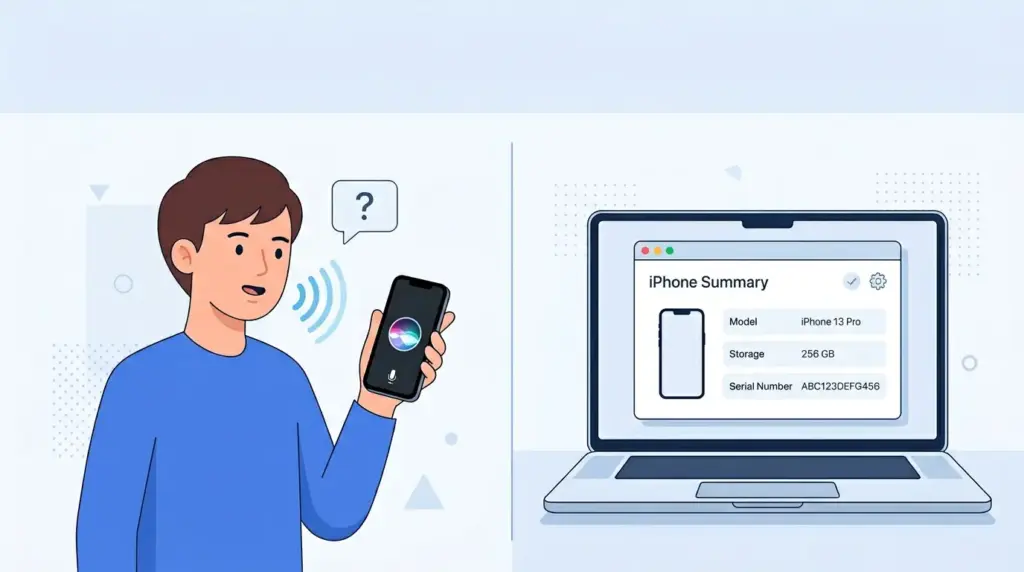
Ask Siri
If your iPhone powers on and Siri is enabled:
- Activate Siri by holding the side button or saying “Hey Siri.”
- Ask: “What iPhone do I have?” or “What model is this phone?”
- Siri will respond with your model name right away.
This won’t give you the exact A-number, but it’s a fast, hands-free shortcut.
Use Finder or iTunes
If you have access to a computer, you can get detailed model information even from a locked iPhone:
- Connect your iPhone to your Mac or PC with a cable.
- Open Finder (newer Macs) or iTunes (Windows or older Macs).
- Select your iPhone from the device list.
- The summary screen shows the model name, storage capacity, and serial number.
This method works even if your iPhone’s screen is unresponsive, as long as the device can still be recognized by the computer.
A Note on Third-Party Tools
Some websites and apps (like CPU-identifier apps or spec-lookup databases) can also confirm your model using your A-number.
Safety warning: Stick to Apple’s official tools whenever possible. Avoid sites that ask you to download unfamiliar software or enter personal information just to “identify” your phone.
iPhone Model Number Reference Table
Use this table as a general reference to match common model numbers to iPhone generations:
| Model Number (US) | iPhone Model |
|---|---|
| A1549 / A1586 | iPhone 6 |
| A1660 / A1779 | iPhone 7 |
| A1863 / A1905 | iPhone 8 |
| A1865 / A2097 | iPhone XS / XS Max |
| A2111 / A2221 | iPhone 11 / 11 Pro |
| A2403 / A2342 | iPhone 12 / 12 Pro |
| A2482 / A2483 | iPhone 13 / 13 Pro |
| A2649 / A2650 | iPhone 14 / 14 Pro |
| A2846 / A3092 | iPhone 15 / 15 Pro |
| A3081 / A3083 | iPhone 16 / 16 Pro |
| A3084 | iPhone 16 Pro Max |
| A3258 / A3256 | iPhone 17 / 17 Pro |
| A3257 | iPhone 17 Pro Max |
| A2595 / A2782 | iPhone SE (3rd gen) |
| A2275 / A2296 | iPhone SE (2nd gen) |
| A1723 / A1662 | iPhone SE (1st gen) |
Important: This table lists the US model numbers (Settings > General > About). iPhones sold in other regions — like Canada, Japan, or China — often use a different A-number for the exact same model, due to differences in cellular bands and SIM support. If your number doesn’t match this table, that’s likely why. For the complete list of regional variants, check Apple’s official identification page.
Why the Same iPhone Can Have Different Model Numbers
Here’s something that confuses a lot of people: your iPhone 15 might have a different A-number than your friend’s iPhone 15 — even though you both have “the same phone.”
Regional Variations
Apple builds slightly different hardware versions for different countries to comply with local cellular regulations. A US version, a Canada/Japan version, and a global version of the same iPhone model can all carry different A-numbers — even though the model name, design, and features are the same.
SIM Tray vs. eSIM-Only
Starting with the iPhone 14 series, US models dropped the physical SIM tray in favor of eSIM. International versions of the same iPhone that still include a SIM tray use a different A-number.
Carrier History
In the past, some iPhones were locked to specific carriers and had unique model numbers as a result. Most iPhones sold in the US today are unlocked, but the underlying regional hardware differences still exist.
Bottom line: Different A-numbers don’t necessarily mean different phones — they often just reflect where and how the device was built to connect to networks.
iPhone Model and iOS Compatibility
Once you know what iPhone do I have, the next natural question is: “Will it run the latest iOS?” Here’s a general overview:
| iPhone Model | Typical Software Support |
|---|---|
| iPhone 8 / 8 Plus / X | Supported through iOS 16 |
| iPhone XR / XS / XS Max | Supported through iOS 17–18 |
| iPhone 11 series | Supported through iOS 18 and beyond |
| iPhone 12 / 13 series | Fully supported, including the latest iOS |
| iPhone 14 / 15 / 16 series | Fully supported, including the latest iOS |
| iPhone 17 series | Fully supported, latest iOS |
Note: Apple updates its list of supported devices with every new iOS release. Always confirm directly via Settings > General > Software Update for the most accurate information for your specific model.
If your iPhone can no longer update past a certain iOS version, that’s often a strong clue about its age — which ties right back into figuring out exactly what iPhone you have.
Common Identification Mistakes to Avoid
Even experienced users get tripped up here. Watch out for these common mix-ups:
Confusing iPhone SE Generations
This is the #1 source of confusion:
- iPhone SE (1st gen, 2016) — looks like an iPhone 5s, with a 4-inch screen and headphone jack.
- iPhone SE (2nd/3rd gen, 2020/2022) — looks like an iPhone 8, with a 4.7-inch screen, Touch ID, and no headphone jack.
Always confirm via Settings > General > About, where the generation is listed next to “iPhone SE.”
Mixing Up iPhone 14 and iPhone 15
These two look almost identical from the front. The fastest way to tell them apart: iPhone 14 has a Lightning port; iPhone 15 has USB-C.
Treating the Part Number as the Model Number
When you first check Settings, you’ll see something like MTQX3LL/A. That’s the part number, not the model number. Tap that field once to reveal the A-number (like A2849) — that’s what repair shops and Apple actually need.
Using Outdated Reference Lists
Apple periodically introduces new regional variants. If your A-number doesn’t match any table you find online, don’t assume it’s wrong — check Apple’s official identification page for the latest entries.
Tip: When in doubt, the Model Number (A-number) combined with your serial number is the most reliable identification combo — far more accurate than relying on design alone.
What to Do After You Identify Your iPhone
Now that you know what iPhone you have, here’s what to do next:
- Check software compatibility — confirm whether your model supports the latest iOS update.
- Shop for the right accessories — an iPhone 15 case won’t fit an iPhone 15 Pro, since the camera bumps differ in size.
- Check your warranty — use your serial number on Apple’s coverage checker, or read our guide to checking your iPhone’s warranty.
- Back up your data — before any repair, trade-in, or sale, make sure to back up your iPhone.
- Turn on Find My iPhone — this is essential for locating a lost or stolen device. Learn how in our guide to Find My iPhone.
- Compare with newer models — if you’re considering an upgrade, see how your current iPhone stacks up against the newest iPhone.
Frequently Asked Questions
How do I know what iPhone I have without turning it on?
Look at the physical design: a round Home button means iPhone 8 or earlier (or SE 2nd/3rd gen); a notch means iPhone X–13; Dynamic Island means iPhone 14 Pro and later. You can also check the SIM tray (iPhone 8–13) or the back panel engraving (iPhone 7 and earlier) for the model number.
What’s the difference between Model Name and Model Number on iPhone?
The Model Name (like “iPhone 15 Pro Max”) is the marketing name. The Model Number (like A2849) is Apple’s internal hardware code used for repairs and lookups. The Part Number (like MTQX3LL/A) encodes storage, color, and region — tap the Model Number field in Settings to switch between them.
Can I identify my iPhone using the serial number?
Yes. Find your serial number in Settings > General > About, then enter it on Apple’s official Check Coverage page. This reveals your exact model along with its warranty and AppleCare status.
Why does the same iPhone model have different A-numbers?
Different A-numbers usually represent regional or carrier variants — for example, different cellular bands or SIM/eSIM configurations. These differences don’t change the model name, design, or features; they’re all still the same iPhone model.
How do I tell the difference between iPhone SE generations?
The 1st generation (2016) looks like an iPhone 5s with a small 4-inch screen and a headphone jack. The 2nd and 3rd generations (2020/2022) look like an iPhone 8, with a 4.7-inch screen and Touch ID. Check Settings > General > About for the exact generation and model number.
What iPhone are we on right now?
As of 2026, Apple’s current lineup includes the iPhone 17 series, the budget-friendly iPhone 16e, and the compact iPhone SE (3rd generation).
Conclusion
Figuring out what iPhone do I have doesn’t have to be complicated. Here’s a quick recap of your options:
- Phone works? Go to Settings > General > About — it’s the fastest and most accurate method.
- Phone won’t turn on? Check the SIM tray, the back panel engraving, or identify it by design — especially the charging port and camera layout.
- Want extra confirmation? Use your serial number with Apple’s Check Coverage tool.
- On the go? Just ask Siri, “What iPhone do I have?”
Once you’ve confirmed your exact model, take the next step: check for the latest iOS update, back up your data, make sure Find My iPhone is turned on, and explore the newest iPhone if you’re thinking about upgrading.

