


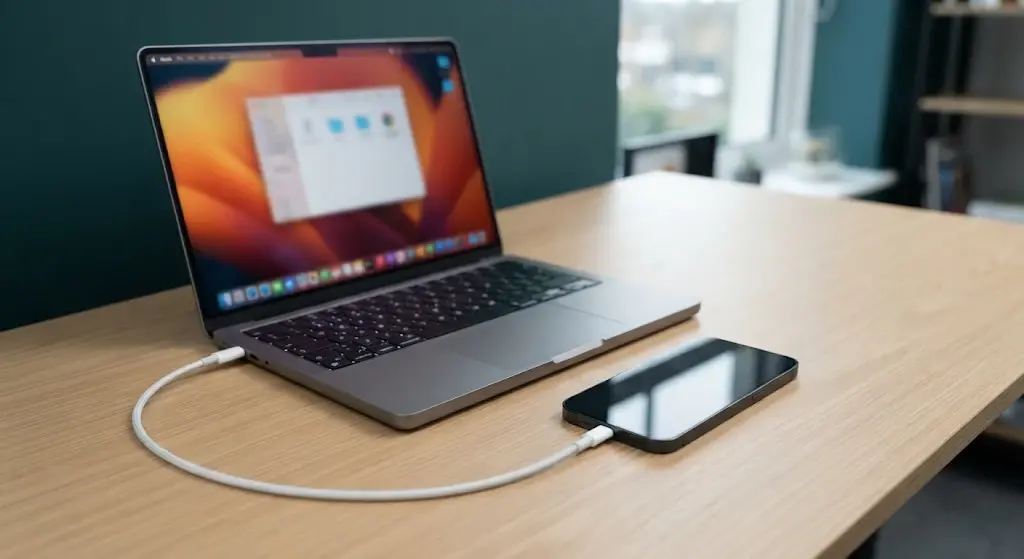
iPhone DFU mode (Device Firmware Update mode) is the deepest recovery state on an iPhone. In DFU mode the screen stays completely black, but your Mac or PC can still detect the iPhone and reinstall iOS from scratch. You use it when a normal restart and recovery mode have both failed.
This guide explains what DFU mode is, how it differs from recovery mode, and how to enter DFU mode on every iPhone model. You will also learn how to restore your iPhone, how to exit DFU mode, and what to do when it does not work.
Warning: a DFU restore erases everything on your iPhone. If the phone still turns on, back up your iPhone first. Entering DFU mode by itself does not erase anything, but restoring from it does.
What Is DFU Mode on iPhone?
DFU mode is a low-level state that lets a computer talk directly to your iPhone’s hardware and load fresh firmware. It runs before iOS and before the normal boot process even starts. That is why you can use it when the phone is stuck, unresponsive or looping on the Apple logo.
Apple’s own support page explains recovery mode, but it does not publish DFU steps for iPhone. The button sequences below come from widely used repair guides and technical communities, so follow the timing closely.
DFU Mode vs Recovery Mode: What’s the Difference?
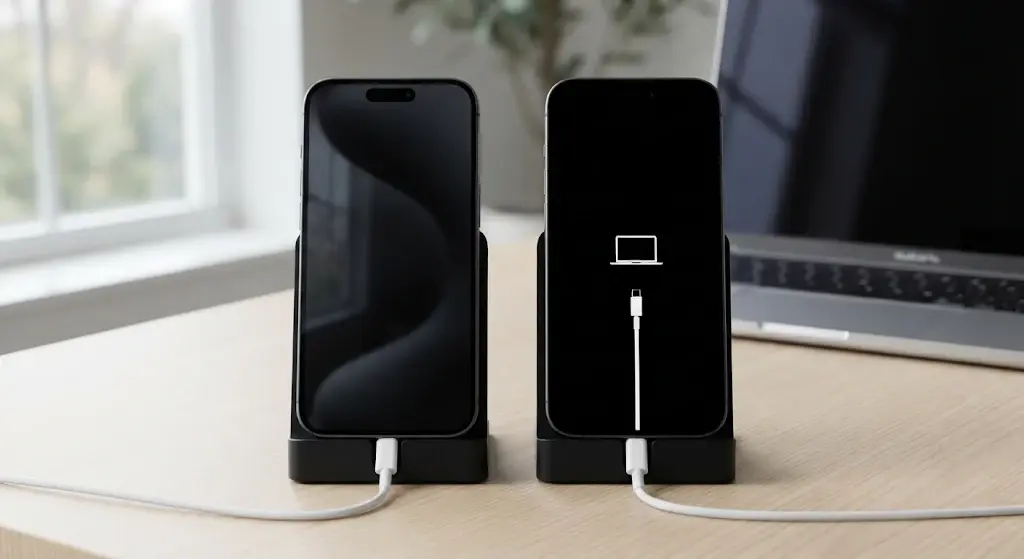
Recovery mode and DFU mode are often confused, but they look and behave differently.
| Mode | What you see on the iPhone | What it does | Try it when |
|---|---|---|---|
| Force restart | Apple logo, then normal start-up | Restarts iOS without erasing anything | Frozen screen or app |
| Recovery mode | Cable and computer icon (“Connect to computer”) | Lets you update or restore iOS | Stuck on the Apple logo or a failed update |
| DFU mode | Completely black screen | Reinstalls firmware and iOS at a deeper level | Recovery mode fails or the iPhone won’t respond |
How to Tell Which Mode Your iPhone Is In
- Black screen + your computer detects the iPhone = DFU mode.
- Apple logo = the iPhone is booting normally. You missed the timing, so start again.
- Cable pointing to a computer = you entered recovery mode, not DFU mode.
Heads-up: in DFU mode, Finder or the Apple Devices app may still say it detected an iPhone “in recovery mode.” That is normal. The black screen is what confirms DFU.
If you only need recovery mode, our guide on how to restore an iPhone with iTunes or Finder covers that path.
When Should You Use DFU Mode?
Use DFU mode as a last resort, in these situations:
- Your iPhone is stuck in a restart loop after a failed iOS update.
- The screen stays black or frozen and a force restart does nothing.
- Recovery mode fails, or your computer cannot restore the iPhone.
- The iPhone shows repeated restore errors.
Do not use DFU mode for a slow iPhone, a single frozen app or normal battery drain. A restart or an iOS update is enough for those.
Try These First: Force Restart and Recovery Mode
- Charge the iPhone and use an original or MFi-certified cable. A dead battery looks like a dead phone. See what to do when your iPhone won’t turn on.
- Force restart the iPhone. Our guide shows how to restart or force restart your iPhone.
- Use recovery mode and choose Update first, so you keep your data if it works. See iPhone stuck on the Apple logo for the full path.
- Only then move to DFU mode.
Before You Start: What You Need
Mac (Finder) or Windows (Apple Devices App)
- A Mac running Finder (macOS Catalina or later), or a Windows PC with the Apple Devices app. Apple points PC users to this app, and older setups use iTunes. See Apple’s Apple Devices app guide.
- An original or MFi-certified USB cable. Cheap cables are a common reason DFU mode fails.
- A stable internet connection. The iOS download is several gigabytes.
New to connecting your phone to a computer? Read how to connect your iPhone to a PC.
Back Up Your iPhone First
If the iPhone still turns on at all, make a backup before you start. Use iCloud or Finder or back up your iPhone to a PC. If the phone is already dead, you can restore from your latest backup after the DFU restore.
How to Enter DFU Mode on iPhone
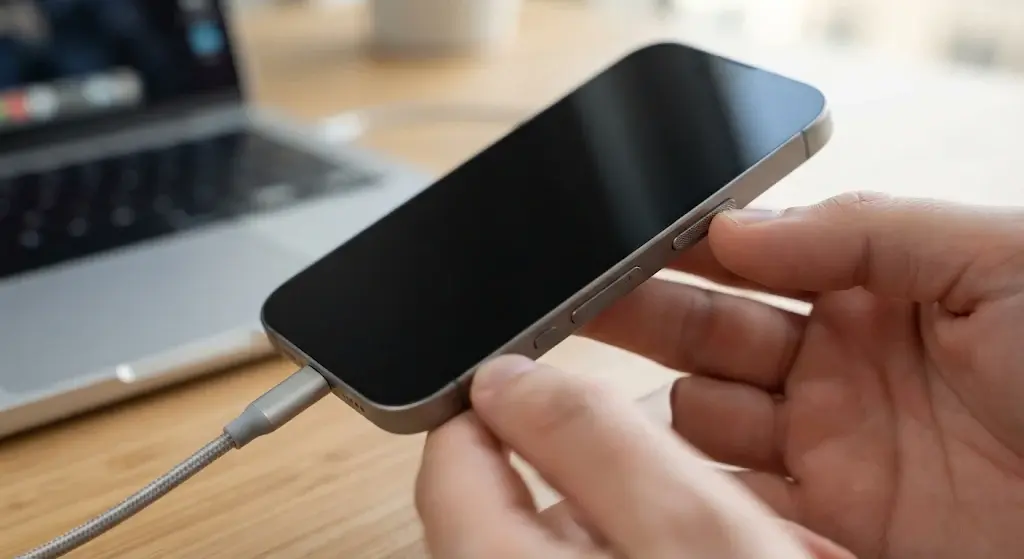
Pick the steps that match your model. In every method, the screen must stay black. Timing matters, so read all the steps once before you start. If it fails, release everything and try again.
iPhone 8 and Later (Including iPhone 16 and iPhone 17 Series)
This works for iPhone 8, iPhone SE (2nd and 3rd generation), iPhone X and every newer model, including Pro and Pro Max versions.
- Connect the iPhone to your Mac or PC with the cable, and open Finder or the Apple Devices app.
- Press and quickly release Volume Up.
- Press and quickly release Volume Down.
- Press and hold the Side button for about 10 seconds, until the screen goes black.
- While still holding the Side button, press and hold Volume Down for 5 seconds.
- Release the Side button, but keep holding Volume Down for about 10 more seconds.
- If the screen stays black and your computer detects the iPhone, you are in DFU mode.
If you see the Apple logo, you held the Side button too long. If you see the cable-to-computer screen, you are in recovery mode. In both cases, start again from step 2.
iPhone 7 and iPhone 7 Plus
- Connect the iPhone to your computer and open Finder or the Apple Devices app.
- Press and hold the Side button and Volume Down together for about 8 seconds.
- Release the Side button, but keep holding Volume Down for about 10 seconds.
- A black screen plus a detected device means DFU mode.
iPhone 6s, iPhone SE (1st Generation) and Earlier
- Connect the iPhone to your computer and open Finder or iTunes.
- Press and hold the Home button and the Side (or Top) button together for about 8 seconds.
- Release the Side button, but keep holding the Home button for about 10 seconds.
- A black screen plus a detected device means DFU mode.
How to Restore Your iPhone in DFU Mode
- When Finder or the Apple Devices app detects the iPhone, a message appears. Click OK.
- Choose Restore iPhone. This erases the iPhone and installs a fresh copy of iOS.
- Wait while your computer downloads the software. Keep the cable connected and do not use the iPhone or computer for other heavy tasks.
- When the restore finishes, the iPhone restarts and shows the setup screen.
- Set up the iPhone as new, or restore your data from a backup.
If your iPhone was linked to an Apple Account, it will ask for the account password after the restore because of Activation Lock. Make sure you remember it, or learn how Find My iPhone and Activation Lock work before you restore a phone you plan to sell.
If the restore needs a clean slate and your phone still works normally, a regular factory reset is simpler and safer than DFU mode.
How to Exit DFU Mode
If you entered DFU mode by mistake and have not started a restore, a force restart gets you out. Nothing is erased.
- iPhone 8 and later: press and release Volume Up, press and release Volume Down, then hold the Side button until the Apple logo appears.
- iPhone 7 and 7 Plus: hold the Side button and Volume Down together until the Apple logo appears.
- iPhone 6s and earlier: hold the Home button and the Side button together until the Apple logo appears.
If the iPhone starts normally, you are out. If it goes back to a black or looping screen, it needs a restore.
iPhone DFU Mode Not Working? Common Fixes
Apple Logo Appears or “Connect to Computer” Screen
Your timing was off. Release all buttons, wait a few seconds, and start again from the beginning. The most common mistake is holding the Side button a second or two too long.
Computer Doesn’t Detect the iPhone
- Use an original or MFi-certified cable and try a different USB port.
- Restart your Mac or PC, then reconnect.
- Update macOS, or update the Apple Devices app or iTunes on Windows.
- Charge the iPhone for a few minutes first.
Restore Errors and Stuck Progress
If you get an error code, look it up on Apple’s restore error page. If the iPhone keeps ending up in recovery or DFU mode after a clean restore, or a button is broken or stuck, the problem may be hardware.
How to Put an iPad in DFU Mode
The idea is the same as the iPhone. For iPads without a Home button, use the iPhone 8 and later steps, pressing the Top button where the iPhone uses the Side button. For iPads with a Home button, follow the iPhone 6s steps. As with the iPhone, a black screen and a detected device mean you are in DFU mode.
When DFU Mode Won’t Fix It: Repair Options
If the iPhone will not enter DFU mode, will not be detected, or fails to restore more than once, a hardware fault is likely (battery, charging port, storage or logic board). Apple says to get service when recovery fails or a button does not work. Compare your options in our guide to iPhone repair near you.
If you can reach the iPhone’s screen at all but see a message, this iPhone unavailable guide covers the passcode lock case, which often needs recovery mode rather than DFU.
iPhone DFU Mode FAQ
What is DFU mode on iPhone?
DFU (Device Firmware Update) mode is a low-level state in which your computer can reinstall iOS on the iPhone even if the phone will not start normally. The iPhone screen stays black while your computer detects the device.
Does DFU mode erase everything on my iPhone?
Entering DFU mode does not erase anything. Restoring the iPhone from DFU mode does erase all data, so back up first if the phone still works, and restore from a backup afterward.
What is the difference between DFU mode and recovery mode?
Recovery mode shows a cable and computer on the screen and lets you update or restore iOS. DFU mode shows a completely black screen and works at a deeper level, so it is the last resort when recovery mode fails.
How do I know my iPhone is in DFU mode?
The screen stays completely black and Finder or the Apple Devices app detects your iPhone. If you see an Apple logo, the phone is booting normally. If you see a cable and computer, you are in recovery mode.
How do I get out of DFU mode without restoring?
Force restart the iPhone. On iPhone 8 and later, press Volume Up, then Volume Down, then hold the Side button until the Apple logo appears. This does not erase your data.
Final Thoughts
iPhone DFU mode is powerful, but it is a last resort. Try a force restart and recovery mode first, back up if you can, and watch the screen: black means DFU, an Apple logo means start over. If DFU mode still does not bring the iPhone back, it is time for a repair.
For more background, read Apple’s recovery mode guide, iFixit’s DFU mode explainer and Macworld’s DFU mode walkthrough.
Last updated: November 2026.

