



A black, lifeless screen is stressful, but here’s the good news: if your iPhone won’t turn on, don’t worry, you’re not alone, and it’s usually fixable. In most cases the cause is a drained battery, a faulty cable, or a minor software freeze, not a broken phone. This friendly, step-by-step guide walks you through 7 easy fixes, starting with the fastest, so you can get your iPhone working again, even if you’re a total beginner.
Let’s dive in.
Is Your iPhone Really Off, or Just a Black Screen?
Before you panic, take 30 seconds to confirm what’s actually happening. The first thing to check when your iPhone won’t turn on is whether it’s truly off, or whether it’s on but the screen has simply failed. This quick test can save you a lot of time and worry.
Quick 30-second diagnostic checklist:
- Plug it into a charger. Do you see a charging screen or an Apple logo? If yes, it’s a battery or software issue, not a dead phone.
- Call your number from another phone. If it rings or vibrates, your iPhone is on, but the iPhone black screen means the display isn’t working.
- Press the side button and listen for sounds or feel for a vibration.
- Connect it to a computer. If your Mac or PC detects the device, it’s powered on.
Quick answer: Force restart your iPhone first, then charge it for 30–60 minutes with a known-good cable. If it still won’t respond, move on to Recovery Mode.
Fix 1: Force Restart Your iPhone (by Model)
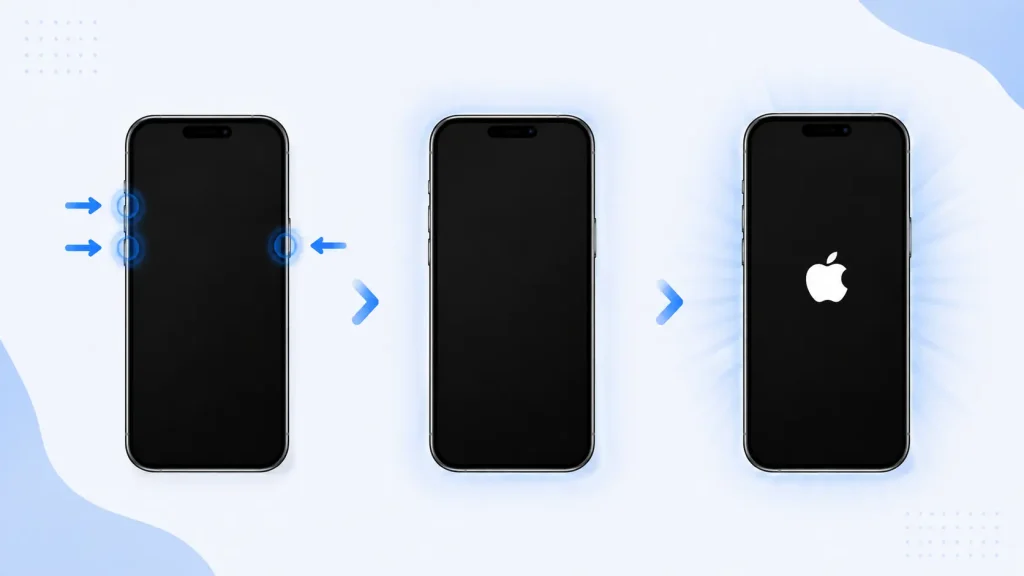
A force restart is the top fix when your iPhone won’t turn on or freezes, and it’s what most repair techs try first. It reboots your device without erasing any data, which clears the software glitch that often causes a frozen screen.
The exact buttons depend on your model, so use the table below.
| iPhone Model | How to Force Restart |
|---|---|
| iPhone 8, X, 11, 12, 13, 14, 15, 16, SE (2nd/3rd gen) | Press and quickly release Volume Up, press and quickly release Volume Down, then hold the Side button until the Apple logo appears. |
| iPhone 7 / 7 Plus | Press and hold Volume Down + the Side button together until the Apple logo appears. |
| iPhone 6s / SE (1st gen) and earlier | Press and hold the Home button + the Side (or Top) button together until the Apple logo appears. |
Important: Keep holding for 10 to 20 seconds, even if you see the “slide to power off” screen. Don’t let go until the Apple logo appears.
According to Apple Support, a force restart is safe and won’t delete your content.
For a full breakdown of the different methods, see our guide on how to restart iPhone.
Fix 2: Charge It the Right Way
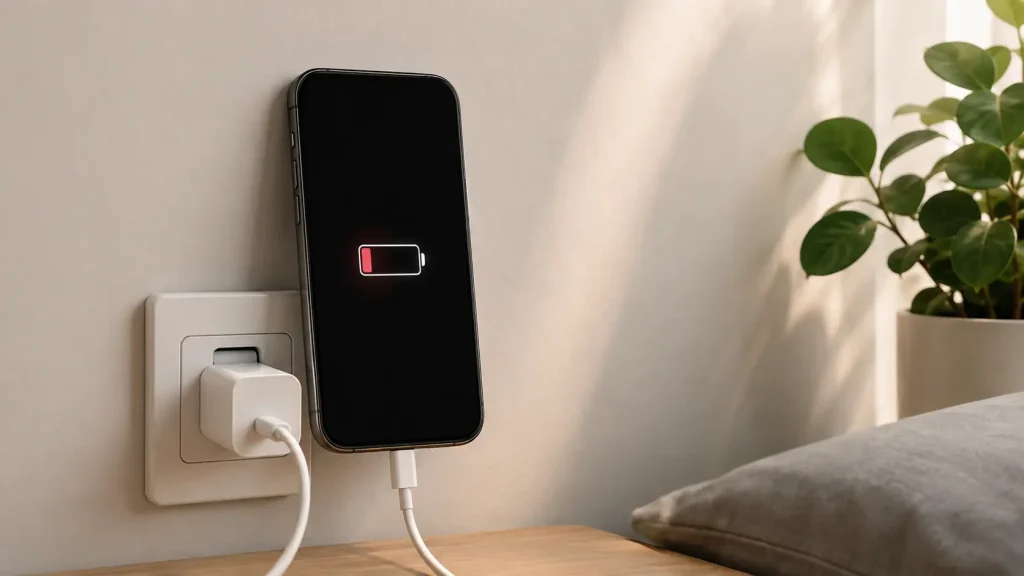
If a force restart didn’t help, a dead battery is the next most likely reason an iPhone won’t turn on, especially if your iPhone died and hasn’t come back on. A deeply drained battery can take several minutes just to show any sign of life.
Follow these steps:
- Plug your iPhone into a wall outlet (not a slow laptop USB port).
- Use an Apple-certified (MFi) cable and adapter.
- Wait at least 30 minutes, ideally a full hour.
- Watch for the charging screen or a low-battery icon.
If you see a low-battery symbol, that’s good news, your iPhone just needs time to charge.
What if it won’t charge?
Sometimes the issue is the charging setup, not the battery. Try these quick tips:
- Swap the cable for one you know works.
- Try a different adapter and outlet.
- Wiggle the connector gently to check for a loose fit.
If it still refuses to charge, the problem may be the charging system itself. Our full guide on what to do when your iPhone not charging covers this in detail.
Clean or inspect the charging port
Lint and pocket debris are a surprisingly common culprit.
- Turn off the device if possible.
- Use a wooden or plastic toothpick, never metal.
- Gently remove any lint from the port.
Warning: Never use metal tools or blast compressed air into the port, this can damage internal components.
Fix 3: Figure Out Which Problem You Have
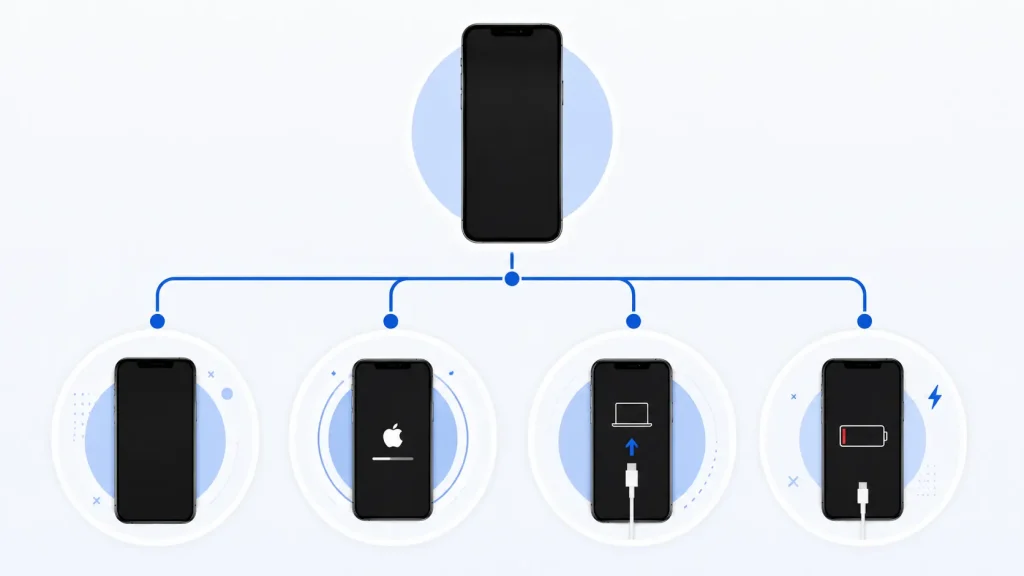
Not every situation is the same, and matching your exact symptom helps you fix an iPhone won’t turn on issue faster. Use this quick decision guide.
| Your Symptom | Most Likely Cause | What to Do |
|---|---|---|
| Charging but won’t boot | Software freeze or deep discharge | Force restart, then charge 60 minutes |
| Won’t charge at all | Cable, adapter, or port issue | Swap accessories, clean the port |
| Stuck on the Apple logo | Failed update or corrupt software | Use Recovery Mode (Fix 5) |
| Black screen, but vibrates/rings | Display failure | Back up data, then seek repair |
If your device keeps looping on the logo, our step-by-step fix for an iPhone stuck on Apple logo walks you through it.
Fix 4: Rule Out Overheating or Cold
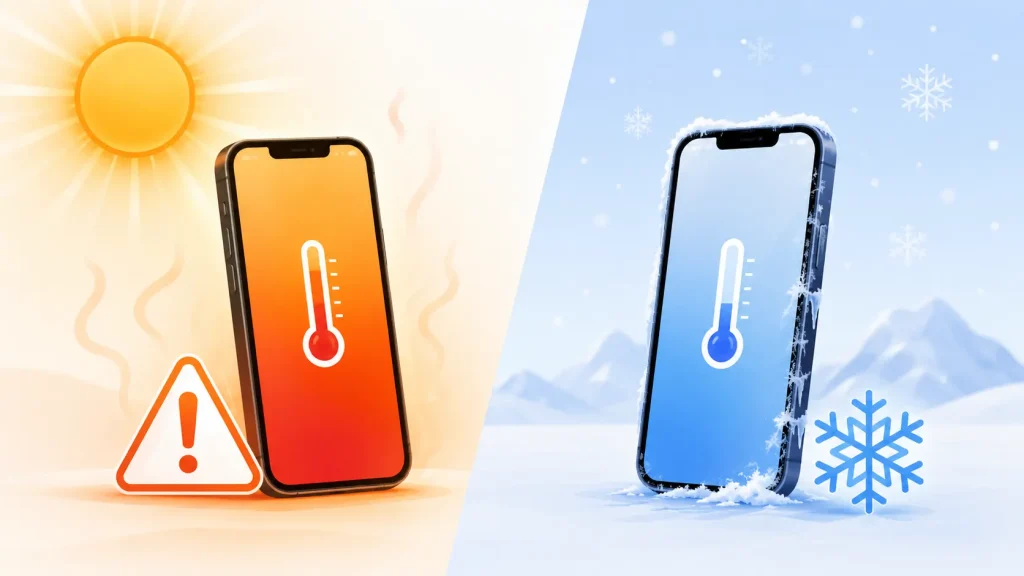
Extreme temperatures can also make your iPhone won’t turn on temporarily, as it shuts down to protect itself. If your device was in a hot car or freezing weather, temperature may be the cause.
- Too hot? Move it to a cool, shaded spot and wait. You may see a temperature warning.
- Too cold? Bring it indoors and let it warm up naturally.
Tip: Don’t put a hot iPhone in the fridge or a cold one on a heater. Rapid temperature swings cause condensation and internal damage. Apple recommends using your iPhone between 0º and 35º C (32º to 95º F).
Fix 5: Use Recovery Mode to Reinstall iOS
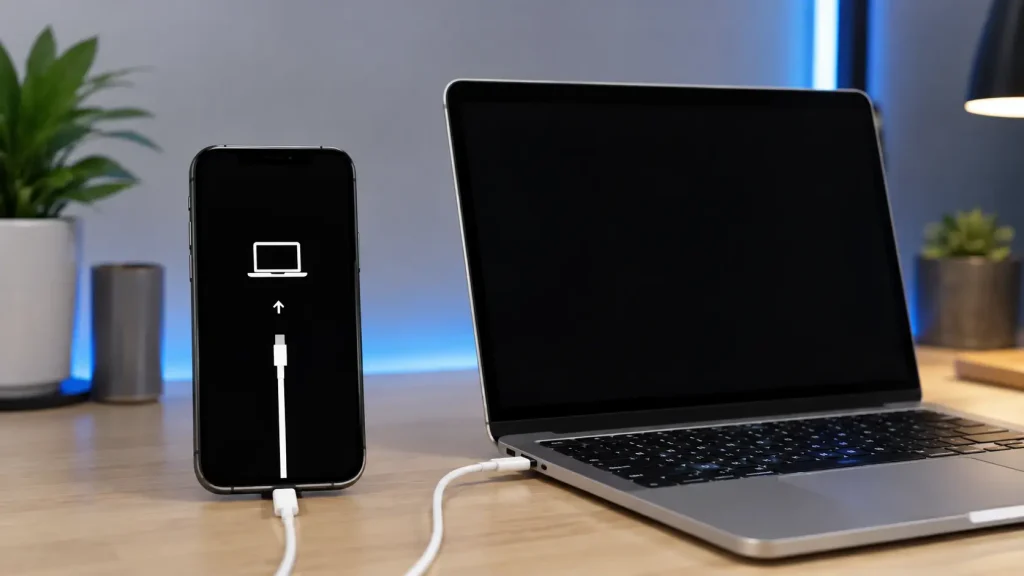
If your iPhone won’t turn on even after charging, Recovery Mode is the next step. It lets you reinstall iOS from a computer, often without erasing your data.
Will I lose my data?
Important: Recovery Mode tries to update your iPhone first, which keeps your data. Only if the update fails will it prompt an erase and restore. Back up whenever you can.
How to enter Recovery Mode
- Connect your iPhone to a Mac or PC with a cable.
- Open Finder (macOS Catalina or later) or iTunes (Windows/older macOS).
- Force restart your iPhone using the button steps from Fix 1, but keep holding until you see the Recovery Mode screen (a cable pointing to a laptop).
- Choose Update when prompted.
You can follow Apple’s official Recovery Mode guide for the exact steps. If the update doesn’t work, our guide on how to use iTunes to restore iPhone explains the full restore.
Fix 6: Try DFU Mode

DFU (Device Firmware Update) mode is the deepest software restore available, the last resort before assuming a hardware problem. It reloads both the firmware and the software.
Note: DFU mode erases everything, so only use it if other fixes failed and you have a backup ready. The button timing is precise and differs by model, so follow the on-screen steps carefully or ask a professional if you’re unsure.
Fix 7: Check for Physical or Water Damage
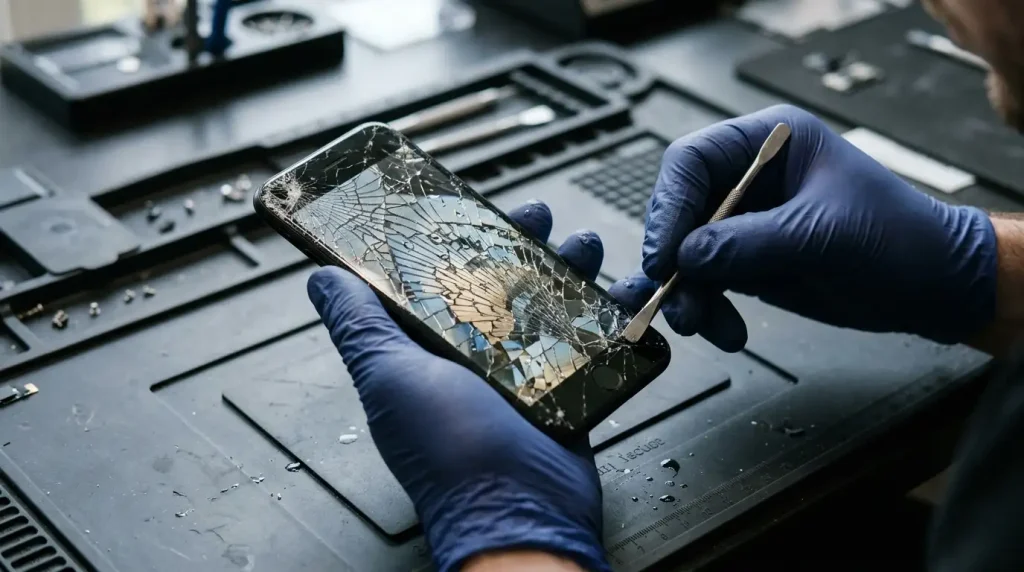
When your iPhone won’t turn on after a drop or spill, suspect hardware damage. This is common if the phone was exposed to liquid or impact.
Look for these warning signs:
- Cracked or bulging screen
- Signs of water exposure (fogging under the camera or display)
- A swollen back panel (a battery warning sign)
- No response at all, even on a computer
Signs you need a battery replacement
Older iPhones with worn batteries may refuse to power on. Watch for:
- It only works while plugged in.
- It shuts off suddenly at 20–40%.
- Battery health is below ~80%.
If you suspect a failing battery, a battery replacement is often cheaper than a new phone. For a deeper hardware diagnosis, iFixit’s troubleshooting tree is a great resource.
Water damage warning: If your iPhone got wet, do not charge it. Dry it, keep it ventilated, and take it to a professional. Charging a wet device can cause a short circuit.
When to Contact Apple or a Repair Shop
You’ve tried everything and it still won’t respond. It’s time for expert help if:
- The screen stays black after charging and a force restart.
- You see physical or water damage.
- Recovery Mode or DFU mode fails.
- No computer recognizes the device.
Your options:
- Apple Support or an Apple Store (best for in-warranty devices).
- An Apple Authorized Service Provider.
- A trusted local repair shop for out-of-warranty phones.
Always ask whether your data can be saved before any repair.
How to Prevent This in the Future
A few simple habits keep your iPhone reliable:
- Update iOS regularly to avoid software bugs.
- Use certified cables and chargers only.
- Keep battery health above 80% and replace it when it drops.
- Avoid extreme heat and cold.
- Restart your iPhone every week or two to clear minor glitches.
Frequently Asked Questions
1. Why won’t my iPhone turn on even though it’s charging?
It’s usually a software freeze or a deeply drained battery. Force restart your iPhone, then charge it 30–60 minutes with a certified cable. If it still won’t respond, check the port and cable.
2. How do I force restart an iPhone that won’t turn on?
On most modern models, press and release Volume Up, press and release Volume Down, then hold the Side button until the Apple logo appears. Older models use different combos (see the table above).
3. Why is my iPhone screen black but the phone is still on?
This usually means the display has failed, not the phone. If it vibrates, rings, or is detected by a computer, back up your data and have the screen checked.
4. How long should I charge a dead iPhone before it turns on?
Charge it for at least 30 minutes, ideally an hour, using a wall outlet and certified cable. A very drained battery can take a few minutes just to show the charging screen.
5. My iPhone won’t turn on after water damage, what should I do?
Do not charge it. Dry the exterior, keep it ventilated, and take it to a repair professional quickly. Charging a wet iPhone risks a short circuit.
6. Does force restarting my iPhone delete my data?
No. A force restart simply reboots the device and keeps all your photos, apps, and settings. Only a full restore or DFU mode erases data.
Conclusion
In most cases, an iPhone won’t turn on problem is solved in just a few minutes. Start with a force restart, then charge it properly, and try Recovery Mode if needed. Most black-screen and unresponsive issues are software-related and easy to fix at home.
Try the steps above in order, and you’ll likely have your iPhone back to life fast. If it turns out to be a battery or hardware issue, get it checked before the problem gets worse.
Related reading: How to restart your iPhone · What to do when your iPhone won’t charge · Fixing an iPhone stuck on the Apple logo

