


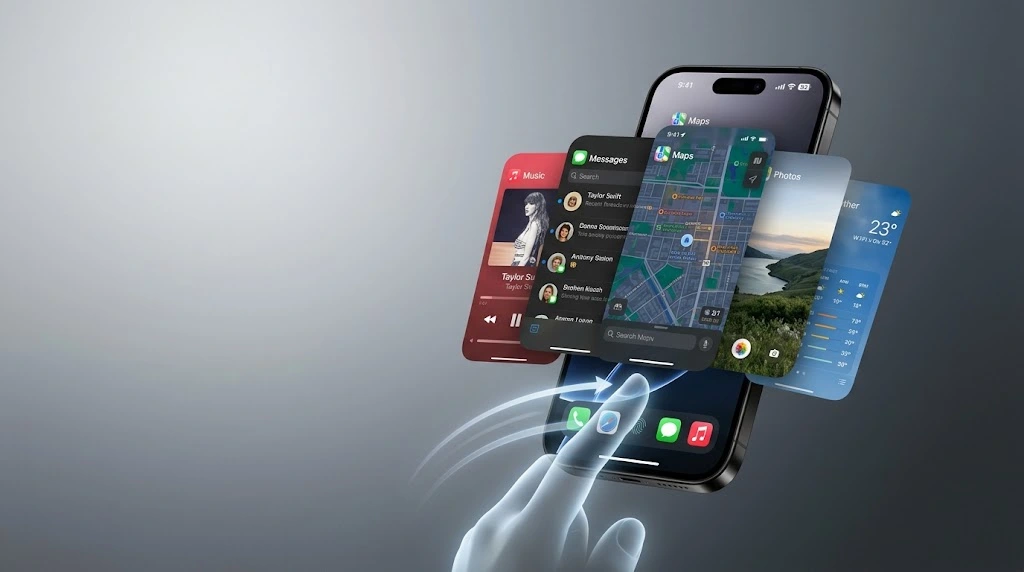
Is an app frozen, glitchy, or stuck on a blank screen? Knowing how to close apps on iPhone is the fastest way to fix it. This guide shows you the steps for every model, including iPhones with Face ID and iPhones with a Home button. You will also learn when closing apps helps and when it does not.
Quick answer: On a Face ID iPhone, swipe up from the bottom of the screen and pause in the middle. Then swipe the app’s card up and off the top of the screen. On an iPhone with a Home button, double-click the Home button, then swipe the app card up.
How to Close Apps on iPhone: Quick Steps
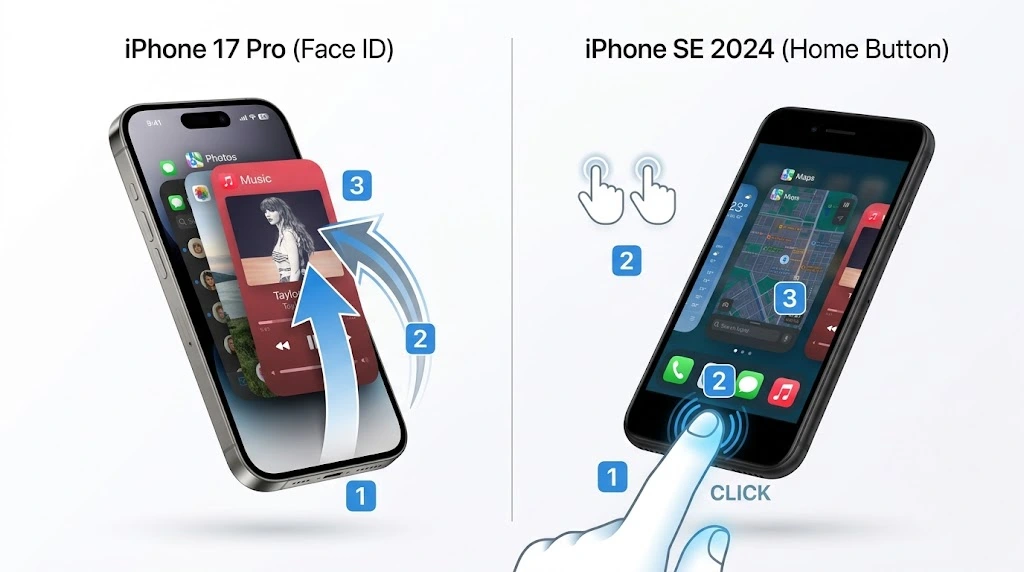
Short on time? Here is the fast version. You will find the full, model-by-model steps below.
On iPhone X and newer (Face ID):
- Swipe up from the bottom edge and pause in the middle of the screen.
- Swipe left or right to find the app.
- Swipe the app’s card up and off the screen.
On iPhone SE, iPhone 8, and older (Home button):
- Double-click the Home button.
- Swipe left or right to find the app.
- Swipe the app’s card up and off the screen.
That is it. The app is now fully closed. When you open it again, it starts fresh.
Key takeaway: The steps are almost the same on every iPhone. Only the way you open the app switcher changes.
How to Close Apps on iPhone With Face ID
This section covers iPhone X and every newer model. That includes the iPhone 11, 12, 13, 14, 15, 16, and 17 series. Newer iPhone SE models still have a Home button, so skip to the next section if you own one.
The gesture works the same on iOS 26 and earlier versions.
Step 1: Open the iPhone App Switcher
The iPhone app switcher shows all your recently used apps as cards. Here is how to open it:
- Start on your Home Screen, or stay inside any app.
- Place your finger at the very bottom edge of the screen.
- Swipe up slowly until you reach the middle of the screen.
- Pause for a second, then lift your finger.
The app cards now appear in a row.
Note: If you swipe up too fast, you will go straight to the Home Screen instead. Swipe slowly and stop halfway. This is the most common problem beginners have.
Step 2: Find the App You Want to Close
Swipe left or right to scroll through your cards. The card in the center is the one you will close. The most recent app is on the far left.
Step 3: Swipe the App Card Up
Place your finger on the app’s card. Swipe up and off the top of the screen. The card disappears, and the app is closed.
You can repeat this for other apps. When you are done, tap the Home Screen wallpaper behind the cards, or swipe up from the bottom again.
Quick tips for Face ID iPhones:
- Swipe slowly when you open the app switcher.
- Swipe the card, not the app icon below it.
- Tap the empty area to leave the app switcher without opening anything.
How to Close Apps on iPhone With a Home Button
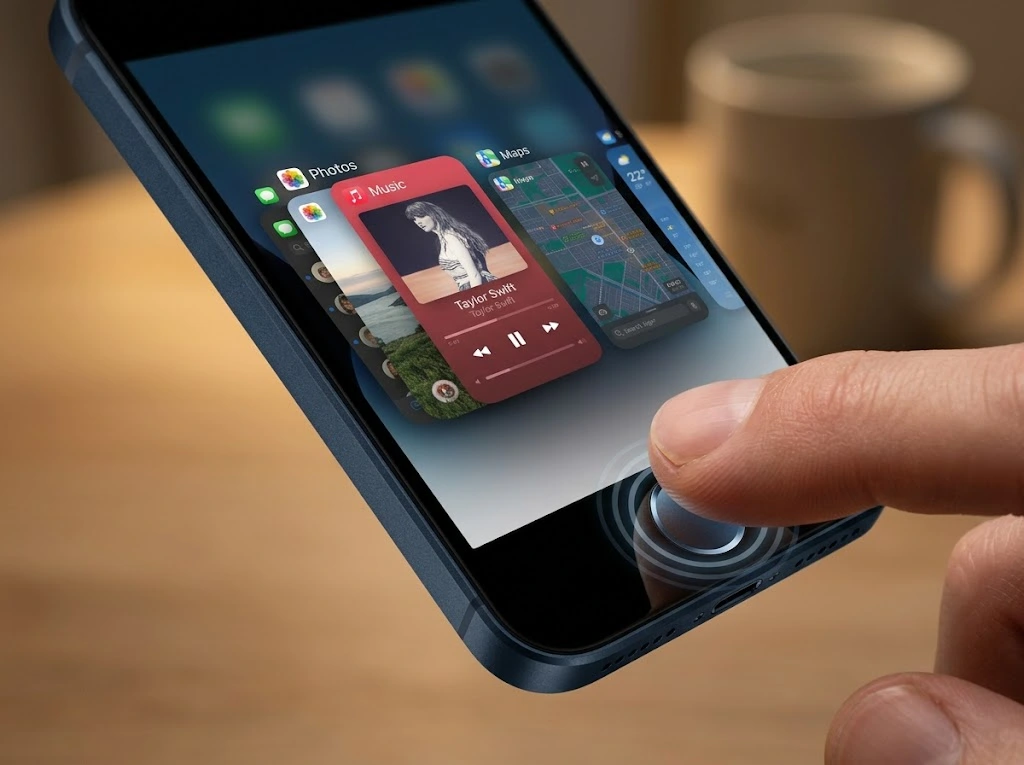
This section is for the iPhone SE (all generations), iPhone 8, iPhone 7, and older models. These iPhones still have a physical Home button.
Step 1: Double-Click the Home Button
Press the Home button twice, quickly. You will see your open apps as cards.
Step 2: Find the App
Swipe left or right to scroll through the cards.
Step 3: Swipe the Card Up
Swipe the card up and off the top of the screen. The app is now closed.
Press the Home button once to go back to your Home Screen.
Heads up: Very old iPhones, such as the iPhone 6 on old versions of iOS, work the same way. The cards look slightly different, but the swipe-up motion is the same.
Which Steps Match Your iPhone?
Not sure which method to use? This table makes it simple.
| Your iPhone | How to open the app switcher | How to close an app |
|---|---|---|
| iPhone 17, 16, 15, 14, 13, 12, 11 | Swipe up from the bottom and pause | Swipe the card up |
| iPhone XS, XR, X | Swipe up from the bottom and pause | Swipe the card up |
| iPhone SE (2nd and 3rd generation) | Double-click the Home button | Swipe the card up |
| iPhone 8, 8 Plus, 7, 7 Plus | Double-click the Home button | Swipe the card up |
| iPhone 6s and older | Double-click the Home button | Swipe the card up |
Not sure which iPhone you have? Our guide on what iPhone you have shows you five easy ways to find your model.
How to Close Multiple Apps on iPhone at Once
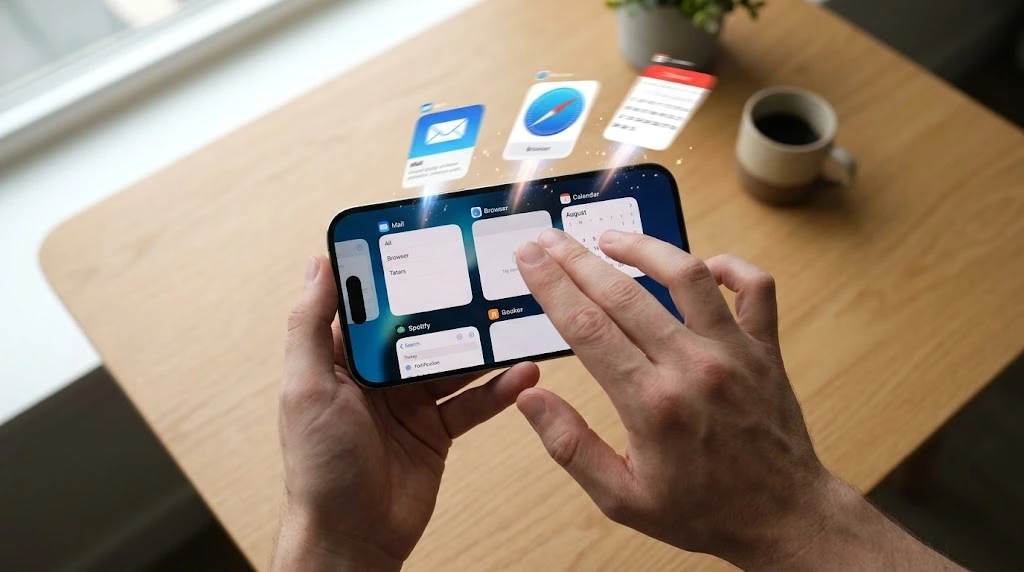
Closing apps one by one can feel slow. Luckily, you can close more than one at a time. This is the answer to how to close multiple apps on iPhone.
Use Two or Three Fingers
- Open the app switcher.
- Place two or three fingers on different app cards.
- Swipe all of them up together.
Most guides say you can close up to three apps with one gesture. The cards need to be visible on the screen at the same time.
Tip: This works best on larger screens, such as the iPhone Pro Max models. On smaller iPhones, the cards sit close together, so use two fingers.
Close Apps in Quick Succession
If three fingers feel awkward, just swipe cards up one after another. Each swipe takes less than a second, so you can clear a few apps quickly.
Can You Close All Apps on iPhone at Once?
Many people ask how to close all apps on iPhone with one tap. The short answer is that Apple does not offer a “Close All” button on iPhone.
You have three practical options:
- Swipe them away in groups of two or three, as shown above.
- Restart your iPhone. A restart clears all apps from memory. See our guide on how to restart your iPhone for every model.
- Turn your iPhone off and on. You can follow our steps for how to turn off your iPhone.
Keep in mind that you rarely need to close every app. We explain why in a later section.
How to Close Apps Without Swiping (AssistiveTouch)
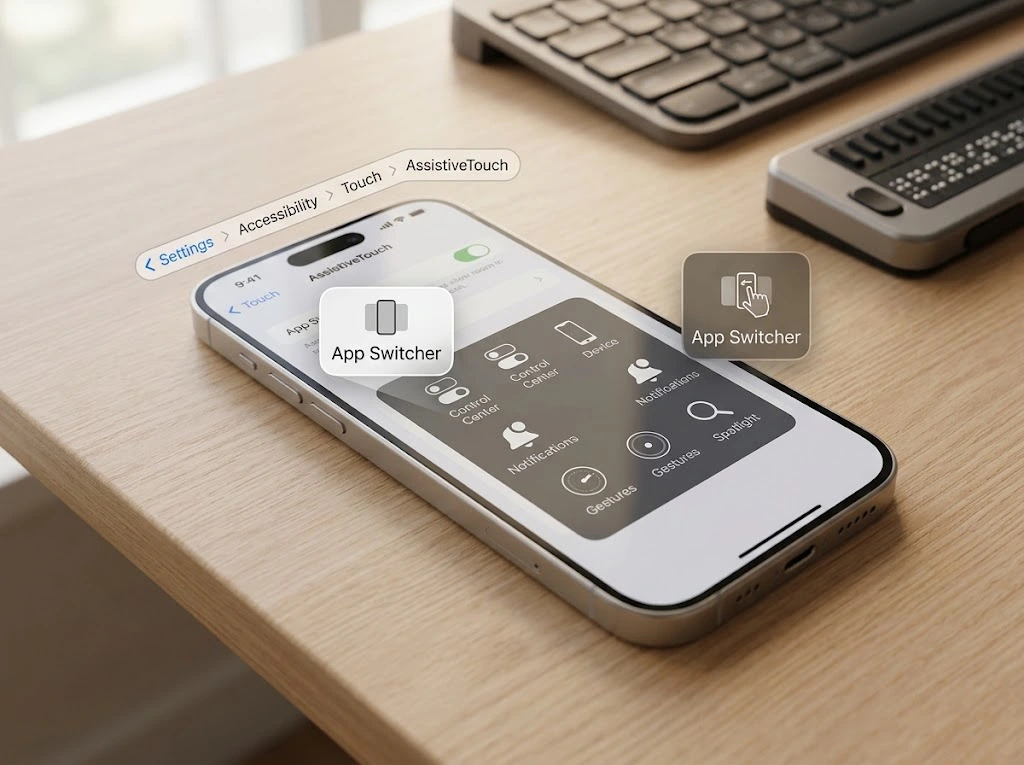
What if your Home button is broken, or swiping is hard for you? You can close apps on iPhone without the usual gestures by using AssistiveTouch. This is a small on-screen button that does the work of a physical button.
Turn On AssistiveTouch
- Open Settings.
- Tap Accessibility.
- Tap Touch.
- Tap AssistiveTouch.
- Turn on AssistiveTouch.
A small gray button appears on your screen. You can drag it to any edge.
Open the App Switcher With AssistiveTouch
- Tap the AssistiveTouch button.
- Tap Home to go to the Home Screen, or use the Custom action you set up.
- In AssistiveTouch settings, you can set a Single-Tap, Double-Tap, or Long Press to open the App Switcher.
- Once the app switcher is open, swipe the card up to close the app.
Note: The exact menu labels can change slightly between iOS versions. If you do not see an option, look through the Custom Actions list in the AssistiveTouch menu.
If your screen is not responding at all, see our guide on what to do when your iPhone screen is not responding to touch.
Should You Close Apps on iPhone?
Here is the part many people get wrong. A lot of iPhone owners close every app every time they finish using it. They believe this saves battery and makes the iPhone faster.
In most cases, it does not. Apple says plainly that you should close an app only when there is a problem.
“You should only close an app if it’s unresponsive.” — Apple Support, Close an app on your iPhone
Tech sites that cover Apple agree. MacRumors explains that iPhone software is built so you do not have to close an app when you stop using it. Apps that are not active stay in a suspended state, and they do not use up resources or eat battery.
Cult of Mac goes further. In its article on why you shouldn’t close your open iPhone apps, the writer warns that force-quitting everything every time can be a bad habit. The iPhone clears apps from memory by itself when it needs space.
Why Constantly Closing Apps Can Backfire
When you close an app, your iPhone has to load it from scratch next time. That takes more work than waking up an app that is paused in memory. So you may use more battery, not less.
When You Should Close an App
Close an app if:
- It is frozen and does not respond to taps.
- It crashes or closes by itself.
- It shows a blank or black screen.
- It will not load new content, even with a good connection.
- A feature inside it is acting strange, such as the camera not opening in a photo app.
For example, when the Camera app freezes, force quitting it is the first fix we recommend. You can see it in our guide to fixing an iPhone camera that is not working.
When You Do Not Need to Close an App
You can leave apps alone if:
- You are just done using them.
- You want to save battery.
- You want to speed up your iPhone.
- You see many cards in the app switcher. That is normal.
Quick comparison:
| Situation | Close the app? | Why |
|---|---|---|
| App is frozen | Yes | Closing resets the app |
| App keeps crashing | Yes | A fresh start can clear the glitch |
| You finished using the app | No | iOS pauses it for you |
| You want longer battery life | No | Closing apps can use more power |
| iPhone feels slow overall | Maybe | Try a restart first |
Key takeaway: Close an app when it misbehaves. Otherwise, go back to the Home Screen or lock your iPhone and let iOS do its job.
How iPhone Handles Background Apps
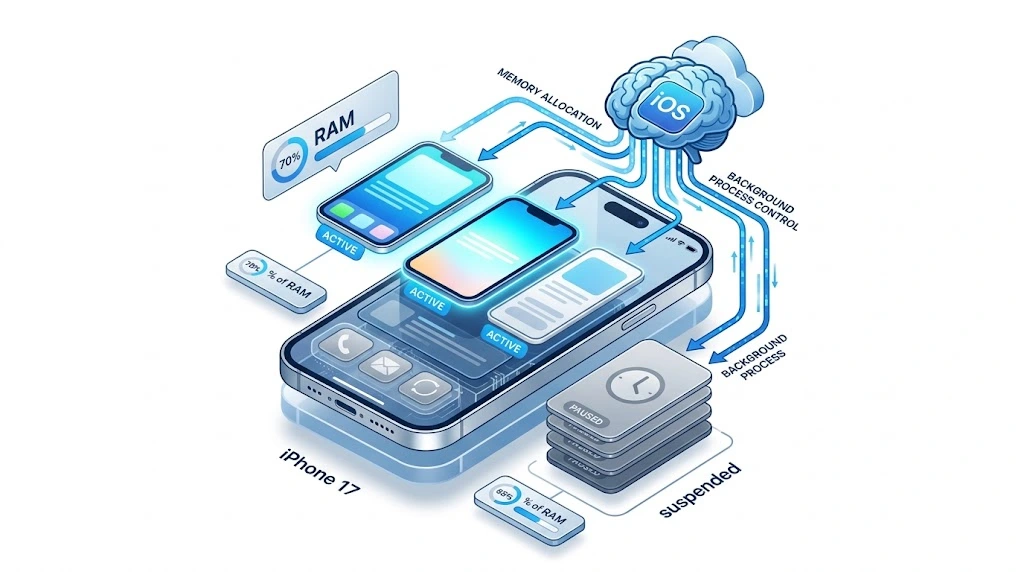
Understanding what happens behind the scenes can help you stop worrying about those app cards.
What the App Switcher Really Shows
The app switcher is a list of recently used apps. It is not a list of apps that are all running and draining power. Most of them are simply paused, or “suspended.”
What Happens When Memory Runs Low
If your iPhone needs more memory, iOS closes the oldest suspended apps by itself. You do not have to do it.
Apps That Do Run in the Background
A few types of apps can keep working when you leave them. For example:
- Music and podcast apps that play audio.
- Navigation apps that guide you while you drive.
- Apps downloading or uploading a file.
- Apps with Background App Refresh turned on.
Apps that work non-stop can also make your phone feel warm. If that sounds familiar, read our guide on why your iPhone is overheating. If you want to control background activity, see the section on Background App Refresh below. If your battery drains fast, our iPhone battery draining fast guide can help you find the real cause.
iPhone App Won’t Close? Try These Fixes

Sometimes an iPhone app won’t close, even after you swipe the card up. The card may come back, the app may stay on screen, or the whole iPhone may freeze. Try these fixes in order.
1. Try Again, Slowly
Open the app switcher again. Make sure you swipe the card, and swipe it all the way off the top of the screen. A short or sideways swipe will not close it.
2. Wait a Few Seconds
If the app is uploading or downloading, it may need a moment. Wait about 30 seconds and try again.
3. Force Restart Your iPhone
A force restart works when the screen is frozen and nothing responds. It is safe and does not delete your data.
For iPhone 8 and newer, including all Face ID iPhones:
- Press and release Volume Up.
- Press and release Volume Down.
- Press and hold the Side button until you see the Apple logo.
Other models use different button combinations. Our guide on how to turn off your iPhone has a table for every model, and our how to reset iPhone guide explains the difference between a restart, a force restart, and a factory reset.
Warning: Do not factory reset your iPhone because one app is frozen. A factory reset erases your data. Always try a normal restart or a force restart first.
4. Update the App and iOS
Old apps and old iOS versions cause many bugs.
- Open the App Store.
- Tap your profile picture.
- Pull down to refresh and update the app.
- Check for an iOS update in Settings > General > Software Update.
See how to update your iPhone for a full walkthrough.
5. Delete and Reinstall the App
If one app keeps freezing, remove it and install it again. Back up your data first, if the app does not sync it to the cloud.
- Touch and hold the app icon.
- Tap Remove App, then Delete App.
- Open the App Store and download it again.
Low storage can also make apps crash. Check your iPhone storage to see how much free space you have. If an app is slow or buggy but not fully frozen, you can also clear the cache on your iPhone before you delete anything.
Still stuck? If your iPhone freezes often, no matter which app you use, it may be a bigger software problem. Contact Apple Support or visit an Apple Store.
How to Stop Apps From Running in the Background
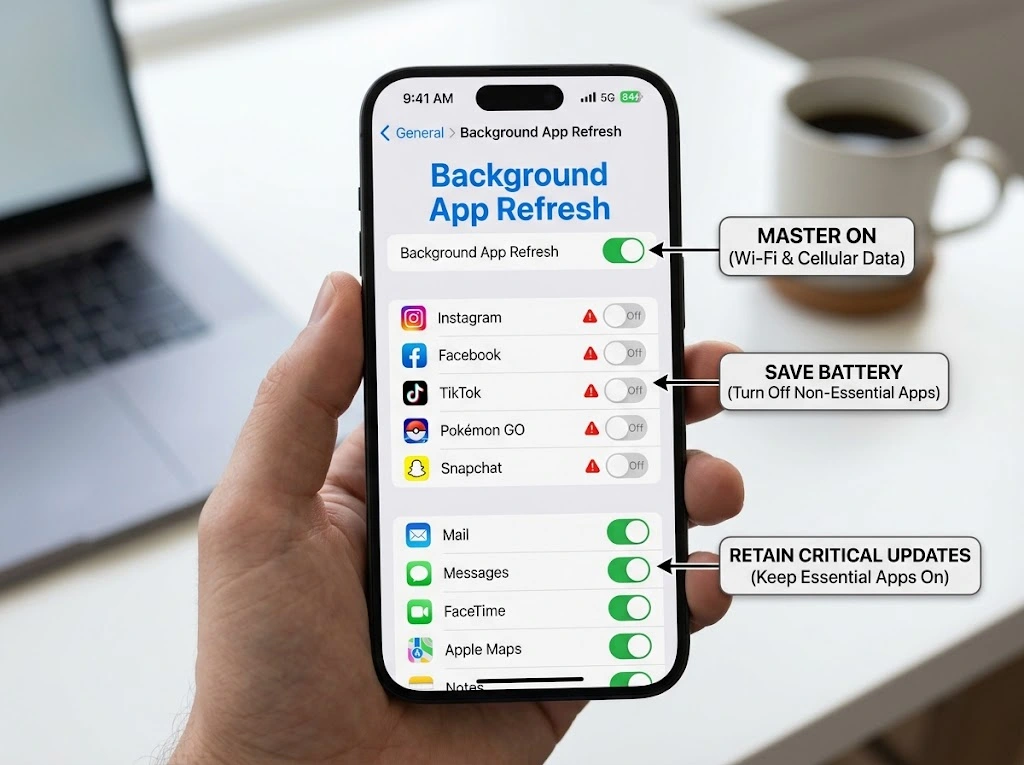
Maybe you do not really want to close apps. Maybe you just want to stop them from using power when you are not looking at them. The setting for that is Background App Refresh.
- Open Settings.
- Tap General.
- Tap Background App Refresh.
- Turn it off for apps you do not need, or switch off the whole feature.
Good apps to keep on: Mail, Messages, Weather, and banking apps.
Good apps to turn off: Games, shopping apps, and news apps.
This is often a better way to save battery than swiping apps away all day.
![IMAGE 6 – Screenshot of the Background App Refresh settings page. Alt text: “Background App Refresh settings on iPhone for managing background apps”]
Common Mistakes to Avoid
- Closing every app each day. It adds work for your iPhone and rarely helps.
- Swiping up too fast. On Face ID iPhones, this sends you to the Home Screen. Pause halfway.
- Swiping the wrong thing. Swipe the app card, not the Home Screen icons.
- Force restarting too soon. Try closing the app first, then a normal restart.
- Factory resetting for one bad app. This is a big step and erases your data.
FAQ
How do I close apps on iPhone 17 and other Face ID models?
Swipe up from the bottom of the screen and pause in the middle. Swipe left or right to find the app. Then swipe the card up and off the screen. The steps are the same on iPhone 17, 16, 15, and every other Face ID model.
How do I close all apps on iPhone at once?
There is no official “Close All” button. You can swipe up with two or three fingers to close several apps at once. You can also restart your iPhone to clear all apps from memory.
Does closing apps on iPhone save battery?
Usually, no. Apps that are not in use are paused and use almost no power. Closing and reopening them can use more battery. Close an app only when it freezes or acts strangely. To reduce real battery drain, turn off Background App Refresh for apps you do not need.
Why won’t an app close on my iPhone?
The app may be frozen, busy with a download, or you may not be swiping the card all the way up. Try again slowly, wait a bit, and then force restart your iPhone. If the problem returns, update the app and iOS, or delete and reinstall the app.
What is the difference between closing an app and force quitting it?
On iPhone, they mean the same thing. When you swipe an app card up in the app switcher, you “force quit” or “close” the app. The next time you open it, it starts fresh.
Conclusion
Now you know how to close apps on iPhone, no matter which model you have. Here is a quick recap:
- Open the app switcher. Swipe up and pause on Face ID iPhones. Double-click the Home button on older models.
- Find the app by swiping left or right.
- Swipe the card up to close it.
- Use two or three fingers to close multiple apps at once.
- Try AssistiveTouch if gestures are hard or your Home button is broken.
- Restart your iPhone if an app will not close.
Remember, you do not need to close apps all the time. Close them only when something goes wrong. Give these steps a try the next time an app freezes.
Want more iPhone help? Try these next:

