


Your iPhone already has a powerful place to save ideas, lists, scans, and sketches. iPhone Notes is free, fast, and built into every iPhone. In this guide, you will learn how to create notes, organize them, lock them, sync them with iCloud, open them on a computer, and get deleted notes back.
Quick answer: Open the Notes app, tap the New Note button, and start typing. Your note saves by itself. To keep it on all your devices, turn on iCloud Notes in Settings.
What Is the Notes App on iPhone?
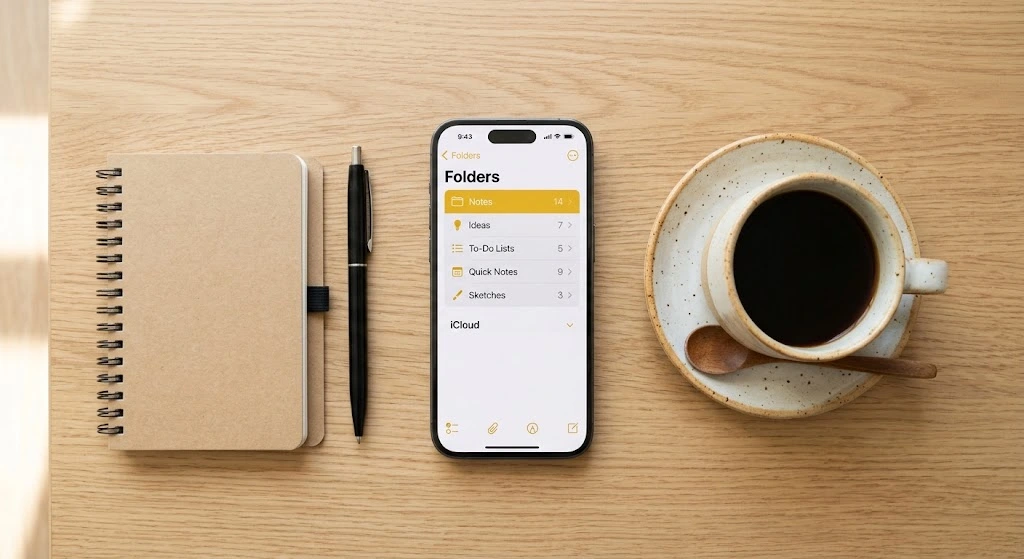
The Notes app is Apple’s own note-taking tool. It comes pre-installed on every iPhone, so you do not need to pay for it or sign up for anything. If you ever delete it by mistake, you can download it again from the App Store at no cost.
With Notes, you can:
- Type quick thoughts and long documents
- Make checklists for groceries, trips, or chores
- Draw and sketch with your finger
- Scan paper documents with your camera
- Add photos, videos, files, and web links
- Lock private notes with a password or Face ID
- Share notes with family, friends, or coworkers
Apple describes the app in simple terms. Its support page says Notes helps you capture a quick thought, create checklists, sketch ideas, and keep everything updated across devices with iCloud.
Where Your Notes Are Saved
Notes can live in different places. This matters because some features only work in certain accounts.
| Where notes are saved | What it means | Best for |
|---|---|---|
| iCloud | Notes sync across your iPhone, iPad, Mac, and iCloud.com | Most people |
| On My iPhone | Notes stay only on this phone | Private notes you do not want in the cloud |
| Other email accounts (Gmail, Outlook, etc.) | Notes sync through that email provider | People who already use those services |
Expert tip from Apple Support: “Many Notes features won’t work with other email providers.” — Apple Support: Use Notes on your iPhone, iPad, and iPod touch
Key takeaway: For the full set of features, save your notes in iCloud or On My iPhone.
How to Create a New Note
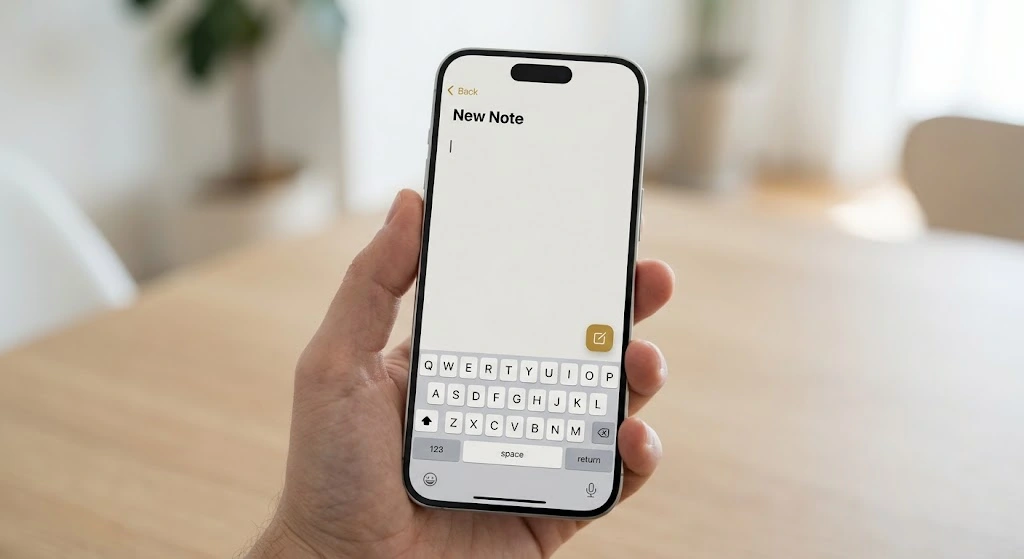
Making a note takes only a few seconds.
- Open the Notes app. It has a yellow and white icon.
- Tap the New Note button. It looks like a small pencil on paper, in the bottom-right corner.
- Type your text. The first line becomes the title.
- Tap Done when you finish.
Your note saves automatically. You do not need to tap Save.
Other Quick Ways to Start a Note
- Ask Siri: Say, “Hey Siri, create a note.”
- Use Control Center: Add the Notes shortcut, then tap it from anywhere.
- Use the Share button: In Safari or Maps, tap Share, choose Notes, then tap Save. This adds a web page or place to a note.
Pick the Right Folder First
Before you write, check which folder is open. If you are in an iCloud folder, the new note will sync to iCloud. If you are in On My iPhone, it stays on your phone.
Note: Menus and buttons can look a little different depending on your iOS version. The steps in this guide work on current versions of iOS.
How to Format Notes
Plain text works fine. But formatting makes a long note much easier to read.
Change Text Style
- Open a note and tap in the text area.
- Tap the Formatting button. It looks like Aa.
- Choose a style: Title, Heading, Subheading, Body, Monostyled, or a list.
- You can also pick bold, italic, underline, or strikethrough.
Tip: Touch and hold the Formatting button to open the list of options faster.
Apple also notes that on iOS 18 and later, you can collapse sections under a Title, Heading, or Subheading. Just tap the small arrow next to the heading. This is handy for very long notes.
Make a Checklist
Checklists are one of the most popular uses of iPhone Notes.
- Open a note.
- Tap the Checklist button (a circle with a check mark).
- Type your first item and press Return for the next one.
- Tap the circle next to an item to check it off.
Add a Table
- Tap the Table button in the toolbar.
- A small grid appears. Type into each cell.
- Tap the table’s row or column handles to add or remove rows.
Tables are great for budgets, schedules, or comparing options.
Quick Formatting Cheat Sheet
| Goal | Tool to use |
|---|---|
| Make a big title | Formatting button, then Title |
| Make a to-do list | Checklist button |
| Make a bullet list | Formatting button, then Bulleted List |
| Compare things | Table button |
| Undo a mistake | Undo arrow at the top |
Undo a Change
Made a mistake? Tap the Undo arrow at the top of the screen. You can reverse changes you made while the note was open.
How to Add Photos, Drawings, Files, and Audio
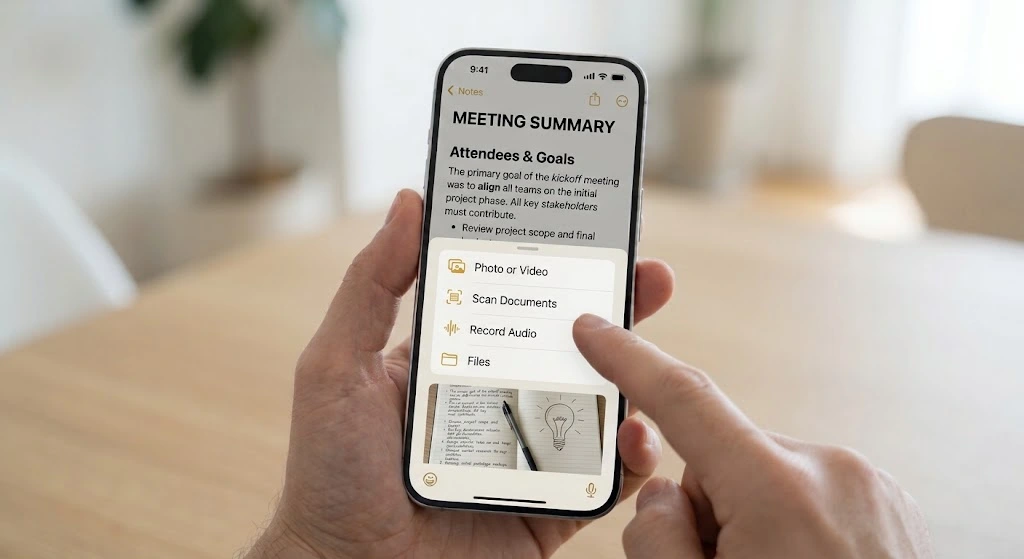
Notes is not just for text. You can fill a note with all kinds of media.
Add a Photo, Video, or File
- Open a note and tap in the text area.
- Tap the Attachment button (it looks like a paperclip).
- Choose Take Photo or Video to capture something new.
- Or choose Choose Photo or Video to add one you already have.
- Tap Use Photo, Use Video, or Add.
You can also attach files from the Files app.
Draw in a Note
- Tap the Markup button (a pen tip in a circle).
- Pick a pen, marker, or pencil.
- Draw with your finger. On an iPad you can use Apple Pencil.
- Tap Done when finished.
You can also sign a document or circle something in a photo using the same tool.
Record and Transcribe Audio
On iOS 18 and later, you can record audio inside a note.
- Tap the Attachment button.
- Tap Record Audio.
- Tap the red button to start and stop.
On supported iPhones, you can then tap Transcript to see the words as text. If you have Apple Intelligence turned on, you can also ask for a summary.
Good to know: Apple also lets you record a phone call and get a transcript in Notes on supported iPhones. Learn the steps in our guide on how to record a phone call on iPhone.
Add a Link From Another App
- In the app you are using (like Safari), tap Share.
- Tap Notes.
- Choose which note to add it to, then tap Save.
How to Scan a Document in Notes
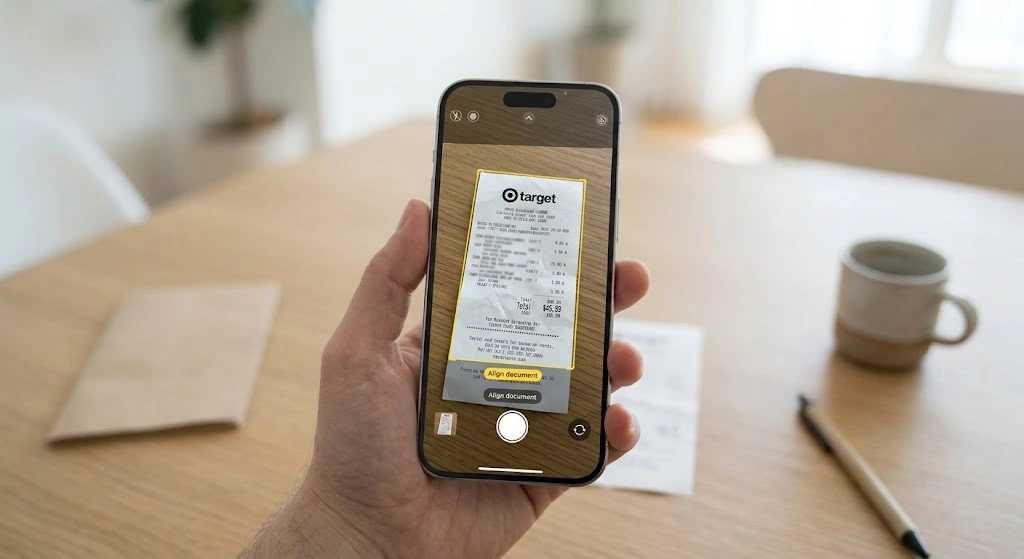
You do not need a scanner at home. Your iPhone can turn paper into a clean digital file.
- Open a note.
- Tap the Attachment button.
- Tap Scan Documents.
- Hold your iPhone over the paper. The camera finds the edges by itself.
- Wait for the scan to capture, or tap the shutter button.
- Tap Save when you are done. You can scan more pages first.
Your scan appears inside the note. Tap it to crop, rotate, or change the color. You can also mark it up or sign it.
Bonus: Notes search can read text inside scanned receipts and bills. That means you can find a scan later just by typing a word from it.
For a full walkthrough, including other apps and saving as a PDF, read our guide on how to scan a document on iPhone. If you want a PDF from a photo, see how to convert a picture to PDF on iPhone.
How to Organize Your Notes
A few notes are easy to manage. Hundreds of notes are not. Luckily, the Notes app on iPhone has several ways to stay tidy.
Use Folders
- In the Notes list, tap the back arrow to open your Folders list.
- Tap the New Folder button.
- Choose where to add it (iCloud or On My iPhone).
- Name your folder and tap Save.
You can even make subfolders. Drag one folder onto another, and it will sit below it, slightly indented.
Move a Note to Another Folder
- Go to your Notes list.
- Tap the More button (three dots), then tap Select Notes.
- Tap the notes you want to move.
- Tap the Folder button and choose the new folder.
Pin Important Notes
Pinned notes stay at the top of your list.
- Swipe right over a note in the list.
- Tap the Pin button.
You can also open a note, tap More, then tap Pin.
Use Tags and Smart Folders
Tags are words that start with a hash symbol, like #recipes or #work. Type them anywhere in a note. Then you can filter all notes with that tag.
Smart Folders collect notes automatically based on rules you choose, such as a certain tag or notes with attachments. They save a lot of time.
Try Gallery View
Gallery view shows your notes as a grid of small previews, so you can spot the right one faster.
- Open a folder.
- Tap More.
- Tap View as Gallery.
Sort Your Notes
To change the order of notes inside a folder, tap More, then tap Sort Notes By. You can sort by date edited, date created, or title.
Folder Tools at a Glance
| Tool | What it does | Best use |
|---|---|---|
| Folder | Groups notes by topic | School, work, home |
| Subfolder | Folder inside a folder | Projects with many parts |
| Pin | Keeps a note at the top | Daily to-do list |
| Tag | Adds a searchable label | Notes that fit many topics |
| Smart Folder | Fills itself using rules | All notes with a certain tag |
| Gallery view | Shows picture previews | Visual notes and scans |
How to Search for a Note
Finding a note should never feel hard. Search covers a lot.
- Open the Notes list.
- Tap the Search field.
- Type a word or phrase.
Search can find:
- Typed text
- Handwritten notes
- Words inside scanned documents, like receipts and bills
- Objects in photos. If you search for “bike,” Notes can show images with a bike in them.
Search Inside One Note
Open the note, tap More, then tap Find in Note. Type what you want to find.
Find Attachments Fast
In the Notes list, tap More, then tap View Attachments. Touch and hold any thumbnail, then tap Show in Note to jump to it.
iOS 27 update: In iOS 27, you can also use Siri to search your notes. You can say something like, “What was the note with the cookie recipe?” Check our iOS 27 guide for more new features.
How to Lock a Note
Some notes are private. Think of passwords, IDs, or health details. You can lock them.
Set Up a Password
- Open the note you want to protect.
- Tap the More button (three dots).
- Tap Lock.
- Create a password and a hint. Turn on Face ID or Touch ID if you want faster access.
- Tap Done.
You can also manage the password in Settings, then Apps, then Notes.
Lock It Again
After you open a locked note, tap the lock icon at the top to lock it again right away.
Important Warnings
- Write down your password hint safely. If you forget the password, Apple cannot open the note for you. You can reset the password, but a reset will not unlock old locked notes.
- Shared notes cannot be locked.
- Do not store passwords in a normal note. Use a safe tool instead. Our guide on how to find passwords on iPhone shows where your saved passwords live.
For the full Apple instructions, see Apple’s note password guide.
How to Share and Collaborate on Notes
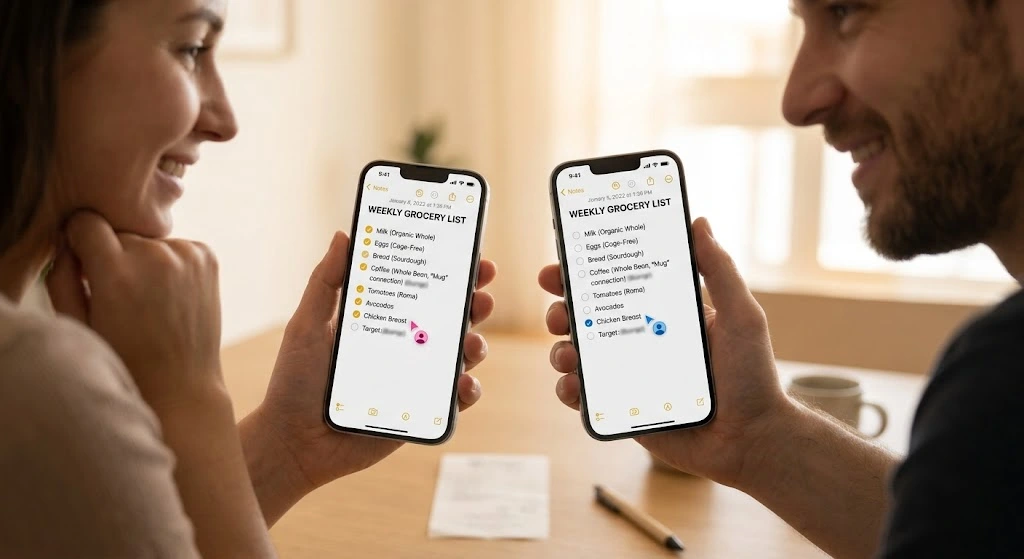
Notes works well for teamwork. You can invite others to read or edit.
- Open the note.
- Tap the Share button, or tap More then Share Note.
- Choose Collaborate (people can edit) or Send Copy.
- Pick how to send the invite, like Messages or Mail.
- Tap Send.
You can also share a whole folder. This is useful for family grocery lists or trip plans.
Tip: Shared notes show who changed what. You can see edits and manage who has access from the Share menu.
Notes Features by iOS Version
Apple adds new tools often. Here is what changed in recent versions, based on Apple’s own support pages.
| Feature | Needs |
|---|---|
Link to other notes (type >>) | iOS 17 or later |
| Collapse sections under headings | iOS 18 or later |
| Record and transcribe audio | iOS 18 or later (transcripts on supported iPhones) |
| Writing Tools (proofread, rewrite, summarize) | iOS 18.1 or later, with Apple Intelligence |
| Gallery view | Available in iOS 26 |
| Siri search for notes | iOS 27 |
Not sure which version you have? Go to Settings, then General, then About. If your iPhone is behind, see our guide to updating your iPhone.
How to Sync iPhone Notes with iCloud

iCloud keeps your notes the same on every device. Write a note on your iPhone, and it appears on your iPad or Mac in moments.
Expert tip from Apple Support: “Make sure you’re signed in to the same Apple Account on each device.” — Apple Support: Set up iCloud for Notes
Turn On iCloud Notes (iPhone)
- Open Settings.
- Tap your name at the top.
- Tap iCloud.
- Tap See All (or Show All), then tap Notes.
- Turn on Sync this iPhone.
To see your iCloud notes, open the Notes app. In the Folders list, tap All iCloud, or pick a folder in the iCloud section.
No Apple Account yet? Follow our guide to create an Apple ID.
Turn On iCloud Notes (Mac)
- Click the Apple menu, then System Settings.
- Click your name, then iCloud.
- Under Saved to iCloud, click Notes.
- Turn on Sync this Mac.
(On older macOS versions the wording differs slightly, but the idea is the same.)
Why Notes May Not Sync
| Problem | Likely cause | Fix |
|---|---|---|
| Notes stay on one device | Different Apple Accounts | Sign in with the same account everywhere |
| New notes never appear | Sync is off | Turn on Sync this iPhone |
| Sync stalls | Weak internet | Switch to Wi-Fi or restart your router |
| Notes will not save | iCloud storage is full | Free space or buy more |
If your iCloud space is full, read our fix: iCloud storage full on iPhone. Notes are small, but photos in notes can add up.
How to Open iPhone Notes on a PC or Mac
You do not need an iPhone in your hand to read your notes. Apple lets you open iCloud Notes in any web browser.
On a Windows PC (or Any Computer)
- Open a browser like Edge, Chrome, or Firefox.
- Go to icloud.com/notes.
- Sign in with your Apple Account.
- Approve the sign-in code if your iPhone shows one.
- Your notes appear on the screen.
You can read, edit, and create notes there. You can also view locked notes after you enter their password.
Important: Only notes saved in iCloud show up on iCloud.com. Notes saved On My iPhone do not.
On a Mac
Open the Notes app on your Mac and sign in with the same Apple Account. Your notes appear automatically after you turn on Sync this Mac.
Need to Move Files, Not Notes?
If you want to send photos or files to your computer, see our guides on connecting an iPhone to a PC and transferring photos from iPhone to PC.
How to Recover Deleted Notes
Deleted a note by accident? Do not panic. Notes keeps deleted items for a short time.
Recover From Recently Deleted
- Open the Notes app.
- Go to the Folders list.
- Tap Recently Deleted.
- Tap the note you want.
- Tap anywhere in the note, then tap Recover.
The note returns to its original folder.
Time limit: Deleted notes stay in Recently Deleted for 30 days. After that, they are removed for good.
If You Do Not See the Folder
The Recently Deleted folder only appears if you have deleted something. It also appears per account, so check the iCloud section and On My iPhone section separately.
Restore From a Backup
If the note is gone from Recently Deleted, an old backup may still have it. Restoring a backup replaces what is on your iPhone, so be careful.
- Back up your current data first if you can.
- Restore from an earlier iCloud or computer backup.
- Open Notes and check for your note.
Need help making a backup? Follow our guide on how to back up your iPhone. Before a restore, you may also want to learn how to reset an iPhone.
Warning: A full restore can erase newer data. Only try it if the note is very important.
Check iCloud.com Too
Sign in at icloud.com/notes. Look for a Recently Deleted folder there. Apple also lists steps under “Delete and recover notes” in the iCloud User Guide.
Notes App Not Working? Quick Fixes
Most problems have easy solutions. Try these in order.
- Restart your iPhone. This clears small glitches. See how to restart an iPhone if you need the button steps.
- Update iOS. Go to Settings, General, Software Update.
- Check your internet. Notes needs Wi-Fi or cellular data to sync.
- Confirm iCloud Notes is on. Open Settings, your name, iCloud, See All, Notes.
- Check iCloud storage. A full account can stop new notes from saving.
- Sign out and back in. Go to Settings, your name, Sign Out, then sign in again. Back up first.
- Check low storage on your iPhone. A full phone can cause crashes. See our tips for iPhone storage.
Missing Notes?
- Look in All iCloud, On My iPhone, and Recently Deleted.
- Make sure you did not switch to a different Apple Account.
- Use the search field to look for a word you remember.
- Check whether an email account (like Gmail) stores that note.
Apple also has a page for missing notes: what to do if you can’t find a note.
Smart Tips to Get More From Notes
Here are simple habits that make iPhone Notes feel much more powerful.
- Start with a clear title. The first line names the note, so make it useful.
- Use one pinned “Today” note for your daily to-do list.
- Add tags like
#ideasor#billsto find notes fast. - Scan receipts and let search find them later.
- Make a shared grocery list with your family.
- Back up often. iCloud sync is not the same as a full backup.
- Take screenshots and paste them into notes to save instructions. Here is how to take a screenshot on iPhone.
- Lock sensitive notes, but keep your hint somewhere safe.
- Review monthly. Delete old notes so your list stays clean.
Who Should Use Apple Notes?
| You are… | Apple Notes is… |
|---|---|
| A beginner | A great start. It is simple and free. |
| An Apple fan with a Mac and iPad | Excellent. Everything syncs. |
| A Windows or Android user | Okay for reading through iCloud.com, but limited |
| A power user who needs advanced tools | Good, but you may want a dedicated app |
FAQ
How do I use the Notes app on iPhone?
Open Notes, tap the New Note button, and type. The first line becomes the title. Use the Aa button for formatting, the Checklist button for lists, and the paperclip to add photos or scans. Your note saves by itself.
Is the Apple Notes app free to download?
Yes. The Notes app is free and comes pre-installed on your iPhone. If you remove it, you can download it again from the App Store at no charge. Extra iCloud storage costs money, but basic notes use very little space.
How do I access my iPhone notes on a computer?
Go to icloud.com/notes in any web browser and sign in with your Apple Account. You can read and edit notes saved in iCloud. Notes saved On My iPhone will not appear there. On a Mac, open the Notes app and turn on Sync this Mac.
Where are my deleted notes on iPhone, and how long are they kept?
Open Notes, go to Folders, and tap Recently Deleted. Deleted notes stay there for 30 days. Tap a note, then tap Recover to restore it.
Why are my iPhone notes not syncing with iCloud?
The most common reasons are a different Apple Account, sync turned off, a weak connection, or full iCloud storage. Check Settings, your name, iCloud, See All, Notes, and make sure Sync this iPhone is on. Then confirm you have free iCloud space.
Can I lock notes on my iPhone?
Yes. Open a note, tap More, then tap Lock. Create a password and, if you like, turn on Face ID. Remember that shared notes cannot be locked, and Apple cannot recover a forgotten password.
Conclusion
The Notes app on iPhone does much more than store text. You can make checklists, scan papers, draw, record audio, lock private ideas, and share lists with family. Here is a quick recap:
- Create a note with the New Note button.
- Format it with titles, lists, and tables.
- Add photos, scans, and files with the paperclip.
- Organize with folders, pins, and tags.
- Protect private notes with a lock.
- Sync with iCloud so every device matches.
- Open notes on a computer at icloud.com/notes.
- Recover deleted notes within 30 days.
Try one new trick today, like scanning a receipt or pinning your to-do list. Small steps make the app far more useful.
Want to keep going? Read our guides on how to back up your iPhone, fixing a full iCloud, and transferring everything to a new iPhone.
Sources
- Apple Support: Use Notes on your iPhone, iPad, and iPod touch
- Apple Support: Set up iCloud for Notes on all your devices
- Apple Support: Get started with Notes on iPhone
- Apple Support: Password protect your notes
- iCloud.com Notes
- Notes in the App Store

