


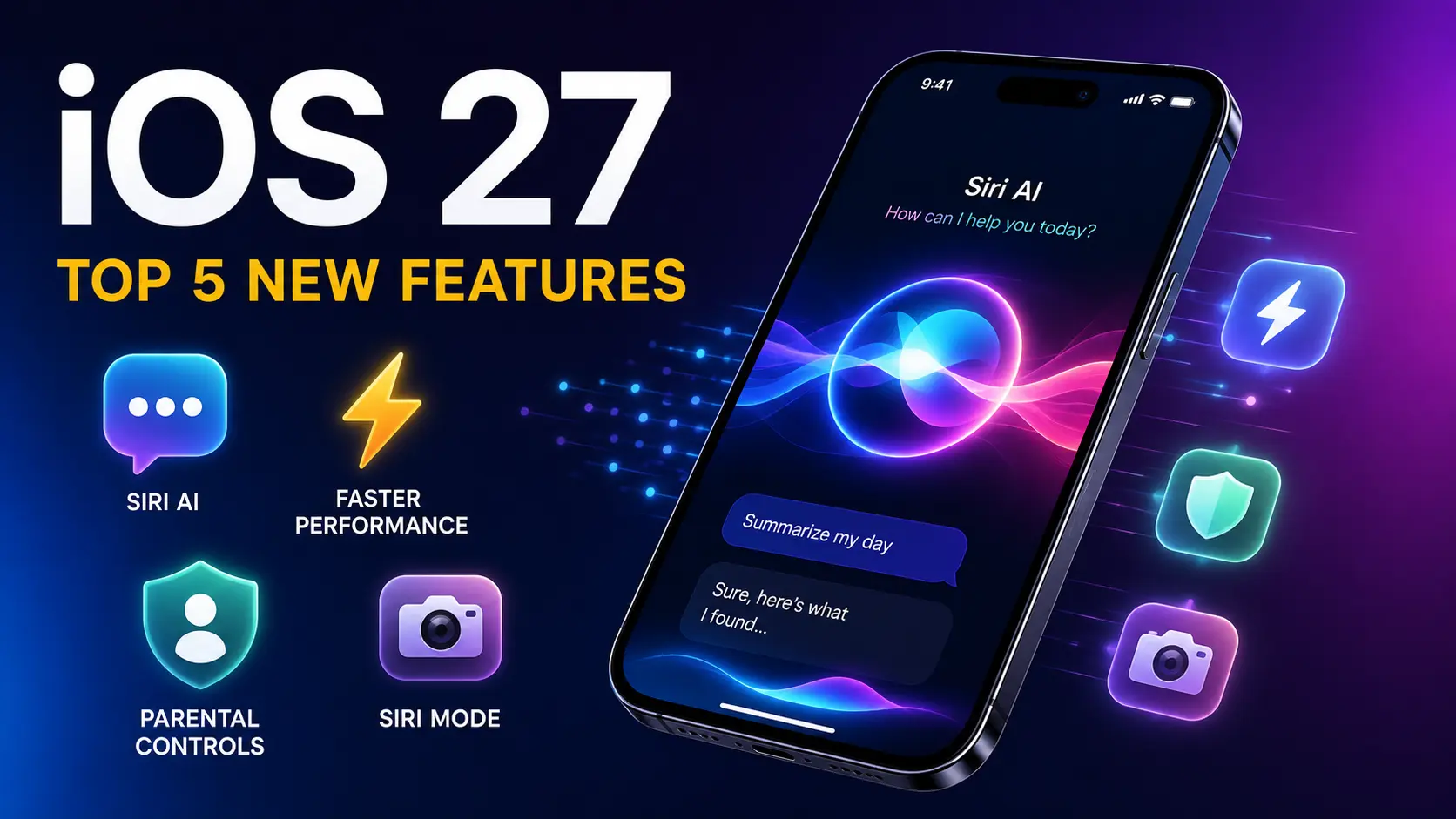
If you’ve just installed iOS 27 on your iPhone, you’ve probably noticed something feels different right away. Apple’s latest software update isn’t just a small refresh — it’s one of the biggest changes to hit the iPhone in years. Whether you’re an iPhone beginner or you’ve been using Apple products for a while, this guide walks you through exactly what’s new, what’s worth trying first, and what to watch out for.
We spent time testing iOS 27 hands-on, and in this article, you’ll find the five features that stand out the most, plus practical tips on installing the update safely.
What Is iOS 27?
iOS 27 is Apple’s newest operating system for the iPhone, announced at WWDC 2026 on June 8. It’s the twentieth major version of iOS, and it brings a much bigger focus on artificial intelligence than any update before it.
At its core, iOS 27 expands Apple Intelligence with a redesigned Siri, better Photos editing tools, and noticeably faster performance. Apple also added real generative AI capabilities, including the ability to create images directly using a private cloud-based model. You can read Apple’s full announcement on the Apple Newsroom if you want the official rundown straight from the source.
Quick take: Think of iOS 27 less like a small update and more like Apple finally catching up on the AI assistant promises it made a couple of years ago.
iOS 27 Release Date and Compatible iPhones
Apple typically launches its major iOS updates every September, and iOS 27 is following that same pattern. Based on Apple’s usual schedule, the public release is expected around mid-September 2026, most likely alongside the new iPhone 18 lineup.
Right now, iOS 27 is available as a public beta, so you can try it early — just keep in mind that beta software can be less stable than the final release. For ongoing coverage of beta releases and rumors, MacRumors’ iOS 27 roundup is a solid source to bookmark.
Which iPhones Support iOS 27
Here’s a simple table to help you check if your iPhone can run iOS 27, and whether it supports the newer AI features.
| iPhone Model | Supports iOS 27 | Supports Apple Intelligence |
|---|---|---|
| iPhone 11 and newer | ✅ Yes | ❌ No |
| iPhone 15 / 15 Plus | ✅ Yes | ❌ No |
| iPhone 15 Pro / 15 Pro Max | ✅ Yes | ✅ Yes |
| iPhone 16 series | ✅ Yes | ✅ Yes |
| iPhone Air, 17 Pro, 17 Pro Max | ✅ Yes | ✅ Yes (including custom Siri voices) |
Key takeaway: Every iPhone that currently runs iOS 26 will be able to update to iOS 27. But if you want the full Apple Intelligence experience — including the new Siri — you’ll need an iPhone 15 Pro or newer.
Apple Intelligence Hardware Requirements
A few features have even higher requirements:
- Basic iOS 27 features — Apple A13 Bionic chip or newer, with at least 3GB of RAM
- Apple Intelligence features — Apple A17 Pro chip or newer, with at least 8GB of RAM
- Custom Siri voices — At least 12GB of RAM (iPhone Air, iPhone 17 Pro, and iPhone 17 Pro Max only)
If you’re not sure which chip your iPhone has, our guide on what iPhone do I have can help you check in seconds.
Top 5 New Features in iOS 27
Now let’s get into what actually matters: the features that make iOS 27 worth updating for.
1. Siri AI — A Completely New Assistant
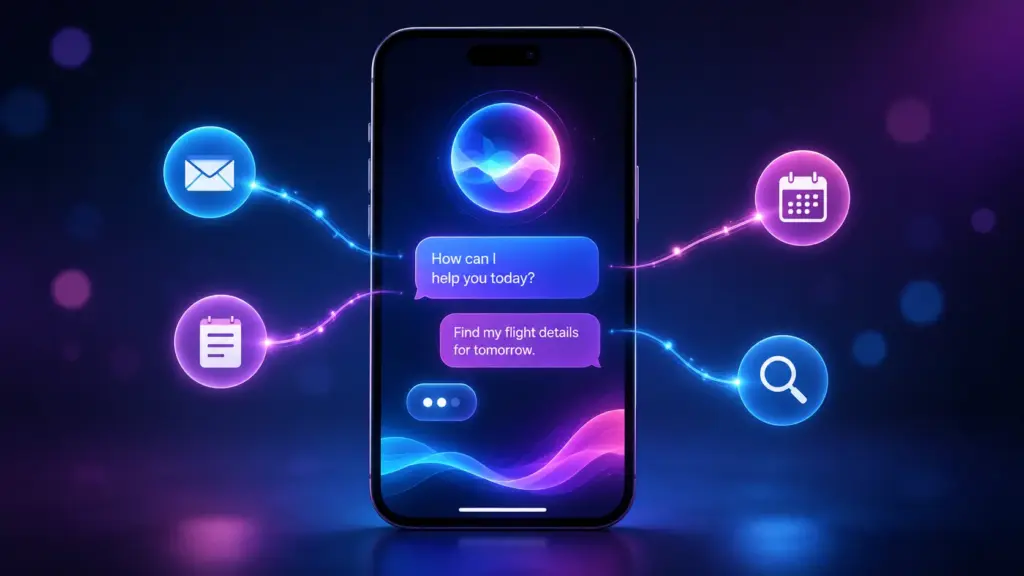
This is, without question, the headline feature of iOS 27. Siri has been rebuilt from the ground up, and it finally behaves more like a modern AI chatbot than the assistant you’re used to.
With the new Siri AI, you can:
- Hold full back-and-forth conversations, instead of one command at a time
- Ask Siri to search across your Mail, Messages, Notes, Reminders, and Calendar
- Get help summarizing information, analyzing files, and searching the web
- Have your Siri history sync across devices through iCloud and Apple’s Private Compute system
Note: If you’re in the European Union, Siri AI won’t be available at launch due to regulatory requirements. Apple hasn’t confirmed exactly when that will change.
This upgrade has been a long time coming — Apple first promised a smarter Siri back in iOS 18, so it’s fair to say expectations are high. Macworld’s iOS 27 guide has a detailed breakdown of how the new Siri compares to past versions if you want to dig deeper.
2. Siri Mode (formerly Visual Intelligence)

Apple renamed and upgraded its camera-based AI feature, now called Siri Mode. If you’ve used Visual Intelligence before, this will feel familiar but noticeably more capable.
Siri Mode now lets you:
- Point your camera at text or objects to get instant information
- Recognize nutritional details on food packaging
- Pull up contact information directly from your camera view
- Access the feature right inside the Camera app, similar to how Google Lens works
It’s a small rebrand with a real performance boost behind it, and it makes the AI camera tools feel far more built-in rather than bolted on.
3. Smarter Parental Controls with “Ask to Browse”
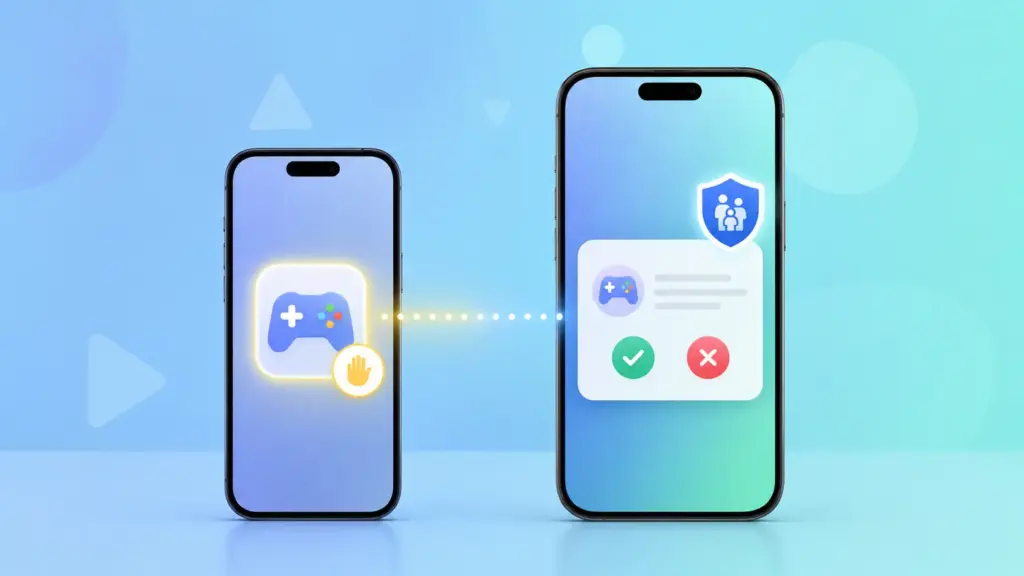
Families will appreciate this one. iOS 27 introduces Ask to Browse, a new parental control feature that gives parents more visibility and control over what their kids can access online.
Here’s what it changes:
- Kids can request access to specific websites or apps
- Parents get a notification and can approve or deny the request remotely
- Screen Time settings are now easier to manage from one place
This feature directly responds to feedback from parents who found the older Screen Time tools too rigid or confusing to set up.
4. Faster Performance Across the Board
Not every update is about AI — and this is where iOS 27 shines for everyday use. Apple focused heavily on speed and responsiveness this time around.
According to Apple’s own performance testing:
- App launch times are up to 30% faster
- Photos appear in your library 70% faster than before
- Animations feel smoother, with better responsiveness system-wide
If your iPhone has felt a little sluggish lately, iOS 27 might genuinely feel like a speed boost — even without touching a single AI feature.
5. Upgraded Photos and Apple Pay Experience
Finally, iOS 27 brings a handful of smaller but genuinely useful upgrades:
- iCloud Shared Albums now support full-resolution photo and video sharing
- Apple Pay checkout has been redesigned, making it much easier to switch between payment cards
- AutoMix in the Music app has new, smoother transitions
- Landscape support has been added to more apps — great news if you use your iPhone docked at a desk
These changes might not make headlines, but they’re the kind of everyday improvements you’ll notice within the first day of use.
iOS 27 vs iOS 26: What Actually Changed
If you’re wondering whether the jump from iOS 26 is worth it, here’s a quick side-by-side comparison.
| Feature | iOS 26 | iOS 27 |
|---|---|---|
| Siri | Basic Apple Intelligence integration | Full conversational Siri AI |
| Visual Intelligence | Original version | Rebranded as Siri Mode, more capable |
| Parental Controls | Standard Screen Time | New “Ask to Browse” feature |
| App Launch Speed | Standard | Up to 30% faster |
| Photos Library Loading | Standard | Up to 70% faster |
| Apple Pay | Standard card switching | Redesigned, simplified checkout |
Bottom line: iOS 27 isn’t just a visual refresh — it’s a meaningful step up, especially if your iPhone supports Apple Intelligence.
How to Install iOS 27 Safely
If you’re ready to try iOS 27, follow these steps to make sure your update goes smoothly:
- Back up your iPhone first. Beta software can behave unpredictably, so this step really matters. Check out our guide on how to back up your iPhone before doing anything else.
- Check your available storage. Go to Settings > General > iPhone Storage and make sure you have enough free space.
- Connect to Wi-Fi and plug in your charger.
- Open Settings > General > Software Update.
- If you’re joining the public beta, go to Settings > General > Software Update > Beta Updates and select the iOS 27 Public Beta.
- Tap Download and Install, then wait for your iPhone to restart.
Safety warning: Avoid installing beta software on your primary iPhone if you rely on it for work or don’t have a backup device. Bugs are common in beta releases, and some third-party apps may not work correctly right away.
Should You Update to iOS 27 Right Now?
It depends on your situation:
- If you’re using the public beta — it’s reasonably stable, but expect occasional bugs, especially with newer AI features.
- If you want the full experience — you’ll get the most value from iOS 27 if you own an iPhone 15 Pro or newer.
- If you rely on your iPhone daily for work — it may be smarter to wait for the official release in September.
As one longtime Apple reporter put it while covering the WWDC 2026 keynote, “the emphasis this year isn’t just on new features; it’s about making the software better.” That’s a fair summary of what iOS 27 delivers — meaningful upgrades paired with real performance improvements.
Frequently Asked Questions
When will iOS 27 be released to everyone?
Apple typically releases new iOS versions in September. Based on past patterns, iOS 27 is expected to launch around mid-September 2026, likely alongside the new iPhone 18 lineup.
Does my iPhone support iOS 27?
Any iPhone that currently supports iOS 26 will be able to update to iOS 27, starting with the iPhone 11. However, Apple Intelligence features require an iPhone 15 Pro or newer.
What’s the difference between the new Siri and the old one?
The new Siri AI in iOS 27 can hold real back-and-forth conversations, search across your apps, and complete more complex tasks — closer to how ChatGPT or Claude work, rather than the older command-based Siri.
Will Apple Intelligence work on every iPhone that gets iOS 27?
No. Basic iOS 27 features work on older supported iPhones, but Apple Intelligence requires an A17 Pro chip or newer with at least 8GB of RAM.
Is it safe to install the iOS 27 public beta?
It’s generally safe if you back up your iPhone first, but beta software can have bugs. It’s best to avoid installing it on your only iPhone if you depend on it daily.
Will Siri AI be available in the European Union?
Not at launch. Apple has confirmed that Siri AI won’t be available in the EU initially due to regulatory requirements.
Final Thoughts
iOS 27 brings some of the biggest changes to the iPhone in years, from a completely reimagined Siri to real, noticeable speed improvements. Whether you’re most excited about the new AI features or just want your apps to open faster, there’s something in this update for almost every iPhone user.
If you’re planning to update, take a few minutes to back up your device first, double-check that your iPhone supports the features you’re after, and go from there. Once you’re set up, be sure to check out our guides on what’s the newest iPhone and how to update your iPhone for more tips.

