


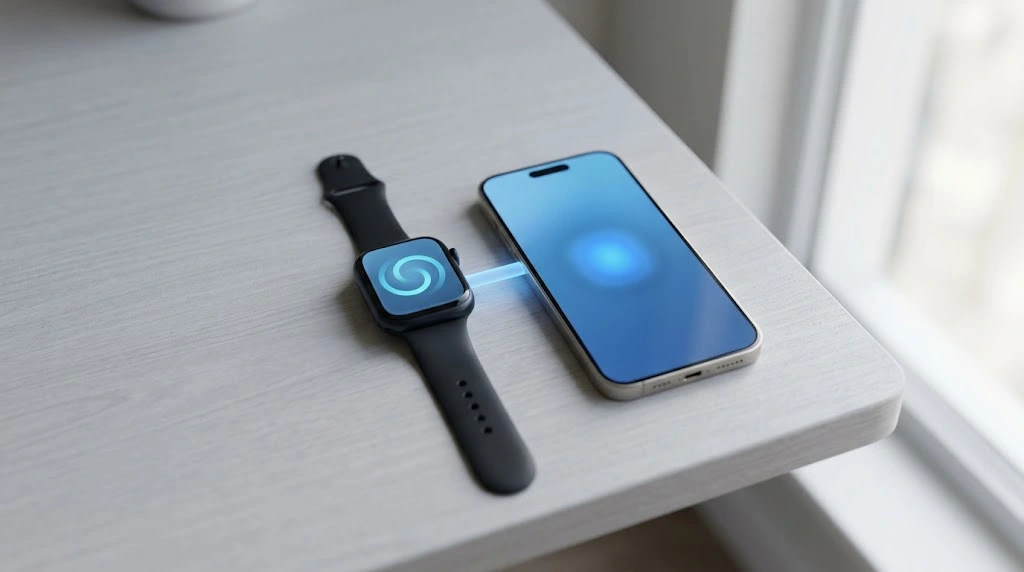
Got a new Apple Watch and not sure where to begin? This guide shows you how to connect Apple Watch to iPhone in about 10 minutes, even if you have never done it before. You will also learn how to fix pairing problems, move your watch to a new iPhone, and unpair it when you need to.
Quick Answer: How to Pair in 5 Steps
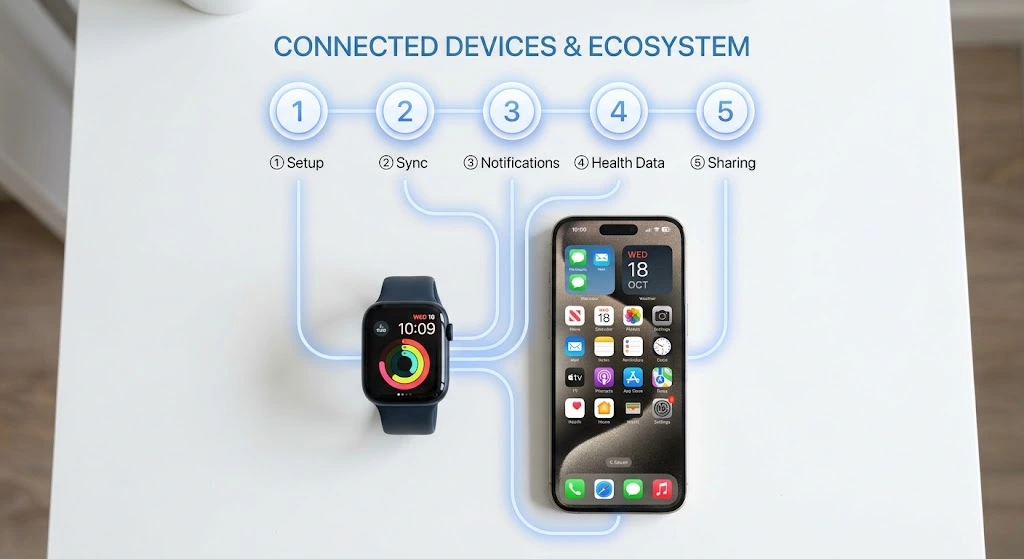
Short on time? Here is the fast version:
- Turn on your Apple Watch and put it near your iPhone.
- Tap Continue on the iPhone pop-up (or open the Watch app).
- Scan the watch animation with your iPhone camera.
- Choose Set Up as New Apple Watch or Restore from Backup.
- Finish the passcode and settings prompts.
Read on for the full details, model notes, and fixes.
What You Need Before You Connect Apple Watch to iPhone
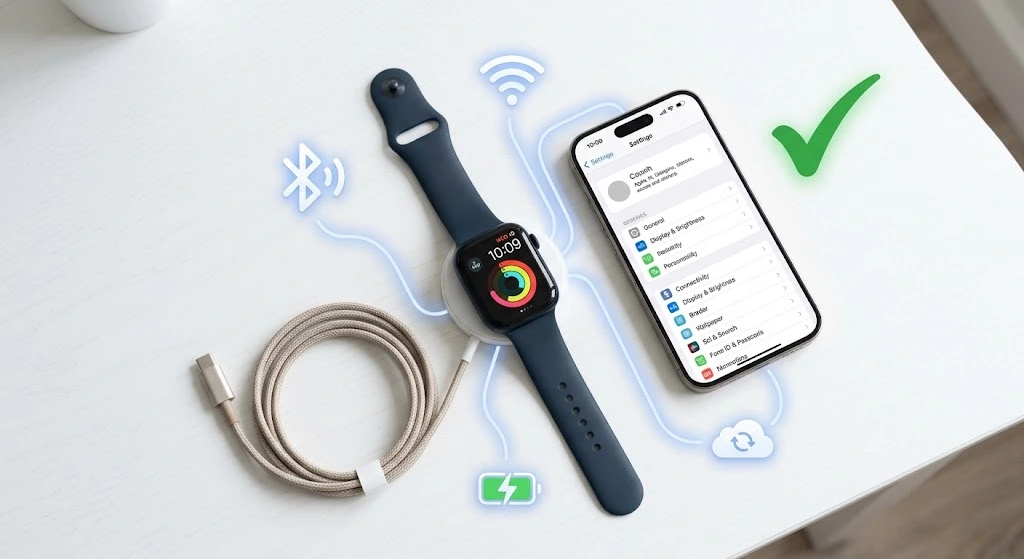
A little prep makes pairing smooth. Take two minutes to check the basics below.
Apple Watch and iPhone Compatibility
Apple Watch only works with an iPhone. You cannot pair it with an Android phone or an iPad. You also need an iPhone that is new enough to run the iOS version your watch needs.
In general, newer watches need newer iPhones. For example, recent watchOS versions need an iPhone 11 or later. Apple updates these requirements each year, so check Apple’s official watch page before you buy. Not sure which phone you own? Our guide on how to check which iPhone model you have takes under a minute.
Good to know:
- One Apple Watch pairs with one iPhone at a time.
- One iPhone can pair with more than one Apple Watch.
- Every Apple Watch model (Series, SE, and Ultra) uses the same basic pairing steps.
Update Your iPhone to the Latest iOS
An old iOS version is one of the top reasons pairing fails. Before you start, update your iPhone to the latest iOS.
- Open Settings.
- Tap General.
- Tap Software Update.
- Tap Update Now if you see an update.
Turn On Bluetooth and Wi-Fi
Your iPhone and watch talk to each other over Bluetooth. Wi-Fi helps the setup move faster.
- Open Control Center on your iPhone.
- Make sure Bluetooth and Wi-Fi are on.
- Turn off Airplane Mode if it is on.
Sign In With Your Apple ID and Charge the Watch
Your iPhone must be signed in to your Apple Account. If you do not have one yet, follow our guide to create an Apple ID first.
Also, charge your watch to at least 50%. Pairing and the first sync can take a while, and you do not want the watch to die halfway.
Back Up Your iPhone (Smart Move)
If you are setting up a new watch, you do not need a backup. But if you are about to change your setup or reset anything, it is wise to back up your iPhone first.
Your pre-pairing checklist:
| Item | What to check |
|---|---|
| iPhone model | Supports your watch’s watchOS version |
| iOS version | Fully updated |
| Bluetooth | On |
| Wi-Fi | On and connected |
| Airplane Mode | Off |
| Apple Account | Signed in on the iPhone |
| Watch battery | At least 50% |
How to Connect Apple Watch to iPhone (Automatic Pairing)
This is the easiest method. Most people use it, and it works in a few minutes.
Step 1: Turn On Your Apple Watch
- Put the watch on your wrist. Wear it on the wrist you prefer. You can change this later.
- Press and hold the side button until you see the Apple logo.
- Wait for the watch to finish starting up.
If the watch does not turn on, charge it for a few minutes and try again.
Step 2: Bring It Close to Your iPhone
Hold your iPhone right next to your Apple Watch. A pop-up should appear on your iPhone that says Use your iPhone to set up this Apple Watch.
- Tap Continue on the pop-up.
- If the pop-up does not appear, open the Watch app on your iPhone.
- Tap Pair New Watch (or Start Pairing on some screens).
Note: The Watch app comes with iOS. If you deleted it, download it again from the App Store.
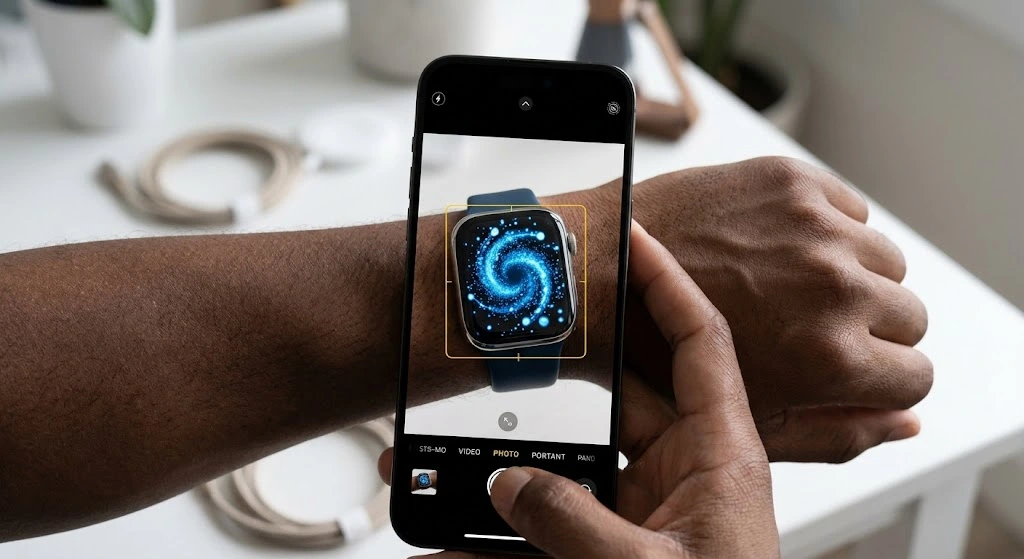
Step 3: Scan the Pairing Animation
Now your watch shows a blue swirling animation. Here is what to do:
- Choose Set Up for Myself when your iPhone asks.
- Point your iPhone camera so the watch face fits inside the yellow viewfinder.
- Hold steady until you see a message that says your Apple Watch is paired.
Pairing takes a few seconds. Do not move the devices far apart.
Step 4: Set Up as New or Restore From Backup
Your iPhone then asks how you want to set up the watch. You have two choices:
| Option | Best for | What happens |
|---|---|---|
| Set Up as New Apple Watch | First-time owners | Your watch starts fresh with default settings |
| Restore from Backup | Upgrading from an older watch | Your apps, watch faces, and settings come back |
If you are upgrading, Restore from Backup saves you a lot of time. Your iPhone shows the most recent backups it finds.
Step 5: Finish Setup (Passcode, Settings, and Apps)
Next, you will see a series of screens. Take your time and read each one.
- Terms and Conditions: Tap Agree.
- Apple Account: Sign in with your Apple Account. This turns on features like Find My and Activation Lock.
- Passcode: Create a passcode for your watch. You will need it for Apple Pay and to unlock the watch.
- Settings sharing: Choose whether to share settings from your iPhone.
- Health and safety features: Turn on the features you want, such as Fall Detection or Emergency SOS.
- Apple Pay: Add your cards if you wish. You can do this later.
- Cellular (if your watch has it): Set up a plan with your carrier, or skip for now.
- Apps: Choose Install All or pick your apps later.
The watch then syncs with your iPhone. You will see an Apple logo and a progress bar. This can take several minutes, so keep both devices close and plugged in if possible.
Expert tip from Apple Support: Apple’s pairing guide says to keep your iPhone and Apple Watch close together while they sync. Moving away can slow or interrupt setup.
You did it! When the sync finishes, your watch shows the watch face and your iPhone shows the My Watch tab.
How to Pair Apple Watch Manually
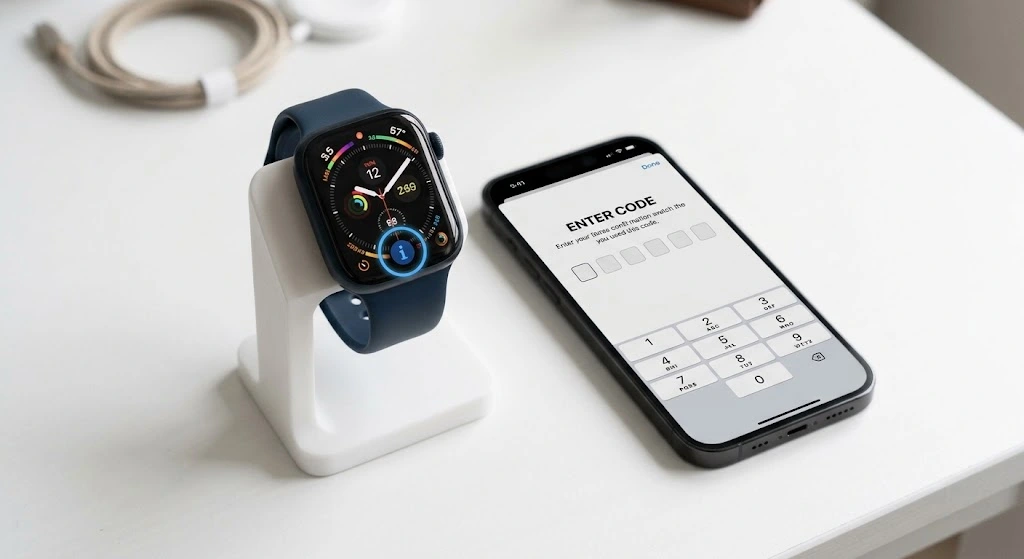
Sometimes the camera method does not work. Your iPhone camera might not focus, or the animation might not show up. In that case, use manual pairing.
When You Need Manual Pairing
Try this method if:
- The pairing animation will not scan.
- The camera is cracked or dirty.
- The watch face is scratched or hard to see.
- Automatic pairing keeps failing.
Steps to Pair Using the “i” Button
- On your iPhone, open the Watch app and start pairing.
- When the camera screen appears, tap Pair Apple Watch Manually at the bottom.
- On your Apple Watch, tap the “i” (More Info) button. You will see the watch name.
- Tap the watch name on your iPhone. Your iPhone asks for a pairing code.
- Type the code that your watch displays.
- Continue with the setup steps above.
How to Connect Apple Watch to a New iPhone
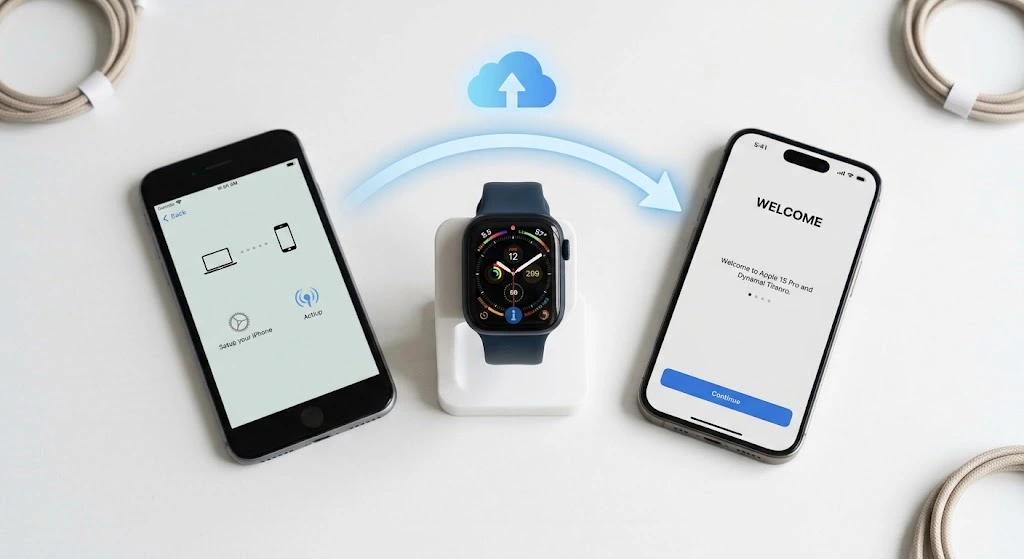
Bought a new iPhone? Good news: your watch history can come with you. But you must follow the right order.
Option 1: Your Old iPhone Still Works
This is the best way. Your watch backs up to your old iPhone when you unpair it.
- On your old iPhone, update iOS and keep it near the watch.
- Open the Watch app and unpair the watch (see the unpair section below). The watch makes a fresh backup.
- Set up your new iPhone. If you transfer data, our guide on how to transfer iPhone to iPhone helps.
- Pair the watch with the new iPhone using the steps above.
- Choose Restore from Backup when asked.
Option 2: Your Old iPhone Is Gone or Broken
Don’t panic. You can still pair your watch.
- Restore your new iPhone from an iCloud or computer backup that includes your watch data.
- On the watch, go to Settings > General > Reset > Erase All Content and Settings.
- Pair the watch with your new iPhone as described earlier.
Warning: If Activation Lock is on, you need your Apple Account password to erase and pair the watch. Without it, the watch will stay locked.
Quick Comparison
| Situation | What to do | Result |
|---|---|---|
| Old iPhone works | Unpair first, then pair with new iPhone | Backup restores easily |
| Old iPhone lost | Erase watch, pair as new or from iCloud backup | May lose some watch data |
| Selling the watch | Unpair and erase | Clean device for the buyer |
Apple Watch Won’t Connect to iPhone? Quick Fixes
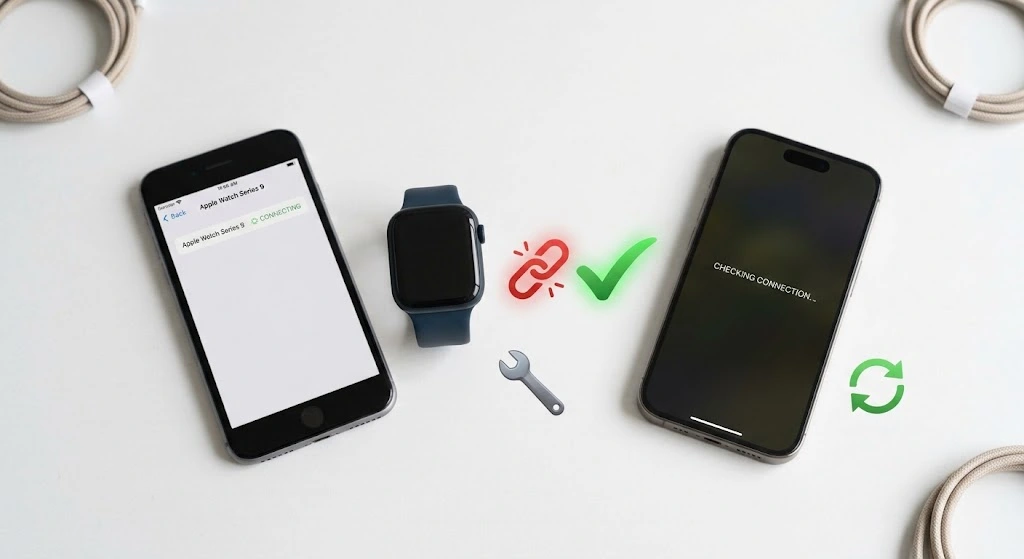
Sometimes pairing or connection fails. Try these fixes in order. Most problems go away by step three.
Fix 1: Restart Both Devices
A restart clears small bugs.
- iPhone: Follow our guide on how to restart your iPhone.
- Apple Watch: Hold the side button, then slide Power Off. Wait 30 seconds and turn it on again.
If the watch is frozen, force restart it by holding the Digital Crown and side button together for about 10 seconds, until you see the Apple logo.
Fix 2: Check Bluetooth, Wi-Fi, and Airplane Mode
- Open Control Center on your iPhone.
- Make sure Bluetooth is on.
- Turn Airplane Mode off.
- On your watch, open Control Center and check that Airplane Mode is off there too.
Turn Airplane Mode on for 15 seconds, then off. This can refresh the connection.
Fix 3: Update iOS and watchOS
An outdated system can block pairing.
- iPhone: Settings > General > Software Update.
- Apple Watch: Open the Watch app, tap General, then Software Update.
Keep the watch on its charger and near your iPhone during the update.
Fix 4: Reset Network Settings on iPhone
Bad network settings can break the Bluetooth link.
- Open Settings > General.
- Tap Transfer or Reset iPhone.
- Tap Reset, then Reset Network Settings.
Warning: This removes saved Wi-Fi passwords and VPN settings. Read our full guide on how to reset network settings on iPhone before you do it.
Fix 5: Unpair and Pair Again
If nothing else works, start fresh.
- Unpair the watch using the steps in the next sections.
- Restart both devices.
- Pair again from the beginning.
If you did not finish pairing in the first place, erase the watch first: Settings > General > Reset > Erase All Content and Settings.
Fix 6: Check for Physical Problems
- Make sure the watch is charged.
- Clean the iPhone camera if you use the animation method.
- Remove thick cases that might block the camera.
- Try a different spot with less wireless interference.
Still stuck? Visit Apple Watch Support or book a visit at an Apple Store.
Quick Troubleshooting Table
| Problem | Likely cause | Try this |
|---|---|---|
| No pairing pop-up | Bluetooth off or iOS outdated | Turn on Bluetooth, update iOS |
| Camera won’t scan | Dirty lens or glare | Clean lens or pair manually |
| Pairing stops at 100% | Weak connection | Restart both, stay close |
| Watch shows a red iPhone icon | Disconnected | Check Bluetooth and Airplane Mode |
| Setup freezes | Software glitch | Force restart and try again |
How to Check If Your Apple Watch Is Connected
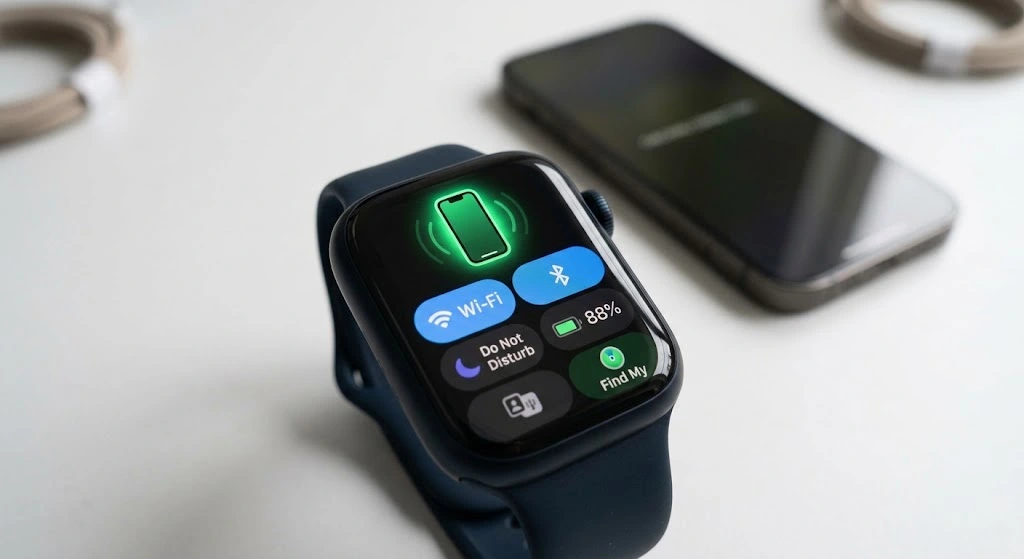
Want to be sure? It takes two seconds.
- Swipe up on your watch face (or press the side button on newer watchOS) to open Control Center.
- Look at the connection icon at the top.
What the icon means:
- A green iPhone icon means your watch is connected.
- A red iPhone icon with a line means your watch lost its connection to the iPhone.
You can also open the Watch app on your iPhone. If you see your watch name and My Watch tab with settings, it is connected.
How to Unpair Apple Watch From iPhone
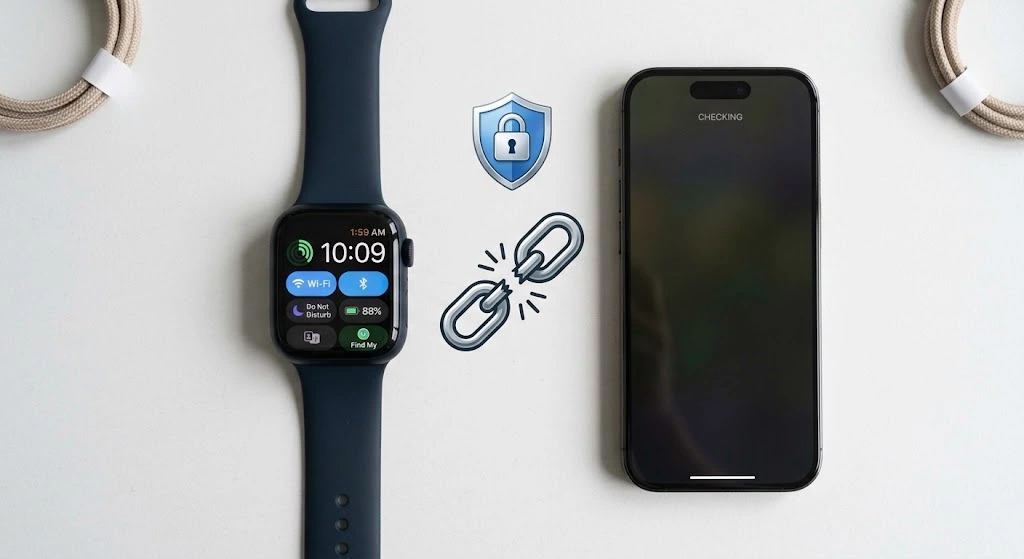
You need to unpair when you get a new watch, sell your watch, or fix a stubborn issue.
- Keep your iPhone and watch close together.
- Open the Watch app on your iPhone.
- Tap All Watches at the top.
- Tap the “i” (info) button next to the watch you want to remove.
- Tap Unpair Apple Watch.
- Confirm and enter your Apple Account password to turn off Activation Lock.
Your iPhone makes a backup of the watch before it unpairs. Then it erases the watch.
Note for cellular models: The app asks whether to keep or remove your cellular plan. Choose based on your plans. If you are selling the watch, remove it.
If you also turn off Find My for your iPhone, learn more in our guides on Find My iPhone and how to turn off Find My iPhone.
Tips After Pairing
Your watch is connected. Now make it work for you.
Customize Your Watch Face
Press and hold the watch face, then swipe to pick a new one. Add complications like weather, battery, or calendar.
Manage Notifications
Open the Watch app, tap Notifications, and choose which apps can alert you. Too many buzzes? Turn off the ones you do not need. Our guide on how to silence notifications on iPhone can help with the rest.
Save Battery Life
- Turn off Always On display if you do not need it.
- Lower screen brightness.
- Turn on Low Power Mode when the battery runs low.
- Close apps you do not use.
Pair Other Bluetooth Gear Too
You can connect headphones to your watch. If you also own earbuds, see how to connect AirPods to iPhone.
Keep Everything Updated
Updates add features and fix bugs. Check the Watch app every few weeks.
Frequently Asked Questions
Can I connect my Apple Watch to an Android phone?
No. Apple Watch needs an iPhone for setup and updates. It will not pair with Android phones.
Can I connect Apple Watch to an iPad or Mac instead?
No. You need an iPhone to set up your watch. After setup, the watch can work with other Apple devices for some features, but the iPhone is the main partner.
Can I use one Apple Watch with two iPhones?
No. Each watch pairs with one iPhone at a time. If you want to switch, unpair it from the first iPhone and pair it with the second.
Why won’t my Apple Watch connect to my iPhone?
The usual causes are Bluetooth being off, Airplane Mode being on, or outdated software. Restart both devices, update iOS and watchOS, and try again. If that fails, reset network settings or unpair and pair again.
Do I need Wi-Fi to pair Apple Watch?
Not strictly, but Wi-Fi helps. Bluetooth does the main pairing, and Wi-Fi speeds up downloads and updates during setup.
How long does it take to connect Apple Watch to iPhone?
The pairing itself takes under a minute. The full setup and sync can take 10 to 20 minutes, depending on how many apps and settings you restore.
Conclusion
Now you know how to connect Apple Watch to iPhone and what to do when things go wrong. Remember the key steps:
- Prepare: Update iOS, turn on Bluetooth, and charge the watch.
- Pair: Turn on the watch, bring it near your iPhone, and scan the animation.
- Set up: Pick new or restore from backup, then finish the prompts.
- Fix: Restart, update, check Bluetooth, or unpair and try again.
Give it a try today. It is simpler than it looks. Want to keep learning? Read our guides on how to back up your iPhone and how to share your location on iPhone to get more from your Apple devices.
Sources
- Apple Support: Pair and set up Apple Watch with iPhone
- Apple Support: Set up your Apple Watch
- Apple Watch Support

