


Does your iPhone keep buzzing, dinging, and popping up alerts at the worst moments? Learning how to silence notifications on iPhone is one of the most useful things any iPhone owner can do. Whether you’re in a meeting, trying to sleep, or just need some quiet time, your iPhone has more ways to mute alerts than most people realize.
In this guide, you’ll see every practical method to silence notifications on iPhone, from the fastest one-tap options to advanced Focus settings that automatically mute distractions based on your location or the apps you’re using.
Expert Insight: “Most iPhone users only know about the silent switch, but Focus modes are where the real power is. Once you set up Work and Sleep Focus with schedules, you barely think about notifications anymore—they’re just handled automatically.” — iOS productivity specialist
Quick Answer: How to Silence Notifications on iPhone
- Silent Mode (Ring/Silent switch or Action Button): Instantly mutes ringtones and alert sounds.
- Do Not Disturb (Focus): Silences calls, alerts, and notifications until you turn it off or the schedule ends.
- Per‑app notifications: Turn off or “Deliver Quietly” for noisy apps in Settings > Notifications.
- Mute a single conversation: In Messages, swipe left on a chat and tap the bell icon.
- Scheduled Focus: Automatically silence notifications at night or during work using Settings > Focus.
Silence All Notifications Instantly
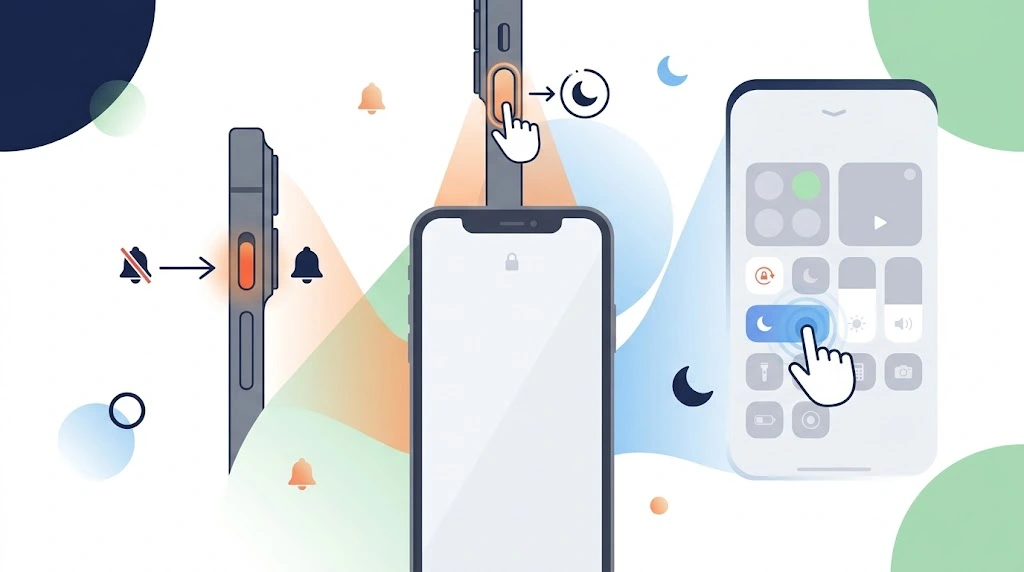
Ring/Silent Switch (iPhone 14 and Earlier)
On iPhone models with a physical switch on the left side:
- Flip the Ring/Silent switch toward the back of the phone until you see an orange stripe.
- You’ll feel a quick vibration and see a bell icon on screen.
- In this mode, most ringtones and alert sounds are muted, but alarms and some critical alerts can still sound.
Use this when you want instant silence without opening any menus.
Action Button (iPhone 15 Pro and Later)
On iPhone 15 Pro, 16 Pro, and newer models, Apple replaced the Ring/Silent switch with a customizable Action Button.
To use it for silent mode:
- Go to Settings > Action Button.
- Choose Silent Mode.
- Press and hold the Action Button to toggle silent mode on or off.
You’ll see a bell or crescent moon icon in the status bar to confirm the state.
Do Not Disturb from Control Center
For complete silence (calls, messages, app alerts):
- Open Control Center:
- iPhone with Face ID: swipe down from the top‑right.
- iPhone with Home button: swipe up from the bottom.
- Tap Focus (crescent moon icon).
- Select Do Not Disturb.
While Do Not Disturb is on, a moon icon appears in the status bar and most notifications are silenced until you turn it off or the schedule ends.
For official details on Do Not Disturb and Focus, see Apple’s guide: How to turn Do Not Disturb on or off on your iPhone.
Expert Tip: “If you’re in a situation where you absolutely cannot be interrupted—like a presentation or deep work session—combine Silent mode with Do Not Disturb. That way, even if you accidentally bump the side button, your Focus rules are still protecting you.” — Mobile workflow consultant
Use Focus Modes to Silence Notifications by Activity
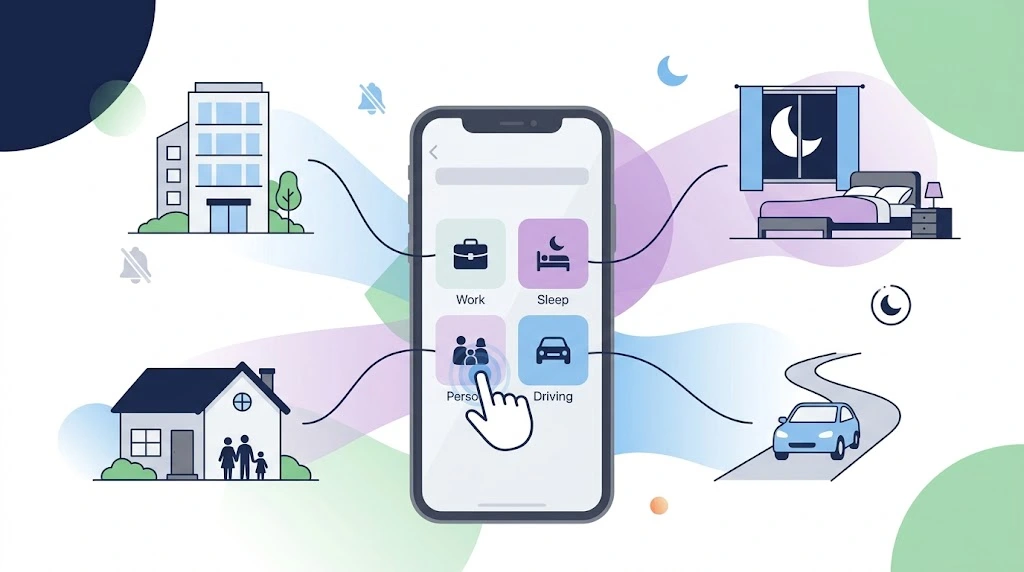
Focus modes let you create different “silence profiles” for work, sleep, personal time, and more.
Built‑in Focus Modes
Common Focus modes include:
- Do Not Disturb – General silence.
- Personal – Silence work apps, allow family and friends.
- Work – Silence personal apps, allow work tools.
- Sleep – Reduce notifications and dim the lock screen at night.
- Driving – Limit distractions while driving.
To set one up:
- Go to Settings > Focus.
- Tap a Focus (e.g., Do Not Disturb, Work, Sleep).
- Under People and Apps, choose who and what can notify you.
- Turn on Share Across Devices if you want the same Focus on iPad and Mac.
For more on Focus setup, check Apple’s documentation: Set up a Focus on iPhone.
Focus Filters
Some apps support Focus Filters, which change how they behave inside a specific Focus. For example, Mail can show only work emails in Work Focus, or Calendar can hide personal events.
To add a Focus Filter:
- Go to Settings > Focus.
- Tap a Focus (e.g., Work).
- Scroll to Focus Filters.
- Choose an app (e.g., Mail, Calendar) and select the filter you want.
This doesn’t just silence notifications; it reduces visual clutter inside apps too.
Apple Intelligence and Intelligent Breakthrough
On supported devices with Apple Intelligence, Focus can use Intelligent Breakthrough to let truly important notifications through even when a Focus is active. For example, a time‑sensitive message from your child’s school might bypass Do Not Disturb if the system detects it’s urgent.
To check or adjust this:
- Go to Settings > Focus.
- Tap a Focus (e.g., Do Not Disturb).
- Look for options related to Intelligent Breakthrough or Allow Repeated Calls.
- Enable features that match your needs.
This helps you stay reachable for emergencies without keeping all notifications loud.
Expert Insight: “Intelligent Breakthrough is like having a smart assistant deciding which notifications are actually worth disturbing you for. It’s not perfect yet, but for parents or people in on‑call roles, it’s already a game‑changer.” — Apple ecosystem trainer
Automatically Trigger Focus by Location or App
You can make a Focus turn on automatically when you arrive somewhere or open a specific app.
Location trigger:
- Go to Settings > Focus.
- Tap a Focus (e.g., Work).
- Tap Add Schedule or Automation > Location.
- Choose a location (e.g., your office) and set when the Focus should activate.
App trigger:
- Go to Settings > Focus.
- Tap a Focus.
- Tap Add Schedule or Automation > App.
- Choose an app (e.g., a game or social app) and set the Focus to turn on when you open it.
This is ideal for “automatic silence” without remembering to toggle anything.
Silence Notifications from a Specific App
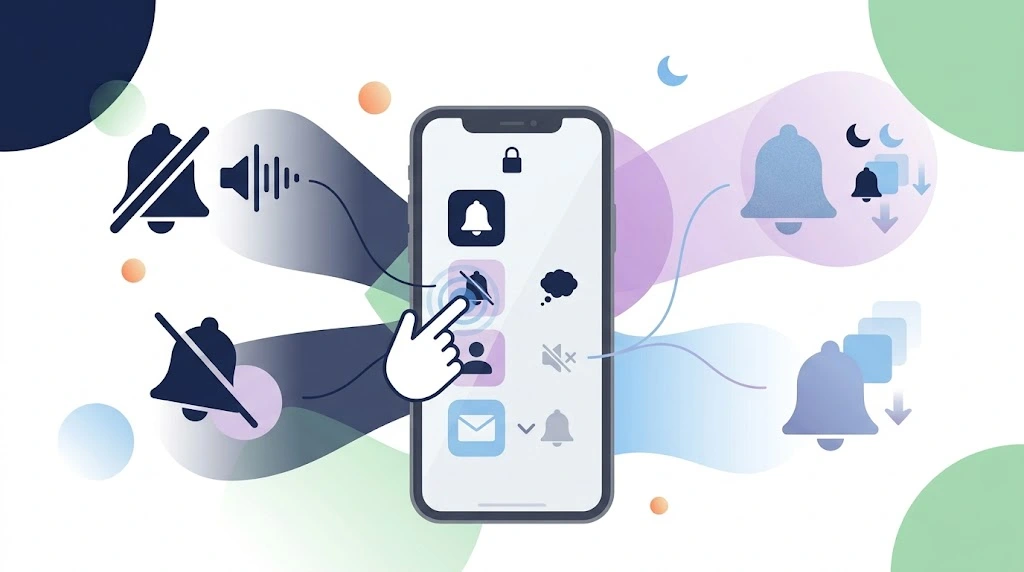
Sometimes you don’t want to silence everything—just that one noisy app.
Turn Off Notifications Completely
- Go to Settings > Notifications.
- Tap the app (e.g., Instagram, Twitter, Games).
- Turn off Allow Notifications.
The app can no longer show banners, sounds, or badges.
Deliver Quietly Instead of Muting Fully
If you still want to see notifications but without sound or lock screen interruptions:
- Go to Settings > Notifications.
- Tap the app.
- Turn on Allow Notifications.
- Under Alerts, uncheck Lock Screen and Notification Center if you want minimal visibility.
- Turn off Sounds and Badges if you want it completely quiet.
Some apps also support Deliver Quietly, which sends notifications straight to Notification Center without sound or banners.
Group Notifications by App
To reduce visual noise:
- Go to Settings > Notifications.
- Tap the app.
- Under Notification Grouping, choose By App or Automatic.
This stacks multiple notifications from the same app into one group instead of flooding your lock screen.
Allow Time‑Sensitive Notifications to Bypass Focus
Some apps (like Messages or certain health apps) can send Time Sensitive Notifications that bypass Focus modes.
To control this:
- Go to Settings > Notifications.
- Tap the app.
- Look for Time Sensitive Notifications.
- Turn it off if you don’t want these alerts to break through Focus.
For more on notification settings, see Apple’s guide: Change notification settings on iPhone.
Expert Tip: “Instead of turning off notifications for social apps completely, try ‘Deliver Quietly’ plus Scheduled Summary. You keep the ability to check updates on your own schedule without the constant ping during the day.” — Digital wellness coach
Silence Notifications from a Specific Contact
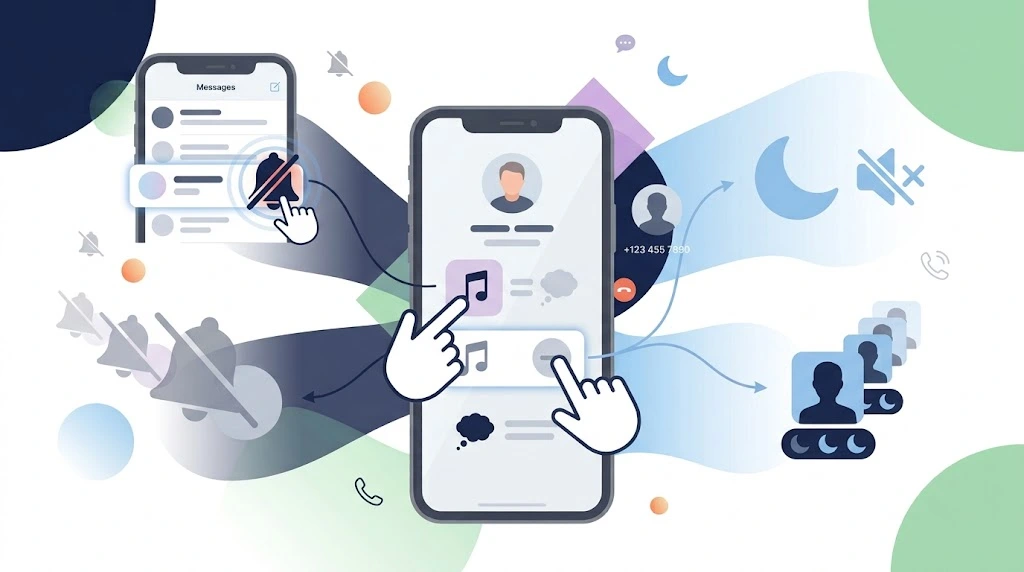
You might want to mute a particular person without blocking them.
Mute a Conversation in Messages
- Open Messages.
- Find the conversation.
- Swipe left on it.
- Tap the bell icon to mute alerts for that chat.
You’ll still receive messages, but they won’t make sound or show banners.
Send Calls from One Contact to Voicemail
To silence calls from a specific person:
- Open the Contacts app (or Phone > Contacts).
- Tap the contact.
- Tap Edit.
- Tap Ringtone or Text Tone.
- Choose None.
Alternatively, to block completely:
- Open the contact.
- Scroll down and tap Block this Caller.
Blocked contacts are sent straight to voicemail and their messages go to a separate list.
Silence Unknown Callers
To stop calls from numbers not in your contacts:
- Go to Settings > Phone.
- Tap Silence Unknown Callers.
- Turn it on.
Calls from unknown numbers are silenced and sent to voicemail, while calls from your contacts still ring.
Expert Insight: “Silence Unknown Callers is one of the most underrated features for reducing spam stress. You still get voicemails from real people, but your phone stops ringing for robocalls and random numbers.” — Telecom security analyst
Schedule Notification Silence Automatically
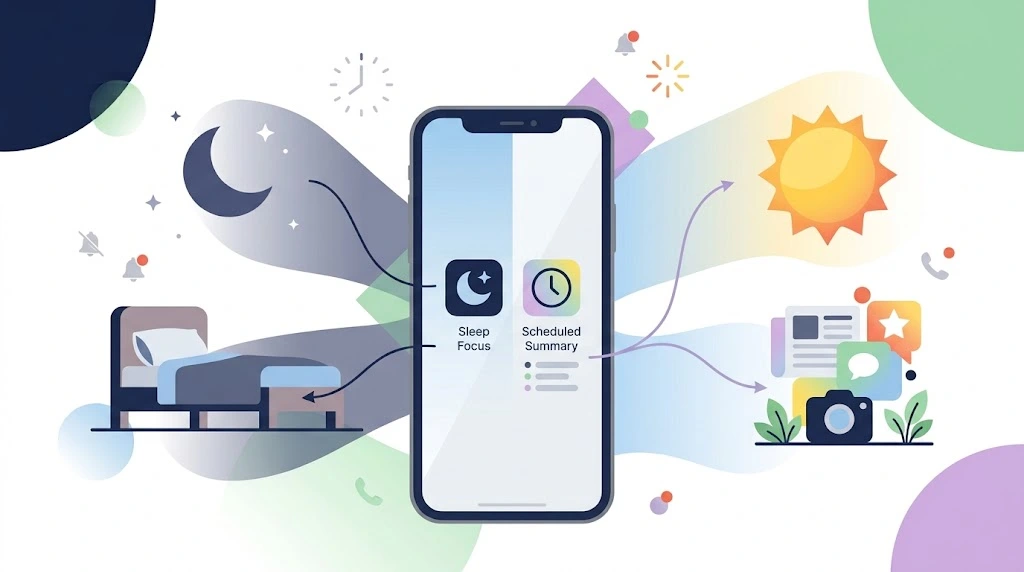
Instead of manually toggling silence, let your iPhone do it for you.
Scheduled Summary
Scheduled Summary bundles non‑urgent notifications and delivers them at set times (e.g., morning and evening).
- Go to Settings > Notifications.
- Tap Scheduled Summary.
- Turn it on.
- Choose which apps to include.
- Set delivery times (e.g., 8:00 AM and 8:00 PM).
This keeps your day quiet while still letting you catch up on news, social media, and other low‑priority alerts later.
Sleep Focus
Sleep Focus is designed for nighttime.
- Go to Settings > Focus.
- Tap Sleep.
- Under People and Apps, choose what’s allowed.
- Tap Add Schedule or Automation and set a bedtime and wake time.
During Sleep Focus, your lock screen dims and most notifications are silenced.
Location and App Triggers
As described earlier, you can combine Focus with location or app triggers to automatically silence notifications when you arrive at work, open a game, or start driving.
Expert Tip: “Pair Sleep Focus with a Scheduled Summary for morning delivery. That way, your phone is truly quiet at night, but you still get a neat digest of non‑urgent stuff when you start your day.” — Sleep and productivity researcher
Alternative Ways to Silence Notifications
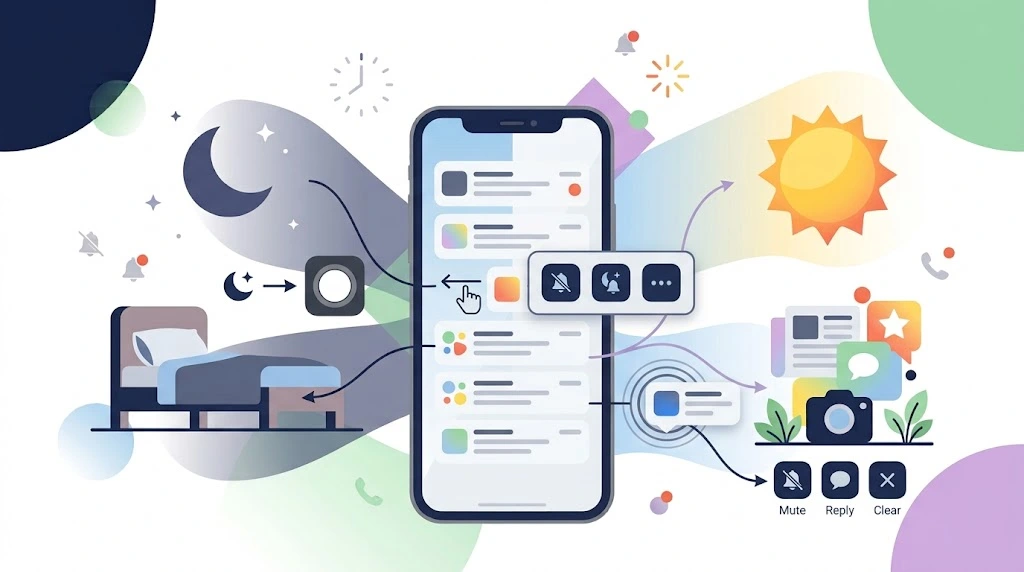
AssistiveTouch Shortcut
If you prefer on‑screen controls or have difficulty using physical buttons:
- Go to Settings > Accessibility > Touch > AssistiveTouch.
- Turn on AssistiveTouch.
- Under Customize Top Level Menu, add Control Center or Silent Mode if available.
- Use the floating AssistiveTouch button to quickly toggle silent mode or open Control Center and enable Do Not Disturb.
This gives you a soft “button” for notification control without using the side switch or Action Button.
Notification Center Shortcut
You can also manage notifications directly from Notification Center:
- Swipe down from the top‑left (or top‑center on newer models) to open Notification Center.
- Swipe left on a notification.
- Tap Options.
- Choose Deliver Quietly or Turn Off for that app.
This is useful when a specific app is spamming you and you want to silence it on the spot.
Quick Actions on a Single Notification
For some apps, you can long‑press a notification to see quick options like Mute, Reply, or Clear. Use these to reduce noise from that app without going into Settings.
Still Getting Notifications? Troubleshooting
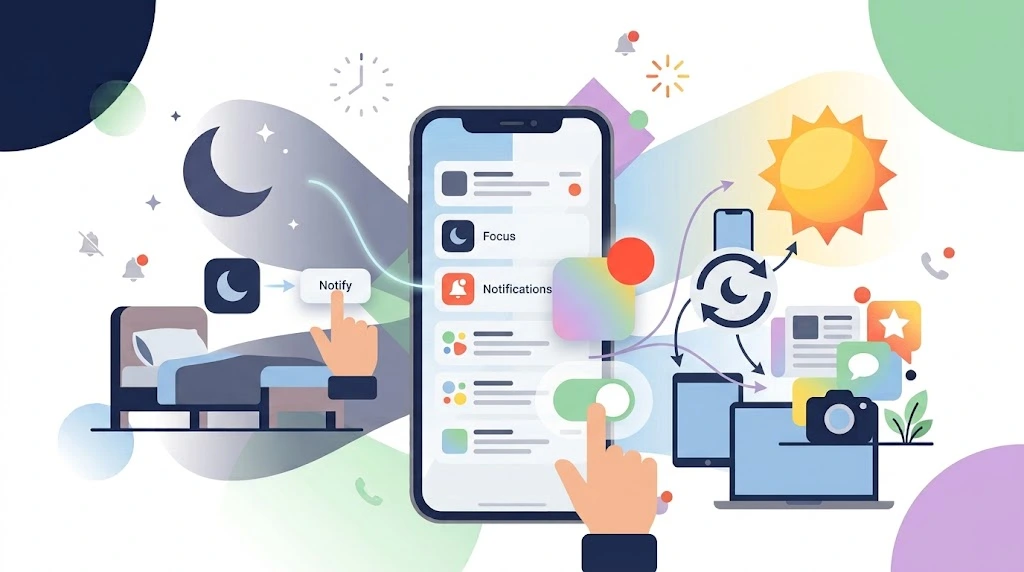
The “Notify Anyway” Button in Focus
When a Focus is active, iOS sometimes shows a Notify Anyway button for certain notifications. If you tap it, that app’s notifications can break through the Focus temporarily.
If you’re seeing unexpected alerts:
- Check whether you or someone else tapped Notify Anyway.
- Review Settings > Focus > [Focus] > Apps to confirm which apps are allowed.
Red Badge Counts Still Showing
Even with notifications silenced, you may still see red badge numbers on app icons.
To turn them off:
- Go to Settings > Notifications.
- Tap the app.
- Turn off Badges.
This removes the red number while keeping or silencing other notification types as you prefer.
Focus Status Not Syncing Across Devices
If your iPhone is in Focus but your iPad or Mac is still noisy:
- Go to Settings > Focus.
- Turn on Share Across Devices.
- Make sure you’re using the same Apple ID on all devices.
This ensures that when you enable a Focus on one device, it applies to all of them.
Why Alarms and Emergency Alerts Still Sound
Even in Silent mode or Do Not Disturb:
- Alarms from the Clock app always ring.
- Critical alerts (e.g., emergency government alerts, some health alerts) can bypass silent settings.
- Emergency Bypass for specific contacts can allow their calls/messages to come through even in Focus.
This is by design so you don’t miss life‑critical warnings.
Expert Insight: “If your iPhone is still buzzing at night, 9 times out of 10 it’s either a misconfigured Focus allow‑list or an app with Time Sensitive Notifications turned on. Walk through those two settings first before assuming something is broken.” — iOS support specialist
Quick Comparison Table
| What you want to silence | Fastest method | Where to find it |
|---|---|---|
| All sounds and banners | Silent switch or Action Button | Side of iPhone or Settings > Action Button |
| Complete silence (calls + alerts) | Do Not Disturb | Control Center > Focus or Settings > Focus |
| One noisy app | Turn off or Deliver Quietly | Settings > Notifications > [App] |
| One chat in Messages | Mute conversation | Messages > swipe left > bell icon |
| Unknown callers | Silence Unknown Callers | Settings > Phone |
| Nighttime distractions | Sleep Focus | Settings > Focus > Sleep |
| Non‑urgent alerts | Scheduled Summary | Settings > Notifications > Scheduled Summary |
| Silence based on location or app | Location/App Focus trigger | Settings > Focus > [Focus] > Add Schedule |
Frequently Asked Questions About Silencing Notifications
What’s the difference between Do Not Disturb mode and Focus mode?
Do Not Disturb mode is one type of Focus mode designed for general silence. Focus modes are a broader system that includes Do Not Disturb plus Work, Personal, Sleep, Driving, and custom modes, each with its own rules for people, apps, and schedules.
When a notification silenced message appears, it usually means a Focus or Do Not Disturb mode is active and filtering your alerts.
Will silencing notifications turn off my alarm from the Clock app?
No. Alarms from the Clock app always ring, even when your ringer switched to silent or when Do Not Disturb / Focus mode is on. Only manually turning off or deleting the alarm in the Clock app will stop it.
This separation ensures you don’t miss important wake‑up times even when all other sounds are muted.
What are critical alerts vs non‑critical alerts?
Critical alerts are high‑priority notifications (for example, emergency government alerts or certain health apps) designed to break through Silent mode and Focus modes. They override alerts filtering so you don’t miss urgent information.
Non-critical alerts are regular app notifications that follow your notification settings and can be silenced by Do Not Disturb, Focus, or per‑app controls.
Why do some notifications still come through when my phone is silenced?
If your iPhone shows notification silenced but you still see some alerts, it’s usually because:
.The app or contact is on your Focus allow list.
.The app uses Time Sensitive or critical alerts.
.Someone tapped Notify Anyway for that app.
.Share Focus Status or cross‑device settings are affecting behavior.
Check Settings > Focus > [Focus] > People & Apps to review which notifications are allowed to bypass silence.
How do I re-enable notifications after silencing them?
To make sure notifications re-enable correctly:
.For Silent mode: flip the Ring/Silent switch back or toggle the Action Button.
.For Do Not Disturb / Focus: open Control Center > Focus and turn the mode off, or wait for the schedule to end.
.For a specific app: go to Settings > Notifications > [App] and re‑enable Allow Notifications, Sounds, or Badges.
If you used a scheduled Focus, confirm the end time so notifications don’t stay muted longer than expected.
Can I set up recurring scenarios for automatic silence?
Yes. You can create recurring scenarios using scheduled Focus modes:
.Nightly silence with Sleep Focus.
.Work‑hour silence with Work Focus.
.Location‑based silence when you arrive at the office or gym.
Go to Settings > Focus > [Focus] > Add Schedule or Automation and set days, times, or locations. This keeps your notification settings aligned with your routine without manual toggling.
Why does my iPhone still vibrate even when the ringer is switched to silent?
When the ringer switched to silent, your iPhone mutes sounds but may still vibrate for calls, messages, and some alerts. To reduce this:
1.Go to Settings > Sounds & Haptics.
2.Turn off Vibrate on Silent (if available on your model).
3.Adjust per‑app vibration patterns in Settings > Notifications > [App] > Sounds.
This helps you move from “silent but buzzy” to truly quiet.
Do notification settings sync across my Apple devices?
If you use the same Apple ID and enable Share Across Devices in Settings > Focus, your Focus modes (including Do Not Disturb) can sync across iPhone, iPad, and Mac. However, per‑app notification settings (like Sounds, Badges, Deliver Quietly) are managed separately on each device.
So you might see a notification silenced on iPhone but still hear a sound on iPad if its own settings allow it.
Related Guides
- If you’re also cleaning up your home screen, see our guide on how to hide apps on iPhone.
- For more on managing interruptions across devices, check our guide on how to turn off Do Not Disturb on iPhone.
- Want a quieter experience at night? Learn how to schedule Do Not Disturb on iPhone.

