


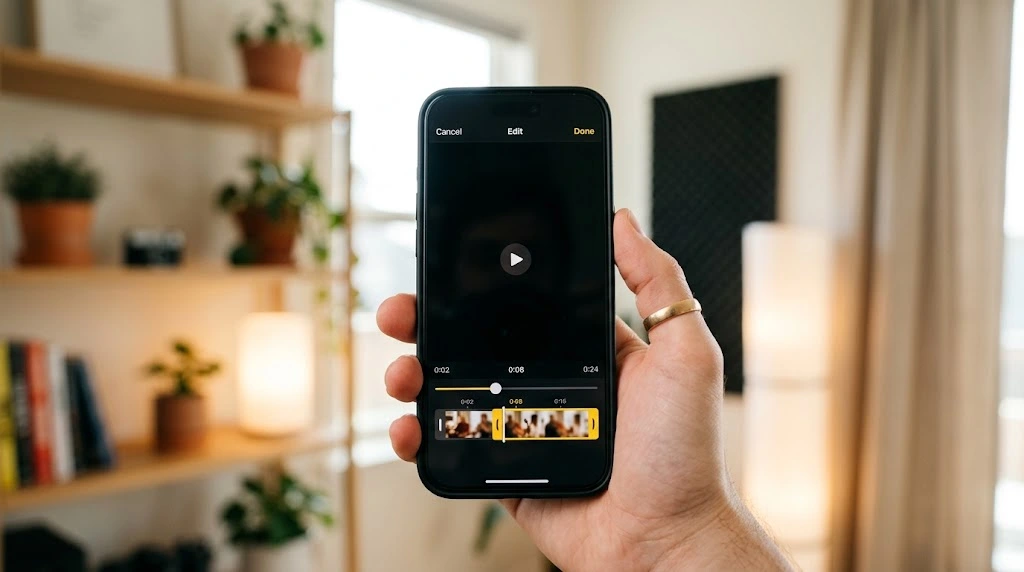
Shooting a great video on your iPhone is only half the job. The real magic happens when you trim the boring parts, brighten a dark clip, or add a filter that makes your footage look professional. The good news? You don’t need a computer or an expensive app to do it.
In this guide, you’ll learn how to edit videos on iPhone using the tools you already have — the built-in Photos app and the free iMovie app. Whether you want to make a quick trim or build a polished mini-movie with music and transitions, you’ll find clear, step-by-step instructions below. If you’d like the official rundown too, Apple’s own support page covers the basics of editing videos on iPhone, iPad, and Mac.
Key Takeaways
- The Photos app handles everyday edits like trimming, cropping, filters, and speed changes — no extra downloads needed.
- iMovie unlocks advanced features like merging clips, adding text, and layering background music.
- Both tools are completely free and come from Apple, so there’s no risk of hidden subscriptions.
- You can always undo your edits and restore the original video if you change your mind.
What You Can Do With iPhone’s Built-in Video Editor
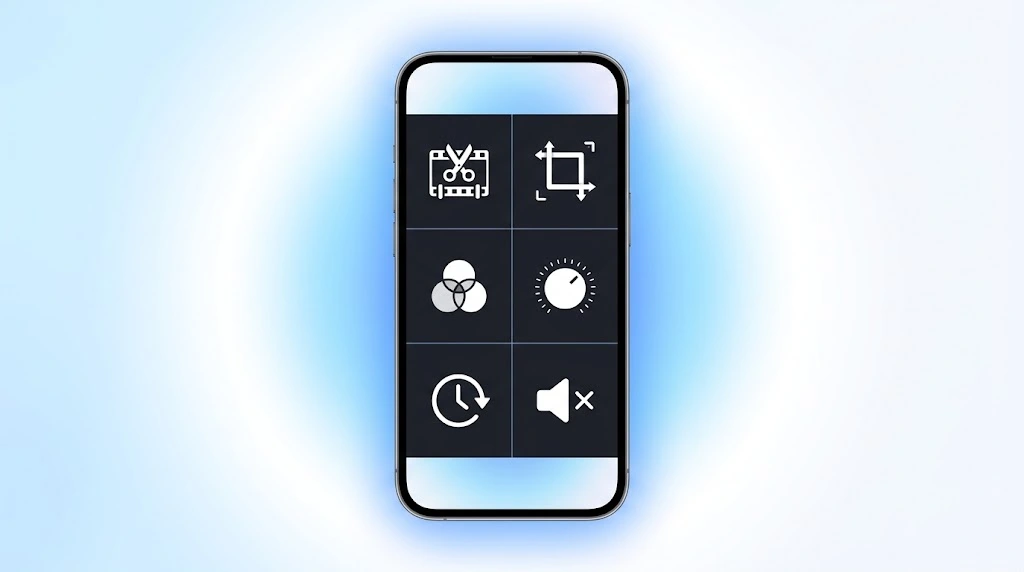
Before jumping into third-party apps, it’s worth knowing just how capable your iPhone already is when it comes to editing videos on iPhone. The Photos app packs a surprisingly full-featured video editor, and you don’t need to install anything extra to use it. For a deeper technical breakdown, Apple’s official guide to trimming and editing video explains each control in detail.
With the Photos app alone, you can:
- Trim the start or end of a clip
- Crop, rotate, or flip the frame
- Apply filters for a different mood or style
- Fine-tune color, brightness, and exposure
- Adjust playback speed, including slow-motion sections
- Mute audio or fine-tune it with Audio Mix
- Edit the focus and blur in Cinematic mode clips
For anything beyond that — like combining multiple clips into one video — you’ll want iMovie, which is also free and made by Apple. We’ll cover both tools in detail below.
How to Trim a Video on iPhone
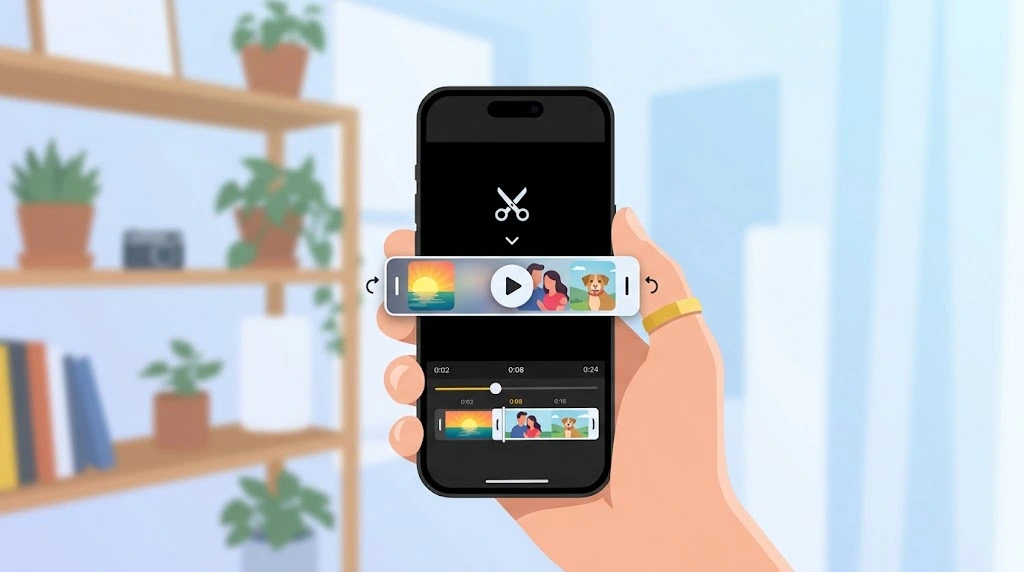
Trimming is the most common edit people make, and it’s also the easiest. It’s perfect for cutting out shaky starts, awkward pauses, or extra footage at the end of a clip.
Here’s how to trim a video on iPhone:
- Open the Photos app and tap the video you want to edit.
- Tap Edit in the top-right corner.
- Look at the timeline below the video. You’ll see handles on both ends.
- Drag the left or right handle inward to set your new start and end points.
- Tap the Play button to preview your trim.
- Tap Done, then choose Save Video or Save Video as New Clip.
Note: Choosing Save Video overwrites the original file, while Save Video as New Clip keeps both the original and the trimmed version. If you’re not sure which one to pick, always choose “Save as New Clip” — it’s safer and lets you go back later.
How to Crop, Rotate, and Flip a Video
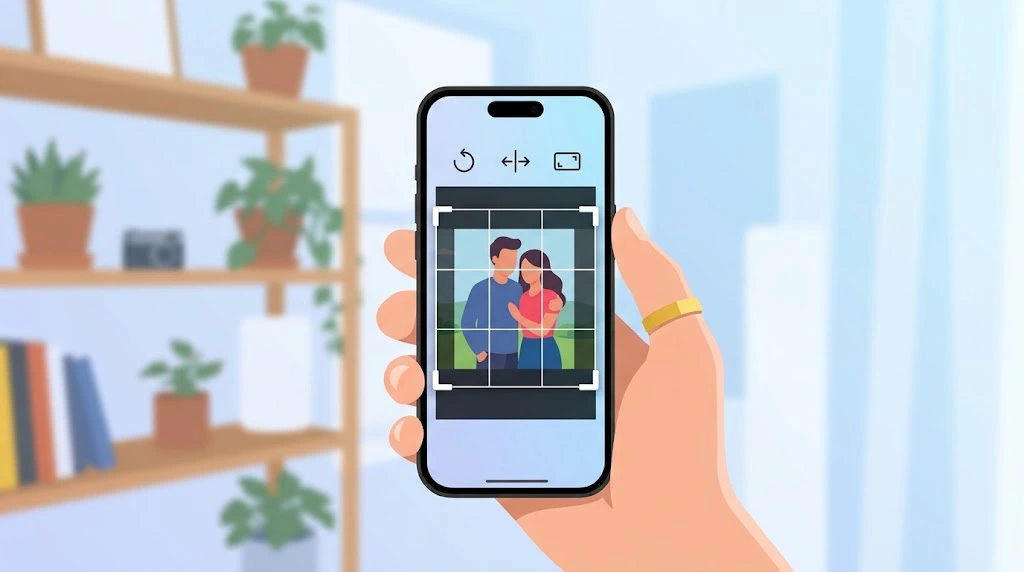
Sometimes a video needs more than a trim — maybe it’s the wrong orientation, or you want to zoom in on the action. The Photos app makes this simple too.
To crop a video:
- Open the video in Photos and tap Edit.
- Select the Crop tool from the bottom toolbar.
- Drag the corners or edges of the frame to crop manually, or tap the aspect ratio icon in the top-right corner to choose a preset like 1:1, 16:9, or 9:16.
- Tap Done to save.
To rotate or flip a video:
- From the Crop screen, tap the square icon with an arrow to rotate the video 90 degrees at a time.
- Tap the two-triangle icon to flip the video horizontally (useful for mirrored front-camera clips).
- Use the semi-circle dial below the frame to straighten a tilted horizon.
Tip: Cropping to a 9:16 ratio is ideal if you’re preparing a clip for Instagram Reels or TikTok.
How to Add Filters to a Video
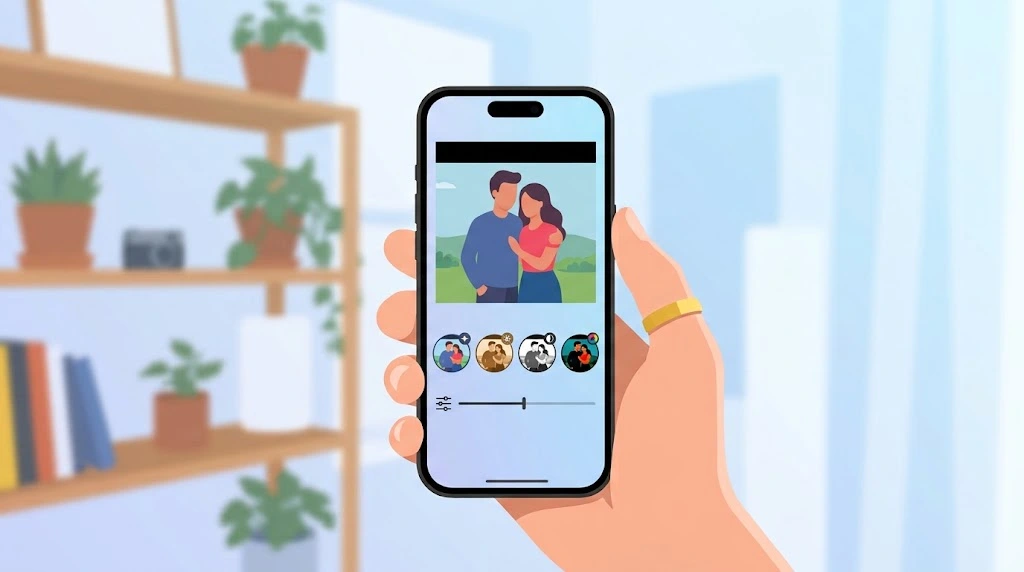
Filters are a fast way to give your video a consistent, polished look without manually adjusting colors.
- Open your video in Photos and tap Edit.
- Tap the Filters icon (it looks like three overlapping circles).
- Swipe through the options — Vivid, Dramatic, Mono, Noir, and more.
- Drag the slider under a filter to control its intensity.
- Tap Done to apply and save.
If you want more control over the exact look, the Adjust tool (covered next) gives you manual sliders instead of presets.
How to Adjust Color, Brightness, and Visual Effects
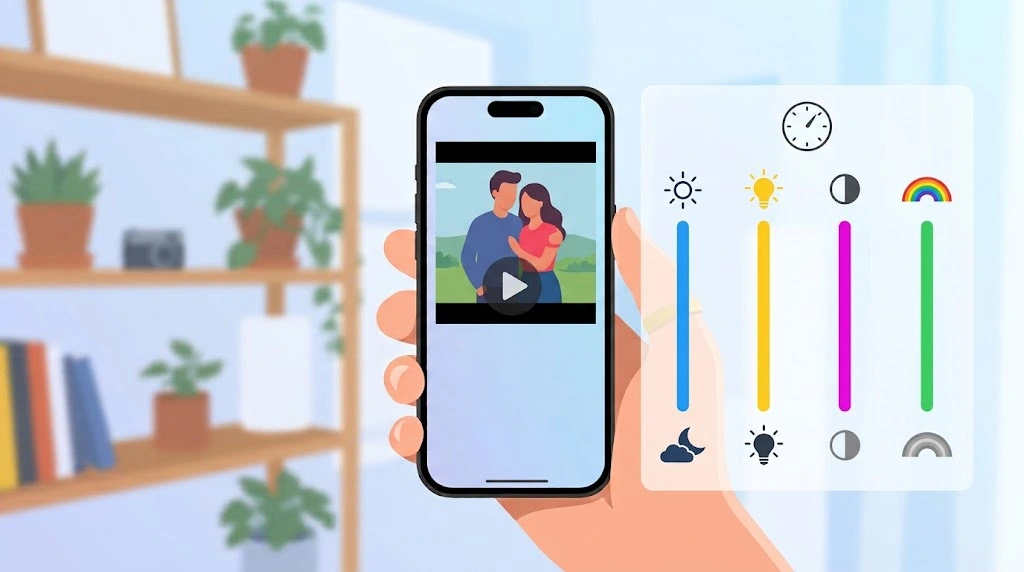
When a filter doesn’t quite match what you want, manual adjustments give you full control.
- Open the video and tap Edit.
- Tap the Adjust icon (a dial-shaped icon).
- You’ll see sliders for:
- Exposure
- Brightness
- Highlights and Shadows
- Contrast
- Saturation and Vibrance
- Warmth and Tint
- Sharpness and Noise Reduction
- Tap Auto if you’d rather let your iPhone balance the video for you.
- Tap Done once you’re happy with the result.
Note: Small adjustments go a long way. Pushing sliders too far can make footage look unnatural, especially with saturation and contrast.
How to Change Video Speed and Edit Slo-Mo
Speed changes can add drama to action shots or make a moment feel more emotional. Here’s how to edit slo-mo video on iPhone and adjust playback speed in general.
To change playback speed:
- Open the video and tap Edit.
- Tap the Speed icon in the top-right corner.
- Choose a speed from the menu (0.5x, slower, or faster options).
- Tap Done to save.
To customize a Slo-Mo clip:
- Open a video recorded in Slo-Mo mode and tap Edit.
- You’ll see vertical bars on the timeline marking the slow-motion section.
- Drag these bars to control exactly where the slow motion starts and ends.
- Tap Done to save your changes.
According to Apple Support, “If your video is captured at a frame rate higher than 30FPS, you can slow down the video for a dramatic effect” directly in the Photos app — no extra app required.
How to Mute a Video or Adjust Audio Mix
Sometimes the best edit is removing distracting background noise altogether — or fine-tuning how voices sound.
To mute a video:
- Open the video and tap Edit.
- Tap the speaker icon in the top-left corner to mute the audio.
- Tap Done to save the silent version.
To use Audio Mix (available on iPhone 16 and newer models with Spatial Audio):
- Open the video and tap Edit.
- Tap Audio Mix.
- Choose from:
- Standard – keeps the original recorded audio
- In-Frame – reduces sound from sources outside the video frame
- Studio – cleans up voices like a studio recording
- Cinematic – focuses on vocals while softening background noise
- Adjust the intensity slider and tap Done.
How to Edit Cinematic Mode Videos
If you shot a video using Cinematic mode, you can adjust the focus and background blur after recording — a feature most competing phones simply don’t offer.
- Open the Cinematic video in Photos and tap Edit.
- You’ll notice small white dots on the timeline showing automatic focus shifts.
- Tap anywhere on the frame to change the focus point, or double-tap to lock onto a subject.
- Tap the “f” icon at the top to adjust the depth-of-field slider and control how blurred the background appears.
- Tap Done to save.
How to Revert a Video to Its Original State
Made a mistake, or just don’t like the final result? Your original video is always safe unless you deliberately delete it.
- Open the edited video and tap Edit.
- Tap the red Revert option in the top-right corner.
- Confirm by tapping Revert to Original.
Note: If you chose Save Video as New Clip earlier, reverting only affects the file you’re currently viewing — the new clip stays as a separate file in your library.
How to Edit Videos on iPhone Using iMovie
For anything the Photos app can’t do — like merging multiple clips, adding text overlays, or layering music — you’ll need iMovie. It’s free, made by Apple, and available on the App Store. If you want to see everything iMovie offers before downloading it, check out Apple’s official iMovie page.
How to Merge Videos on iPhone With iMovie
Here’s how to merge videos on iPhone step by step:
- Open iMovie and tap Movie, then Create Movie.
- Select two or more videos from your library and tap Create Movie again.
- Your clips will appear on the timeline in order. Press and hold a clip to drag it into a different position.
- Tap the small transition icon between two clips to choose an effect like Dissolve, Slide, or Fade.
- Tap Done, then tap the Share icon and choose Save Video.
How to Add Text to a Video
- In iMovie, open your project and tap the timeline to reveal the toolbar.
- Tap the T icon and choose a text style.
- Tap the placeholder text, select Edit, and type your caption.
- Customize the font, color, and duration, then tap Done.
How to Add Background Music
- Tap the plus (+) icon in your iMovie project and select Audio.
- Choose Soundtracks for royalty-free background music.
- Select a track and tap the plus icon to add it to your timeline.
- Adjust the volume and length, then tap Done.
As Apple explains in its official iMovie support materials, iMovie is designed so that “anyone can create Hollywood-style trailers and stunning 4K-resolution movies,” directly from an iPhone.
Photos App vs. iMovie vs. Third-Party Apps
Not sure which tool fits your needs? Here’s a quick comparison to help you decide.
| Feature | Photos App | iMovie | Third-Party Apps (CapCut, InShot) |
|---|---|---|---|
| Trim & crop | ✅ Yes | ✅ Yes | ✅ Yes |
| Filters & color adjustment | ✅ Yes | ✅ Yes | ✅ Yes |
| Merge multiple clips | ❌ No | ✅ Yes | ✅ Yes |
| Add text overlays | ❌ No | ✅ Yes | ✅ Yes |
| Add background music | ❌ No | ✅ Yes | ✅ Yes |
| Templates & trending effects | ❌ No | ❌ Limited | ✅ Yes |
| Cost | Free (built-in) | Free | Free (with optional paid upgrades) |
| Best for | Quick, everyday edits | Structured mini-movies | Social media content |
In short: start with the Photos app for quick fixes, move to iMovie for structured projects, and try a third-party app only if you want trending social media effects.
Best Third-Party Video Editing Apps for iPhone
If you create content regularly for Instagram or TikTok, one of these apps might save you time.
CapCut
CapCut is one of the most popular video editing apps for iPhone, thanks to its trending templates, auto-captions, and easy-to-use trimming tools. It’s especially popular for short-form social media content.
InShot
InShot is a beginner-friendly option with a clean interface. It offers trimming, filters, music, and canvas sizing tailored for Instagram, YouTube, and TikTok formats.
Safety Note: Third-party editing apps often request access to your Photos library. Only download apps from the official App Store, and review their permissions before granting full access.
Tips for Better iPhone Video Edits
Once you’re comfortable editing videos on iPhone, these small habits will save you time and headaches down the road.
- Trim before you do anything else — it makes every other edit easier and faster.
- Save as a new clip, not over the original, so you always have a backup.
- Use filters sparingly — subtle edits usually look more natural than heavy ones.
- If your video eats up storage, check out how to check your iPhone storage so you know how much room you have to work with before editing large 4K clips.
- Once you’re done, you can transfer your edited videos to a PC for extra backup or further editing on a computer.
- Combining video editing with a good screen recording can be handy for tutorials or app demos.
Frequently Asked Questions
Can I edit a video on iPhone without downloading any app?
Yes. The Photos app comes pre-installed on every iPhone and includes trimming, cropping, filters, and speed adjustment tools — no extra downloads needed.
How do I merge two videos on iPhone without a third-party app?
Use iMovie, which is a free, official Apple app (not pre-installed, but downloadable from the App Store). It lets you combine multiple clips, add transitions, and export as one video.
Does editing a video on iPhone reduce its quality?
Basic edits like trimming and cropping don’t reduce video quality. However, exporting through some third-party apps at lower resolution settings can compress your video, so always check the export quality settings before saving.
What is Audio Mix, and which iPhones support it?
Audio Mix lets you adjust recorded audio after the fact using modes like Studio or Cinematic. It’s available on iPhone 16 and newer models that support Spatial Audio recording.
How do I undo edits and restore the original video on iPhone?
Open the edited video, tap Edit, then tap the red Revert button and confirm Revert to Original. This works as long as you didn’t save the edit as a brand-new clip.
Is iMovie really free?
Yes. iMovie is developed and published by Apple, and it’s completely free to download and use, with no in-app purchases required for its core editing features.
Conclusion
Editing videos on your iPhone doesn’t require any special skills or extra equipment. For quick fixes like trimming, cropping, or adding a filter, the Photos app has you covered. When you’re ready to combine clips, add text, or drop in background music, iMovie takes things a step further — all without leaving your phone.
Start with a simple trim on your next video, then work your way up to a full iMovie project once you’re comfortable. And if you’re managing a lot of video content, don’t forget to check your downloads folder or explore how to download videos from YouTube for reference footage before you start editing.

