


You just tapped “Download” on a PDF in Safari or saved a document from an email, but now you have no idea where it went. If you are wondering how to find downloads on iPhone, you are definitely not alone. Every day, thousands of iPhone users search for exactly how to find downloads on iPhone, and the good news is that Apple has made file management much easier than it used to be. Whether you are brand new to iOS or you recently updated to iOS 26, this guide will walk you through exactly where your downloaded files hide and how to find downloads on iPhone in seconds.
Where Are Downloads Stored on iPhone?
Before iOS 11, the iPhone did not have a proper file manager. If you wanted to know how to find downloads on iPhone, you basically had to dig through individual apps and hope for the best. Today, Apple gives you a single home base for almost everything you download: the Files app.
But here is the catch. Not every app saves files to the same place. Some apps use the Files app automatically. Others keep downloads inside their own private storage until you manually move them. And some files, like photos and videos, skip the Files app entirely and land straight in your Photos library.
So if you are trying to figure out how to find downloads on iPhone, the answer depends on two things: which app you used and what type of file you downloaded.
The Files App: Your Main Download Hub
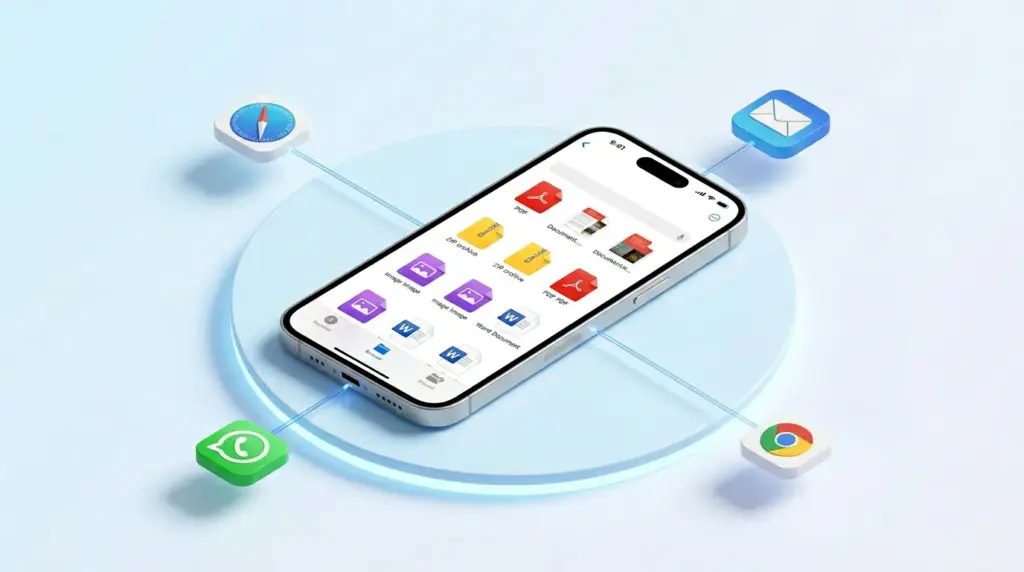
The Files app is the blue folder icon that lives on your Home Screen or in your App Library. Apple introduced it to give iPhone users the same kind of file control that Mac users have always enjoyed. When you download a PDF from Safari, an attachment from Mail, or a document from a website, it usually goes straight into the Downloads folder inside Files.
To open it, just tap the Files app. You will see a screen called “Browse” with a list of Locations. The two most important ones are:
- iCloud Drive — files stored in Apple’s cloud service
- On My iPhone — files stored locally on your device
Tap either one, then look for the Downloads folder. That is where most of your web downloads live.
Expert tip: According to Apple Support, the Files app keeps all your files in one place, including those stored in iCloud Drive, on your iPhone, and on other connected services like Google Drive or Dropbox.
Safari Downloads vs. App Downloads
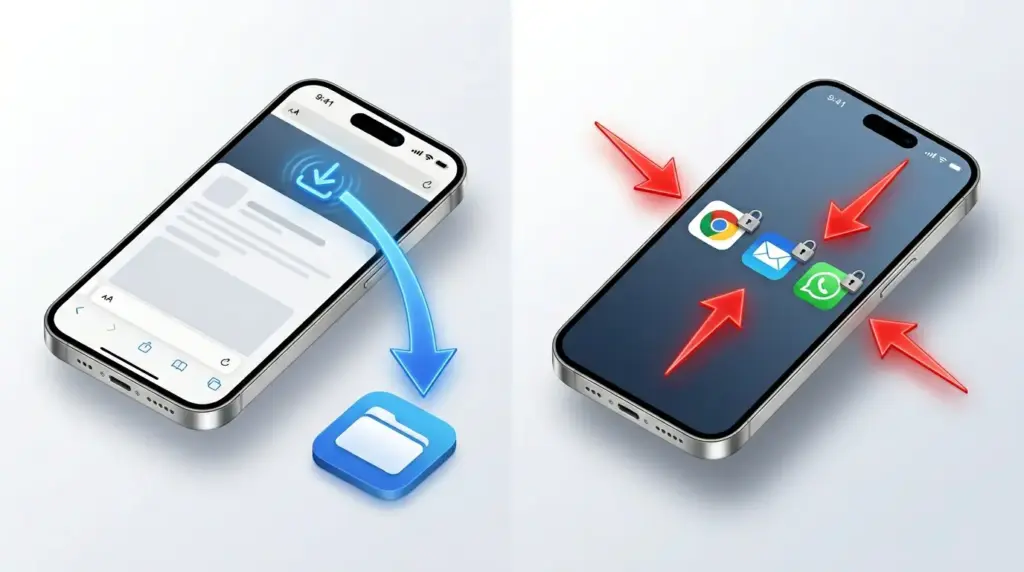
Safari is the default web browser on every iPhone, and it has a built-in download manager. When you tap a download link, Safari shows a small progress icon in the address bar. Once the download finishes, the file is handed off to the Files app. But here is what confuses many people: Safari does not keep the file inside the browser. It sends it to Files.
Other apps behave differently. For example, if you download a document inside the Chrome app, Chrome might keep it in its own internal Downloads list. You can view it there, but if you want to use it in other apps, you still need to save it to Files. The same goes for WhatsApp, Telegram, and many social media apps.
iCloud Drive vs. On My iPhone
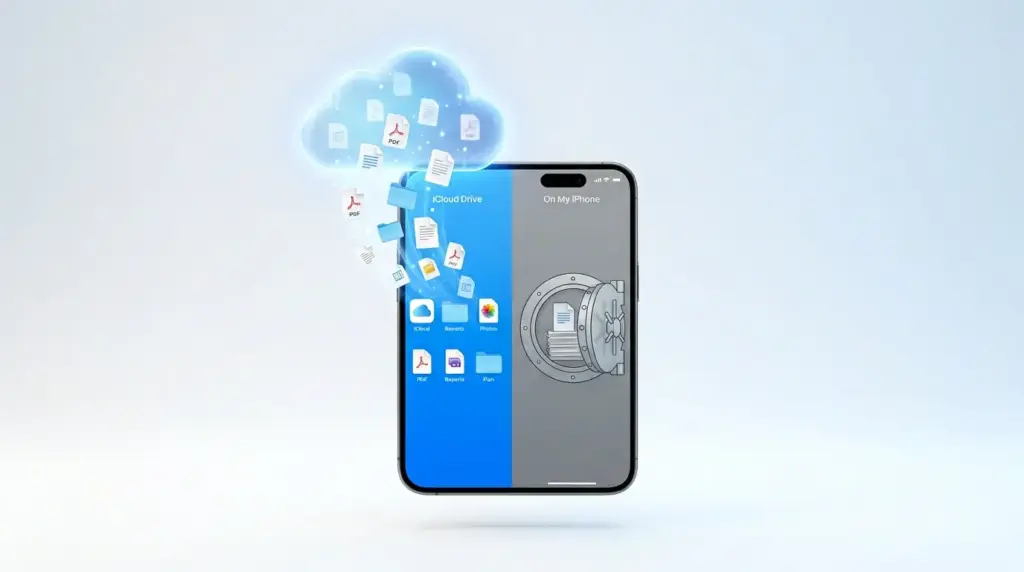
This distinction matters a lot. If your downloads are saved to iCloud Drive, they are synced across every Apple device you own. You can access them from your iPad, Mac, or even iCloud.com. They do not take up much local space unless you open them.
If they are saved to On My iPhone, they live only on your phone. That means they work offline, but they eat up your local storage. If you are running low on space, you might want to move files to iCloud Drive or delete old downloads. For a deeper look at storage management, check out our guide on how to manage your iPhone storage.
| Feature | iCloud Drive | On My iPhone |
|---|---|---|
| Works offline | Only if downloaded locally | Yes, always |
| Syncs across devices | Yes, instantly | No |
| Uses local storage | Minimal (cached) | Full file size |
| Best for | Documents you access everywhere | Large files or offline use |
| Backup included | Yes, via iCloud | Yes, if you back up your iPhone |
How to Find Downloads on iPhone in iOS 26: Step-by-Step
Apple refined the Files app in iOS 26 with a cleaner Liquid Glass design and smarter AI-powered search. If you want to know how to find downloads on iPhone running the latest software, follow these exact steps.
Step 1: Open the Files App
Find the Files app on your Home Screen. It looks like a blue folder on a white background. If you do not see it, swipe down on your Home Screen and type “Files” in the search bar. Tap the app to open it.
Tip: If you use this app often, press and hold the icon, then tap Add to Home Screen or drag it to your Dock for quick access.
Step 2: Navigate to the Downloads Folder
Once you are inside Files, make sure you are on the Browse tab at the bottom. Under the “Locations” section, you will see options like:
- iCloud Drive
- On My iPhone
- Recently Deleted
- Maybe third-party services like Google Drive or Dropbox
Tap On My iPhone first. Look for a folder named Downloads. Tap it. You should see a list of everything you have downloaded from Safari and other apps that default to local storage.
If you do not see a Downloads folder, tap iCloud Drive and check there. Some users set iCloud Drive as their default location without realizing it.
Step 3: Use the AI-Powered Search Bar
If your Downloads folder is messy — and let’s be honest, most are — use the search bar. Pull down on the file list to reveal the search field at the top. Type the file name, or even just the file extension like .pdf, .zip, or .docx.
In iOS 26, the Files app search is smarter than ever. It searches both iCloud Drive and On My iPhone at the same time, and it can even recognize content inside documents thanks to on-device intelligence. This is the fastest way to answer the question “where are my downloads iPhone?” when you have dozens of files.
Step 4: View Recent Safari Downloads
Sometimes you do not need to open the Files app at all. If you just downloaded something from Safari, open the browser and look at the top right of the screen. Next to the address bar, you will see a small down arrow icon. Tap it.
This opens Safari’s built-in download manager. It shows a list of recent downloads with their file names and progress status. Tap any file in the list to open it directly in the Files app. If the download is still in progress, you will see a blue progress ring.
Note: If you cleared your Safari history recently, this list might be empty. But the files themselves are still in the Files app if the download finished.
Step 5: Check Smart Date Tags in iOS 26
In iOS 26, Apple improved the Files app with clearer visual tags. When you save a new file, it appears with a “Today” or “Yesterday” date tag under the file name. Brand-new items also show a small blue dot, making it much easier to spot the file you just grabbed without reading every file name.
Step 6: Browse by File Type
If you are a visual person, tap the three dots in the top-right corner of the Files app. Choose Select to pick multiple files, or change the view from icons to a list. The list view shows file sizes, dates, and kinds, which helps when you are looking for a specific download location in iPhone folders.
How to Find Downloads from Specific Apps
Not every app plays by the same rules. If you are trying to access downloads on iPhone from a specific app, here is exactly where to look.
Safari Downloads
Safari is the most common source of downloads. When you tap a link to a PDF, image, or zip file, Safari asks if you want to download it. After you confirm, the file goes to the Downloads folder in Files by default.
To verify this, open Safari, tap the down arrow icon near the address bar, then tap the file. It will open in a preview. To see its exact location, tap the Share button and look at the path listed under “Save to Files.”
Chrome, Firefox, and Edge
Third-party browsers can be tricky. If you are trying to find downloads on iPhone from Chrome, the process is slightly different.
- Open Chrome and tap the three dots menu in the bottom right.
- Tap Downloads.
- You will see a list of files saved inside Chrome.
Here is the important part: these files are trapped inside Chrome. If you delete the app, you might lose them. To move a file to the Files app, tap and hold it, choose Share, then Save to Files. Now it is truly yours.
Firefox and Edge work similarly. Both have internal download managers, but for long-term storage, always export to Files.
Mail Attachments
When someone sends you a PDF or spreadsheet via Mail, tapping it opens a preview. But that does not mean it is saved. To keep it permanently:
- Tap the attachment to open it.
- Tap the Share button (the square with an arrow pointing up).
- Choose Save to Files.
- Pick a location, like On My iPhone > Downloads.
If you skip this step, the file is still inside the email, but you will have to dig through your inbox to find it again. That is not a fun way to find downloaded documents on iPhone later.
WhatsApp, Telegram, and Messages
Messaging apps handle media and documents differently.
- WhatsApp: Photos and videos usually auto-save to your Photos app. Documents stay inside WhatsApp unless you tap the file, then Share, then Save to Files.
- Telegram: Files are stored in the app’s internal cache. Tap the file, hit the Share icon, and save it to Files for easier access.
- Messages: Tap the contact’s name at the top of the conversation, then tap Info. Scroll down to see all photos, links, and attachments shared in that thread. Tap any item to save it.
Social Media Apps (Instagram, Facebook, TikTok)
Social media apps do not use traditional downloads. When you “save” a photo from Instagram, it goes to your Photos app or to a private collection inside Instagram itself. If you use a third-party downloader or Safari shortcut, the file usually lands in the Files app > Downloads.
Streaming and Music Apps
Apps like Spotify, Apple Music, and Netflix allow “offline” downloads, but these are encrypted and stored inside the app. You cannot access them through the Files app. They are meant for offline playback only, not file management.
Quick Reference Table: Where Apps Save Downloads
| App | Default Save Location | Can Export to Files? |
|---|---|---|
| Safari | Files app > Downloads | Yes, automatically |
| Chrome | Chrome internal Downloads | Yes, via Share menu |
| Preview only (not saved) | Yes, via Share menu | |
| Photos app (media) / internal (docs) | Yes, via Share menu | |
| Telegram | Internal cache | Yes, via Share menu |
| Messages | Internal thread storage | Yes, via Info screen |
| Photos app or internal | No (for encrypted streams) | |
| Netflix/Spotify | Internal app storage | No |
How to Find Downloaded Photos and Videos
Sometimes what you think is a “download” is actually just a saved image. This is one of the biggest reasons people say “I can’t find downloads on iPhone.”
Why Photos Bypass the Files App
When you tap and hold an image in Safari or a social media app, you usually see an option like “Add to Photos” or “Save Image.” If you choose that, the file skips the Files app completely and lands in your Photos app > Recents album.
This is by design. Apple assumes you want to view photos in the Photos app, not buried in a file folder. The same goes for videos.
Moving Files Between Photos and Files
If you downloaded an image to the Files app but want it in Photos:
- Open Files and find the image.
- Tap and hold it.
- Tap Share.
- Tap Save Image.
Going the other way? Open Photos, tap the image, tap the Share button, then choose Save to Files. This is especially useful if you want to organize screenshots, memes, or work images into project folders instead of cluttering your camera roll.
If you need to move a lot of photos to your computer, our guide on how to transfer photos from your iPhone to PC covers the fastest methods.
How to Change Your Default Download Location
You do not have to stick with Apple’s default settings. If you want more control over where do downloads go on iPhone, you can change it.
Safari Settings
- Open Settings.
- Scroll down and tap Safari.
- Tap Downloads.
- Choose your preferred location:
- iCloud Drive: Best if you use multiple Apple devices.
- On My iPhone: Best for offline access and privacy.
If you choose iCloud Drive, make sure you have enough iCloud storage. You can check your available space in Settings > [Your Name] > iCloud > Manage Account Storage.
For more details on managing Safari downloads, refer to the official Apple User Guide for iPhone.
Third-Party Browser Settings
Chrome and Firefox do not let you change the default iPhone download location to the Files app automatically. However, you can manually move files each time. Some users prefer this because it forces them to organize files immediately instead of letting them pile up in a random Downloads folder.
Pro Tips to Organize and Manage Your iPhone Downloads
A messy Downloads folder makes it hard to find downloads on this device later. Here is how to stay organized.
Create a Folder System
Open the Files app, tap the three dots in the top right, and choose New Folder. Create folders with clear names like:
- Work Documents
- Personal Receipts
- Travel Tickets
- Manuals & Warranties
Then drag files from Downloads into these folders. It takes ten seconds now and saves you ten minutes of searching later.
Use Tags and Favorites
In iOS 26, you can tag files with colors. Tap and hold a file, choose Tags, and pick a color. For example, use red for urgent, blue for personal, and green for work. You can also tap Browse > Tags to see all files of a certain color across every folder.
To make a folder even faster to reach, tap and hold it, then choose Add to Favorites. It will appear at the top of the Browse tab.
Delete and Archive Old Files
Downloads have a way of multiplying. Go through your Downloads folder once a month and delete anything you do not need. If you are not sure whether to delete, move the file to an Archive folder in iCloud Drive. That way, it is out of your way but still accessible.
If your phone feels sluggish or full, you might have hidden system files taking up space. Learn how to clear system data on your iPhone to reclaim gigabytes of storage without losing your personal files.
Troubleshooting: What to Do When You Can’t Find Downloads
Even when you know the steps, things sometimes go wrong. If you are stuck thinking “I can’t find downloads on iPhone,” try these fixes.
Download Failed or Interrupted
Sometimes a download looks like it finished, but it did not. In Safari, tap the down arrow icon next to the address bar. If you see a file name with a greyed-out icon or a warning symbol, the download failed. This usually happens on weak Wi-Fi or if the website timed out.
Fix: Connect to a strong Wi-Fi network and try again. Avoid downloading large files over cellular data unless you have an unlimited plan.
Wrong App or Location
You might be looking in the Files app, but the file is actually in your Photos app or inside a third-party app. When in doubt, use the Spotlight search on your Home Screen. Swipe down, type the file name, and see if it appears under Photos, Files, or another app.
In iOS 26, Spotlight search is even smarter. It can search inside documents and suggest the right app based on the file type.
File Compatibility Issues
The iPhone cannot open every file type natively. If you downloaded a .zip, .exe, .rar, or an unusual video format, the Files app might show a generic icon and refuse to open it.
Fix: Tap the file, then tap the Share button. Choose an app like:
- iZip or WinZip for compressed files
- VLC for unusual video formats
- Microsoft Word or Google Docs for complex documents
Storage and Permission Problems
If your iPhone is almost full, new downloads may fail silently. Go to Settings > General > iPhone Storage to check your available space. If you are under 1 GB free, it is time to clean house.
Also, check that the app has permission to save files. Go to Settings > Privacy & Security > Files and Folders, and make sure the relevant app (like Safari or Chrome) has access.
If you are constantly battling low storage, our detailed guide on iPhone storage management will help you find the biggest space hogs.
Restart the Files App
Sometimes the Files app just needs a fresh start. Swipe up from the bottom of the screen (or double-click the Home button), find the Files app, and swipe up to close it. Then reopen it. This refreshes the cache and often reveals missing files.
Expert Insight
“The Files app brings all your files together. You can browse, search, and organize all your files in one place, including files stored in iCloud Drive, on your iPhone, and on other connected services.”
— Apple User Guide
This quote sums up the core philosophy behind iPhone file management. Apple wants you to stop thinking about “where did my file go” and start using Files as a universal inbox for everything you download.
Frequently Asked Questions
Where do Safari downloads go on iPhone?
Safari downloads are saved to the Downloads folder inside the Files app by default. You can also view recent downloads by tapping the down arrow icon next to the Safari address bar. For more details, visit Apple’s official guide on downloading files.
Why can’t I find my downloaded file on iPhone?
Your file might be saved in a different app depending on its type. Photos and videos often go to the Photos app. Documents go to the Files app. Some apps like WhatsApp or Chrome keep files internally until you export them. Use the Search feature in Files to scan all locations at once.
Can I change where my iPhone saves downloads?
Yes. Go to Settings > Safari > Downloads and choose either iCloud Drive or On My iPhone. You can also manually move files between locations by tapping and holding a file in the Files app and selecting Move.
How do I find downloads from Chrome on iPhone?
Open Chrome, tap the three dots menu, then tap Downloads. To move a file to the Files app for permanent storage, tap and hold the file, choose Share, then Save to Files.
Do downloads take up storage on my iPhone?
Files saved to On My iPhone use local storage. Files saved to iCloud Drive use your iCloud storage quota and only download to your device when you open them. If you are running low on space, consider moving older files to iCloud or learning how to back up your iPhone before deleting anything important.
Where are my downloads if I use iCloud Drive?
If iCloud Drive is your default location, open the Files app, tap iCloud Drive under Locations, then open the Downloads folder. These files sync across all your Apple devices signed in with the same Apple ID, so you can also find them on your iPad or Mac.
Conclusion
Figuring out how to find downloads on iPhone is not as mysterious as it seems once you know where to look. The Files app is your central command center for documents, Safari handles web downloads smoothly, and your Photos app takes care of images and videos. By checking On My iPhone or iCloud Drive, using the search bar, and organizing files into folders, you will never lose track of an important download again.
If you download large files often, make sure you know how to transfer photos from your iPhone to PC to keep your device running fast. And do not forget to back up your iPhone regularly so your downloads are safe even if something happens to your phone.
Now that you know how to find downloads on iPhone in every situation, go open that Files app and take control of your downloads!

