


What Is System Data on iPhone?
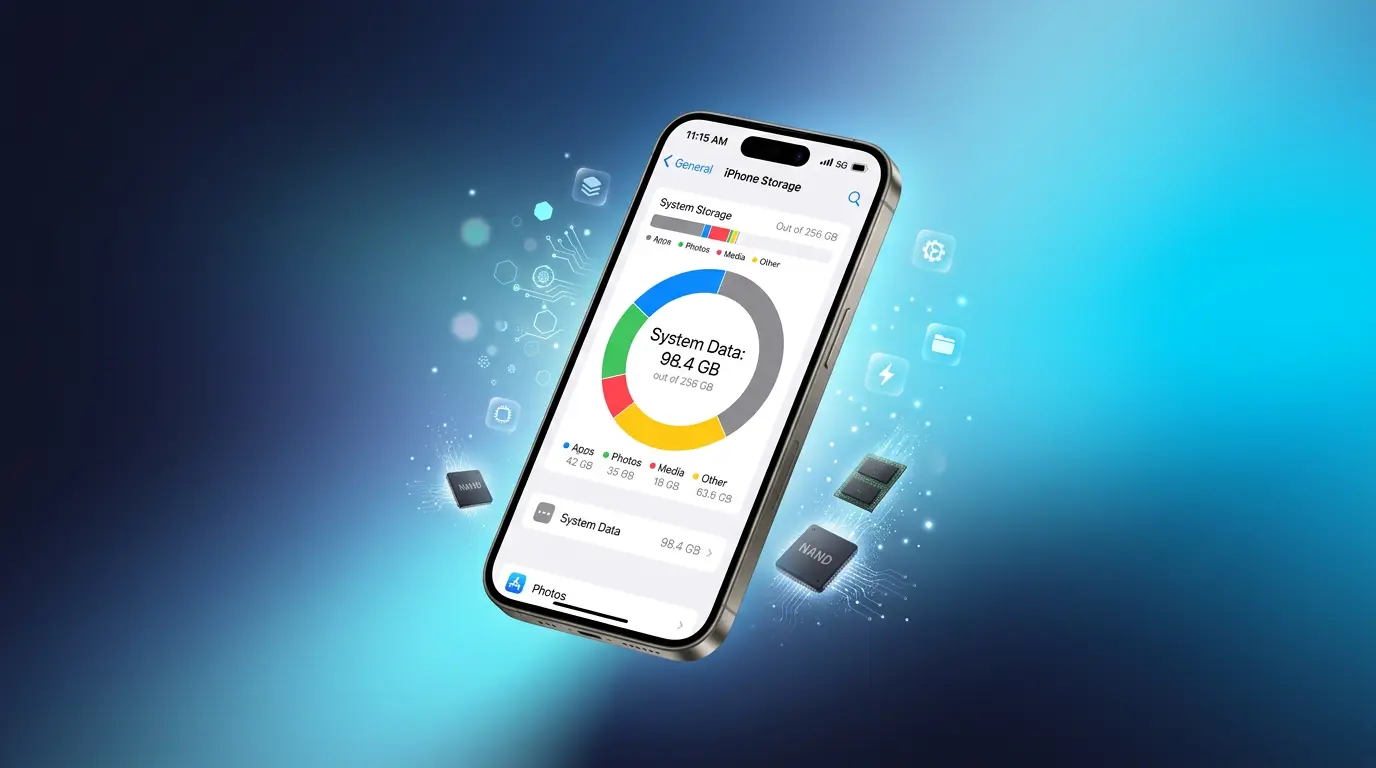
If you have ever opened Settings > General > iPhone Storage and stared at a massive gray bar labeled System Data, you are not alone. Millions of iPhone users see this mysterious category eating up 10, 20, or even 50 gigabytes of space and wonder what it actually is.
System Data is a catch-all category that Apple uses to store everything your iPhone needs to run smoothly. It includes iOS system files, caches, logs, Siri voices, offline translations, and temporary files created by apps. Think of it as your iPhone’s “engine room” — it is essential, but it can get cluttered over time.
Before iOS 15, Apple called this category “Other” storage. The name changed, but the problem stayed the same. If you are searching for how to clear system data on iPhone, you are probably trying to reclaim space without deleting your precious photos or apps.
Expert Tip: According to Apple Support, “System Data includes caches, logs, and other resources currently in use by the system. This category will fluctuate based on system needs.” This means the number you see today might look different tomorrow.
Why Is System Data Taking Up So Much Space?
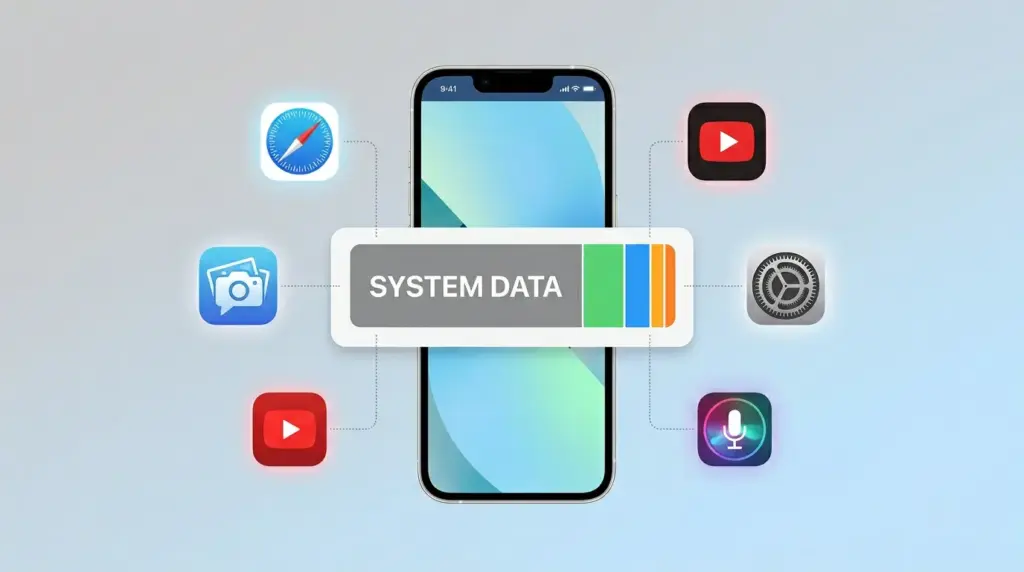
Your iPhone is a busy device. Every time you stream a video, browse Safari, update an app, or use Siri, your phone creates temporary files. Most of the time, iOS cleans these files automatically. But sometimes — especially after a big iOS update or when an app misbehaves — those files stick around longer than they should.
Here are the most common reasons your system data ballooned:
- iOS updates leave behind temporary installation files
- Streaming apps (Netflix, Spotify, YouTube) cache large amounts of video and audio
- Safari saves website data and cache to speed up browsing
- iMessage stores attachments, GIFs, and videos indefinitely
- Siri and offline translations download voice packs and language models
- Third-party apps create logs and cache that never get cleared
The good news? You do not need to be a tech expert to fix this. In the next section, you will learn exactly how to clear system data on iPhone using ten proven, step-by-step methods.
How to Check System Data on Your iPhone
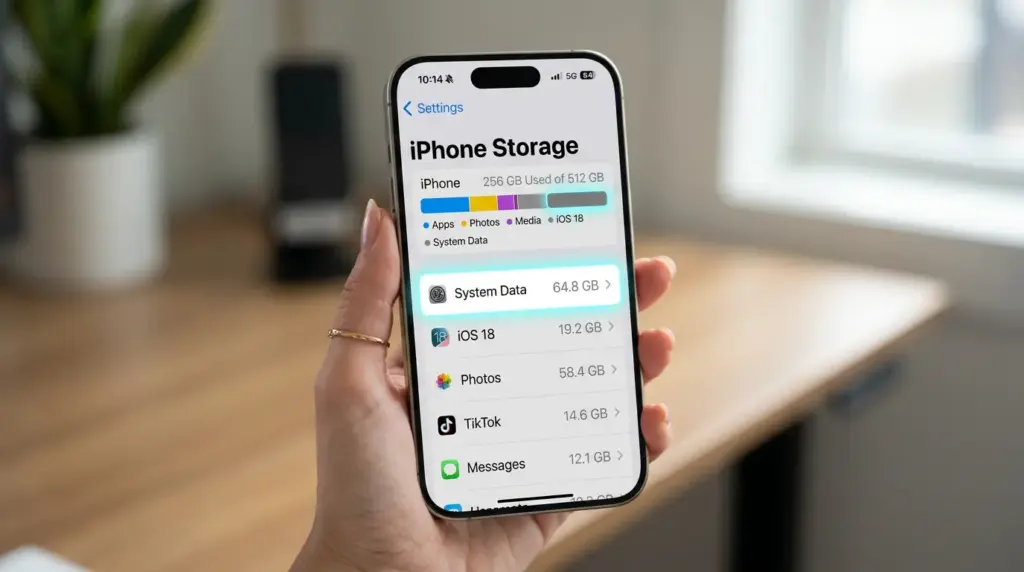
Before you start cleaning, you need to know what you are working with. Checking your system data takes less than 30 seconds.
Step 1: Open the Settings app on your iPhone.
Step 2: Tap General.
Step 3: Tap iPhone Storage.
Step 4: Wait a few seconds for the color-coded bar to load.
You will see a gray section labeled System Data. If it is taking up more than 10 GB and you are running low on space, it is time to take action.
Pro tip: The number shown here is dynamic. Apple says it will “fluctuate based on system needs,” so do not panic if it changes by a few gigabytes after a restart. Still, if the gray bar keeps growing, you need a reliable way to clear system data on iPhone — and that is exactly what this guide delivers.
How to Clear System Data on iPhone: 10 Proven Methods
Now for the main event. Below are ten methods to clear system data on iPhone, ranked from easiest to most advanced. Start with method one and work your way down until you see results.

Method 1: Restart Your iPhone
It sounds too simple, but a restart is often the fastest way to reduce system data on iPhone. When you restart, iOS dumps temporary cache files and refreshes background processes.
How to restart:
- iPhone with Face ID: Press and hold the side button and either volume button until the slider appears. Slide to power off. Wait 30 seconds, then press and hold the side button to turn it back on.
- iPhone with Home button: Press and hold the side (or top) button until the slider appears. Slide to power off, wait 30 seconds, then turn it back on.
After your iPhone boots up, wait about five minutes and check Settings > General > iPhone Storage again. You might see the gray bar shrink by a few gigabytes.
Quick tip: If you are wondering how to clear system data on iPhone without deleting anything, a restart is the safest first step. It costs nothing and takes under a minute.
Method 2: Clear Safari Cache and Website Data
Safari is one of the biggest contributors to system data. Every website you visit stores cache, cookies, and browsing history. Over months or years, this adds up fast.
How to clear Safari data:
- Open Settings.
- Scroll down and tap Safari.
- Scroll down and tap Clear History and Website Data.
- Tap Clear History and Data to confirm.
Warning: This will log you out of websites and remove your browsing history. If you want to keep your history, you can delete specific website data instead:
- Go to Settings > Safari > Advanced > Website Data.
- Tap Remove All Website Data or swipe left on individual sites to delete them.
If you want to learn more about managing browser data, check out our guide on how to clear cache on iPhone for additional tips.
Method 3: Delete and Reinstall Problematic Apps
Some apps are “cache hogs.” Social media apps, video editors, and streaming services store massive amounts of temporary data. Deleting and reinstalling them wipes that cache instantly.
How to find the worst offenders:
- Go to Settings > General > iPhone Storage.
- Wait for the app list to load.
- Look for apps with a large “App Size” versus small “Documents & Data” — or vice versa.
Example: If Instagram shows 200 MB for the app but 4 GB for documents and data, that is a red flag.
How to delete and reinstall:
- Tap the app in the list.
- Tap Delete App (not “Offload App”).
- Go to the App Store and reinstall it.
Note: You will not lose your account or saved data if the app syncs to the cloud (like Instagram, Facebook, or Twitter). However, you might lose offline downloads in apps like Netflix or Spotify.
This is one of the most effective ways to clear system data on iPhone without touching your personal files.
Method 4: Change Messages Storage Settings
Your iMessage history is a silent storage killer. Those photos, videos, GIFs, and memes you send and receive are stored forever by default.
How to limit message storage:
- Open Settings.
- Tap Messages.
- Scroll down to Message History.
- Tap Keep Messages.
- Select 30 Days or 1 Year instead of Forever.
How to delete large attachments:
- Go to Settings > General > iPhone Storage.
- Tap Messages.
- Under Documents, you will see categories like Photos, Videos, and GIFs.
- Tap a category and delete items you no longer need.
This single step can free up several gigabytes and significantly reduce system data on iPhone.
Method 5: Update iOS to the Latest Version
Apple regularly releases iOS updates that include bug fixes and storage optimizations. Sometimes, a buggy iOS version causes system data to grow uncontrollably. Updating can fix that.
How to update:
- Open Settings > General > Software Update.
- If an update is available, tap Download and Install.
- Make sure your iPhone is connected to Wi-Fi and has at least 50% battery.
Important: Before any major update, back up your iPhone. You can follow our step-by-step guide on how to back up iPhone to keep your data safe.
Method 6: Reset Network Settings
Network settings do not usually take up much space, but corrupted Wi-Fi and VPN configurations can contribute to bloated logs in system data.
How to reset:
- Open Settings > General > Transfer or Reset iPhone.
- Tap Reset.
- Tap Reset Network Settings.
- Enter your passcode and confirm.
What this does: It removes all saved Wi-Fi passwords, Bluetooth pairings, and VPN settings. Your photos, apps, and personal data stay untouched.
If you need help with network issues, our article on iPhone reset network settings explains everything in detail.
Method 7: Reset All Settings
If the above methods did not help, resetting all settings is a stronger option. This restores system preferences to default without deleting your photos, apps, or accounts.
How to reset all settings:
- Go to Settings > General > Transfer or Reset iPhone.
- Tap Reset.
- Tap Reset All Settings.
- Enter your passcode and confirm.
What this resets: Wallpaper, display brightness, notification preferences, and location settings. Your personal data remains safe.
Many users report that this step helps clear system data on iPhone when simpler fixes fail.
Method 8: Use the ProRes Video Trick (iPhone Pro Models)
This is a clever trick that forces iOS to clear cache automatically. It works best on iPhone Pro models with ProRes video support, but the principle can help any iPhone.
How it works: When you try to record a ProRes video and your iPhone does not have enough space, iOS automatically purges cache and temporary files to make room.
Steps:
- Open the Camera app.
- Switch to Video mode.
- Tap ProRes at the top to enable it.
- Attempt to record a video.
- If you see a “Not Enough Storage” warning, iOS will start clearing cache in the background.
- Check Settings > General > iPhone Storage after a few minutes.
Even if you do not have ProRes, simply opening the Camera and attempting to record a long 4K video can trigger a similar cleanup process.
Method 9: Change Date and Time to Force Cache Expiration
This is an advanced trick that some users swear by. By setting your iPhone’s date far into the future, you can force certain cached files to expire.
Steps:
- Open Settings > General > Date & Time.
- Turn off Set Automatically.
- Manually set the date to one year in the future.
- Wait 2–3 minutes.
- Restart your iPhone.
- Go back to Date & Time and turn Set Automatically back on.
Caution: This can cause issues with apps that rely on timestamps, like Messages and Calendar. Only use this method if other steps failed, and change the date back immediately after restarting.
Method 10: Factory Reset Your iPhone (Last Resort)
If your system data is still out of control and you have tried everything else, a factory reset is the nuclear option. This erases everything and gives you a fresh start.
Before you proceed: Back up your iPhone to iCloud or your computer. Our guide on how to erase iPhone walks you through the safest way to do this.
How to factory reset:
- Go to Settings > General > Transfer or Reset iPhone.
- Tap Erase All Content and Settings.
- Enter your Apple ID password and passcode.
- Confirm and wait for the process to complete.
After resetting, you can restore from your backup during setup. If the system data bloat returns immediately, the issue might be in your backup. In that case, set up the iPhone as new and manually re-download your apps.
While drastic, this method absolutely clears system data on iPhone and gives you a clean slate.
How to Prevent System Data from Building Up
Cleaning is great, but prevention is better. Here are simple habits to keep your system data under control:
| Habit | Frequency | Expected Impact |
|---|---|---|
| Restart your iPhone | Once per week | Clears temporary cache |
| Clear Safari data | Once per month | Removes website bloat |
| Delete unused apps | Monthly review | Frees app cache and documents |
| Limit message history | Set to 30 days | Prevents iMessage bloat |
| Update iOS | As soon as available | Fixes storage bugs |
| Review iPhone Storage | Monthly | Catches problems early |
Pro tip: If you are constantly battling low storage, it might be time to look at your overall storage habits. Our iPhone storage guide breaks down every category and shows you how to manage them all.
By following these habits, you will rarely need to search for how to clear system data on iPhone again.
FAQ
What is system data on iPhone?
System data is a storage category that includes iOS system files, caches, logs, Siri voices, and temporary files your iPhone needs to operate. It is normal and necessary, but it can grow larger than expected.
Why is my iPhone system data so high?
Common causes include cached streaming content, Safari website data, large iMessage attachments, leftover iOS update files, and app logs that did not clear automatically.
Can I completely delete system data on iPhone?
No, you cannot delete system data entirely. iOS needs some of these files to function. However, you can reduce system data on iPhone significantly using the ten methods above.
Does clearing system data delete my photos and apps?
Most methods — like clearing Safari, deleting app cache, or resetting settings — do not touch your photos or apps. Only a factory reset erases everything, which is why backing up is essential.
Will resetting my iPhone remove system data permanently?
A factory reset will clear system data on iPhone temporarily, but it will rebuild over time as you use your iPhone. The goal is to manage it, not eliminate it completely.
How do I reduce system data on iPhone without resetting?
Start with the easiest fixes: restart your iPhone, clear Safari cache, delete and reinstall heavy apps, and limit message history. These alone can free up 5–15 GB.
Conclusion
Learning how to clear system data on iPhone does not require advanced technical skills. With the ten methods above — from a simple restart to a full factory reset — you have every tool you need to reclaim your storage space.
Start with the easy wins: restart your phone, clear Safari, and clean up Messages. If those do not free up enough space, move on to app reinstalls, network resets, and the ProRes trick. And always, always back up before making major changes.
Your iPhone is designed to manage itself, but a little manual housekeeping goes a long way. Try the steps above today, check your storage again tomorrow, and enjoy a faster, cleaner iPhone.
If you ever find yourself asking how to clear system data on iPhone again, bookmark this guide — we keep it updated with the latest iOS tips and tricks.
External Links Used:

