


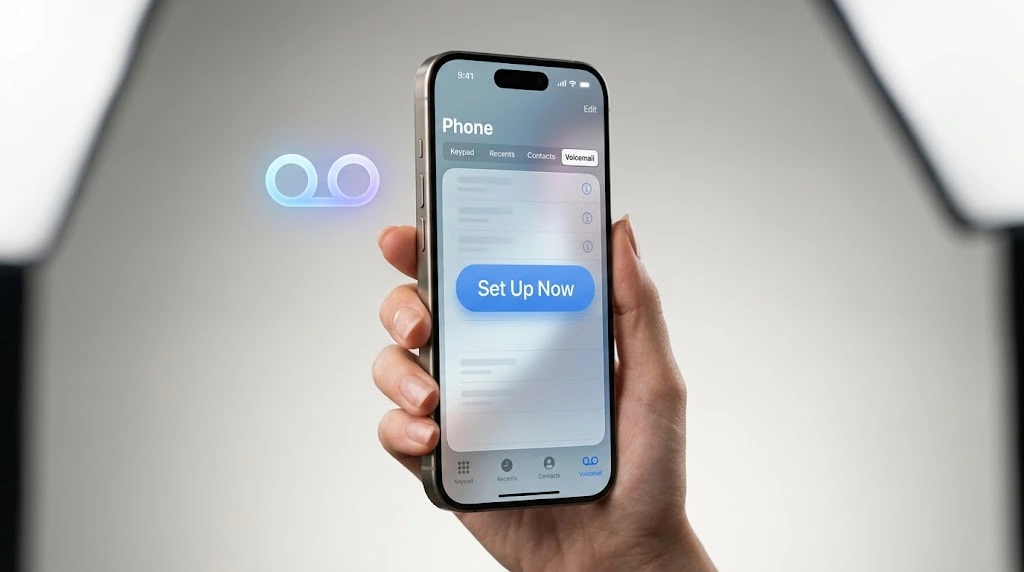
Just got a new iPhone and missed a call with no way for the person to leave a message? You’re not alone. This guide shows you how to set up voicemail on iPhone in about two minutes, whether you’re on AT&T, Verizon, T-Mobile, or a smaller carrier — and what to do when the setup screen refuses to cooperate.
Quick Steps: Open the Phone app → tap Voicemail → tap Set Up Now → create a password → choose Default or Custom greeting → tap Save. Done.
How to Set Up Voicemail on iPhone in 5 Steps
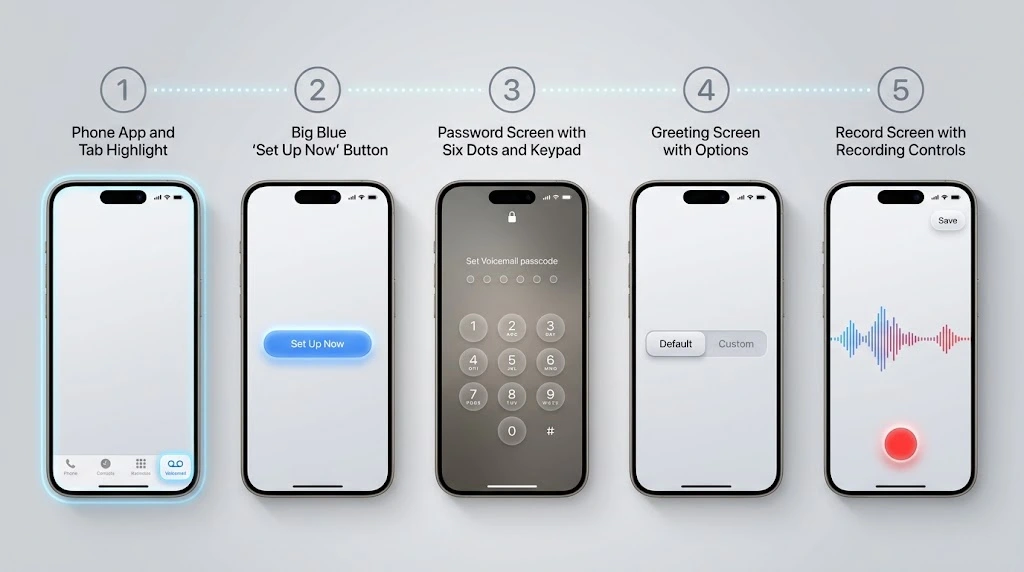
Before you start, make sure of two quick things:
- Your SIM or eSIM is active and you see your carrier’s name in the status bar.
- You have at least one bar of cellular signal (Wi-Fi alone isn’t enough for the first setup).
If both look good, you’re ready.
Step 1 — Open the Phone App and Tap Voicemail
Tap the green Phone icon on your Home Screen. At the bottom of the screen, you’ll see five tabs: Favorites, Recents, Contacts, Keypad, and Voicemail. Tap Voicemail in the bottom-right corner.
Note: On iOS 26, the Phone app has a new unified layout. If you see a single Calls view instead of separate tabs, tap the ⋯ (more) button or scroll down to find Voicemail. The option is still there — Apple just moved it.
Step 2 — Tap “Set Up Now”
If voicemail has never been configured on this line, you’ll see a big Set Up Now button in the middle of the screen. Tap it.
Your iPhone now contacts your carrier’s voicemail server. This usually takes 5–15 seconds.
Step 3 — Create Your Voicemail Password
Enter a password between 4 and 15 digits (most carriers require at least 4; some require 6 or 7). Type it twice to confirm, then tap Done.
Quick tips for a good voicemail password:
- Don’t use the last 4 digits of your phone number — it’s the first thing scammers try.
- Avoid simple patterns like 1234 or 0000.
- Write it down somewhere safe. You’ll need it if you ever check voicemail from another phone.
Step 4 — Choose a Default or Custom Greeting
Next, your iPhone asks how callers should be greeted:
- Default — Your carrier plays a generic message such as “The person you are calling is not available.” Fast and private.
- Custom — You record your own greeting in your voice. More personal and professional.
Tap the option you prefer. If you pick Default, skip to the end — you’re finished. If you pick Custom, keep going.
Step 5 — Record and Save Your Greeting
- Tap Record.
- Speak clearly, holding the iPhone about 6 inches from your mouth.
- Tap Stop when you’re done.
- Tap Play to listen back.
- Happy with it? Tap Save. Not happy? Tap Record again to redo it.
Bold key takeaway: That’s the entire iPhone voicemail setup. From now on, any missed call sends the caller to your mailbox, and new messages appear in the Voicemail tab with a red badge.
Expert tip from Apple Support: “With Visual Voicemail (available from select carriers), you can see a list of your messages and choose which ones to listen to or delete.” — Apple iPhone User Guide
Does the Setup Differ on iPhone 17, 16, 15, or Older Models?
Good news: the steps above are identical on every iPhone that can run iOS 17 or later. What changes is which extra features your model and iOS version unlock.
| iPhone model | Minimum iOS | Visual Voicemail | Live Voicemail (real-time transcription) | Voicemail in iCloud sync |
|---|---|---|---|---|
| iPhone 17 / 17 Pro / 17e | iOS 26 | ✅ | ✅ | ✅ |
| iPhone 16 / 16 Pro / 16e | iOS 18 | ✅ | ✅ | ✅ |
| iPhone 15 series | iOS 17 | ✅ | ✅ | ✅ |
| iPhone 14 / 13 / 12 / 11 | iOS 17–26 | ✅ | ✅ | ✅ |
| iPhone XS / XR / SE (2nd & 3rd gen) | iOS 17–18 | ✅ | ✅ (English only on some) | ✅ |
| iPhone X / 8 / 8 Plus | iOS 16 (max) | ✅ | ❌ | ✅ |
Two things worth knowing:
- Live Voicemail requires iOS 17 or later and is only available in certain countries and languages (it launched in US English and has since expanded).
- Not sure which model you own? Here’s a quick guide on what iPhone you have. And if you’re on an older version, learn how to update your iPhone first — several voicemail fixes depend on it.
How to Set Up Voicemail by Carrier
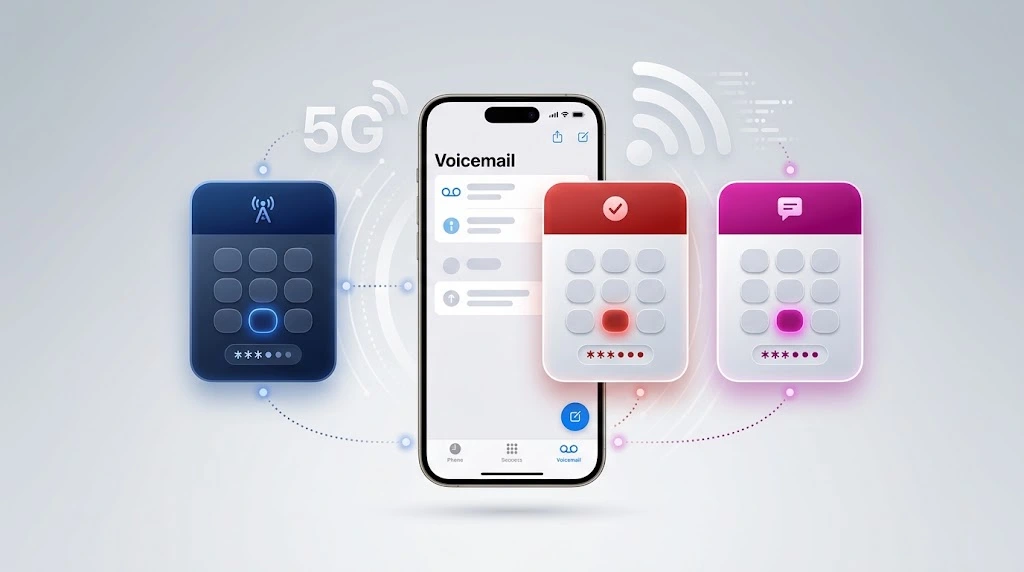
Here’s something most guides skip: your carrier, not Apple, runs your voicemail. Your iPhone is just the remote control. That’s why the Set Up Now button can behave slightly differently depending on who you pay your phone bill to.
How to Set Up Voicemail on iPhone AT&T
- Open Phone → Voicemail → Set Up Now.
- Create a password of 7 digits (AT&T’s requirement — shorter ones are rejected).
- Choose and record your greeting.
If Visual Voicemail doesn’t load, press and hold the 1 key on the Keypad. AT&T’s automated system will walk you through setup by voice. You can also manage everything from the myAT&T app.
Verizon
- Open Phone → Voicemail → Set Up Now.
- Create a 4- to 7-digit password.
- Record your greeting.
Verizon sometimes requires you to turn on Visual Voicemail as a feature on your account first. If you only see a “Call Voicemail” button, dial *86, follow the voice prompts, then restart your iPhone.
T-Mobile
- Open Phone → Voicemail → Set Up Now.
- Create a password of at least 4 digits.
- Choose your greeting.
If the screen keeps showing Set Up Now, dial 123 from your iPhone to set up through T-Mobile’s voice system. Basic Visual Voicemail is included on all T-Mobile plans; the Voicemail to Text transcription add-on is free on most current plans.
Mint Mobile, Visible, Google Fi & Other MVNOs
Smaller carriers (called MVNOs) rent network space from the big three, so the Set Up Now process is usually identical. The difference is that some don’t support Visual Voicemail. In that case you’ll see Call Voicemail instead, and you’ll manage messages by phone.
- Mint Mobile → runs on T-Mobile; Visual Voicemail works.
- Visible → runs on Verizon; Visual Voicemail works.
- Google Fi → uses its own transcribed voicemail inside the Fi app.
If you’re using an eSIM from one of these, check that it’s active — our guide on whether iPhone 11 has eSIM explains how eSIM activation works on older models too.
Carriers Outside the US
- UK (EE, O2, Vodafone, Three): Dial 1571 (EE/BT), 901 (O2), 121 (Vodafone), or 123 (Three) to set up carrier voicemail. Visual Voicemail is widely supported.
- Canada (Rogers, Bell, Telus): Press and hold 1; Visual Voicemail is included on most plans.
- Australia (Telstra, Optus): Dial 101 (Telstra) or 321 (Optus).
What Is Visual Voicemail (and Why Your iPhone May Not Have It)
Visual Voicemail is the feature that turns your voicemails into a tappable list inside the Phone app. Instead of dialing in and listening to messages one by one, you see the caller’s name, the time, and the length — and you can play any message in any order.
Here’s what Visual Voicemail gives you:
- A scrollable list of every message
- A play/pause scrubber so you can skip ahead
- Speaker and call-back buttons
- Share and delete options
- Optional transcription (a text version of the message)
If you don’t have it, it’s almost always one of these reasons:
- Your carrier doesn’t support it — common on budget MVNOs and some international carriers.
- Your plan doesn’t include it — a few carriers sell it as an add-on.
- Your carrier settings are out of date — go to Settings → General → About and wait 10 seconds; if a prompt appears, tap Update.
Without Visual Voicemail, you’ll see a Call Voicemail button instead. Tap it to dial your carrier’s voicemail box the old-fashioned way.
How to Turn On Live Voicemail in iOS 26
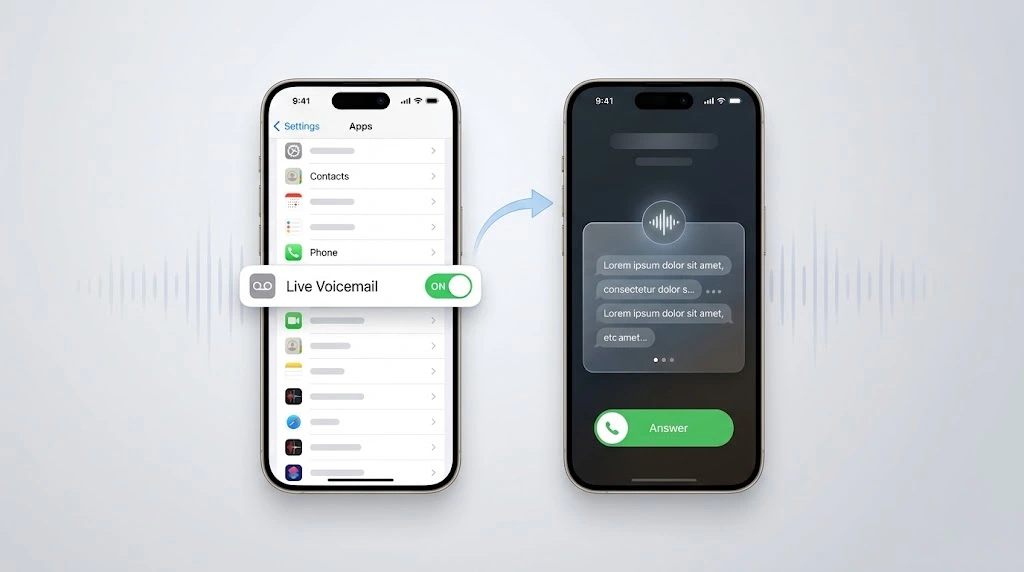
Live Voicemail is an entirely different animal — and one of the best iPhone features most people never turn on.
When a call goes unanswered, your iPhone shows a live, real-time transcript of what the caller is saying while they’re still talking. If it’s important, you can tap Accept and pick up mid-message. Spam call? Just let it finish and ignore it.
“With Live Voicemail, you can see a real-time transcription as someone leaves you a voicemail, and you can pick up the call while they’re leaving the message.” — Apple Support
Turn it on in four taps
- Open Settings.
- Tap Apps → Phone (on iOS 17, just tap Phone).
- Tap Live Voicemail.
- Toggle Live Voicemail to on (green).
Privacy note: Live Voicemail is processed on your device using the Neural Engine. The transcript is not sent to Apple or your carrier, and messages are stored locally on your iPhone.
Live Voicemail vs Visual Voicemail vs Carrier Voicemail
| Carrier Voicemail | Visual Voicemail | Live Voicemail | |
|---|---|---|---|
| Who runs it | Your carrier | Your carrier + Phone app | Apple, on your iPhone |
| How you access it | Dial in and listen | Tap a list in Phone app | Transcript appears while the call is ringing |
| Requires iOS 17+ | No | No | Yes |
| Works with any carrier | Yes | Only supported carriers | Yes |
| Transcription | No | Sometimes (carrier-dependent) | Yes, in real time |
| Can you answer mid-message | No | No | Yes |
Key takeaway: You can have Visual Voicemail and Live Voicemail on at the same time. Live Voicemail handles the call while it’s happening; your carrier’s mailbox stores the message afterward.
How to Change Your Voicemail Greeting on iPhone
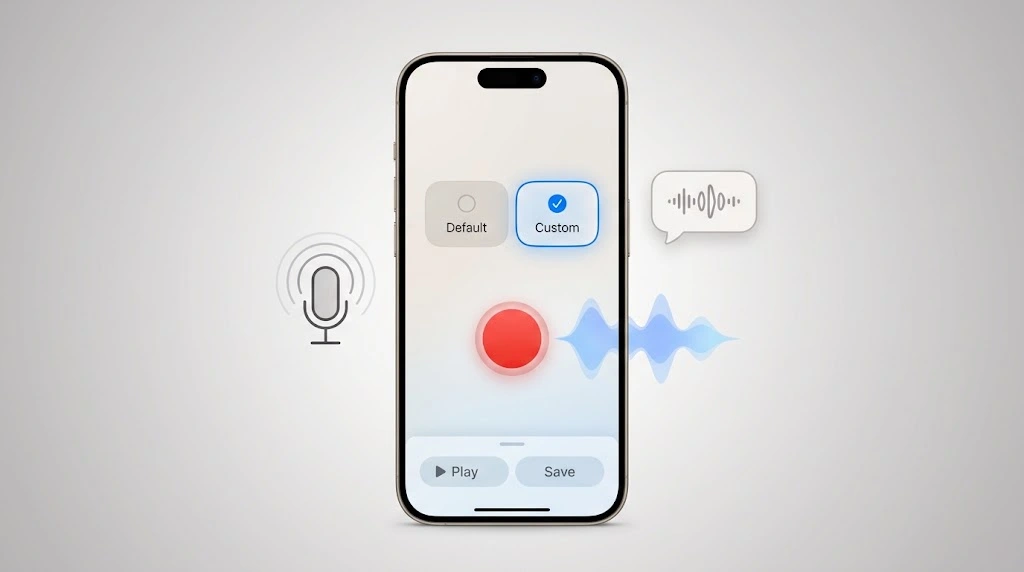
Switching jobs, changed your mind about that joke greeting, or just want to sound more professional? Here’s how to change your iPhone voicemail greeting any time:
- Open Phone → Voicemail.
- Tap Greeting in the top-left corner.
- Choose Default or Custom.
- For Custom, tap Record, speak, tap Stop, then Play to review.
- Tap Save.
Greeting script ideas you can borrow:
- Short and simple: “Hi, you’ve reached [Name]. Leave a message and I’ll call you back.”
- Professional: “You’ve reached [Name] at [Company]. I’m unavailable right now. Please leave your name, number, and a brief message.”
- Encourage texting: “Hey, it’s [Name]. I can’t talk right now — a text usually gets a faster reply.”
Tip: Keep it under 15 seconds. Longer greetings make callers hang up before leaving a message.
How to Change or Reset Your Voicemail Password
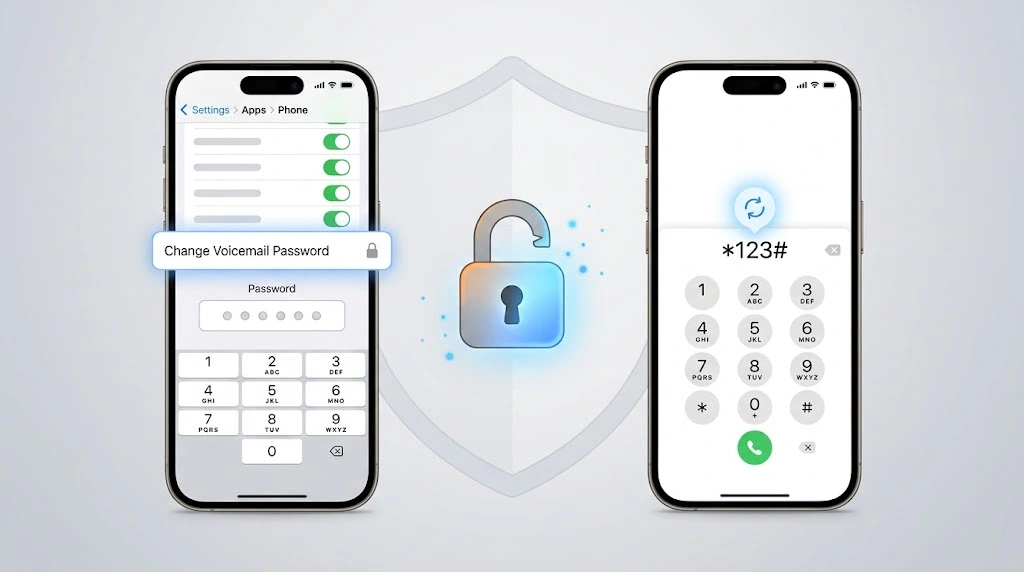
If you remember your current password
- Open Settings → Apps → Phone.
- Tap Change Voicemail Password.
- Enter your current password, then your new one twice.
- Tap Done.
If you forgot your voicemail password
Your iPhone can’t recover it — only your carrier can. Use one of these:
- AT&T: Open the myAT&T app → My wireless → select the line → Manage device & features → Reset voicemail password.
- Verizon: Open My Verizon → Account → My Devices → Manage → Reset Voicemail Password. Or dial *611.
- T-Mobile: Open T-Life → your line → Reset voicemail password. Or dial 611.
After the reset, go back to Phone → Voicemail. Your iPhone will ask you to enter the new password once, then remember it.
How to Listen to, Share, and Delete Voicemails
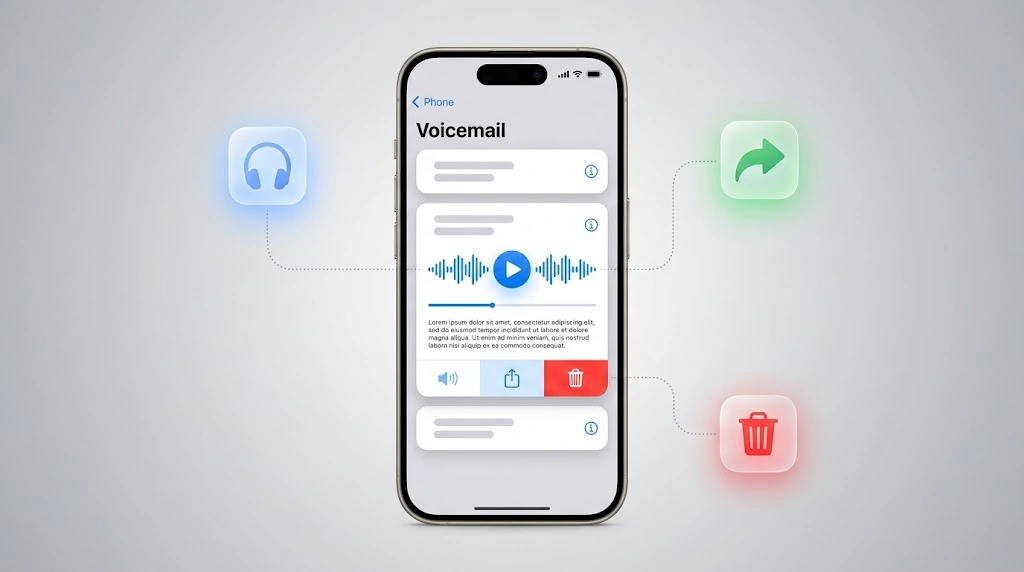
Once voicemail is set up, the Voicemail tab becomes your inbox. Here’s everything you can do with a message:
| Action | How to do it |
|---|---|
| Play | Tap the message, then tap ▶ |
| Speakerphone | Tap the message → Speaker |
| Call back | Tap the message → Call Back |
| Share | Tap the message → Share icon → AirDrop, Messages, Mail, Notes, Voice Memos |
| Delete | Swipe left → Delete, or tap the trash icon |
| Recover a deleted message | Scroll to the bottom → Deleted Messages → tap the message → Undelete |
| Clear deleted permanently | Deleted Messages → Clear All |
Turn On Voicemail Transcription
Visual Voicemail can show a text transcript right under each message — handy in meetings or noisy places.
- Go to Settings → Apps → Phone.
- Tap Live Voicemail and make sure it’s enabled (transcription for regular voicemails also relies on this setting on iOS 18 and later).
- Transcripts appear automatically for new messages in supported languages.
Want to go further? You can share a voicemail into Voice Memos to keep it forever, or send a voice message of your own — see how to send a voice message on iPhone. And if you need to save a live conversation instead, here’s how to record a phone call on iPhone.
Store Voicemail in iCloud
On supported carriers, your voicemails sync across your iPhone, iPad, and Mac. Go to Settings → [your name] → iCloud → See All and make sure Phone is turned on. If you switch to a new iPhone, your messages come along.
iPhone Voicemail Not Working? 7 Quick Fixes
iPhone voicemail not working is one of the most common Phone-app complaints. Try these in order — most people are fixed by step 3.
Fix 1 — “Set Up Now” Keeps Appearing
You set it up, but the button comes back every time. This is a sync glitch between your iPhone and the carrier.
- Turn on Airplane Mode for 30 seconds, then turn it off.
- Open Phone → Voicemail again.
- If it persists, call your voicemail the old way (hold 1) and set it up by voice. The app usually catches up within an hour.
Fix 2 — Update Carrier Settings
Go to Settings → General → About and wait on that screen for about 10 seconds. If a Carrier Settings Update pop-up appears, tap Update. This fixes a surprising number of voicemail problems.
Fix 3 — Restart Your iPhone
Hold the Side button and either Volume button, slide to power off, wait 30 seconds, and turn it back on.
Fix 4 — Voicemail Error 1034 or “Voicemail Unavailable”
Error 1034 means your iPhone can’t reach the carrier’s voicemail server. It is not an iPhone fault.
- Check you have cellular signal (not just Wi-Fi). If you see SOS in the status bar, read what SOS means on iPhone.
- Toggle Cellular Data off and on in Settings.
- Wait 15–30 minutes — carrier outages are usually brief.
- Still stuck? Call your carrier and ask them to “reset the voicemail box” on your line.
Fix 5 — Voicemail Is Full After Deleting Messages
Deleted voicemails don’t disappear — they move to a Deleted Messages folder that still counts toward your carrier’s quota (often 20–40 messages).
- Open Phone → Voicemail.
- Scroll to the bottom and tap Deleted Messages.
- Tap Clear All.
Fix 6 — Voicemail Notification Won’t Go Away
A red badge that never clears is a stale notification. Open the Voicemail tab, play (or delete) every message, then restart the iPhone. If you simply want fewer alerts overall, here’s how to silence notifications on iPhone.
Fix 7 — Reset Network Settings
This is the heavy-duty fix. It clears every cellular and Wi-Fi setting (you’ll need to re-enter Wi-Fi passwords) but does not erase your data.
Go to Settings → General → Transfer or Reset iPhone → Reset → Reset Network Settings. Our step-by-step guide to iPhone reset network settings covers what to back up first.
Safety warning: Never share your voicemail password with anyone who calls claiming to be from your carrier. Carriers will never ask for it by phone. Voicemail hijacking is a known route to taking over bank and social media accounts that send codes by voice call.
People Also Ask
How do I access voicemail on iPhone?
Open the Phone app and tap Voicemail at the bottom right. If you don’t see a list of messages, tap Call Voicemail or press and hold 1 on the Keypad.
What is my iPhone voicemail number?
There isn’t a separate number — your voicemail is reached by holding 1 or dialing your own phone number and pressing * or # during the greeting. Carrier shortcuts: Verizon *86, T-Mobile 123, AT&T hold 1.
Why is there no Set Up Now button on my iPhone?
Either voicemail is already configured (you’ll see Greeting at the top left instead), or your carrier doesn’t support Visual Voicemail, in which case you’ll see Call Voicemail.
Does voicemail work without cellular service?
Setting up requires a cellular connection. Afterward, Visual Voicemail can download messages over Wi-Fi, and if you’ve turned on Wi-Fi Calling on your iPhone, missed calls will still route to your mailbox even in weak-signal areas.
Frequently Asked Questions
Why does my iPhone say “Set Up Now” after I already set up voicemail?
It’s usually a carrier sync issue. Toggle Airplane Mode on and off, check for a carrier settings update under Settings → General → About, and restart. If it still appears after a day, ask your carrier to reset your voicemail box.
How do I set up voicemail on iPhone if I don’t see the Voicemail tab?
Your carrier may not support Visual Voicemail. Press and hold 1 on the Keypad (or dial your carrier’s voicemail number) and follow the voice prompts to create a password and greeting. Messages will then be accessed by phone rather than in a list.
What is the default voicemail password on iPhone?
There is no Apple default — your carrier sets it. Many carriers use the last four digits of your phone number as a temporary password. Change it immediately under Settings → Apps → Phone → Change Voicemail Password.
Is Live Voicemail the same as regular voicemail?
No. Live Voicemail (iOS 17 and later) transcribes the caller’s message in real time on your iPhone and lets you pick up mid-message. Regular (carrier) voicemail records the message on your carrier’s server for you to listen to later. You can use both together.
Why is my iPhone voicemail full after deleting messages?
Deleted messages sit in the Deleted Messages folder at the bottom of the Voicemail tab and still count toward your carrier’s storage limit. Open that folder and tap Clear All.
Can I set up voicemail on iPhone without a password?
Most carriers require one for security. Some let you disable the password prompt when calling from your own iPhone through their account app, but you’ll still need one to check messages from another phone.
Final Thoughts
Setting up voicemail on your iPhone takes less time than reading this article. To recap:
- Phone → Voicemail → Set Up Now
- Create a password (4–7 digits, depending on your carrier)
- Choose Default or record a Custom greeting
- Tap Save
- Optionally turn on Live Voicemail under Settings → Apps → Phone
Go ahead and try it now — then call your own number from another phone to hear how your greeting sounds. If anything misbehaves, the seven fixes above solve nearly every case, and your carrier can handle the rest.
Now that your mailbox is ready, you might also want to forward calls on your iPhone when you’re traveling, or cut down on junk messages by learning how to block spam calls on iPhone.
Sources
- Apple Support — Set up Voicemail on iPhone
- Apple Support — Use Live Voicemail on iPhone
- AT&T — Set up and use voicemail
- Verizon — Visual Voicemail FAQs
- T-Mobile — Voicemail setup and support
Updated October 2026 · Works on iPhone 18 ,17, 16, 15 and older models running iOS 26, iOS 18, or iOS 17

