


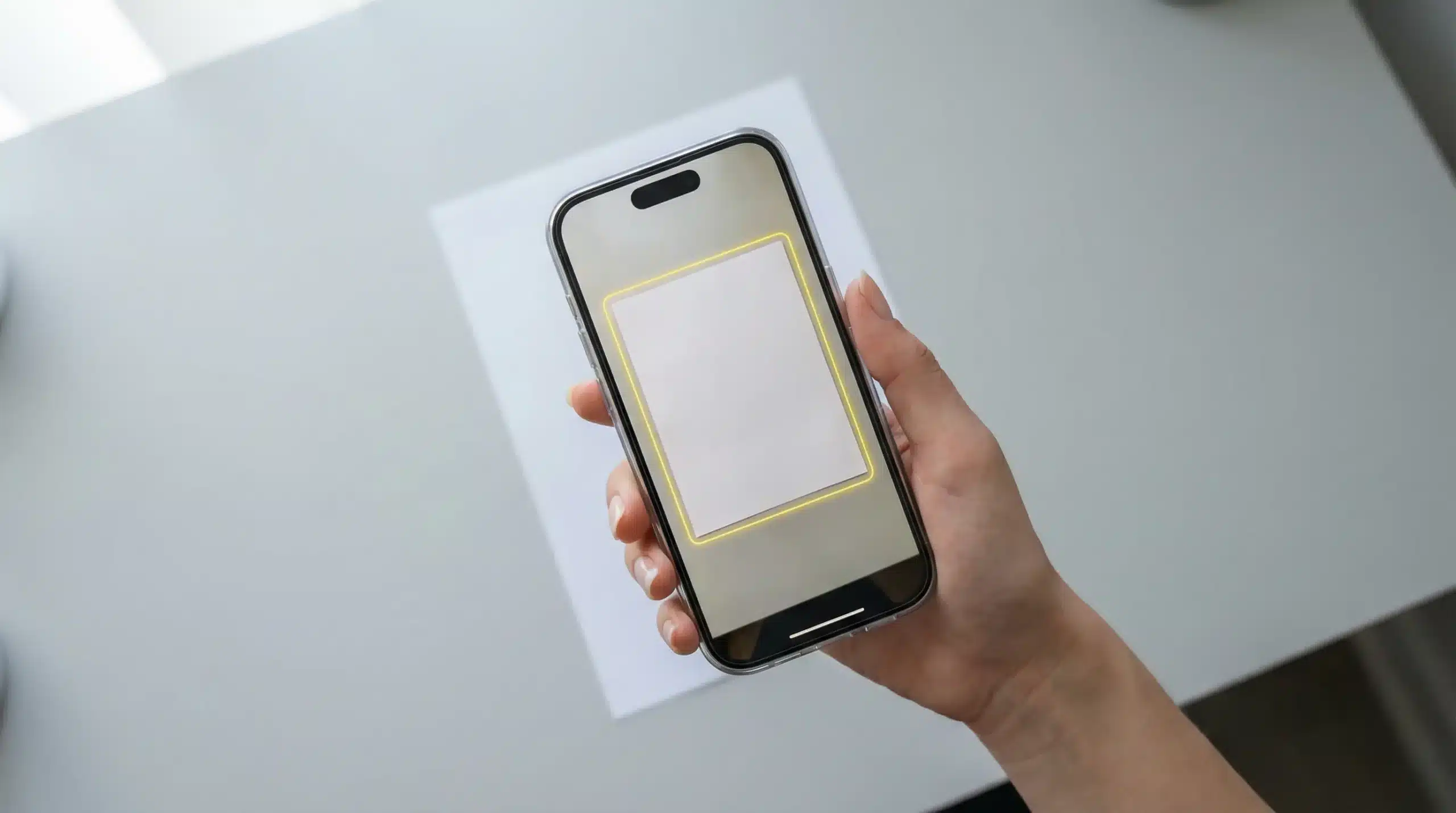
Your iPhone is one of the most capable scanning tools you own and most people only use a fraction of what it can do. Whether you want How to Scan on iPhone to read a QR code, copy text from a printed page, or use the brand-new iOS 26 Preview app, this guide covers every method in one place.
📌 Note: Looking to scan a paper document and save it as a PDF? That’s covered in full detail in our dedicated guide → How to Scan a Document on iPhone
What Can You Scan on iPhone?
Before diving in, here’s a quick look at everything your iPhone can scan — no third-party app required:
| What to Scan | Built-in Tool | Requires |
|---|---|---|
| QR codes | Camera app | iOS 11+ |
| Barcodes | Camera app | iOS 11+ |
| Printed text (OCR) | Live Text | iOS 15+ |
| Handwritten notes | Live Text | iOS 15+ |
| Paper documents → PDF | Notes / Files / Preview | iOS 13+ |
| Documents with Preview | Preview app | iOS 26 |
Each method is built into your iPhone nothing to download, nothing to pay for.
How to Scan a QR Code on iPhone
Scanning a QR code on iPhone is the fastest scan you can do. Your Camera app handles it automatically — no extra steps needed.
Using the Built-in Camera App (Fastest Method)
- Open the Camera app on your iPhone.
- Point the camera at the QR code — hold it steady for one second.
- A yellow banner appears at the top of the screen with the link or content.
- Tap the banner to open the link, contact, Wi-Fi network, or whatever the QR code contains.
That’s it. No button to tap, no mode to switch.
💬 “Use your iPhone camera to scan QR codes — the camera automatically detects and opens the associated content.”
— Apple Support
Scan a QR Code from an Existing Photo
Already have a screenshot or photo with a QR code in it? You don’t need to print it.
- Open the Photos app → find the image with the QR code.
- Tap and hold on the QR code in the photo.
- A popup appears with the option to Open Link, Copy, Share, or take the relevant action.
💡 Pro Tip: This works in Messages and Mail too — tap and hold any QR code image in a conversation to scan it instantly.
Scan QR Code from the Control Center
If your Camera app isn’t handy, you can add a QR Code scanner directly to your Control Center:
- Go to Settings → Control Center.
- Tap the “+” next to Code Scanner.
- Now swipe down from the top-right corner → tap the QR code icon to scan instantly.
QR Code Not Scanning? Try These Fixes
- Make sure “Scan QR Codes” is enabled: go to Settings → Camera → toggle Scan QR Codes ON
- Clean your camera lens — smudges block the sensor
- Move further back — if you’re too close, the camera can’t read the whole code
- Use better lighting — dark environments cause detection failure
- Try a third-party QR scanner from the App Store if the issue persists
How to Scan a Barcode on iPhone
Your iPhone camera reads product barcodes (UPC, EAN, ISBN) the same way it reads QR codes — just point and wait.
- Open the Camera app.
- Point it at any barcode on a product.
- A banner appears at the top — tap it to search the product online or see related information.
This is useful for price comparison shopping, checking book ISBNs, or looking up product details before you buy.
📝 Note: For advanced barcode features — like building inventory lists or scanning hundreds of items — apps like Scanbot or QR & Barcode Scanner on the App Store offer much more control.
How to Scan Text with Live Text (iPhone OCR)
Live Text is one of the most underused features on iPhone. It lets you point your camera at any printed text and instantly copy it, search it, translate it, or call the number — all without typing a single character.
What Is Live Text?
Live Text is Apple’s built-in OCR (Optical Character Recognition) feature, available on iPhone XS and later running iOS 15+. It works in the Camera app, Photos, Safari, and even inside scanned documents.
How to Copy Text Using the Camera App
- Open the Camera app — stay in Photo mode (don’t tap the shutter).
- Point at any printed text — a menu, a sign, a business card, a receipt.
- Tap the Live Text icon (looks like lines inside a frame) in the bottom-right corner.
- The text becomes selectable — tap and drag to highlight what you need.
- Tap Copy — now paste it anywhere: Messages, Notes, Safari, Mail.
How to Extract Text from a Photo You Already Took
- Open Photos → tap the photo containing text.
- Tap the Live Text icon in the bottom-right corner.
- Select the text you want → tap Copy, Share, Translate, or Search.
Live Text Can Also:
- Translate text in 18+ languages instantly
- Call phone numbers directly from a photo
- Open URLs found in printed materials
- Add dates to Calendar when it detects date-like text
- Get directions when it recognizes an address
💡 Pro Tip: Live Text works on handwritten notes too — accuracy varies by handwriting clarity, but it handles neat handwriting very well.
How to Scan with the iOS 26 Preview App (New in 2026)
iOS 26 introduced the Preview app — a native iPhone app that brings powerful scanning, PDF editing, and annotation tools directly to your device. It’s the biggest scanning upgrade Apple has released in years.
💬 “You can scan text or a document to create a PDF. Go to the Preview app on your iPhone. Tap Scan Documents.”
— Apple Support — Preview on iPhone
What Is the Preview App on iPhone?
Think of it as a mobile version of Mac’s Preview app. It lets you scan, view, edit, annotate, sign, and share PDFs — all in one place, without any third-party app.
Key features of the iOS 26 Preview app:
- Scan documents directly into a clean PDF
- Choose flash settings and image filters during scanning
- Auto or Manual capture mode
- Edit, crop, and annotate PDFs after scanning
- Sign documents with Markup
- AirDrop or share instantly to Mac, iPad, or cloud storage
How to Scan with the Preview App (Step-by-Step)
- Open the Preview app on your iPhone (iOS 26 required).
- Tap “Scan Documents.”
- Position your iPhone so the document fills the camera frame.
- In Auto mode, the app captures the page instantly.
- To scan manually, tap “Auto” to switch to Manual → tap the Shutter button.
- Drag the corner handles to adjust the crop if needed.
- Scan additional pages, then tap Save to create your PDF.
Preview App vs. Notes App — Which Should You Use?
| Feature | Notes App | iOS 26 Preview App |
|---|---|---|
| Scan documents | ✅ Yes | ✅ Yes |
| Image filters during scan | ❌ No | ✅ Yes |
| Flash control | ❌ No | ✅ Yes |
| In-app PDF editing | ❌ Limited | ✅ Full editing |
| Annotation tools | ⚠️ Basic Markup | ✅ Advanced |
| Requires iOS 26 | ❌ Works on iOS 13+ | ✅ iOS 26 only |
| Best for | Quick everyday scans | Professional PDF work |
Bottom line: If you’re on iOS 26, the Preview app is the best built-in option. If you’re on an older iOS version, the Notes app is still excellent.
Quick Comparison: All Scan Methods on iPhone
| Scan Type | Tool | iOS Required | App Download? |
|---|---|---|---|
| QR Code | Camera app | iOS 11+ | ❌ No |
| Barcode | Camera app | iOS 11+ | ❌ No |
| Copy printed text | Live Text | iOS 15+ | ❌ No |
| Translate printed text | Live Text | iOS 15+ | ❌ No |
| Scan document → PDF | Notes / Files | iOS 13+ | ❌ No |
| Scan + edit PDF | iOS 26 Preview | iOS 26 | ❌ No |
Frequently Asked Questions
Can I scan on iPhone without downloading any app?
Yes — completely. The Camera app handles QR codes and barcodes. Live Text copies printed text. Notes and Files scan documents. And iOS 26 users have the Preview app. No downloads needed for any of these.
How do I scan on iPhone 13, 14, 15, 16, or 17?
The Camera, Live Text, Notes, and Files methods work on all these models. The iOS 26 Preview app is available on iPhone 13 and later after updating to iOS 26.
What’s the difference between scanning a QR code and scanning a document?
A QR code scan reads encoded data (links, contacts, Wi-Fi passwords) using your Camera app in real time. A document scan photographs a paper page and saves it as a PDF using Notes, Files, or Preview. They use different tools for different purposes.
Can I scan handwriting on iPhone?
Yes — Live Text recognizes handwriting in iOS 15 and later. Accuracy depends on how neat the handwriting is. For best results, ensure good lighting and a clean background.
Where do I find the QR Code scanner in Control Center?
Go to Settings → Control Center → tap “+” next to Code Scanner. Once added, swipe down from the top-right corner of your screen and tap the scan icon anytime.
How do I scan a document on iPhone and save it as a PDF?
That’s covered in full detail in our step-by-step guide: How to Scan a Document on iPhone — including the Notes app, Files app, and third-party scanner apps.
Wrapping Up
Your iPhone can scan QR codes, barcodes, printed text, and full documents — all without spending a penny or downloading a single app. Start with the Camera app for QR codes and barcodes, use Live Text whenever you need to grab text from the real world, and explore the iOS 26 Preview app if you want professional-level PDF scanning built right in.
If you need to go further with your device, learn how to take a screenshot on iPhone to capture anything on your screen, or check out our guide on how to transfer files from iPhone to PC to back up your scanned documents to your computer.
Sources: Apple Support — Scan on iPhone · Apple Support — Preview App Scanning

