


Getting a new watch, selling your old one, or fixing a stubborn problem? Then you need to know how to unpair Apple Watch from iPhone the right way. This guide is made for iPhone owners of any skill level. You will learn the simple Watch app method, what to do if you do not have your iPhone, and how to fix a watch that will not unpair.
Unpair Apple Watch in 6 Steps
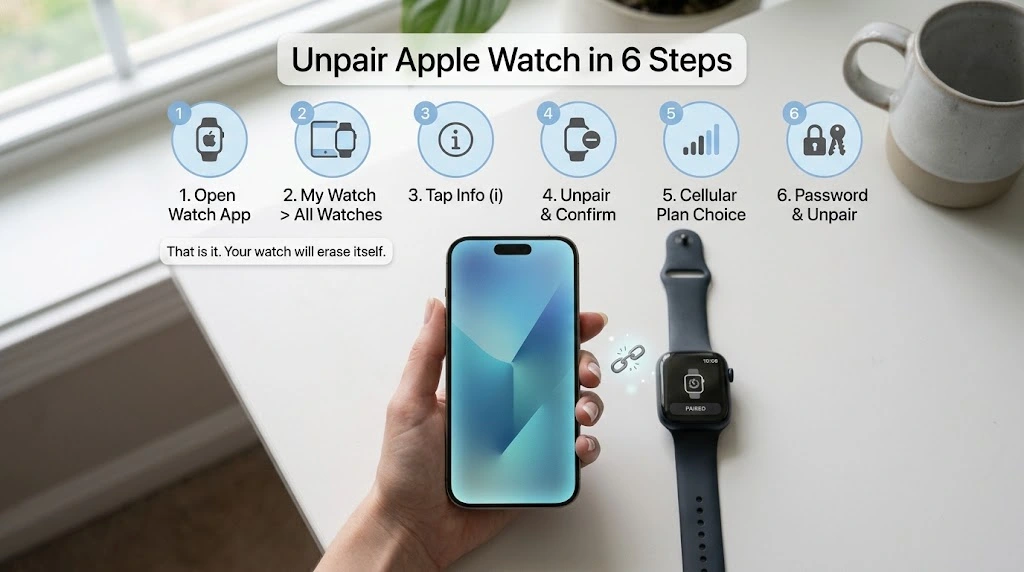
Short on time? Here is the fast version. Keep your watch and iPhone close together the whole time.
- Open the Apple Watch app on your iPhone.
- Tap the My Watch tab, then tap All Watches.
- Tap the info button (i) next to your watch.
- Tap Unpair Apple Watch, then confirm.
- If you have a cellular watch, choose to keep or remove your plan.
- Enter your Apple Account password and tap Unpair.
That is it. Your watch will erase itself and return to factory settings. Keep reading for the details, extra options, and fixes.
What Happens When You Unpair Apple Watch
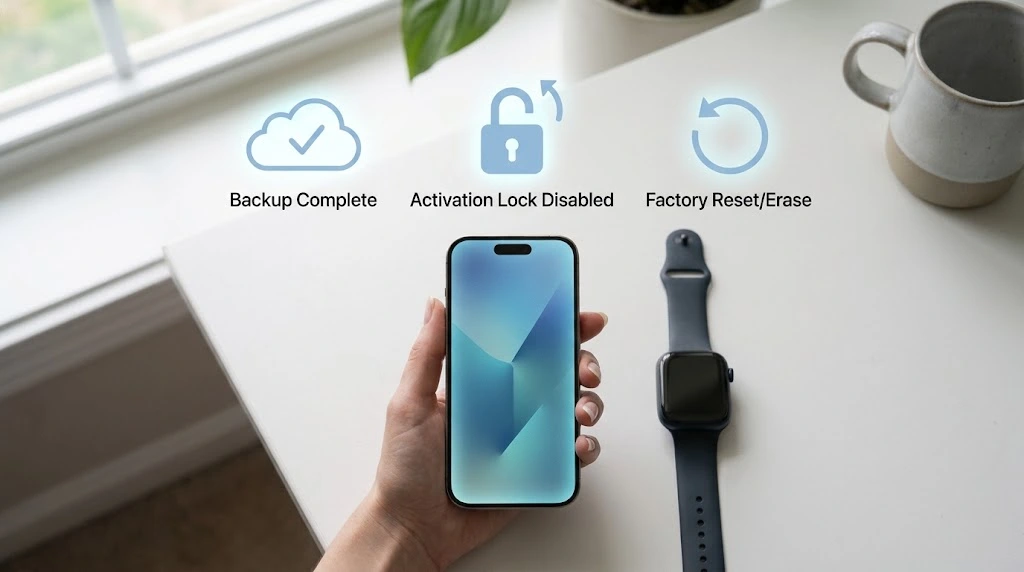
Unpairing is not just a disconnect. It is a full reset of the link between your watch and your phone. Before you tap anything, it helps to know what will change.
Here is what unpairing does:
- Erases your Apple Watch and returns it to factory settings.
- Turns off Activation Lock, so someone else can set up the watch.
- Breaks the connection to that iPhone.
- Creates a backup of your watch on your iPhone first, so you can restore it later if you pair again.
Apple Support puts it simply:
“Unpairing your Apple Watch restores it to factory settings and removes Activation Lock.” — Apple Support
Good to know: Your health and activity data also lives in the Health app on your iPhone and in iCloud if you use it. Erasing the watch does not delete the data already synced to your iPhone. Still, you should check your backups before you start, as we explain below.
Why You Might Need to Unpair
People unpair an Apple Watch for many reasons. The most common ones are:
- You bought a new Apple Watch and want to move to it.
- You got a new iPhone and need to pair the watch again.
- You are selling, trading in, or giving away the watch.
- Your watch has a bug or connection problem that restarts do not fix.
- You want to pair the watch with a different iPhone.
Remember this rule: one Apple Watch pairs with one iPhone at a time. To switch phones, you must unpair first.
Before You Start: Quick Checklist
A little prep makes the process smooth. Take two minutes to go through this list.
| Check | Why it matters |
|---|---|
| Keep the watch and iPhone close | They must talk to each other during unpairing |
| Know your Apple Account password | You need it to turn off Activation Lock |
| Know your watch passcode | The watch may ask for it |
| Turn on Bluetooth on your iPhone | Unpairing fails if the link is broken |
| Turn off Airplane Mode on both devices | Airplane Mode can block the connection |
| Update your iPhone if an update is waiting | Old software can cause errors |
Not sure your iPhone is up to date? Here is our guide on how to update your iPhone. It takes only a few minutes.
Pro tip: If you plan to pair your watch again, back up your iPhone first. Our guide on how to back up your iPhone shows you how. Your watch backup is stored with your iPhone backup, so this protects both.
How to Unpair Apple Watch From iPhone
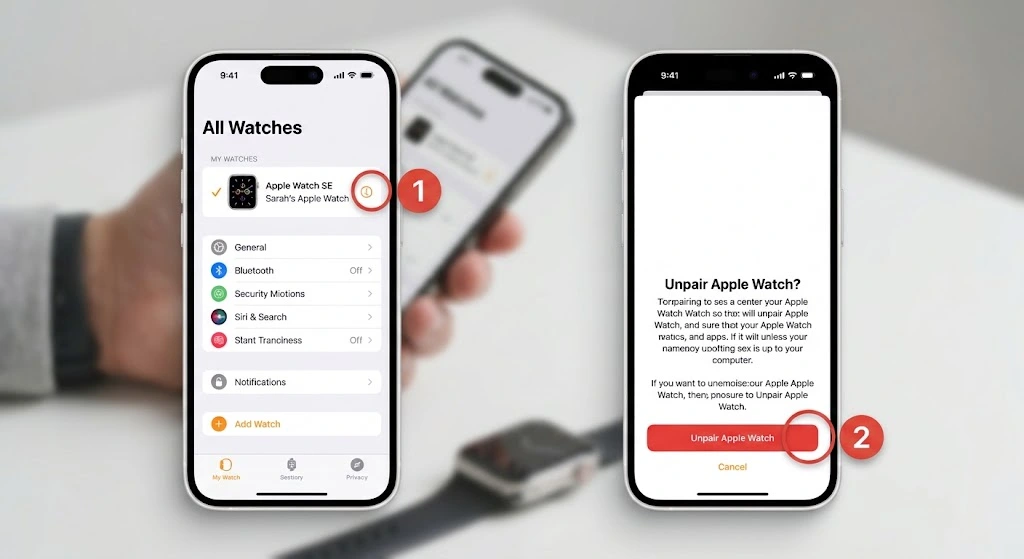
This is the best method. It works if you have your iPhone and your watch is nearby. It also removes Activation Lock, which matters a lot if you plan to sell or give away the watch.
Step-by-Step Instructions
- Keep your Apple Watch and iPhone close together. Put them side by side.
- Open the Apple Watch app on your iPhone. It is the app with a small watch icon.
- Go to the My Watch tab at the bottom of the screen.
- Tap All Watches at the top of the screen.
- Tap the info button (i) next to the watch you want to remove.
- Tap Unpair Apple Watch.
- Tap Unpair [your watch name] to confirm.
- If your watch has cellular, choose to keep or remove your plan (more on this next).
- Type your Apple Account password, then tap Unpair. This turns off Activation Lock.
Now wait. Your iPhone first makes a backup of your watch. Then it erases the watch. You will see the Apple logo on the watch screen. When the process ends, the watch shows the setup screen, just like a brand new one.
Note: Menu names can change slightly with new versions of iOS and watchOS. If a screen looks a little different, look for the same words: All Watches, the info button, and Unpair Apple Watch.
How Long Does It Take?
Most people finish in a few minutes. It can take longer if your watch has a lot of data to back up. Do not move your devices apart and do not turn them off. Let the progress bar finish.
What If You Have More Than One Apple Watch?
You can pair more than one watch with the same iPhone. In All Watches, you will see each watch listed. Tap the info button next to the right one before you unpair. Check the name twice so you do not erase the wrong watch.
Cellular Models: Keep or Remove Your Plan
If you own an Apple Watch with cellular, your iPhone will ask what to do with your cellular plan. The right choice depends on what you plan to do next.
| Your plan | What to choose |
|---|---|
| You will pair the same watch again (to this or a new iPhone) | Keep your plan |
| You are selling or giving away the watch | Remove your plan |
Apple recommends the same thing. If you remove the plan, you should also contact your carrier if you want to cancel the subscription. Removing it from the watch does not always cancel your bill.
Warning: Do not skip the carrier step if you are selling the watch. Otherwise you may keep paying for a plan you no longer use.
How to Unpair Apple Watch Without iPhone
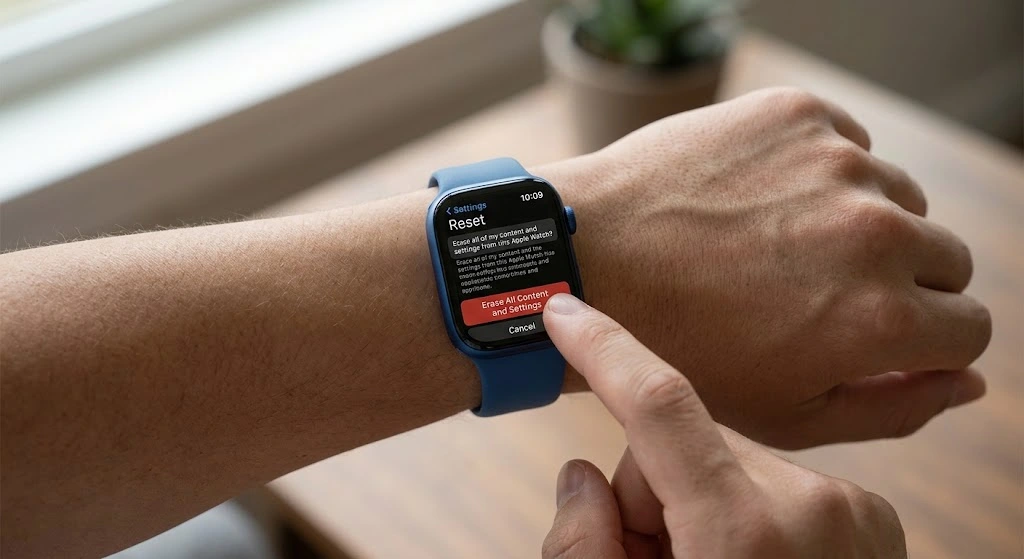
What if your iPhone is lost, broken, or traded in? You can still erase the watch straight from your wrist. But there is one big catch.
Important: Erasing the watch without your iPhone does not remove Activation Lock. The watch is still tied to your Apple Account. If you sell it like this, the buyer will not be able to use it.
Erase Your Apple Watch Directly
- On your Apple Watch, open the Settings app.
- Tap General.
- Scroll down and tap Reset.
- Tap Erase All Content and Settings.
- Enter your passcode if the watch asks.
- If you have a cellular model, choose to keep or remove your plan.
- Tap Erase All to confirm.
The watch will restart and show the setup screen. You will need the Apple Account and password tied to the watch to turn off Activation Lock later.
Remove Activation Lock From a Web Browser
If you erased the watch without your iPhone and you want to sell it, you should remove the lock too. You can do this on any computer or phone.
- Go to icloud.com/find and sign in with your Apple Account.
- Open your list of devices and select your Apple Watch.
- Choose the option to remove it from your account.
Menu names on iCloud change from time to time. If you get stuck, follow Apple’s own guide on Activation Lock.
Remember: This only works for a watch that is yours. If you bought a used watch that is still locked, ask the seller to remove it from their account. Apple will not unlock a watch for you without proof of purchase and ownership.
If you are also getting rid of your iPhone, you may want to turn off Find My on it too. Here are our guides on Find My iPhone and how to turn off Find My iPhone.
Forgot Your Apple Account Password?
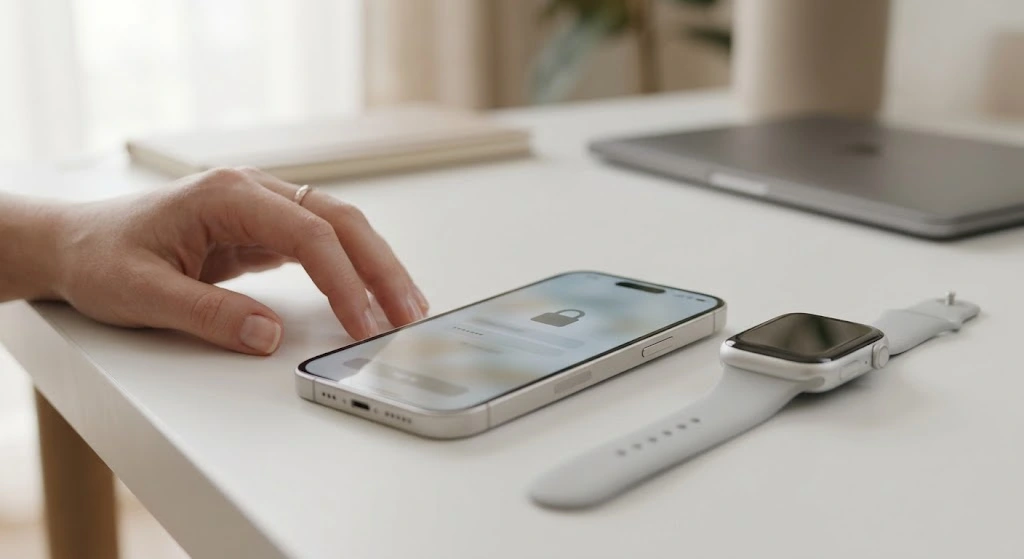
You need your Apple Account password to turn off Activation Lock. If you forgot it, you cannot finish unpairing until you get it back.
Here is what to do:
- Go to iforgot.apple.com and follow the steps to reset your password.
- You can also change it on your iPhone. See our guide on how to change your Apple ID password.
- After you reset it, start the unpair steps again with your new password.
Quick tip: If you cannot recover your account, Apple Support can help. Be ready to show proof that you own the watch, such as a receipt.
Never try to bypass Activation Lock with a third-party tool or a site that promises a quick unlock. Many of these are scams. They can also put your account and data at risk.
How to Unpair and Pair Your Apple Watch With a New iPhone
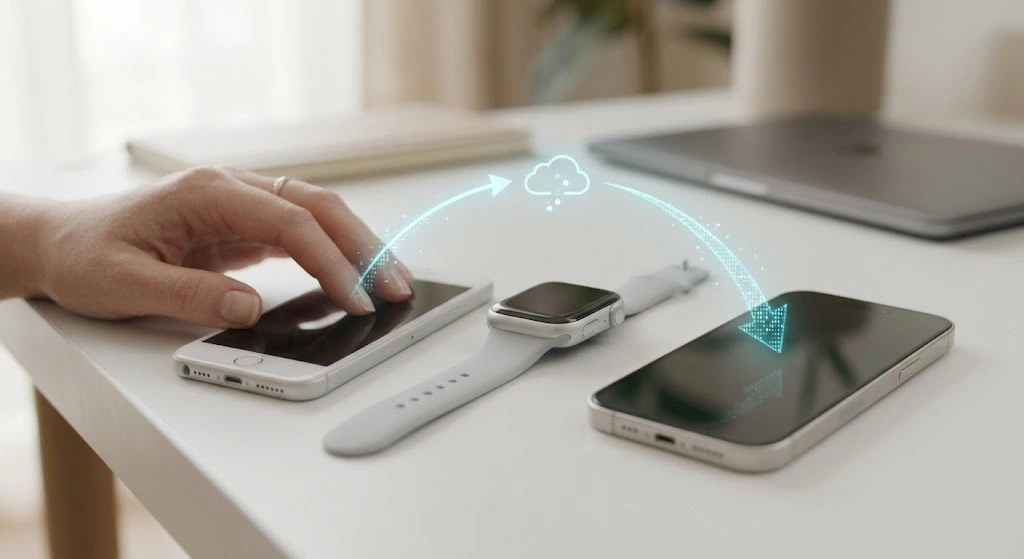
Upgrading your iPhone? Your watch does not have to start from zero. The order of the steps matters, though.
Option 1: Your Old iPhone Still Works (Best Option)
- Keep your old iPhone and watch close together.
- Unpair the watch using the Watch app steps above. Choose Keep Plan if you have cellular.
- Your old iPhone backs up the watch during unpairing.
- Set up your new iPhone. If you move your data over, our guide on how to transfer iPhone to iPhone will help.
- Pair the watch with the new iPhone. Follow our guide on how to connect Apple Watch to iPhone.
- When asked, choose Restore from Backup to bring back your apps, watch faces, and settings.
Option 2: Your Old iPhone Is Gone or Broken
- Erase the watch from the watch itself (see the steps in the “without iPhone” section).
- Pair it with your new iPhone as a new watch.
- If your new iPhone was restored from a backup that includes watch data, you may see that backup as an option.
You may lose some watch data in this case. Also, remember that Activation Lock stays on until you remove it with your Apple Account.
Quick Comparison
| Situation | Best method | Backup kept? |
|---|---|---|
| Old iPhone works | Unpair in the Watch app | Yes |
| Old iPhone lost or broken | Erase on the watch | Maybe not |
| Selling the watch | Unpair in the Watch app, remove cellular plan | Not needed |
Unpair vs Erase vs Restart: What Is the Difference?
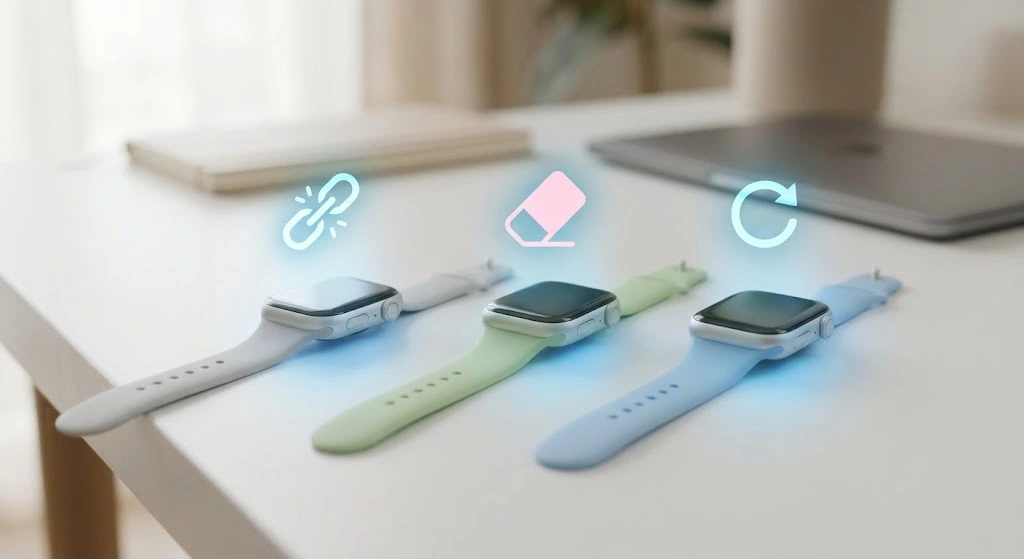
These words are easy to mix up. Each one does a different job. Pick the right one so you do not lose data by mistake.
| Action | What it does | Removes Activation Lock? | Best for |
|---|---|---|---|
| Unpair (in the Watch app) | Backs up, erases, and disconnects the watch | Yes | Selling, new iPhone, fresh start |
| Erase All Content and Settings (on the watch) | Erases the watch and returns it to factory settings | No | No iPhone, or a deep fix |
| Restart | Turns the watch off and on again | No | Small bugs and glitches |
| Force restart | Restarts a frozen watch | No | Frozen screen |
A simple way to remember it: unpair when you are done with the watch or the phone. Restart when something just acts weird.
Want to reset your watch only? We cover the full reset options in a separate guide. For now, if your watch is simply frozen, hold the side button and Digital Crown together for about 10 seconds, until you see the Apple logo. This does not erase anything.
Apple Watch Won’t Unpair? Quick Fixes
Sometimes the unpair process fails or gets stuck. Try these fixes in order. Most problems go away in the first two.
Fix 1: Restart Both Devices
A restart clears small bugs.
- iPhone: Follow our guide on how to restart your iPhone.
- Apple Watch: Hold the side button, slide Power Off, wait 30 seconds, then turn it back on.
Then try unpairing again.
Fix 2: Check the Connection
The watch and iPhone must be connected to unpair the normal way.
- Open Control Center on your iPhone and make sure Bluetooth is on.
- Turn Airplane Mode off on both devices.
- Keep the watch right next to your iPhone.
On your watch, a green iPhone icon in Control Center means it is connected. A red icon means it lost the connection.
Fix 3: Update iPhone and Apple Watch
Old software can cause errors.
- iPhone: Go to Settings > General > Software Update.
- Apple Watch: Open the Watch app, tap General, then Software Update.
Keep the watch on its charger during an update.
Fix 4: Erase the Watch, Then Remove It From Your Account
If the unpair button does not work, you can erase the watch yourself.
- On the watch, go to Settings > General > Reset > Erase All Content and Settings.
- Then sign in at icloud.com/find to remove the watch from your Apple Account.
- Open the Watch app on your iPhone and check that the old watch no longer shows under All Watches.
Fix 5: Contact Apple Support
Still stuck? Visit Apple Watch Support or book a visit at an Apple Store. Bring your watch, your iPhone, and a proof of purchase if you have one.
Quick Troubleshooting Table
| Problem | Likely cause | Try this |
|---|---|---|
| Unpair button does nothing | Weak or lost connection | Restart both, turn Bluetooth on |
| Watch freezes during unpair | Software glitch | Force restart, then try again |
| Asked for a password you forgot | Activation Lock | Reset your Apple Account password |
| Watch still shows in the app after erase | Old pairing record | Remove it in Watch app or iCloud |
| iPhone is lost or broken | No connection possible | Erase on the watch and remove from iCloud |
What to Do After You Unpair
Your watch is now clean. What you do next depends on your plan.
If You Are Pairing the Watch Again
- Turn on your watch and bring it near your iPhone.
- Follow the pairing prompts. Our guide on how to connect Apple Watch to iPhone walks you through each step.
- Choose Restore from Backup if you want your old apps and settings back.
- Or choose Set Up as New Apple Watch for a fresh start.
If You Are Selling or Giving Away the Watch
Use this simple checklist:
- Unpair it with your iPhone so Activation Lock is off.
- Remove your cellular plan and tell your carrier.
- Check that it shows the setup screen, not your watch face.
- Remove the band if you want to keep it, and wipe the watch with a soft cloth.
- Check icloud.com/find to be sure the watch is no longer listed under your account.
- Turn the watch off until the new owner is ready.
Safety tip: Never hand over a watch that still shows your name or data. A watch that has Activation Lock on is useless to the buyer and may also cause you trouble.
If You Plan to Keep Using Find My
Your iPhone, AirPods, and other Apple devices still use Find My. Unpairing your watch does not turn Find My off for your other devices.
Frequently Asked Questions
Does unpairing an Apple Watch erase it?
Yes. Unpairing erases your watch and returns it to factory settings. Your iPhone makes a backup first when you unpair in the Watch app, so you can restore it later.
Can I unpair Apple Watch without my iPhone?
Not fully. You can erase the watch directly on your wrist from Settings > General > Reset > Erase All Content and Settings. But this does not remove Activation Lock. You would also need to remove the watch from your account using your Apple Account.
Will I lose my data if I unpair my Apple Watch?
Not if you plan ahead. Your iPhone backs up the watch during unpairing, and you can restore it when you pair again. Health and activity data that already synced to your iPhone stays there. For extra safety, back up your iPhone first.
Can I unpair my Apple Watch if I forgot my Apple Account password?
Not until you recover it. You need the password to turn off Activation Lock. Go to iforgot.apple.com to reset it, then try again.
Do I need to unpair before I get a new iPhone?
It is the best method. Unpairing from your old iPhone gives you a fresh backup. Then you can pair the watch with your new phone and restore from that backup.
Can I unpair my Apple Watch and pair it with a different iPhone?
Yes. Unpair it from the first iPhone, then pair it with the second one. A watch can only be paired with one iPhone at a time.
Conclusion
Now you know how to unpair Apple Watch from iPhone and what to do when things go wrong. Let’s recap:
- Use the Watch app when you have your iPhone. It backs up your watch and removes Activation Lock.
- Choose your cellular plan option based on whether you will pair again or sell.
- Erase on the watch if you do not have your iPhone, then remove Activation Lock with your Apple Account.
- Restart, update, and check Bluetooth if the watch will not unpair.
Give it a try today. It only takes a few minutes, and you will have a clean watch ready for its next chapter. Want to keep learning? Check out our guides on how to connect Apple Watch to iPhone and how to transfer iPhone to iPhone.
Sources
- Apple Support: Unpair and erase your Apple Watch
- Apple Support: How to unpair and reset your Apple Watch (video)
- Apple Support: Activation Lock for Apple Watch
- Apple Support: Set up your Apple Watch

