


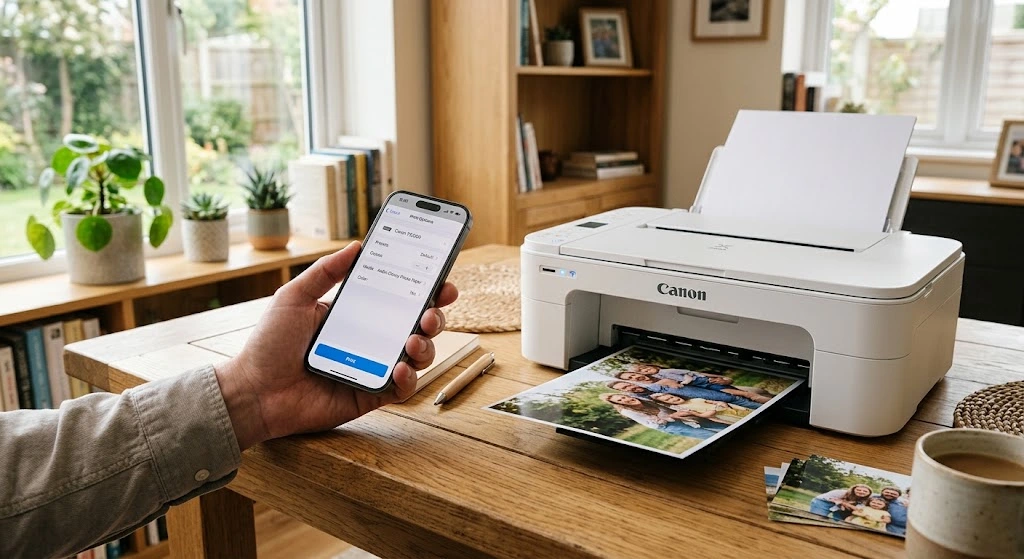
Need a hard copy of a boarding pass, a photo, or a PDF, but your laptop is nowhere in sight? Learning how to print from iPhone takes about a minute, and you don’t need to install a single driver. In this guide, you’ll print with AirPrint in five taps, then learn what to do if your printer doesn’t support it.
Quick Answer: Print From iPhone in 30 Seconds
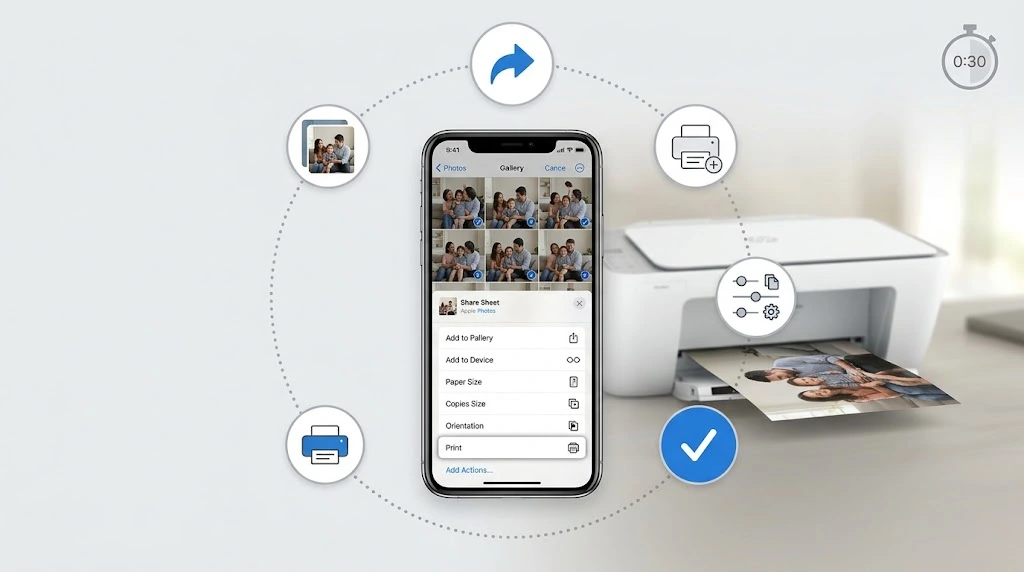
Key takeaway: If your printer supports AirPrint and sits on the same Wi-Fi network as your iPhone, you can print right now:
- Open the photo, email, web page, or document.
- Tap the Share button (the square with an arrow) or the three-dot menu.
- Scroll down and tap Print.
- Tap Printer, choose yours, and set your options.
- Tap Print in the top-right corner.
That’s it. No app, no cable, no setup wizard. If your printer isn’t an AirPrint model, jump to the section on printing without AirPrint.
Printing Methods at a Glance
Not every printer plays nicely with iPhone. This table helps you pick the right method in seconds.
| Method | Works with | Needs Wi-Fi? | Extra app? | Best for |
|---|---|---|---|---|
| AirPrint | Most printers made after 2011 | Yes (same network) | No | Everyday printing |
| Printer brand app (HP Smart, Canon PRINT, etc.) | Non-AirPrint and older models | Yes | Yes (free) | Scanning, ink levels, photo paper |
| Wi-Fi Direct | Printers with Wi-Fi Direct | No router needed | Sometimes | Hotels, dorms, no home Wi-Fi |
| Email-to-print | Cloud-enabled printers (HP, Epson, Brother) | Printer needs internet | No | Printing from anywhere |
| Through a Mac or PC | Any printer connected to a computer | Yes (or a cable to the PC) | No | Old USB-only printers |
| Third-party print apps | Almost any network printer | Yes | Yes (paid) | Shared or office printers |
Bold rule of thumb: Try AirPrint first. It’s built into iOS, it’s free, and it works with hundreds of printer models.
What You Need Before You Print From iPhone
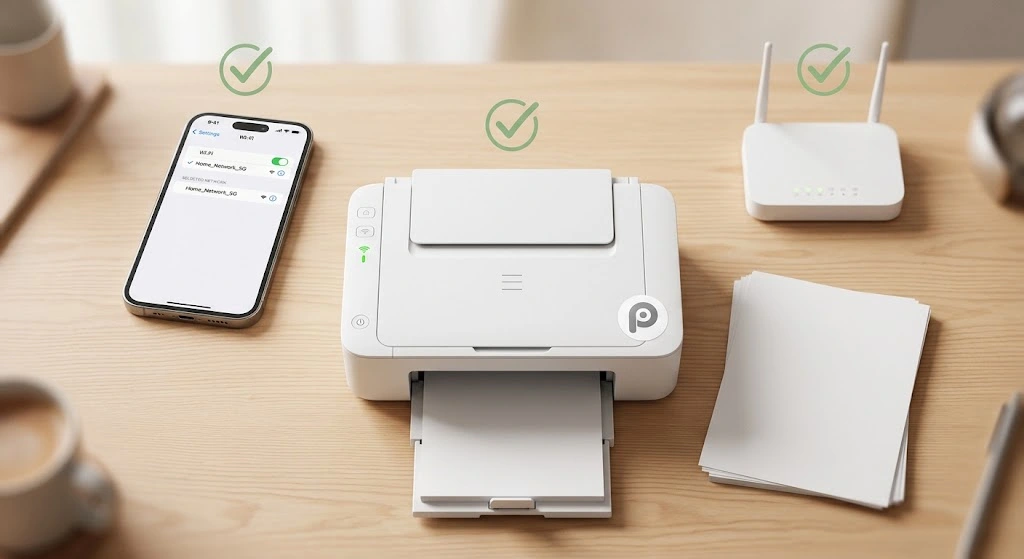
Before you start, make sure these three things are in place. Skipping them causes most “my printer won’t show up” headaches.
Does Your Printer Support AirPrint?
AirPrint is Apple’s wireless printing technology. It’s been built into iOS since 2010, and nearly every major brand supports it today, including HP, Canon, Epson, Brother, Samsung, and Lexmark.
Here’s how to check:
- Look for the AirPrint logo on the printer box or near the control panel.
- Search Apple’s official list of AirPrint printers (linked below).
- Check the printer’s menu. Go to Settings or Network on the printer and look for AirPrint or Apple AirPrint.
- Just try it. Open a photo, tap Share, then Print. If your printer appears, you’re good to go.
Expert note: Apple describes the benefit clearly in its AirPrint support article: “With AirPrint, it’s easy to print full-quality photos and documents from your Mac, iPhone, iPad, or iPod touch without having to download or install drivers.”
iPhone and Printer on the Same Wi-Fi Network
AirPrint only finds printers on the same Wi-Fi network your iPhone is using. Check both:
- On iPhone: Settings → Wi-Fi and note the network name.
- On the printer: print a network configuration page or check the Wi-Fi section of its menu.
If your router broadcasts two networks (for example, “Home” and “Home-5G”), make sure both devices use the same one. Also note that guest networks usually block AirPrint on purpose.
Turn On the Printer and Load Paper
It sounds obvious, but a sleeping printer often won’t appear in the list. Wake it up, make sure the Wi-Fi light is steady, and load the paper you want to use.
How to Print From iPhone With AirPrint (Step by Step)
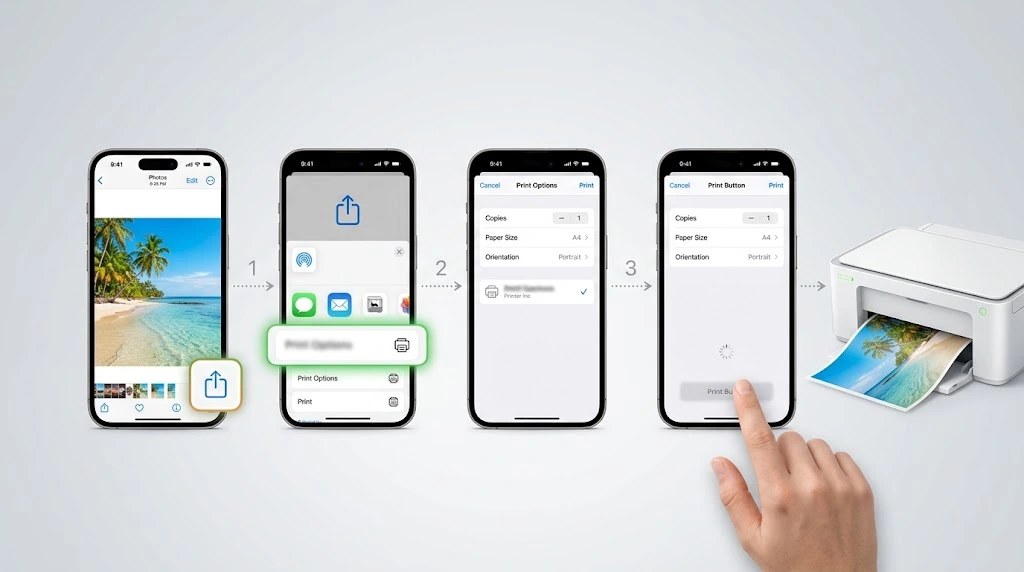
Once your printer is ready, printing works the same way in almost every app. Here’s the full walkthrough.
Step 1: Open the Photo, Email, or Document
Find what you want to print. This could be a picture in Photos, a receipt in Mail, a web page in Safari, or a PDF in Files.
Step 2: Tap the Share Button and Choose Print
Tap the Share icon, which is a square with an arrow pointing up. In the sheet that appears, scroll down the list of actions and tap Print.
Note: Some apps, like Mail and Notes, hide printing behind a three-dot or Reply button instead of the Share icon. Look for either one.
Step 3: Select Your Printer and Adjust Options
On the Print Options screen:
- Tap Printer and choose your printer from the list. The first time, it may take a few seconds to appear.
- Set the number of copies.
- Choose a page range if you only need certain pages.
- Toggle options like Black & White, Double-sided, or Paper Size if your printer supports them.
Tip: Your iPhone remembers the printer you used last time, so future prints are even faster.
Step 4: Tap Print and Check the Print Center
Tap Print in the top-right corner. Your printer should start within a few seconds. While the job is running, you can check its progress in Print Center (more on that ).
Where to Find the Print Option in Each iPhone App
The Print button moves around a little depending on the app. Here’s a quick map so you never hunt for it again.
| App | Where to tap |
|---|---|
| Photos | Open the photo → Share → scroll down → Print |
| Open the email → Reply arrow (or three dots) → Print | |
| Safari | Share → scroll down → Print |
| Files / PDFs | Open the file → Share → Print |
| Notes | Three dots (top right) → Print |
| Messages | Take a screenshot, then print it from Photos |
| Word, Excel, Google Docs | Three dots → Share & Export (or Print) → Print |
Photos
Printing photos from iPhone is one of the most common tasks. Open the Photos app, tap a picture, tap Share, then Print. To print several photos at once, tap Select, choose your pictures, then tap Share → Print. Each photo prints on its own page unless your printer app offers a layout option. If you need to grab something on screen first, take a screenshot and print it the same way.
Open the message, tap the Reply arrow at the bottom, and choose Print. Attachments like PDFs can be opened first, then printed separately. If you haven’t added your account yet, set up your email on iPhone first.
Safari
Web pages often print with ads and menus. For a cleaner result, tap the aA icon in the address bar and choose Show Reader before tapping Share → Print. You’ll save ink and paper.
Files and PDFs
Files you’ve downloaded, such as tickets or forms, live in the Files app. If you’re not sure where a download went, here’s how to find your downloads on iPhone. You can also scan a document on iPhone with the Notes or Files app and print the scan right away. Photos of paperwork print more neatly if you convert the picture to a PDF first.
Notes, Messages, and Microsoft Office Apps
- Notes: Tap the three-dot button, then Print.
- Messages: There’s no direct print button. Screenshot the conversation and print from Photos.
- Word, Excel, PowerPoint: Tap the three dots, choose Print, and the familiar iOS print screen appears.
How to Print From iPhone Without AirPrint
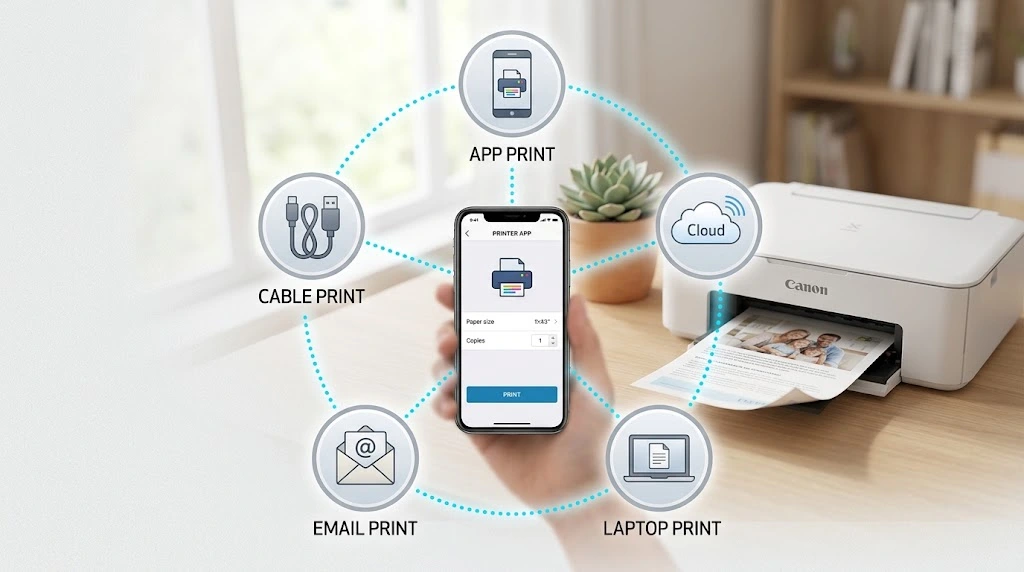
Have an older printer or one that simply isn’t showing up? You can still print from iPhone without AirPrint. Here are five proven ways, starting with the easiest.
Method 1: Use Your Printer Brand’s App
Every major manufacturer offers a free iPhone app that talks directly to its printers, even many non-AirPrint models. These apps also unlock extras like scanning, ink-level alerts, and photo layouts.
| Brand | Free app | What it adds |
|---|---|---|
| HP | HP Smart | Scan, ink levels, Instant Ink, mobile fax |
| Canon | Canon PRINT | Photo layouts, cloud printing, scanning |
| Epson | Epson Smart Panel | Setup wizard, scan, copy, maintenance |
| Brother | Brother iPrint&Scan | Print, scan, fax, status checks |
Steps (nearly identical for all brands):
- Download the app from the App Store.
- Open it and follow the setup wizard to find your printer on Wi-Fi.
- Tap Print Photos or Print Documents.
- Choose your file from Photos, Files, or iCloud Drive.
- Set paper size and quality, then tap Print.
Tip: Once the brand app is set up, these printers often appear in the regular iOS Share Sheet too, because the app installs a print extension.
Method 2: Wi-Fi Direct (Print Without a Router)
Many Wi-Fi printers can broadcast their own hotspot. This is perfect when there’s no home network, such as a dorm room or vacation rental.
- On the printer, enable Wi-Fi Direct (sometimes called Wireless Direct). Note the network name and password shown on screen.
- On iPhone, go to Settings → Wi-Fi and join that network.
- Open your file, tap Share → Print, and the printer should appear.
Warning: While connected to the printer’s hotspot, your iPhone loses regular Wi-Fi internet. Switch back when you’re done.
Method 3: Email-to-Print Services
HP ePrint, Epson Connect, and Brother Cloud Print give your printer its own email address. Anything you email to it gets printed, from anywhere in the world.
- Register the printer with the brand’s cloud service.
- Copy the printer’s email address.
- From your iPhone, email the document or photo to that address.
- Allow a minute for the job to arrive.
Security note: Anyone with that address can print to your printer. Most services let you set an approved-sender list. Turn it on.
Method 4: Print Through Your Computer (Mac or Windows)
If your printer only connects by USB to a computer, you can share it over the network. The computer must stay on while you print.
On a Mac:
- Go to System Settings → General → Sharing and turn on Printer Sharing.
- Select your printer. It instantly becomes AirPrint-compatible for your iPhone.
On Windows:
- Install a small helper app such as O’Print or set up a shared printer through Settings → Bluetooth & devices → Printers & scanners.
- Your iPhone then sees the printer when it’s on the same Wi-Fi.
You can also skip the printer sharing entirely: transfer the photos to your PC and print them from there.
Method 5: Third-Party Printing Apps
Apps like Printer Pro or PrintCentral Pro connect to almost any network printer, including shared office machines. They cost a few dollars but work when nothing else does. Install the app, add the printer by IP address or network discovery, and print from the app’s built-in file browser.
How to Print From iPhone Without Wi-Fi
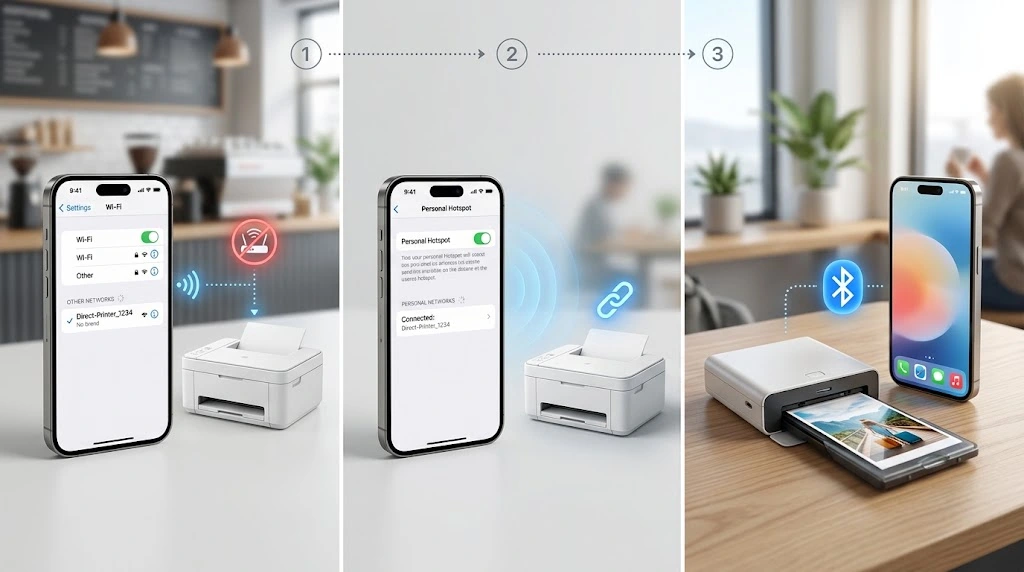
People often ask whether you can print from iPhone with a USB cable. The honest answer: iPhone has no built-in USB printing. Plugging a printer straight into an iPhone does nothing in iOS.
Your real options without a home network are:
- Wi-Fi Direct (Method 2 above). The printer makes its own network, so you don’t need a router or internet.
- Bluetooth. Only a handful of portable photo printers, like the HP Sprocket and Canon IVY, print over Bluetooth through their own apps.
- A computer with a USB printer. Connect your iPhone to the PC, copy the file over, and print from the computer.
- Cellular hotspot. Turn on Personal Hotspot on your iPhone and join the printer to it. Both devices are now on the same network, so AirPrint works.
Key takeaway: “No Wi-Fi” rarely means “no printing.” Wi-Fi Direct or a Personal Hotspot usually solves it in under two minutes.
How to Check or Cancel a Print Job on iPhone
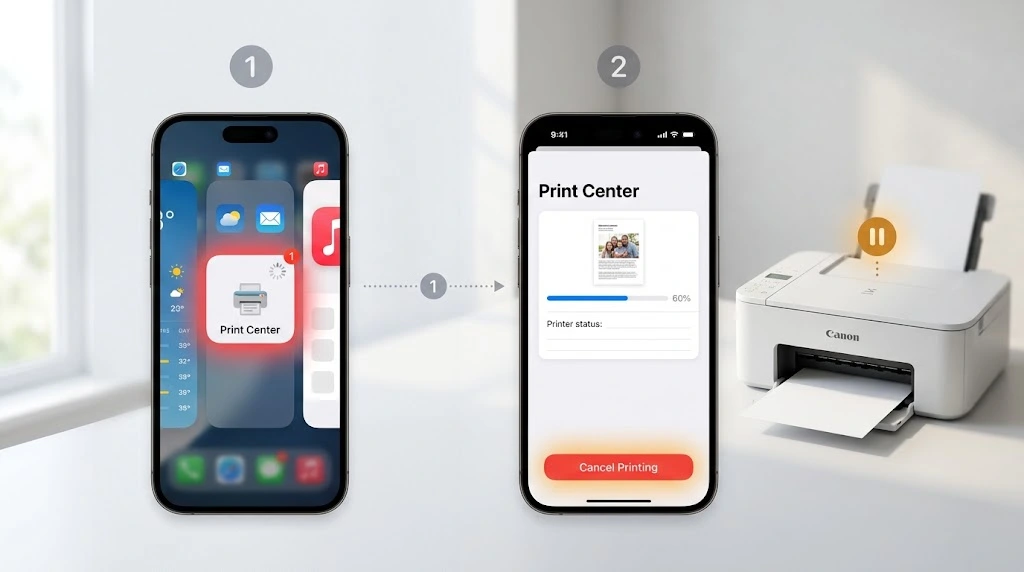
Sent a 40-page PDF by mistake? Here’s how to stop it.
- While the job is printing, swipe up from the bottom of the screen (or double-click the Home button on older iPhones) to open the App Switcher.
- Look for Print Center. It only appears while a job is active.
- Tap it to see the queue, page count, and status.
- Tap Cancel Printing to stop the job.
If Print Center has already disappeared, the job is done sending. You can still cancel it on the printer itself, usually with an X or Cancel button.
iPhone Won’t Print? Fixes for Common Problems
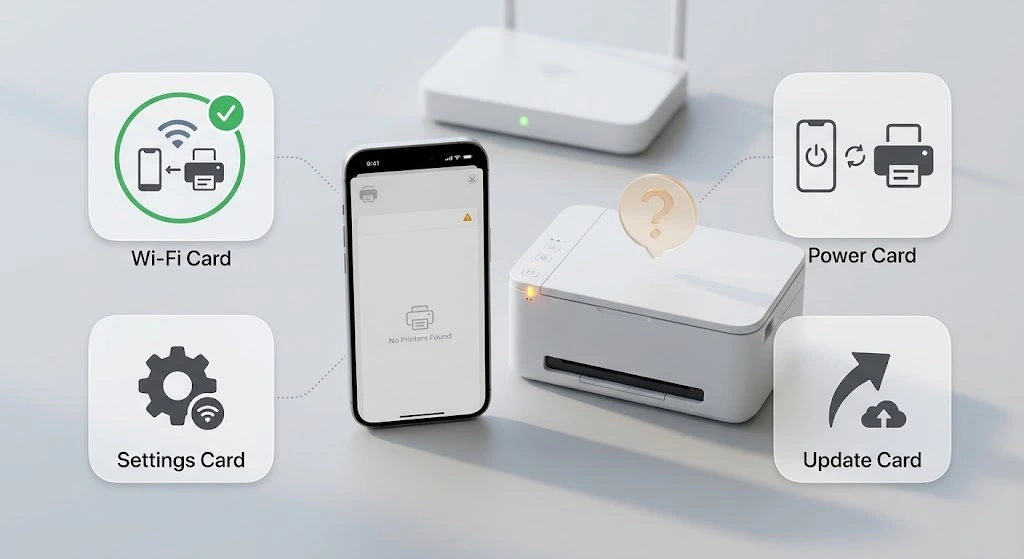
Printing from iPhone is usually painless, but when it fails, it’s almost always one of these four issues.
“No AirPrint Printers Found”
This message means your iPhone can’t see any compatible printer. Work through this list in order:
- Confirm the Wi-Fi network matches on both devices. Avoid guest networks.
- Wake the printer and wait 30 seconds for it to reconnect.
- Toggle Wi-Fi off and on in Settings on your iPhone.
- Restart the printer and router. Unplug both for 10 seconds.
- Restart your iPhone. A quick reboot clears stuck network connections.
Printer Not Showing Up on iPhone
If other devices see the printer but your iPhone doesn’t:
- Check that Local Network access is allowed for the app you’re printing from (Settings → Privacy & Security → Local Network).
- Disable any VPN temporarily. VPNs often block local device discovery.
- As a last step, reset network settings on your iPhone. You’ll need to re-enter Wi-Fi passwords, but it fixes stubborn discovery problems.
Print Option Missing From the Share Sheet
Some apps don’t support printing, and sometimes the button simply slides out of view.
- Scroll all the way down in the Share Sheet. Print is often the last item.
- Tap Edit Actions at the bottom and add Print to your favorites.
- Make sure iOS is current. Update iOS if a new version is waiting.
- If the app truly lacks a Print button, save the content as a PDF or screenshot and print from Files or Photos.
Print Job Stuck in the Queue
A job that says “Printing” forever usually sits in the printer’s memory.
- Cancel it from Print Center on your iPhone.
- Cancel or clear the queue on the printer’s control panel.
- Power-cycle the printer.
- Send the job again, and this time, pick a lower quality setting if the file is huge.
Expert tip: Apple’s own guidance for AirPrint problems is simple and worth remembering. In its support article Use AirPrint to print from your iPhone or iPad, Apple advises: “Make sure your printer supports AirPrint” and that your iPhone and printer “are connected to the same Wi-Fi network.” Nine times out of ten, one of those two is the culprit.
Safety warning: Never factory-reset your printer or iPhone as a first step. Start with the quick fixes above and escalate only if needed.
Frequently Asked Questions
Can I print from my iPhone without Wi-Fi?
Yes. Use Wi-Fi Direct on the printer, or turn on Personal Hotspot on your iPhone and connect the printer to it. Both create a direct link without a home router. A few portable photo printers also work over Bluetooth through their own apps.
How do I know if my printer supports AirPrint?
Check Apple’s official AirPrint printer list, look for the AirPrint logo on the box, or simply open a photo, tap Share → Print, and see if your printer appears. Most Wi-Fi printers made after 2011 are compatible.
Why isn’t my printer showing up on my iPhone?
Nearly always, the two devices are on different Wi-Fi networks, or the printer is asleep. Confirm the network name on both, wake the printer, and toggle Wi-Fi on your iPhone. If that fails, disable your VPN and check Settings → Privacy & Security → Local Network.
Can I print text messages or emails from my iPhone?
Emails, yes: open the message, tap Reply → Print. Text messages have no print button, so take a screenshot of the conversation and print it from the Photos app.
How do I print multiple photos from my iPhone at once?
Open Photos, tap Select, choose your pictures, then tap Share → Print. Each photo prints on a separate sheet. For collage-style layouts, use your printer brand’s app, such as HP Smart or Canon PRINT.
Does printing from iPhone cost anything?
No. AirPrint is free and built into iOS. Brand apps like HP Smart and Epson Smart Panel are also free. You only pay for third-party apps like Printer Pro, which are optional.
Final Thoughts
Now you know how to print from iPhone no matter what printer you own:
- AirPrint printer? Tap Share → Print → Print. Done in five taps.
- No AirPrint? Grab the free HP, Canon, Epson, or Brother app.
- No Wi-Fi? Use Wi-Fi Direct or your Personal Hotspot.
- Old USB printer? Share it through your Mac or PC.
- Something stuck? Check the same-network rule first, then restart.
Give the AirPrint method a try with a quick photo right now. Once you see how fast it is, you’ll never hunt for a laptop again.
Want more quick iPhone wins? Learn how to scan a document on iPhone, how to convert a picture to PDF, or how to transfer photos from iPhone to PC.
Sources
- Apple Support: Use AirPrint to print from your iPhone or iPad
- Apple Support: About AirPrint
- Apple iPhone User Guide: Print from iPhone
- App Store: HP Smart · Canon PRINT · Epson Smart Panel · Brother iPrint&Scan

