


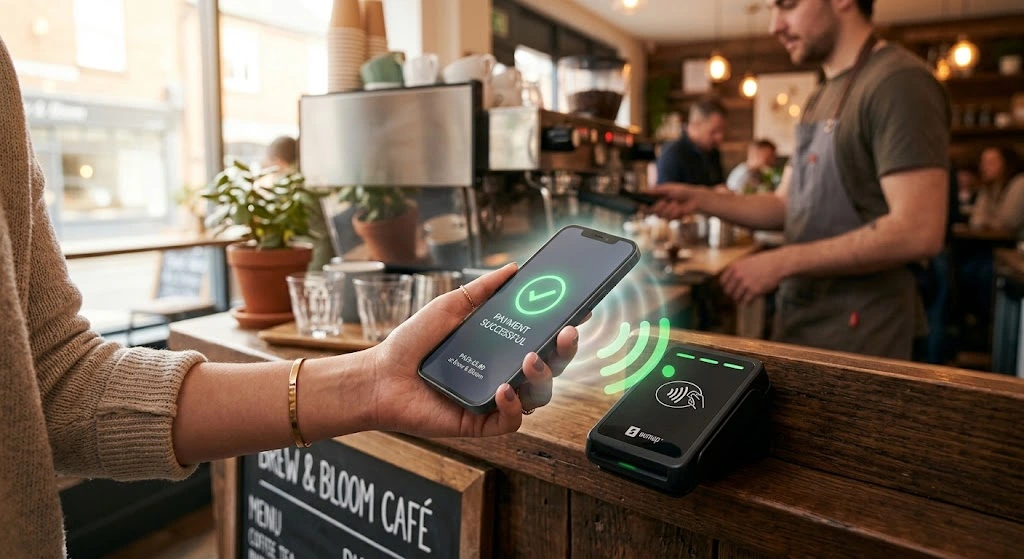
Paying with your phone is fast, simple, and safer than swiping a card. In this guide, you will learn how to use Apple Pay on iPhone in stores, on websites, and inside apps. It is written for beginners, so you can follow along even if you have never opened the Wallet app.
Quick answer: Add your card in the Wallet app. In a store, double-click the side button (Face ID) or rest your finger on the Home button (Touch ID). Then hold the top of your iPhone near the reader until you see Done and a checkmark.
What Is Apple Pay and How Does It Work?
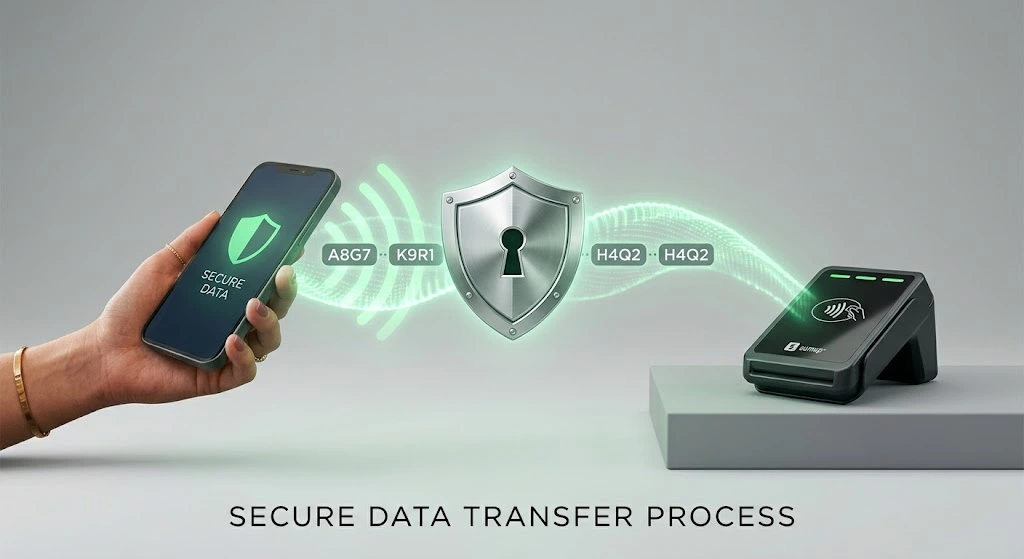
Apple Pay is Apple’s mobile payment service. It lets you pay with a debit or credit card that you add to your iPhone. You do not need to carry the physical card.
Here is the basic idea. Your iPhone has a small chip that talks to payment terminals using NFC, a short-range wireless signal. When you hold your iPhone near a reader, the two devices exchange a secure payment code. The sale goes through in about a second.
Apple Pay works in three main places:
- In stores that accept contactless payments
- On websites in Safari and other browsers that support it
- Inside apps that offer the Apple Pay button
Image suggestion: a simple diagram showing an iPhone, a reader, and a secure payment code moving between them. Alt text: diagram showing how Apple Pay sends a secure payment from iPhone to a contactless reader
Apple Pay vs. Apple Wallet: What’s the Difference?
People often mix these two up. They are related, but they are not the same thing.
| Feature | Apple Pay | Apple Wallet |
|---|---|---|
| What it is | A payment service | An app on your iPhone |
| What it does | Sends secure payments | Stores cards, passes, tickets, and keys |
| Where you find it | Works through Wallet | Wallet icon on your Home Screen |
| Example use | Paying for coffee | Holding a boarding pass or loyalty card |
In short, Wallet is the place where your cards live, and Apple Pay is how you pay with them. To learn more, see Apple’s overview of Wallet.
Which iPhones Support Apple Pay?
Apple Pay works on iPhones with Face ID or Touch ID, including all current models. Older iPhones with the Home button use Touch ID. Newer iPhones without a Home button use Face ID.
Not sure which model you have? Our guide on how to check which iPhone model you have takes less than a minute.
What You Need Before You Start
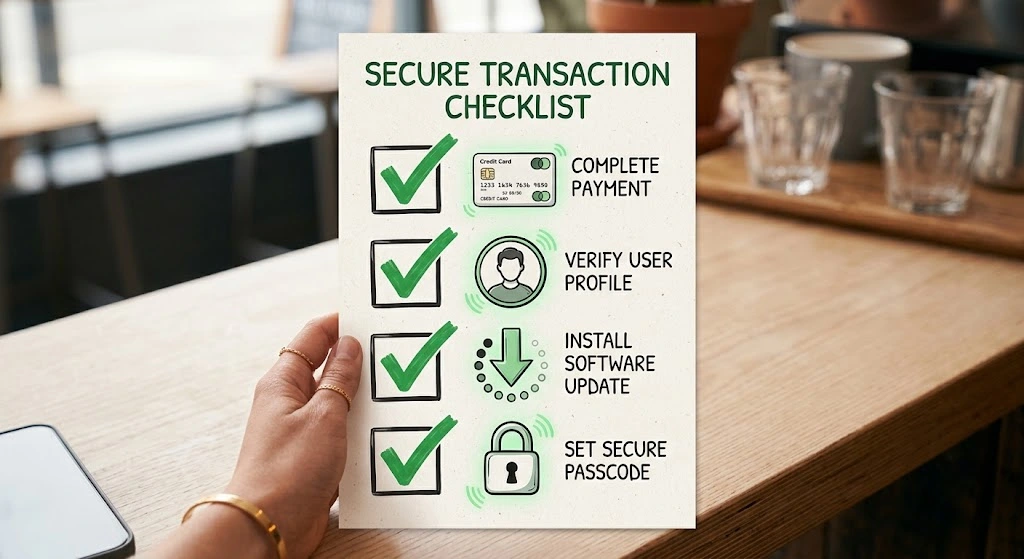
A few quick checks will save you trouble later.
Supported Cards, Banks, and Countries
Apple Pay is not available in every country. It also does not work with every bank. Before you add a card, make sure of these things:
- Your country supports Apple Pay. Check Apple’s Apple Pay page for current availability.
- Your bank or card issuer supports it. Most big banks in the United States do.
- Your card is a debit or credit card. Some store cards and prepaid cards may not work.
If your card is not supported, your bank will usually tell you during setup.
Sign In With Your Apple Account and Update iOS
You need two more things:
- An Apple Account. If you do not have one, follow our guide to create an Apple Account.
- An up-to-date iPhone. Newer software fixes bugs and keeps payments secure. Here is how to update your iPhone to the latest iOS.
You also need a passcode on your iPhone. Apple Pay will not work without one.
Good to know: Menu names can change a little between iOS versions. If your screen looks different, check what is new in iOS 27 or search inside Settings.
How to Add a Card to Apple Pay
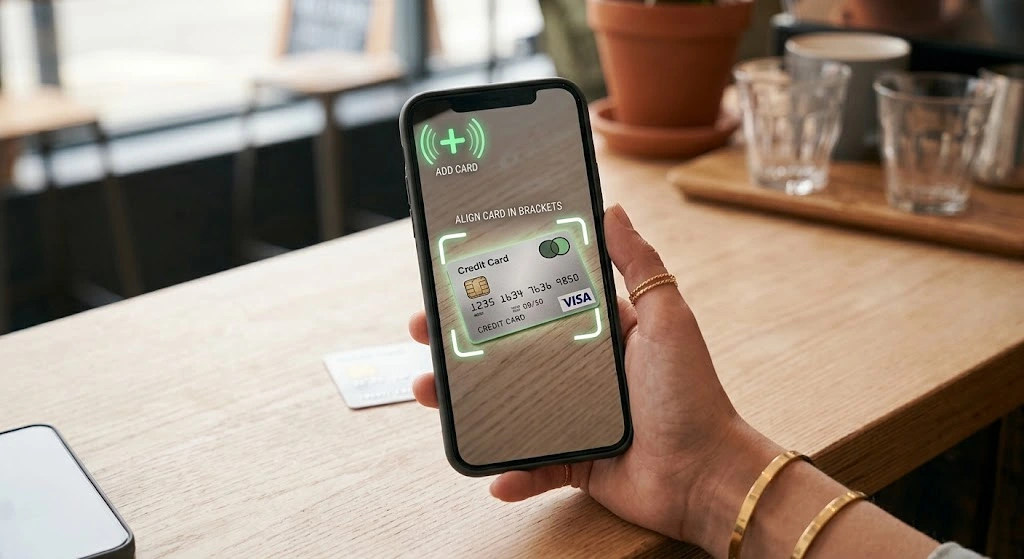
This is the setup step. You only do it once for each card. You can add a card two ways.
Add a Card in the Wallet App
- Open the Wallet app on your iPhone.
- Tap the plus (+) button in the top-right corner.
- Tap Debit or Credit Card, then tap Continue.
- Point your camera at your card to scan it. Or choose Enter Card Details Manually.
- Check the card name and number. Then enter the expiration date and security code.
- Read and accept the terms.
- Verify your card. Your bank may text you a code, send an email, or ask you to open its app.
- Tap Done when you see your new card in Wallet.
Pro tip: Make sure your card is right in front of you. Scanning is fast, but typing the number by hand is a good backup in dim light.
Add a Card From Settings
You can also start from the Settings app:
- Open Settings.
- Tap Wallet & Apple Pay.
- Tap Add Card.
- Follow the same steps as above.
Apple explains this process in its guide to setting up cards and passes.
Set a Default Card
Your default card is the one Apple Pay uses first. To change it:
- Open Settings, then tap Wallet & Apple Pay.
- Tap Default Card.
- Choose the card you want to use most often.
Tip: If you have a card that earns the most rewards, make it your default.
How to Use Apple Pay on iPhone in Stores
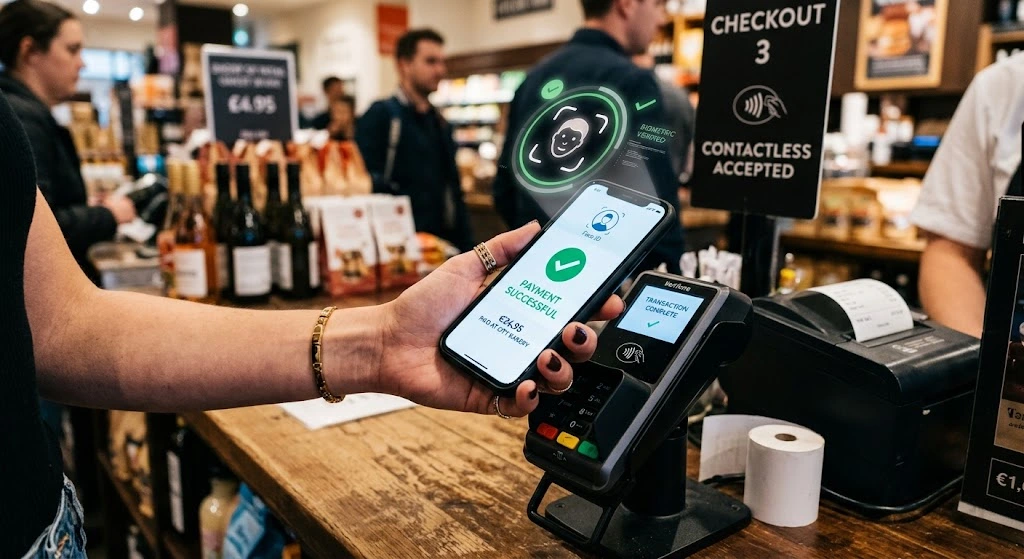
Now for the part you came for. Look for the contactless symbol, which looks like a sideways Wi-Fi icon, or the Apple Pay logo at the checkout. If you see either one, you can pay with your iPhone.
The steps depend on your iPhone model. Here is a quick comparison.
| Step | iPhone with Face ID | iPhone with Touch ID (Home button) |
|---|---|---|
| 1. Start | Double-click the side button | Rest your finger on the Home button |
| 2. Verify | Look at your iPhone | Your fingerprint is read |
| 3. Pay | Hold the top of your iPhone near the reader | Hold the top of your iPhone near the reader |
| 4. Done | Wait for Done and a checkmark | Wait for Done and a checkmark |
On iPhones With Face ID
Most newer iPhones use Face ID. Here is what to do:
- Double-click the side button. Your default card appears on the screen.
- Look at your iPhone to confirm it is you. If Face ID does not work, tap Enter Passcode.
- Hold the top of your iPhone close to the contactless reader. You do not need to touch it.
- Wait until you see Done with a checkmark. You may also feel a small tap or hear a beep.
Image suggestion: photo of a hand double-clicking the side button on an iPhone. Alt text: double-clicking the side button on an iPhone to open Apple Pay
To pay with a different card, double-click the side button. Then tap your card and pick another one. Confirm with Face ID and hold your iPhone near the reader.
On iPhones With Touch ID (Home Button)
If your iPhone has a Home button, the process is even simpler:
- Hold the top of your iPhone near the reader.
- Rest your finger on the Home button. Do not press it. Just let Touch ID read your fingerprint.
- Wait for Done and the checkmark.
To use a different card, open Wallet first, choose the card, and then hold your iPhone near the reader.
Using Express Mode (Transit and Quick Payments)
Some cards can work without Face ID, Touch ID, or a passcode. Apple calls this Express Mode. It is often used for train and bus fares because it is faster at busy gates.
To check your setting:
- Open Settings, then tap Wallet & Apple Pay.
- Tap Express Transit Card.
- Choose a card, or turn the option off.
Safety note: Express Mode is handy, but anyone who holds your unlocked iPhone could use it at a transit gate. Only turn it on if you are comfortable with that.
Tips for Smooth Payments in Stores
- Hold your iPhone close to the reader. A couple of inches is usually enough.
- Keep it still for a moment until you see the checkmark.
- Take off thick cases or metal wallet attachments if the reader does not respond.
- Do not wake the screen first if you have a Touch ID model. Just hold it up.
- Say you are paying by phone if the cashier seems unsure. Most readers handle it automatically.
Apple’s own steps are in its guide to making purchases with Apple Pay on iPhone.
How to Use Apple Pay on iPhone Online and in Apps
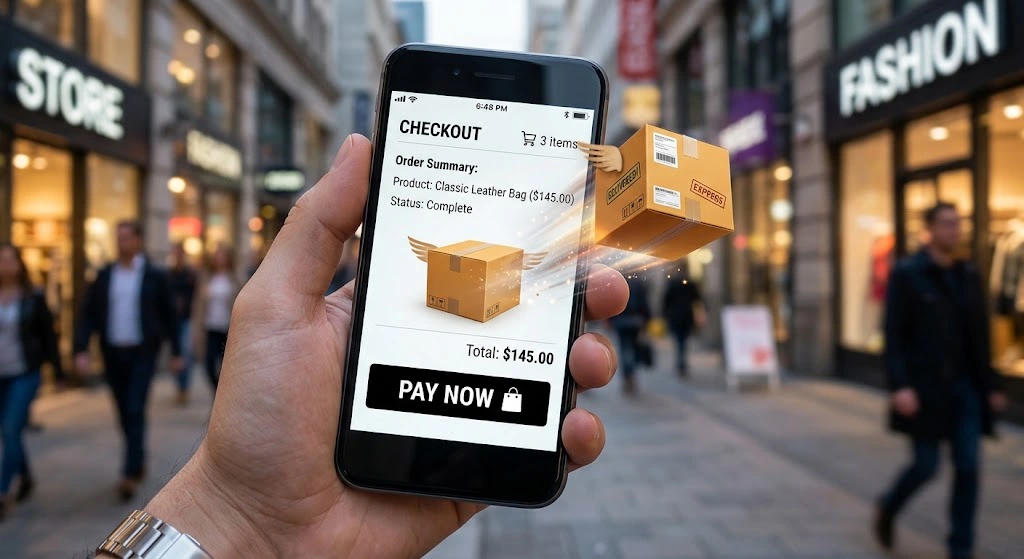
You can also pay without leaving your couch. Look for the Apple Pay button at checkout.
Pay on Websites in Safari
- Add an item to your cart and go to checkout.
- Tap the Apple Pay button, or Buy with Apple Pay.
- Review your shipping address, billing address, and contact info.
- Choose the card you want to use.
- Confirm the payment. On a Face ID iPhone, double-click the side button and look at your phone. On a Touch ID iPhone, use your fingerprint. You can also enter your passcode.
- Wait for the Done checkmark.
The nice part is that you skip typing your card number, name, and address. Apple Pay fills it in for you.
Image suggestion: screenshot of an Apple Pay checkout sheet in Safari. Alt text: Apple Pay checkout screen on iPhone showing card and shipping details
Pay Inside Apps
In-app payments work almost the same way:
- Pick what you want to buy.
- Tap the Apple Pay button.
- Check your payment details.
- Confirm with Face ID, Touch ID, or your passcode.
Pro tip: If the Apple Pay button does not show up, the store may not support it. You can still enter your card the regular way. If you often forget saved details, our guide to finding saved passwords on iPhone can help.
Where Can You Use Apple Pay?
| Where | How you pay | You need internet? |
|---|---|---|
| In stores | Hold iPhone near a contactless reader | Often not required |
| On websites | Tap the Apple Pay button at checkout | Yes |
| In apps | Tap the Apple Pay button in the app | Yes |
| On a Mac | Use Safari and confirm with Touch ID or your iPhone | Yes |
How to Use Apple Pay With Apple Watch and Mac
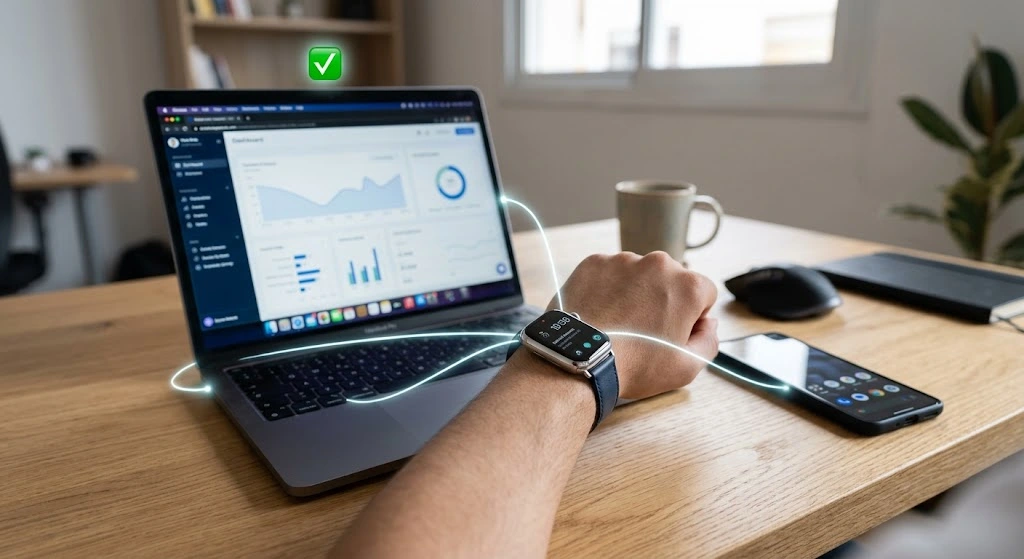
Your other Apple devices can help too.
Pay With Apple Watch
If you wear an Apple Watch, you can leave your phone in your pocket:
- Double-click the side button on your watch.
- Hold the display close to the reader.
- Wait for a gentle tap on your wrist.
Your cards need to be added to your watch first. You can do this in the Watch app on your iPhone.
Pay on Mac Using Your iPhone
You can use Apple Pay on a Mac in Safari. If your Mac has Touch ID, use that. If not, you can confirm on your nearby iPhone or Apple Watch.
To allow this on your iPhone:
- Open Settings, then tap Wallet & Apple Pay.
- Turn on Allow Payments on Mac.
When you check out on your Mac, your iPhone will ask you to approve the payment.
How to Manage Your Cards and Payment History
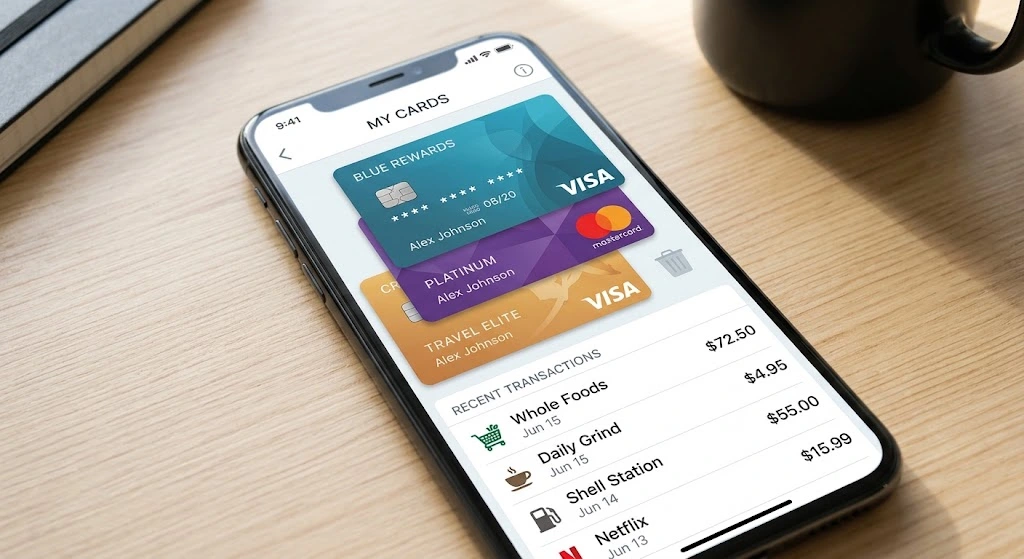
Once you start using Apple Pay, you will want to keep things tidy.
Switch Between Cards
Open the Wallet app and tap the card you want. You can also double-click the side button on a Face ID iPhone and pick a card from the stack.
View Transactions
- Open Wallet.
- Tap a card.
- Scroll down to see your recent transactions.
For full details, check your bank’s app or statement. Wallet only shows what your card issuer shares.
Remove a Card
- Open Wallet and tap the card.
- Tap the More button (three dots).
- Scroll down and tap Remove Card.
- Confirm.
Safety warning: Remove your cards before you sell, trade in, or give away your iPhone. For a full wipe, see our guide to erasing an iPhone.
Is Apple Pay Safe?
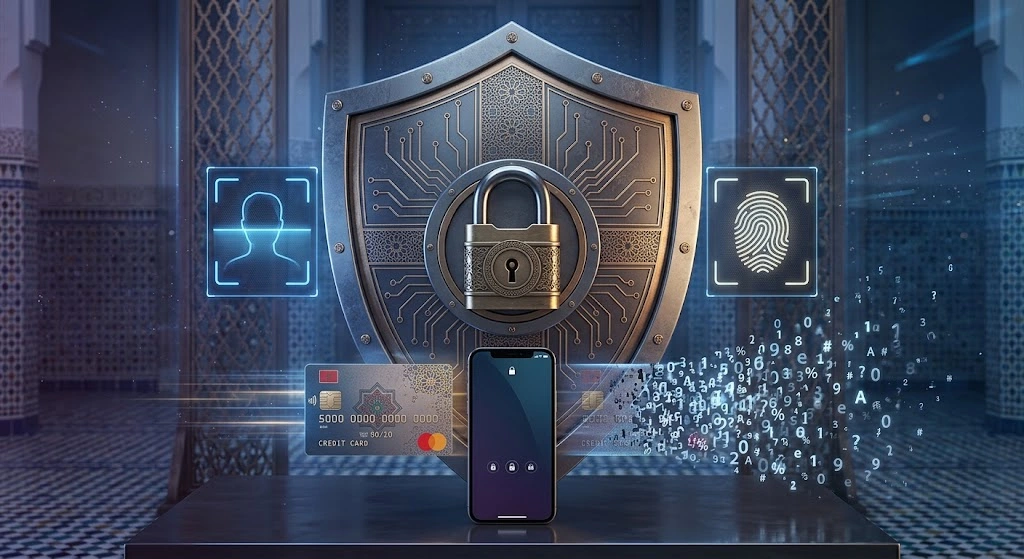
Yes. In most cases, Apple Pay is safer than swiping or typing your real card number. Here is why.
How Tokenization Protects Your Card Number
When you add a card, Apple does not give stores your actual number. Instead, your iPhone uses a special Device Account Number. Think of it as a stand-in for your card. Each payment also uses a one-time security code.
This means:
- Stores do not see your full card number.
- A stolen receipt cannot be used to copy your card.
- Every payment needs your approval with Face ID, Touch ID, or your passcode.
If you care about your privacy in general, you might also like our guide on how to stop app tracking on iPhone.
What to Do If You Lose Your iPhone
Act quickly. Here is the safe order:
- Use Find My to locate your iPhone. Our guide on how to use Find My iPhone walks you through it.
- Turn on Lost Mode (also called Mark as Lost). This helps stop payments from your device.
- Call your bank to report the loss if you are worried.
- If you think your account is at risk, change your Apple Account password.
Apple Pay Not Working? Quick Fixes
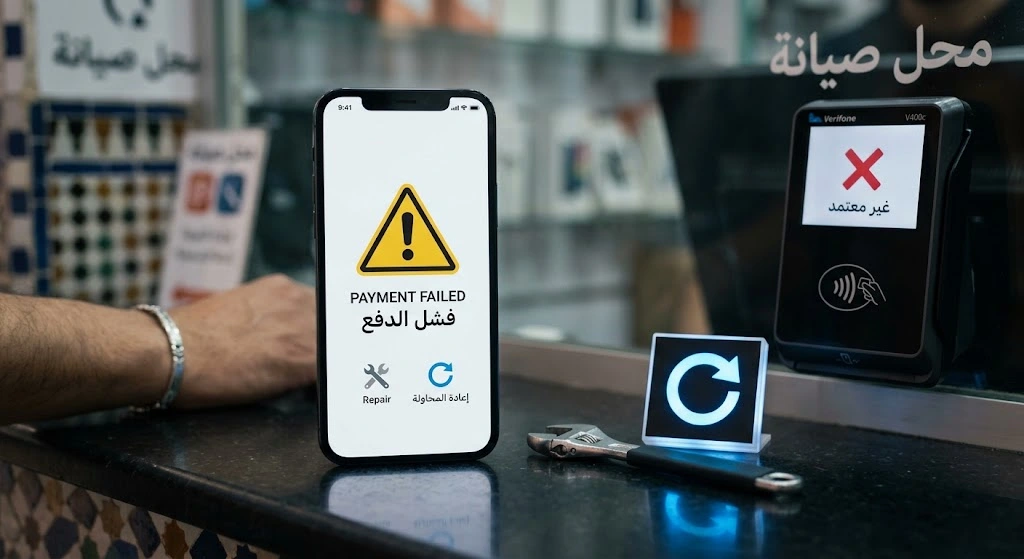
Sometimes a payment fails. Do not worry. Most problems have simple fixes.
| Problem | Likely cause | What to try |
|---|---|---|
| Reader does not respond | iPhone is too far away | Hold the top of your iPhone closer |
| Face ID will not scan | Face is covered or screen is dirty | Clean the screen or enter your passcode |
| Store says it cannot take Apple Pay | Reader is not contactless | Use your physical card |
| Card shows an error | Bank issue or expired card | Contact your bank or re-add the card |
| Apple Pay button is missing online | Store does not support it | Pay with a card number instead |
| Nothing works | Software glitch | Restart your iPhone and update iOS |
Restart Your iPhone and Check Your Connection
A restart clears many small bugs. Here is how to restart your iPhone. After that, check that you have a Wi-Fi or cellular signal for online payments.
Check the Card, the Terminal, and Your Region
- Look for the contactless symbol on the reader.
- Check that your card is not expired.
- Make sure Apple Pay is supported in your country.
- Remove any thick case that may block the signal.
Re-add the Card
If one card keeps failing, remove it from Wallet and add it again. This often refreshes the connection with your bank. Follow the steps in the “How to Add a Card to Apple Pay” section above.
Still stuck? Contact your bank first. Many Apple Pay problems come from the card issuer, not the iPhone.
Frequently Asked Questions
How does Apple Pay work?
Apple Pay lets you pay with cards stored in the Wallet app. When you hold your iPhone near a contactless reader, it sends a secure, one-time code instead of your real card number. You approve each payment with Face ID, Touch ID, or your passcode.
How do I set up Apple Pay on my iPhone?
Open the Wallet app and tap the plus (+) button. Choose Debit or Credit Card, scan or type your card details, and verify the card with your bank. You can also start from Settings > Wallet & Apple Pay > Add Card. It only takes a few minutes.
How do I pay with Apple Pay in a store?
On a Face ID iPhone, double-click the side button, look at your phone, and hold it near the reader. On a Touch ID iPhone, rest your finger on the Home button while you hold it near the reader. Wait for Done and a checkmark.
How do I use Apple Wallet on iPhone?
Apple Wallet is the app where your cards, passes, and tickets live. Open it to switch cards, check recent transactions, or add a new pass. Apple Pay is the payment feature that works through Wallet.
Is there an Apple Pay app?
No. Apple Pay is built into your iPhone, and you use it through the Wallet app. You do not need to download anything extra. Be careful with third-party apps that claim to be Apple Pay.
Can I use Apple Pay in India?
Apple has not officially confirmed an India launch date. News reports say it could arrive in late 2026, starting with credit cards and without UPI support. Check Apple’s Apple Pay page for the latest list of supported countries
Do I need internet to use Apple Pay in stores?
Often, no. In-store payments use NFC, so many purchases work without a strong signal. However, online and in-app payments always need internet. Adding a card also needs a connection.
Can I use Apple Pay without Face ID or Touch ID?
Yes, but you still need a passcode. If Face ID or Touch ID fails, you can type your passcode to approve a payment. Apple Pay will not work on an iPhone with no passcode set.
Does Apple charge a fee for using Apple Pay?
Apple does not charge you to pay with your cards. Your bank or card issuer sets its own terms, so check with them if you are unsure about any fees.
Can I use Apple Pay in any country?
No. Apple Pay is available only in certain countries and regions, and only with supported banks. Check Apple’s Apple Pay page before you travel.
What should I do if my iPhone is lost or stolen?
Use Find My to mark your iPhone as lost. This helps block payments. Then call your bank and consider changing your Apple Account password. The steps are in the “Is Apple Pay Safe?” section above.
Conclusion
Now you know how to use Apple Pay on iPhone from start to finish. Add your card in Wallet. In stores, double-click the side button (Face ID) or use Touch ID. Then hold your iPhone near the reader. Online and in apps, just tap the Apple Pay button and confirm.
It takes a few minutes to set up, and then it saves you time every day. Try it on your next coffee run. If something goes wrong, come back to the troubleshooting table above.
Related guides you may like:
- How to update your iPhone to the latest iOS
- How to find your passwords on iPhone
- How to back up your iPhone
- How to use Find My iPhone
Sources: Apple Support: Make purchases with Apple Pay on iPhone, Apple Support: Make purchases using Apple Pay, Apple Support: Set up cards and passes, Apple Support: Fill in payment information, Apple Pay, Wallet

