


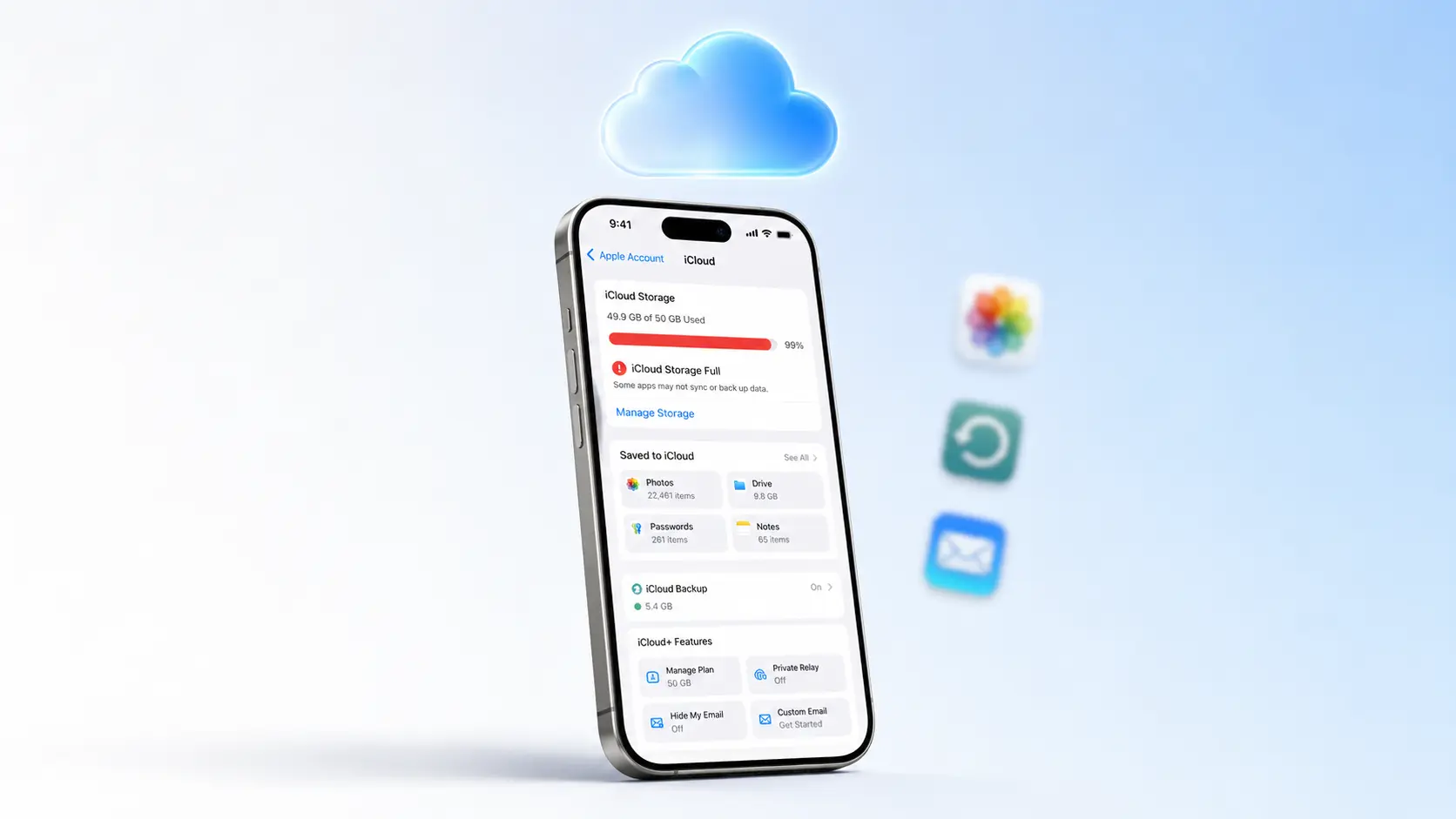
Why Is My iCloud Storage Full?
If your iCloud storage is full, you’re definitely not alone. Millions of iPhone users see that dreaded “Storage Full” notification every single day. It usually pops up at the worst possible moment right when you’re trying to back up your iPhone, download a new app, or snap an important photo of a special memory.
Here’s the good news: you don’t need to be a tech expert to fix this. In this complete guide, you’ll learn exactly how to fix an iCloud storage full issue, manage your backups like a pro, and keep your personal data safe without necessarily spending any money. We’ll walk you through every single step using simple language, practical examples, and tips that actually work in 2026.
Apple gives every user 5 GB of free cloud space. That might have sounded generous ten years ago, but in 2026—with 4K videos, massive photo libraries, and daily device backups—it disappears faster than you think. The moment you hit that limit, your iPhone starts complaining. Notifications appear. Backups fail. Photos stop syncing. And if you rely on iCloud Mail, you might even stop receiving new emails.
Expert Note: According to Apple Support, “When your iCloud storage is full, you can’t send or receive emails with your iCloud Mail address, and new photos and videos won’t upload to iCloud Photos.” That’s why fixing this quickly matters for your daily workflow.
iCloud Storage vs iPhone Storage: What’s the Difference?
Before we dive into solutions, let’s clear up a common point of confusion. Many people think iCloud storage and iPhone storage are the same thing. They’re not.
iPhone Storage is the physical space on your device. If you bought a 128 GB iPhone, that’s all you have on the phone itself. When that fills up, you can’t install new apps, take photos, or download updates.
iCloud Storage is cloud-based. It lives on Apple’s servers, not your phone. It stores your backups, photos, documents, and emails. You can access it from any device with your Apple ID.
Here’s why this matters: you can have plenty of iCloud space but a full iPhone, or an iCloud storage full situation with plenty of room left on your phone. Each problem has different solutions. In this guide, we’re focusing specifically on how to clear iCloud storage and fix the cloud side of the equation. If your local device is also full, check out our dedicated guide on iPhone storage management.
How to Check What’s Eating Your iCloud Space
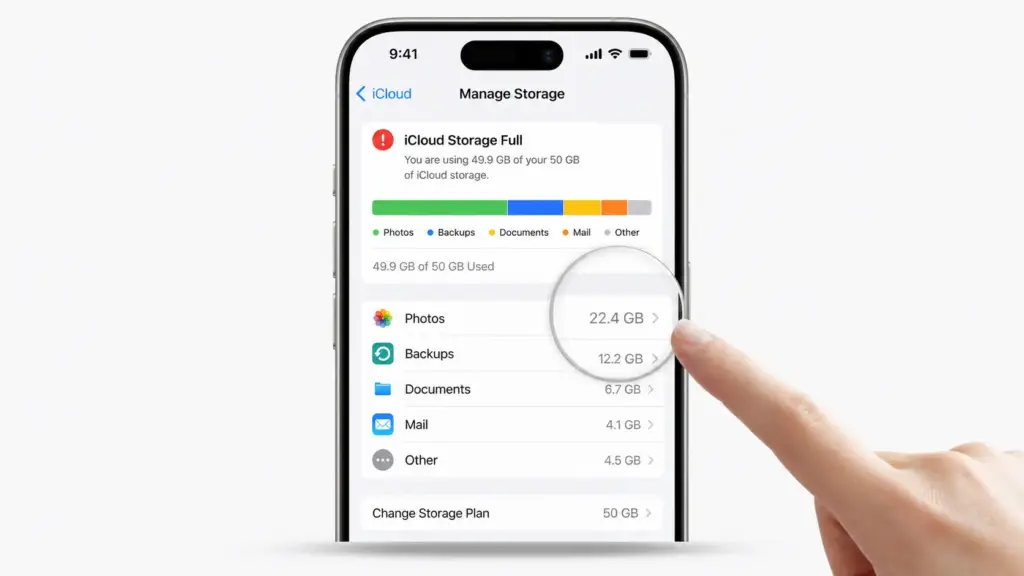
Before you start deleting anything, you need to know what’s actually taking up space. Apple makes this surprisingly easy, and the answer might not be what you expect.
Step-by-Step: View Your iCloud Storage Usage
- Open the Settings app on your iPhone.
- Tap your name and Apple ID picture at the very top.
- Tap iCloud from the menu.
- Tap Manage Account Storage (on older iOS versions, this may say Manage Storage).
You’ll see a colorful bar chart showing exactly what’s using your space. It breaks everything down into clear categories: Backups, Photos, Documents, Mail, and other app data.
The most common culprits include:
- iCloud Photos – Often the biggest user by far. Those high-resolution images and 4K videos add up incredibly fast. A single minute of 4K video can use 350 MB or more.
- Device Backups – Your iPhone backs up automatically when charging and connected to Wi-Fi. If you’ve owned multiple iPhones or iPads, old backups might still be sitting in your account.
- iCloud Drive – Files, PDFs, presentations, and app data stored in the cloud. Some apps dump data here without clearly telling you.
- Messages – Years of text conversations filled with photos, videos, GIFs, and voice messages can consume multiple gigabytes without you realizing it.
- Mail – Emails with large attachments sitting in your iCloud inbox count against your total.
- Voice Memos – Audio recordings sync to iCloud by default and can pile up over time.
Quick Tip: If you see an old device listed under Backups that you no longer own—maybe an iPhone you traded in two years ago—that backup is almost certainly safe to delete. We’ll show you exactly how below.
10 Proven Ways to Fix iCloud Storage Full

Now that you know what’s filling your cloud, let’s clear it out safely. These methods are effective, ordered from easiest to most thorough, and designed to protect your important data.
1. Delete Old iCloud Backups You Don’t Need
Your iPhone backs up automatically to iCloud every night when it’s charging and on Wi-Fi. But if you’ve upgraded phones, own multiple Apple devices, or restored a device in the past, you might have years of old backups eating up gigabytes of space.
How to delete old backups safely:
- Go to Settings > [Your Name] > iCloud > Manage Account Storage.
- Tap Backups from the list.
- You’ll see every device tied to your Apple ID. Tap any device you no longer use.
- Review the backup size and last backup date.
- Tap Delete Backup and confirm with Turn Off & Delete.
Important safety note: This only removes the cloud copy of that backup. The data on your actual iPhone stays completely untouched. However, if you want extra peace of mind, you can always back up your iPhone to a Mac or PC first using Finder or iTunes. That creates a local copy on your computer before you touch anything in the cloud.
Many users with an iCloud storage full message are shocked to discover they have three or four old device backups taking up 10 GB or more. Deleting just one can instantly solve your iCloud storage full problem.
2. Remove Duplicate and Unwanted Photos
Photos and videos are usually the number one reason your iCloud storage is full. Modern iPhones shoot stunning 4K video and high-resolution photos, but that quality comes with a storage cost. One minute of 4K video at 60 frames per second can consume over 400 MB. A weekend trip can easily generate 10 GB of media.
Quick fixes to reclaim space:
- Open the Photos app and scroll through your library. Delete blurry shots, duplicate selfies, accidental screenshots, and videos you no longer want.
- Don’t forget to empty the Recently Deleted album. When you delete a photo, it sits in this folder for 30 days—still using iCloud space—just in case you change your mind.
- If you have iOS 17 or later, use Apple’s built-in duplicate detection. Go to Photos > Albums, scroll down, and tap Duplicates. The iPhone will show you exact matches and near-duplicates, letting you merge them with one tap.
- You can also delete duplicate photos on iPhone manually if you prefer reviewing each image yourself.
Pro tip: Before mass-deleting, consider enabling Shared Albums for photos you want to keep accessible but don’t need in your personal library. Shared Albums don’t count against your iCloud storage at all.
3. Turn On “Optimize iPhone Storage” for Photos
This is one of Apple’s most helpful features for people struggling with limited storage—both locally and in the cloud. Instead of storing full-resolution versions of every single photo on your iPhone, this setting keeps lightweight, optimized copies on your device while the originals live safely in iCloud.
How to enable it:
- Open Settings.
- Scroll down and tap Photos.
- Under Photo Storage, select Optimize iPhone Storage.
When you do this, your phone automatically manages local storage. If you’re running low on device space, iOS removes the full-resolution copy from your iPhone but keeps a small preview. When you open the photo, it downloads the original from iCloud in seconds.
While this setting primarily manages local storage, it helps prevent an iCloud storage full scenario by keeping your overall storage strategy balanced and preventing situations where your phone and cloud are both screaming for space. It’s an essential part of learning how to manage iCloud storage effectively across all your devices.
4. Clean Up Messages and Large Attachments
You might not think of text messages as storage hogs, but years of group chats filled with photos, videos, memes, and voice messages can quietly consume multiple gigabytes. That hilarious GIF your friend sent six months ago? It’s still sitting in iCloud.
How to clear message storage:
- Go to Settings > General > iPhone Storage.
- Wait for the bar chart to load, then tap Messages from the list.
- Under Documents, you’ll see categories like Photos, Videos, GIFs and Stickers, and Other.
- Tap any category and review the largest items. Tap Edit or swipe to delete what you don’t need.
You can also set messages to auto-delete after a set period, which prevents future buildup:
- Go to Settings > Messages > Keep Messages.
- Choose 30 Days or 1 Year instead of Forever.
This is especially useful if you’re in active group chats where people share videos and photos daily. Setting a 30-day limit can free up surprising amounts of space over time and is a key step in any icloud storage full fix strategy.
5. Delete Files from iCloud Drive
Apps sometimes dump files into iCloud Drive without clearly asking for your permission, which quietly contributes to an iCloud storage full situation. Over months and years, this creates digital clutter that can reach several gigabytes. Presentation files, PDF downloads, app caches, and document scans all hide here.
How to clean up iCloud Drive:
- Open the Files app on your iPhone.
- Tap Browse at the bottom.
- Select iCloud Drive from the Locations list.
- Look through folders for old downloads, duplicate PDFs, outdated app data, or files you no longer recognize.
- Tap Select in the top corner, choose the files you want to remove, and tap the Trash icon.
Don’t forget: Deleted files move to the Recently Deleted folder inside the Files app, where they continue using storage for 30 days. Open Browse > Recently Deleted, tap Select, and choose Delete All to permanently erase them and actually reclaim the space.
6. Clear Out iCloud Mail
If you use an @icloud.com, @me.com, or @mac.com email address, every email in your inbox—including attachments—counts against your iCloud storage. Years of newsletters, promotional offers, shipping notifications, and attachments can quietly accumulate into a multi-gigabyte pile.
How to free up mail storage:
- Open the Mail app on your iPhone.
- Go to your iCloud inbox (it will be labeled clearly).
- Use the search bar to look for emails with large attachments. Try searching for terms like “PDF,” “attachment,” or “image.”
- Delete old newsletters, expired promotional emails, and bulky email threads you no longer need.
- Go to your Trash folder and empty it completely.
Pro tip: Consider switching promotional emails to a Gmail or Outlook address that doesn’t count against iCloud. Reserve your iCloud Mail for personal communication only. This simple habit can prevent your iCloud storage full problem from returning.
7. Review and Delete Voice Memos
Voice Memos sync to iCloud by default, and if you record frequently, they can be a hidden cause of an iCloud storage full warning. If you record meetings, lectures, song ideas, or random thoughts, those audio files can quietly consume hundreds of megabytes—or even gigabytes—over time.
How to manage them:
- Open the Voice Memos app.
- Browse your library for old recordings you no longer need.
- Swipe left on any recording and tap Delete.
- Go to the Recently Deleted folder at the bottom of the app and clear it out to permanently free the space.
If you use Voice Memos professionally, consider exporting important recordings to your computer or a service like Dropbox, then deleting them from iCloud. This keeps your cloud lean while preserving your audio archives.
8. Offload App Data You Don’t Use
Some apps store documents, settings, and user data directly in iCloud. If you downloaded a game a year ago, played it for a week, and forgot about it, its saved data might still be sitting in your cloud account.
How to check and clean app data:
- Go to Settings > [Your Name] > iCloud > Manage Account Storage.
- Scroll through the list under Documents & Data or Apps Using iCloud.
- Tap any app you no longer use.
- Select Delete Data or Delete Documents & Data to remove it from iCloud.
Be careful here: only delete data from apps you truly don’t use. If you’re unsure, open the app first and check whether it contains anything important. Some apps store critical files—like design projects or health records—that you might not want to lose.
9. Use the “Recommended for You” Feature
Starting with iOS 17, Apple added a personalized storage recommendation engine right inside your iCloud settings. This feature analyzes what’s actually filling your space and suggests specific, actionable steps to clear it.
How to find and use it:
- Go to Settings > [Your Name] > iCloud > Manage Account Storage.
- Scroll down to the Recommendations section.
- Review Apple’s suggestions. You might see options like “Delete Old Conversations,” “Remove Large Attachments,” or “Review Backups.”
- Tap any recommendation to act on it instantly.
This is one of the fastest ways to manage iCloud storage and resolve an iCloud storage full fix scenario because Apple does the detective work for you. It’s especially helpful if you’re not sure where to start or if multiple categories are eating up space at once.
10. Transfer Photos to Your Computer (Permanent Solution)
If you have thousands of photos and videos you want to keep but don’t need in iCloud, moving them to a computer or external drive is the ultimate long-term fix. This is the best way to free up iCloud storage if you’re a photographer, parent, or anyone who takes lots of videos. Learning how to clear iCloud storage by offloading them is the best strategy.
How to do it safely:
- Connect your iPhone to your PC or Mac using a reliable USB cable.
- On Windows, open the Photos app or File Explorer. On Mac, open Photos or Image Capture.
- Import all photos and videos to a dedicated folder on your computer.
- Verify the transfer was successful. Double-check that file sizes match and videos play correctly.
- Once you’re 100% sure everything copied safely, delete the originals from your iPhone.
- Don’t forget to empty the Recently Deleted album in the Photos app.
You can also transfer photos from iPhone to PC wirelessly using iCloud.com, AirDrop (for Mac), or third-party transfer tools. Once your photos are safely stored on your computer or an external hard drive, you can delete the cloud copies and reclaim massive amounts of space instantly.
Pro tip: Set a monthly reminder to transfer new photos to your computer. This simple habit prevents your cloud from ever filling up again.
Common Mistakes to Avoid When Cleaning iCloud
When people first see an iCloud storage full warning, they often panic and make rash decisions that cause data loss. Here are the biggest mistakes to avoid.
Deleting Photos Without a Backup
Never mass-delete photos from iCloud Photos without confirming you have a backup somewhere else. Once you empty the Recently Deleted folder, those images are gone forever. Always download your favorites to a computer first.
Turning Off iCloud Backup Completely
Some users disable iCloud Backup entirely to save space. That’s risky. If your iPhone is lost, stolen, or damaged, you’ll have no backup to restore from. Instead of turning it off, delete old backups or upgrade your storage plan.
Ignoring the “Recently Deleted” Folders
Remember: deleting something from Photos, Files, or Voice Memos doesn’t immediately free up space. Those items sit in a “Recently Deleted” folder for 30 days. You must empty those folders to actually reclaim storage.
Confusing iPhone Storage with iCloud Storage
We mentioned this earlier, but it’s worth repeating. If you delete an app to free up space but your iCloud is what’s actually full, you haven’t solved anything. Always check Settings > [Your Name] > iCloud to confirm which type of storage is causing the alert.
Should You Upgrade to iCloud+?
Sometimes, no amount of deleting is enough. If you have a large photo library, multiple Apple devices, or a family to share with, upgrading to iCloud+ might be the smartest and most stress-free move.
iCloud+ Plans (2026)
| Plan | Storage | Price (USD) | Best For |
|---|---|---|---|
| Free | 5 GB | Free | Very light users, basic backups only |
| iCloud+ | 50 GB | $0.99/month | Single user with moderate photos and apps |
| iCloud+ | 200 GB | $2.99/month | Families, power users, heavy photo libraries |
| iCloud+ | 2 TB | $9.99/month | Multiple devices, professionals, video creators |
| iCloud+ | 6 TB | $29.99/month | Creators with large media libraries |
| iCloud+ | 12 TB | $59.99/month | Extensive professional cloud needs |
What you get with iCloud+ beyond storage:
- iCloud Private Relay – Encrypts your browsing activity in Safari so websites can’t track your IP address.
- Hide My Email – Create unlimited random email addresses that forward to your real inbox, protecting your privacy.
- Custom Email Domain – Use your own personal or business domain with iCloud Mail.
- HomeKit Secure Video – Store security camera footage without it counting against your storage limit.
- Family Sharing – Share your 200 GB or 2 TB plan with up to five family members.
Expert Quote: Apple states, “iCloud+ gives you access to premium features and more storage for your photos, files, and backups.” For many everyday users, the $0.99 plan alone completely solves the iCloud storage full problem while adding meaningful privacy tools.
When comparing iCloud storage plans, the 50 GB plan costs $0.99 per month—less than a cup of coffee—and eliminates storage headaches permanently. Understanding iCloud storage plans helps you pick the right option for your household.
How to upgrade in seconds:
- Go to Settings > [Your Name] > iCloud > Manage Account Storage.
- Tap Buy More Storage or Change Storage Plan.
- Select the plan that fits your needs.
- Confirm with Face ID, Touch ID, or your Apple ID password.
The upgrade happens instantly, and your iPhone will resume backing up and syncing photos immediately.
How to Prevent iCloud Storage from Filling Up Again
Fixing an iCloud storage full warning once is great. Keeping it fixed forever is even better. Here are simple, low-effort habits to adopt if you want to know how to free up iCloud storage consistently so you never see that “Storage Almost Full” alert again.
Enable Automatic Cleanup Features
- Turn on Optimize iPhone Storage for Photos (covered in Step 3 above).
- Set Messages to auto-delete after 30 days instead of keeping everything forever.
- Regularly review and delete screenshots, screen recordings, and duplicate images.
- Use the built-in duplicate detection tool in Photos every few months.
Review Your Backups Monthly
Make it a habit to check your iCloud backups once a month. Remove old device backups, verify your current iPhone is backing up successfully, and confirm the backup size looks reasonable. If you ever need to clear system data on iPhone, doing this regularly makes the entire process smoother and less stressful.
Be Selective About What Syncs
Not every app needs to live in iCloud. Go to Settings > [Your Name] > iCloud and review the list of apps using iCloud. Toggle off anything that doesn’t need cloud syncing. For example, if you don’t use iCloud Mail or Notes, turning them off stops unnecessary data from accumulating.
Use Alternative Storage for Large Projects
For massive video editing projects, RAW photo libraries, or professional document archives, consider alternative services like Google Photos, Dropbox, or an external SSD. This keeps your iCloud lean and fast while your biggest files stay accessible elsewhere. It’s one of the most reliable ways to manage iCloud storage over the long term.
Share Storage with Family
If you have a 200 GB or 2 TB iCloud+ plan, set up Family Sharing. This lets up to five family members share your storage pool without seeing each other’s personal data. It’s often cheaper than everyone paying for separate plans. Understanding iCloud storage plans helps you pick the right option for your household.
FAQ
What happens when my iCloud storage is full?
When your iCloud storage is full, several critical functions stop working. Your iPhone will no longer back up automatically to iCloud, new photos and videos won’t upload to iCloud Photos, and if you use iCloud Mail, you won’t be able to send or receive new emails. You’ll also see persistent notifications and warnings on your device until you free up space or upgrade your plan.
Will I lose my photos if I delete them from iCloud?
If iCloud Photos is enabled on your device, deleting a photo from your iPhone also deletes it from iCloud—and vice versa. They stay in sync. To keep a permanent copy, download your photos to a computer, external hard drive, or another cloud service first. Once you have a safe backup, you can delete them from iCloud without worry.
How much free iCloud storage do I get?
Every Apple ID comes with 5 GB of free iCloud storage. That’s enough for basic device settings, a small number of photos, and light app data. However, it fills up quickly with 4K videos, multiple device backups, and large message attachments. Most users hit the limit within the first year of owning an iPhone.
Can I free up iCloud storage without deleting anything?
Technically, no. To actually free up space, you must remove something from your cloud account. However, you can move photos to a computer, compress large files, or switch data to a different cloud service like Google Drive. The closest “no-delete” option is upgrading to an iCloud+ plan, which gives you more room without touching your existing files.
Why does my iPhone say storage is full when I have iCloud space?
iPhone storage and iCloud storage are completely separate. Your iPhone has a fixed physical capacity (like 128 GB or 256 GB). iCloud is cloud storage on Apple’s servers. If your phone is full but iCloud has space, you need to free up local storage by deleting apps, offloading unused programs, or enabling “Optimize iPhone Storage.” You can learn more about managing iPhone storage in our detailed guide.
Is iCloud+ worth the money?
For the vast majority of users, yes. The 50 GB plan costs $0.99 per month—less than a single cup of coffee—and eliminates storage headaches permanently. If you use multiple Apple devices, share photos with family, or rely on iCloud Mail, the 200 GB or 2 TB plans offer excellent value. Plus, you get privacy features like iCloud Private Relay and Hide My Email included at no extra cost.
Conclusion
Seeing an iCloud storage full notification is frustrating, but it’s completely fixable. Start by checking what’s actually using your space, then work through the 10 proven steps above. Delete old backups, clean up photos and messages, review iCloud Drive, and consider whether an iCloud+ upgrade fits your budget and lifestyle.
Remember, you don’t have to do everything at once. The key is staying proactive, learning how to clear iCloud storage regularly, and building simple habits so that little notification never catches you off guard again. Even clearing out one old backup or deleting a few large videos can buy you months of breathing room.
If you want to learn more about how to free up iCloud storage without losing precious memories, explore our related articles on how to back up your iPhone, clear system data, and transfer photos to your PC. Stay organized, stay backed up, and enjoy your iPhone without the storage stress.

