


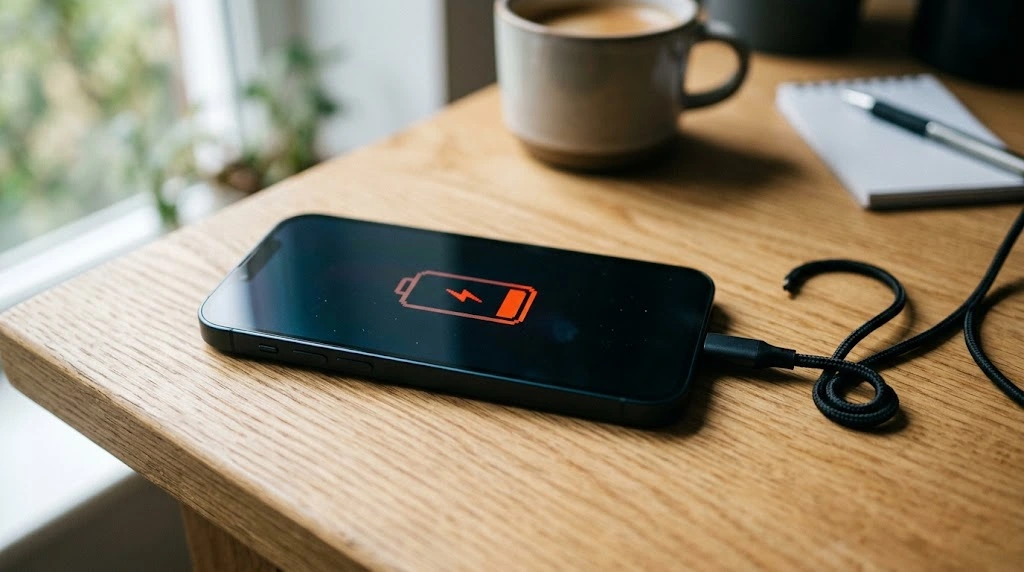
Is your iPhone not charging even though it’s plugged in? If you’re thinking “my iPhone is not charging, what now?”, don’t panic. Most charging problems come from a small issue you can fix at home in a few minutes. Most charging problems come from a small issue you can fix at home in a few minutes. This guide walks you through 11 fixes, starting with the easiest. They work on all iPhone models, from older Lightning phones to the newest USB-C models.
Why Is My iPhone Not Charging?
A few causes show up again and again:
- A dirty charging port. Pocket lint and dust are the most common culprits.
- A worn or uncertified cable or adapter. Cheap or frayed accessories fail often.
- A software glitch. A quick restart can clear it.
- Moisture in the port. Your iPhone blocks charging to protect itself.
- An aging battery. Older batteries charge slowly or not at all.
- An outdated iOS version. Rarely, a bug interferes with charging.
Quick tip: Work through the fixes in order. The first five solve most cases, and each takes under two minutes.
1. Check Your Charging Cable and Adapter
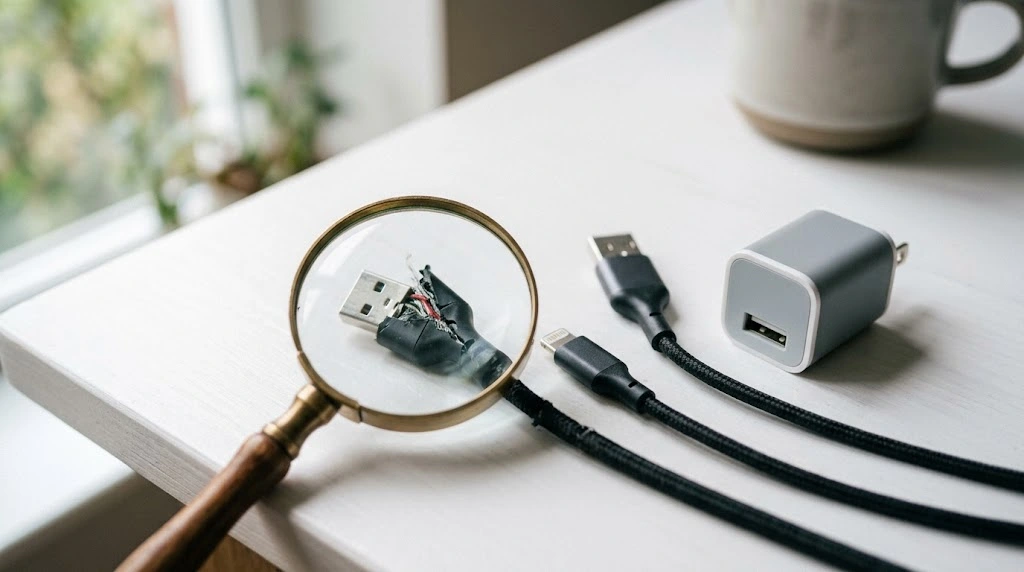
A damaged cable is the number one reason an iPhone stops charging. It’s also the easiest thing to test.
What to do:
- Inspect both ends of the cable for fraying, bends, or discolored metal.
- Try a different cable, ideally an Apple cable or an MFi-certified one.
- Swap the wall adapter too.
- Plug directly into a wall outlet, not a hub or extension.
If you see an “Accessory Not Supported” message, the cable or charger may be damaged or uncertified.
iPhone 15 and later: These models use USB-C, not Lightning. Make sure your cable and adapter match. A cheap USB-C cable can charge very slowly. For adapter ideas, see our iPhone 16 charger guide.
2. Clean the Charging Port
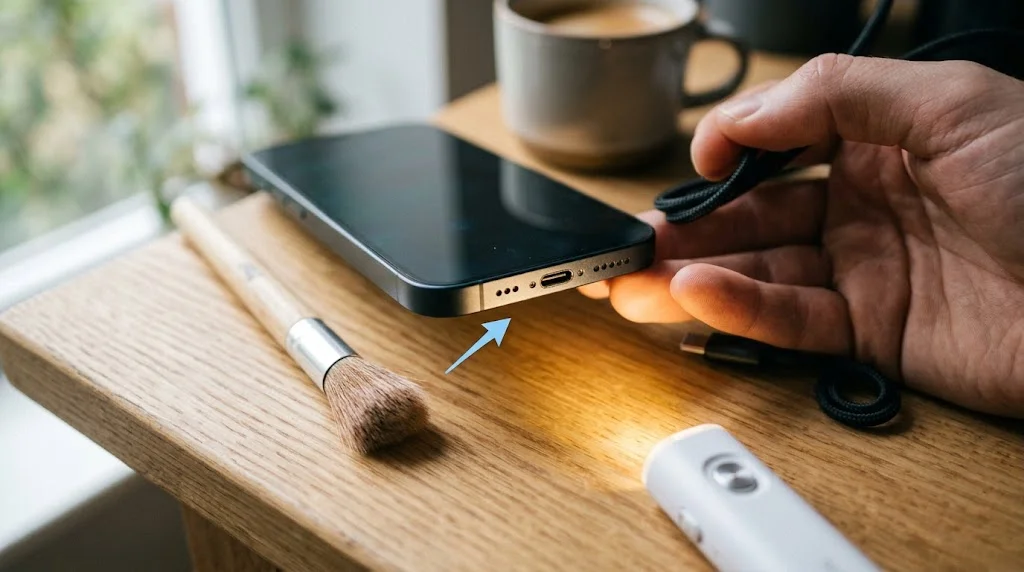
Lint from your pocket builds up inside the port over time. It stops the cable from clicking in all the way, and charging becomes slow or keeps cutting out.
The short version:
- Turn off your iPhone and unplug it.
- Shine a flashlight inside.
- Gently brush the lint out with a soft brush, then use a wooden or plastic toothpick only if needed.
- Never use metal.
For the full steps, tool list, and Lightning vs USB-C tips, read our guide on how to clean your iPhone charging port.
If charging still fails after cleaning, keep going with the next fixes.
3. Try a Different Power Source
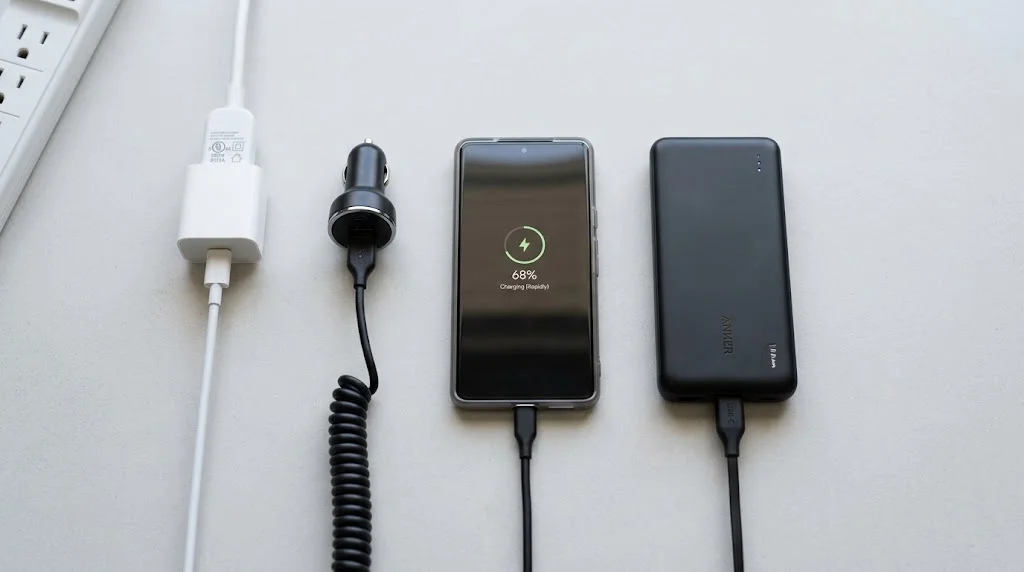
Sometimes the problem isn’t your iPhone. It’s the outlet or the power source.
Try these:
- Plug into a different wall outlet.
- Use a wall adapter instead of a computer USB port. Computer ports often charge slowly.
- Test a car charger or power bank.
- Borrow a charger that you know works.
If your iPhone charges from another source, the original adapter or outlet is the problem.
4. Remove Your iPhone Case
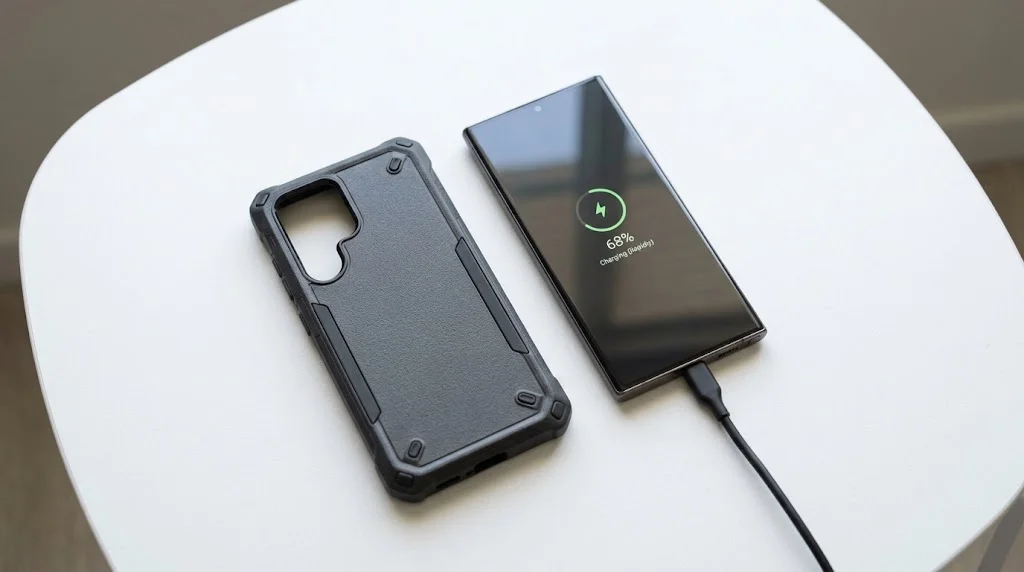
A thick or badly fitted case can stop the plug from reaching the port. This is more common with USB-C.
- Take the case off.
- Plug the cable in directly.
- Check for the charging symbol.
It takes ten seconds and rules out a simple cause.
5. Restart Your iPhone
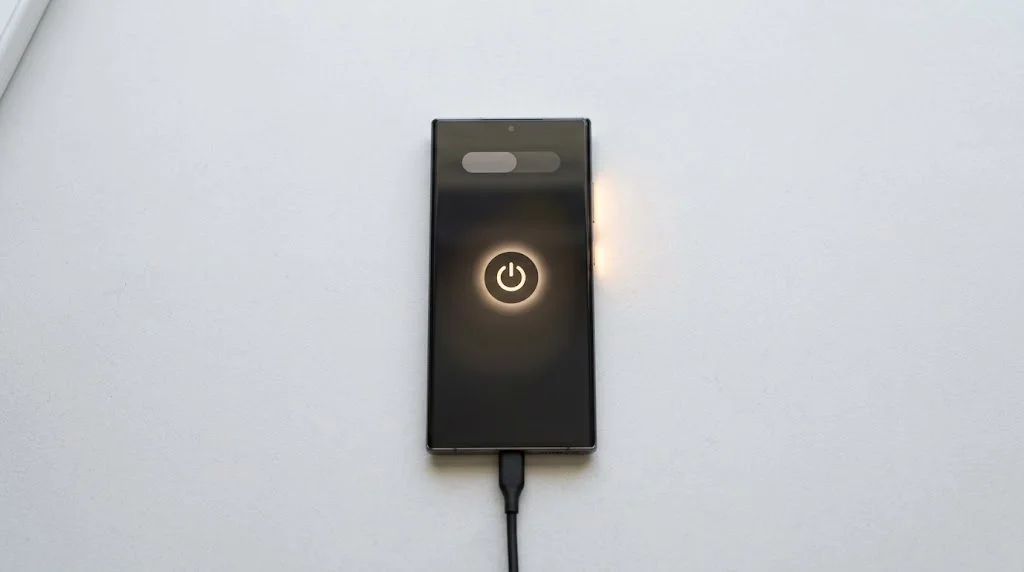
A software glitch can block charging even when the hardware is fine. A restart clears temporary bugs.
Face ID iPhones (iPhone X and later):
Hold the Side button and either Volume button, slide to power off, then press the Side button to turn it back on.
iPhone SE and iPhones with a Home button:
Hold the Side (or Top) button, slide to power off, then press it again to turn on.
Plug in your charger and wait about 30 seconds. For more help, see our guides on how to restart your iPhone and how to turn off your iPhone.
If your screen is black: Charge for at least 30 minutes, then try a force restart. If it still won’t start, see iPhone won’t turn on.
6. Check for Moisture
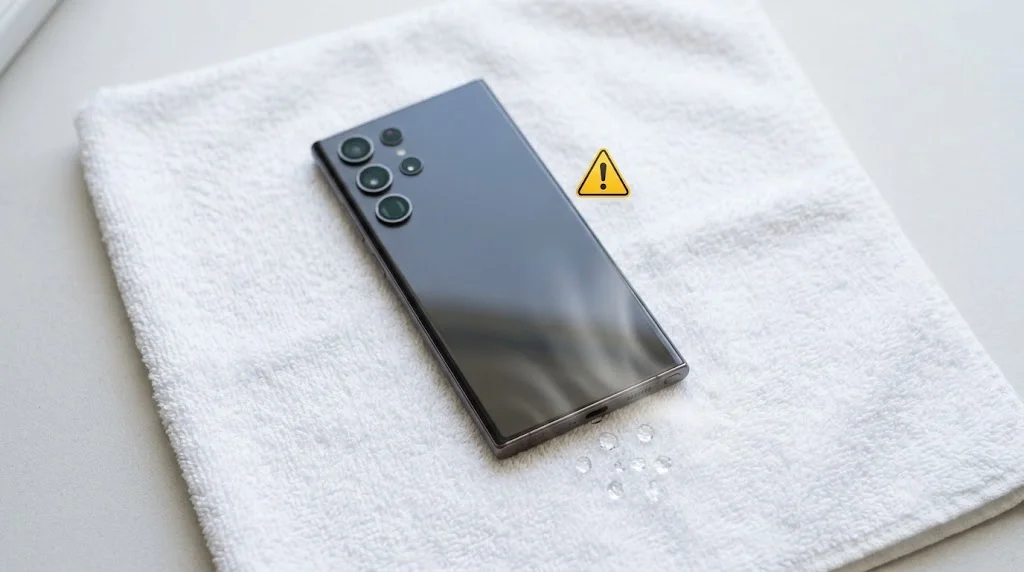
iPhones can detect liquid in the charging port. When they do, they may show a “Liquid Detected” alert and disable charging. This is a safety feature.
What to do:
- Unplug the cable. Don’t charge while the alert is showing.
- Tap the phone gently against your palm, port facing down.
- Leave it somewhere dry with good airflow for at least 30 minutes, and longer if needed.
- Don’t put it in rice. Small grains can get stuck in the port.
- Try charging again once the port is dry.
If the alert keeps returning even though the port looks dry, there may be moisture inside that needs professional help.
Good to know: The alert is about moisture, not lint. If your port is simply dirty, see fix 2.
7. Update iOS
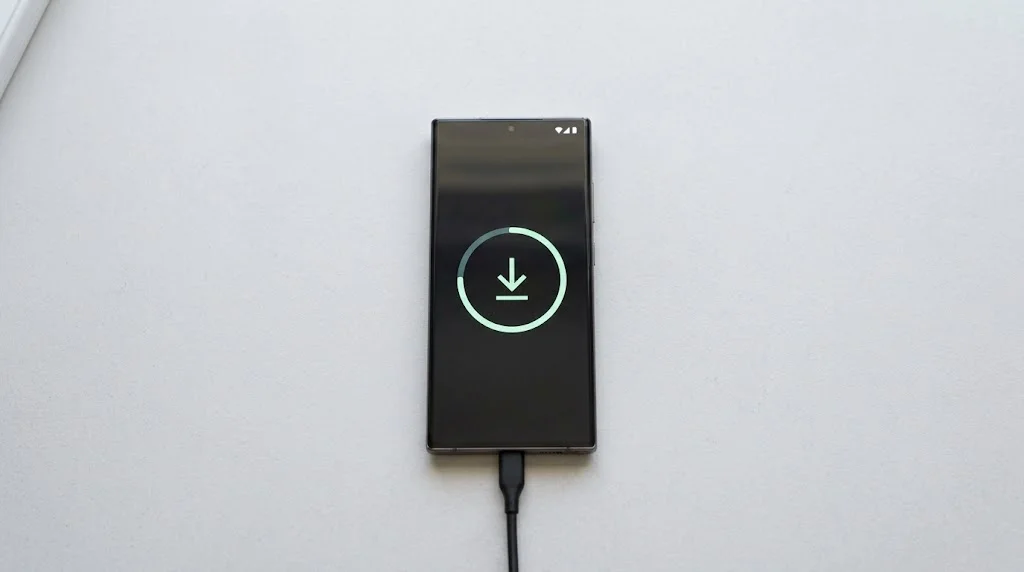
Software updates fix bugs, including rare charging problems.
- Go to Settings → General → Software Update.
- Tap Download and Install if an update is available.
- Stay on Wi-Fi and keep your iPhone near a power source.
Need more help? Read our iPhone update guide.
8. Check Your Charging Settings
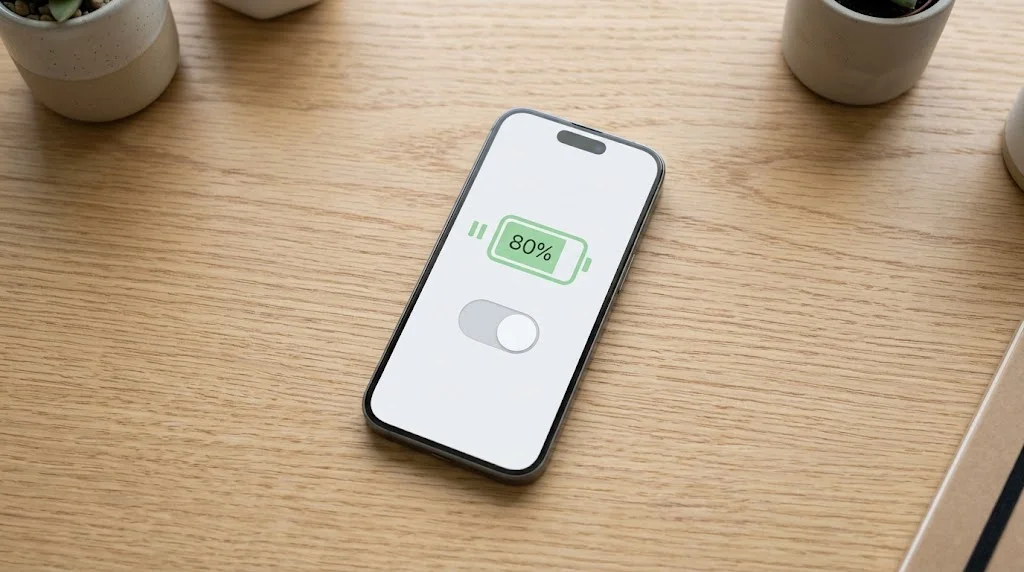
Sometimes your iPhone is charging, just not the way you expect. Two settings can cause this.
Optimized Battery Charging
Your iPhone learns your routine and may pause charging at around 80% to reduce battery wear. It then finishes charging later.
To check: Go to Settings → Battery → Battery Health & Charging.
Charge limit on newer models
Some newer iPhones let you cap charging at a set level, like 80%. If your phone stops there, check this setting.
You can turn these off for a day if you need a full charge. Also remember that your iPhone may stop near 80% when it’s hot. Let it cool first. If this happens a lot, read our iPhone overheating guide.
9. Try Wireless Charging
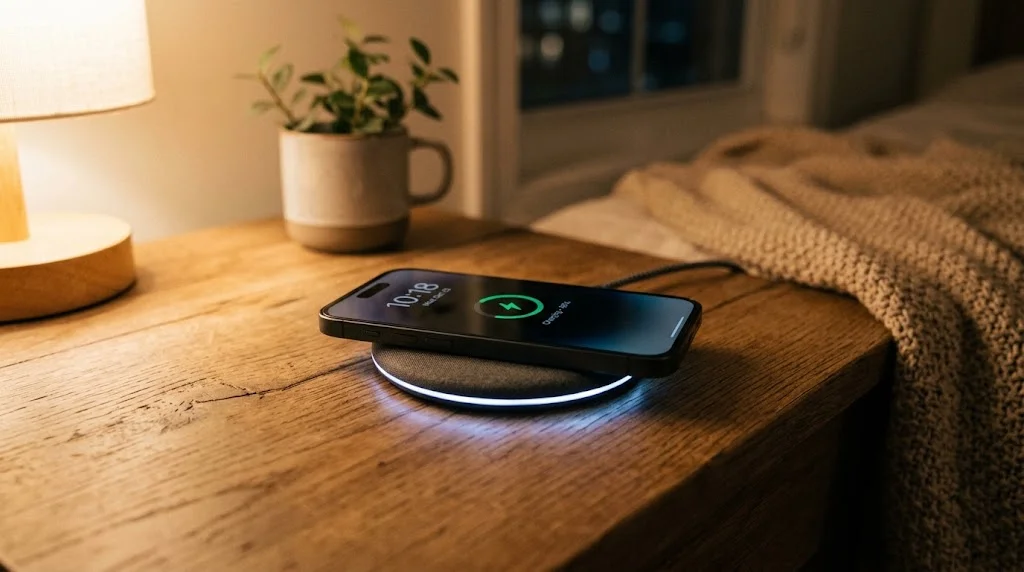
Wireless charging is a great test. It works on iPhone 8 and later, and MagSafe works on iPhone 12 and later.
- Place your iPhone on a Qi or MagSafe charger.
- Center it on the pad.
- Look for the charging symbol.
What the result tells you:
- Charges wirelessly but not with a cable → the port or cable is probably the issue.
- Doesn’t charge either way → the battery or software may be at fault.
10. Reset All Settings
If nothing has worked, a settings reset can clear hidden software conflicts. It doesn’t delete your photos, apps, or data.
- Go to Settings → General → Transfer or Reset iPhone.
- Tap Reset → Reset All Settings.
- Enter your passcode and confirm.
You’ll need to re-enter Wi-Fi passwords and redo some preferences. For other reset types, see how to reset your iPhone.
11. Contact Apple Support or Replace the Battery
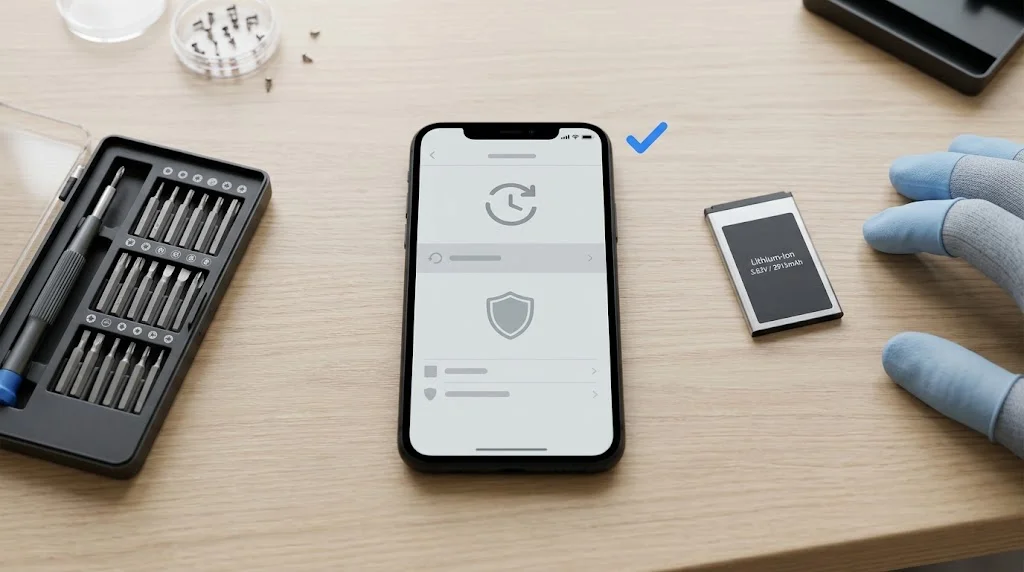
If you’ve tried everything and your iPhone is still not charging, it’s probably a hardware problem. Common causes are a damaged charging port or a worn-out battery.
Your options:
- Book an appointment at an Apple Store or contact Apple Support
- Visit an Apple Authorized Service Provider
- Find a trusted shop with our iPhone repair near me guide
Before you book:
- Check your coverage with our iPhone warranty check.
- Look at your battery’s condition in our battery health guide. If it’s low, a battery replacement may be the best fix.
For official guidance, see Apple’s page on what to do if your iPhone won’t charge on support.apple.com, and the Apple repair page.
Quick Comparison Table
| Fix | Time | DIY? | Best for |
|---|---|---|---|
| Check cable and adapter | 1 min | ✅ | Frayed or uncertified accessories |
| Clean the charging port | 3–5 min | ✅ | Loose cable, lint in port |
| Try a different power source | 1 min | ✅ | Outlet or adapter problems |
| Remove the case | 10 sec | ✅ | Plug not reaching the port |
| Restart your iPhone | 1 min | ✅ | Software glitches |
| Dry the port | 30+ min | ✅ | “Liquid Detected” alert |
| Update iOS | 10–20 min | ✅ | Software bugs |
| Check charging settings | 1 min | ✅ | Charging stops near 80% |
| Wireless charging test | 1 min | ✅ | Port vs battery diagnosis |
| Reset all settings | 5–10 min | ✅ | Persistent software issues |
| Apple repair or battery swap | 1–3 days | ❌ | Hardware damage, worn battery |
FAQ About iPhone Not Charging
Why is my iPhone plugged in but not charging?
The most common causes are a dirty port, a faulty cable, or a software glitch. Try a new cable first, then clean the port and restart your iPhone.
My iPhone suddenly won’t charge. What happened?
A sudden stop is often a damaged cable, packed lint, or moisture. Test another cable, then check the port with a flashlight. If you’ve been near water, look for the “Liquid Detected” alert.
Why does my iPhone say it’s charging, but the percentage isn’t going up?
Your phone may be using as much power as it receives. This happens with weak chargers, computer USB ports, or heavy use while charging. Use a proper wall adapter and close demanding apps.
Can a software update fix iPhone charging problems?
Sometimes. Updates fix known bugs. Check Settings → General → Software Update.
Is it safe to charge my iPhone overnight?
Yes, modern iPhones manage charging to protect the battery. Use a quality, Apple-certified or MFi-certified charger.
How do I know if my iPhone battery needs replacing?
Check Settings → Battery → Battery Health & Charging. Apple considers a capacity under 80% a sign of wear. Rapid drain and unexpected shutdowns are other signs.
What should I do if my iPhone is not charging?
Start with the simple checks. Try a different cable and adapter, clean lint from the port, and restart your iPhone. If my iPhone is not charging after all of that, check for moisture and update iOS, then contact Apple Support.
Conclusion
An iPhone not charging is frustrating, but the cause is usually simple. Start with the cable and port, then move through the software fixes. If nothing works, a repair shop or Apple can check for hardware damage.
Quick recap:
✅ Check your cable and adapter
✅ Clean the charging port
✅ Try a different power source
✅ Remove your case
✅ Restart your iPhone
✅ Dry the port if there’s moisture
✅ Update iOS
✅ Check charging settings
✅ Test wireless charging
✅ Reset all settings
✅ Contact Apple if nothing works
Related guides:
- How to Clean Your iPhone Charging Port
- How to Check Battery Health on iPhone
- iPhone Battery Replacement Guide

