


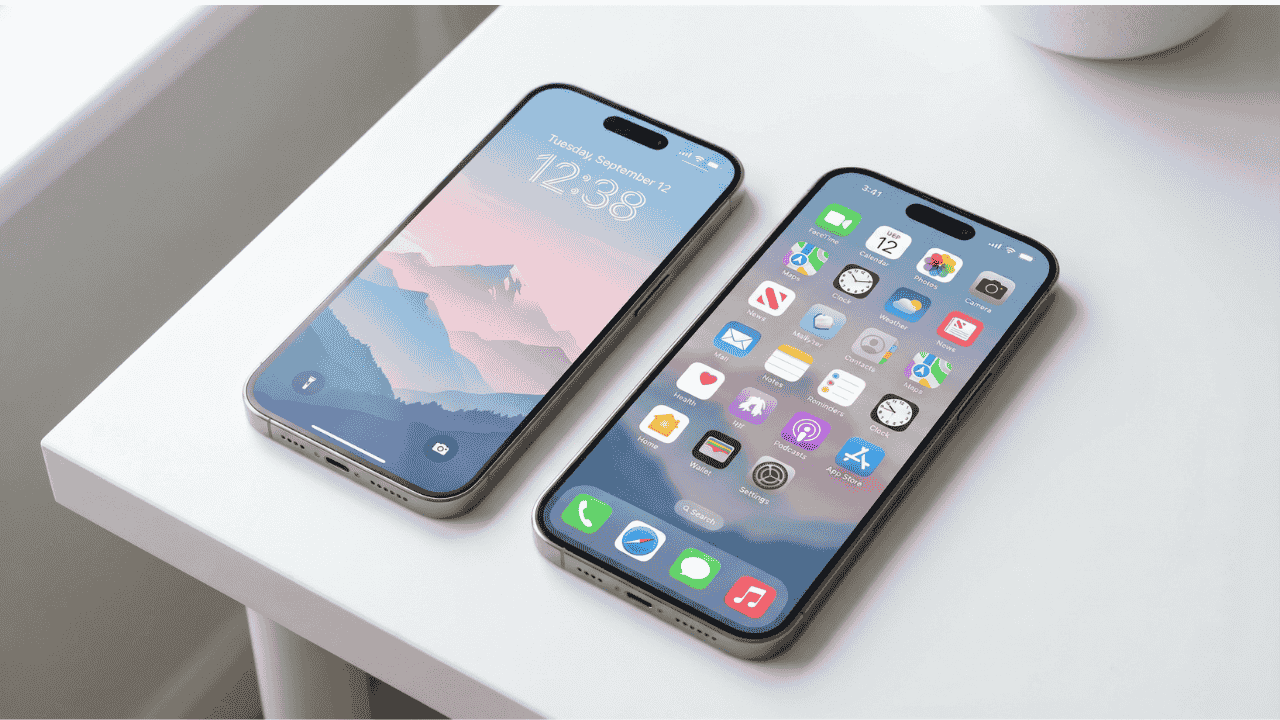
Want to give your iPhone a fresh new look? Changing your iPhone wallpaper is one of the easiest — and most satisfying — ways to personalize your device. Whether you want a cozy aesthetic vibe, a sleek minimal design, or a favorite photo, iOS 18 makes the whole process faster and more flexible than ever.
In this guide, you’ll learn exactly how to change your iPhone wallpaper on iOS 18, step by step. We cover the lock screen, the home screen, Photo Shuffle, and even what to do when your wallpaper just won’t change. Let’s dive in.
What’s New With iPhone Wallpaper in iOS 18
Apple has continued refining the wallpaper experience with each iOS update, and iPhone wallpaper iOS 18 is no exception. In iOS 18, you get even more granular control over how your lock screen and home screen look and feel.
Here’s a quick look at what’s improved in iOS 18:
- Paired Lock & Home Screens: Each lock screen can be linked to a specific home screen layout.
- Depth Effect Wallpapers: Subjects in photos appear to “pop” in front of the clock on your lock screen.
- Live Activities Integration: Dynamic wallpapers now interact with Live Activities.
- More Widget Customization: Place widgets on your lock screen without covering your wallpaper.
- Expanded Photo Shuffle: Auto-rotate wallpapers from your photo library by category, people, or album.
“iOS 18 gives you the ability to pair a Lock Screen with a Focus, so you can create different Lock Screens for work, personal use, or sleep — each with its own wallpaper.” — Apple Support
These features make personalizing your iPhone more intuitive than ever before.
How to Change iPhone Wallpaper (Lock Screen)
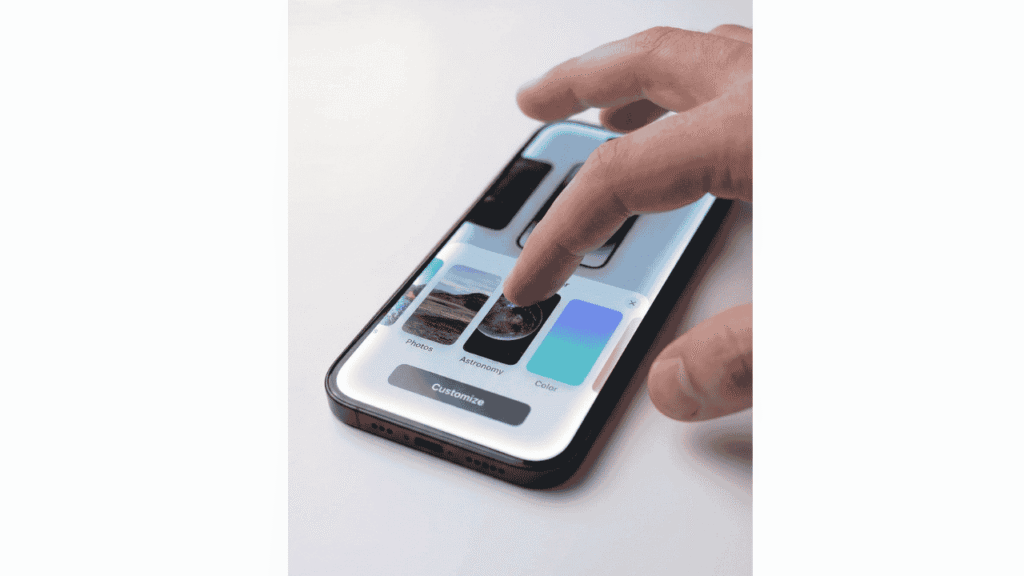
The iPhone lock screen wallpaper is the first thing you see every time you pick up your phone. Here’s how to change it:
Method 1: From the Lock Screen (Quickest Way)
- Wake your iPhone and go to the Lock Screen.
- Press and hold anywhere on the lock screen until the wallpaper gallery appears.
- Tap the + (Add New) button at the bottom to create a new wallpaper.
- Choose from one of these options:
• Photos — use your own image
• Photo Shuffle — rotate through multiple images
• Emoji — build a pattern from emoji
• Weather — live weather conditions
• Astronomy — Earth, Moon, or Solar System views
• Color — solid or gradient colors
- Customize your wallpaper using the editor — add widgets, change the font of your clock, or apply filters.
- Tap Add in the top right, then choose Set as Wallpaper Pair or customize your home screen separately.
�� Note: The depth effect works best with portrait photos where the subject is clearly separated from the background.
Method 2: From Settings
- Open the Settings app.
- Scroll down and tap Wallpaper.
- Tap Add New Wallpaper. You’ll see the same gallery of options.
- Make your selection, customize it, and tap Add. Done!
Both methods work great. The lock screen method is a bit faster once you get the hang of it.
For more tips on decluttering your lock screen experience, check out our guide on how to hide apps on iPhone to keep things clean and organized.
How to Set Wallpaper on iPhone Home Screen
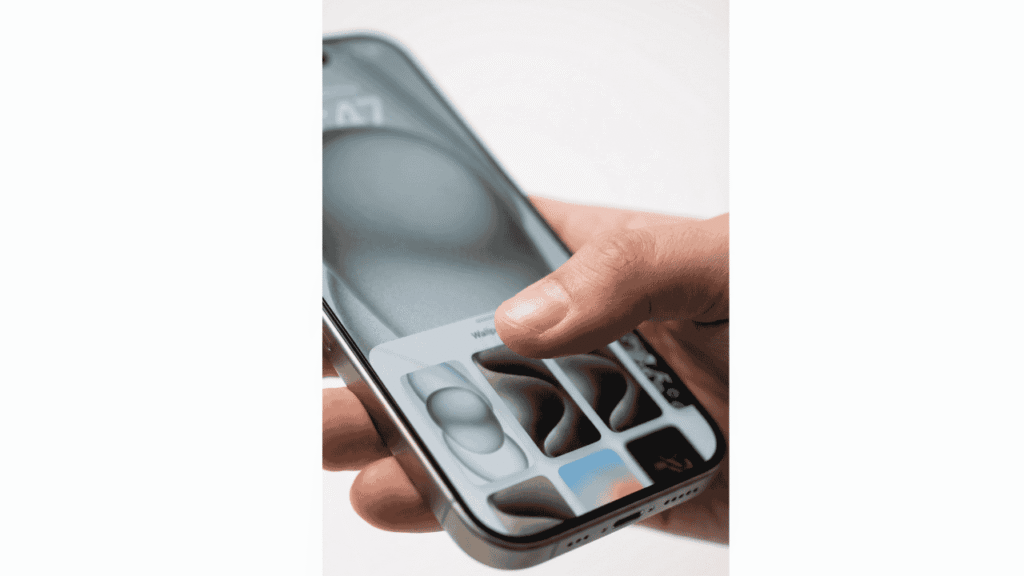
Want to set wallpaper on your iPhone home screen separately from your lock screen? iOS 18 lets you do exactly that.
Steps to Change Only the Home Screen Wallpaper
- Go to Settings > Wallpaper.
- Tap Customize under the Home Screen preview.
- Choose Blur to blur the wallpaper, Color to apply a color overlay, or Gradient for a smooth color blend.
- Alternatively, tap Add New Wallpaper to set an entirely different image for your home screen.
- Tap Done to save your changes.
�� Note: You can also pair specific home screen layouts with specific lock screens. This is especially useful if you use Focus modes.
It’s a small change, but having a different wallpaper on your home screen versus lock screen can really elevate the look of your iPhone.
Using Photo Shuffle iPhone Wallpaper
One of the coolest features in recent iOS updates is Photo Shuffle iPhone wallpaper. Instead of a single static image, your wallpaper automatically rotates through a set of your photos.
How to Set Up Photo Shuffle
- Press and hold your lock screen to open the wallpaper gallery.
- Tap + Add New and select Photo Shuffle.
- Choose photos manually, or let iOS 18 pick them automatically by People, Pets, Nature, or Cities.
- Set how often the shuffle occurs: On Tap, On Lock, Hourly, or Daily.
- Tap Add to apply.
Photo Shuffle is perfect if you love iPhone aesthetic wallpaper variety without the hassle of manually switching every week. It keeps your phone feeling fresh automatically.
“With Photo Shuffle, iOS intelligently selects and rotates images that look great as wallpapers, even applying depth effects where possible.” — Apple User Guide, iOS 18
Best Wallpaper Options in iOS 18
Not sure what to pick? Here’s a breakdown of the best wallpaper for iPhone users based on different styles:
| Wallpaper Type | Best For | Where to Find It |
| Photos (Personal) | Memories, family, travel shots | Your Photo Library |
| iPhone Aesthetic Wallpaper | Trendy, artsy look | Pinterest, Unsplash |
| iPhone Wallpaper 4K | Crisp, high-resolution visuals | Unsplash, Pexels |
| Astronomy | Space lovers, clean look | Built-in iOS 18 gallery |
| Weather | Always-current conditions | Built-in iOS 18 gallery |
| Emoji Patterns | Fun, playful vibe | Built-in iOS 18 gallery |
| Solid Color / Gradient | Minimal, distraction-free | Built-in iOS 18 gallery |
| Photo Shuffle | Variety without effort | Built-in iOS 18 gallery |
If you’re into the iPhone wallpaper aesthetic trend, websites like Pinterest and Unsplash offer thousands of free, high-quality images optimized for iPhone screens.
iPhone Wallpaper Not Changing — How to Fix It
Sometimes you change your wallpaper and… nothing happens. Here’s how to fix the most common iPhone wallpaper not changing issues:
Common Fixes
- Restart your iPhone: A simple restart often resolves display glitches. Hold the side button + volume down, then slide to power off.
- Check Screen Time Restrictions: Go to Settings > Screen Time > Content & Privacy Restrictions. Make sure wallpaper changes are not blocked.
- Update iOS: Go to Settings > General > Software Update. An outdated iOS version can cause bugs.
- Reset Home Screen Layout: Go to Settings > General > Transfer or Reset iPhone > Reset > Reset Home Screen Layout.
- Check Low Power Mode: Some dynamic and live wallpapers are disabled in Low Power Mode. Go to Settings > Battery and toggle it off.
- Re-apply the wallpaper: Sometimes simply going back through the wallpaper settings and tapping ‘Done’ again fixes the issue.
�� Note: If your wallpaper changes on the lock screen but not the home screen (or vice versa), make sure you’re setting both screens and not just one.
Also, if your iPhone feels generally sluggish, you might benefit from a few quick optimizations. Check out how to silence notifications on iPhone to reduce distractions while you’re at it.
Tips for Choosing the Best Wallpaper for iPhone
Picking the perfect iPhone wallpaper isn’t just about looks — it also affects readability and battery life. Here are some practical tips:
- Use high-resolution images: Aim for at least 1170 x 2532 pixels (iPhone 12 and later) for a sharp, non-blurry look. For iPhone wallpaper 4K, anything above 3000 pixels wide looks stunning.
- Think about contrast: Your clock, widgets, and notifications sit on top of your wallpaper. Choose images with a clear, uncluttered area at the top and bottom.
- Dark wallpapers save battery: On OLED iPhone models (iPhone X and later), dark and black wallpapers reduce battery usage.
- Try the built-in iOS gallery first: Apple’s built-in wallpapers are specifically optimized for depth effect and smooth display. They’re a great starting point.
- Match your aesthetic: Whether you love iPhone wallpaper cute designs or prefer clean minimalism, consistency makes your phone feel more “you”.
- Use Pinterest for inspiration: Searching iPhone wallpaper Pinterest is a goldmine for curated, aesthetic phone themes and ideas.
“A great wallpaper enhances your iPhone experience — it shouldn’t clutter it. Look for images with negative space so your widgets and icons stay readable.” — AppleInsider, The Ultimate Guide to Customizing Your iPhone
If you ever accidentally hide an app after rearranging your home screen, don’t worry — our guide on how to unhide an app on iPhone has you covered.
People Also Ask
Can I have a different wallpaper on my lock screen and home screen?
Yes! iOS 18 lets you set a completely different wallpaper for your lock screen and home screen. In Settings > Wallpaper, tap Customize under either screen preview to change them independently.
How do I get iPhone 17 wallpaper on my current iPhone?
If you’re looking for iPhone 17 wallpaper designs, Apple typically releases new wallpapers with each iPhone launch. You can download them from Apple fan communities online or wait for the official iOS update. They’re usually included as default wallpapers in the iOS version that ships with the new model.
Why does my iPhone wallpaper look blurry?
Blurry wallpapers are usually caused by low-resolution images. Use photos that are at least 1170 x 2532 pixels for the best results. Also, double check that you haven’t accidentally enabled the Blur effect in home screen wallpaper settings.
Does iOS 26 have new wallpapers?
As of early 2026, iOS 26 is expected to bring further wallpaper refinements and new built-in options. Keep an eye on Apple’s official release notes for the latest iOS 26 wallpaper offerings once the update becomes available.
FAQ: iPhone Wallpaper
Q1: How do I get wallpaper with the time on it?
iOS 18 automatically displays the time on your lock screen wallpaper. You can customize the clock’s font and color by pressing and holding the lock screen, tapping on the clock, and choosing from the available styles. This gives you a built-in iPhone wallpaper with time without needing any third-party app.
Q2: Where can I find cute or pink iPhone wallpapers?
For iPhone wallpaper cute or iPhone wallpaper pink styles, your best sources are Pinterest, Unsplash, and Pexels. Search specifically for “iPhone aesthetic wallpaper pink” or “cute pastel iPhone wallpaper” to find curated collections.
Q3: Does changing my wallpaper affect battery life?
It can! Live and animated wallpapers use more battery. On OLED iPhones, dark or solid black wallpapers are more battery-efficient since black pixels on OLED screens are essentially off. Standard static wallpapers have minimal battery impact.
Q4: Can I use a Live Photo as my wallpaper?
Yes. When selecting a photo from your library, you’ll see the option to enable the Live Photo effect for your lock screen. Note that Live Photo wallpapers only animate on the lock screen, not the home screen, and they’re disabled in Low Power Mode.
Q5: Why did my wallpaper disappear after an iOS update?
Occasionally, a major iOS update can reset your wallpaper to default. Simply go to Settings > Wallpaper > Add New Wallpaper and re-apply your preferred image. This is normal behavior and is not a sign of a deeper issue.
Q6: What image size is best for iPhone wallpaper?
For the sharpest look, use images that match your iPhone’s native screen resolution. For most modern iPhones (iPhone 12 and later), that’s 1170 x 2532 pixels or higher. For iPhone wallpaper 4K, images above 2160 x 3840 pixels will look incredible, especially on iPhone Pro models with ProMotion displays.
Conclusion
Changing your iPhone wallpaper in iOS 18 is simple, quick, and a genuinely fun way to personalize your device. Whether you want to set a stunning photo, pick an iPhone aesthetic wallpaper, or let Photo Shuffle rotate through your favorites automatically — there’s an option for every style and preference.
Here’s a quick recap of what you learned today:
- How to change your iPhone lock screen wallpaper directly from the lock screen or via Settings
- How to set wallpaper on your iPhone home screen separately
- How to enable Photo Shuffle iPhone wallpaper for automatic variety
- How to fix the iPhone wallpaper not changing issue
- Tips for choosing the best wallpaper for iPhone based on resolution, style, and battery life
Now go ahead and give your iPhone the refresh it deserves. A new wallpaper can make your phone feel brand new — and it takes less than 60 seconds.
While you’re customizing, don’t forget to check out these related guides:
Sources & Further Reading
- Apple Support — Change the wallpaper on iPhone
- AppleInsider — The Ultimate Guide on How to Customize Your iPhone
Last updated: March 2026

