


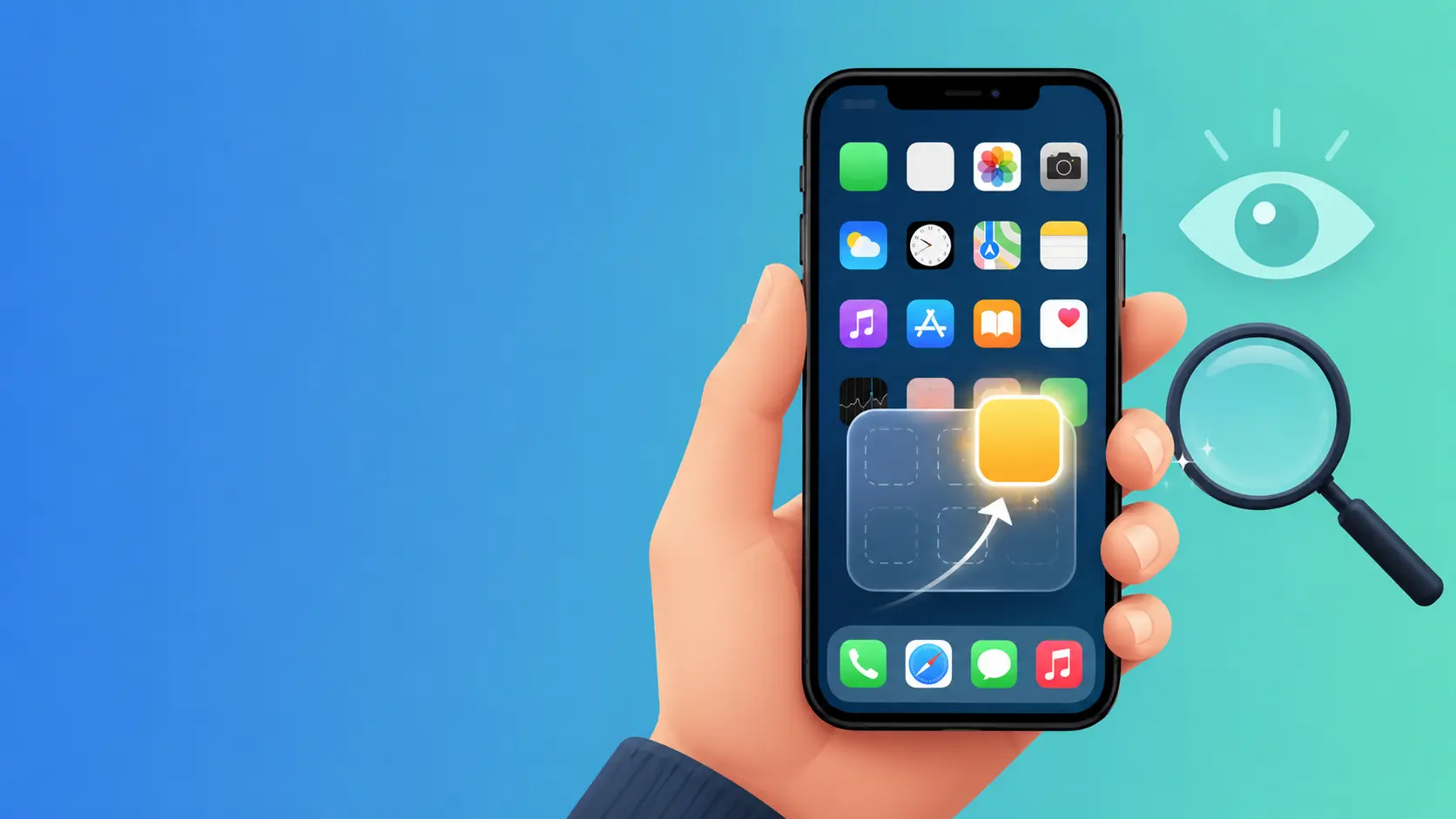
Knowing how to unhide an app on iPhone is one of those small skills that saves you a lot of frustration. One moment an app is on your Home Screen, and the next it seems to have vanished completely. The good news is that in almost every case the app is not gone at all — it is simply hidden in a place you have not checked yet. In this complete guide you will learn exactly how to unhide an app on iPhone using every method Apple offers, from the App Library to the iOS 18 Hidden folder, hidden App Store purchases, Screen Time restrictions, and more.
If you only hid a single app and want that specific one back, this article is written for you. If instead you need to restore several apps at once, you can also read our full guide on how to unhide apps on iPhone, which covers bulk methods in more detail.
Quick Answer: How to Unhide an App on iPhone
To unhide an app on iPhone quickly, open the App Library, scroll to the Hidden folder, authenticate with Face ID or Touch ID, then touch and hold the app you want back and tap Don’t Require Face ID, followed by Add to Home Screen. If you hid the app from the App Store instead, go to Account → Hidden Purchases → Unhide. That is the short version — but there are several places an app can hide, so keep reading to find the exact method that matches your situation.
Why Apps Get Hidden on iPhone in the First Place
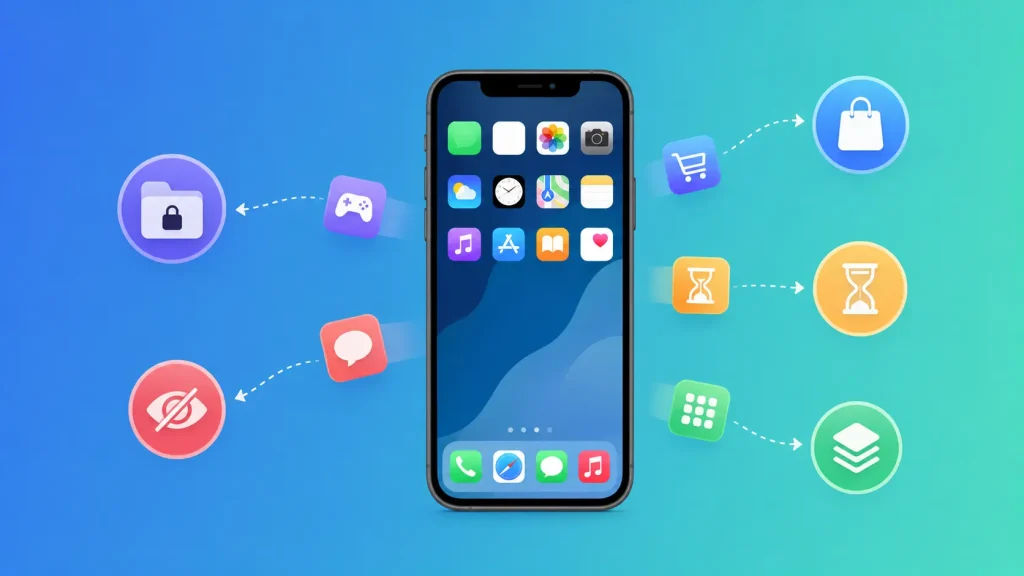
Before you learn how to unhide an app on iPhone, it helps to understand why apps disappear in the first place. iPhones give you many ways to tidy up your Home Screen, and each one can accidentally hide an app:
- You removed the app from the Home Screen but kept it installed in the App Library.
- You moved the app into the private Hidden folder introduced in iOS 18.
- You hid the app from your App Store purchase history.
- Screen Time content restrictions are blocking a built-in app such as Safari, Camera, or FaceTime.
- You hid an entire Home Screen page, taking every app on it out of view.
- A software glitch temporarily removed the icon after an update.
Because there are so many possibilities, learning how to unhide an app on iPhone really means learning where to look. Once you know the six places apps can hide, restoring any of them takes only seconds.
Where Do Hidden Apps Go on iPhone?
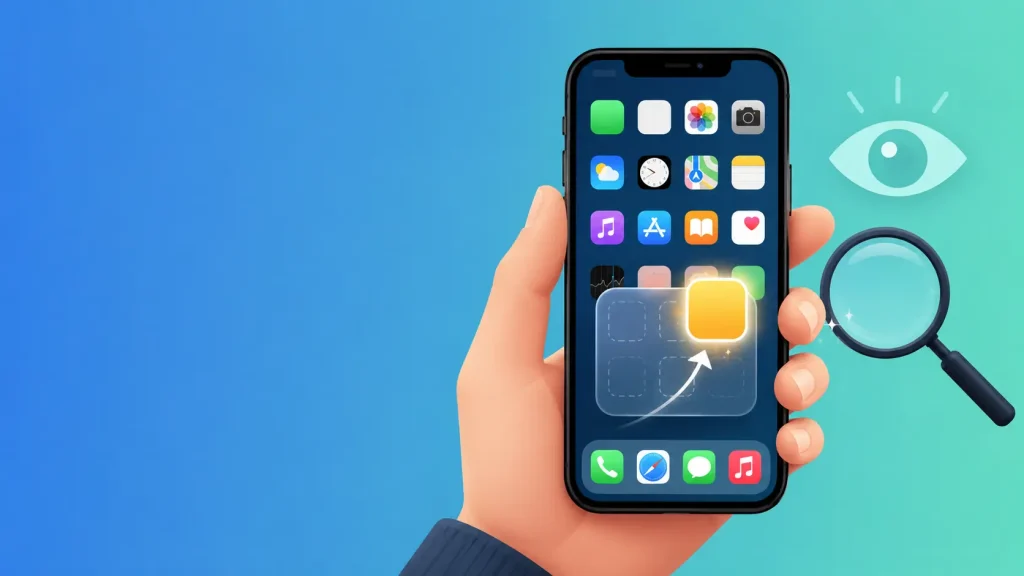
When you hide an app, it does not get deleted. It moves to one of these locations:
- The App Library — the automatic collection of every installed app, found by swiping past your last Home Screen page.
- The Hidden folder — a Face ID protected folder inside the App Library on iOS 18 and later.
- Hidden App Store purchases — a list tied to your Apple Account.
- Screen Time restrictions — where system apps can be switched off.
- A hidden Home Screen page — a whole page toggled off in edit mode.
Apple explains how the App Library organizes your apps in its official support documentation, which is a helpful reference as you follow the steps below. If you are not even sure which apps you have hidden, start with our guide on how to find hidden apps on iPhone before continuing.
Method 1: How to Unhide an App on iPhone Using the App Library
The most common reason an app “disappears” is that you removed it from the Home Screen while leaving it installed. In this case the app lives safely in the App Library, and unhiding it is very easy.
- Swipe left past your final Home Screen page to open the App Library.
- Tap the search bar at the top and type the app’s name, or browse the category folders.
- When you find the app, touch and hold its icon.
- Tap Add to Home Screen from the menu that appears.
The app icon returns to the first available space on your Home Screen instantly. This is usually the first method you should try when you want to unhide an app on iPhone, because it solves the most frequent situation. If the app does not appear in the App Library at all, move on to the next methods below.
Method 2: How to Unhide an App on iPhone From the iOS 18 Hidden Folder
Apple added a dedicated Hidden folder in iOS 18, protected by Face ID or Touch ID. This is where apps go when you choose “Require Face ID” and then “Hide” on an app. If you deliberately hid a private app, this is the most likely place to find it.
- Open the App Library by swiping past your last Home Screen page.
- Scroll all the way to the bottom and tap the Hidden folder.
- Authenticate with Face ID, Touch ID, or your passcode.
- Locate the specific app you want to reveal.
- Touch and hold the app icon.
- Tap Don’t Require Face ID, then choose Add to Home Screen.
This removes the app from the locked folder and places it back where you can reach it. Learning how to unhide an app on iPhone from the Hidden folder is essential if you use this privacy feature, because these apps do not appear in search or notifications while hidden.
Note: The Hidden folder only exists on the latest software. If you do not see it, you may need to update. Here is our guide on how to update your iPhone so you can access every feature described here.
Method 3: How to Unhide an App on iPhone From Hidden App Store Purchases
Sometimes an app is missing because you hid it from your purchase history, not from the Home Screen. Before you can redownload or fully restore it, you must unhide the purchase.
- Open the App Store.
- Tap your profile picture in the top-right corner.
- Tap your name or Apple Account at the top of the screen.
- Scroll down and tap Hidden Purchases.
- Find the app in the list and tap Unhide next to it.
- Return to the App Store and redownload the app if it is not already installed.
Apple documents this process in its guide on how to hide and unhide apps in your App Store purchase list. This method matters because a hidden purchase can make it look like an app is completely unavailable, when in reality it is one tap away from returning.
Method 4: How to Unhide an App on iPhone Blocked by Screen Time
Screen Time is designed to help you manage usage, but its content restrictions can hide built-in apps entirely. If Safari, Camera, FaceTime, or another system app is missing, Screen Time is the likely cause.
- Open the Settings app.
- Tap Screen Time.
- Tap Content & Privacy Restrictions.
- Enter your Screen Time passcode if prompted.
- Tap Allowed Apps (or Allowed Apps & Features).
- Turn on the toggle next to any app you want to show again.
The app immediately returns to your Home Screen. Knowing how to unhide an app on iPhone through Screen Time is especially useful for parents, because these restrictions are often set up for child accounts and then forgotten.
Method 5: How to Unhide an App on iPhone by Showing a Hidden Home Screen Page
You can hide an entire Home Screen page along with all the apps on it. If a whole group of apps disappeared at once, a hidden page is probably the reason.
- Touch and hold an empty area of the Home Screen until the icons start to jiggle.
- Tap the dots (page indicator) near the bottom of the screen.
- You will see thumbnails of all your Home Screen pages.
- Tap the empty circle beneath any page you want to show again so a checkmark appears.
- Tap Done in the top corner.
Every app on that page becomes visible again. This is a fast way to unhide an app on iPhone when several icons vanished together rather than just one.
Method 6: Find the App Through Spotlight Search or Siri
Even when you are still figuring out how to unhide an app on iPhone permanently, you can open a hidden app right away using search.
- Swipe down on the middle of your Home Screen to open Spotlight Search.
- Type the app’s name.
- Tap the app in the results to open it directly.
If the app appears in Spotlight, it is definitely still installed, which means one of the methods above will bring its icon back. If it does not appear in Spotlight at all, the app may have been deleted rather than hidden — in which case reinstalling it from the App Store is the solution.
How to Unhide an App on iPhone With Older iOS Versions
If your device is not running the newest software, the Hidden folder will not be available, but you can still unhide an app on iPhone easily:
- Use the App Library (Method 1), which has been available since iOS 14.
- Use Hidden Purchases in the App Store (Method 3), which works on all modern versions.
- Use Screen Time (Method 4) to restore restricted system apps.
Updating your software is still recommended so you get the newest privacy tools and security fixes, but these core methods work regardless of version.
Troubleshooting: The App Still Will Not Appear
If you have tried the steps above and still cannot unhide an app on iPhone, work through this checklist:
- Restart your iPhone. A quick restart clears temporary glitches that can hide icons after an update.
- Check every App Library category. Apps are sorted automatically, so the one you want may be in an unexpected folder.
- Search the App Store. If the app shows a cloud icon, it is installed on your account but not on this device — tap the cloud to redownload it.
- Confirm the correct Apple Account. If you are signed in with a different Apple ID, your hidden purchases and apps will not match.
- Disable restrictions fully. Some managed or work devices use configuration profiles that hide apps beyond Screen Time.
Following this list resolves nearly every stubborn case where an app refuses to reappear.
How to Prevent Apps From Being Hidden by Accident
Now that you know how to unhide an app on iPhone, a few habits will stop apps from disappearing again:
- When removing an app, choose Remove from Home Screen rather than Delete App so it stays in the App Library.
- Be intentional with the Hidden folder and remember your Face ID setting for private apps.
- Keep your Home Screen pages organized and avoid toggling pages off unless necessary.
- Review your Screen Time settings periodically, especially on shared or family devices.
If you ever want to hide apps again on purpose, our guide on how to hide apps on iPhone walks you through it safely.
Tips to Organize Your Apps After Unhiding Them
Once you have brought your apps back, a little organization makes them easier to find in the future:
- Group related apps into folders with clear names.
- Move your most-used apps to the first Home Screen page.
- Use the App Library as your “storage,” keeping only essentials on the Home Screen.
- Enable Siri Suggestions so frequently used apps surface automatically.
These small steps mean you will rarely need to look up how to unhide an app on iPhone again, because everything will have a predictable place.
Frequently Asked Questions
Will unhiding one app affect my other apps?
No. Every method here reveals only the app you select. All your other apps, folders, and settings stay exactly as they are.
Does unhiding an app delete its data?
No. Unhiding simply makes the app visible again. Your logins, saved content, and preferences remain untouched.
I want to bring back several apps at once, not just one.
Use our detailed guide on how to unhide apps on iPhone, which focuses on restoring multiple apps efficiently.
Where do hidden apps go on iPhone?
They move to the App Library, the iOS 18 Hidden folder, your hidden App Store purchases, or they remain installed but restricted by Screen Time.
Why is the app missing from Spotlight Search too?
If an app does not appear anywhere, including Spotlight, it was probably deleted rather than hidden. Reinstall it from the App Store to get it back.
How do I unhide an app on iPhone without a passcode?
For the Hidden folder you still need Face ID, Touch ID, or your passcode for privacy. For App Library and Hidden Purchases methods, no extra passcode is required beyond your normal sign-in.
Conclusion
Learning how to unhide an app on iPhone comes down to knowing where apps hide and choosing the matching method. Start with the App Library for the most common case, check the iOS 18 Hidden folder for private apps, review your hidden App Store purchases, and use Screen Time for missing system apps. With these steps, you can confidently unhide an app on iPhone in seconds and keep your Home Screen exactly the way you want it.

