


If several apps vanished together, knowing how to unhide apps on iPhone in groups is exactly what you need — not a one-app fix. Once you understand how to unhide apps on iPhone as a batch, the whole process takes seconds instead of minutes. This guide is written for the case where many apps disappeared at once: a whole Home Screen page went missing, dozens of icons are buried in the App Library, or a family device suddenly hid a group of apps.
Looking to bring back just one specific app? That is a different task — see our focused guide on how to unhide an app on iPhone instead. This article is all about multiple apps at once.
Quick Answer: How to Unhide Apps on iPhone in Bulk
The fastest way to unhide apps in bulk is to restore a hidden Home Screen page: touch and hold an empty area, tap the page dots, then re-enable any page (and every app on it) with a single checkmark. For scattered apps, add them back from the App Library, and for group restrictions use Screen Time → Allowed Apps. This is the fastest overview of how to unhide apps on iPhone when several are missing.
When to Use This Bulk Guide (and When Not To)
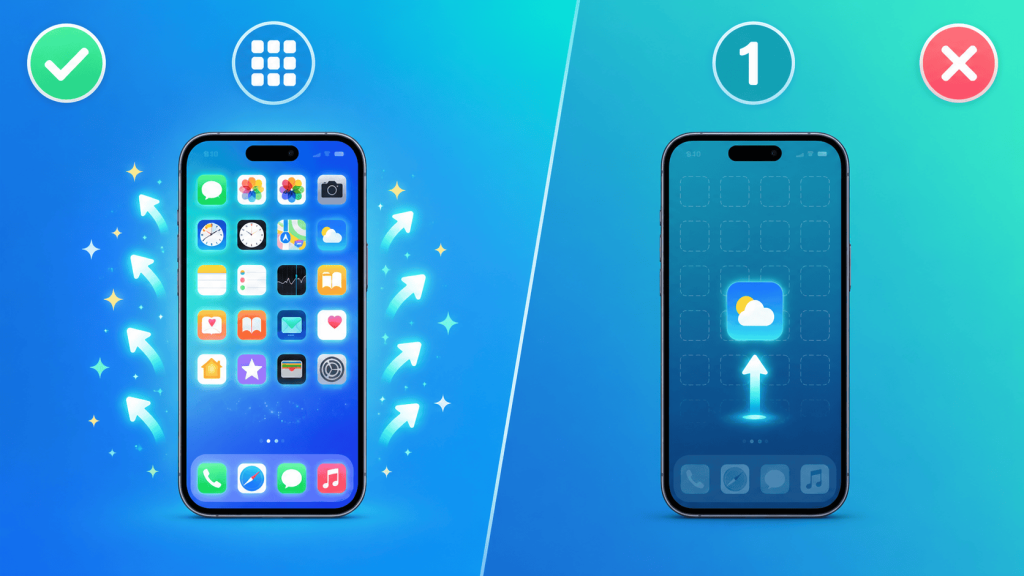
Knowing how to unhide apps on iPhone in bulk matters when more than one app is missing at the same time. Typical bulk scenarios include:
- An entire Home Screen page disappeared, taking all its apps with it.
- You just set up a new iPhone or restored a backup and many apps are only in the App Library.
- A shared or child device had a batch of apps restricted at once.
- You reorganized your Home Screen and accidentally removed a whole group of icons.
If instead a single private app is missing, the single-app workflow is faster — follow how to unhide an app on iPhone.
Why Do Multiple Apps Disappear at Once?
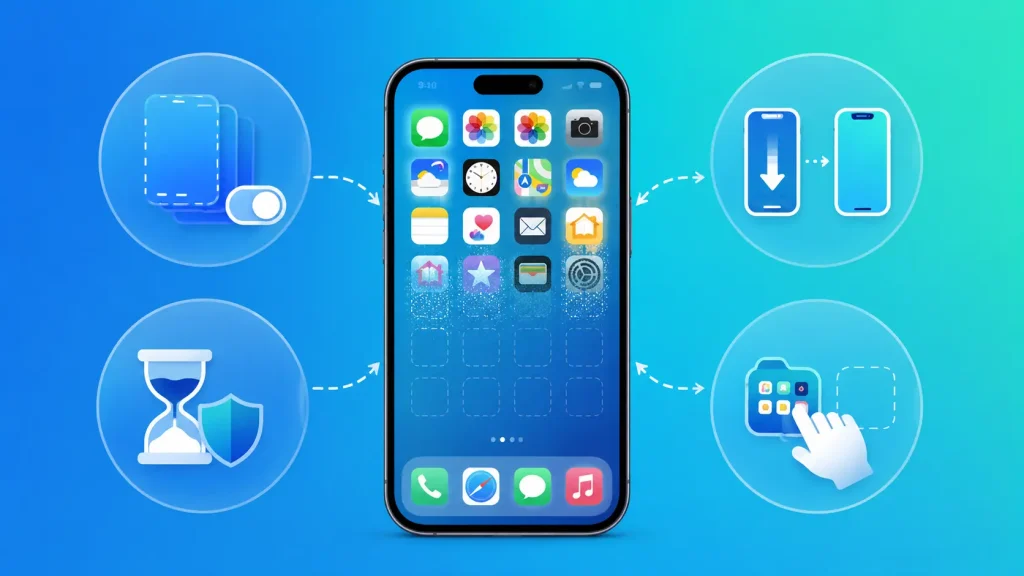
Before you unhide apps in bulk, it helps to know what causes group disappearances, because the cause decides the fastest fix:
- A hidden Home Screen page. Toggling off one page hides every app on it instantly — the number one cause of “all my apps vanished.”
- A new setup or restore. After transferring to a new iPhone, apps often live only in the App Library until you place them.
- Screen Time / family restrictions. A parent or MDM profile can restrict a batch of apps together.
- A reorganization gone wrong. Dragging a folder or page can remove many icons from the Home Screen at once.
Method 1: How to Unhide Apps on iPhone by Restoring a Hidden Home Screen Page
This is the single most powerful method, because one action brings back an entire page of apps. Here is how to unhide apps on iPhone using a hidden page:
- Touch and hold an empty area of the Home Screen until the icons jiggle.
- Tap the row of dots (the page indicator) near the bottom of the screen.
- You will see thumbnails of every Home Screen page, each with a checkmark.
- Tap the empty circle beneath any page you want to show again so a checkmark appears.
- Repeat for every page you want back.
- Tap Done.
Every app on those pages reappears immediately — dozens of apps unhidden in seconds, with no per-app work.
Method 2: How to Unhide Apps on iPhone From the App Library (Many at Once)
When apps are scattered in the App Library (common after a restore or transfer), work systematically rather than randomly:
- Swipe left past your last Home Screen page to open the App Library.
- Browse by category folders — apps are grouped automatically (Social, Utilities, Productivity, etc.).
- Touch and hold each app you want and drag it left onto the Home Screen, or tap Add to Home Screen.
- Work category by category so you do not miss any app.
Apple explains how the App Library organizes your apps automatically, which is what makes a category-by-category sweep the fastest manual method.
Method 3: How to Unhide Apps on iPhone From Hidden App Store Purchases
If you hid several apps from your purchase history, you must unhide each purchase before it can return. Here is how to unhide apps on iPhone from your hidden purchases:
- Open the App Store.
- Tap your profile picture (top-right).
- Tap your name / Apple Account.
- Tap Hidden Purchases.
- Go down the list and tap Unhide for every app you want back.
- Redownload any that are not installed.
Apple’s official steps for how to hide and unhide apps in your purchase list confirm this is the only place to reverse hidden purchases.
Method 4: How to Unhide Apps on iPhone Blocked by Screen Time
On managed or child devices, a whole group of apps is often restricted together. Here is how to unhide apps on iPhone in a batch through Screen Time:
- Open Settings → Screen Time.
- Tap Content & Privacy Restrictions and enter the Screen Time passcode.
- Tap Allowed Apps (or Allowed Apps & Features).
- Turn on the toggle for every app you want to restore.
- Also review Content Restrictions → Apps to make sure an age limit is not hiding a category.
This is essential for parents: a single age or content setting can hide many apps at once.
Method 5: How to Unhide Apps on iPhone After a Transfer or Reset
After setting up a new iPhone, all your apps may be installed but only visible in the App Library. To restore them at scale after a migration:
- Confirm the apps finished downloading (no progress rings on the icons).
- Use Method 1 if you also restored hidden pages.
- Use Method 2 to place App Library apps by category.
- If some apps are missing entirely, they may not have transferred — reinstall them from the App Store.
If you are not sure which apps you actually have, our guide on how to find hidden apps on iPhone helps you inventory everything first.
How to Reorganize Dozens of Apps Quickly After Unhiding
Bringing apps back is only half the job — organizing them so they stay easy to find is what makes learning how to unhide apps on iPhone genuinely useful:
- Use folders: touch and hold, then drag similar apps together and name the folder clearly.
- Prioritize page one: keep your most-used apps on the first Home Screen page.
- Let the App Library be storage: you do not need every app on the Home Screen.
- Enable Siri Suggestions so frequently used apps surface automatically.
Managed and Family Devices: Extra Notes
If a device is supervised by a school or employer (MDM), some apps may be hidden by a configuration profile rather than by you:
- Check Settings → General → VPN & Device Management for a profile.
- Contact the administrator, because those restrictions override normal Screen Time settings.
- On a personal family device, the account holder can adjust restrictions in Screen Time (Method 4).
Troubleshooting: Apps Still Missing in Bulk
If you have followed the steps for how to unhide apps on iPhone and a group is still missing, work through this checklist:
- Restart your iPhone to clear post-update glitches that can hide icons.
- Check every App Library category — apps may be sorted where you did not expect.
- Verify your Apple Account is the correct one, or hidden purchases and downloads will not match.
- Update iOS if features look different; see how to update your iPhone.
- Look for a device management profile on supervised devices.
How to Prevent Apps From Being Hidden en Masse
Now that you know how to unhide apps on iPhone in bulk, a few habits prevent group disappearances:
- Avoid toggling off Home Screen pages unless you truly want them gone.
- When clearing your layout, choose Remove from Home Screen rather than delete.
- Review Screen Time on shared devices periodically.
- Keep a simple, folder-based layout so accidental drags affect fewer apps.
If you want to hide apps intentionally, our guide on how to hide apps on iPhone shows the safe way.
Frequently Asked Questions
How do I unhide apps on iPhone all at once?
The closest to a one-tap solution is restoring a hidden Home Screen page (Method 1), which returns every app on that page instantly. For the App Library and hidden purchases, you restore them in batches.
Why did a whole group of apps disappear together?
Almost always a hidden Home Screen page, a new setup/restore, or a Screen Time restriction applied to several apps at once.
Will unhiding many apps delete any data?
No. Restoring apps in bulk does not affect their data, logins, or settings.
I only need one specific app back, not many.
Then use our dedicated guide on how to unhide an app on iPhone.
Can a family member hide apps on my iPhone?
Yes, through Screen Time or Family Sharing restrictions. Method 4 shows how to reverse group restrictions.
My apps came back but the layout is a mess.
Use the reorganization tips above — folders, a prioritized first page, and the App Library as storage keep everything tidy.
Conclusion
Learning how to unhide apps on iPhone in bulk is about restoring groups of apps efficiently: bring back a hidden Home Screen page in one move, sweep the App Library by category, clear your hidden purchases list, and adjust Screen Time for family devices. Then reorganize with folders so it stays clean. For a single missing app, use the dedicated single-app guide.

