


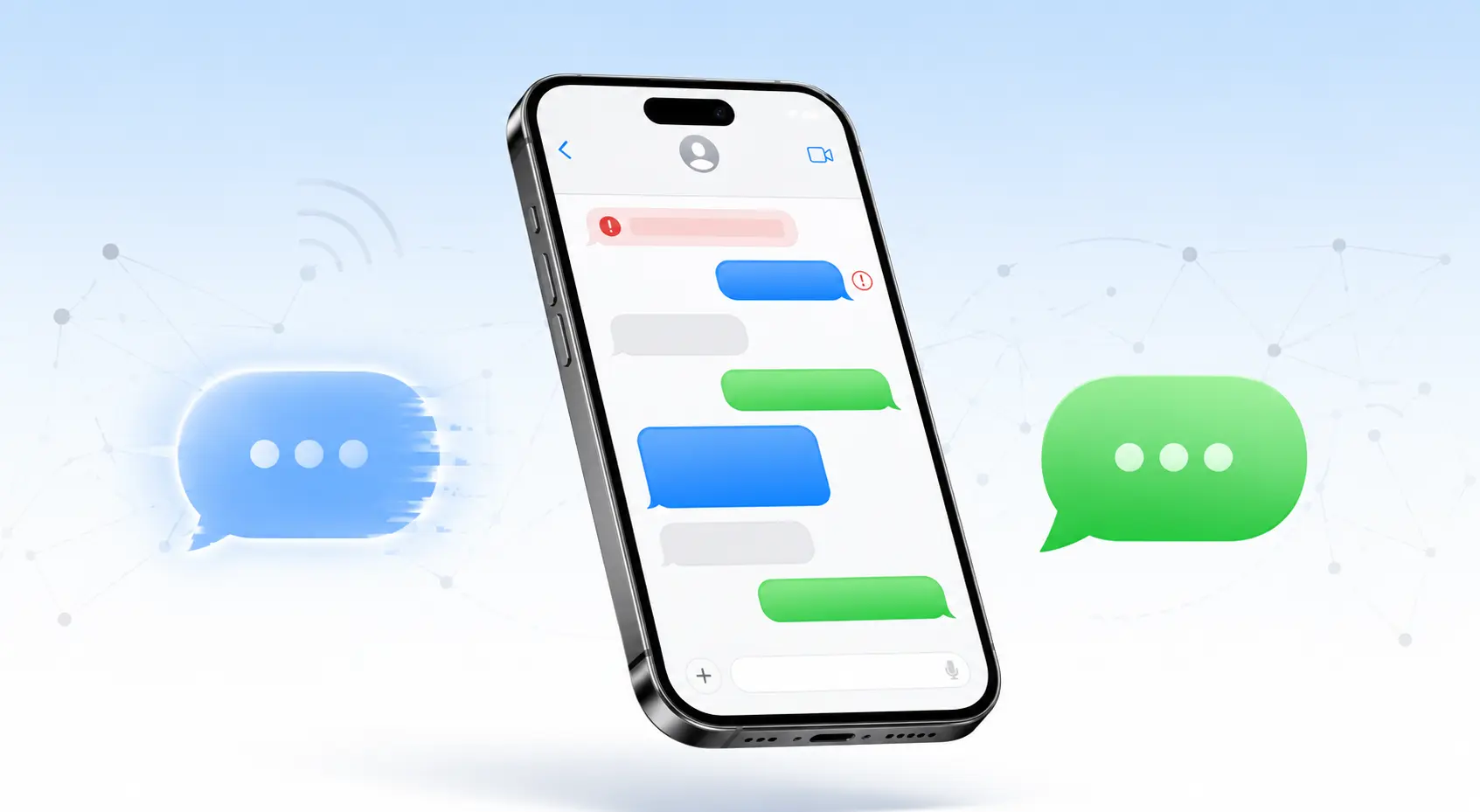
iMessage not working on your iPhone can be incredibly frustrating. One minute you’re chatting with friends in blue bubbles, and the next, your messages are stuck with a red “Not Delivered” alert or showing up as green SMS texts instead. If you’re dealing with iMessage not working right now, you’re not alone — especially after updating to iOS 26.
In this guide, we’ll walk you through 10 proven fixes to get iMessage working again. Whether you’re seeing activation errors, green bubbles, or failed to send notifications, these steps will help you troubleshoot and resolve the issue quickly.
Why Is iMessage Not Working on My iPhone?
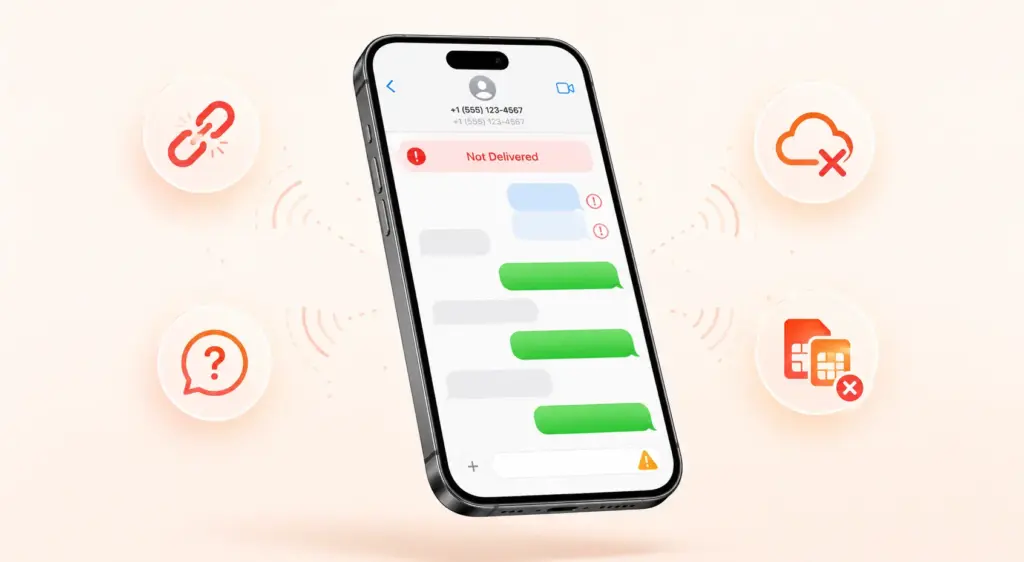
Before jumping into fixes, it helps to understand what’s actually going wrong. When iMessage is not working, you might notice one or more of these signs:
- “Not Delivered” alerts when sending messages to other iPhone users
- “Failed to send” errors with a red exclamation mark
- Green bubbles instead of blue, even when messaging other Apple devices
- Messages sent from your email address instead of your phone number
- “Waiting for activation” or “Activation unsuccessful” errors
- The same phone number appears twice under Settings > Apps > Messages > Send & Receive
According to Apple, the most common cause after updating to iOS 26 is an inactive SIM or eSIM conflict. If you have two SIMs with the same phone number (for example, an old physical SIM and a newer eSIM), iMessage can get confused and fail to activate properly.
Expert Tip: Apple officially recommends updating to iOS 26.1 or later to resolve the activation bug. If you can’t update right away, removing the inactive SIM is the fastest workaround.
Quick Fixes to Get iMessage Working Again
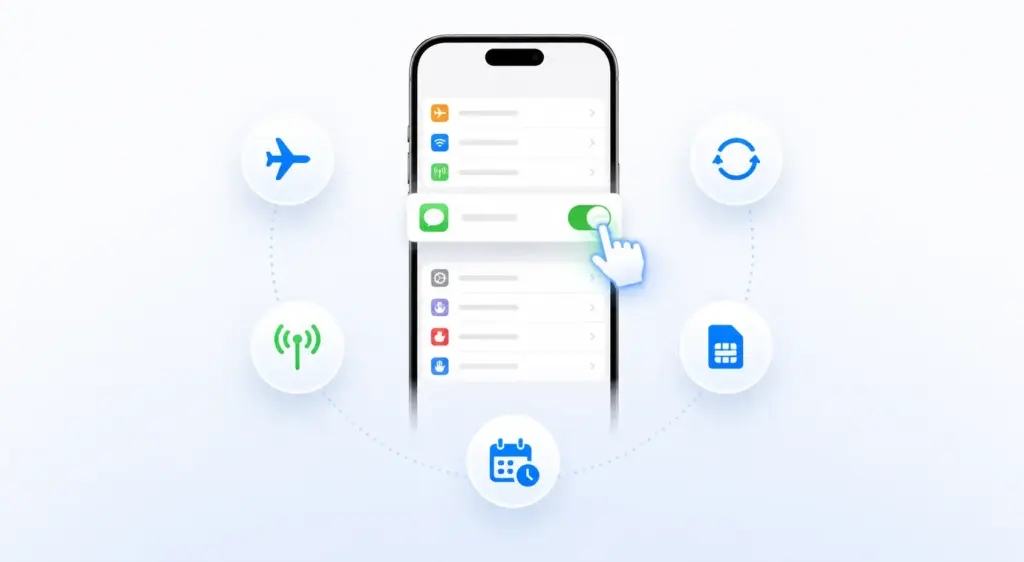
Let’s start with the simplest solutions and work our way up to more advanced fixes. If iMessage is not working on your device, try these steps in order.
Fix 1: Check if iMessage Is Enabled
It sounds obvious, but sometimes iMessage gets turned off accidentally — especially after an iOS update. This is one of the most common reasons iMessage is not working.
- Open Settings on your iPhone.
- Scroll down and tap Apps.
- Tap Messages.
- Make sure the iMessage toggle is turned on (green).
If it’s already on, try toggling it off, wait 10 seconds, then toggle it back on. This forces iMessage to re-register with Apple’s servers.
Fix 2: Toggle Airplane Mode
A quick network refresh can resolve temporary connection issues that cause iMessage not working:
- Swipe down from the top-right corner to open Control Center.
- Tap the Airplane Mode icon to turn it on.
- Wait 10 seconds.
- Tap it again to turn it off.
This resets your cellular and Wi-Fi connections, which can help iMessage reconnect.
Fix 3: Check Your Internet Connection
iMessage needs either Wi-Fi or cellular data to work. If you’re in an area with poor signal, iMessage is not working because it simply can’t connect:
- Try switching from Wi-Fi to cellular data (or vice versa).
- Make sure Wi-Fi Calling is enabled if you want to send SMS over Wi-Fi.
- Test your connection by opening a web page or streaming a video.
Fix 4: Verify Date & Time Settings
Incorrect date and time settings can prevent iMessage from activating. If iMessage is not working, this is an easy fix:
- Go to Settings > General > Date & Time.
- Turn on Set Automatically.
- Make sure your time zone is correct.
If the toggle was already off and your time was wrong, turning it on may fix the issue immediately.
Fix 5: Remove Inactive SIM or eSIM (iOS 26 Bug)
This is the biggest fix for iOS 26 users. If you recently switched from a physical SIM to an eSIM, or if you have two SIMs with the same number, iMessage is not working because of a known activation bug.
Here’s how to fix it:
- Open Settings > Cellular.
- Check if there are two SIMs with the same phone number.
- Identify the inactive one:
- If it’s a physical SIM, remove it from the SIM tray.
- If it’s an eSIM, tap it and select Delete eSIM.
- Go back to Settings > Apps > Messages > Send & Receive.
- Tap your phone number to activate iMessage.
Important: This issue was widespread enough that Apple published an official support document. Updating to iOS 26.1 or later also resolves this bug.
Fix 6: Reset Network Settings
If the above steps don’t work and iMessage is still not working, resetting your network settings can clear out corrupted connection data. This won’t delete your messages, photos, or apps — but it will remove saved Wi-Fi passwords.
- Go to Settings > General > Transfer or Reset iPhone.
- Tap Reset > Reset Network Settings.
- Enter your passcode and confirm.
- Your iPhone will restart. After it boots up, reconnect to Wi-Fi and check iMessage.
If you need help backing up your iPhone before making changes, check out our guide on how to back up your iPhone.
Fix 7: Sign Out and Back Into Your Apple ID
Sometimes your Apple ID needs a fresh connection to Apple’s messaging servers. If iMessage is not working, this step can help:
- Go to Settings and tap your name at the top.
- Scroll down and tap Sign Out.
- Choose Sign Out But Don’t Erase and keep your data.
- Restart your iPhone (Settings > General > Shut Down, then power back on).
- Sign back in with your Apple ID.
- Go to Settings > Apps > Messages and turn iMessage back on.
Note: This can take up to 24 hours for your carrier to verify your phone number with Apple. If it still doesn’t work after a day, contact your carrier.
Fix 8: Update to the Latest iOS Version
Apple frequently releases patches for messaging bugs. If iMessage is not working, make sure you’re running the latest version:
- Go to Settings > General > Software Update.
- If an update is available, tap Download and Install.
- After updating, restart your iPhone and check iMessage.
As of mid-2026, iOS 26.5 is available and includes security fixes that may resolve lingering iMessage issues.
Fix 9: Check Send & Receive Settings
Your iPhone needs to know which phone number or email to use for iMessage. If iMessage is not working, this setting might be misconfigured:
- Go to Settings > Apps > Messages > Send & Receive.
- Under “You Can Be Reached By iMessage At”, make sure your phone number is checked.
- Under “Start New Conversations From”, select your phone number (not your email).
If your phone number doesn’t appear, iMessage hasn’t activated properly. Try the fixes above, especially removing inactive SIMs.
Fix 10: Contact Apple Support
If you’ve tried everything and iMessage is still not working, it’s time to reach out to Apple. In some cases, your phone number may be blocked on Apple’s servers, and only Apple Support can remove it.
- Visit Apple Support online.
- Or call 1-800-MY-APPLE (1-800-692-7753) in the US.
- Be ready to describe the exact error message you’re seeing.
iMessage Not Working After iOS 26 Update?
iOS 26 introduced a specific bug that affects users who set up an eSIM after the initial iPhone setup. If you skipped eSIM activation during setup and added it later, iMessage is not working because it won’t recognize your phone number automatically.
The fix is simple:
- Go to Settings > Apps > Messages.
- Turn iMessage off.
- Wait a few seconds, then turn it back on.
- You should see a brief “Waiting for activation” message.
- Once it disappears, send a test message to another iPhone user.
If the message sends as a blue bubble, you’re all set!
Not Receiving Text Messages on iPhone?
Sometimes the problem isn’t sending — it’s not receiving text messages. If your friends say they sent you a message but you never got it, try these quick checks:
- Make sure Do Not Disturb or Focus Mode is turned off.
- Check if the sender is in your blocked contacts (Settings > Phone > Blocked Contacts).
- Verify that MMS Messaging is enabled under Settings > Apps > Messages.
- If you’re not receiving text messages from Android users specifically, make sure RCS Messaging is turned on in the same menu.
If you’re still not receiving text messages after checking these settings, a network settings reset (Fix 6 above) usually resolves the issue.
Why Are My Messages Green Instead of Blue?
Seeing green bubbles instead of blue is one of the most common signs that iMessage is not working. Here’s what the colors mean:
| Bubble Color | Message Type | What It Means |
|---|---|---|
| Blue | iMessage | Sent over Wi-Fi or cellular data between Apple devices. Fully encrypted. |
| Green | SMS/RCS | Sent through your carrier’s text messaging network. May not be encrypted. |
Reasons you might see green bubbles:
- The person you’re texting doesn’t have an Apple device.
- iMessage is turned off on your iPhone or the recipient’s iPhone.
- You have no internet connection (Wi-Fi or cellular data).
- Your phone number isn’t activated for iMessage.
- The recipient has switched to Android and didn’t deactivate iMessage.
Important Update (2026): With iOS 26.5, Apple added end-to-end encryption for RCS messages between iPhone and Android. However, green bubbles still indicate non-iMessage delivery, and encryption status depends on carrier support.
To turn iMessage back on and get blue bubbles, follow the steps in Fix 1 above. If you need a refresher on enabling iMessage from scratch, check out our guide on how to enable iMessage on iPhone.
Why Has iMessage Stopped Working Suddenly?
If iMessage has stopped working out of nowhere — even though it was fine yesterday — there are a few likely culprits:
- Apple’s servers are down. Check Apple’s System Status page to see if iMessage is experiencing an outage.
- Your carrier pushed a settings update that conflicted with iMessage.
- You recently changed your Apple ID password and need to sign back in.
- iOS updated overnight and introduced a new bug (common with iOS 26).
Quick Check: If iMessage has stopped working today, visit Apple’s System Status page first. If the dot next to iMessage is yellow or red, the problem is on Apple’s end — not yours. Wait for Apple to fix it.
Advanced Troubleshooting
If the basic fixes haven’t resolved your issue and iMessage is not working even after trying everything, try these advanced steps.
Delete and Reinstall Messages App
Starting with iOS 26, you can delete and reinstall the Messages app like any other app:
- Press and hold the Messages app icon on your Home Screen.
- Tap Remove App > Delete App.
- Go to the App Store, search for “Messages,” and reinstall it.
- Open Settings > Apps > Messages and re-enable iMessage.
Factory Reset as Last Resort
If nothing else works and iMessage is still not working, a factory reset will restore your iPhone to its original state. This will erase all your data, so make sure you have a backup first.
- Go to Settings > General > Transfer or Reset iPhone.
- Tap Erase All Content and Settings.
- Follow the prompts to complete the reset.
- After setup, restore from your backup and re-enable iMessage.
Before resetting, make sure you’ve backed up your device. Our guide on how to back up your iPhone walks you through the process step by step.
Prevent iMessage Issues in the Future
Once you’ve got iMessage working again, here’s how to keep it running smoothly and avoid iMessage not working again:
- Keep iOS updated. Apple regularly patches messaging bugs.
- Monitor Apple System Status. Check Apple’s System Status page to see if iMessage is down globally. If iMessage is not working today, this is the first place to check.
- Avoid duplicate SIMs. If you switch carriers or SIM types, remove the old one completely.
- Enable automatic updates. Go to Settings > General > Software Update > Automatic Updates.
Frequently Asked Questions
Why is iMessage not working after iOS 26 update?
iOS 26 introduced a bug where having an inactive SIM or eSIM with the same phone number blocks iMessage activation. If iMessage is not working after updating, remove the inactive SIM and reactivate iMessage, or update to iOS 26.1 or later.
Why are my iMessages sending as green bubbles?
Green bubbles mean your message is sent as SMS/RCS instead of iMessage. This happens when iMessage is off, the recipient doesn’t use iMessage, or you have no data connection. If iMessage is not working, follow the fixes above to reactivate it.
Why has iMessage stopped working suddenly?
If iMessage has stopped working suddenly, check Apple’s System Status page first. If Apple’s servers are fine, try toggling iMessage off and on, checking your internet connection, or resetting network settings.
How long does iMessage activation take?
Normally a few minutes, but it can take up to 24 hours in some cases. If iMessage is not working and activation takes longer, contact your carrier or Apple Support.
Will resetting network settings delete my messages?
No. Resetting network settings only removes Wi-Fi passwords and network configurations. Your messages, photos, and apps remain safe. For extra peace of mind, you can back up your iPhone first.
Can I use iMessage without a phone number?
Yes. You can use iMessage with just your Apple ID email address. Go to Settings > Apps > Messages > Send & Receive and select your email address. However, using your phone number is recommended for the best experience.
What if I see “Waiting for activation” for hours?
This usually means your carrier hasn’t verified your number with Apple yet. Make sure you have a strong internet connection, correct date/time settings, and wait up to 24 hours. If iMessage is not working after that, contact your carrier.
Conclusion
Dealing with iMessage not working on your iPhone is annoying, but in most cases, it’s fixable in just a few minutes. Start with the simplest solutions — toggling iMessage off and on, checking your connection, and removing inactive SIMs. For iOS 26 users, the eSIM bug is the most likely culprit, and updating to iOS 26.1+ or deleting the duplicate SIM will usually solve it.
If you’ve tried all the steps above and iMessage is still not working, don’t hesitate to contact Apple Support. Your phone number may need to be manually unblocked on their servers.
Related guides you might find helpful:
Last updated: June 2026 · Verified against iOS 26 and Apple Support documentation

