


Accidentally deleted an important text message? You’re not alone. Every day, thousands of iPhone users panic after clearing out their Messages app, only to realize they needed that conversation back. Whether it’s a verification code, a cherished memory, or a work-related thread, learning how to recover deleted messages on iPhone can save you from a lot of stress.
The good news? Apple gives you several ways to get those messages back. Some methods work in seconds, while others require a bit more patience. In this guide, you’ll discover five proven methods to recover deleted text messages on iPhone—ranging from Apple’s built-in tools to professional data recovery solutions. We’ll walk you through each step, explain what works best for your situation, and help you avoid common mistakes along the way.
If you’ve been searching for ways to get your texts back without losing your current data, you’ve come to the right place. We’ll cover everything from the simplest fixes to advanced recovery techniques.
Quick Tip: Stop using your iPhone immediately after deleting messages. The less you use your device, the better your chances of successful recovery—especially if you plan to use third-party software.
Method 1: Check the Recently Deleted Folder (Fastest)
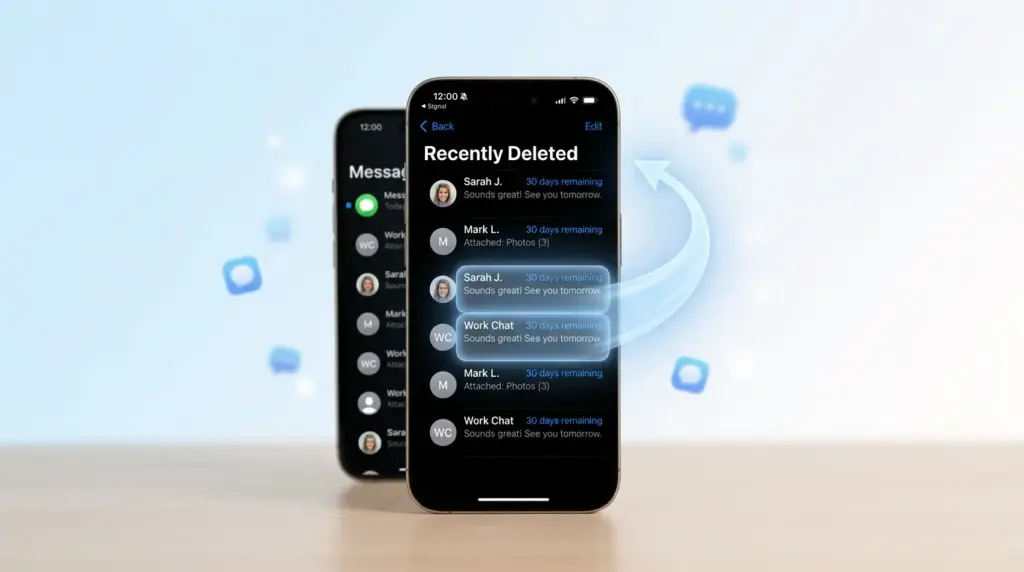
What Is the Recently Deleted Folder?
Starting with iOS 16, Apple introduced a “Recently Deleted” folder inside the Messages app. Think of it like the Photos app’s Recently Deleted album—messages sit there for 30 days before being permanently erased. This is by far the fastest and easiest way to recover deleted text messages on iPhone.
If you’re wondering how to recover deleted messages on iPhone without any backups or extra tools, this is where you should start. The Recently Deleted folder requires no technical skills and works instantly. For anyone asking how to recover deleted messages on iPhone after accidentally tapping delete, this method should be your first stop.
Step-by-Step: How to Restore Messages from Recently Deleted
- Open the Messages app on your iPhone.
- Tap Filters in the top-left corner (or swipe down to reveal the search bar and tap “Filters”).
- Select Recently Deleted from the list of filters.
- You’ll see a list of conversations with the number of days remaining before permanent deletion.
- Tap the conversation you want to recover.
- Tap Recover in the bottom-right corner.
- Confirm by tapping Recover Message or Recover [Number] Messages.
That’s it! Your messages will reappear in your main Messages list instantly.
What to Do If “Recently Deleted” Is Missing
If you don’t see the Recently Deleted folder, here’s what might be happening:
- More than 30 days have passed. Apple permanently deletes messages after 30 days in this folder.
- You permanently deleted them. If you tapped “Delete All” inside the Recently Deleted folder, those messages are gone for good from this method.
- iCloud Messages is disabled. The Recently Deleted feature works best when iCloud Messages is turned on. Go to Settings > [Your Name] > iCloud > Messages and make sure it’s enabled.
- You’re running an older iOS version. The Recently Deleted folder requires iOS 16 or later. If you haven’t updated, you’ll need to try another method.
Expert Note: According to Apple’s official support documentation, “Messages you delete from your iPhone stay in the Recently Deleted folder for up to 30 days.” This gives you a solid month to change your mind without needing any backups or extra tools.
Method 2: Restore from iCloud Backup
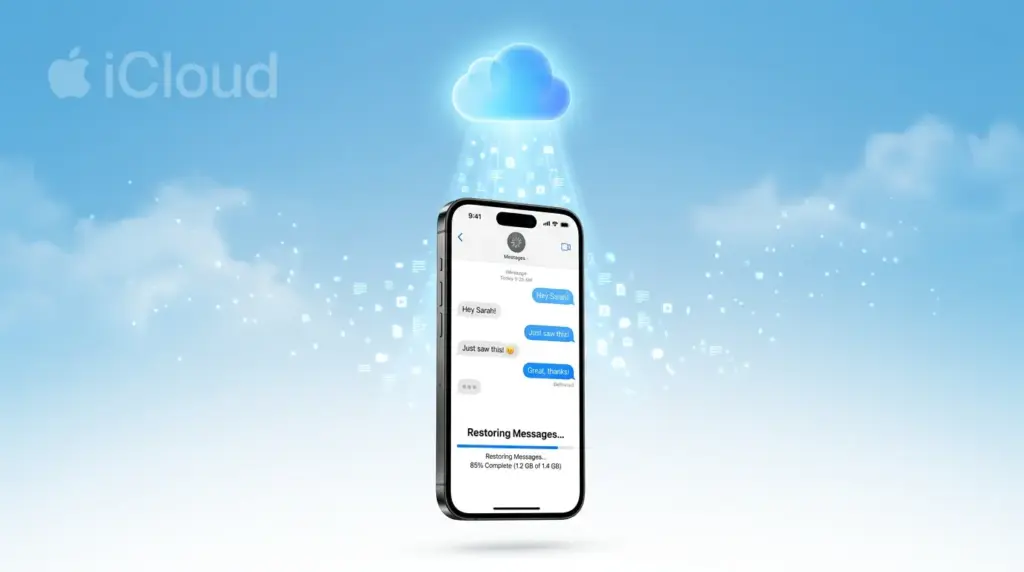
How iCloud Backup Helps You Recover Deleted Messages
If your messages aren’t in the Recently Deleted folder, your next best option is an iCloud backup. When you back up your iPhone to iCloud, it saves a snapshot of your entire device—including your text messages and iMessages. If you restore your iPhone from a backup created before you deleted the messages, they’ll come back.
This is one of the most reliable ways to retrieve your texts when the Recently Deleted folder is empty. Many users don’t realize their iPhone has been quietly backing up to iCloud every night while charging. If you’re trying to figure out how to recover deleted messages on iPhone after the 30-day window has passed, an iCloud backup is your best free option.
⚠️ Important Warning: Restoring from an iCloud backup will erase your current iPhone data and replace it with the backup’s contents. Any messages, photos, or apps you’ve added since the backup will be lost unless you back them up first.
How to Check If Your iCloud Backup Contains the Messages
Before you go through the full restore process, check when your last backup was made:
- Open Settings on your iPhone.
- Tap your name at the top.
- Tap iCloud.
- Tap iCloud Backup.
- Look at the Last successful backup date and time.
If the backup was made before you deleted the messages, you’re in luck. If it was made after the deletion, the messages won’t be in that backup.
Step-by-Step: Restore Deleted Messages from iCloud Backup
- Go to Settings > General > Transfer or Reset iPhone.
- Tap Erase All Content and Settings.
- Enter your passcode and Apple ID password to confirm.
- Your iPhone will restart and show the Hello screen.
- Follow the setup prompts until you reach the Apps & Data screen.
- Tap Restore from iCloud Backup.
- Sign in with your Apple ID.
- Choose the backup dated before you deleted the messages.
- Wait for the restore to complete. This can take anywhere from a few minutes to several hours, depending on your backup size and internet speed.
- Once finished, open the Messages app and check if your deleted messages are back.
Pro Tip: Avoid Losing New Data
If you’ve taken important photos or received new messages since the backup, here’s a safer approach:
- Back up your current iPhone first. Go to Settings > [Your Name] > iCloud > iCloud Backup and tap “Back Up Now.” This creates a new backup of your current state.
- Restore the old backup to recover your deleted messages.
- Save the recovered messages (screenshot them or forward them to yourself).
- Restore from the new backup to get your current data back.
It’s a bit of a hassle, but it’s the only way to get old messages back without losing new ones.
Method 3: Recover from iTunes or Finder Backup
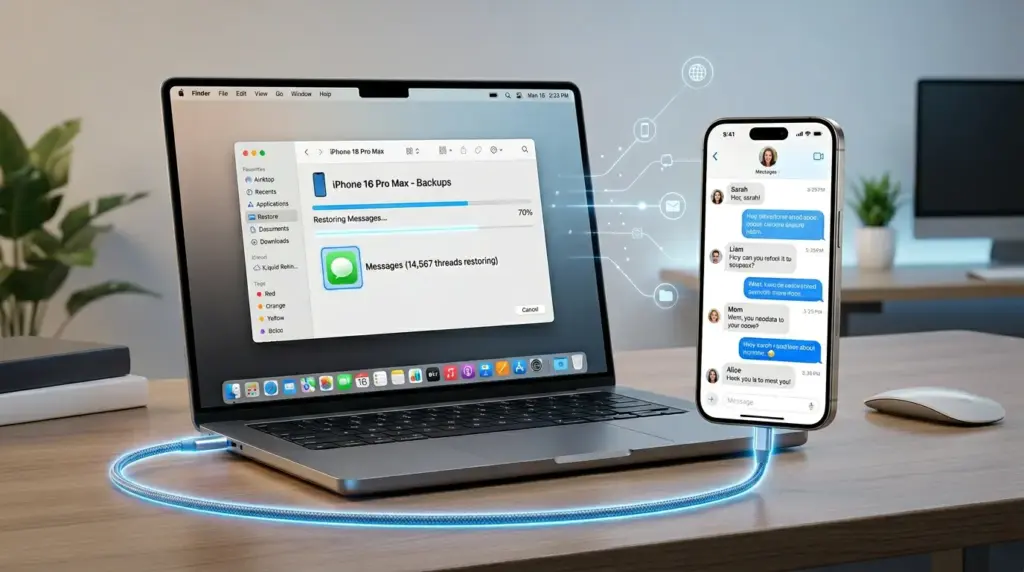
When to Use This Method
If you regularly connect your iPhone to a Mac or Windows PC and back it up through iTunes (Windows) or Finder (macOS Catalina and later), you might have a local backup that contains your deleted messages. This method is great if:
- You don’t use iCloud Backup.
- Your iCloud backup is too recent and doesn’t include the deleted messages.
- You prefer keeping backups on your computer for privacy or storage reasons.
For users looking to restore their texts without using iCloud, a computer backup is often the hidden gem they forgot about. Many people set up automatic iTunes backups years ago and never checked them again. This is another solid answer to how to recover deleted messages on iPhone when cloud options aren’t available.
How to Restore from a Computer Backup
On Mac (macOS Catalina or later):
- Connect your iPhone to your Mac using a USB cable.
- Open Finder (not iTunes—Apple replaced iTunes with Finder for device management in macOS Catalina).
- Select your iPhone from the sidebar.
- Click Restore Backup.
- Choose the backup that was created before you deleted the messages.
- Click Restore and wait for the process to finish.
- Keep your iPhone connected until it restarts and syncs with your Mac.
On Windows (or Mac with macOS Mojave or earlier):
- Connect your iPhone to your computer.
- Open iTunes.
- Click the iPhone icon in the top-left corner.
- Under the Summary tab, click Restore Backup.
- Select the appropriate backup from the list.
- Click Restore and wait.
- Don’t disconnect your iPhone until the restore is complete.
Tips to Avoid Overwriting Current Data
Just like with iCloud, restoring from a computer backup will replace your current iPhone data. Here’s how to stay safe:
- Create a new backup first. In Finder or iTunes, click “Back Up Now” to save your current state.
- Note the backup date. Each backup shows the date and time. Pick the one that predates your message deletion.
- Extract messages without full restore (advanced). Some third-party tools can extract just messages from an iTunes/Finder backup without restoring the entire device. We’ll cover this in Method 4.
Did You Know? Finder and iTunes backups are often more comprehensive than iCloud backups because they can include data that iCloud excludes, such as certain app data and local files. If you have both types of backups, the computer backup might be your better bet.
Method 4: Use Third-Party iPhone Data Recovery Software
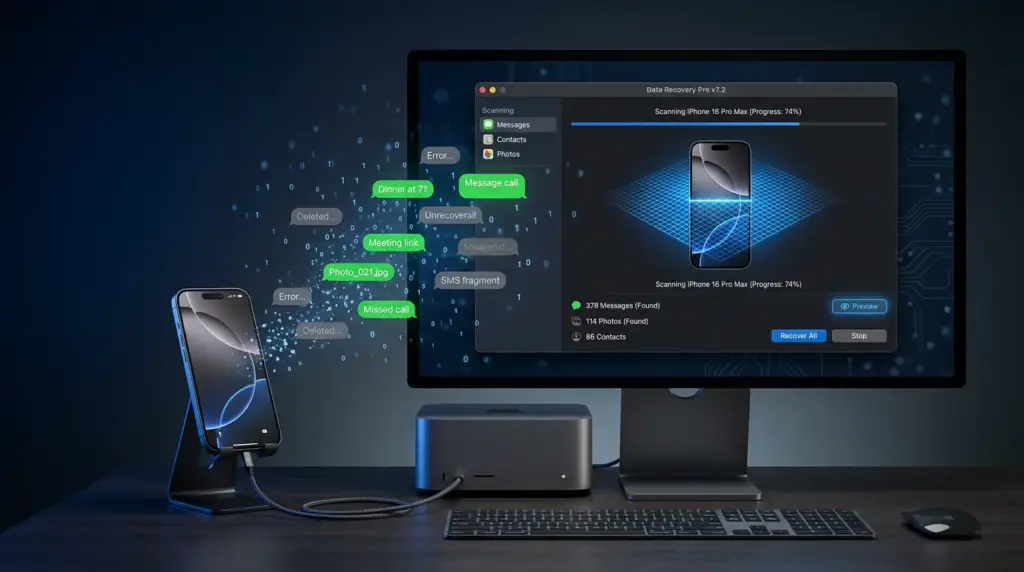
When Built-In Methods Fail
If the Recently Deleted folder is empty, your iCloud backup is too recent, and you don’t have a computer backup, third-party iPhone data recovery software becomes your last resort. These tools scan your iPhone (or existing backups) for traces of deleted data and attempt to recover it.
When every Apple method fails, users often turn to software solutions to figure out how to recover deleted messages on iPhone without starting from scratch. While not guaranteed, these tools have helped thousands of people retrieve conversations they thought were gone forever.
⚠️ Safety Warning: The data recovery software market is flooded with scams and malware. Only download tools from reputable developers. Avoid any software that asks for unnecessary permissions or looks unprofessional. Stick to well-known names like Disk Drill, Dr.Fone, or Tenorshare UltData.
How Third-Party Recovery Works
Most legitimate iPhone data recovery tools work in one of three ways:
- Direct Device Scan: Connects to your iPhone and scans for deleted data traces. Success depends on whether the deleted data has been overwritten by new data.
- iTunes/Finder Backup Extraction: Reads your existing computer backups and extracts specific files (like messages) without restoring the entire device.
- iCloud Backup Download: Downloads your iCloud backup to your computer and lets you browse and extract specific data.
Top Recommended Tools for 2026
Table
| Tool | Best For | Price | Free Preview? | iOS 26 Support |
|---|---|---|---|---|
| Disk Drill | Mac users, intuitive interface | $89 (PRO) | Yes (scan & preview) | Yes (iOS 5–26) |
| Dr.Fone | All-in-one toolkit, Windows/Mac | $49.95+ | Yes (scan & preview) | Yes |
| Tenorshare UltData | Social app recovery (WhatsApp, etc.) | $49.95/yr | Yes (scan & preview) | Yes |
| PhoneRescue | Restoring directly to device | $34.99/yr | Yes | Yes (iOS 5–26) |
| Stellar Data Recovery | Encrypted backup recovery | $39.99/yr | Yes (limited) | Yes |
Step-by-Step: Using Dr.Fone to Recover Deleted Messages
Here’s a general workflow using one of the most popular tools:
- Download and install Dr.Fone (or your chosen tool) on your Mac or Windows PC from the official website.
- Connect your iPhone to the computer using a USB cable.
- Open the software and select Data Recovery.
- Choose Recover from iOS Device (or select a backup if you have one).
- The software will scan your iPhone. This can take 10–30 minutes.
- Once the scan completes, browse the results and look for Messages or iMessages.
- Preview the found messages to confirm they’re the ones you want.
- Select the messages and click Recover to save them to your computer.
- You can then transfer them back to your iPhone or keep them as a file.
What to Expect from Third-Party Tools
- No guarantee of success. If the deleted data has been overwritten, even the best software can’t recover it.
- Free scans, paid recovery. Most tools let you scan for free but require payment to actually recover the data.
- Preview before paying. Always use the preview feature to confirm the software found your messages before purchasing.
- Avoid “free” tools that seem too good to be true. If a tool promises 100% recovery for free, it’s likely a scam.
Expert Quote: According to TechRadar’s 2026 testing, “The best data recovery software for iPhones delivers excellent value for money and includes a free recovery plan, but users should always preview results before purchasing.” Tools like Disk Drill and EaseUS MobiSaver consistently rank among the top performers for iOS data recovery.
Method 5: Contact Your Carrier for Message Logs

Can Your Carrier Help?
In some cases, your mobile carrier keeps logs of your text messages. However, this method has significant limitations:
- Carriers typically store metadata only. This means they might have records of who you texted and when, but not the actual content of the messages.
- Some carriers store content for law enforcement. Major carriers like Verizon, AT&T, and T-Mobile may retain SMS content for a limited time, but they usually only release it under legal subpoena.
- iMessages are encrypted end-to-end. Since iMessages use Apple’s encryption, your carrier cannot access their content at all.
When to Try This Method
This approach is worth trying only if:
- You need proof that a message was sent (metadata) rather than the message content itself.
- You’re dealing with a legal or harassment situation where carrier records might help.
- All other recovery methods have failed, and you’re desperate for any record.
If you’ve exhausted all other options and still need to know how to recover deleted messages on iPhone, contacting your carrier is worth a shot—even though success is unlikely.
How to Request Message Logs
- Call your carrier’s customer service. For major US carriers:
- AT&T: 1-800-331-0500
- Verizon: 1-800-922-0204
- T-Mobile: 1-800-937-8997
- Ask for your message detail records or SMS logs.
- Be prepared to verify your identity with your account PIN, password, or billing information.
- Request the time period when the deleted messages were sent or received.
- The carrier may provide a PDF or online record of the metadata.
Limitations of Carrier Message Records
- Content is rarely available. Most carriers do not store the actual text of SMS messages for privacy reasons.
- iMessages are invisible to carriers. Since iMessages travel through Apple’s servers (not the carrier’s SMS network), your carrier has no record of them.
- Retention periods vary. Some carriers keep records for only a few days; others keep them for months. It depends on the carrier’s policy.
- Legal requirements may apply. Accessing message content often requires a court order or subpoena.
Bottom Line: Don’t rely on your carrier as a primary recovery method. It’s a long shot, but worth trying if you need any trace of a deleted conversation.
How to Prevent Losing Messages in the Future
Now that you’ve recovered your messages (or learned how to), let’s make sure this never happens again. Here are the best practices to keep your messages safe:
Enable iCloud Messages for Automatic Sync
- Go to Settings > [Your Name] > iCloud.
- Toggle Messages to ON.
- This syncs all your messages across your iPhone, iPad, and Mac.
- Even if you delete a message from one device, it might still exist on another.
Set Up Regular iPhone Backups
- iCloud Backup: Go to Settings > [Your Name] > iCloud > iCloud Backup and turn on “iCloud Backup.” Your iPhone will back up automatically when connected to Wi-Fi and charging.
- Computer Backup: Connect your iPhone to your Mac or PC weekly and create a local backup through Finder or iTunes. This gives you a second layer of protection.
- Back up before major updates. Always create a fresh backup before installing a new iOS version. If something goes wrong, you can restore from this backup.
Use the “Keep Messages” Setting
By default, iPhone deletes messages after one year. You can change this:
- Go to Settings > Messages.
- Scroll down to Message History.
- Tap Keep Messages.
- Choose Forever instead of 30 Days or 1 Year.
This ensures your messages are never automatically deleted, though it will use more storage over time.
Archive Important Conversations
For truly critical messages, don’t rely solely on your iPhone:
- Screenshot important conversations. Save them to your Photos app or a cloud folder.
- Forward messages to yourself. Send important texts to your own email or another messaging app.
- Use a secondary backup app. Some users export messages to PDF using apps like iMazing for extra peace of mind.
Pro Tip: If you regularly back up your iPhone to both iCloud and your computer, you’ll have multiple safety nets. Even if one backup fails or is too recent, the other might save the day. Knowing how to recover deleted messages on iPhone is useful, but preventing the loss in the first place is even better.
Comparison Table: All 5 Methods at a Glance
Table
| Method | Speed | Difficulty | Needs Backup? | Success Rate | Cost |
|---|---|---|---|---|---|
| 1. Recently Deleted | Instant | Very Easy | No | High (if within 30 days) | Free |
| 2. iCloud Backup | 30 min–hours | Moderate | Yes | High (if backup exists) | Free |
| 3. iTunes/Finder Backup | 30 min–hours | Moderate | Yes | High (if backup exists) | Free |
| 4. Third-Party Software | 10–60 min | Moderate | Optional | Medium–High | $35–$90 |
| 5. Carrier Records | Days | Difficult | No | Very Low | Free |
Best for most users: Start with Method 1 (Recently Deleted). If that fails, try Method 2 or 3 (backups). Use Method 4 only as a last resort, and Method 5 only if you need legal proof.
FAQ: People Also Ask
Can I recover deleted messages on iPhone without a backup?
Yes, but with limitations. If your messages were deleted within the last 30 days, check the Recently Deleted folder in your Messages app. This requires no backup at all. If more than 30 days have passed, you can try third-party data recovery software, but success isn’t guaranteed—especially if you’ve used your iPhone heavily since the deletion. The less you use your device after deleting messages, the better your chances. This is often the first question people ask when researching how to recover deleted messages on iPhone.
How long does iPhone keep deleted messages?
Apple stores deleted messages in the Recently Deleted folder for 30 days. After that, they’re permanently removed from your device. However, if you have iCloud Messages enabled, deleted messages might still exist on your other Apple devices (iPad, Mac) or in an iCloud backup if the backup was made before the deletion. Understanding this timeline is key when learning how to recover deleted messages on iPhone effectively.
Will restoring from iCloud backup delete my current data?
Yes. Restoring from an iCloud backup will completely overwrite your current iPhone data with the backup’s contents. Any photos, messages, apps, or settings you’ve added since the backup will be lost. Always back up your current iPhone first before restoring an older backup. You can create a new backup by going to Settings > [Your Name] > iCloud > iCloud Backup > Back Up Now.
Can I recover messages that were deleted years ago?
Only if they exist in an old backup. Messages deleted more than 30 days ago and not backed up are generally unrecoverable. If you have an old iTunes or iCloud backup from before the deletion, you can restore from it. Third-party software is unlikely to recover messages from years ago because the storage space has almost certainly been overwritten by new data.
Are third-party iPhone message recovery tools safe?
Some are, but many are not. Stick to well-established tools like Disk Drill, Dr.Fone, Tenorshare UltData, or PhoneRescue. Always download from the official website, never from random download sites. Be wary of tools that promise “100% free recovery” or “guaranteed results”—these are often scams. Legitimate tools let you scan and preview for free but charge for actual recovery.
What’s the difference between SMS and iMessages for recovery?
SMS (green bubbles) are standard text messages sent through your carrier’s network. They might be recoverable from carrier logs (metadata only) or backups. iMessages (blue bubbles) are encrypted and sent through Apple’s servers. Your carrier cannot access iMessage content at all. For iMessages, your only recovery options are the Recently Deleted folder, iCloud/computer backups, or third-party software.
Conclusion
Losing important text messages can feel devastating, but as you’ve learned, there are multiple ways to recover deleted messages on iPhone. Start with the simplest method—the Recently Deleted folder—and work your way through backups and software tools if needed.
Here’s a quick recap of your options:
- Recently Deleted folder: Check here first. It’s fast, free, and works for 30 days.
- iCloud Backup: Restore from a backup if you have one from before the deletion.
- iTunes/Finder Backup: Use your computer backup as an alternative to iCloud.
- Third-Party Software: Try reputable tools like Dr.Fone or Disk Drill when other methods fail.
- Carrier Records: A last resort for metadata, not message content.
The best recovery strategy is prevention. Enable iCloud Messages, set your iPhone to keep messages forever, and back up regularly to both iCloud and your computer. That way, you’ll never have to panic about a deleted text again.
If you found this guide on how to recover deleted messages on iPhone helpful, you might also want to learn how to recover deleted photos on iPhone or how to back up your iPhone properly to avoid future data loss. And if you prefer keeping backups on your computer, check out our guide on how to back up your iPhone to a PC.
Have you successfully recovered deleted messages using one of these methods? Let us know which one worked for you!
External Links Used:
- Apple Support: Recover Deleted Messages — Official Apple documentation
- TechRadar: Best Data Recovery Software 2026 — Expert testing and reviews
- Disk Drill iOS Data Recovery — Reputable third-party tool (for informational reference)

