


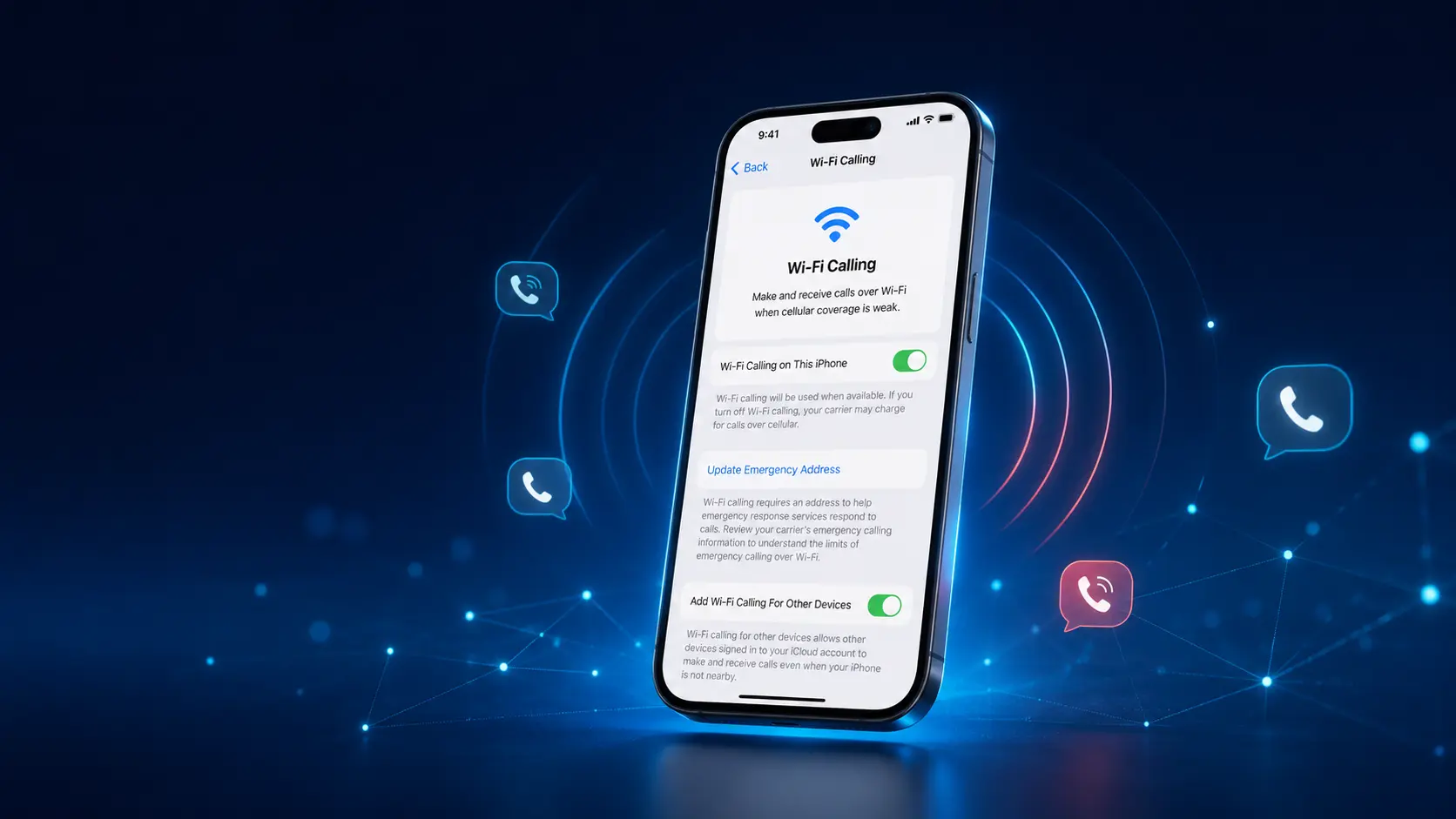
If you have ever struggled with poor cellular reception at home, in the office, or while traveling, WiFi calling iPhone is the built-in feature you have been missing. Apple designed this tool to help you make and receive calls over a WiFi network whenever your cellular signal is weak or unavailable. In this complete guide, you will learn exactly how to turn on WiFi calling iPhone, how to use it across your Apple devices, and what to do when the service is not working as expected.
What Is WiFi Calling iPhone?
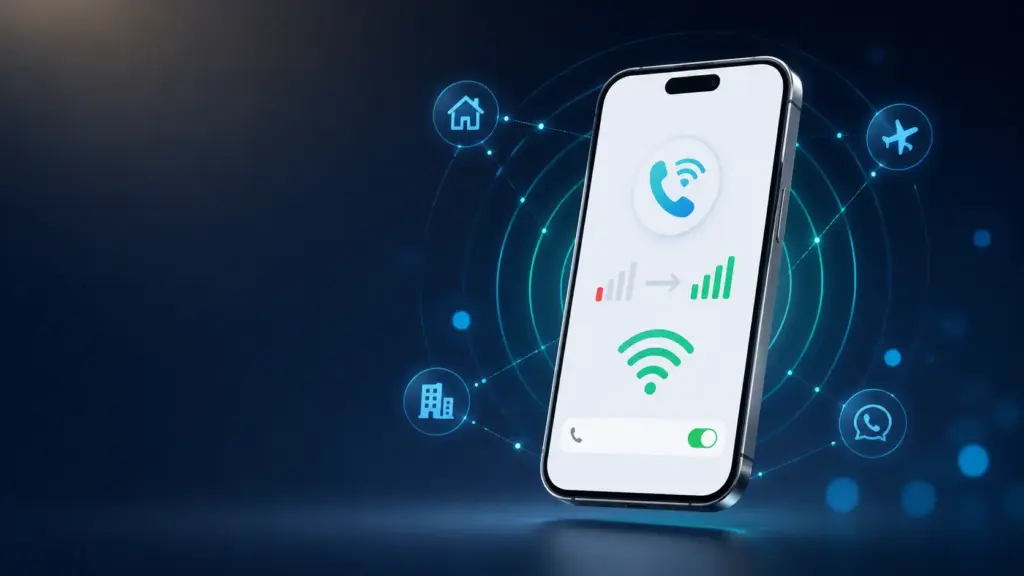
WiFi calling iPhone is a built-in iOS feature that routes your voice calls through a WiFi network instead of the traditional cellular tower. When you enable it, your iPhone automatically switches to WiFi for calls whenever the cellular signal is weak or absent. The technology behind this is called VoWiFi (Voice over WiFi), and it works seamlessly in the background without requiring any third-party apps.
Expert Tip: According to Apple Support, “When you turn on Wi-Fi Calling, you can make and receive calls over Wi-Fi in places where the cellular network has poor coverage or isn’t available.”
Unlike FaceTime Audio or Skype, this feature uses your actual phone number. The person you are calling sees your standard caller ID, and you do not need to create a separate account. Your carrier treats the call as a standard voice call, even though it travels over the internet. This means your call minutes, if your plan still counts them, are handled exactly the same as a cellular call.
The feature is especially useful in rural areas, basement apartments, concrete buildings, and remote offices where cellular signals struggle to penetrate. It is also a lifesaver when traveling abroad, since many carriers allow WiFi calling iPhone to work internationally without roaming charges. You simply connect to the hotel or airport WiFi, and your phone behaves as if you are back home.
Another key advantage is that the technology supports emergency calls. However, because your location is harder to pinpoint over WiFi, Apple and your carrier require you to register an emergency address. This ensures that if you dial 911, emergency services receive a registered location even if your exact WiFi location cannot be triangulated instantly.
Why Use WiFi Calling on Your iPhone?

There are several practical reasons to turn on WiFi calling iPhone today. Whether you live in a signal dead zone or just want clearer conversations, this feature solves real problems.
First, it eliminates dead zones. If your home or workplace has thick walls or is located far from the nearest cell tower, you probably deal with dropped calls and one-bar frustration. This tool bypasses the cellular network entirely, giving you full-bar reception as long as your WiFi router is nearby.
Second, the call quality is often better. WiFi networks typically offer more bandwidth than congested cellular towers. This results in clearer audio, fewer dropouts, and less background static. If you work from home and spend hours on conference calls, WiFi calling iPhone can make your conversations noticeably sharper.
Third, it works automatically. Once you learn how to enable WiFi calling on iPhone, you do not need to toggle anything before dialing. Your iPhone intelligently chooses the best available network. If cellular is strong, it uses cellular. If WiFi is stronger, it switches to WiFi. The transition is seamless and happens in the background.
Fourth, it saves battery life in weak-signal areas. When your iPhone constantly searches for a cellular signal, the radio works overtime and drains your battery. By letting the WiFi network handle the connection, your phone relaxes its cellular search, which can extend your daily battery life significantly.
Fifth, it is perfect for travelers. Instead of paying expensive international roaming fees, you can connect to hotel WiFi and use WiFi calling iPhone to call home at no extra cost. Many major U.S. carriers, including AT&T, Verizon, and T-Mobile, include this in standard plans.
Which iPhones and Carriers Support WiFi Calling?
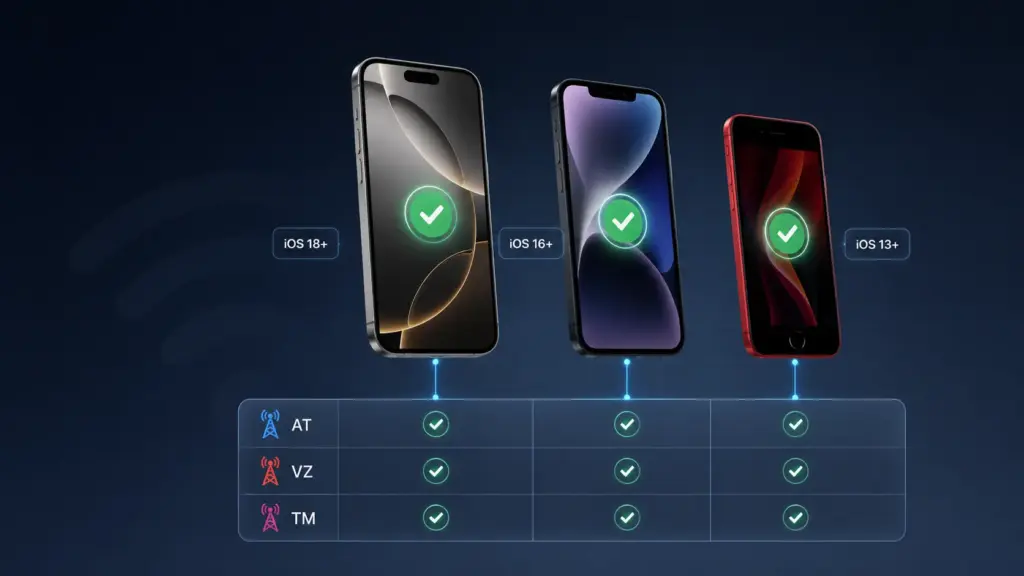
The good news is that WiFi calling iPhone is not limited to the newest models. Apple introduced the feature years ago, and it remains widely supported across the lineup.
iPhone Models That Support WiFi Calling
| iPhone Model | Minimum iOS Version | WiFi Calling Support |
|---|---|---|
| iPhone 16 Series | iOS 18+ | Yes |
| iPhone 15 Series | iOS 17+ | Yes |
| iPhone 14 Series | iOS 16+ | Yes |
| iPhone 13 Series | iOS 15+ | Yes |
| iPhone 12 Series | iOS 14+ | Yes |
| iPhone 11 Series | iOS 13+ | Yes |
| iPhone SE (2nd & 3rd gen) | iOS 13+ | Yes |
| iPhone XS / XR | iOS 12+ | Yes |
| iPhone X / 8 / 8 Plus | iOS 11+ | Yes |
If you own an iPhone 12 or newer, you are fully supported. Even older models like the iPhone 8 can handle the feature as long as they run a modern iOS version.
Carrier Support in the United States
Not every carrier offers the service, but the major ones do. Here is a quick breakdown:
- AT&T: Supported on all compatible iPhones. Requires HD Voice enabled.
- Verizon: Supported nationwide. Must have Advanced Calling activated.
- T-Mobile: Supported on all modern iPhones. Often enabled by default.
- Visible (Verizon MVNO): Supported on most iPhones.
- Mint Mobile (T-Mobile MVNO): Supported.
- Google Fi: Supported with full iPhone integration.
Before you try how to set up Wi-Fi calling, contact your carrier or check their website to confirm the feature is included in your plan. Some prepaid and regional carriers may not support it yet.
Pro Tip: If you recently switched carriers, you may need to update your iPhone to the latest carrier settings. Go to Settings > General > About and wait for the carrier update prompt.
How to Turn On WiFi Calling iPhone (Step-by-Step)
Learning how to turn on WiFi calling on iPhone takes less than two minutes. Follow these steps carefully, and make sure you are connected to a stable WiFi network before you begin.
Step 1: Check Your iOS Version and Carrier Settings
Before diving into menus, confirm that your software is up to date. The feature requires a relatively modern iOS version.
- Open Settings.
- Tap General.
- Tap About.
- Look at the Carrier field. If an update is available, a popup will appear.
If your iOS is older than iOS 16, consider updating for the best experience. You can update your iPhone through Settings > General > Software Update.
Step 2: Open the WiFi Calling Settings Menu
Now navigate to the correct settings panel:
- Open Settings.
- Tap Phone (or Cellular on some iOS versions).
- Tap Wi-Fi Calling.
If you do not see this option, your carrier may not support the feature, or your carrier settings file is outdated.
Step 3: Turn On WiFi Calling iPhone
This is the core step for how to enable WiFi calling on iPhone:
- Toggle Wi-Fi Calling on This iPhone to the ON position.
- Read the disclaimer about emergency calling.
- Tap Enable to confirm.
Your iPhone will now register the service with your carrier. This may take 10–30 seconds. You will see a brief “Please Wait” message while the network validates your device.
Step 4: Enter Your Emergency Address (E911)
Because WiFi networks do not provide precise location data like cell towers, the FCC and Apple require an emergency address.
- After enabling the toggle, tap Update Emergency Address.
- Enter your current home or work address.
- Tap Save.
Important: If you move to a new home or spend extended time at a secondary location, update this address. Emergency services rely on it when you call 911 over WiFi.
Step 5: Verify WiFi Calling Is Active
Look at the top-left corner of your iPhone screen. When the feature is active and you are connected to WiFi, you will see your carrier name followed by “Wi-Fi” in the status bar. This confirms that your next call will route through the internet instead of the cellular tower.
To test it:
- Put your iPhone in Airplane Mode.
- Turn WiFi back on manually.
- Dial a friend or family member.
- If the call connects, WiFi calling iPhone is working perfectly.
How to Turn Off WiFi Calling iPhone
Sometimes you may want to disable the feature. Perhaps you are troubleshooting connection issues, or your carrier charges differently for WiFi calls. Turning it off is just as easy as turning it on.
- Open Settings.
- Tap Phone (or Cellular).
- Tap Wi-Fi Calling.
- Toggle Wi-Fi Calling on This iPhone to the OFF position.
Once disabled, your iPhone will return to standard cellular calling. You will no longer see the “Wi-Fi” label next to your carrier name. If you travel frequently, remember that turning off the service may result in roaming charges when you are abroad, since your phone will default back to cellular towers.
How to Use WiFi Calling iPhone on Other Apple Devices
One of the best parts of the Apple ecosystem is continuity. After you enable WiFi calling iPhone, you can extend that capability to your iPad, Mac, and Apple Watch.
iPad and Mac
- On your iPhone, go to Settings > Phone > Wi-Fi Calling.
- Enable Calls on Other Devices.
- On your iPad or Mac, go to Settings > FaceTime (or System Settings > Phone on macOS).
- Turn on Calls from iPhone.
Now, when your iPhone is nearby and connected to WiFi, you can make and receive calls directly from your iPad or Mac using your standard phone number. The call still routes through your iPhone’s connection, but you get the convenience of a larger screen or better speakers.
Apple Watch
If you have a cellular Apple Watch, the feature enhances its independence. When your watch is away from your phone but connected to a known WiFi network, it can still place and receive calls using the WiFi calling profile from your iPhone.
WiFi Calling iPhone Not Working? Troubleshooting Guide
Even though the technology is reliable, you may occasionally run into problems. Here is how to fix the most common WiFi calling iPhone issues.
WiFi Calling Toggle Missing or Greyed Out
If the option does not appear:
- Check carrier support. Not all plans include the feature.
- Update carrier settings. Go to Settings > General > About and wait for a prompt.
- Restart your iPhone. A simple reboot often refreshes the carrier profile. You can learn the best way to restart your iPhone if you are unsure.
Calls Keep Dropping on WiFi
Dropped calls usually indicate an unstable WiFi network.
- Move closer to your router.
- Disconnect other bandwidth-heavy devices (streaming, downloads).
- Restart your router.
- If the problem persists, reset your iPhone’s network settings. This clears corrupted WiFi profiles without deleting your photos or apps.
Poor Call Quality Over WiFi
Choppy audio or delays are frustrating.
- Run a speed test. You need at least 1 Mbps upload and download for clear calls.
- Switch to the 5 GHz WiFi band if your router supports it.
- Disable VPNs temporarily, as they can add latency.
- Close background apps that may be consuming bandwidth.
WiFi Calling Not Activating After iOS Update
Sometimes a software update disrupts carrier settings.
- Toggle Airplane Mode on and off.
- Go to Settings > Phone > Wi-Fi Calling and turn it off, wait 10 seconds, then turn it back on.
- If that fails, back up your iPhone and perform a network settings reset.
Emergency Address Error
If you see an error when saving your E911 address:
- Use a standard USPS-recognized address. PO Boxes are not accepted.
- Make sure the city, state, and ZIP code match exactly.
- Contact your carrier if the error continues; they may need to refresh your account profile.
WiFi Calling iPhone vs Cellular Calling
Understanding the differences helps you decide when to rely on each technology.
| Feature | WiFi Calling | Cellular Calling |
|---|---|---|
| Network Used | WiFi internet | Cellular towers |
| Call Quality | Often clearer; depends on WiFi speed | Depends on signal strength |
| Battery Impact | Lower in weak-signal areas | Higher when searching for signal |
| Location Tracking | Uses registered emergency address | Uses cell tower triangulation |
| International Use | Often free with carrier plans | May incur roaming charges |
| Required Hardware | WiFi router | Cell tower proximity |
| Setup Complexity | Requires one-time activation | Works out of the box |
Both methods use your same phone number, and the person on the other end cannot tell which network you are using. WiFi calling iPhone simply gives you more flexibility.
Does WiFi Calling iPhone Use Data?
This is one of the most common questions about the feature. The answer is nuanced.
WiFi calling does not count against your cellular data plan. It uses your WiFi internet connection, which means it consumes bandwidth from your home, office, or public WiFi network. However, your carrier does not treat it as mobile data.
That said, the call does use internet bandwidth. A standard voice call over WiFi uses approximately 1–2 MB per minute. A video call, if supported by your carrier’s implementation, may use significantly more. If you are on a metered home internet plan or a hotel WiFi with strict limits, keep this in mind.
For most users with unlimited broadband, WiFi calling iPhone is essentially free in terms of data consumption.
Is WiFi Calling iPhone Free?
For the majority of U.S. carriers, the service is included at no extra charge. AT&T, Verizon, and T-Mobile treat WiFi calls the same as cellular calls within your plan’s terms.
- Domestic calls: Usually free and unlimited on modern plans.
- International calls from the U.S.: Rates vary. Some carriers charge international long-distance rates even over WiFi.
- Calls while traveling abroad: This is where the feature shines. Many carriers allow you to call U.S. numbers for free when connected to WiFi overseas. However, calls to local numbers in the foreign country may still incur charges.
Always check your carrier’s specific terms before relying on the service for international dialing. The FCC provides a helpful guide on consumer rights and billing transparency.
People Also Ask
Here are quick answers to the most common questions people search for alongside wifi calling iphone.
How do I know if WiFi Calling is working on my iPhone?
Look for the word “Wi-Fi” next to your carrier name in the status bar. You can also place a call in Airplane Mode with WiFi enabled.
Can I use WiFi Calling without cellular service?
Yes. As long as you have a WiFi connection and have already activated the feature, it works even with zero cellular bars.
Why does my iPhone say WiFi Calling failed?
This usually means your carrier registration is incomplete. Update your carrier settings, ensure your emergency address is saved, and restart your iPhone.
Does WiFi Calling work on airplane mode?
Yes. Enable Airplane Mode, then manually turn WiFi back on. The service will function normally.
Can I use WiFi Calling for 911?
Yes, but emergency services will use your registered emergency address instead of GPS. Keep your address current.
Frequently Asked Questions
Q1: What is the difference between WiFi Calling and FaceTime Audio?
A: WiFi calling iPhone uses your phone number and carrier network, while FaceTime Audio uses Apple’s internet service and requires both parties to have Apple devices.
Q2: How to enable WiFi calling on iPhone if I don’t see the option?
A: Contact your carrier to confirm the feature is active on your line. Then update your iPhone and check Settings > General > About for a carrier settings update.
Q3: Will WiFi Calling work if I switch to a new iPhone?
A: Yes, but you will need to re-enable it during setup. Your carrier profile transfers, yet Apple requires you to confirm the emergency address on each new device.
Q4: Does WiFi Calling drain battery faster?
A: No. In fact, the feature often saves battery in areas with poor cellular coverage because your phone stops struggling to find a tower.
Q5: Can I turn off WiFi calling for specific contacts?
A: No. The feature is global. However, if you prefer cellular for a specific call, you can temporarily disable it in Settings before dialing.
Q6: Is VoWiFi the same as WiFi Calling?
A: Yes. VoWiFi stands for Voice over WiFi, which is the technical name for the service.
Final Thoughts
WiFi calling iPhone is one of the most underused yet powerful features built into iOS. It turns any reliable WiFi network into a cell tower, giving you clear calls in basements, remote offices, and hotel rooms around the world. Now that you know how to enable WiFi calling on iPhone, how to troubleshoot it, and how it compares to standard cellular service, you are ready to stay connected no matter where you go.
If you found this guide helpful, consider learning how to enable iMessage for even more seamless communication, or read our guide on how to back up your iPhone to keep your data safe before making any major settings changes.

