


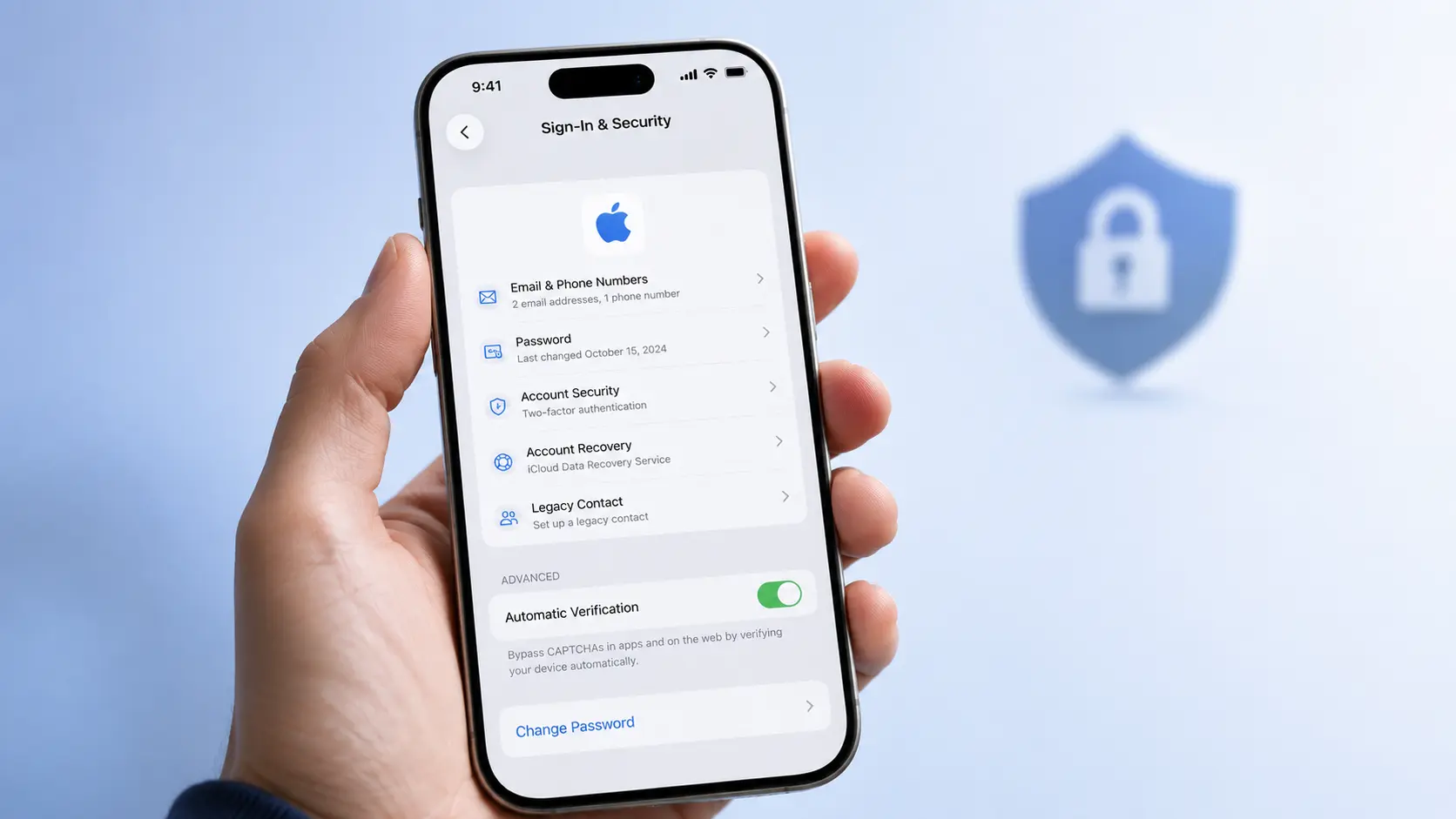
Why You Should Change Your Apple ID Password Regularly
Your Apple ID is the master key to everything on your iPhone. It protects your photos, messages, iCloud backups, App Store purchases, and even your location data through Find My. If you are wondering how to change Apple ID password the right way, you are already taking an important step toward protecting your digital life.
Learning how to change your Apple ID password is not just for emergencies. Apple recommends that you change Apple ID password immediately if you notice suspicious activity, receive unexpected login alerts, or simply want to follow good Apple ID security best practices. Even if nothing looks wrong, knowing how to change Apple ID password on iPhone every few months keeps your account one step ahead of potential threats.
Expert Tip: According to Apple Support, “Your Apple Account password protects your personal information. Choose a strong password that you don’t use for other websites.”
How to Change Apple ID Password on iPhone
The easiest way to change Apple ID password on iPhone is directly through your device Settings. This method works on all iPhones running iOS 26 and earlier versions.
Method 1: Change Apple ID Password Directly from iPhone Settings
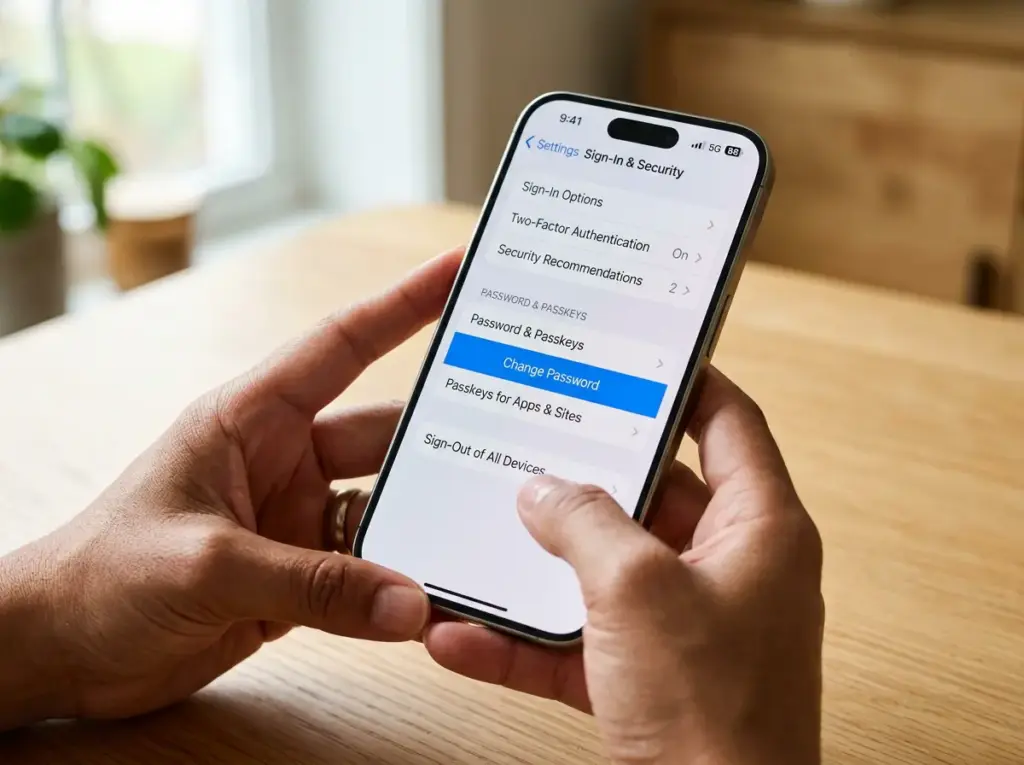
This is the fastest route for most users who want to change Apple ID password quickly. Make sure you know your current password before you start.
- Open the Settings app on your iPhone.
- Tap your name at the top of the screen.
- Select Sign-In & Security.
- Tap Change Password.
- Enter your iPhone passcode when prompted.
- Type your new Apple ID password twice to confirm.
- Tap Change or Done in the top-right corner.
Note: Your new password must be at least eight characters long and include a mix of uppercase letters, lowercase letters, and at least one number.
Method 2: Change Apple ID Password via Web Browser
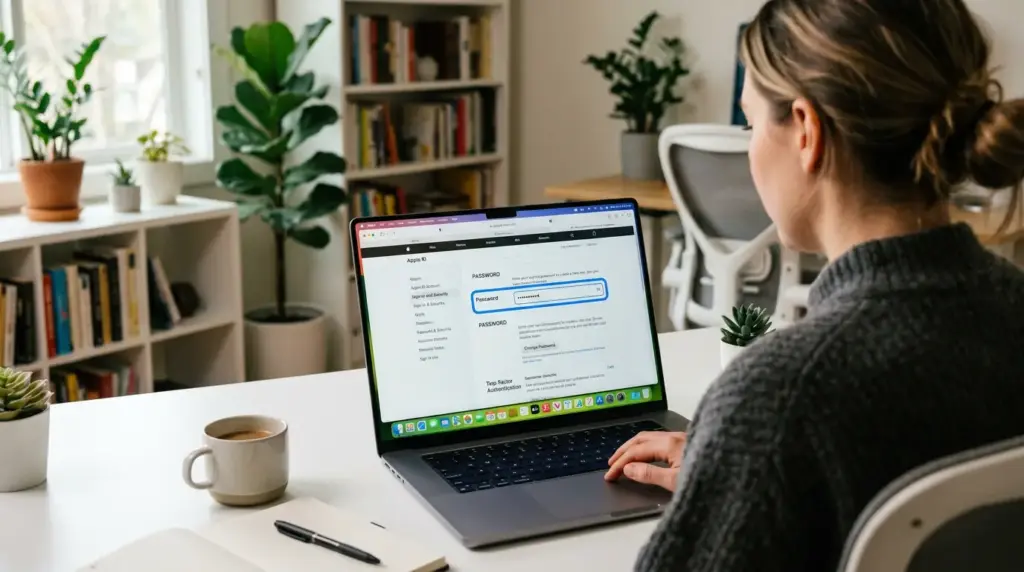
If you prefer using a computer or your iPhone browser, you can still change Apple ID password through Apple’s official website.
- Open Safari (or any browser) and go to appleid.apple.com.
- Sign in with your current Apple ID and password.
- Look for the Sign-In and Security section.
- Click Password.
- Enter your current password, then type your new password twice.
- Click Change Password.
This method is helpful if you are already working on your Mac or PC and want to change your Apple ID password without picking up your phone.
Method 3: Change Apple ID Password If You Forgot It
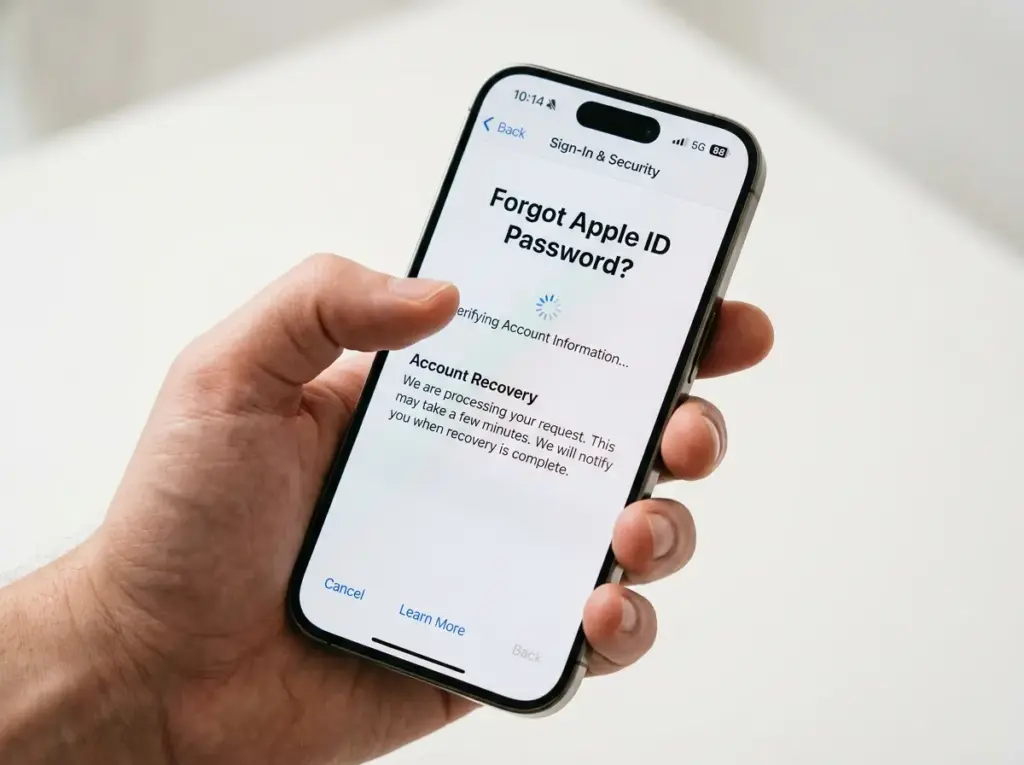
If you cannot remember your current password, do not worry. You can still change Apple ID password using Apple’s built-in recovery system.
- Open Settings on your iPhone.
- Tap your name > Sign-In & Security.
- Tap Change Password.
- When asked for your current password, tap Forgot Password?
- Follow the on-screen instructions. You may need to answer security questions or use Account Recovery if two-factor authentication is enabled.
- Create a new password and confirm it.
Alternatively, visit iforgot.apple.com from any device to start the recovery process and change Apple ID password remotely.
How to Reset Apple ID Password If Forgotten
Forgetting your password is more common than you think. If you are dealing with a forgot Apple ID password iPhone situation, here is exactly what to do based on your security setup.
| Scenario | What You Need | Steps |
|---|---|---|
| Two-Factor Authentication ON | Trusted iPhone + passcode | Settings > Name > Sign-In & Security > Change Password > Forgot Password? |
| Two-Factor Authentication ON + No trusted device | Phone number + recovery key | Visit iforgot.apple.com and request account recovery |
| Security Questions | Answers + birth date | Answer questions correctly, then set new password |
| Account Recovery Contact | A trusted friend or family member | Ask them to generate a recovery code from their device |
Important: If you recently enabled Stolen Device Protection, some password changes may be delayed when you are away from familiar locations. This is a security feature, not a bug.
How to Change Apple ID Password Without Trusted Device
Sometimes your iPhone is lost, broken, or not available. You can still change Apple ID password without trusted device using any web browser.
- Go to iforgot.apple.com.
- Enter your Apple ID email address.
- Type the CAPTCHA characters and click Continue.
- Choose to receive instructions via email or SMS on a trusted phone number.
- Follow the link Apple sends you.
- Create your new password.
If you do not have access to any trusted phone numbers or emails, you will need to request Account Recovery. This process can take a few days while Apple verifies your identity before you can change Apple ID password again.
What Happens After You Change Your Apple ID Password
Once you change Apple ID password on iPhone, Apple automatically signs you out of all other devices connected to that account. This includes:
- iPads and Macs
- Apple Watches
- Apple TV
- iCloud.com in web browsers
- Third-party apps using Sign in with Apple
What you need to do next:
- Re-enter your new password on each device when prompted.
- Update your password in the Settings app under your name.
- Check that iCloud Backup is still active. If you need help, read our guide on how to back up iPhone to make sure your data stays safe.
- Review your trusted devices list to remove anything you no longer own.
Expert Tip: Apple states, “After you change your Apple Account password, you’ll need to update it in Settings on all of your devices.” Keeping everything in sync prevents sync errors and app download issues.
How to Create a Strong Apple ID Password
A weak password puts your entire Apple ecosystem at risk. Follow these rules when you change Apple ID password:
- Minimum 8 characters, but 12+ is better.
- Mix uppercase, lowercase, numbers, and symbols.
- Avoid personal info like birthdays, pet names, or phone numbers.
- Never reuse a password from another website.
- Consider letting iPhone suggest a strong password and saving it to your Passwords app.
You can view and manage all saved passwords by reading our tutorial on how to find passwords on iPhone.
Troubleshooting: Can’t Change Apple ID Password
Even simple tasks can hit a snag. Here is how to fix the most common problems when you try to change Apple ID password on iPhone.
“Change Password” Is Grayed Out
If the option to change Apple ID password is unavailable:
- Make sure your iPhone is connected to Wi-Fi or cellular data.
- Restart your iPhone and try again.
- Check that you are signed into the correct Apple ID.
- If Screen Time restrictions are active, you may need the Screen Time passcode first.
“Verification Failed” Error
This usually means Apple’s servers are busy or your connection is unstable.
- Toggle Airplane Mode on and off.
- Try again in a few minutes.
- Use a different Wi-Fi network if possible.
Two-Factor Authentication Problems
If you are not receiving the six-digit code when trying to change Apple ID password:
- Tap Didn’t get a code? and choose to send it to another trusted device.
- Make sure your trusted phone number is current.
- Update your number at appleid.apple.com if needed.
iPhone Stuck After You Change Apple ID Password
In rare cases, your device may freeze during the process. If your screen becomes unresponsive after you change Apple ID password, check our guide on iPhone stuck on Apple logo for safe recovery steps.
Apple ID Security Best Practices
Changing your password is just one layer of defense. Follow these Apple ID security best practices to keep hackers away:
- Enable Two-Factor Authentication (2FA). This is the single most effective way to protect your account.
- Review active sessions monthly. Go to Settings > Name > Sign-In & Security > See where you’re signed in.
- Remove old devices you no longer use.
- Keep your trusted phone number updated.
- Watch for phishing emails. Apple will never ask for your password via email.
- Use Sign in with Apple instead of creating new accounts on third-party apps.
If you plan to sell or give away your iPhone, always change Apple ID password first, then sign out completely. You can learn the full process in our article on how to factory reset iPhone.
FAQ
How do I change my Apple ID password if I forgot it?
Open Settings, tap your name, go to Sign-In & Security, tap Change Password, then tap Forgot Password. Follow the prompts, or visit iforgot.apple.com from any browser to change Apple ID password remotely.
Will changing my Apple ID password sign me out of other devices?
Yes. Apple automatically signs out all devices for security after you change Apple ID password. You will need to sign back in with your new password on each device.
Why can’t I see the “Change Password” option on my iPhone?
This usually happens due to Screen Time restrictions, a poor internet connection, or being signed into a restricted account. Restart your iPhone and check your Screen Time settings before you try to change Apple ID password again.
How long does it take for an Apple ID password change to take effect?
It is instant on Apple’s servers. However, if Stolen Device Protection is enabled and you are in an unfamiliar location, the change Apple ID password process may be delayed by one hour.
Do I need my iPhone passcode to change my Apple ID password?
Yes, if you are changing it directly from iPhone Settings. This proves you are the device owner. If you do not know the passcode, use the web recovery method to change Apple ID password instead.
Can I change my Apple ID password from a computer?
Absolutely. Visit appleid.apple.com, sign in, and go to Sign-In and Security > Password to change Apple ID password from any Mac or PC.
Conclusion
Now you know exactly how to change Apple ID password on your iPhone, whether you remember your old password or need a full reset. Every time you change your Apple ID password, you strengthen the wall around your photos, messages, and personal data.
If you were searching for how to change Apple ID password on iPhone because of a security concern, open your Settings app today and update it. If you run into any issues, remember that Apple Support and the iForgot tool are always available.
For more iPhone tips, check out our guides on how to find passwords on iPhone, how to back up iPhone, and how to factory reset iPhone. Stay safe out there!

