



What Does “iPhone Stuck on Apple Logo” Mean?
If your iPhone is stuck on Apple logo, you’re dealing with what’s commonly called a boot loop. Your device turns on, shows the white or black Apple logo, but never fully loads iOS. Instead, it stays frozen there or restarts over and over again.
This can happen to any iPhone model, from the older iPhone 8 to the latest iPhone 16 stuck on Apple logo after an update. Some users see a loading bar under the Apple logo, while others see nothing but the logo itself. Either way, your phone isn’t usable, and the situation feels stressful.
Expert Tip: According to Apple Support, “If your iPhone won’t turn on or is frozen, you may need to force restart it.” This simple step fixes the majority of software-related boot issues without touching your data.
Common Causes Behind the Problem
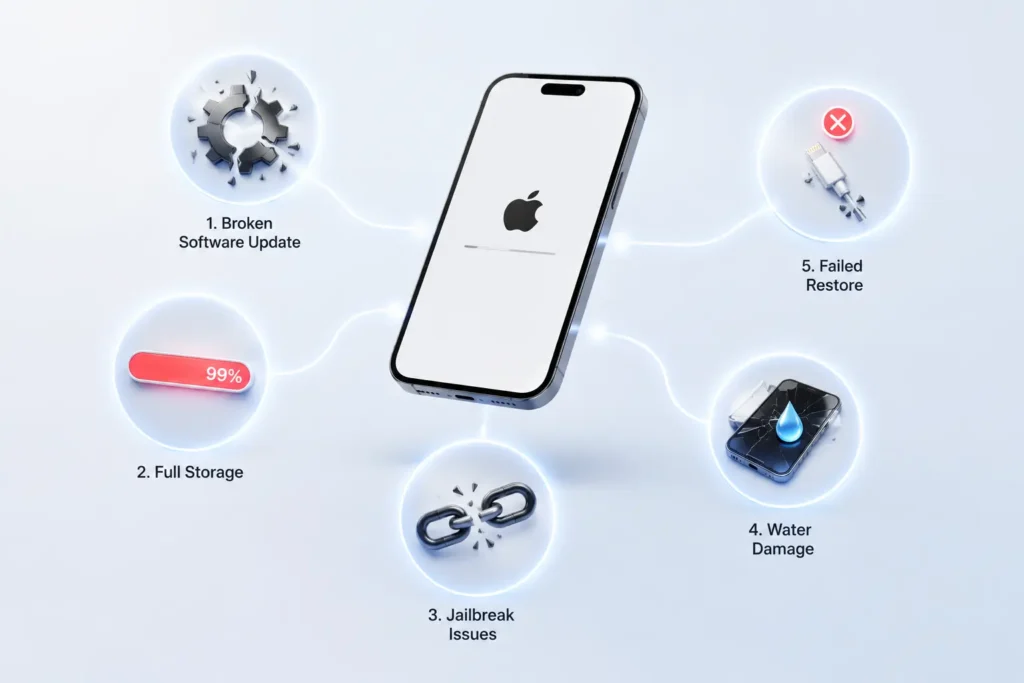
Before jumping into fixes, it helps to understand why your iPhone is stuck on the Apple logo. Here are the most common triggers:
| Cause | Description | Likelihood |
|---|---|---|
| Failed iOS Update | The update file was corrupted or interrupted during download. | High |
| Full Storage | Your iPhone ran out of space during an update, causing a boot loop. | Medium |
| Jailbreaking | Unauthorized system modifications can corrupt iOS files. | Low |
| Hardware Damage | Drops, water exposure, or battery issues can prevent normal booting. | Medium |
| Failed Restore | An interrupted iTunes or Finder restore left your system incomplete. | Medium |
If your iPhone is stuck on the Apple logo after an update, the cause is almost always software-related—and that’s good news because software problems are fixable at home.
Quick Fix: Force Restart Your iPhone (No Data Loss)
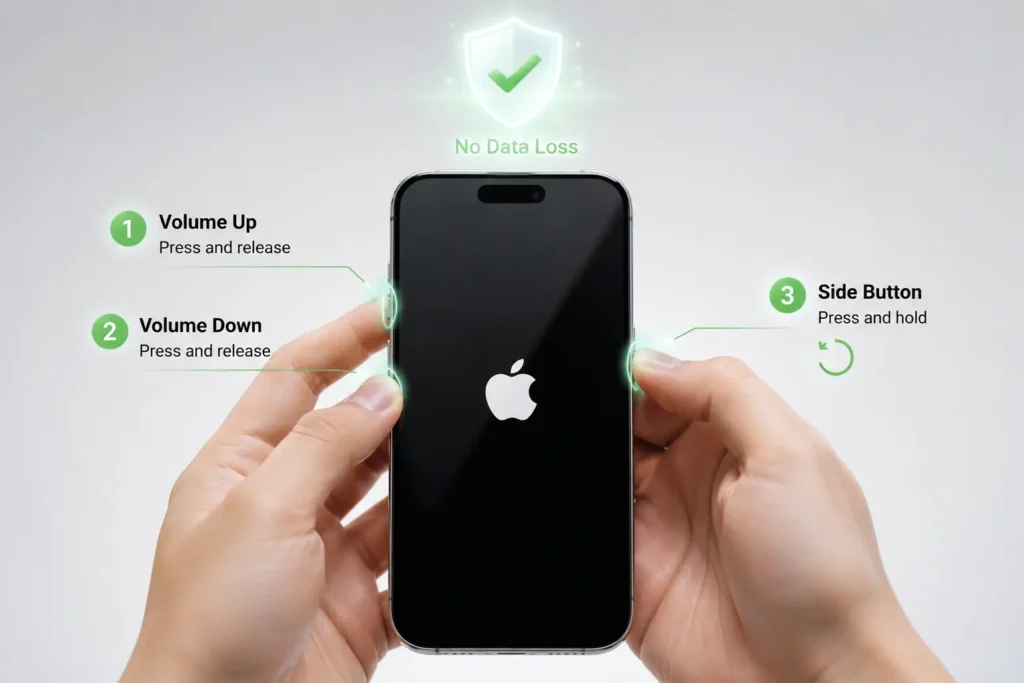
The first thing you should try is a force restart. This is completely safe and won’t delete your photos, apps, or settings. It simply forces your iPhone to reboot from scratch.
How to Force Restart by Model:
iPhone 8, iPhone X, and later (including iPhone 16, 15, 14, 13, 12, 11):
- Press and quickly release the Volume Up button.
- Press and quickly release the Volume Down button.
- Press and hold the Side button until you see the Apple logo again, then keep holding until the screen goes black and the Apple logo reappears.
- Release the Side button.
iPhone 7 and iPhone 7 Plus:
- Press and hold both the Volume Down button and the Sleep/Wake button.
- Keep holding until the Apple logo appears and the device restarts.
iPhone 6s and earlier:
- Press and hold both the Home button and the Sleep/Wake button.
- Keep holding until the Apple logo appears.
Note: If your iPhone force restart is not working, don’t worry. Move on to the next fix. Sometimes the system is too stuck for a simple reboot.
For a deeper guide on restarting all models, check out our article on how to restart your iPhone.
Fix 2: Charge Your iPhone for 30 Minutes
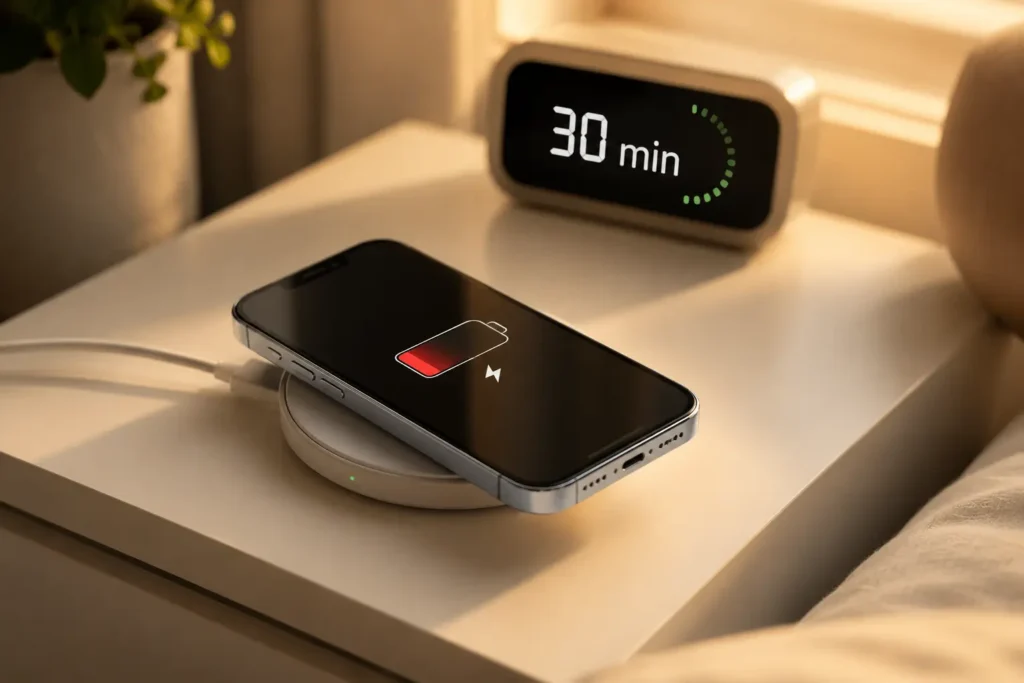
It sounds simple, but a deeply drained battery can make your iPhone stuck on Apple logo screen. If your battery is too low, the device may not have enough power to complete the boot process.
What to do:
- Plug your iPhone into a wall charger (not a computer USB port).
- Use an original Apple cable if possible.
- Wait 30 minutes without touching it.
- Then try the force restart again.
If you see a red battery icon or the Apple logo with a loading bar, let it charge longer. Sometimes patience is all you need.
Fix 3: Use Recovery Mode to Reinstall iOS
If the force restart didn’t work, the next step is Recovery Mode. This allows you to reinstall iOS through iTunes (on Windows or older macOS) or Finder (on macOS Catalina and later). The best part? You can choose “Update” instead of “Restore”, which keeps your data intact.
How to Enter Recovery Mode:
iPhone 8 and later:
- Connect your iPhone to a computer using a cable.
- Press and quickly release Volume Up.
- Press and quickly release Volume Down.
- Press and hold the Side button until you see the Recovery Mode screen (a cable pointing to a computer).
iPhone 7 and 7 Plus:
- Connect to a computer.
- Press and hold the Volume Down + Sleep/Wake buttons together until the Recovery Mode screen appears.
iPhone 6s and earlier:
- Connect to a computer.
- Press and hold the Home + Sleep/Wake buttons together until the Recovery Mode screen appears.
Update vs. Restore:
| Option | What It Does | Data Loss? |
|---|---|---|
| Update | Reinstalls iOS while keeping your data. | No |
| Restore | Erases everything and installs fresh iOS. | Yes |
Always choose “Update” first. If that fails, you may need to choose “Restore,” which is why having a backup is essential. Learn more in our guide to iTunes restore for iPhone.
Fix 4: Use DFU Mode for Deep System Recovery
When Recovery Mode is not working, it’s time for DFU Mode (Device Firmware Update). This is the deepest type of system restore available. It bypasses the bootloader entirely and reloads both the firmware and iOS from scratch.
Warning: DFU Mode will erase your iPhone if you choose to restore. Make sure you have a backup, or only use this if you’ve already accepted potential data loss.
How to Enter DFU Mode:
iPhone 8, iPhone X, and later:
- Connect your iPhone to a computer.
- Press and quickly release Volume Up.
- Press and quickly release Volume Down.
- Press and hold the Side button for 10 seconds until the screen goes black.
- While still holding the Side button, press and hold Volume Down for 5 seconds.
- Release the Side button but keep holding Volume Down for another 10 seconds.
- The screen should stay completely black. If you see the Apple logo, you held too long—start over.
iPhone 7 and 7 Plus:
- Connect to a computer.
- Press and hold Sleep/Wake + Volume Down for 8 seconds.
- Release Sleep/Wake but keep holding Volume Down for another 5 seconds.
- The screen should stay black.
iPhone 6s and earlier:
- Connect to a computer.
- Press and hold Sleep/Wake + Home for 8 seconds.
- Release Sleep/Wake but keep holding Home for another 5 seconds.
Once in DFU Mode, iTunes or Finder will detect a device in recovery mode and prompt you to restore. Follow the on-screen instructions carefully.
Fix 5: Check for Full Storage (The Hidden Cause)
One of the most overlooked reasons for an iPhone stuck on Apple logo with loading bar is full storage. When your iPhone has less than 1GB of free space, iOS updates can fail mid-installation, leaving your system in an incomplete state.
Why This Happens:
iOS needs temporary space to unpack update files. If there isn’t enough room, the installation crashes. Your iPhone then tries to boot, fails, and gets stuck in a loop.
How to Prevent This:
- Go to Settings > General > iPhone Storage.
- Keep at least 20% of your total storage free.
- Delete unused apps, old photos, or large videos before updating.
If your iPhone storage is full and causing a boot loop, Recovery Mode (Fix 3) is usually your only way out. In the future, regularly check your storage to avoid this headache.
Fix 6: Try Third-Party Repair Tools (Advanced)
If Apple’s built-in methods aren’t solving your iPhone boot loop fix, third-party tools like 3uTools or Tenorshare ReiBoot can sometimes repair iOS without data loss. These tools are designed to fix system glitches that Apple’s own tools miss.
Pros and Cons:
| Pros | Cons |
|---|---|
| Can fix iOS without data loss | Not officially supported by Apple |
| User-friendly interfaces | Some features require payment |
| Works when Recovery Mode fails | Potential security risks from unknown software |
Our recommendation: Only download these tools from their official websites. Never use pirated software, and always back up your data first if possible. If you’re uncomfortable with third-party tools, skip this step and move to Fix 7.
Fix 7: When It’s a Hardware Problem
Sometimes, your iPhone is stuck on the Apple logo because of physical damage. No amount of software fixes will help if the logic board, battery, or display connector is faulty.
Signs of Hardware Failure:
- Your iPhone got wet recently (water damage).
- You dropped it hard before the problem started.
- The screen flickers or shows lines before freezing.
- The device gets extremely hot during boot attempts.
- None of the software fixes above work after multiple tries.
What to do: Contact Apple Support or visit an Apple Store or authorized service provider. They can run diagnostics to check your battery, logic board, and other internal components. If your iPhone is under warranty or AppleCare+, repairs may be free.
How to Recover Your Data If Nothing Works
If you’ve tried everything and your iPhone is still stuck on the Apple logo, you may need to restore it completely. This erases the device, but you can get your data back if you have a backup.
Restore from iCloud:
- After restoring your iPhone (via Recovery or DFU Mode), set it up as new.
- On the Apps & Data screen, choose Restore from iCloud Backup.
- Sign in with your Apple ID and pick the most recent backup.
Restore from iTunes or Finder:
- Connect your restored iPhone to the same computer you used for backups.
- Follow the setup prompts and choose Restore from Mac or PC.
- Select your most recent backup file.
What If You Have No Backup?
Unfortunately, without a backup, your data is likely gone after a full restore. This is why Apple—and we—strongly recommend regular backups. Learn how to protect your data in our guide on how to back up your iPhone.
Prevention Tips: Stop This From Happening Again
Nobody wants to deal with a iPhone stuck on update screen twice. Here’s how to avoid it:
- Keep iOS Updated Properly – Always update over stable Wi-Fi with plenty of battery life. Never interrupt an update once it starts.
- Maintain Free Storage – Keep at least 20% of your storage empty. For a 128GB iPhone, that’s about 25GB free.
- Use Official Cables – Cheap third-party cables can interrupt data transfers and cause corruption.
- Back Up Regularly – Use iCloud or iTunes/Finder backups weekly. If disaster strikes, you’ll be covered.
- Avoid Jailbreaking – It voids your warranty and often causes boot loops down the road.
For more tips on managing your device, read our guide on how to factory reset your iPhone safely.
FAQ: iPhone Stuck on Apple Logo
Q1: Will force restarting my iPhone delete my data if it’s stuck on the Apple logo?
A: No. A force restart is completely safe and does not erase any photos, apps, or settings. It simply forces your device to reboot.
Q2: Why is my iPhone stuck on Apple logo after an update?
A: This usually happens when the update file is corrupted, the download was interrupted, or your iPhone storage is too full to complete the installation. Using Recovery Mode to reinstall iOS often fixes this without data loss.
Q3: Can I fix an iPhone stuck on Apple logo without a computer?
A: Yes, in some cases. Start with a force restart and charging for 30 minutes. If that fails, you will need a computer to use Recovery Mode or DFU Mode.
Q4: What is the difference between Recovery Mode and DFU Mode?
A: Recovery Mode reinstalls iOS through iTunes/Finder and shows a cable icon on screen. DFU Mode is a deeper restore that bypasses the bootloader entirely and shows a black screen, used when Recovery Mode fails.
Q5: How do I prevent my iPhone from getting stuck on the Apple logo in the future?
A: Always keep at least 20% of your storage free, use official Apple cables, ensure stable Wi-Fi during updates, and back up your iPhone regularly via iCloud or iTunes.
Q6: Why is my iPhone flashing the Apple logo and not booting?
A: A flashing or blinking Apple logo usually indicates a severe software crash or hardware issue. Try Recovery Mode first. If that fails, DFU Mode or professional repair may be needed.
Conclusion
Seeing your iPhone stuck on Apple logo is frustrating, but it’s rarely permanent. Start with the simplest fix—a force restart—and work your way through Recovery Mode and DFU Mode if needed. Most users solve the problem without losing any data.
Remember: prevention is better than cure. Keep your storage clear, your iOS updated properly, and your backups current. If you’ve tried every software fix and your iPhone still won’t boot, it’s time to visit Apple for a hardware check.
Still having trouble? Explore our other guides on how to restart your iPhone, iTunes restore, and iPhone backups for more step-by-step help.
Internal Links Used:
- how to restart your iPhone
- iTunes restore for iPhone
- how to back up your iPhone
- how to factory reset your iPhone
External Links Used:

