


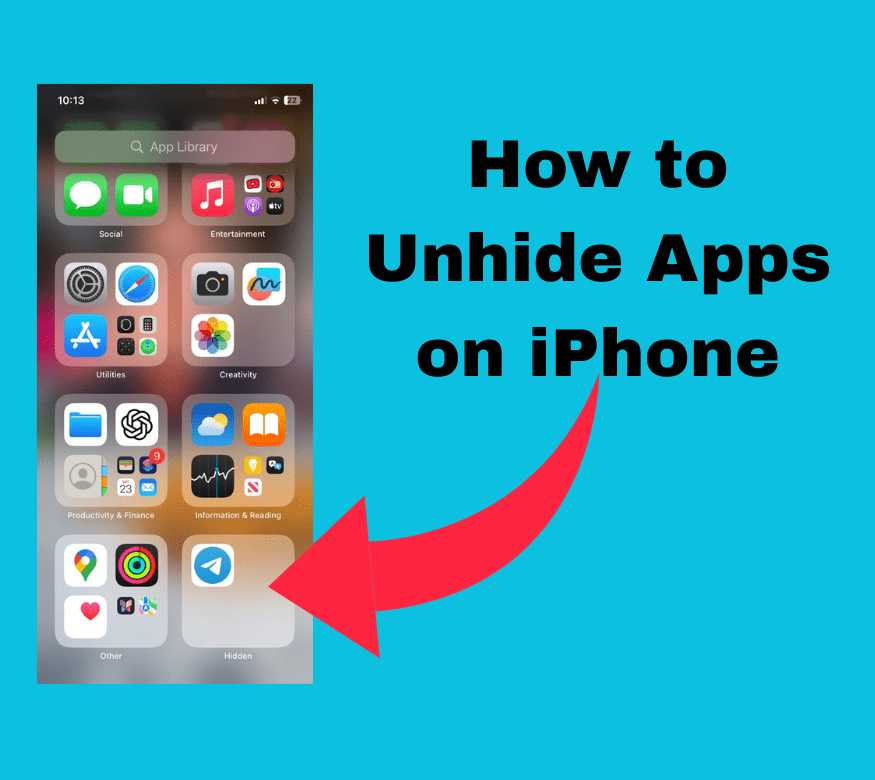
Picture this: You’re rushing to catch your Uber, but the app has vanished from your home screen. Panic sets in. Did you delete it? Is your phone broken? Relax – your app is probably just hidden, and learning how to unhide apps on iPhone takes less than two minutes.
How to Unhide Apps on iPhone in 30 Seconds
Here’s the fastest way to get your apps back on your home screen:
Step 1: Swipe Left to App Library
Swipe left on your home screen until you reach the App Library (the page with automatically organized app categories).
Step 2: Find Your Hidden App
Look through the categories or use the search bar at the top to find your missing app.
Step 3: Press and Hold the App Icon
Touch and hold the app icon until a menu appears.
Step 4: Select “Add to Home Screen”
Tap this option from the pop-up menu.
Step 5: Place the App
The app will jump to your home screen. Drag it wherever you want it!
That’s it! Your app is now back on your home screen, where it belongs.
How Do I Unhide Apps on My iPhone Screen?
“How do I unhide Apps on my iPhone screen?” is one of the most common questions iPhone users ask. The answer depends on how the apps got hidden in the first place. Sometimes apps aren’t really hidden – they’re just moved to a different screen or folder you forgot about.
Quick checks before assuming apps are hidden:
- Swipe through all your home screen pages
- Check inside folders (especially ones you rarely open)
- Pull down and search for the app name
- Look in the App Library
If you still can’t find them, they’re probably genuinely hidden, and you’ll need one of the methods below.
Method 1: Unhide Apps Using App Library
The App Library, introduced in iOS 14, changed how we organize apps. It’s also where hidden apps like to hang out.
Finding Apps in App Library:
- Swipe all the way left past your last home screen page
- Browse categories or use the search bar
- Tap the app to open it directly, or
- Press and hold to add it back to your home screen
Pro tip: The App Library organizes apps automatically. Your hidden app might be in “Recently Added” or under its category (like “Social” for Instagram).
Method 2: How to Unhide Apps on iPhone in Settings
Want to know how to unhide apps on iPhone in Settings? This method works great for apps hidden by Screen Time or restrictions.
Steps to Unhide Through Settings:
- Open Settings
- Tap Screen Time
- Select Content & Privacy Restrictions
- Tap Allowed Apps
- Toggle on any apps you want to unhide
This method is particularly useful if you’ve set up parental controls or if someone else manages your Screen Time settings. Just like when you need to how to unblock a number on iPhone, sometimes the solution is hiding in your restriction settings.
Alternative Settings Method:
- Go to Settings
- Tap General
- Select iPhone Storage
- Find the app in the list
- If it shows “Offloaded,” tap to reinstall
Method 3: How to Unhide Apps from App Store
“How to unhide apps on iPhone App Store” is crucial for apps you’ve hidden from your purchase history. Maybe you downloaded something embarrassing (we won’t judge!) and hid it from your purchase list.
Unhiding Purchased Apps:
- Open the App Store
- Tap your profile picture (top right)
- Select Purchased
- Tap My Purchases
- Look for Hidden Purchases (if available)
- Find your app and tap the download cloud icon
Note: This method only works for apps you’ve previously downloaded but hidden from your purchase history.
How Do I Unhide My Hidden Apps?
“How do I unhide my hidden Apps?” The answer varies based on iOS version and how they were hidden. Here’s a comprehensive approach:
Check These Locations in Order:
- App Library – Swipe to the far left
- Search – Swipe down on the home screen
- Settings > Screen Time – Check restrictions
- Settings > General > Reset – Reset home screen layout (last resort)
Important: Resetting your home screen layout will return all apps to their default positions, so only use this if other methods fail.
How Do I Turn Off Hidden Apps on My iPhone?
To answer “How do I turn off hidden Apps on my iPhone?” – you need to disable the feature that’s hiding them.
Disable App Hiding Features:
- Turn off Screen Time restrictions:
- Settings > Screen Time > Turn Off Screen Time
- Remove Focus mode filters:
- Settings > Focus > Select your Focus > Home Screen > Turn off page hiding
- Check Shortcuts automations:
- Open Shortcuts app > Automation > Check for app-hiding automations
How Do I Put Apps Back on My iPhone Home Screen?
“How do I put Apps back on my iPhone home screen?” is simple once you locate them. Here are three proven methods:
Method A: From App Library
- Find the app in App Library
- Press and hold
- Select “Add to Home Screen”
Method B: From Spotlight Search
- Swipe down on the home screen
- Type app name
- Press and hold the result
- Select “Add to Home Screen”
Method C: From Settings
- Settings > General > iPhone Storage
- Find the app
- If offloaded, tap “Reinstall App”
Unhiding Apps on Different iPhone Models
The process of how to unhide apps on iPhone works similarly across all models, but here are specific notes for each:
How to Unhide Apps on iPhone 16
How to unhide apps on iPhone 16 follows the standard iOS 18 process. The Dynamic Island doesn’t affect app management, and all methods above work perfectly.
How to Unhide Apps on iPhone 15
For how to unhide apps on iPhone 15, the Action Button can be programmed to quickly access App Library, making unhiding even faster.
How to Unhide Apps on iPhone 14
The how to unhide apps on iPhone 14 is identical to newer models. The always-on display doesn’t impact hidden apps.
How to Unhide Apps on iPhone 13
How to unhide apps on iPhone 13 works the same way, with full support for all iOS 18 features if updated.
How to Unhide Apps on iPhone 11
Even with how to unhide apps on iPhone 11, the process remains consistent. Despite being older, it handles app management just as well.
Quick Reference Table: Unhiding Methods by iOS Version
| iOS Version | App Library | Screen Time | Focus Modes | Hidden Purchases |
|---|---|---|---|---|
| iOS 18 | ✅ | ✅ | ✅ Enhanced | ✅ |
| iOS 17 | ✅ | ✅ | ✅ | ✅ |
| iOS 16 | ✅ | ✅ | ✅ | ✅ |
| iOS 15 | ✅ | ✅ | ✅ Basic | ✅ |
| iOS 14 | ✅ | ✅ | ❌ | ✅ |
How to Unhide Apps on iPhone iOS 18
How to unhide apps on iPhone iOS 18 includes new features that make app management easier than ever:
iOS 18 Exclusive Features:
- Enhanced App Library Search – Better prediction of what you’re looking for
- Locked & Hidden Apps Folder – New privacy feature for sensitive apps
- Smart Suggestions – iOS suggests unhiding apps based on usage patterns
Accessing iOS 18’s Hidden Apps:
- Open App Library
- Look for “Hidden” folder at the bottom
- Authenticate with Face ID/Touch ID
- Press and hold any app
- Select “Unhide”
According to Apple’s iOS 18 documentation, “The new Hidden Apps feature provides an additional layer of privacy while keeping apps easily accessible when needed.”
Troubleshooting Hidden App Issues
Sometimes standard methods don’t work. Here’s how to handle stubborn cases:
App Still Missing After Unhiding?
- Restart your iPhone – Hold the power button, slide to power off
- Check for iOS updates – Settings > General > Software Update
- Re-download from App Store – The app might have been deleted
- Check iCloud settings – Settings > [Your Name] > iCloud
Apps Keep Hiding Themselves?
This usually means Screen Time or Focus modes are active. You might also want to check if you need to how to see blocked numbers on iPhone as similar restrictions might be affecting your apps.
Can’t Find Specific Apps?
- Use Siri: “Hey Siri, open [app name]”
- Check if the app is compatible with your iOS version
- Verify the app hasn’t been removed from the App Store
Privacy and Security Tips
When to Intentionally Hide Apps:
- Banking apps – Extra security layer
- Dating apps – Privacy from friends/family
- Work apps – Separate personal and professional
- Social media – Digital detox periods
Best Practices:
- Use iOS 18’s locked apps feature for sensitive content
- Set up different Focus modes for work and personal time
- Regularly review your hidden apps list
- Consider if you really need apps you’re always hiding
Security Note: According to 9to5Mac’s security analysis, “Hidden apps in iOS 18 are protected by biometric authentication, adding a significant security improvement over previous versions.”
Managing Digital Clutter:
Just like you might want to how to delete stickers on iPhone to clean up your messages, regularly reviewing hidden apps helps maintain an organized phone.
Expert Tips for App Management
Tech experts from MacRumors suggest: “Creating a systematic approach to app organization prevents the need to hide apps in the first place. Use folders, App Library categories, and Focus modes strategically.”
Organization Strategies:
- First screen: Daily essentials only
- Second screen: Frequently used apps
- Folders: Group similar apps
- App Library: Everything else
Frequently Asked Questions
Q: Can someone else hide apps on my iPhone?
A: Yes, if they have access to your Screen Time passcode or your phone’s passcode. Anyone with parental control access can hide apps through Screen Time restrictions. Always keep your passcodes private and unique.
Q: Will unhiding apps restore their data?
A: If the app was just hidden (not deleted), all data remains intact. When you unhide it, everything will be exactly as you left it. If the app was offloaded, data is preserved but the app needs to re-download.
Q: Can I hide apps from specific people sharing my iPhone?
A: Not directly, but iOS 18’s locked apps feature requires Face ID/Touch ID to access certain apps. This effectively hides them from anyone without your biometric authentication.
Q: Why do my apps keep disappearing after iOS updates?
A: iOS updates sometimes reset home screen layouts or app restrictions. Check Screen Time settings first, then look in the App Library. Your apps are almost never actually deleted during updates.
Q: Is there a way to hide apps without Screen Time?
A: Yes! iOS 18 introduces a native hidden apps feature. You can also remove apps from the home screen (they’ll stay in App Library) or use Focus modes to hide specific home screen pages.
Q: Can I recover apps I hid months ago?
A: Absolutely! If you purchased or downloaded them before, check App Store > Profile > Purchased > Hidden Purchases. Free apps can always be re-downloaded, and paid apps you own are yours forever.
Conclusion
Learning how to unhide apps on iPhone is an essential skill that saves time and frustration. Whether your apps disappeared due to Screen Time restrictions, iOS updates, or accidental hiding, you now have multiple methods to get them back.
Remember the quickest solution: check the App Library first, then Settings if needed. For most users, the simple five-step process at the beginning of this guide will solve the problem in under a minute. The key is knowing where to look and which method matches your specific situation.
With iOS 18’s improved app management features, handling hidden apps has never been easier. Take a moment now to check if you have any unintentionally hidden apps – you might be surprised what you find!
Did this guide help you recover your missing apps? Share your experience in the comments below, and don’t forget to bookmark this page for future reference. For more iPhone tips and tricks, subscribe to our newsletter!
Last updated: September 2026 | Compatible with all iPhone models and iOS versions 14-17

