


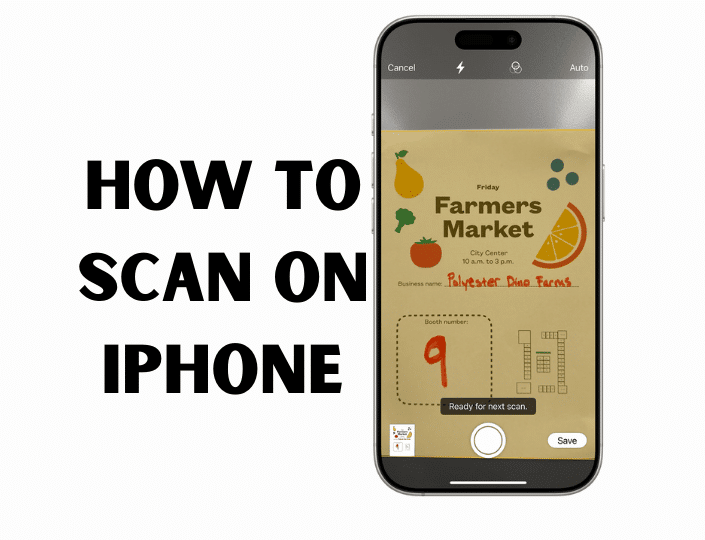
How to Scan on iPhone in 30 Seconds
Need to scan right now? Follow these steps:
- Open the Notes app (yellow icon with white notepad)
- Create a new note or open an existing one
- Tap the camera icon above the keyboard
- Select “Scan Documents”
- Point your iPhone camera at the document
- iPhone automatically detects edges and captures
- Tap “Keep Scan” or retake if needed
- Hit “Save” when finished
Done. Your document is now scanned, saved, and ready to share as a PDF.
💡 Pro Tip: Hold your iPhone parallel to the document for best results. The yellow overlay indicates iPhone is ready to auto-capture.
How to Scan Documents Using iPhone Notes App
The Notes app is Apple’s secret weapon for document scanning. Available since iOS 11, it transforms your iPhone into a portable scanner that rivals dedicated hardware.
Step-by-Step Instructions for Document Scanning
Method 1: From Within a Note
- Launch Notes app from your home screen
- Create a new note (tap the compose icon in the bottom-right)
- Tap the camera icon located above the keyboard
- Select “Scan Documents” from the menu
![Screenshot: Notes app camera menu showing Scan Documents option | Alt text: iPhone Notes app camera menu highlighting scan documents feature for document scanning]
- Position your document on a flat, well-lit surface
- Wait for auto-capture (yellow frame appears when edges are detected)
- Why this matters: iPhone uses advanced edge detection algorithms to identify document boundaries and correct perspective distortion automatically
- Manual capture option: Tap the white shutter button if auto-capture doesn’t trigger
- Review the scan: Check if text is legible and corners are properly detected
![Screenshot: Document scan preview with corner adjustment handles | Alt text: iPhone document scan preview showing adjustable corners for perfect alignment]
- Adjust corners if needed: Drag the blue corner handles to refine edges
- Tap “Keep Scan” to accept, or “Retake” to try again
- Add more pages: Repeat for additional pages or tap “Save” to finish
Understanding Scan Modes and Filters
After capturing, you can apply different filters to enhance readability:
| Filter Mode | Best For | How It Works |
|---|---|---|
| Color | Photos, colorful documents | Preserves original colors |
| Grayscale | Regular text documents | Reduces file size, maintains contrast |
| Black & White | Contracts, forms, signatures | Highest contrast, smallest file size |
| Photo | Mixed content | Balances color accuracy with compression |
To change filters:
- Tap on the scanned document thumbnail in your note
- Tap the crop icon (bottom-left)
- Select filter icon (three circles)
- Choose your preferred mode
⚠️ Warning: Black & White mode removes all color information permanently. Use Grayscale if you might need color details later.
Saving and Sharing Your Scanned Documents
Sharing as PDF (Most Common Method):
- Tap the scanned document in your note
- Tap the share icon (box with arrow)
- Select “Save to Files” for cloud storage
- Or choose “Mail” to send directly as PDF attachment
Quick Email Method:
- Long-press the scan thumbnail → Share → Mail
- iPhone automatically converts multi-page scans into a single PDF
Cloud Integration: Your scans sync automatically across devices if Notes is enabled in iCloud settings (Settings > [Your Name] > iCloud > Notes).
How to Scan Documents Using iPhone Files App
The Files app offers a faster route when you need to scan a document from iPhone directly into a specific folder structure. This method is ideal for business users who organize files by project or client.
Direct PDF Scanning Method
- Open the Files app (blue folder icon)
- Navigate to your desired folder (iCloud Drive, On My iPhone, etc.)
- Tap the three-dot menu (•••) in the top-right corner
- Select “Scan Documents”
![Screenshot: Files app menu with Scan Documents option highlighted | Alt text: iPhone Files app showing scan documents option in folder menu]
- Follow the same capture process as Notes app:
- Auto-capture or manual shutter button
- Adjust corners if needed
- Add multiple pages
- Tap “Save” when complete
Key Difference from Notes: The document is immediately saved as a PDF in your chosen location with an automatic filename (e.g., “Scanned Document 15-01-2026.pdf”).
Organizing Scanned Files Efficiently
Best Practices for File Management:
- Create project folders before scanning to maintain organization
- Rename files immediately: Tap the filename → Type new name (e.g., “Contract_ClientName_Jan2026”)
- Use tags: Long-press file → Add Tags → Create color-coded categories
- Set up Quick Access: Add frequently used folders to Favorites
Comparison: Notes vs Files App for Scanning
| Feature | Notes App | Files App |
|---|---|---|
| Save Location | Within a note, syncs to iCloud Notes | Direct to any folder/cloud service |
| File Format | Embedded in note, export as PDF | Immediate PDF creation |
| Organization | By note/folder structure | Traditional file system |
| Best For | Quick scans with annotations | Professional document management |
| Sharing Speed | Requires export step | Direct file sharing |
According to Apple Support documentation, both methods use identical scanning technology—the choice depends on your workflow preferences.
How to Scan QR Codes on iPhone
QR codes have become ubiquitous—from restaurant menus to payment apps. Your iPhone can scan QR codes instantly without any third-party apps.
Method 1: Using the Camera App (Fastest)
- Open the Camera app (no special mode needed)
- Point the camera at the QR code
- Wait 1-2 seconds for the notification banner to appear
- Tap the banner to open the link or content
How it works: Since iOS 11, the Camera app has built-in QR recognition. The system analyzes the viewfinder in real-time and decodes QR patterns automatically.
💡 Pro Tip: You don’t need to take a photo. Just point and tap the notification.
If nothing happens:
- Ensure “Scan QR Codes” is enabled: Settings > Camera > Toggle “Scan QR Codes” ON
- Make sure the entire QR code is visible in the frame
- Check lighting—QR codes need moderate to bright light
Method 2: Control Center Code Scanner (iOS 14+)
For dedicated QR scanning without opening Camera:
- Swipe down from top-right (iPhone X and later) or swipe up from bottom (iPhone 8 and earlier) to open Control Center
- Tap the Code Scanner icon (square with corner brackets)
- Don’t see it? Add it via Settings > Control Center > Code Scanner (+)
- Point at QR code and tap the notification
When to use this: Scanning multiple QR codes in succession (events, inventory management, or authentication).
Method 3: Scanning QR Codes from Saved Photos
Found a QR code in a screenshot or someone sent you one?
- Open the Photos app
- Select the image containing the QR code
- Tap and hold the QR code within the image
- Tap the pop-up notification or select the suggested action
Alternative method:
- Open Camera app → Switch to Photo mode → Tap gallery thumbnail → Select image with QR code → Tap the QR code in preview
This feature uses Visual Look Up technology, introduced in iOS 15, which scans photos for actionable content including QR codes, text, and objects.
Advanced Scanning Features Every User Should Know
OCR and Live Text Recognition
What is OCR? Optical Character Recognition converts scanned images into editable, searchable text. On iPhone, this is called Live Text.
How to extract text from scanned documents:
- Scan your document using Notes or Files app
- Open the scan and tap it to view full screen
- Long-press any text in the image
- Drag selection handles to highlight text
- Tap “Copy” to paste elsewhere or “Translate” for instant translation
Supported languages: Live Text recognizes text in English, Chinese, French, German, Italian, Japanese, Korean, Portuguese, and Spanish.
Real-world applications:
- Scan business cards → Copy phone number directly to Contacts
- Capture handwritten recipes → Convert to editable text
- Photograph receipts → Extract amounts for expense tracking
⚠️ Important: Live Text requires iPhone XS or newer with iOS 15+. Check your iOS version: Settings > General > About > iOS Version.
Multi-Page Document Scanning into Single PDF
Creating professional multi-page PDFs is seamless:
In Notes App:
- After capturing the first page, don’t tap “Save”
- Position the next page in frame
- Capture continues automatically or tap shutter button
- Repeat for all pages (no practical limit)
- Tap “Save” when complete
The result: One PDF with all pages in sequence, preservable order.
Reordering pages after scanning:
- Tap the scanned document in Notes
- Tap the thumbnail view icon (bottom-left)
- Long-press and drag pages to reorder
- Swipe left on any page to delete
Adding Signatures to PDFs
Transform your iPhone into a complete document signing solution:
Method 1: Markup Tool in Notes
- Scan your document or open existing PDF in Notes
- Tap the document to view full screen
- Tap the Markup icon (pen in circle) at top-right
- Tap the signature icon (+) in the toolbar
- Create your signature:
- Sign with your finger on screen
- Use Apple Pencil for precision (compatible iPads)
- Tap camera icon to photograph a signature on paper
![Screenshot: Signature creation interface in Markup tool | Alt text: iPhone Markup tool showing signature creation with finger drawing capability]
- Tap “Done” → Your signature appears on the document
- Drag and resize to position properly
- Tap “Done” again to finalize
Method 2: Using Shortcuts for Repeated Signatures
If you sign documents frequently:
- Create signature once in Markup
- Save signature → It’s stored for reuse
- Next time: Tap signature icon → Select saved signature → Place instantly
According to Adobe’s digital document guide, mobile PDF signing has increased 340% since 2020, with iPhone’s native tools handling basic needs for most users.
Best Third-Party Scanner Apps for iPhone
While native iPhone scanning works excellently, specialized apps offer advanced features for power users.
Top 3 Scanner Apps Comparison
| App Name | Best Feature | Price | OCR Quality | Cloud Integration |
|---|---|---|---|---|
| Adobe Scan | Automatic edge detection & cleanup | Free | Excellent (99%+ accuracy) | Adobe Document Cloud, Google Drive |
| Microsoft Lens | Office integration (Word/Excel conversion) | Free | Excellent | OneDrive, OneNote |
| Scanner Pro | Auto-upload workflows | $4.99/month | Very Good | iCloud, Dropbox, Google Drive |
When to use third-party apps:
✅ Adobe Scan – Best for:
- Scanning multi-page contracts with automatic page detection
- Converting scans to editable Word or Excel files
- Business cards (extracts contact info automatically)
- Superior image enhancement for low-light scans
✅ Microsoft Lens – Best for:
- Converting whiteboards/presentations to PowerPoint
- Direct integration with Microsoft 365 workflow
- Table extraction from documents to Excel format
- Immersive Reader for accessibility features
✅ Scanner Pro – Best for:
- Automated workflows (e.g., auto-email scans to specific contacts)
- Receipt management with date/amount extraction
- Fax documents directly from your iPhone
- Custom naming conventions and folder structures
💡 Pro Tip: Start with iPhone’s native scanning. Only download third-party apps if you need specific features like automatic cloud backup workflows or OCR conversion to Word files.
How to download and set up:
- Open App Store → Search app name
- Download and open the app
- Grant camera permissions when prompted
- Sign in with account (Adobe ID, Microsoft Account, etc.)
- Follow in-app tutorial for first scan
Troubleshooting Common Scanning Problems
Issue 1: Camera Won’t Focus on Document
Symptoms: Blurry scans, auto-capture not triggering
Solutions:
- Clean camera lens: Use microfiber cloth (fingerprints block clarity)
- Check distance: Hold iPhone 8-12 inches from document
- Ensure flat surface: Document should be completely flat without wrinkles
- Disable macro mode: If yellow tulip icon appears (iPhone 13+), tap to disable
Technical explanation: iPhone uses contrast detection autofocus. Crumpled or low-contrast documents confuse the system. Flattening and proper lighting resolve 90% of focus issues.
Issue 2: Poor Lighting Causes Dark Scans
Symptoms: Text barely visible, shadows across scan
Solutions:
- Use overhead lighting: Position document under ceiling light
- Avoid direct shadows: Don’t block light with your body
- Window light works best: Natural diffused light from windows (avoid direct sunlight)
- Use flashlight: For very dark environments: Settings > Control Center > Add Flashlight → Enable while scanning
Filter adjustment post-scan:
- Open scan → Crop icon → Filters → Try Black & White mode to maximize contrast
Issue 3: Scan Results Show Distorted Edges
Symptoms: Text curves, document appears tilted
Solutions:
- Hold iPhone parallel: Camera should face document at 90° angle
- Use auto-capture: Manual capture often misses optimal moment
- Adjust corners manually: Drag blue handles to correct perspective
- Retake the scan: Sometimes it’s faster to rescan than fix
Why this happens: iPhone’s perspective correction algorithm works best when edges are clearly defined. Patterned backgrounds or documents on similar-colored surfaces confuse edge detection.
Issue 4: QR Code Won’t Scan
Symptoms: No notification appears when pointing camera at QR code
Solutions:
- Verify QR scanning is enabled: Settings > Camera > Scan QR Codes = ON
- Check QR code quality: Damaged/dirty codes won’t scan
- Adjust distance: Move iPhone closer or farther (6-8 inches is optimal)
- Ensure adequate lighting: QR codes need moderate light
- Try screenshot method: If physical code fails, photograph it and use Photos method (see Method 3 above)
Alternative: Use Control Center Code Scanner as backup method.
Issue 5: Can’t Find Scanned Documents
Symptoms: Scan completed but file is missing
Solutions:
If scanned in Notes:
- Open Notes app → Check “Recently Deleted” folder
- Search by date: Tap search → Type “scan” or document keywords
If scanned in Files:
- Open Files app → Tap “Recents” → Look for “Scanned Document [date]”
- Check “Recently Deleted” in Files app (30-day retention)
iCloud sync delay:
- Go to Settings > [Your Name] > iCloud → Verify Notes/Files sync is enabled
- Check internet connection → Scans won’t appear on other devices until synced
Professional Scanning Tips for Best Results
Lighting and Setup Optimization
The Golden Triangle of Scanning:
- Light Source → Above and slightly in front
- Document → Flat on contrasting surface (white paper on dark desk)
- iPhone → Parallel to document, 10 inches away
Color backgrounds matter:
- Dark backgrounds → Best for white/light documents
- Light backgrounds → Better for colored documents
- Never use patterned surfaces → Confuses edge detection
File Organization Best Practices
Naming Convention Example:
[Date]_[DocumentType]_[Client/Project]_[Version]
2026-01-15_Contract_AppleInc_Final.pdf
Folder structure for business users:
📁 Documents
  📁 2026
    📁 01_January
      📁 Contracts
      📁 Receipts
      📁 Correspondence
Tags for quick filtering: Use color-coded tags in Files app:
- 🔴 Red = Urgent/Needs Action
- 🟢 Green = Approved/Completed
- 🟡 Yellow = Review Required
- 🔵 Blue = Reference/Archive
Compression and File Size Management
Typical scan sizes:
- Single page (Color): 1-3 MB
- Single page (B&W): 200-500 KB
- 10-page PDF: 5-15 MB
When file size matters (email limits, storage constraints):
- Use Black & White filter → Reduces size by 60-80%
- Compress in Files app:
- Long-press PDF → Quick Actions → Compress
- Result: 30-50% size reduction
- Third-party compression: Use Adobe Scan’s “Optimize PDF” feature for maximum compression
Email attachment limits:
- Most providers: 25 MB
- Gmail: 25 MB
- Outlook: 20 MB
For larger documents, use cloud links instead: Share via iCloud Link or Google Drive link.
Security and Privacy Considerations
Sensitive document scanning:
✅ Do:
- Use Notes app with password protection: Open note → Tap ••• → Lock Note
- Store in encrypted folders (Files app → On My iPhone → Create password-protected folder with third-party apps)
- Delete originals immediately after scanning private documents
- Disable iCloud sync for extremely sensitive files
❌ Don’t:
- Scan confidential documents in public spaces (screen visible to others)
- Share scans via insecure messaging apps
- Keep unnecessary copies of personal information (tax returns, IDs)
Recommended by TechRadar’s security experts: Always verify recipient before sending scanned documents containing personal information.
Frequently Asked Questions
How do I scan a document on my iPhone without an app?
You don’t need any third-party app. Open the Notes app → Create a new note → Tap the camera icon → Select “Scan Documents”. Alternatively, use the Files app → Navigate to a folder → Tap ••• → “Scan Documents”. Both methods use iPhone’s built-in scanner.
Can I scan multiple pages into one PDF on iPhone?
Yes. After scanning the first page, don’t tap “Save” yet. Position the next page and capture it. Continue for all pages, then tap “Save”. iPhone automatically combines them into a single multi-page PDF.
How do I convert my iPhone scan to text (OCR)?
After scanning, open the document and long-press any text in the image. Your iPhone will highlight recognized text using Live Text (iOS 15+). Select and copy the text to paste elsewhere. This works for printed and clear handwritten text.
Why won’t my iPhone scan QR codes automatically?
Check if QR scanning is enabled: Go to Settings > Camera and toggle “Scan QR Codes” ON. Ensure you’re using the regular Camera app (not Portrait or other modes), and that the entire QR code is visible in the frame with adequate lighting.
Where do scanned documents save on iPhone?
Notes app scans: Saved within the note you created them in, accessible across all devices via iCloud Notes.
Files app scans: Saved directly to the folder you selected before scanning, with automatic filename “Scanned Document [date].pdf”. Check Files > Recents to find them quickly.
Can I edit a scanned PDF on iPhone?
Yes, using the Markup tool. Open the scan in Notes or Files → Tap the document → Tap Markup icon (pen) → You can draw, add text, insert signatures, highlight, and annotate. Changes are saved automatically.
How do I scan documents in low light conditions?
1-Enable flashlight from Control Center while in scanning mode
2-Use iPhone screen brightness to illuminate small documents
3-Position near a lamp or window (indirect light works best)
4-Apply filters after scanning: Grayscale or Black & White modes enhance contrast in low-light scans
Are iPhone scans legally valid for contracts?
Generally yes, but requirements vary by jurisdiction and document type. According to CNET’s legal technology guide, scanned documents with digital signatures hold up in most civil proceedings, but check specific regulations for notarized documents, wills, or government filings. When in doubt, consult a legal professional.
How do I send a scanned document from iPhone?
Quick method: Tap the scan in Notes → Share icon → Select Mail, Messages, or any app. The scan automatically converts to PDF.
Professional method: Save to Files first → Long-press the PDF → Share → Choose recipient. This gives you more control over filename and compression.
Conclusion: Master Your iPhone’s Scanning Power
Your iPhone is more than a phone—it’s a professional-grade scanner that fits in your pocket. Whether you scan documents on iPhone for work, digitize personal records, or quickly capture QR codes at events, mastering these built-in tools saves time and eliminates the need for bulky hardware.
Key takeaways:
- ✅ Notes app offers the fastest path from paper to PDF
- ✅ Files app provides better organization for business documents
- ✅ QR codes scan automatically through the Camera app
- ✅ Live Text extracts editable text from any scan
- ✅ Advanced features like signatures and multi-page PDFs require no additional software
Next steps:
- Try scanning a document right now using the Quick Start method
- Enable QR code scanning in Settings if you haven’t already
- Explore Markup tools for signing PDFs
- Organize existing scans using folders and tags in Files
Want to maximize your iPhone’s productivity? Check out these related guides:
- How to Block Spam Calls on iPhone — Stop unwanted interruptions
- How to Screen Record on iPhone — Capture tutorials and gameplay
- How to Schedule a Text on iPhone — Send messages at the perfect time
- How to Connect AirPods to iPhone — Seamless audio pairing
- How to Mirror iPhone to TV — Mirror iPhone to TV Using AirPlay
Have questions about scanning on iPhone? Drop them in the comments below, and our team will respond within 24 hours. Share this guide with anyone still carrying paper documents everywhere!

