


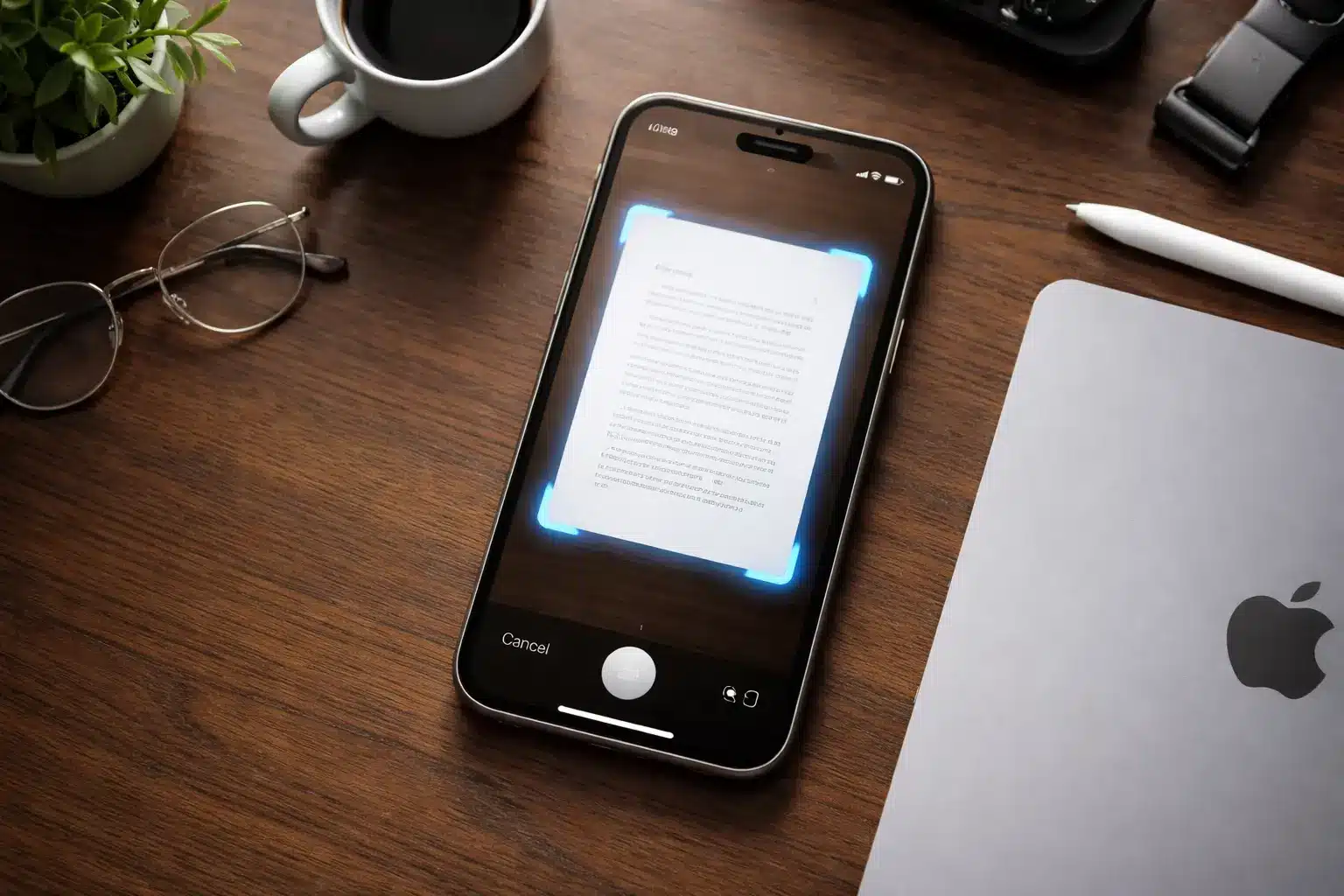
Need to scan a document but don’t have a scanner nearby? Your iPhone can do it in seconds. Whether you’re scanning a receipt, a signed contract, or a multi-page report, how to scan a document on iPhone is easier than most people think and you don’t need any extra hardware or paid apps to get started.
In this guide, you’ll learn three reliable methods, step-by-step, so you can scan, save, and share documents right from your iPhone.
Why Use Your iPhone as a Scanner?
Modern iPhones come with built-in document scanning features that are surprisingly powerful. Apple has quietly turned your camera into a full-featured iPhone document scanner — complete with edge detection, perspective correction, and automatic PDF export.
Here’s why scanning with your iPhone makes sense:
- It’s free. No app purchase required for basic scanning.
- It’s fast. Scan a document in under 30 seconds.
- It’s portable. Your iPhone is always with you.
- It produces clean PDFs. Perfect for email, printing, or cloud storage.
💡 “iPhone’s built-in document scanner uses Vision framework technology to automatically detect document edges, apply perspective correction, and enhance contrast — producing results comparable to dedicated flatbed scanners for most everyday use cases.” — Apple Developer Documentation
Method 1: Scan a Document Using the Notes App
The scan document iPhone Notes app method is the quickest way to go. This works on every iPhone running iOS 11 or later which covers almost every device in use today.
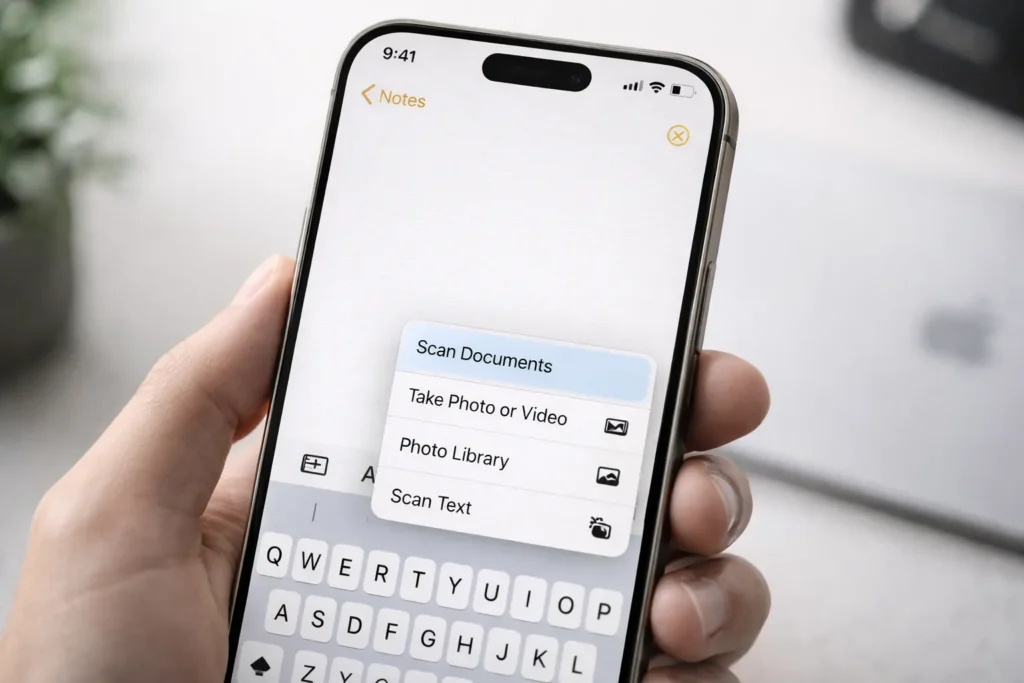
Steps to Scan Using Notes
- Open the Notes app on your iPhone.
- Create a new note by tapping the compose icon (pencil and paper) in the bottom right.
- Tap the camera icon above your keyboard.
- Select “Scan Documents” from the menu that appears.
- Point your camera at the document. The app will automatically detect the edges.
- Hold steady — the scan happens automatically (or tap the shutter button manually).
- Adjust the corners if needed by dragging the handles.
- Tap “Keep Scan” to accept it, or “Retake” to try again.
- Scan additional pages by repeating the process, or tap “Save” when you’re done.
- Your scan is now saved inside the note as a PDF.
How to Share or Export the Scan
- Tap the scanned document inside the note.
- Tap the Share icon (box with an arrow) in the top right.
- Choose to save it to Files, AirDrop it, email it, or print it.
💡 Pro Tip: To scan multiple pages on iPhone in one session, just keep scanning before tapping “Save.” All pages will be bundled into a single PDF.
This method is ideal for quick, casual scans like saving a receipt or capturing a handwritten note. For a deeper look at what else you can do, check out our full guide on how to scan on iPhone.
Method 2: Scan a Document Using the Files App
The iPhone Files app scan document feature is perfect when you want your scan saved directly to iCloud Drive or a specific folder — without going through Notes first.
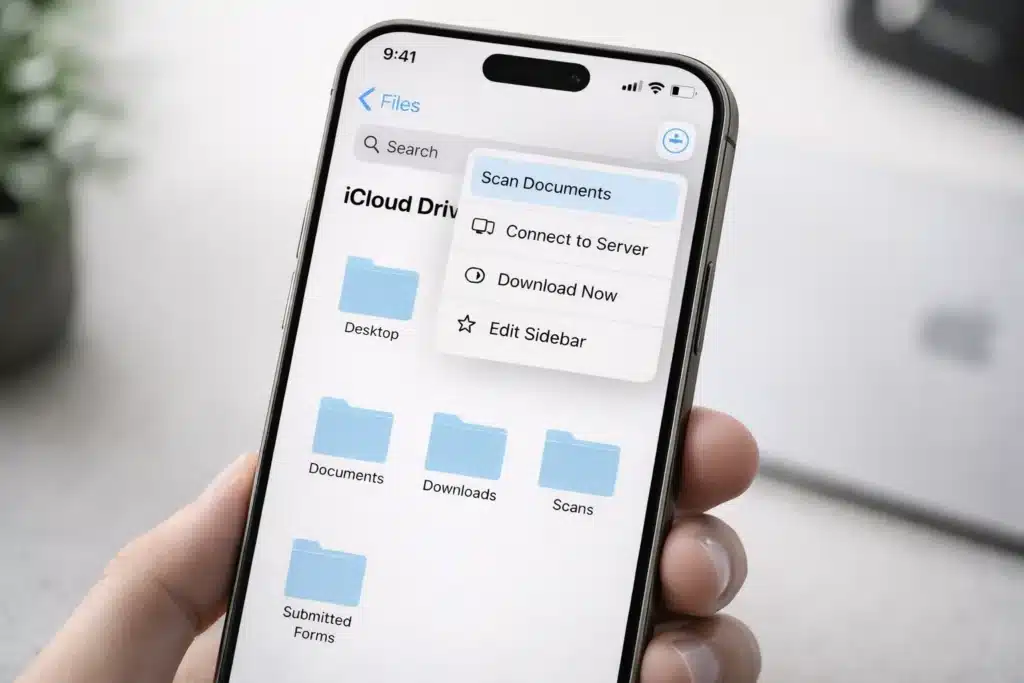
Steps to Scan Using Files
- Open the Files app on your iPhone.
- Navigate to iCloud Drive or the folder where you want to save the scan.
- Tap the three-dot menu icon (•••) in the top right corner.
- Select “Scan Documents” from the menu.
- Point your camera at the document.
- The scanner will auto-detect and capture it, or tap the shutter button manually.
- Adjust corners if needed, then tap “Keep Scan.”
- Continue scanning additional pages or tap “Save” to finish.
- Your document is saved directly to the folder as a PDF.
Why Use Files Instead of Notes?
- Scans go straight into your organized folder structure.
- Better for scan to PDF iPhone workflows when you need tidy cloud storage.
- Easy access from a Mac or PC via iCloud Drive.
💡 Pro Tip: Rename your file immediately after saving. Tap and hold the PDF, then select “Rename” to give it a meaningful name before you forget what it contains.
Method 3: Use a Third-Party Scanner App
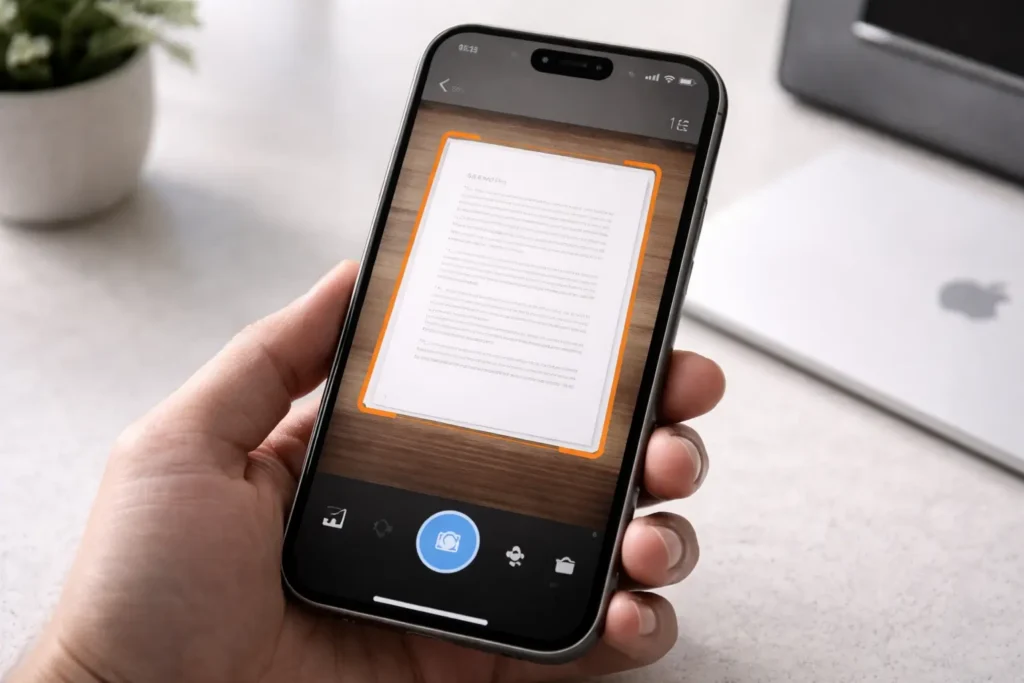
If you need more advanced features like OCR (text recognition), automatic cloud sync, or professional PDF tools — a third-party app is worth considering. Here’s a look at the best scanner app for iPhone options available in 2026.
Adobe Scan (Free)
Adobe Scan is one of the most popular choices for a reason. It automatically runs OCR on every scan, making the text searchable and copyable. It syncs with Adobe’s cloud services and works smoothly with Acrobat for editing.
Best for: People who work with PDFs regularly and need editable, searchable documents.
Microsoft Lens (Free)
Microsoft Lens captures documents, whiteboards, and business cards, and sends them directly to OneDrive, OneNote, or Word. It’s a solid pick for Microsoft 365 users.
Best for: Office and business users already in the Microsoft ecosystem.
Scanner Pro by Readdle ($2.99–$9.99)
A fan favorite with advanced features like automatic upload to Dropbox, Google Drive, and FTP. Highly rated for clean output and ease of use.
Best for: Power users who scan frequently and need flexibility.
Comparison Table: Which Method Is Best for You?
| Feature | Notes App | Files App | Third-Party App |
|---|---|---|---|
| Cost | Free | Free | Free to paid |
| Requires download | No | No | Yes |
| Saves as PDF | ✅ Yes | ✅ Yes | ✅ Yes |
| Multi-page scanning | ✅ Yes | ✅ Yes | ✅ Yes |
| OCR / searchable text | ❌ No | ❌ No | ✅ Yes (most apps) |
| Cloud sync | iCloud only | iCloud only | Multiple services |
| Best for | Quick scans | Organized filing | Professional use |
| Works without internet | ✅ Yes | ✅ Yes | Varies |
Tips for Getting a Better Scan
Even the best scanner needs good conditions to work well. Follow these tips to get sharp, clean results every time:
- Use good lighting. Natural light is best. Avoid harsh shadows across the document.
- Lay the document flat. Wrinkled or folded pages produce distorted scans.
- Steady your hands. Move slowly and hold still until the scan registers.
- Use a contrasting background. Place the document on a dark surface so the edges are easy to detect.
- Clean your camera lens. A smudgy lens means a blurry scan.
- Check the preview before saving. Always review the corners and adjust if the crop isn’t right.
How to Sign a Scanned Document on iPhone
Once you’ve scanned something, you may need to sign a scanned document on iPhone before sending it back. Here’s the fastest way:
- Open the scanned PDF in the Files app or in Mail.
- Tap the Markup icon (pen tip in a circle) at the top right.
- Tap the + icon at the bottom right.
- Select “Signature.”
- Draw your signature with your finger (or Apple Pencil).
- Tap “Done,” then drag and resize the signature to where it belongs.
- Tap “Done” again to save.
That’s it — no printing, no re-scanning. You can use this same Markup tool to fill in forms, add text, or highlight sections.
💡 You can save your signature so you don’t have to redraw it every time. In the Signature screen, it will appear as a saved option for future use.
Frequently Asked Questions
How do I scan a document on iPhone 16, 15, 14, or 13?
The steps are identical across all modern iPhone models. Open the Notes app or Files app, tap the camera or three-dot menu, and select “Scan Documents.” This feature works on any iPhone running iOS 16 or later, including iPhone 13, 14, 15, 16, and the upcoming iPhone 17.
Can I scan a document on iPhone without an app?
Yes — absolutely. Both the Notes app and the Files app are built into iOS and require no download. You can scan a document on iPhone without an app using either of these built-in options for fast, clean PDF results.
How do I scan multiple pages into one PDF on iPhone?
In either the Notes or Files scanner, simply continue scanning after each page instead of tapping “Save.” Each additional page is added to the same document. When you’re finished, tap “Save” and all pages will be combined into one PDF automatically.
How do I scan to PDF on iPhone?
Both the Notes and Files app save scans as PDFs by default. You don’t need to change any settings — just scan your document and share or save it, and it will already be in PDF format.
What is the best free scanner app for iPhone?
Adobe Scan is widely considered the best free option. It adds OCR (optical character recognition), which makes text in your scanned document searchable. For most casual users, though, the built-in Notes app scanner is more than enough.
Can I scan a QR code on iPhone?
Yes! To scan a QR code on iPhone, just open the Camera app and point it at the QR code. A notification will pop up at the top of your screen — tap it to follow the link or action. No separate app is needed.
Conclusion
Scanning a document on your iPhone is one of those things that sounds technical but is actually very simple once you know where to look. Whether you use the Notes app for a quick scan, the Files app for organized storage, or a third-party app for professional features, your iPhone handles it all with ease.
Here’s a quick recap:
- Notes app → best for fast, casual scanning
- Files app → best for saving directly to iCloud or a specific folder
- Third-party apps → best when you need OCR, multi-cloud sync, or PDF editing
Once you’ve scanned your document, you can sign it, share it, or even transfer it from your iPhone to your PC for safekeeping. And if you ever need a visual record instead of a scan, learn how to take an iPhone screenshot for a quick on-screen capture.
Go ahead and give it a try your next scan is just a few taps away.
External Sources:
- Apple Support – Scan documents with iPhone
- TechRadar – How to scan a document with an iPhone
- Adobe Scan on the App Store
Internal Links Used:
- How to scan on iPhone — Method 1 section
- How to transfer photos from iPhone to PC — Conclusion
- iPhone screenshot guide — Conclusion
Last updated: March 2026

