


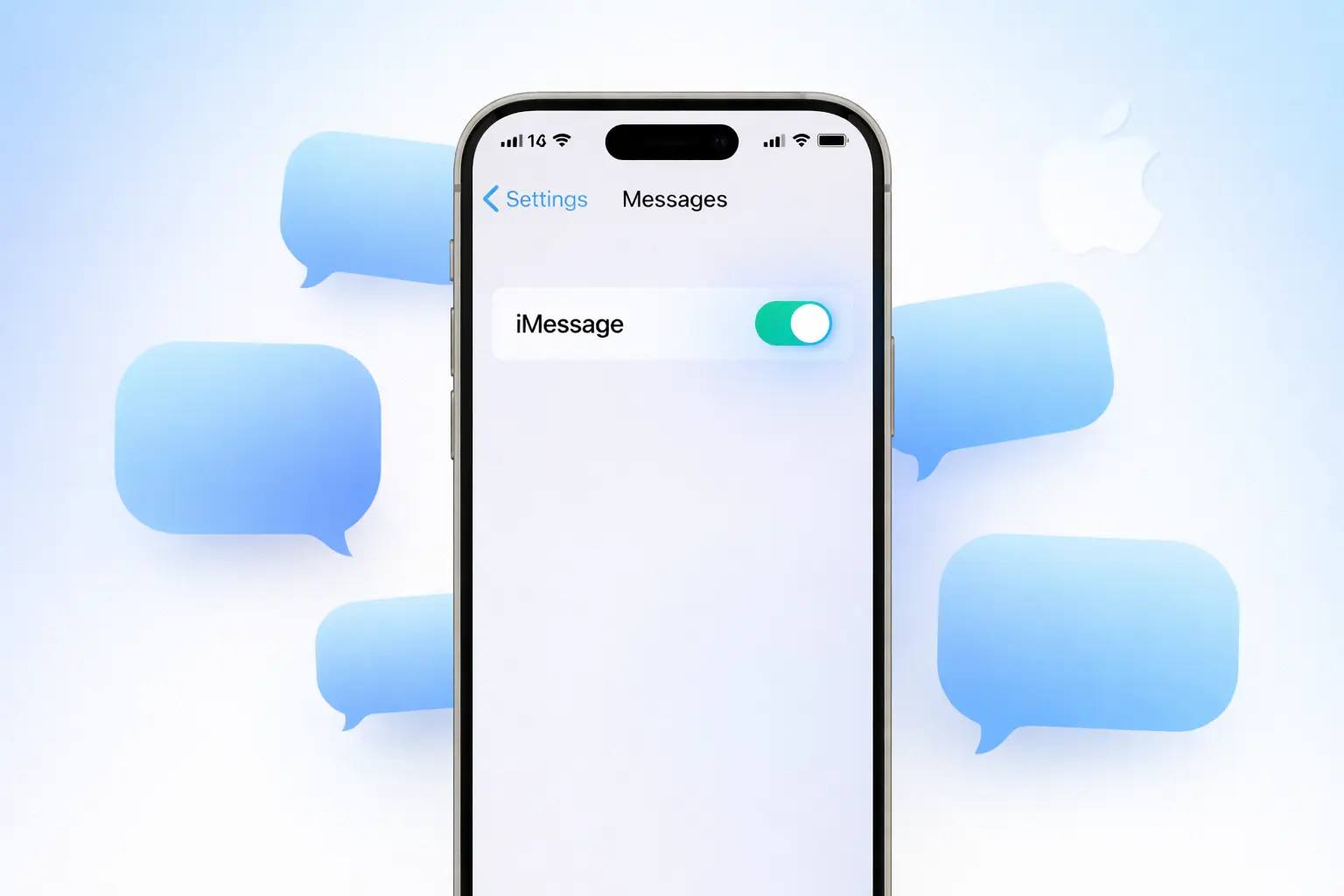
How to enable iMessage on iPhone is one of the first things you should do after getting a new Apple device — and this guide walks you through every step. Whether you just unboxed a brand-new iPhone, switched from Android, or your iMessage suddenly stopped working, you’ll find clear answers here. We’ll cover exactly how to turn on iMessage on iPhone, what to do when activation fails, and how to fix the most common errors including the frustrating “iMessage waiting for activation” message that trips up so many users.
What Is iMessage and Why Should You Enable It?
Before you learn how to enable iMessage on iPhone, it helps to understand what you’re actually turning on. The iMessage app is Apple’s own messaging platform — sometimes called Apple Messages or Apple Message — built directly into every iPhone. Unlike regular SMS texts, iMessage iPhone conversations travel over Wi-Fi or cellular data, which means messages are delivered even without a traditional cell plan, as long as you have an internet connection.
Here’s what makes iMessage worth enabling:
- Free messaging: Send unlimited texts, photos, and videos without using your SMS allowance.
- High-quality media: Share photos and videos in full resolution.
- Extra features: Use reactions, Memoji, message effects, and read receipts inside the Messages iPhone app.
- End-to-end encryption: Your conversations are private and secure — a key advantage of Messages Apple over standard SMS.
- Cross-device sync: Chat from your iPhone, iPad, and Mac using the same Apple ID.
What You Need Before You Start
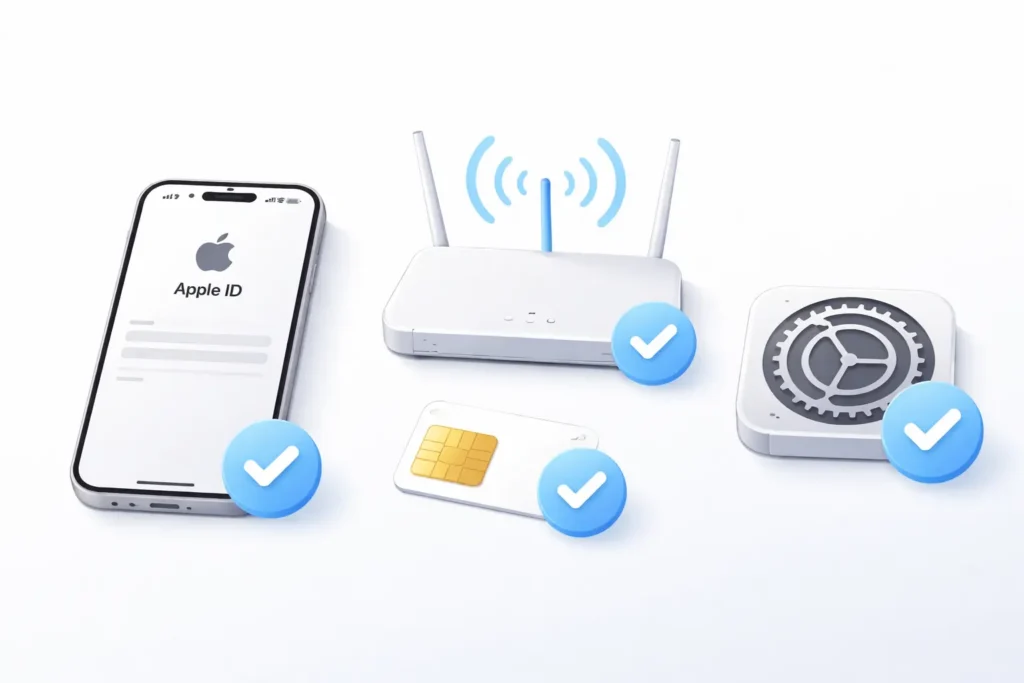
Knowing how to enable iMessage on iPhone is only half the picture — you also need a few things in place before activation will succeed. This applies whether you want to activate iMessage on iPhone for the first time, turn on iMessage iPhone after a reset, or enable iMessage on iOS 18 after a major update. Make sure you have the following ready:
- An active Apple ID — If you don’t have one, go to appleid.apple.com and create one for free.
- A Wi-Fi or cellular data connection — iMessage requires internet to activate and function.
- An active SIM card — Apple uses your phone number to verify and activate iMessage.
- iOS 5 or later — iMessage is supported on all modern iPhones. If you’re trying to enable iMessage on iOS 18 specifically, make sure you’ve installed the latest update before starting.
💡 Quick Note: If your iPhone is new out of the box or you just reset it, iMessage may not be turned on by default. You’ll need to enable it manually — and that’s exactly what the next section covers.
How to Enable iMessage on iPhone
Here’s exactly how to enable iMessage on iPhone — it takes less than a minute. Just follow these steps:
- Open the Settings app on your iPhone home screen.
- Scroll down and tap Messages.
- Find the iMessage toggle at the top of the screen.
- Tap the toggle to turn it green (on).
- Wait a few seconds while your iPhone connects to Apple’s servers to complete activation.
That’s it! Once the toggle is green, your iPhone will begin the activation process. In most cases, iMessage activates within 60 seconds. If you’re trying to turn on iMessage on iPhone after a reset or carrier change, it may take a few minutes longer. If you see an error — don’t worry. The next sections have you covered.
How to Set Up iMessage with Your Phone Number and Apple ID
After you enable iMessage on your iPhone, the next step is confirming which contact info people can use to reach you. This is a critical part of iMessage setup on new iPhone — and it’s equally important after a factory reset or carrier switch.
Step 1: Sign In with Your Apple ID
- Go to Settings > Messages.
- Tap Send & Receive.
- If prompted, sign in with your Apple ID and password.
Step 2: Choose Your Reachable Addresses
- Under “You can be reached by iMessage at,” check the boxes next to your phone number and Apple ID email.
- Under “Start new conversations from,” select your preferred address (most people choose their phone number).
📌 Pro Tip: Using your phone number as your primary iMessage address ensures that people on Android who get your new iPhone number will still be able to text you — and you’ll know instantly who’s on iMessage (blue bubbles) vs. SMS (green bubbles).
iMessage Waiting for Activation – How to Fix It
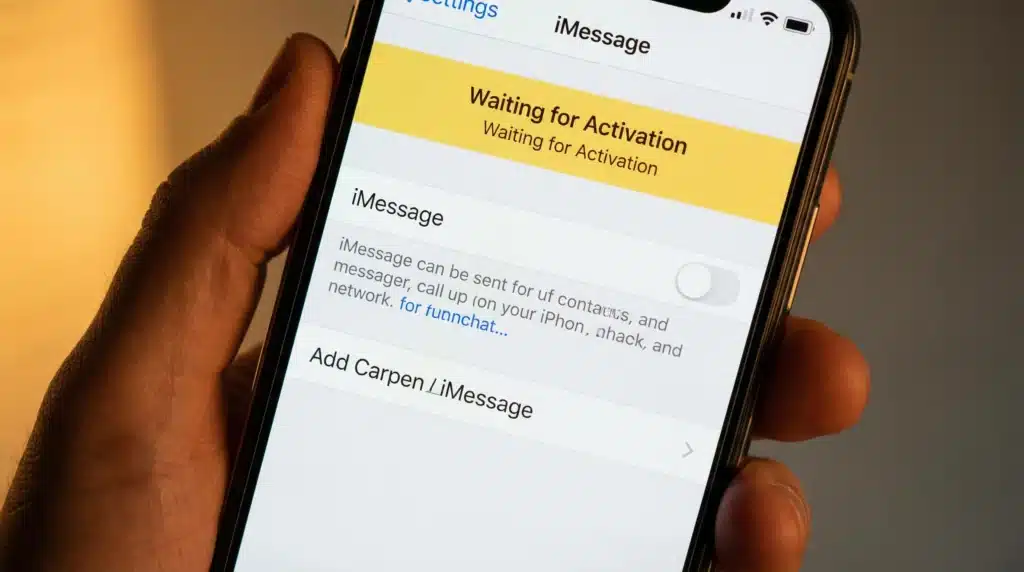
You’ve followed the steps for how to enable iMessage on iPhone — but now you’re staring at: “iMessage waiting for activation.” Don’t panic. This iMessage waiting for activation fix guide covers every known cause and solution. The issue usually means Apple’s servers are having trouble verifying your phone number or Apple ID. Here’s how to resolve it.
Fix 1: Wait Up to 24 Hours
This sounds obvious, but Apple itself recommends waiting up to 24 hours for activation to complete. If you just switched carriers or got a new SIM, this is often the only fix you need.
Fix 2: Check Your Internet Connection
Make sure you have a strong Wi-Fi or cellular data connection. If your connection is unstable, activation will stall. Try switching from Wi-Fi to cellular data (or vice versa), then toggle iMessage off and back on in Settings > Messages.
Fix 3: Reset Network Settings
Network settings can sometimes interfere with iMessage activation. Resetting your network settings will clear any misconfigured Wi-Fi or cellular data that might be blocking the activation process. Go to Settings > General > Transfer or Reset iPhone > Reset > Reset Network Settings. Note: this will also clear your saved Wi-Fi passwords.
Fix 4: Sign Out and Back Into Apple ID
- Go to Settings > [Your Name] > Sign Out.
- Sign back in with your Apple ID and password.
- Go to Settings > Messages and toggle iMessage off, then back on.
Fix 5: Update to the Latest iOS Version
Outdated iOS can cause iMessage to fail silently. Go to Settings > General > Software Update and install the latest version. As of 2026, this is important if you’re on older firmware and trying to run iMessage on iOS 18 or later.
Fix 6: Check Apple’s System Status
Sometimes the problem isn’t your phone — it’s Apple. Visit Apple’s System Status page to check if iMessage services are experiencing an outage.
Common iMessage Activation Errors and Fixes
Even after you know how to enable iMessage on iPhone, activation doesn’t always go smoothly. If you’re dealing with iMessage not working on iPhone or an unexpected error code, the quick-reference table below covers every common scenario and the best fix for each.
| Error Message | Likely Cause | Best Fix |
|---|---|---|
| Waiting for Activation | Poor internet / server delay | Wait 24 hrs or reset network settings |
| iMessage Activation Unsuccessful | Apple ID or server issue | Sign out of Apple ID and sign back in |
| iMessage Not Working After Update | iOS bug / outdated settings | Update iOS, toggle iMessage off/on |
| iMessage Not Activating with Phone Number | SIM card or carrier issue | Re-insert SIM or contact your carrier |
| iMessage Activation Error (No Specific Message) | Network misconfiguration | Reset Network Settings or restart iPhone |
| iMessage Grayed Out in Settings | MDM/carrier restriction | Check with carrier or MDM administrator |
iMessage Activation Unsuccessful – Specific Fix
If you see the message “iMessage activation unsuccessful,” this is usually tied to your Apple ID or a server-side issue. Try these targeted steps:
- Go to Settings > Messages and toggle iMessage off.
- Go to Settings > [Your Name] and sign out of your Apple ID.
- Restart your iPhone.
- Sign back into your Apple ID via Settings.
- Go to Settings > Messages and toggle iMessage back on.
Still stuck? According to Apple Support, if activation continues to fail, contact your carrier directly — some carriers require enabling SMS forwarding before iMessage can verify your number.
“If you’re seeing activation errors, the first step is to make sure your carrier supports iMessage and that your account is in good standing. A quick call to carrier support can save you hours of troubleshooting.” — Apple Support Community, Discussions Thread
iMessage Not Working on iPhone After iOS Update
iMessage not working on iPhone after an iOS update is one of the most reported issues every year. Updated to iOS 18 and suddenly your messages are going green? You’re not alone. This is a known issue after major iOS updates. Here’s the fastest fix:
- Go to Settings > Messages and turn iMessage off.
- Wait 30 seconds.
- Turn iMessage back on.
- If that doesn’t work, go to Settings > General > Transfer or Reset iPhone > Reset > Reset Network Settings.
For more advanced network troubleshooting on your iPhone, see our guide on how to reset network settings on iPhone.
iMessage Blue Bubbles vs. Green Bubbles
One of the most visible signs that iMessage is working is the color of your chat bubbles. Understanding iMessage blue bubbles vs green bubbles tells you instantly whether a conversation is going through Apple Messages or a standard SMS carrier. Here’s exactly what each color means:
| Feature | 🔵 Blue Bubble (iMessage) | 🟢 Green Bubble (SMS/MMS) |
|---|---|---|
| Requires | Apple device + internet | Any phone + SMS plan |
| Cost | Free (uses data) | May use SMS allowance |
| Encryption | End-to-end encrypted | Not encrypted |
| Read Receipts | Yes (optional) | No |
| Message Effects | Yes (Tapback, animations) | No |
| Works with Android | No | Yes |
| Media Quality | Full resolution | Compressed |
📌 Key Takeaway: If your messages appear green to someone you know has an iPhone, iMessage may not be enabled on either device — or there’s a connectivity issue. Walk them through this guide!
Make the Most of iMessage After Activation
Now that you know how to enable iMessage on iPhone and fix any activation errors, there’s a whole world of features waiting for you. Here are a few worth exploring right away:
- Send voice messages — Did you know you can send audio messages directly from iMessage? Learn how in our guide on how to send a voice message on iPhone.
- Recover deleted or unsent messages — Accidentally deleted a conversation? Check out our guide on how to see unsent messages on iPhone to recover messages you thought were gone.
- Use iMessage on your Mac and iPad — Sign in with the same Apple ID on all your Apple devices to send and receive messages from anywhere.
- Set up Focus filters — On iOS 16 and later, you can use Focus mode to filter iMessage notifications by contact group.
Expert Insight
“iMessage is designed to be seamless, but activation requires a working internet connection and a verified phone number through your carrier. If either of those pieces is missing, the process will stall.” — Apple iPhone User Guide (via Apple Support)
You can find more details on iMessage setup directly from the Apple iPhone User Guide.
Frequently Asked Questions
How do I activate iMessage on iPhone for the first time?
Go to Settings > Messages and tap the iMessage toggle to turn it green. Your iPhone will automatically begin the process to activate iMessage on iPhone using your Apple ID and phone number. The process usually takes under a minute on a stable internet connection.
Why won’t iMessage activate on my iPhone?
Why won’t iMessage activate on iPhone is one of the most-searched questions after a new device setup or iOS update. The most common causes are: a poor internet connection, an unverified Apple ID, a carrier that hasn’t enabled iMessage on your account, or a temporary Apple server outage. Work through the fixes in the “iMessage Waiting for Activation” section above, starting with toggling iMessage off and back on, then resetting your network settings.
iMessage Not Activating with My Phone Number – What Do I Do?
If iMessage is not activating with your phone number, this is usually a carrier issue. Your carrier needs to support iMessage, and your phone number must be active. Try removing and reinserting your SIM card, restarting your iPhone, and toggling iMessage off and back on. If the problem continues, call your carrier and ask them to confirm iMessage is enabled on your account.
What does ‘enable iMessage’ actually mean?
Enabling iMessage means turning on Apple’s messaging service so that messages sent between Apple devices travel over the internet rather than through your carrier’s SMS network. When enabled, your iPhone Messages app will automatically route conversations through iMessage when the recipient is also on an Apple device — showing those conversations as blue bubbles.
How do I enable iMessage on iOS 18?
The steps to enable iMessage on iOS 18 are the same as on any modern iPhone: go to Settings > Messages and toggle iMessage on. However, iOS 18 introduced a known bug where iMessage may deactivate itself after a software update. If that happens, toggle the switch off, wait 30 seconds, and toggle it back on. If the issue persists, reset your network settings.
How do I complete iMessage setup on a new iPhone?
iMessage setup on new iPhone is simple. During initial iPhone setup, sign in with your Apple ID when prompted. Once the setup wizard is done, go to Settings > Messages and make sure the iMessage toggle is on. Then tap Send & Receive to confirm your phone number and Apple ID email are both selected as reachable addresses.
Why won’t iMessage activate even after following all these steps?
If nothing else has worked, try checking Apple’s System Status page to see if iMessage is experiencing a service outage. You can also visit the Apple Support Community discussions where many users share real-time fixes for activation problems. As a last resort, contact Apple Support directly.
Conclusion
Now you know exactly how to enable iMessage on iPhone — and what to do when things don’t go as planned. In just a few taps — Settings > Messages > iMessage toggle — you unlock a more powerful, private, and feature-rich iMessage iPhone experience that goes far beyond standard SMS.
If you ran into activation errors along the way, the fixes in this guide cover the vast majority of cases. Here’s a quick recap: wait up to 24 hours, check your internet connection, reset your network settings, sign out and back into your Apple ID, and update to the latest iOS. Still stuck? Check Apple’s System Status page or reach out to your carrier.
Whenever a friend or family member asks you how to turn on iMessage on iPhone or why their Apple Messages aren’t working, send them this page — it covers everything from first-time iMessage setup on new iPhone to advanced activation troubleshooting in one place.
Once iMessage is active, don’t forget to explore everything it can do from sending voice messages to recovering unsent messages. Your iPhone’s Messages app is more powerful than most people realize.
📌 Found this guide helpful? Share it with a friend who just got a new iPhone they’ll thank you for it.
External Sources:
- Apple iPhone User Guide – iMessage Setup
- Apple Support Community – iMessage Activation Thread
- Apple System Status Page
Last updated: March 2026

