


Need to add your phone to a router’s allow list, or fix a connection that keeps failing? Then you need your iPhone’s MAC address. This guide shows you how to find MAC address on iPhone in about 10 seconds, and explains why the number you see may not match the one your router shows.
Quick answer: Open Settings > General > About, then look for Wi-Fi Address. That 12-character code is your iPhone’s Wi-Fi MAC address.
How to Find MAC Address on iPhone in 3 Steps
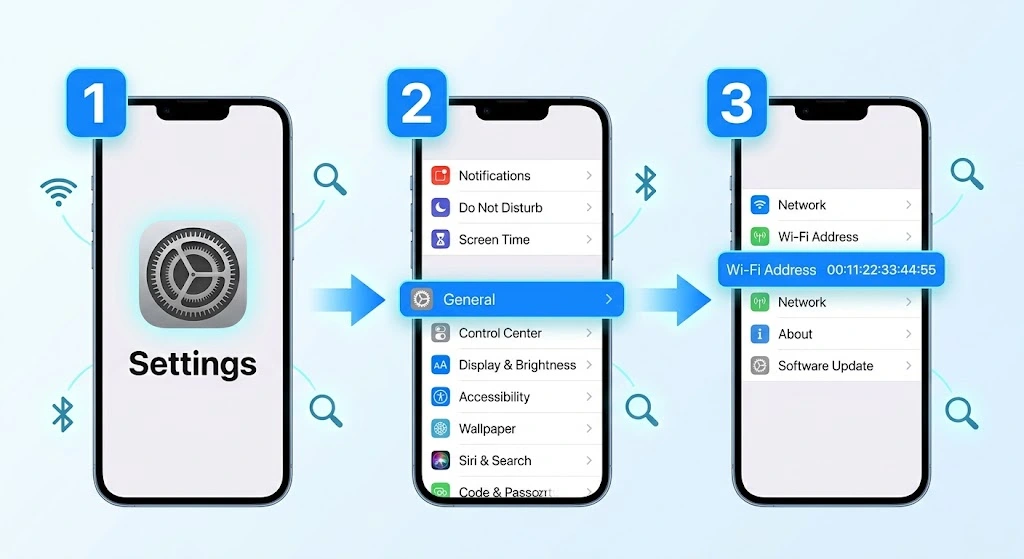
Here is the fastest way. It works on every iPhone, with or without Face ID.
- Open the Settings app.
- Tap General, then tap About.
- Find Wi-Fi Address. That is your MAC address.
It looks like this: A4:83:E7:12:5B:9C. It always has 12 letters and numbers, grouped in pairs. That is how to find MAC address on iPhone in under 10 seconds.
Tip: Press and hold the address to copy it. You can then paste it into your router’s settings or a message.
What Is a MAC Address on iPhone?
A MAC address (Media Access Control address) is a unique ID for a network chip inside your device. Networks use it to tell devices apart.
Think of it like a name tag. When your iPhone joins Wi-Fi, it shows this tag to the router so the router knows who is talking.
MAC Address vs IP Address
People often mix these up. They do different jobs.
| Feature | MAC Address | IP Address |
|---|---|---|
| What it is | An ID tied to your phone’s network hardware | A temporary address given by the network |
| Format | 12 characters, like A4:83:E7:12:5B:9C | Numbers, like 192.168.1.24 |
| Changes often? | Rarely (but see Private Wi-Fi Address below) | Yes, it can change when you join a new network |
| Used for | Identifying your device on a local network | Sending data to the right place |
In short: the MAC address says which device you are. The IP address says where your device is on the network right now.
Wi-Fi Address vs Bluetooth Address
Your iPhone has more than one MAC address. Each radio has its own.
- Wi-Fi Address: used when you connect to Wi-Fi networks.
- Bluetooth address: used when you pair with AirPods, speakers, and other accessories.
Most people need the Wi-Fi one. We cover both below.
How to Find MAC Address on iPhone (Wi-Fi Address)
There are three ways. Pick the one that fits your situation.
Method 1: Settings > General > About (Fastest)
Here is how to find MAC address on iPhone with the standard method. It works even if you are offline.
- Open Settings.
- Tap General.
- Tap About.
- Look for Wi-Fi Address.
Note: You don’t need to be connected to Wi-Fi to see it. Airplane Mode is fine too.
Method 2: See the Address Your iPhone Uses for One Network
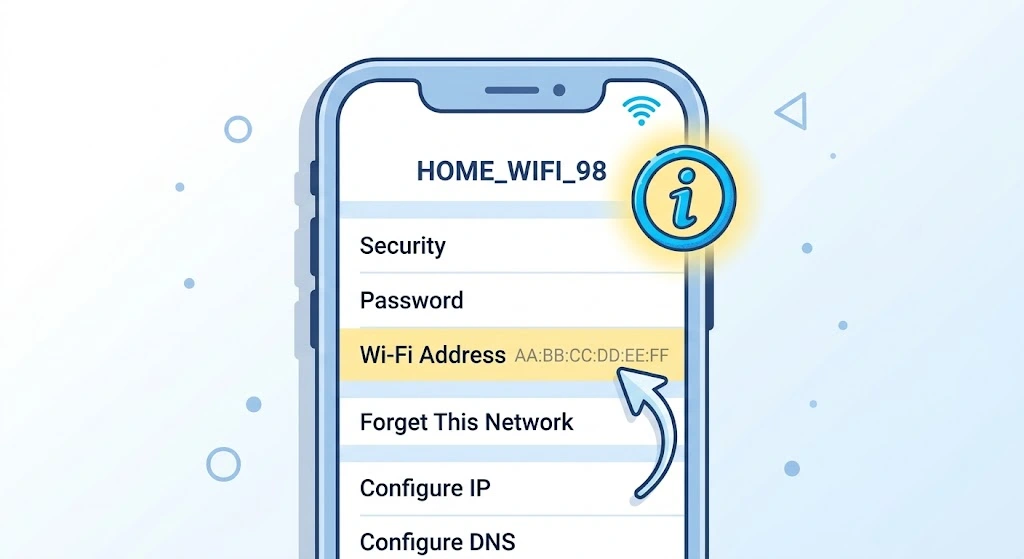
Because of a privacy feature (explained later), your iPhone may use a different address for each Wi-Fi network. If you need the exact address a router sees, check the network’s own screen.
- Open Settings and tap Wi-Fi.
- If you aren’t connected, tap Edit in the top-right corner.
- Tap the More Info button (the blue i) next to the network name.
- Look at the Wi-Fi Address shown there.
Why this matters: the address on this screen is the one that network actually uses. If you are setting up MAC filtering, copy this one, not the one from the About screen.
Method 3: Check Your Router’s Connected Devices List
You can also find your iPhone in your router’s app or web page.
- Make sure your iPhone is connected to the Wi-Fi network.
- Log in to your router’s settings page or app. (The steps vary by brand.)
- Open the list of connected devices or clients.
- Find your iPhone, usually by its name, and read the MAC address next to it.
If you aren’t sure which entry is yours, you can change your iPhone name first. A clear name makes it easy to spot.
Does It Differ by iPhone Model?
The steps are the same on every iPhone, whether it has Face ID or a Home button. What changes is your iOS version.
| iOS Version | What You’ll See in Wi-Fi Settings |
|---|---|
| iOS 14 to iOS 17 | Private Wi-Fi Address is a simple on/off switch |
| iOS 18 and later (including iOS 26) | Private Wi-Fi Address has three choices: Off, Fixed, or Rotating |
Not sure what you have? Our guide on which iPhone model you have can help.
How to Find MAC Address on iPhone: Bluetooth Address
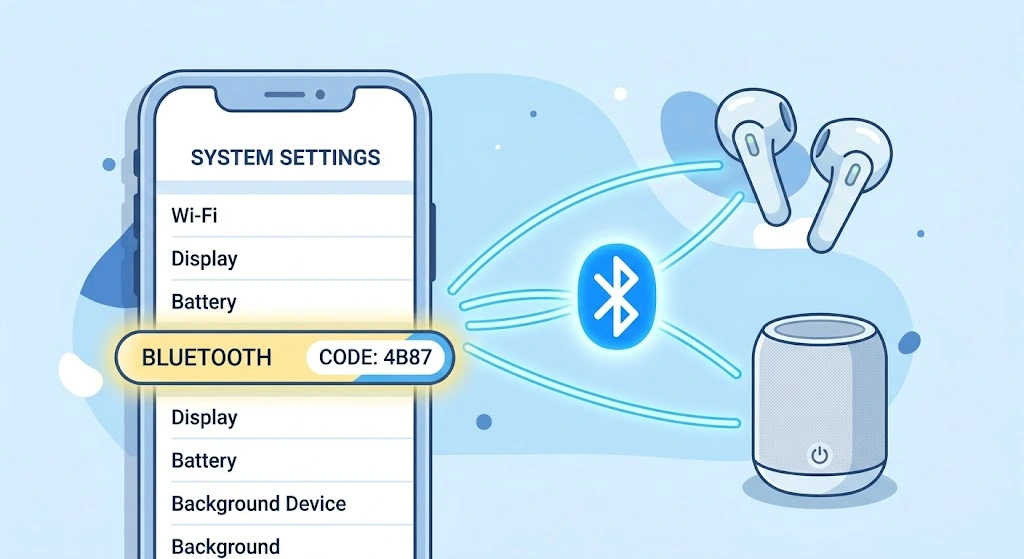
Your Bluetooth address is on the same About page.
- Go to Settings > General > About.
- Scroll down.
- Look for Bluetooth. The code next to it is your Bluetooth address.
You rarely need this one. It can help when you are troubleshooting a Bluetooth accessory or registering a device with a work or school system.
Note: If you can’t see the Bluetooth row, scroll a little further. The About screen is long.
What Is Private Wi-Fi Address (and Why Your MAC Looks Different)
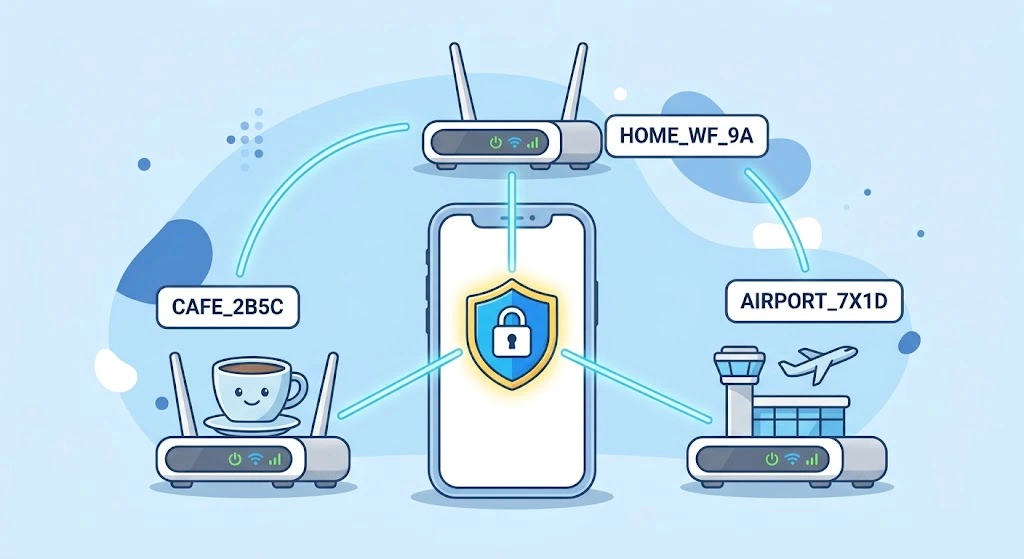
Knowing how to find MAC address on iPhone is only half the story. Here is the part many guides skip. It explains why your MAC address may not match what your router shows.
Why Apple Added It
If your phone used one fixed MAC address everywhere, any Wi-Fi network could recognize it. Over time, someone could link that address to your activity and locations.
Apple explains that using one address across all networks allows a kind of user tracking or profiling. To reduce that risk, iPhones use a private Wi-Fi address, a different address for each network.
Expert note: According to Apple Support, the Private Wi-Fi Address feature is designed to prevent this kind of “user tracking or profiling.”
The feature has been available since iOS 14.
Off vs Fixed vs Rotating Explained
Starting with iOS 18, you get three settings for each network:
| Setting | What Your iPhone Does | When It’s the Default |
|---|---|---|
| Off | Uses its real hardware MAC address | Never. You choose it yourself |
| Fixed | Uses a private address that does not change | New networks with WPA2 or stronger security |
| Rotating | Uses a private address that changes about every 2 weeks | New networks with weak or no security |
Key takeaway: For most home Wi-Fi networks, your iPhone uses a Fixed private address. It stays the same on that network, but it is not your phone’s real hardware address.
When Does the Address Change?
Your private address can change in a few cases:
- You erase all content and settings, or reset network settings. Your iPhone then uses a new private address the next time it joins that network.
- You forget the network. On iOS 18 and later, your iPhone also forgets the private address it used, unless less than 24 hours have passed since you last forgot that network.
- You use the Rotating setting. The address changes about every two weeks.
Warning: If you added your iPhone to a router’s allow list and the address later changes, your phone may be blocked. See the fixes section below.
How to Turn Private Wi-Fi Address On or Off
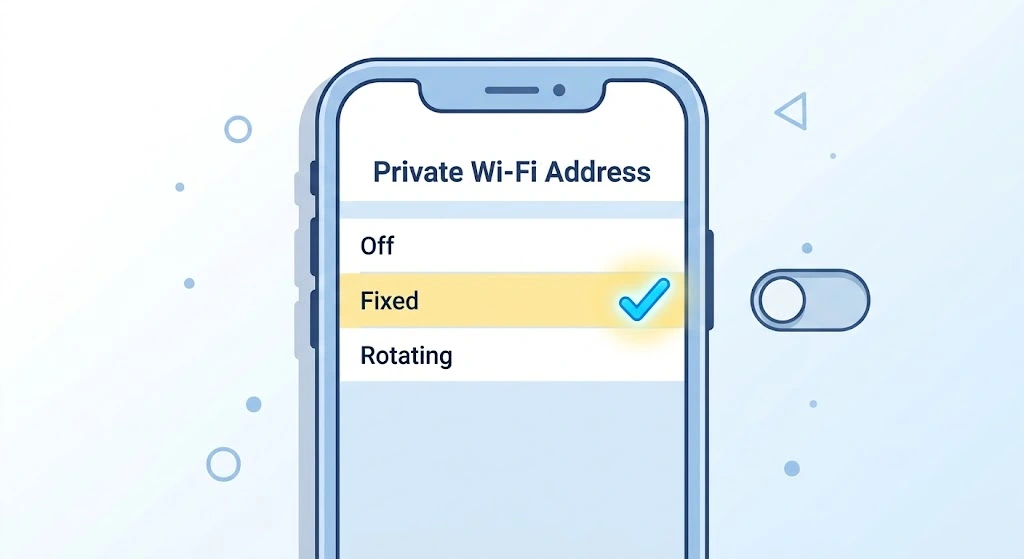
Want your iPhone to use its real hardware MAC address on a specific network? Here is how.
- Open Settings and tap Wi-Fi.
- If you aren’t connected to the network, tap Edit in the top-right corner.
- Tap the More Info (i) button next to the network name.
- Tap Private Wi-Fi Address.
- Choose Off, Fixed, or Rotating.
On iOS 17 or earlier, you will see a simple switch instead. Turn it off to use your real address.
Your iPhone may briefly disconnect and rejoin the network after you change this setting.
Heads up: This setting is per network. You must change it for each Wi-Fi network separately.
Should You Turn It Off?
For most people, no. Apple recommends leaving private addresses on for networks and software that support them.
Turn it off only if you have a good reason, such as:
- A router uses MAC filtering and you want to enter your phone’s real address.
- A work, school, or hotel network requires your registered hardware address.
If the network doesn’t work with private addresses, Apple suggests you first install the latest software updates and try again before turning the feature off.
Why You Might Need Your iPhone MAC Address
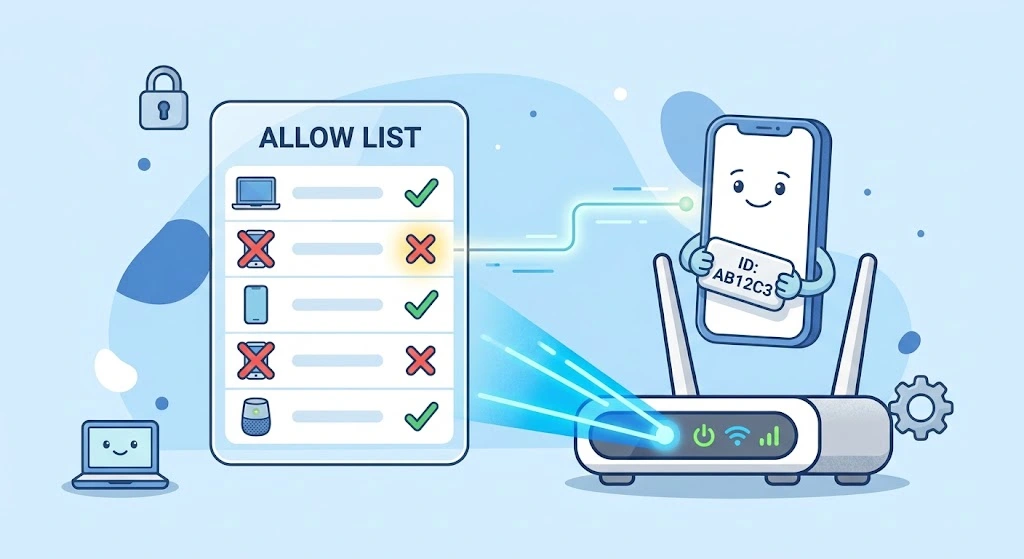
Most people never need to know how to find MAC address on iPhone. These are the common reasons people do.
MAC Filtering on Your Router
Some routers let you create an allow list (or block list) of devices. You add each device’s MAC address.
To set it up on your iPhone:
- Find the address for that specific network (use Method 2 above).
- Copy it.
- Paste it into your router’s MAC filtering page.
- Save, then reconnect your iPhone.
Important: MAC filtering is not strong security. A MAC address can be seen by nearby devices, and it can be spoofed. Strong Wi-Fi password and WPA2 or WPA3 security are better protection. How-To Geek explains the downsides in their guide to finding your iPhone’s MAC address.
Network Troubleshooting
A MAC address helps you answer questions like:
- Which device on my network is my iPhone?
- Is an unknown device connected to my Wi-Fi?
- Why did my router assign a new IP to my phone?
If your connection is slow or you are watching your usage, see our guide to checking data usage on iPhone.
Device Registration
Some networks, such as dorms, offices, and hotels, ask you to register your device by MAC address. The IT team may give you a form, or a portal may collect it.
If registration fails, check whether Private Wi-Fi Address is on. Then repeat the steps for how to find MAC address on iPhone for that specific network. Many of these networks need your real address, or they offer a way to register the private one.
Wi-Fi Calling and Network Features
Wi-Fi features rely on a stable connection. If you use Wi-Fi Calling on your iPhone, changing network settings can briefly interrupt it. Check your connection afterward.
Fixes: iPhone Won’t Connect After a MAC Change
Changed the Private Wi-Fi Address setting and now Wi-Fi acts up? Try these in order.
- Toggle Wi-Fi off and on. Open Control Center and tap the Wi-Fi icon twice.
- Restart your iPhone. A restart clears many small glitches.
- Forget the network and rejoin. Go to Settings > Wi-Fi > More Info (i) > Forget This Network, then join again.
- Update your router’s allow list. If MAC filtering is on, make sure the address in your router matches the one on your iPhone’s network screen.
- Install the latest iOS update. Apple suggests updating before turning the feature off.
- Reset network settings. Use this as a last step. It clears saved Wi-Fi networks and passwords, and it gives you a new private address on each network. See our full guide to resetting network settings on iPhone.
Note: Resetting network settings removes saved Wi-Fi passwords. Make sure you know them first.
Also, if your router sends alerts when a new device joins, expect a notification. Apple says routers can notify you when a device first joins with a private address. That is normal.
Safety Tips
- Don’t post your MAC address publicly. It identifies your device on local networks.
- Don’t rely on MAC filtering alone. Use a strong password and WPA2 or WPA3 security.
- Keep Private Wi-Fi Address on for public Wi-Fi at cafés, airports, and hotels.
- Be careful with apps that ask for it. Legitimate apps rarely need your MAC address. Related privacy settings are covered in our guide to stopping app tracking on iPhone.
- Router changes: If you manage a router, Apple publishes recommended Wi-Fi router settings that explain security and privacy warnings your iPhone may show.
FAQ
Where is the MAC address on an iPhone?
Go to Settings > General > About and look for Wi-Fi Address. For the address used on a specific network, tap Settings > Wi-Fi, then tap the blue i button next to the network.
Why is my iPhone’s MAC address different on each Wi-Fi network?
Because of Private Wi-Fi Address. Your iPhone uses a different address for each network to protect your privacy. Apple turned this on by default starting with iOS 14.
Can I change my iPhone’s MAC address?
Not to a custom value. You can only choose which type your iPhone uses for a network: its real address (Off), a Fixed private address, or a Rotating private address. On iOS 18 and later, you can also get a new private address by resetting network settings or by forgetting the network.
Is the MAC address the same as the IP address on iPhone?
No. The MAC address identifies your device’s network hardware. The IP address is a temporary address a network gives your device. You can check your IP address in your Wi-Fi network details.
How to find MAC address on iPhone without Wi-Fi?
Open Settings > General > About. The Wi-Fi Address and Bluetooth address are shown there even when you are offline or in Airplane Mode.
Does the same method work on iPad?
Yes. The path is the same: Settings > General > About, and the Private Wi-Fi Address setting is under each network’s details.
Conclusion
You now know how to find MAC address on iPhone in a few taps. Here is a quick recap:
- Wi-Fi Address: Settings > General > About.
- Address for one network: Settings > Wi-Fi > More Info (i).
- Bluetooth address: Settings > General > About, then scroll to Bluetooth.
- Private Wi-Fi Address: leave it on unless a network requires your real hardware address.
Give it a try now. It takes less than half a minute. And if something breaks after you change a setting, the fixes above should get you back online.
Related reading on iPhone Tonic:
- How to Reset Network Settings on iPhone
- How to Check Data Usage on iPhone
- How to Change Your iPhone Name
- Which iPhone Do I Have?
Sources
- Use private Wi-Fi addresses on Apple devices (Apple Support)
- Recommended settings for Wi-Fi routers and access points (Apple Support)
- How to Find Your iPhone’s MAC Address (How-To Geek)

