


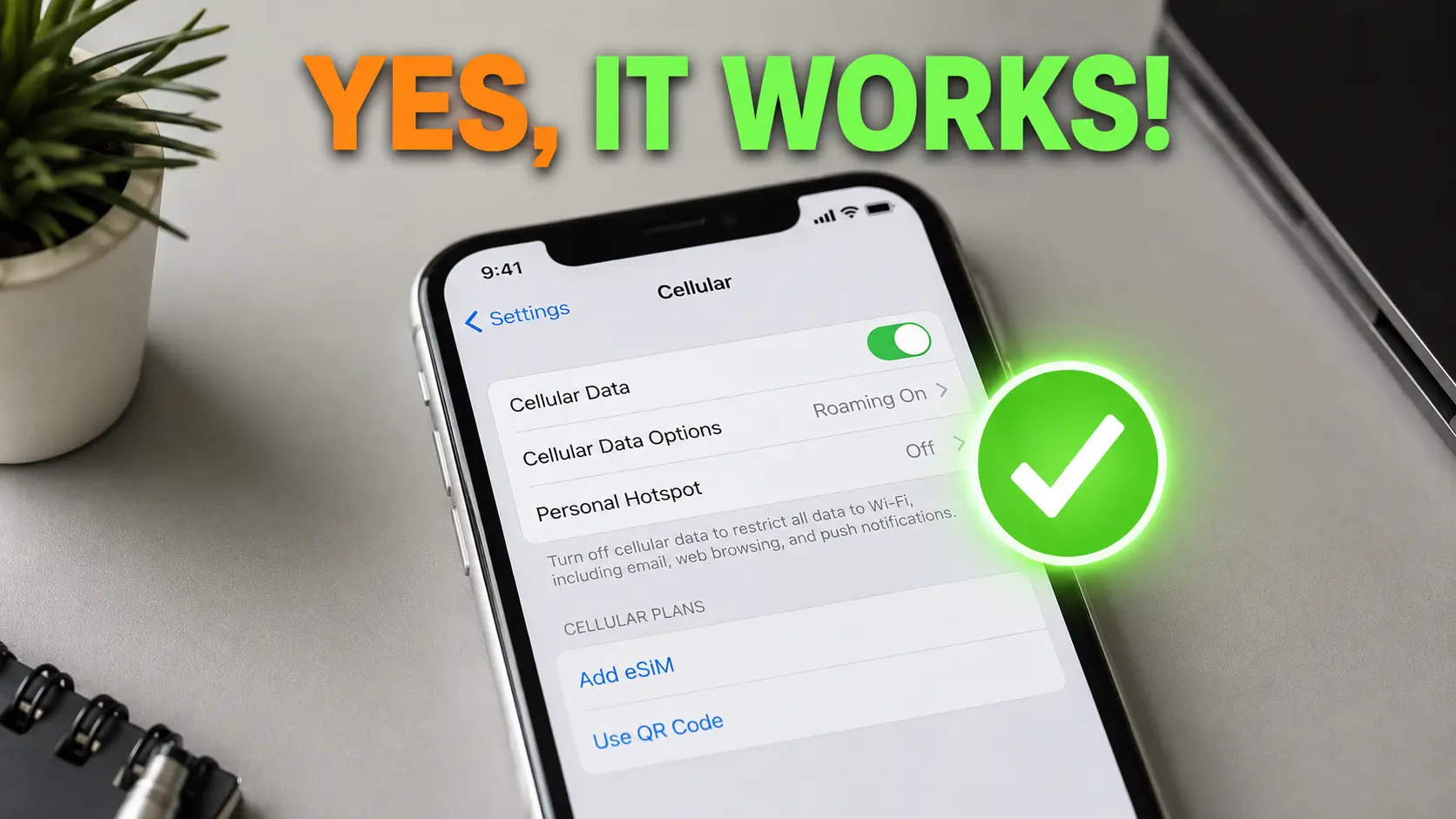
If you just picked up an iPhone 11 — new, used, or refurbished — you’ve probably wondered whether it can run a digital SIM instead of (or alongside) a physical one. The good news is simple: the iPhone 11 does have eSIM, and setting it up takes just a few minutes. In this guide, you’ll learn exactly how eSIM works on your iPhone 11, how to activate it, which carriers support it, and how to fix common issues if something doesn’t go as planned.
Whether you’re switching carriers, planning a trip abroad, or just curious about what that “Add eSIM” option in your Settings app actually does, this guide covers everything you need — no technical background required.
Quick Answer: The iPhone 11, iPhone 11 Pro, and iPhone 11 Pro Max all support eSIM. You can activate it by scanning a carrier QR code in Settings > Cellular > Add eSIM, and it can run alongside your physical SIM for Dual SIM functionality — but only one eSIM can be active at a time.
Does the iPhone 11 Support eSIM? (Quick Answer)
Does iPhone 11 have eSIM? Yes — the iPhone 11 has eSIM support built right in. Every model in the iPhone 11 lineup (iPhone 11, iPhone 11 Pro, and iPhone 11 Pro Max) can activate a digital SIM profile in addition to the physical nano-SIM tray. That means you can run two active phone lines at once — one on your physical SIM, one on your eSIM.
An eSIM (embedded SIM) is a digital SIM built directly into your iPhone’s hardware. Instead of inserting a plastic SIM card, your carrier sends you a QR code or activation link, and your iPhone downloads the cellular plan straight to its internal chip.
“eSIM lets you add a cellular plan without a physical SIM card.” — Apple Support
This is especially useful if you:
- Travel internationally and want local data without swapping SIM cards
- Need separate work and personal numbers on one device
- Want a backup line in case your primary carrier has poor coverage
Quick note: If you’re not 100% sure which iPhone model you own before continuing, check out our guide on how to identify your iPhone model first.
To be clear: does iPhone 11 have eSIM built in from the factory? Yes — it shipped with eSIM support from day one back in 2019, and Apple has never removed the feature through software updates. So no matter how old your specific unit is, as long as it’s an original iPhone 11 (not a China/Hong Kong/Macao variant), the eSIM hardware is already there and ready to use.
What Is an eSIM, Exactly?
Before diving into setup, it helps to understand what makes eSIM different from a regular SIM card.
A traditional SIM card is a small removable chip that stores your carrier’s network information. An eSIM (embedded SIM) does the same job, but the chip is soldered directly onto your iPhone’s logic board — you never see it, and you can’t remove it.
Here’s what that means in practice:
- No physical card to lose or damage. Your cellular plan lives digitally on your device.
- Instant activation. Most eSIM plans activate in under five minutes, compared to waiting for a mailed SIM card.
- Easier carrier switching. You don’t need to visit a store or wait for shipping — just scan a QR code.
- Multiple stored profiles. You can save several eSIM plans and switch between them without needing separate physical cards.
The technology isn’t unique to iPhone — Apple, Google, and Samsung have all adopted eSIM across their flagship devices — but Apple was one of the first major manufacturers to bring it to a mainstream smartphone lineup, starting with the iPhone XS and XR in 2018, and then expanding it to the entire iPhone 11 lineup in 2019.
How Does eSIM Work? (Simple Explanation)
How does eSIM work? In short: your carrier sends a digital profile — usually as a QR code — and your iPhone downloads that profile directly onto its built-in eSIM chip. From that point on, your iPhone connects to the cellular network exactly like it would with a physical SIM, just without the removable card.
Here’s the process broken down into four simple steps:
- Your carrier generates a digital profile tied to your phone number and plan
- You scan a QR code (or enter a code manually) to request that profile
- Your iPhone downloads and installs the profile onto its embedded eSIM chip
- Your iPhone activates the line, and it works just like a regular SIM from that point forward
“eSIM (embedded SIM) is a digital SIM that allows you to activate a cellular plan without having to use a physical SIM.” — Apple Support
Because the whole exchange happens over the internet instead of through a physical card, activation is usually instant — no waiting for a SIM card to arrive in the mail.
iPhone 11 eSIM Compatible? What “Compatible” Really Means
When people search “iPhone 11 esim compatible,” they’re usually asking one of two things: whether the hardware supports eSIM (yes, for all standard iPhone 11 models), or whether their specific carrier plan can be added as an eSIM (this depends on the carrier, not the phone). Both the device and your carrier need to support eSIM for activation to work — if either side doesn’t, you’ll need to stick with a physical SIM.
iPhone 11 vs iPhone 11 Pro vs iPhone 11 Pro Max: eSIM Comparison
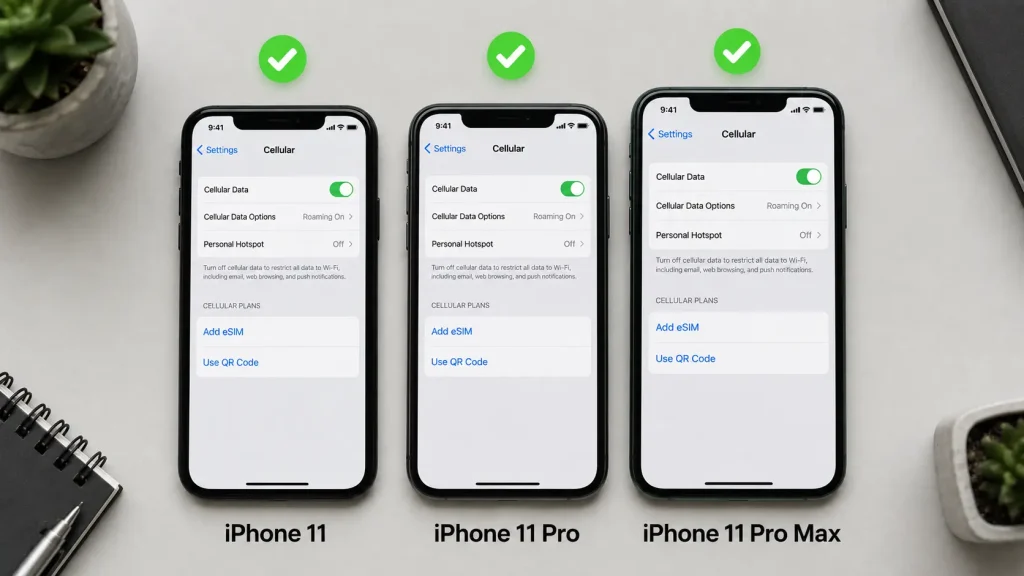
All three iPhone 11 models support eSIM the same way, but people often search “does iphone 11 have esim” for each variant separately, so here’s a clear side-by-side comparison.
| Feature | iPhone 11 | iPhone 11 Pro | iPhone 11 Pro Max |
|---|---|---|---|
| eSIM Support | ✅ Yes | ✅ Yes | ✅ Yes |
| Physical Nano-SIM | ✅ Yes | ✅ Yes | ✅ Yes |
| Dual SIM (Physical + eSIM) | ✅ Yes | ✅ Yes | ✅ Yes |
| Two Active eSIMs at Once | ❌ No | ❌ No | ❌ No |
| Max Stored eSIM Profiles | Up to 8 | Up to 8 | Up to 8 |
| China/Hong Kong/Macao Models | ❌ eSIM not supported | ❌ eSIM not supported | ❌ eSIM not supported |
How Many eSIM Profiles Can You Store?
You can store multiple eSIM profiles — typically up to eight — on your iPhone 11. However, only one eSIM can be active at a time, paired with your physical SIM. This is different from newer iPhones (like the iPhone 13 and later), which can run two active eSIMs simultaneously without a physical SIM at all.
Key takeaway: Think of your stored eSIMs like saved Wi-Fi networks — you can keep several on file, but only one connects actively alongside your physical SIM.
Regardless of which variant you own, does iPhone 11 support eSIM the same way across the board? Yes — Apple didn’t limit eSIM functionality to the Pro models. The standard iPhone 11 gets the exact same digital SIM capability as its more expensive siblings.
Benefits of Using eSIM on Your iPhone 11
So why would you actually want to use eSIM instead of sticking with your physical SIM? Here are the most practical advantages:
- Travel without swapping SIM cards. Buy a local data eSIM in your destination country and keep your home number active on your physical SIM at the same time.
- Separate work and personal lines. Run two numbers on one device without carrying two phones.
- Faster carrier switching. Compare plans and switch providers without waiting for a physical card to arrive in the mail.
- Reduced risk of SIM-swap fraud. Since there’s no physical card to remove, it’s harder for someone to physically steal your SIM and hijack your number.
- Cleaner device design. No SIM tray means one less point of entry for dust or water — though this benefit applies more to newer iPhones that ship eSIM-only in the U.S.
Blockquote — Expert Tip: According to Apple’s own documentation, “eSIM makes it easier to have multiple cellular plans on the same iPhone without needing to physically switch SIM cards.” This is especially useful for anyone who frequently travels for work or splits time between countries.
How to Activate eSIM on iPhone 11
Before you start, make sure:
- Your iPhone 11 is updated to the latest iOS version
- You’re connected to Wi-Fi
- You have your activation details ready from your carrier (QR code, activation code, or carrier app)
There are three ways to activate an eSIM on your iPhone 11 now that we’ve confirmed does iPhone 11 have eSIM support. Pick whichever your carrier supports.
Method 1: Scan a QR Code
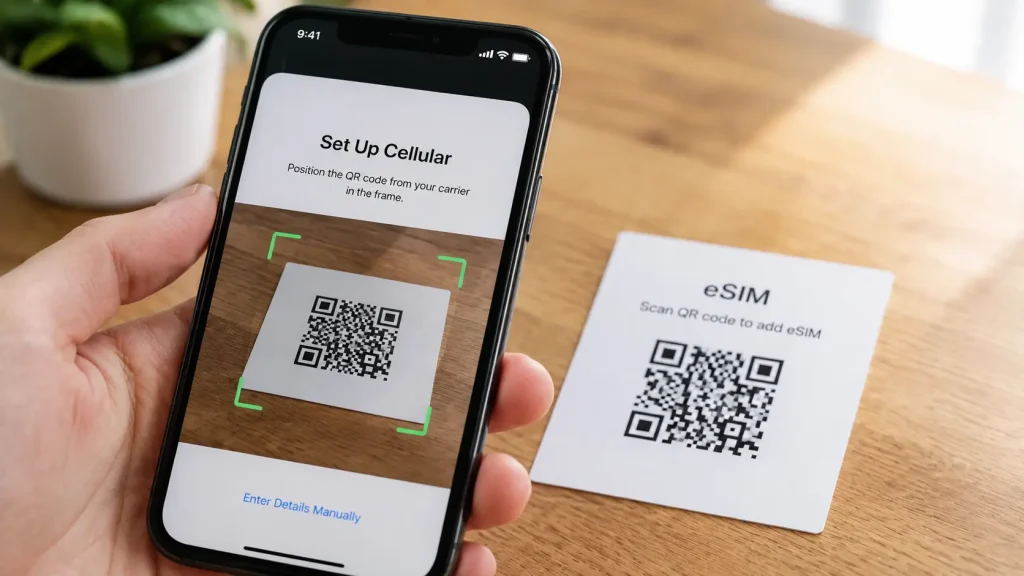
This is the most common method and takes less than two minutes.
- Go to Settings > Cellular (or Mobile Data)
- Tap Add eSIM (or Add Cellular Plan)
- Select Use QR Code
- Point your camera at the QR code your carrier provided
- Follow the on-screen prompts, then tap Done
Tip: If the QR code was emailed to you, you can also scan it directly from a printed copy or another screen — just make sure it’s clear and not glared over.
Method 2: Activate via Carrier App
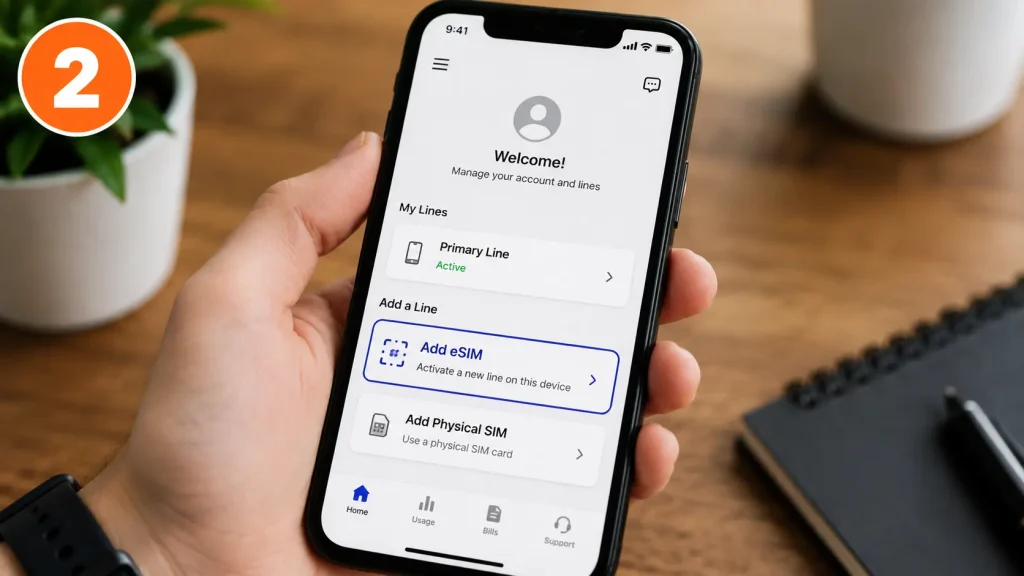
Some carriers (like T-Mobile and Google Fi) let you activate eSIM entirely inside their app.
- Download your carrier’s app from the App Store
- Log in to your account
- Look for “Add eSIM”, “Activate a Line”, or a similar option
- Follow the app’s instructions to complete setup
Method 3: Enter Details Manually
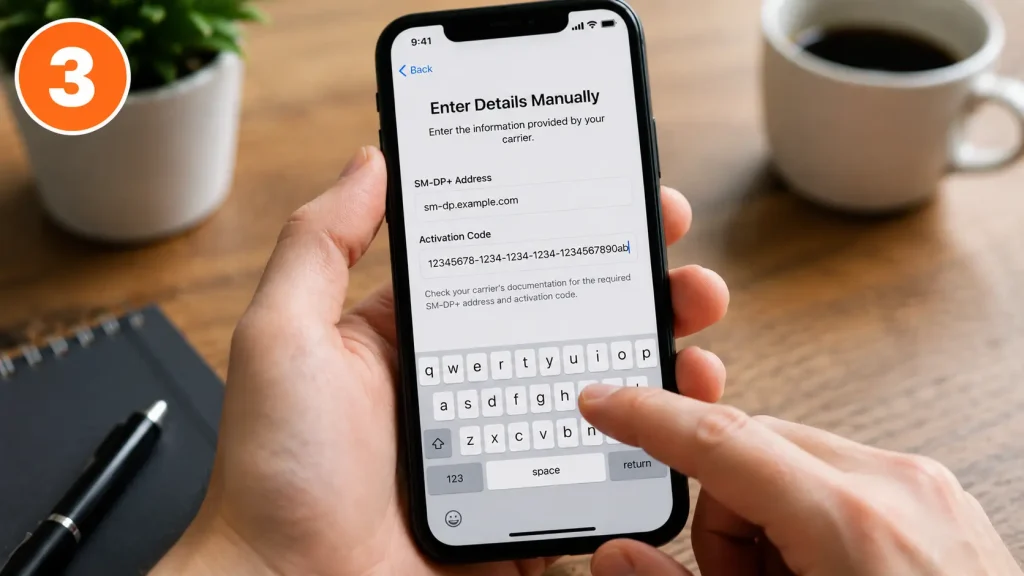
If your carrier gives you a code instead of a QR image:
- Go to Settings > Cellular > Add Cellular Plan
- Tap Enter Details Manually
- Input the SM-DP+ address and activation code from your carrier
- Tap Next, then Continue when the plan is detected
- Tap Done
Tip: Some carriers email you a direct activation link instead of a QR code — it will start with esimsetup.apple.com and, when opened on your iPhone 11, installs the eSIM automatically without any manual entry. This only works when tapped as a link sent by your carrier; the address itself isn’t a page you visit directly.
Note: After activation, you’ll be asked to label your lines (like “Personal” and “Travel”) and choose a default line for calls, texts, and cellular data. You can change this anytime in Settings > Cellular.
No matter which of the three methods you use, the process confirms once and for all that does iPhone 11 have eSIM capability that actually works — not just a hidden setting that looks available but fails during setup. Thousands of iPhone 11 owners activate eSIMs successfully every day using these exact steps.
How to Download an eSIM on iPhone 11
“Downloading” an eSIM is really just another way of describing the activation process above — your carrier’s digital profile gets downloaded and installed onto your iPhone 11’s built-in eSIM chip. If you’re specifically looking for where to start:
- Apple’s official carrier list: Check Apple’s eSIM carrier compatibility page to see which carriers in your country or region support eSIM and which activation method they use
- Your carrier’s app or website: Most carriers also list eSIM download options under “Manage Plan” or “Add a Line”
- In-store activation: Many carrier retail locations can generate and send the QR code to you on the spot
Once you have your carrier’s QR code or activation code ready, just follow Method 1 or Method 3 above to complete the download.
How to Convert a Physical SIM to eSIM on iPhone 11
If you’re currently using a physical SIM and want to switch to a fully digital plan instead, some carriers let you convert directly from your iPhone 11 — no new SIM card needed.
- Confirm your carrier supports SIM-to-eSIM conversion (not all do)
- Go to Settings > Cellular
- Tap Convert to eSIM
- If you don’t see this option, your carrier doesn’t support direct conversion — you’ll need to activate a new eSIM manually instead
- Tap Convert Cellular Plan, then confirm by tapping Convert to eSIM again
- Wait for the activation to complete — this usually takes a minute or two
- Once your eSIM is active, remove the physical SIM tray and restart your iPhone to finish the switch
Note: This process deactivates your physical SIM permanently. Make sure your eSIM is fully active and working before you remove the physical card, just in case something needs to be redone.
Which Carriers Support eSIM on iPhone 11?
Most major U.S. and international carriers support eSIM activation on the iPhone 11, but coverage and setup steps can vary slightly. If you were still asking does iPhone 11 have eSIM support on your specific carrier, this table should clear that up.
AT&T, Verizon & T-Mobile Compatibility
| Carrier | eSIM Support on iPhone 11 | Activation Method |
|---|---|---|
| AT&T | ✅ Supported | QR code or AT&T app |
| Verizon | ✅ Supported | QR code or in-store |
| T-Mobile | ✅ Supported | QR code or T-Mobile app |
| Google Fi | ✅ Supported | Google Fi app |
| Visible | ✅ Supported | Visible app |
| Mint Mobile | ✅ Supported | QR code (mailed or emailed) |
Important: Your iPhone 11 must be carrier-unlocked to activate an eSIM from a different provider than the one it was originally sold with. You can confirm this by checking your iPhone’s unlock status before switching.
International & Travel eSIM Providers
If you’re traveling, third-party eSIM providers also work with the iPhone 11 for short-term local data plans. These are separate from your main carrier plan and are ideal for vacations or business trips abroad. Just make sure you check plan coverage and data limits before you travel, since prices vary widely by destination.
Is iPhone 11 esim compatible with prepaid carriers too? Generally yes — most major prepaid brands that run on the same networks as AT&T, Verizon, and T-Mobile also support eSIM activation, though smaller regional carriers may lag behind.
eSIM vs Physical SIM on iPhone 11
Not sure which one to use? Here’s a quick breakdown.
| eSIM | Physical SIM | |
|---|---|---|
| Setup | Digital, via QR code or app | Requires inserting a card |
| Switching Carriers | Instant, no physical swap | Must remove and replace card |
| Storage | Multiple profiles stored digitally | One SIM per tray slot |
| Loss/Theft Risk | Cannot be physically removed | Can be removed if phone is stolen |
| Travel Convenience | Add local data plans instantly | Must buy and swap a local SIM |
| Carrier Availability | Growing, but not universal | Supported by virtually every carrier |
Bottom line: eSIM is generally more convenient for travel and multitasking between lines, while a physical SIM is still the safer bet if your carrier doesn’t fully support eSIM yet or if you frequently move your SIM between devices.
Can iPhone 11 Use Dual SIM (eSIM + Physical SIM)?
Yes. The iPhone 11 supports Dual SIM functionality by combining one physical nano-SIM with one active eSIM. This lets you:
- Keep a personal number and a work number on the same phone
- Use a local data-only eSIM while traveling, without losing your home number
- Separate calls/texts from a secondary business or app-verification line
“With Dual SIM, you can use two phone numbers on your iPhone at the same time.” — Apple Support
Limitation to know: The iPhone 11 cannot run two active eSIMs simultaneously — it only pairs one eSIM with the physical SIM. If you need dual active eSIMs without a physical card, that feature arrived with the iPhone 13 series and later.
Setting Your Default Line
Once Dual SIM is active, go to Settings > Cellular to:
- Choose a default line for outgoing calls and texts
- Assign a specific line for iMessage and FaceTime
- Set which line handles cellular data by default
How to Transfer eSIM to a New iPhone
One of the most common questions iPhone 11 owners search is how to transfer eSIM to a new iPhone — usually when upgrading to a newer model. Since your eSIM is a digital profile rather than a physical card, moving it isn’t as simple as popping out a SIM tray, but Apple makes it straightforward if both devices are nearby.
- Place your iPhone 11 and your new iPhone near each other, both connected to Wi-Fi
- On your new iPhone, go to Settings > Cellular > Add eSIM
- Select Transfer from Nearby iPhone
- On your iPhone 11, follow the on-screen prompt to confirm the transfer
- Wait for the new iPhone to finish downloading the eSIM profile
- Once complete, your line will be active on the new device, and automatically deactivated on the iPhone 11
Note: If both devices aren’t nearby, or you’re switching from a non-Apple device, you can also request a fresh eSIM activation directly from your carrier instead. You can check which carriers in your country support eSIM on Apple’s official carrier compatibility page.
Requirement: Both iPhones need to be running iOS 16 or later for eSIM Quick Transfer to work. If your new iPhone is running an older version, update it first under Settings > General > Software Update.
iPhone 11 eSIM vs Newer iPhone Models
If you’re comparing your iPhone 11 to a newer model before upgrading, here’s how eSIM support has evolved across generations:
| iPhone Model | eSIM Support | Dual Active eSIM | Physical SIM Slot |
|---|---|---|---|
| iPhone 11 / 11 Pro / 11 Pro Max | ✅ Yes | ❌ No | ✅ Yes |
| iPhone 12 series | ✅ Yes | ❌ No | ✅ Yes |
| iPhone 13 series | ✅ Yes | ✅ Yes (2 active eSIMs) | ✅ Yes |
| iPhone 14 series (U.S. models) | ✅ Yes | ✅ Yes | ❌ No (eSIM-only in U.S.) |
| iPhone 15/16/17 series (U.S. models) | ✅ Yes | ✅ Yes | ❌ No (eSIM-only in U.S.) |
What this means for you: If you’re on an iPhone 11 and considering an upgrade, know that U.S. models from the iPhone 14 onward dropped the physical SIM tray entirely. Your iPhone 11, by contrast, still gives you the flexibility of both a physical SIM and an eSIM — which some users actually prefer for backup purposes.
Regional Exceptions (China, Hong Kong, Macao)
Here’s something a lot of guides skip when answering does iPhone 11 have eSIM: not every iPhone 11 supports eSIM.
iPhone 11 models originally sold in Mainland China, Hong Kong, and Macao were built with dual physical SIM slots instead of an eSIM. This was a regional decision by Apple based on local carrier requirements at the time.
How to check your model: If you bought your iPhone 11 secondhand or imported it, go to Settings > General > About and look at the Model Number. You can cross-reference it with Apple’s official model number list, or check for an “Add eSIM” option under Settings > Cellular — if it’s missing, your unit likely doesn’t support eSIM.
This is one of the most overlooked details when people ask does iPhone 11 have eSIM — the answer is almost always yes, but “almost” matters if you bought your device outside the standard U.S. or European retail channels.
Troubleshooting: eSIM Not Working on iPhone 11
If your eSIM isn’t activating or connecting, work through these steps in order:
- Confirm your carrier supports eSIM. Not all budget or regional carriers offer it — check with customer support.
- Restart your iPhone. This clears temporary network glitches.
- Check for a Carrier Settings Update. Go to Settings > General > About — if an update is available, you’ll be prompted automatically.
- Reset Network Settings. Go to Settings > General > Transfer or Reset iPhone > Reset > Reset Network Settings. Note: this will erase saved Wi-Fi passwords too. Our guide on resetting network settings on iPhone walks through this in detail.
- Re-scan the QR code. If your first attempt failed, most carriers allow you to try activation again.
- Contact your carrier. If nothing works, the eSIM profile itself may need to be reissued from their side.
⚠️ Warning: Avoid removing and re-adding your eSIM repeatedly without contacting your carrier first — some carriers limit how many times a single QR code can be used before it’s marked invalid.
Still stuck? If you’ve confirmed your iPhone 11 has eSIM support and gone through every step above without success, the issue is almost always on the carrier’s end — either the eSIM profile wasn’t provisioned correctly, or there’s a temporary outage on their activation servers. A quick call to support usually resolves it within minutes.
Frequently Asked Questions
Can I use two eSIMs at the same time on iPhone 11?
No. The iPhone 11 can only have one active eSIM at a time, paired with your physical nano-SIM. To use two active lines, you need one physical SIM and one eSIM — not two eSIMs. This limitation was later removed in the iPhone 13 and newer models, which support two simultaneously active eSIMs.
Is my iPhone 11 eSIM compatible if it’s unlocked?
Yes, and it’s actually easier. An unlocked iPhone 11 can activate an eSIM from virtually any supported carrier without restrictions. If your phone is still locked to a carrier, check our guide on how to unlock your iPhone first, since locked devices may reject eSIM profiles from competing carriers.
How do I find my eSIM number on iPhone 11? Go to Settings > Cellular
tap your eSIM line, and scroll to find your phone number. You can also dial your carrier’s number-lookup code, if they offer one, or check your carrier’s app under account details.
Does iPhone 11 need a physical SIM if I use eSIM?
Not necessarily. You can run your iPhone 11 with just an eSIM and no physical SIM inserted at all — the physical SIM is only required if you want a second active line via Dual SIM. Many users run their iPhone 11 on eSIM alone with an empty SIM tray.
Can I transfer my eSIM from an old iPhone 11 to a new iPhone?
Yes, if both devices are on iOS 16 or later, you can use eSIM Quick Transfer. See the full How to Transfer eSIM to a New iPhone section above for step-by-step instructions.
Does the iPhone 11 Pro Max support eSIM the same way as the regular iPhone 11?
Yes. All three models — iPhone 11, iPhone 11 Pro, and iPhone 11 Pro Max — support eSIM identically, with the same Dual SIM limitations and up to eight storable profiles. So if you were wondering does iPhone 11 Pro have eSIM the same way as the base model, the answer is yes — Apple made no hardware distinction in eSIM capability across the lineup.
How does an eSIM work on iPhone, in one sentence?
Your carrier sends a digital profile (usually via QR code), your iPhone 11 downloads it onto its built-in eSIM chip, and from that point it connects to the network exactly like a physical SIM would.
Conclusion
To sum it up: does iPhone 11 have eSIM? Yes — and setting it up is genuinely simple once you have your carrier’s activation details ready. Whether you scan a QR code, use your carrier’s app, or enter the details manually, you’ll have a working digital SIM in just a few minutes — and you can pair it with your physical SIM for true Dual SIM flexibility.
Here’s a quick recap of what we covered:
- The iPhone 11, 11 Pro, and 11 Pro Max all support eSIM the same way
- You can activate eSIM via QR code, carrier app, or manual entry
- Your iPhone 11 supports Dual SIM (one physical + one active eSIM), but not two active eSIMs at once
- Models sold in Mainland China, Hong Kong, and Macao are the only exception without eSIM support
- If something goes wrong, most issues are fixed by a restart, carrier settings update, or network reset
Now that you know exactly how eSIM works on your iPhone 11, go ahead and try activating it — most users are up and running in under five minutes.
If you’re still deciding whether to switch carriers or need to double-check your device details first, take a look at our related guides:
- What iPhone Do I Have?
- iPhone 11 Price Guide
- How to See If Your iPhone Is Unlocked
- WiFi Calling on iPhone

