


How to Withhold Number on iPhone: What It Means
When you learn how to withhold number on iPhone, you prevent your phone number from appearing on the recipient’s caller ID display. Instead of seeing your actual number, they see labels like “No Caller ID,” “Private,” or “Unknown.”
This is different from blocking a number. When you block a number on iPhone, you stop incoming calls and texts from that person. When you withhold number on iPhone, you hide your identity on outgoing calls.
Key distinction: Blocking = stopping others from reaching you. Withholding = stopping others from seeing who is calling them.
There are two main reasons iPhone users want to hide their caller ID:
- Privacy protection — You don’t want strangers, businesses, or online sellers to have your direct number
- Temporary anonymity — You need to make a one-time call without creating a callback trail
Apple gives you native tools to control this, but your cellular carrier has the final say. Some carriers let you toggle caller ID hiding in Settings. Others require you to use dial codes or contact customer service.
How to Withhold Number on iPhone Permanently
The fastest way to withhold number on iPhone is through your Phone settings. This method hides your number on every outgoing call until you turn it back on.
Step-by-Step Instructions
Step 1: Open the Settings app on your iPhone.
Step 2: Scroll down and tap Apps.
Step 3: Find and tap Phone.
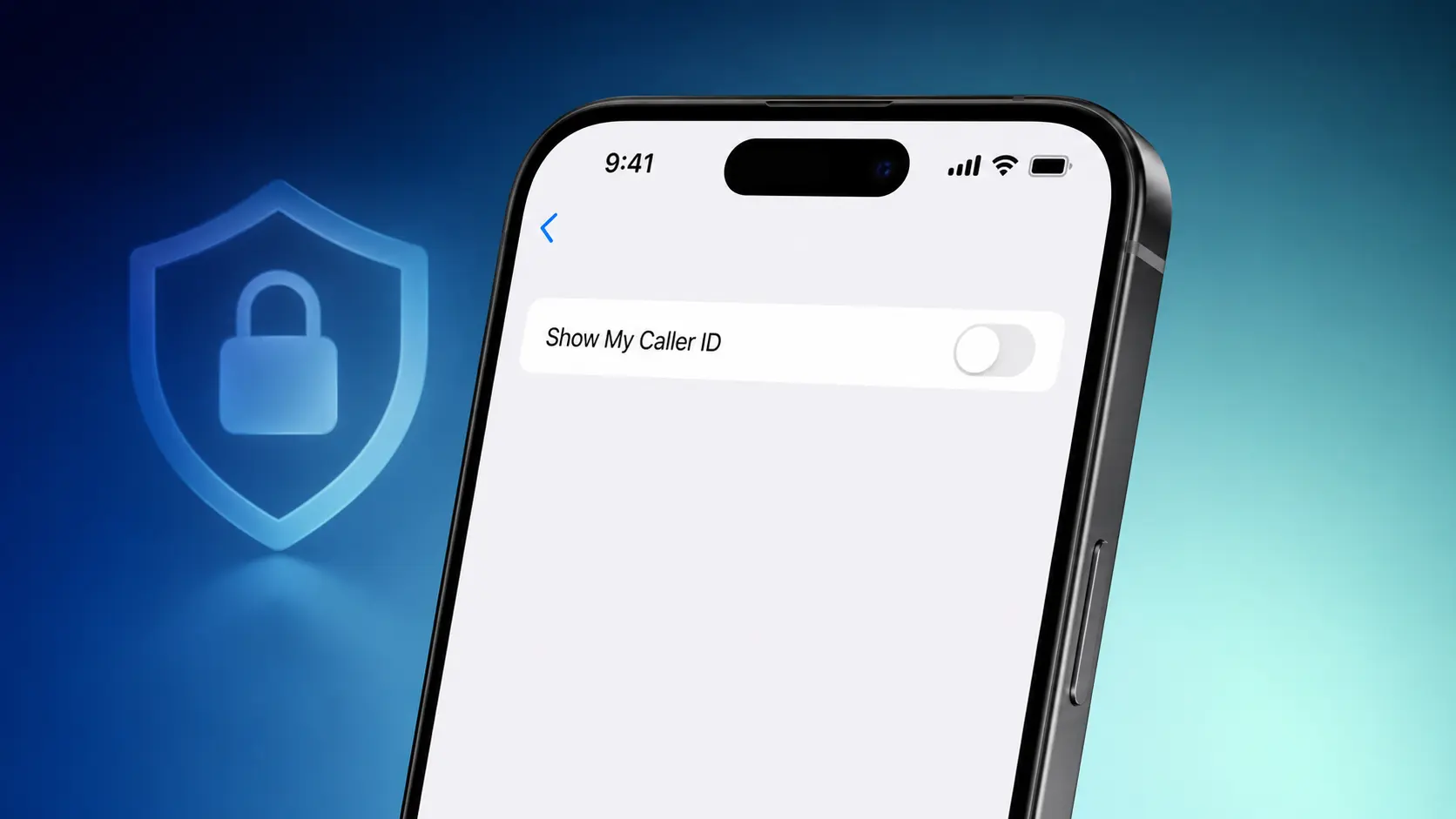
Step 4: Tap Show My Caller ID.
Step 5: Toggle the switch OFF (it turns from green to grey).
That’s it. From now on, every call you make will display as “No Caller ID” or “Private Number” to the person you’re calling.
Quick tip: On some older iPhones running earlier iOS versions, the path is Settings > Phone > Show My Caller ID instead of going through Apps first.
How to Turn It Back On
Want your number visible again? Follow the same steps and toggle Show My Caller ID back ON.
This setting stays off until you manually change it. You don’t need to repeat these steps before every call.
How to Withhold Number on iPhone for One Call Only
Sometimes you don’t want to hide your number permanently — just for a single call. The good news? You can use a per-call prefix code to withhold number on iPhone for that call only.
Using *67 (US and Canada)
If you’re in the United States or Canada, dial *67 before the phone number:
*67 555-123-4567Your number will appear as “Private” or “Blocked” for that call only. Your next call will show your normal number.
Using #31# (International / GSM Networks)
In many other countries and on GSM carriers, the code is #31#:
#31# 555-123-4567Regional Code Reference Table
| Region | Code | Notes |
|---|---|---|
| United States | *67 | Works on most major carriers |
| Canada | *67 | Same as US |
| United Kingdom | 141 | Dial before the number |
| Australia | 1831 | For home phones; mobile varies by carrier |
| Europe (GSM) | #31# | Widely supported on GSM networks |
| New Zealand | 0197 | Check with your carrier |
Important: Always test these codes with a friend or second phone before relying on them for important calls. Some carriers block prefix-based caller ID hiding. Also, some businesses and medical offices automatically reject calls from hidden numbers.
How to Save a Contact with the Prefix
If you regularly call someone with a hidden number, you can save their number with the prefix built in:
- Open the Phone app and tap Contacts
- Find the contact and tap Edit
- Add *67 (or your region’s code) before their number
- Tap Done
Now every call to that contact will automatically withhold number on iPhone.
How to Withhold Number on iPhone When the Toggle Is Missing
You’ve followed the steps above, but Show My Caller ID is nowhere to be found. Or maybe the toggle is greyed out and won’t move. Don’t worry — your iPhone isn’t broken.
The Carrier Controls the Feature
Apple only shows the Show My Caller ID toggle when your carrier allows it. If the option is missing, your mobile carrier has disabled account-level caller ID blocking on your line.
“If you don’t see Show My Caller ID, your carrier may not allow you to turn off your caller ID information.” — Apple Support
This is especially common with Verizon and Verizon-based carriers (like Visible). Verizon has never supported the iPhone Settings toggle for caller ID hiding because of its legacy CDMA network architecture. Verizon customers must use *67 for per-call hiding or contact Verizon directly for permanent blocking.
Common Reasons the Toggle Is Missing
| Reason | What It Means |
|---|---|
| Carrier doesn’t support it | Your plan or carrier blocks the feature entirely |
| Business/MDM profile | Your iPhone is managed by a company or school |
| Carrier settings outdated | Your iPhone needs a carrier settings update |
| VoIP/Wi-Fi calling active | Some calling methods use separate caller ID systems |
What to Do If the Toggle Is Missing
- Restart your iPhone — A simple restart can refresh carrier settings
- Check for carrier updates — Go to Settings > General > About. If an update is available, you’ll see a prompt
- Test *67 or #31# — Try the per-call prefix method to withhold number on iPhone
- Contact your carrier — Ask if outgoing caller ID blocking is available on your plan
Expert insight: “That toggle has never been an option for phones on Verizon’s network. You have always had to dial the shortcodes.” — Former Verizon employee, Apple Discussions Community
What People See When You Withhold Number on iPhone
When you successfully withhold number on iPhone, the recipient sees one of these labels instead of your actual number:
- No Caller ID
- Private
- Unknown
- Private Number
- Anonymous (on some carriers)
Important Limitations
Withholding your number on iPhone does not make you untraceable. Here’s what still happens behind the scenes:
- Carriers can still see your number for billing and routing
- Emergency services (like 911) always receive your real number
- Toll-free numbers (800, 888, etc.) may still capture your caller ID
- Law enforcement can request call records with your actual number
Also, many people and businesses automatically reject calls from hidden numbers. If you’re calling a doctor’s office, school, or customer support line, they may not answer — or your call may go straight to voicemail.
Pro tip: If you need someone to call you back, withholding your number on iPhone is the wrong tool. Use a second phone number or Google Voice instead.
Hiding Caller ID vs. Blocking Numbers: What’s the Difference
This is where many iPhone users get confused. Let’s clear it up with a simple comparison:
| Feature | What It Does | Where to Find It |
|---|---|---|
| Hide Caller ID | Hides your number when you call others | Settings > Apps > Phone > Show My Caller ID |
| Per-call prefix (*67) | Hides your number for one call only | Dial *67 before the number |
| Silence Unknown Callers | Sends unsaved incoming calls to voicemail | Settings > Apps > Phone > Silence Unknown Callers |
| Block a Contact | Stops a specific person from calling you | Phone app > Recents > (i) > Block this Caller |
Hiding caller ID is about outgoing privacy. Blocking numbers and silencing unknown callers are about incoming protection.
If spam calls are your real problem, check out our guide on how to block spam calls on iPhone for a complete defense strategy.
Alternative Ways to Protect Your Phone Number
Sometimes hiding caller ID isn’t the best solution. Private calls can look suspicious, and many people won’t answer them. Here are smarter alternatives to withholding your number on iPhone:
Use a Second Phone Number
Apps like Google Voice, Burner, or your carrier’s “second line” feature give you a separate number. You can:
- Give out the second number for online purchases, dating apps, or temporary forms
- Keep your real number private
- Still receive callbacks on the second number
Use Carrier-Level Blocking
Some carriers let you permanently block caller ID from their side:
- AT&T: Ask for “Caller ID Block”
- Verizon: Request “Block Caller ID” (note: this may not be available on all plans)
- T-Mobile: Enable “Caller ID Block” through your account
This blocks your number on all outgoing calls from your line, even on devices where the iPhone toggle doesn’t work.
Use Do Not Disturb for Incoming Calls
If your goal is peace and quiet from unknown callers (not hiding your own number), enable Silence Unknown Callers. This sends calls from unsaved numbers straight to voicemail without ringing your phone.
Warning: This can silence legitimate calls from delivery drivers, doctors, or job recruiters. Always check your voicemail when this feature is on.
Troubleshooting: How to Withhold Number on iPhone Issues
“Show My Caller ID” Keeps Turning Back On
If the toggle switches itself back on after you turn it off, your carrier is likely overriding the setting. Contact your carrier and ask them to disable caller ID at the account level.
The Recipient Still Sees My Number
- Make sure Show My Caller ID is toggled OFF (not just greyed out)
- Test with a friend on a different carrier
- Some carriers ignore the iPhone setting — use *67 to withhold number on iPhone instead
- Wi-Fi Calling may use a different caller ID system
I Can’t Find “Show My Caller ID” After iOS Update
Apple sometimes moves settings between iOS versions. In iOS 18 and later:
- New path: Settings > Apps > Phone > Show My Caller ID
- Old path: Settings > Phone > Show My Caller ID
If you still can’t find it, use the Settings search bar and type “Show My Caller ID.”
Emergency Calls Always Show My Number
This is normal and required by law. 911 and other emergency services will always see your real number, even when you withhold number on iPhone. This is for your safety and cannot be disabled.
FAQ: How to Withhold Number on iPhone
How do I withhold my number on iPhone for every call?
Yes, if your carrier allows it. Go to Settings > Apps > Phone > Show My Caller ID and turn it off. On some older iPhones, the path is Settings > Phone > Show My Caller ID. This hides your number on all outgoing calls until you turn it back on.
Why can’t I see “Show My Caller ID” on my iPhone?
Your carrier controls this feature. Some carriers — especially Verizon and Verizon-based services — disable or hide the toggle. If it’s missing, use *67 before each call (US/Canada) or contact your carrier to request caller ID blocking on your account.
Does *67 work to withhold my number on iPhone?
Yes. Dial *67 before the phone number in the US and Canada to withhold number on iPhone for a single call. Example: *67 555-123-4567. It does not work everywhere, so test it first.
What’s the difference between #31# and *67 for hiding my number?
*67 is the standard code for the US and Canada. #31# works on many GSM networks and in many international countries. The right code depends on your carrier and location.
Can I withhold my number on iPhone for text messages or FaceTime?
No. The Show My Caller ID setting only works for regular phone calls. Text messages and iMessage show your phone number or Apple ID email. FaceTime uses your selected FaceTime caller ID address. Use a second-number service if you need a different visible number for messaging.
Does withholding my number on iPhone block No Caller ID calls from reaching me?
No. Withholding your number on iPhone affects outgoing calls you make. To stop incoming calls from hidden numbers, you need Silence Unknown Callers (Settings > Apps > Phone > Silence Unknown Callers) or a call-blocking app.
Conclusion
Learning how to withhold number on iPhone gives you control over your outgoing privacy. Whether you need a permanent solution through Settings > Show My Caller ID or a quick one-time fix with *67, Apple makes it straightforward — as long as your carrier plays along.
Key takeaways:
- Permanent hiding: Settings > Apps > Phone > Show My Caller ID > OFF
- One-call hiding: Dial *67 (US/Canada) or #31# (international) before the number
- Missing toggle? Your carrier controls it — contact them or use dial codes
- Private calls can be rejected — consider a second number for important callbacks
- Emergency services always see your real number — this cannot be disabled
If the Settings toggle doesn’t work on your iPhone, don’t spend hours searching through menus. Call your carrier. They hold the keys to caller ID blocking on your line.
Want more privacy tips? Check out our guides on how to block spam calls on iPhone and how to silence notifications on iPhone for complete control over who can reach you — and when.
Last Updated: June 2026 | Compatible with: iPhone models running iOS 15 through iOS 26

