


What Is an Apple ID and Why Do You Need One?
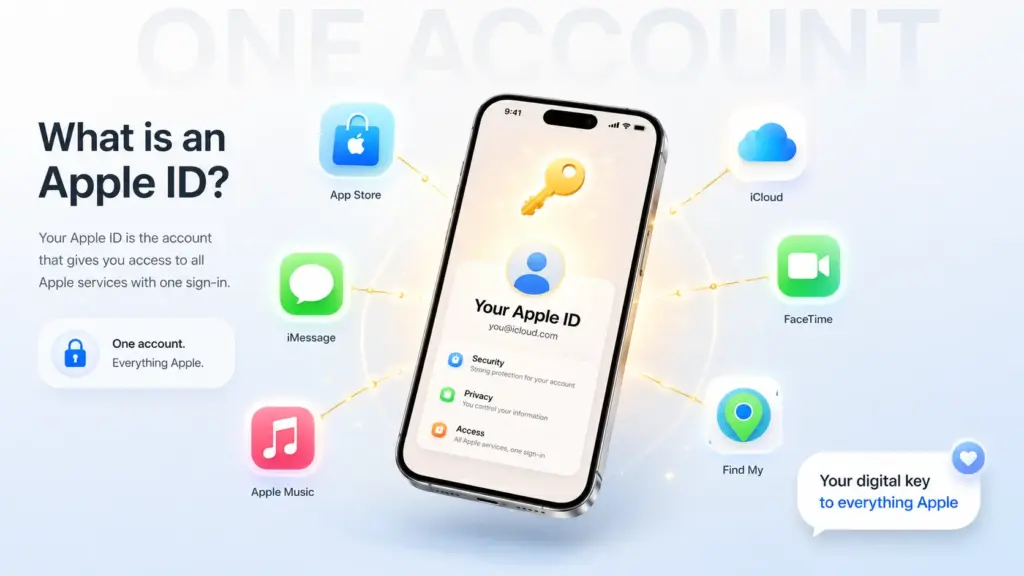
An Apple ID is your personal account for everything Apple. Think of it as your digital key to the entire Apple ecosystem. Without it, your iPhone can’t download apps, back up photos, or send iMessages.
When you create Apple ID, you instantly unlock:
- The App Store — Download millions of apps, games, and updates
- iCloud — Automatically back up your photos, contacts, and messages
- iMessage and FaceTime — Chat and video call other Apple users for free
- Find My — Locate your iPhone if it’s ever lost or stolen
- Apple Music, TV+, and Arcade — Stream music, movies, and play games
Expert Tip: According to Apple’s official support, “Your Apple ID is the account you use to access all Apple services and make all of your devices work together seamlessly.” If you ever need to change your Apple ID password later, having a secure account from day one makes everything easier.
Whether you’re unboxing a brand-new iPhone 17 or finally setting up an account for a family member, this guide walks you through every screen, button, and potential pitfall.
Before You Begin: What You’ll Need
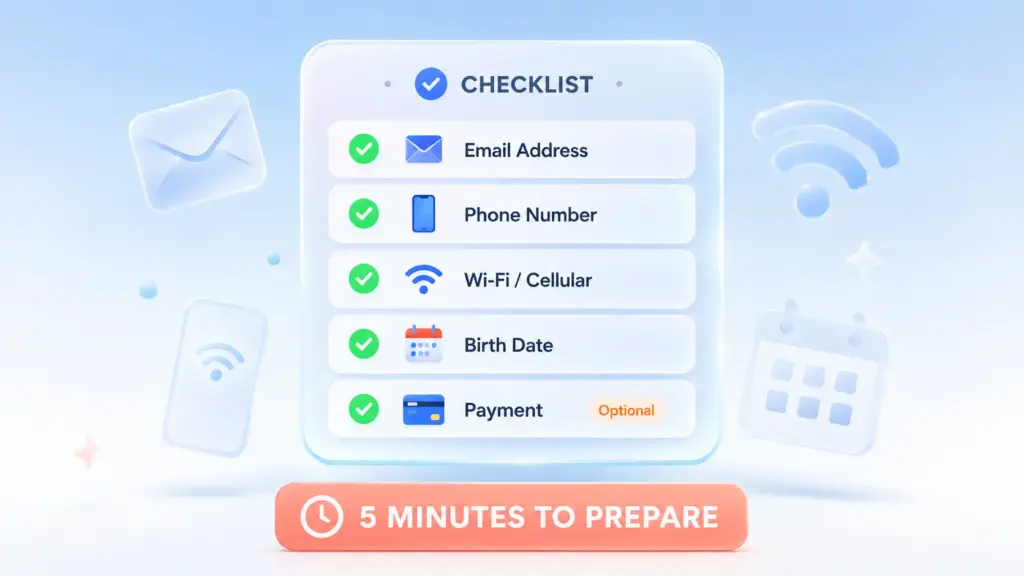
Before you dive in and create Apple ID, gather these items. It’ll save you from backtracking later.
| Requirement | Details | Why It Matters |
|---|---|---|
| Email Address | Gmail, Outlook, Yahoo, or a new @icloud.com address | This becomes your Apple ID username |
| Phone Number | Any active mobile number | Required for two-factor authentication |
| Wi-Fi or Cellular | Stable internet connection | Apple verifies your account online |
| Birth Date | Your real date of birth | Used for account recovery and age restrictions |
| Payment Method (optional) | Credit card, PayPal, or select “None” | Only needed for paid apps and subscriptions |
Important: You must be at least 13 years old to create Apple ID independently. If you’re setting up an account for a younger child, skip ahead to the Family Sharing section.
How to Create Apple ID on iPhone (3 Methods)
There are three ways to create Apple ID on your iPhone. The easiest method is directly through the Settings app, but we’ll cover all options so you can choose what works best for you.
Method 1: Create Apple ID from iPhone Settings (Recommended)
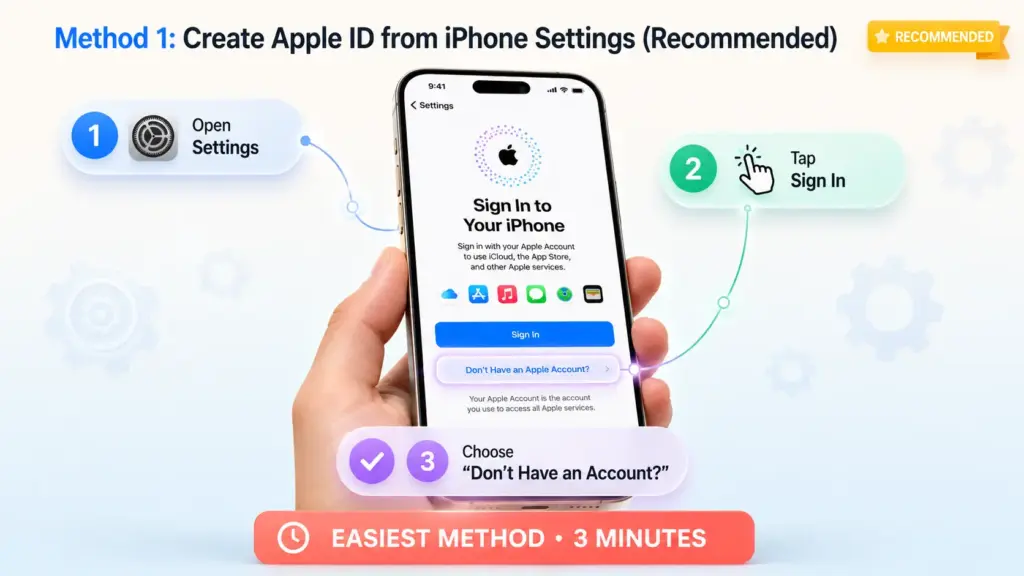
This is the fastest way to create Apple ID if your iPhone is already set up.
Step 1: Open the Settings app on your iPhone. It’s the gray icon with gears.
Step 2: Tap Sign In to Your iPhone at the top. If you’re already signed into another account, you’ll need to sign out first.
Step 3: Tap “Don’t Have an Apple Account?” or “Create Apple Account.” On iOS 18, Apple uses the term “Apple Account” instead of “Apple ID,” but the process is identical.
Step 4: Enter your first and last name, then tap Continue.
Step 5: Enter your birth date. Be accurate here — Apple uses this for security verification.
Step 6: Choose or create an email address. You have two options:
- Use an existing email (Gmail, Yahoo, Outlook, etc.)
- Create a free @icloud.com email address
Step 7: Create a strong password. Apple requires at least eight characters, including a number, an uppercase letter, and a lowercase letter.
Step 8: Add a trusted phone number. Apple sends a verification code here to protect your account.
Step 9: Enter the six-digit verification code sent to your phone.
Step 10: Review and agree to the Terms and Conditions.
That’s it! You’ve successfully managed to create Apple ID on your iPhone. Your account is now active, and you can start downloading apps and backing up to iCloud.
Method 2: Create Apple ID During iPhone Setup
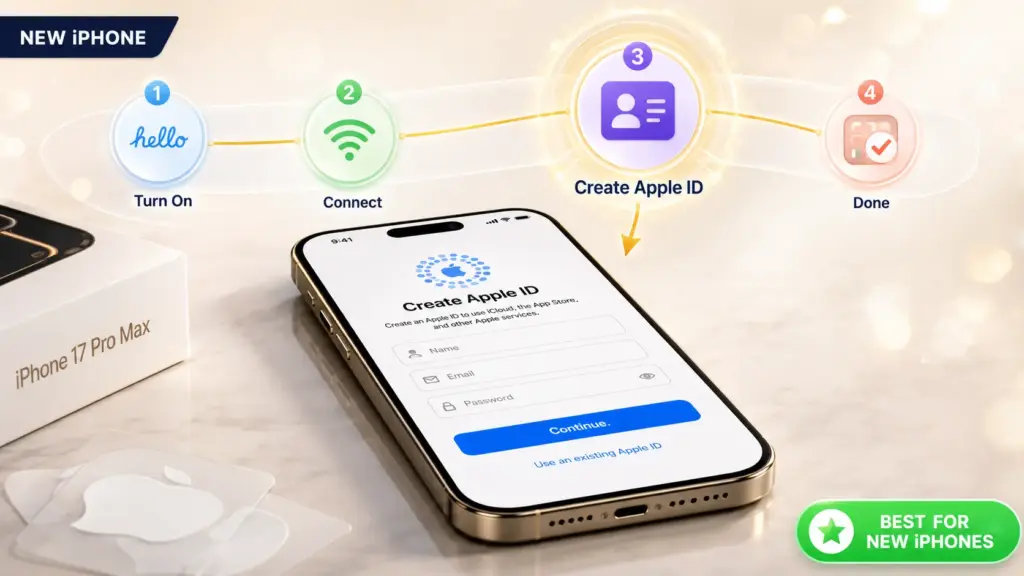
If you’re unboxing a new iPhone 16 or iPhone 17, you’ll be prompted to create Apple ID during the initial setup process.
- Follow the on-screen setup until you reach the Apple ID screen.
- Tap “Create a Free Apple ID.”
- Enter your details as described in Method 1.
- Complete the setup and continue enjoying your new device.
Pro Tip: If you skip this step during setup, you can always return to Settings later and set one up using Method 1.
Method 3: Create Apple ID from the App Store
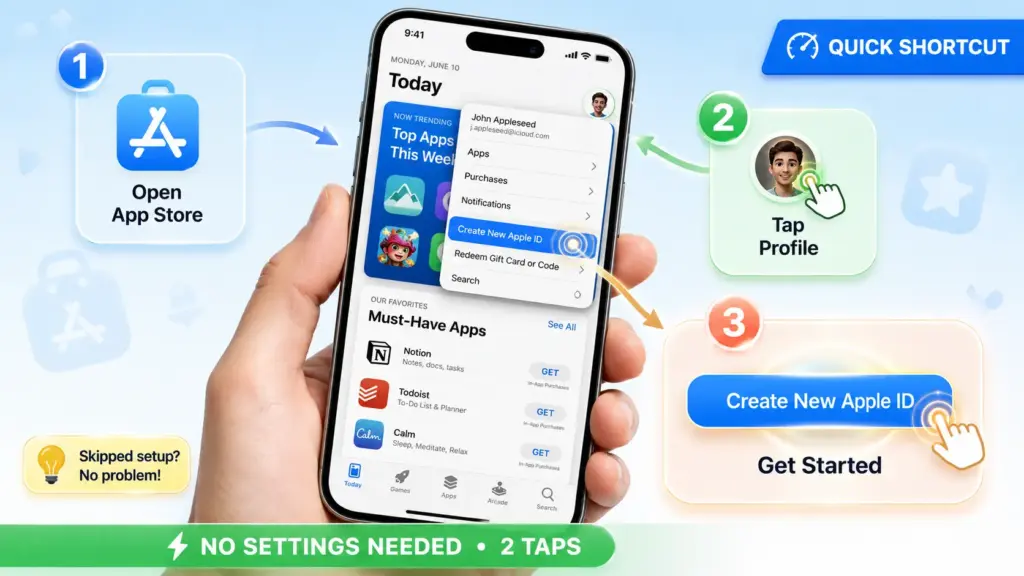
You can also create Apple ID directly from the App Store without going into Settings. This is a great way to Apple ID sign up if you skipped the initial setup.
- Open the App Store app.
- Tap your profile picture (top right), then tap “Create New Apple ID.”
- Follow the same steps as Method 1.
- When prompted for a payment method, you can select “None.”
How to Create Apple ID with Gmail
Yes, you can absolutely create Apple ID with Gmail. In fact, it’s one of the most popular choices.
Here’s how:
- During the Apple ID setup (Step 6 above), choose “Use your current email address.”
- Enter your Gmail address (e.g., yourname@gmail.com).
- Apple will send a verification email to your Gmail inbox.
- Open Gmail, find the email from Apple, and click the verification link.
- Return to your iPhone and finish the setup.
Why use Gmail?
- You already check it daily
- Easy to recover if you forget your password
- Works perfectly with Apple’s two-factor authentication
Note: Your Gmail becomes your Apple ID username. You’ll use it to sign in on all Apple devices and services.
How to Create Apple ID on a Computer
Prefer using a Mac or PC? You can create Apple ID on any computer and then sign in on your iPhone.
- Visit account.apple.com in any web browser.
- Click “Create Your Apple Account.”
- Fill out the registration form with your name, email, and password.
- Verify your email address and phone number.
- Once created, go to your iPhone’s Settings > Sign In and enter your new credentials.
This method is perfect if you’re planning your iPhone purchase and want everything ready before your device arrives.
Is Creating an Apple ID Free?
Yes, 100% free. It costs absolutely nothing to create Apple ID.
Here’s what you get for free:
- ✅ Access to the App Store
- ✅ 5 GB of iCloud storage
- ✅ iMessage and FaceTime
- ✅ Find My iPhone
- ✅ Apple News, Podcasts, and more
When would you pay?
- Buying paid apps or in-app purchases
- Subscribing to Apple Music, iCloud+, or Apple TV+
- Renting movies from the iTunes Store
If you don’t plan to buy anything right away, simply select “None” as your payment method during setup. You can always add a card later in Settings > [Your Name] > Payment & Shipping.
How to Create a Strong Apple ID Password
Your Apple ID password protects everything — photos, messages, purchases, and personal data. Here’s how to make it bulletproof.
Apple’s Password Requirements:
- At least 8 characters
- At least one uppercase letter
- At least one lowercase letter
- At least one number
Tips for a Strong Password:
- Use a passphrase instead of a single word (e.g.,
BlueSky$2026!iPhone) - Avoid obvious choices like “Password123” or your birth year
- Don’t reuse passwords from other accounts
- Consider using Apple’s iCloud Keychain to generate and store secure passwords
Security Warning: Apple will never ask for your password via email or text. If someone asks, it’s a phishing scam. Report it immediately.
For more security tips, check out our guide on how to find passwords on your iPhone and manage them safely.
How to Create Apple ID for Your Child
If your child is under 13, they can’t independently create Apple ID. Instead, you create one for them through Family Sharing.
Requirements:
- You must have your own Apple ID (the organizer)
- Your iPhone must be running iOS 16 or later
Steps:
- On your iPhone, go to Settings > [Your Name] > Family Sharing.
- Tap Add Member > Create Child Account.
- Enter your child’s name and birth date.
- Create an @icloud.com email for them or use an existing one.
- Set up Screen Time and Ask to Buy restrictions.
This approach lets you monitor their activity and approve app purchases. If you’re new to Apple’s ecosystem, you might also want to learn how to back up your iPhone to keep your family’s data safe.
Troubleshooting: “Cannot Create Apple ID” Errors
Sometimes, things don’t go as planned. If you see the error “Your account cannot be created at this time,” don’t panic. Here’s how to fix it.
| Error Message | Likely Cause | Solution |
|---|---|---|
| “Cannot create Apple ID” | Apple’s servers are down | Check Apple’s System Status page |
| “This email is not available” | Email already linked to an Apple ID | Try a different email or recover the existing account |
| “Verification failed” | Poor internet connection | Switch from Wi-Fi to cellular (or vice versa) |
| “Invalid date of birth” | Age restriction triggered | Use the Family Sharing method for children under 13 |
| “Maximum number of free accounts” | Device limit reached | Use a different iPhone or contact Apple Support |
| “Unable to connect to Apple” | Network firewall or VPN blocking | Disable VPN and try again on a different network |
Quick Fixes to Try:
- Restart your iPhone. A simple reboot resolves many temporary glitches.
- Update iOS. Go to Settings > General > Software Update and install the latest version. An outdated system can block you from trying to create Apple ID.
- Reset Network Settings. Navigate to Settings > General > Transfer or Reset iPhone > Reset > Reset Network Settings. This clears Wi-Fi and cellular issues without deleting your data.
- Try a different email. If your Gmail address isn’t working, try Outlook or Yahoo.
- Wait 24 hours. Apple sometimes imposes temporary limits on how many accounts can be created from a single device or IP address.
- Disable VPN. If you’re using a VPN, turn it off temporarily. Some VPNs block Apple’s verification servers.
If none of these work, contact Apple Support directly.
Apple ID Security Best Practices
Once you create Apple ID, protecting it should be your top priority. Your Apple ID holds the keys to your photos, messages, location data, and financial information.
Enable Two-Factor Authentication (2FA)
Two-factor authentication adds an extra layer of security. Even if someone steals your password, they can’t access your account without the verification code sent to your trusted device.
How to turn it on:
- Go to Settings > [Your Name] > Sign-In & Security.
- Tap Two-Factor Authentication.
- Follow the prompts to add a trusted phone number.
Keep Your Trusted Phone Number Updated
If you change your phone number, update it immediately in your Apple ID settings. Otherwise, you could get locked out of your account.
Review Active Devices Regularly
Go to Settings > [Your Name] and scroll down to see every device signed into your Apple ID. If you see a device you don’t recognize, remove it immediately.
Use a Unique Password
Never reuse your Apple ID password on other websites. If another site gets hacked, your Apple ID could be at risk. Use Apple’s built-in password manager or a trusted third-party app to generate and store unique passwords for every account.
Apple ID vs. Apple Account: What’s Changed?
In 2024, Apple began rebranding “Apple ID” to “Apple Account” across its platforms. By 2026, you’ll see both terms used interchangeably.
| Feature | Apple ID (Legacy Term) | Apple Account (New Term) |
|---|---|---|
| Purpose | Same account for all Apple services | Same account for all Apple services |
| Login URL | appleid.apple.com | account.apple.com |
| iOS Label | “Apple ID” in older iOS versions | “Apple Account” in iOS 18+ |
| Functionality | Identical | Identical |
Bottom line: Whether you call it an Apple ID or an Apple Account, it’s the same thing. When you create Apple ID, you’re automatically creating an Apple Account.
Frequently Asked Questions
Can I create Apple ID without an iPhone?
Yes. You can create Apple ID on any device with a web browser. Visit account.apple.com, fill out the form, and verify your email. Once created, you can use that Apple ID to sign into an iPhone, iPad, Mac, or even Apple TV.
Is it free to create Apple ID?
Absolutely. It costs nothing to create Apple ID. You only pay if you choose to buy apps, subscribe to services like iCloud+, or purchase content from the iTunes Store. You can even select “None” as your payment method during setup.
Why does it say “Your account cannot be created at this time”?
This error usually means one of three things: Apple’s servers are temporarily down, you’ve hit a device creation limit, or there’s a network issue on your end. Check Apple’s System Status page, restart your iPhone, and try again in a few hours.
Can I use the same Apple ID on multiple devices?
Yes. You can sign in with the same Apple ID on up to 10 devices (five of which can be computers). This is perfect if you own an iPhone, iPad, and Mac. Just remember that purchases and iCloud data sync across all signed-in devices.
What’s the difference between an Apple ID and an iCloud account?
An Apple ID is your overall account for all Apple services. iCloud is one of those services. When you create Apple ID, you automatically get 5 GB of free iCloud storage. You can upgrade to iCloud+ for more space and premium features.
Do I need a credit card to create Apple ID?
No. You can create Apple ID without entering any payment information. Simply choose “None” when prompted for a payment method. You can always add a card later if you want to make purchases.
How do I set up Apple ID if I don’t have a phone number?
You need a phone number for two-factor authentication. If you don’t have one, ask a trusted family member if you can use their number temporarily. You can change it later in your account settings.
Conclusion
Learning how to create Apple ID on your iPhone is one of the most important first steps in your Apple journey. Whether you’re setting up a new device, creating an account for a family member, or finally moving from Android, the process is straightforward and takes just a few minutes.
Remember these key takeaways:
- Use a valid email and trusted phone number
- Choose “None” if you don’t want to add a payment method right away
- Enable Two-Factor Authentication immediately for security
- Keep your iOS updated to avoid setup errors
Now that your account is ready, why not explore what your iPhone can really do? Learn how to enable iMessage to start chatting with friends, or check out our guide on how to back up your iPhone to keep your new memories safe.
Ready to get started? Grab your iPhone, open Settings, and create Apple ID today. Welcome to the Apple ecosystem!

