


In this complete guide, you’ll learn exactly how to clear cache on iPhone, including Safari cache, app cache, and system data. Whether you have an iPhone 11, 13, 15, or the latest iPhone 17 running iOS 26, these methods work for all models from iOS 15 onward.
iOS 26 update: Apple moved Safari’s settings into a new Apps section and added a way to clear history directly inside Safari itself. If you’ve tried the old steps and couldn’t find Safari in Settings, that’s why — see Method 1 and Method 2 below for the current paths.
Before you start clearing data, it’s wise to back up your important information first. See our guide to backing up your iPhone to make sure nothing important gets lost.
What is Cache and Why Does It Matter?

Cache is temporary data that apps and websites store on your iPhone to load faster next time you use them. While this sounds helpful, cache files pile up over time and can consume gigabytes of storage space.
Benefits of clearing cache:
- Free up storage space – Often recovers 1-5GB instantly
- Improve performance – Makes your iPhone run faster
- Fix app glitches – Resolves freezing or crashing issues
- Protect privacy – Removes browsing history and website data
- Refresh content – Ensures you see the latest versions of websites
When your iPhone storage full warning appears, clearing cache should be your first solution before deleting photos or apps.
How to Check Your iPhone Storage
Before you start clearing cache on iPhone, check what’s taking up space:
- Open Settings
- Tap General
- Select iPhone Storage
- Wait for the storage analysis to load
You’ll see a colorful bar showing how your storage is divided. Below that, apps are listed by size. Pay attention to Safari history and website data and Documents and Data sections — these often contain hidden cache.
How to Clear Safari Cache on iPhone
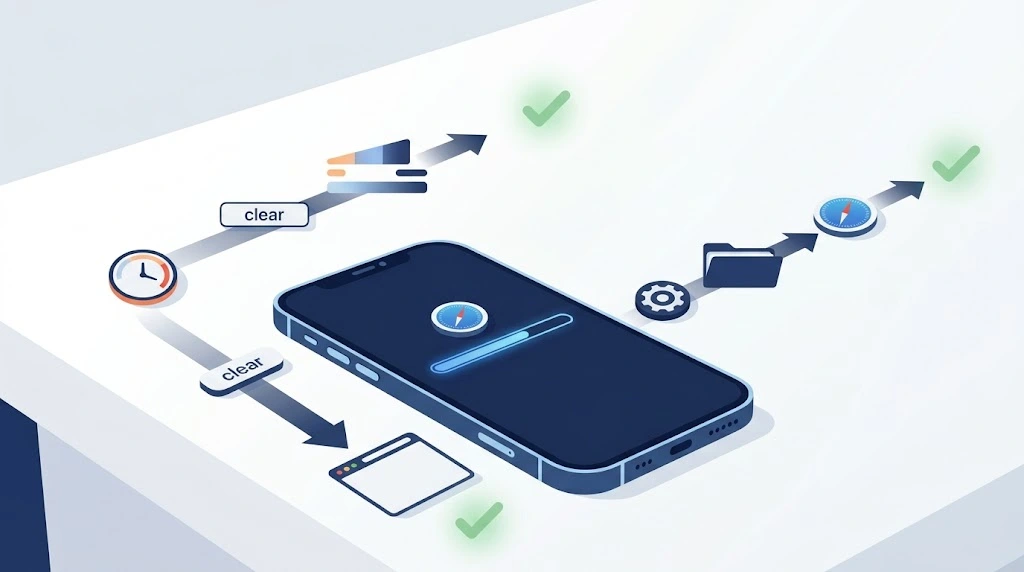
Safari is usually the biggest cache culprit, and it’s also the single most-searched part of this topic. As of iOS 26, Apple offers two different ways to clear it: directly inside the Safari app, or through Settings. Both work, but the steps recently changed, so make sure you’re following the current path.
Method 1: Clear History Directly in Safari (New in iOS 26)
This is now Apple’s primary documented method, and it lets you pick exactly how far back to clear.
- Open the Safari app.
- Tap the Bookmarks icon at the bottom of the screen (the open book icon). If your tab layout is set to Bottom or Top, tap the tabs icon first.
- Tap the clock icon to open your browsing History.
- Tap the three-dot menu, then tap Clear.
- Under Clear Timeframe, choose how much history to remove — Last Hour, Today, Today and Yesterday, or All History.
- If you use Safari profiles, choose a specific profile or All Profiles.
- Tap Clear History to confirm.⚠️ Note: Clearing your browsing history in Safari doesn’t clear browsing history kept independently by websites, or history saved by other browser apps like Chrome or Edge.
Method 2: Clear History and Website Data via Settings
This method removes everything at once and works well if you prefer using Settings instead of Safari itself.
- Open Settings on your iPhone.
- Tap Apps, then select Safari. (This step changed in iOS 26 — Safari’s settings moved from the main Settings list into the new Apps section.)
- Scroll down and tap Clear History and Website Data.
- Choose your timeframe.
- Tap Clear History and Data to confirm.⚠️ Warning: This logs you out of all websites and removes your browsing history. It doesn’t change your AutoFill information.
Method 3: Clear Cache Without Deleting History
If you want to keep your browsing history but clear cache and cookies on iPhone:
- Go to Settings > Apps > Safari
- Tap Advanced
- Tap Website Data
- Tap Remove All Website Data
- Tap Remove Now to confirm
This method preserves your Safari history while clearing cached website files that sites use for tracking and saving login information. For more detail, see Apple’s official guide to deleting Safari cache and cookies.
Clear Cache for a Specific Website Only
Want to clear cache on iPhone for just one website instead of everything?
- Go to Settings > Apps > Safari > Advanced > Website Data
- Use the search bar to find the specific website
- Swipe left on the site name
- Tap Delete
This selective approach is perfect when only one site is causing issues.
How to Clear App Cache on iPhone

Unlike Android, iOS doesn’t have a built-in “clear app cache” button for most apps. You have three options:
Option 1: Offload Unused Apps (Recommended)
The offload unused apps feature removes the app but keeps its data:
- Go to Settings > General > iPhone Storage
- Scroll to find the app with large cache
- Tap the app name
- Select Offload App
- Tap Offload App again to confirm
To get the app back with your data intact, tap Reinstall App.
Option 2: Delete and Reinstall Apps
For a complete cache reset:
- Go to Settings > General > iPhone Storage
- Select the problematic app
- Tap Delete App
- Go to the App Store
- Download the app again⚠️ Note: This erases all app data and settings. You’ll need to log in again.
Option 3: Use Built-in App Settings
Some apps have their own cache-clearing options:
Instagram: Profile > Menu > Settings and Privacy > Clear cache
TikTok: Profile > Menu > Settings and Privacy > Free up space > Clear next to Cache
Snapchat: Profile icon > Settings gear > Clear Cache > Clear All
This is the safest way to clear app cache without losing your login or settings.
How to Delete Cookies on iPhone

Cookies track your browsing activity. Here’s how to delete them:
For Safari:
- Go to Settings > Apps > Safari
- Scroll to Block All Cookies and toggle ON, or
- Use Clear History and Website Data to remove existing cookies
For Chrome or Edge: Open the app > Settings > Privacy and Security > Clear Browsing Data (Chrome) or Clear browsing data (Edge), then select Cookies and Site Data.
⚠️ Note: Blocking cookies improves privacy but may cause some websites to malfunction — you may get logged out unexpectedly or see messages that cookies are required.
How to Clear System Cache on iPhone
Clearing app cache doesn’t remove system cache. For that, restarting is the safest documented option.
iPhone 8 and newer: Press and release Volume Up, press and release Volume Down, then hold the Side button until the Apple logo appears.
iPhone 7: Hold Volume Down + Side button together until you see the Apple logo.
This clears RAM and temporary system files without deleting your data. If your iPhone screen is frozen and won’t respond to a normal restart, see our complete guide to resetting an iPhone for force restart steps by model.
How to Clear Cache on iPhone 11, 13, 15, 16, and 17
The process for clearing cache is identical across iPhone 11, 13, 15, 16, and 17. All models running iOS 15 through iOS 26 follow the steps above, though the exact Settings path depends on your iOS version.
| iPhone Model | iOS Version | Safari Settings Path | Cache Clearing Method |
|---|---|---|---|
| iPhone 11 | iOS 15-17 | Settings > Safari | Safari + Offload Apps |
| iPhone 13 | iOS 15-19 | Settings > Safari | Safari + Offload Apps |
| iPhone 15 | iOS 17-26 | Settings > Safari (or Apps > Safari on iOS 26) | Safari + Offload Apps + Auto Cleanup |
| iPhone 16 / 17 | iOS 18-26 | Settings > Apps > Safari | Safari + Offload Apps + Auto Cleanup + In-Safari Clear |
iOS 26 update (2026): Safari’s settings moved into the new Apps section, and Apple added a way to clear history with a timeframe selector directly inside Safari. iOS 26 also improved automatic cache management — your iPhone now suggests apps to offload when storage runs low.
How to Clear Chrome or Edge Cache on iPhone
If you use a browser other than Safari:
Chrome: Open Chrome > tap the three dots (⋮) > Settings > Privacy and Security > Clear Browsing Data > select Cached Images and Files > choose a time range > Clear Browsing Data.
Edge: Open Edge > tap your profile icon > Settings > Privacy and Security > Clear browsing data > select Cached images and files > Clear now.
Both let you also check “Browsing History” or “Cookies, Site Data” if you want to clear those at the same time.
How to Free Up Space on iPhone (Beyond Cache)
Sometimes clearing cache isn’t enough. A few more ways to free up space:
- Enable iCloud Photos — Settings > Photos > iCloud Photos (ON), then choose “Optimize iPhone Storage.”
- Delete Large Attachments — Settings > General > iPhone Storage > Review Large Attachments.
- Manage Messages — Settings > Apps > Messages > Message History > Keep Messages, then change from “Forever” to “1 Year.”
- Delete Downloaded Content — remove offline music, streaming downloads, and podcast episodes.
For more iPhone storage and productivity tips, check out our guides on how to schedule a text on iPhone and how to screen record on iPhone.
How Often Should You Clear Cache?
- Safari cache: Every 2-4 weeks
- App cache: Every 1-3 months (or when apps misbehave)
- System cache: Weekly restart
- Cookies: Monthly (if you value privacy)
Heavy users who stream video or browse intensively should clear cache more often, ideally weekly.
Common Problems and Solutions
“Documents and Data” Won’t Decrease
This is separate from cache. Delete and reinstall the app completely to remove documents and data.
Storage Still Full After Clearing Cache
Check for large video files in Photos, downloaded music or podcasts, WhatsApp media files, or “Other” storage that may require an iOS update — or, in persistent cases, a factory reset. See our iPhone reset guide before considering that last option.
Apps Keep Crashing After Clearing Cache
Update the app to its latest version, update to the latest iOS, or reset all settings via Settings > General > Transfer or Reset iPhone > Reset > Reset All Settings.
FAQ: How to Clear Cache on iPhone
How do I clear cache on iPhone apps?
Go to Settings > General > iPhone Storage, select the app, then choose Offload App (keeps data) or Delete App (removes everything). Apps like Instagram, TikTok, and Snapchat also have built-in cache-clearing options in their own settings.
How do I clear Safari cache on an iPhone 15?
Open Safari, tap Bookmarks > History (clock icon) > Clear, and choose a timeframe — or go to Settings > Apps > Safari > Clear History and Website Data. Both work the same way on iPhone 15 with iOS 26.
How do I delete cookies on iPhone?
Go to Settings > Apps > Safari > Clear History and Website Data to remove cookies and cache together, or toggle on “Block All Cookies” in Safari settings to stop new ones. For Chrome or Edge, clear cookies through each app’s own privacy settings.
How do I clear cache on iPhone 11 or 13?
The process is the same as newer models: Settings > Safari (or Apps > Safari depending on your iOS version) > Clear History and Website Data for Safari, and Settings > General > iPhone Storage for apps.
How do I clear cache on iPhone 16 or 17?
iPhone 16 and 17 on iOS 26 use the new Settings > Apps > Safari path, plus the option to clear history directly inside Safari via the History icon and Clear button.
How do I clear app cache without deleting the app?
Use “Offload App” instead of “Delete App” in Settings > General > iPhone Storage. This removes the app’s files to free space but keeps your data, so reinstalling restores everything.
Does clearing cache delete my photos or messages?
No. Clearing Safari cache, app cache, cookies, or system cache does not touch your photos, messages, or contacts. Only offloading or deleting an app removes that specific app’s local data.
Conclusion
Learning how to clear cache on iPhone is essential for maintaining peak performance and managing storage effectively. Whether you need to clear cache and cookies, clear app cache, or remove Safari history and website data, the methods in this guide work for all iPhone models from iPhone 11 through iPhone 17 running iOS 15 to iOS 26.
Key takeaways:
- On iOS 26, the Safari settings path is now Settings > Apps > Safari, not Settings > Safari.
- You can also clear Safari history directly inside the Safari app using the History icon and Clear button.
- Offload unused apps instead of deleting them to preserve data.
- Restart your iPhone weekly to clear system cache.
- Monitor iPhone Storage regularly to catch cache buildup early.
Start with Safari cache — it’s usually the biggest space-eater and the most-searched fix. Then tackle problem apps one by one.
Found this guide helpful? Bookmark it and share it with fellow iPhone users struggling with storage issues.

