


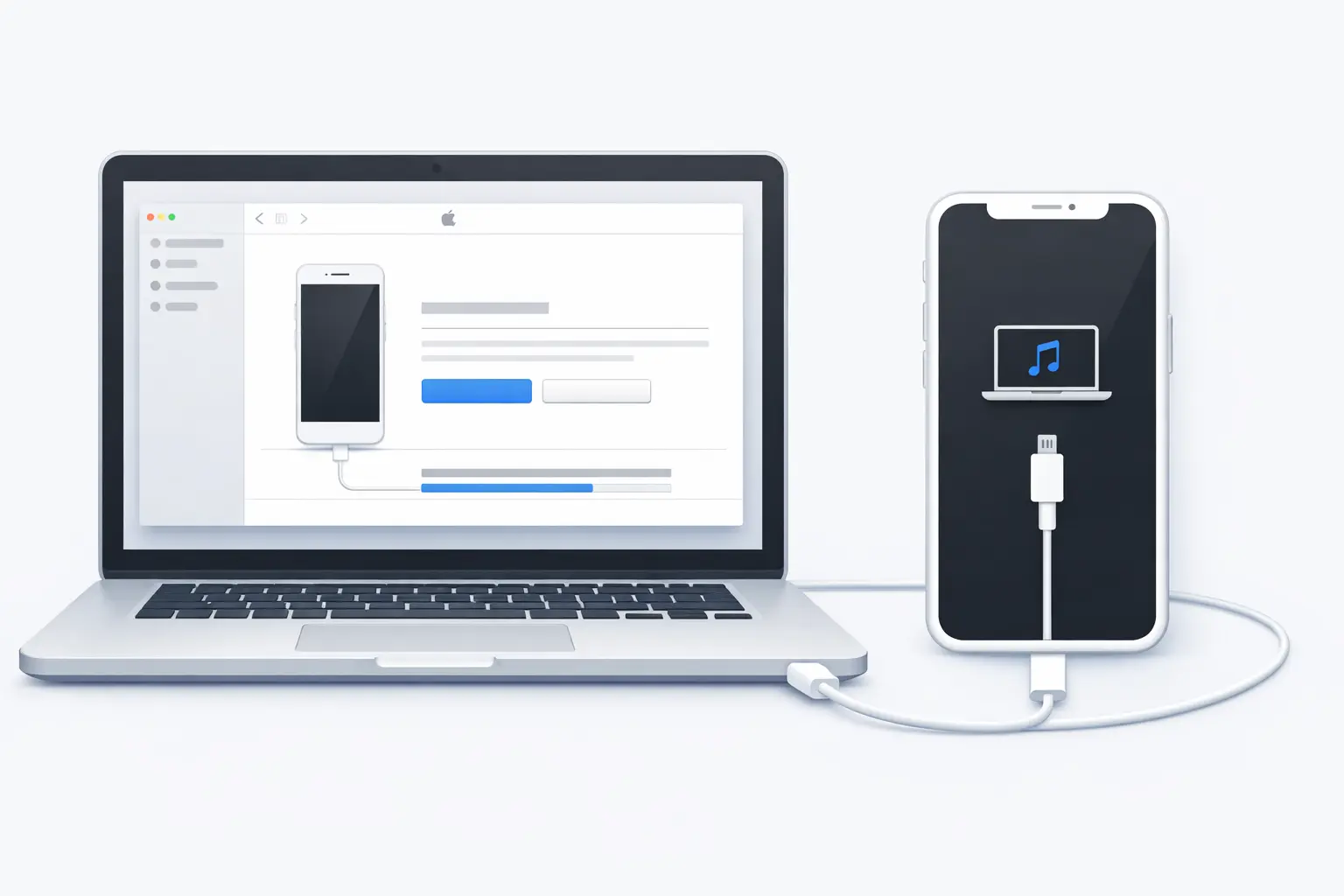
iTunes restore iPhone is one of the most powerful ways to fix, recover, or reset your device all from your PC or Mac. Whether your iPhone is frozen, stuck on the Apple logo, or you simply want to start fresh, iTunes gives you full control over the process.
In this guide, you’ll learn every method available in 2026 step by step, model by model so you can get your iPhone working again with confidence, even if this is your first time.
What iTunes Restore iPhone Actually Means
Many users are confused about what “restore” means in iTunes. There are actually three different actions under that word:
| Restore Type | What It Does | Keeps Your Data? |
|---|---|---|
| Restore from Backup | Brings back your apps, photos, and settings | ✅ Yes |
| Factory Reset via iTunes | Erases everything, fresh iOS install | ❌ No |
| Recovery Mode Restore | Force-reinstalls iOS on an unresponsive iPhone | ❌ No (unless you restore backup after) |
💡 Quick Tip: Not sure which method to use? If your iPhone is working normally and you just switched devices — go with Restore from Backup. If your iPhone is broken or you’re selling it — go with Factory Reset.
Before You Start: What You Need
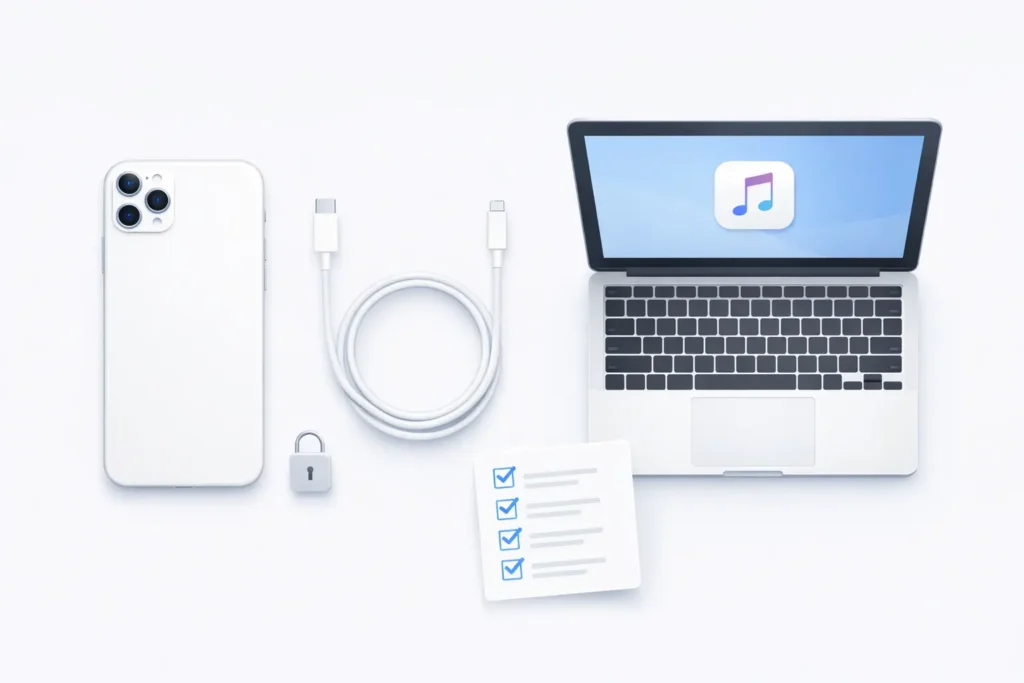
A few minutes of preparation can save you hours of frustration. Before you begin the iTunes restore iPhone process, check these boxes:
- ✅ A PC with iTunes installed (Windows) or a Mac running macOS Mojave or earlier — on macOS Catalina and later, use Finder instead of iTunes
- ✅ A USB cable — preferably the official Apple Lightning or USB-C cable
- ✅ Disable Find My iPhone: Go to Settings → [Your Name] → Find My → Find My iPhone → toggle Off
- ✅ Your Apple ID password — you may need it after the restore
- ✅ A recent backup — if you plan to restore your data
⚠️ Important Warning: Skipping the “Find My iPhone” step will block the restore completely. iTunes will show an error and refuse to proceed until it’s turned off.
If you haven’t backed up your device yet, read our guide on iPhone backup to PC before going any further — it only takes a few minutes and protects everything.
iTunes Restore iPhone from Backup Step by Step
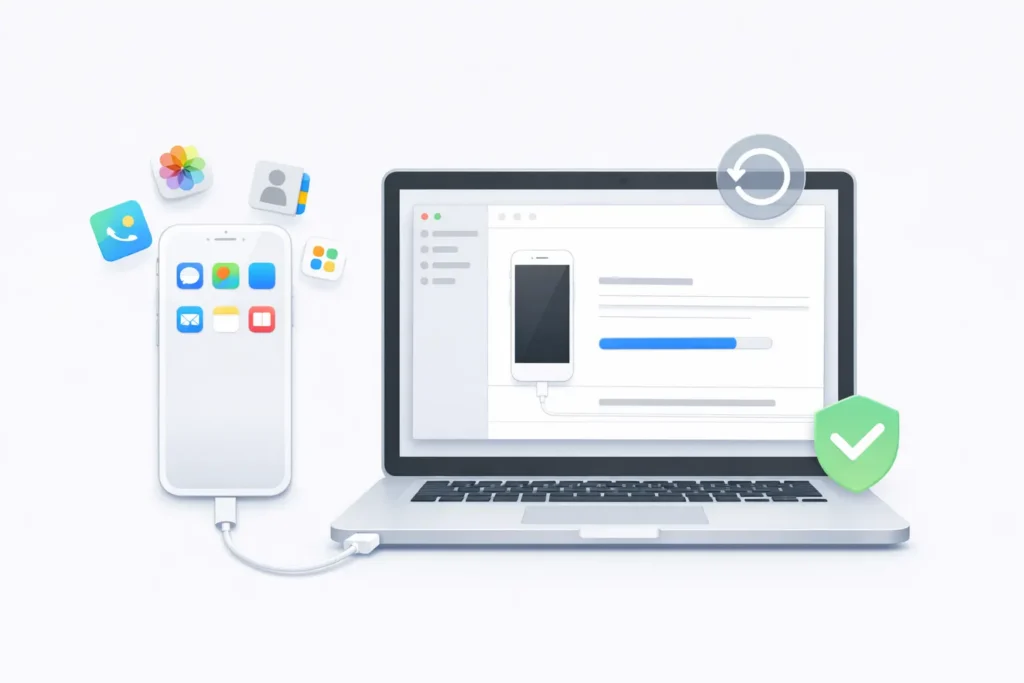
This is the method you want when you’re recovering your data — after a repair, a device swap, or a software issue. It brings back your photos, apps, contacts, and settings exactly as they were.
On Windows (iTunes):
- Open iTunes and make sure it’s updated to the latest version.
- Connect your iPhone to your PC using a USB cable.
- If prompted on your iPhone, tap “Trust This Computer” and enter your passcode.
- Click the iPhone icon in the top-left corner of iTunes.
- Under the Summary tab, click “Restore Backup…”
- Choose your most recent backup from the dropdown list.
- Click Restore and wait — do not unplug your iPhone during this process.
- Your iPhone will restart. Keep it connected until the full sync is complete.
On Mac (Finder — macOS Catalina and later):
- Open Finder and connect your iPhone via USB.
- Click your iPhone name in the left sidebar.
- Click “Restore Backup…”
- Select the backup you want and click Restore.
📌 Note: Restore time depends on backup size. A 10GB backup typically takes 20–45 minutes. Keep your screen on and your device plugged in the whole time.
iTunes Restore iPhone to Factory Settings
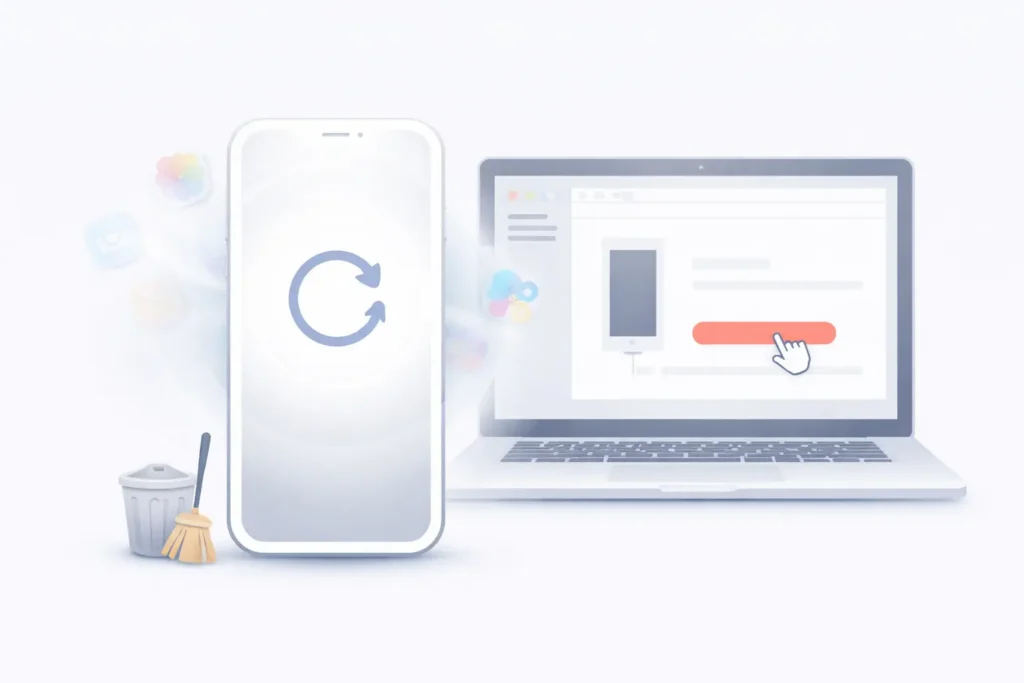
This method erases everything on your iPhone and reinstalls the latest version of iOS. Use it when you’re selling your device, giving it away, or dealing with a serious software problem that a backup restore can’t fix.
You can also do this directly on the device — check our guide on how to factory reset iPhone for all available options.
Steps:
- Open iTunes and connect your iPhone.
- Click the iPhone icon in the top-left corner.
- Go to the Summary tab.
- Click “Restore iPhone…”
- A warning will appear: “All of your media and other data will be erased.”
- Click Restore to confirm.
- iTunes will download the latest iOS firmware and erase your device.
- Once done, your iPhone restarts as a brand-new device.
⚠️ Warning: This action cannot be undone. Make sure you’ve saved everything you need before clicking Restore.
iTunes Restore iPhone in Recovery Mode
Recovery Mode is the option you use when your iPhone won’t turn on, is stuck on the Apple logo, or iTunes simply can’t detect it. It forces the device into a special low-level state that allows iTunes to reinstall iOS from scratch.
Step 1 — Enter Recovery Mode
The steps differ slightly depending on your iPhone model:
iPhone 8, X, 11, 12, 13, 14, 15, 16:
- Press and quickly release Volume Up
- Press and quickly release Volume Down
- Press and hold the Side button until you see the Recovery Mode screen (cable + laptop icon)
iPhone 7 / 7 Plus:
- Press and hold Volume Down + Sleep/Wake button simultaneously until Recovery Mode appears
iPhone 6s and earlier:
- Press and hold Home + Sleep/Wake button together until Recovery Mode appears
Step 2 — Restore via iTunes
- iTunes will automatically detect your iPhone and show a pop-up.
- Select “Restore” (not Update) to fully erase and reinstall iOS.
- Wait for the process to finish — this can take several minutes.
- Your iPhone will restart. You can then set it up as new or restore from a backup.
💡 DFU Mode: If Recovery Mode doesn’t work, try DFU (Device Firmware Update) Mode — a deeper restore that bypasses the bootloader. Apple recommends this only as a last resort.
Make sure your iPhone is properly connected to your PC before starting — a loose cable causes most Recovery Mode failures.
Fix iTunes Restore iPhone Errors
Sometimes the iTunes restore iPhone process hits a wall. Here are the most common errors and how to fix them fast:
| Error | Cause | Fix |
|---|---|---|
| Error 4013 / 4005 | USB connection issue | Try a different cable or USB port |
| iPhone not showing in iTunes | Driver issue or Trust not accepted | Restart iTunes; re-trust the computer |
| Restore stuck / frozen | Slow internet or large firmware file | Check Wi-Fi; restart iTunes and retry |
| Error 3194 | Outdated iTunes or server issue | Update iTunes; check your hosts file on PC |
| “iPhone is disabled, connect to iTunes” | Too many wrong passcode attempts | Use Recovery Mode restore |
According to Apple Support: “Make sure that your computer has the latest software. On a Mac, update macOS. On a Windows PC, update iTunes.” — Apple Support
Also, make sure you’ve properly erased your iPhone if the device was previously locked with someone else’s Apple ID — activation lock will block the entire process.
iTunes Restore vs iCloud Restore
Both options restore your iPhone — but they work very differently. Here’s how they compare:
| Feature | iTunes Restore | iCloud Restore |
|---|---|---|
| Speed | Faster — no re-download of apps during setup | Slower — downloads everything over Wi-Fi |
| Storage Limit | No limit — uses your PC’s storage | Limited to your iCloud plan (5GB free) |
| Works Offline | ✅ Yes | ❌ No — requires Wi-Fi |
| Best For | Large backups, broken iPhones | Switching devices conveniently |
| Data Privacy | Stays on your local PC | Stored on Apple’s servers |
| Requires Computer | ✅ Yes | ❌ No |
Bottom line: If you have a large backup or your iPhone isn’t responding, iTunes is the more reliable choice. If convenience matters more and your backup is small, iCloud works great.
FAQ
Q1: Can iTunes restore iPhone without losing data?
Yes — as long as you choose “Restore Backup” and have a recent backup saved in iTunes. The “Restore iPhone” option (factory reset) will erase everything.
Q2: How long does an iTunes restore iPhone take?
It usually takes 20–60 minutes, depending on your backup size and USB speed. A 10GB backup typically restores in about 30 minutes. Keep your device plugged in the whole time.
Q3: What if iTunes doesn’t recognize my iPhone during restore?
Try a different USB cable and port, restart both your PC and iTunes, and make sure you tapped “Trust This Computer” on your iPhone. Also check that iTunes is fully updated.
Q4: Can I iTunes restore iPhone on someone else’s computer?
Yes, but you need to authorize the computer with your Apple ID first, and Find My iPhone must be turned off before you start.
Q5: Does iTunes restore fix software bugs on iPhone?
Absolutely. A full iTunes restore — especially via Recovery Mode — reinstalls the entire iOS system and resolves most software issues including boot loops, freezes, and crashes.
Q6: Is iTunes restore the same as factory reset?
Not exactly. A factory reset erases your data and settings. A restore from backup in iTunes recovers your previous data. Recovery Mode restore also wipes the device. They’re all done through iTunes but serve different purposes.
Conclusion
Now you know exactly how to handle iTunes restore iPhone — no matter what situation you’re in. Here’s a quick recap:
- 🔄 Restore from Backup → Recovers your data from a previous iTunes backup
- 🗑️ Factory Reset → Wipes everything for a clean, fresh start
- 🔧 Recovery Mode → Forces a restore on unresponsive or broken iPhones
The most important step? Always back up your iPhone before you restore. Head to our guide on iPhone backup to PC to make sure your data is safe before you begin. And if you’re planning to reset your device afterward, check out how to factory reset iPhone for more options.
External Sources:
- Apple Support — Restore your iPhone in iTunes on PC support.apple
- Gadget Hacks — Restore iPhone to Backup or Factory Settings Using iTunes ios.gadgethacks
- Bell.ca — How to restore a backup on iPhone using iTunes support.bell
Last updated: March 2026

