


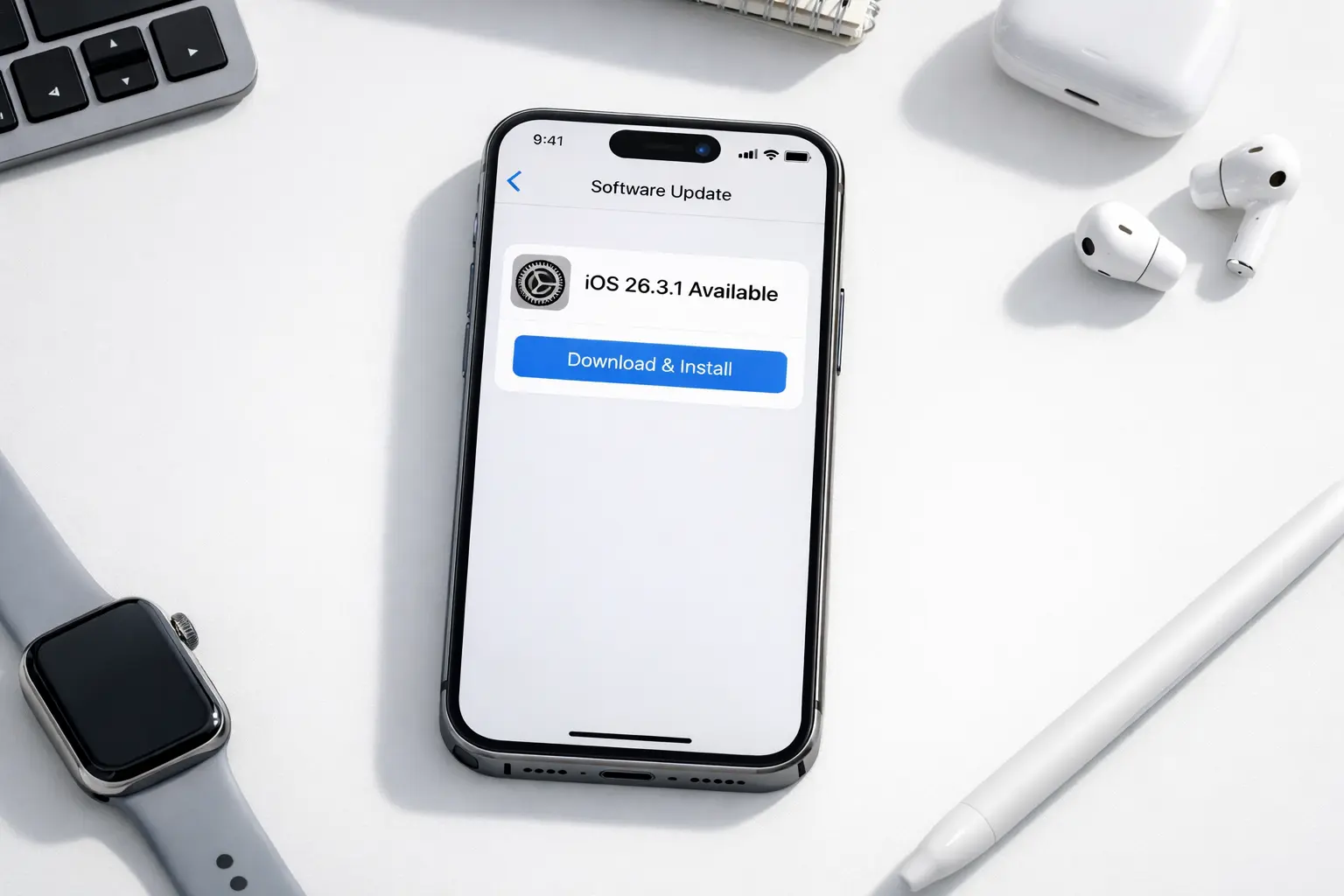
Ready to do an iPhone update but not sure where to start? You’re in the right place. This complete guide walks you through every method directly on your iPhone, on a Mac, and even on a Windows PC so you can get the latest iOS installed without any stress. We also cover the most common problems people run into and show you exactly how to fix them.
Why You Should Keep Your iPhone Updated
Every iPhone software update from Apple includes security fixes, performance boosts, and brand-new features. Staying on an older iOS version means you’re missing out and potentially leaving your device open to vulnerabilities.
Here’s what a fresh iOS update gives you:
- Security patches: Apple closes known security holes in every update.
- Faster performance: Updates are often optimized to run more smoothly, even on older devices.
- New features: iOS 18 brings Apple Intelligence, a fully customizable home screen, RCS messaging, and more.
- Better app compatibility: Many apps drop support for older iOS versions.
- Bug fixes: Annoying glitches and crashes get resolved.
How to Check Your Current iOS Version
Before running any iPhone update, you should know which iOS version you’re already on. Here’s how to check your iPhone iOS version in seconds:
- Open the Settings app.
- Tap General.
- Tap About.
- Look at Software Version — that’s your current iOS.
To see if there’s an update available, go to Settings → General → Software Update. Your iPhone will automatically check and display the latest version.
Method 1: Update iPhone Over the Air (Easiest)
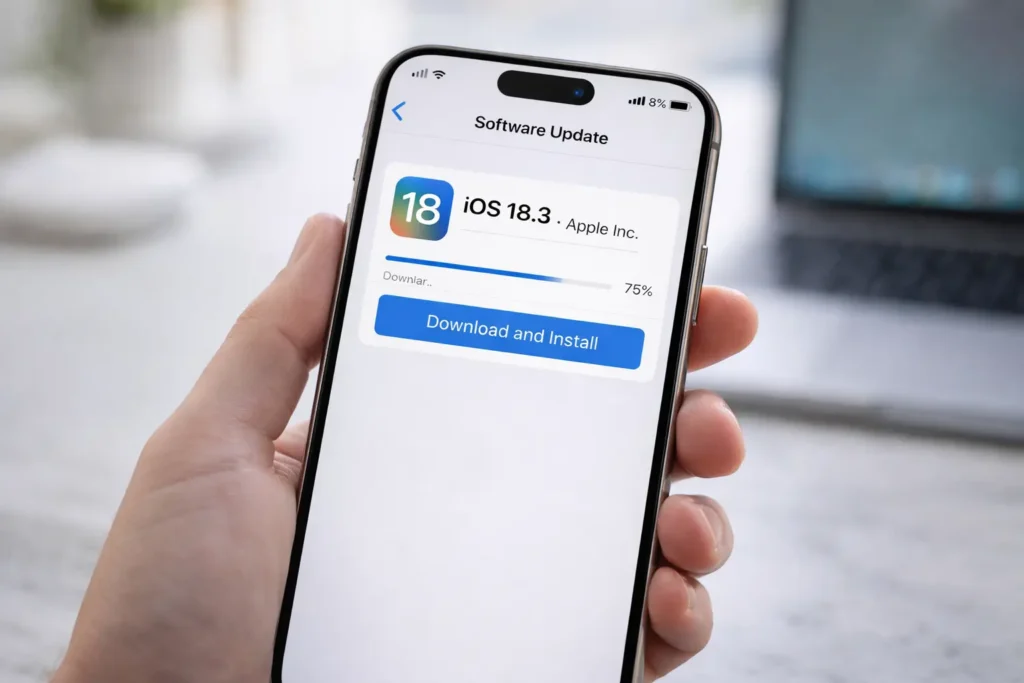
The fastest way to do an iPhone update is directly on your device no computer needed. Apple calls this an over-the-air (OTA) update.
What You Need
- A stable Wi-Fi connection
- At least 50% battery (or plug in your iPhone)
- 2–3 GB of free storage space
- Your Apple ID password (may be needed after restart)
Steps to Update iPhone Directly
- Open Settings.
- Tap General.
- Tap Software Update.
- If an update is available, tap Download and Install.
- Enter your passcode if asked.
- Tap Install Now — or choose Install Tonight to schedule it automatically.
- Your iPhone will restart and finish the installation. This usually takes 10–30 minutes.
Pro Tip: Turn on Automatic Updates so you never miss a release. Go to Settings → General → Software Update → Automatic Updates and enable both toggles.
Method 2: Update iPhone on a Mac
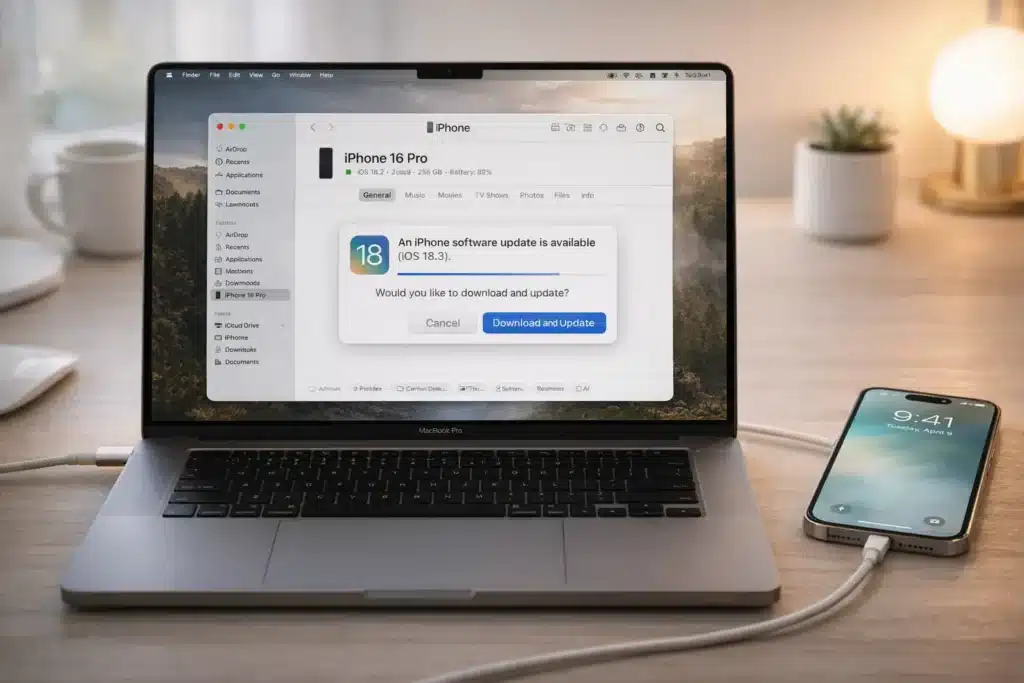
If your iPhone is low on storage or you’d rather use a computer, you can update your iPhone on a Mac using Finder. This method works on macOS Catalina (10.15) and later.
- Connect your iPhone to your Mac using a USB or USB-C cable.
- Open Finder (not iTunes — Finder replaced iTunes on modern Macs).
- Click your iPhone’s name in the left sidebar under Locations.
- Click Check for Update.
- Click Download and Update to install the latest iOS.
- Enter your iPhone passcode if prompted and wait for the process to finish.
Note: If your Mac is running macOS Mojave or earlier, use iTunes instead. The steps are the same — just open iTunes rather than Finder.
Method 3: Update iPhone on a Windows PC
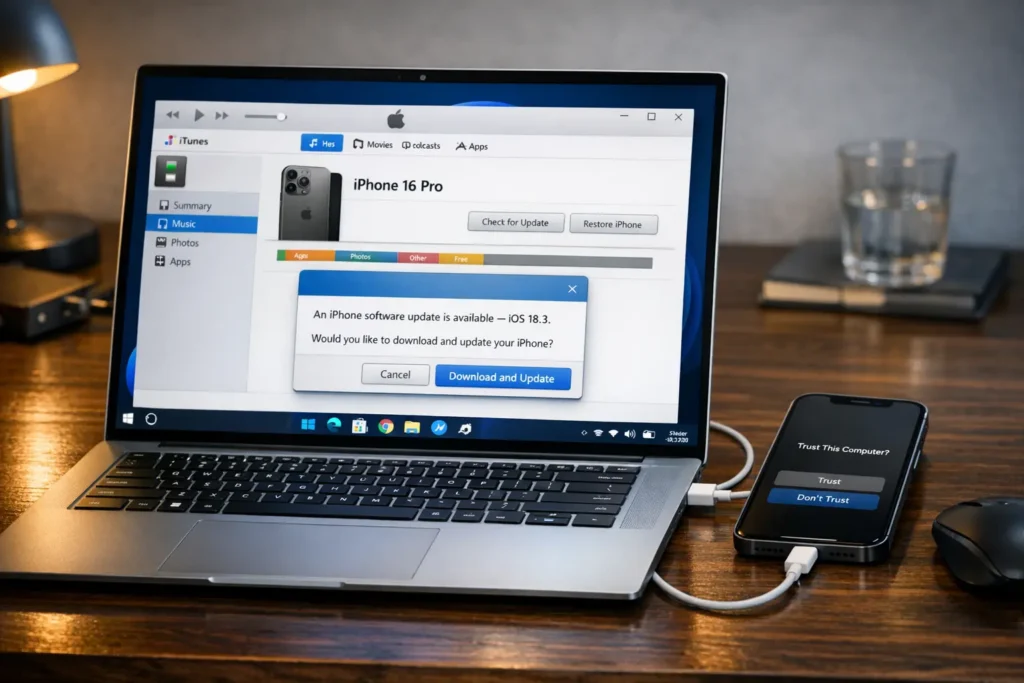
Don’t have a Mac? No problem. You can update your iPhone on a Windows PC using iTunes. Here’s how to update iPhone with a PC step by step:
- Download and install iTunes from the Microsoft Store or from apple.com/itunes.
- Connect your iPhone to your Windows PC using a USB cable.
- Open iTunes and click the iPhone icon near the top left of the window.
- Click Check for Update.
- Click Download and Update.
- Enter your iPhone passcode if asked, then wait for the installation to complete.
When you update iPhone via computer, iTunes downloads the full iOS installer — which is more reliable than an over-the-air update on a slow connection. This is also a great option if your iPhone update is not working over Wi-Fi.
How to Update iPhone Without Wi-Fi
Most iPhone updates require Wi-Fi because the files can be several gigabytes in size. But if you need to update iPhone without Wi-Fi, here are your options:
- Use a Mac or Windows PC: Connect via USB and update through Finder or iTunes. Your iPhone doesn’t need Wi-Fi — the computer handles the download.
- Use a mobile hotspot: Turn on the Personal Hotspot on another iPhone or Android phone, then connect your iPhone to it as a Wi-Fi network.
- Use a public Wi-Fi network: Libraries, Apple Stores, and cafés usually offer free Wi-Fi that’s fast enough for updates.
⚠️ Warning: Don’t update over cellular data. iOS update files are huge and can eat through your data plan — or fail midway through if your signal drops.
iOS Update Compatibility Table
Not sure if your iPhone can run the latest iOS? Here’s a quick iPhone iOS version compatibility overview:
| iPhone Model | Runs iOS 16 | Runs iOS 17 | Runs iOS 18 |
| iPhone SE (1st gen) | ❌ | ❌ | ❌ |
| iPhone SE (2nd gen) | ✅ | ✅ | ✅ |
| iPhone XR / XS | ✅ | ✅ | ✅ |
| iPhone 11 series | ✅ | ✅ | ✅ |
| iPhone 12 series | ✅ | ✅ | ✅ |
| iPhone 13 series | ✅ | ✅ | ✅ |
| iPhone 14 series | ✅ | ✅ | ✅ |
| iPhone 15 series | N/A | ✅ | ✅ |
| iPhone 16 series | N/A | N/A | ✅ |
Note: Apple Intelligence features in iOS 18 require iPhone 15 Pro, iPhone 15 Pro Max, or any iPhone 16 model. For the full list, visit Apple’s iOS 18 page.
Common iPhone Update Problems + How to Fix Them
Running into trouble? Here’s a fix for every common iPhone update problem.
iPhone Update Not Working
If your iPhone update is not working, try these fixes in order:
- Restart your iPhone and go back to Settings → General → Software Update.
- Switch to a different Wi-Fi network and try again.
- Free up storage: go to Settings → General → iPhone Storage and delete unused apps or old photos.
- Reset Network Settings: go to Settings → General → Transfer or Reset iPhone → Reset → Reset Network Settings.
- If nothing helps, update via Finder (Mac) or iTunes (Windows PC).
iPhone Update Stuck
If your iPhone update is stuck on the Apple logo or a progress bar, don’t panic:
- Wait at least 30 minutes — large updates can appear frozen but are still working.
- Force restart your iPhone by pressing Volume Up, then Volume Down, then holding the Side button until the Apple logo appears.
- If it’s still stuck after a force restart, connect to a computer and use Recovery Mode to reinstall iOS.
“If your iPhone appears to be frozen during an update, wait at least 30 minutes before taking action. Interrupting the process can sometimes cause larger issues. — Apple Support”
iPhone Update Failed — How to Fix It
Seeing an iPhone update failed message? Here’s the fix:
- Go to Settings → General → iPhone Storage, find the iOS update file, and delete it.
- Restart your iPhone.
- Make sure you have at least 2–3 GB of free space.
- Re-download the update from Settings → General → Software Update.
- If it fails again, switch to updating via Mac or Windows PC.
If your battery drains or shuts off mid-update, a weak battery could be the cause. Check our guide on iPhone battery replacement to see if it’s time for a new one.
iPhone Update Takes Too Long
If your iPhone update is taking too long, the most likely culprits are a slow Wi-Fi connection or heavy traffic on Apple’s servers.
- Try updating late at night when server traffic is lower.
- Move closer to your Wi-Fi router.
- Pause and resume the download if it stalls.
- Update via a computer with a wired ethernet connection for maximum speed.
iPhone Not Charging During an Update
Your iPhone needs power to complete an update. If it’s not charging, the update may fail or get stuck. Check our guide on iPhone not charging to fix charging issues before you try again.
Expert Tips Before You Update
“Always back up your iPhone before installing a major iOS update. You can back up using iCloud or through Finder on Mac. — Apple Support (support.apple.com)”
Follow these tips every time you run an iPhone update to avoid problems:
- Back up first: Go to Settings → [your name] → iCloud → iCloud Backup → Back Up Now. Or back up via Finder/iTunes on your computer.
- Charge your iPhone: Stay above 50% — or keep it plugged in throughout the entire update.
- Clear storage: Aim for at least 3 GB free. Go to Settings → General → iPhone Storage.
- Check compatibility: Make sure your iPhone model supports the new iOS version (see table above).
- Know your Apple ID: You may need to sign in again after the update. Have your password ready.
- Use Find My just in case: If your iPhone ever needs to be restored, iCloud Find My iPhone can help you locate or recover your device.
People Also Ask
Will updating my iPhone delete my data?
No. A standard iPhone update does not erase your photos, apps, or settings. That said, always back up before a major iOS update just to be safe.
How do I update my iPhone on a laptop?
Connect your iPhone to your laptop with a USB cable. On a Mac, open Finder and click your iPhone in the sidebar, then click ‘Check for Update.’ On a Windows laptop, open iTunes and click the iPhone icon, then click ‘Check for Update.’
Can I update iPhone iOS using mobile data?
Generally no. iOS update files are too large for cellular data. You’ll need Wi-Fi, or you can update iPhone without Wi-Fi by connecting to a Mac or PC via USB cable.
Why did my iPhone update fail?
An iPhone update failed message is usually caused by low storage, a weak internet connection, or a corrupted download. Delete the update file, free up space, and try again.
Frequently Asked Questions (FAQs)
Q: How do I update my iPhone iOS?
Go to Settings → General → Software Update. If an update is available, tap ‘Download and Install.’ Make sure you’re on Wi-Fi with at least 50% battery before you start.
Q: Can I update iPhone without Wi-Fi?
Yes. Connect your iPhone to a Mac or Windows PC via USB cable and use Finder (Mac) or iTunes (Windows) to update iPhone without Wi-Fi. You can also connect to a mobile hotspot if a computer isn’t available.
Q: How do I update iPhone on a Windows PC?
Install iTunes from the Microsoft Store or Apple’s website. Connect your iPhone with a USB cable, open iTunes, click the iPhone icon, then click ‘Check for Update.’ Follow the prompts to update iPhone with a PC.
Q: How long does an iPhone update take?
Most updates take between 10 and 45 minutes. If your iPhone update is taking too long, try updating via a computer on a wired internet connection for faster results.
Q: What should I do if my iPhone update is stuck?
Wait 30 minutes first — the update may just be slow. If it’s still frozen, force restart your iPhone. If that doesn’t work, connect to a computer and use Recovery Mode to reinstall iOS.
Q: How do I update my iPhone to iOS 18?
To update iPhone to iOS 18, go to Settings → General → Software Update. If your iPhone model is compatible (iPhone XR or newer), you’ll see iOS 18 listed. Tap ‘Download and Install’ to begin. Visit Apple’s official iOS 18 page for the full feature list.
Conclusion
Running an iPhone update is one of the smartest and simplest things you can do for your device. Whether you update over Wi-Fi on your iPhone, connect to a Mac, or use iTunes on a Windows PC, getting to the latest iOS keeps your phone secure, fast, and ready for everything Apple has to offer.
Here’s a quick recap:
- Check your iOS version: Settings → General → About
- Update over the air: Settings → General → Software Update
- Update on Mac: use Finder with a USB cable
- Update on Windows: use iTunes with a USB cable
- Fix stuck or failed updates by deleting the file, freeing space, and trying again
- Always back up before a major update
Still running into issues after your update? These guides can help:
- iPhone Battery Replacement: When and How to Do It
- iPhone Not Charging? Here’s the Fix
- How to Use iCloud Find My iPhone
Have a question about your iPhone update? Leave a comment below — we’re happy to help!
Sources & Further Reading
Apple iOS 18 — Official Overview — apple.com/ios/ios-18/
Apple Support: Update your iPhone or iPad — support.apple.com/en-us/105113
Apple Support: If you can’t update or restore your iPhone — support.apple.com/en-us/111900

