


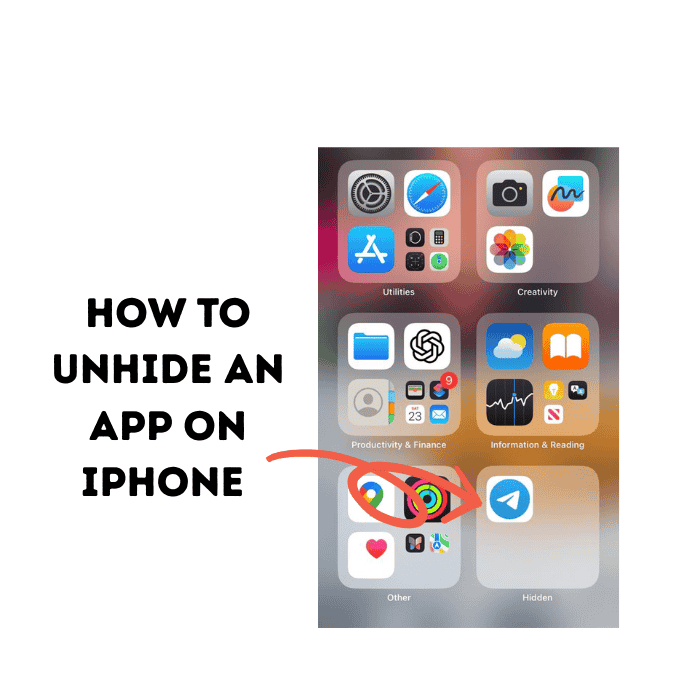
Whether you were tidying up your Home Screen and an app vanished, or you simply can’t remember where you put it, there’s no need to worry. This guide will teach you exactly how to unhide an app on your iPhone and get it back right where you need it. Let’s dive in and solve this digital mystery!
Why Do Apps Seem to Disappear on Your iPhone?
Before we find your app, it helps to understand where it might have gone. An app can “disappear” from your Home Screen in a few different ways, and most of the time, it hasn’t been deleted.
- Removed from Home Screen: With modern iOS, you can remove an app from your Home Screen without deleting it. When you do this, the app is sent to live in your App Library. This is the most common reason an app goes “missing.”
- On a Hidden Home Screen Page: You can hide entire Home Screen pages full of apps to create a cleaner look. It’s easy to forget you’ve done this.
- Hidden from Purchases: In a more specific case, you can “hide” an app from your purchase history in the App Store. This is less common but can make an app difficult to find again.
- Inside a Folder: Don’t forget the simplest explanation—it might just be tucked away in a folder you overlooked!
Our guide will cover all these scenarios so you can get your app back, no matter where it’s hiding.
Method 1: How to Unhide an App on iPhone from the App Library (The 5 Quick Steps)
The App Library is your iPhone’s master list of every app you have installed. If an app isn’t on your Home Screen, this is the first place you should look. This method is the answer to the common question, “How do I get an app back on my Home Screen?“
Follow these five simple steps to find your app and bring it back:
- Go to the App Library: From your Home Screen, keep swiping left. The very last page is the App Library, which automatically organizes your apps into categories.
- Use the Search Bar: Tap the search bar at the very top of the App Library screen. It will say “App Library.”
- Type the App’s Name: Start typing the name of the app you’re looking for. It will appear in the list below as you type.
- Press and Hold the App Icon: Once you see your app, press and hold your finger on its icon. A menu will pop up.
- Tap “Add to Home Screen”: Select “Add to Home Screen” from the menu. The app will now reappear on the first available spot on your Home Screen!
Alt text: A screenshot of the iPhone’s App Library with the “Add to Home Screen” option visible after long-pressing an app, demonstrating how to unhide an app on iPhone.
That’s it! You can now drag the app to any page or folder you like. This is the most common and effective way to unhide an app on your Home Screen.
Method 2: How to Unhide a Hidden Home Screen Page
Sometimes, the app isn’t missing—the entire page it lives on is hidden! This is a great feature for decluttering, but it can be confusing if you forget you’ve used it.
Here’s how to bring a hidden app back by unhiding its Home Screen page:
- Enter “Jiggle Mode”: Press and hold any space on your Home Screen until all the apps start to jiggle.
- Tap the Dots: Look for the dots at the bottom of the screen, right above the dock. Tap on them.
- View Your Pages: You will now see thumbnails of all your Home Screen pages. The hidden pages will have an empty circle below them.
- Check the Circle: Tap the empty circle below the page you want to unhide. A checkmark will appear, indicating it’s now active.
- Tap “Done”: Tap “Done” in the top-right corner, and then tap “Done” again to exit jiggle mode.
Your hidden page, along with all the apps on it, will now be visible again when you swipe through your Home Screens.
Method 3: Finding Apps Hidden from Your Purchase History
This is a less common scenario, but if you’ve intentionally hidden an app from your App Store purchase list (perhaps for privacy), you’ll need to unhide it there before you can re-download it.
Here’s how to check for hidden applications on your iPhone’s purchase history:
- Open the App Store.
- Tap your profile picture or icon in the top-right corner.
- Tap your Name/Apple ID at the top. You may need to sign in with your Apple ID password or Face ID/Touch ID.
- Scroll down and tap on “Hidden Purchases.”
- You’ll see a list of apps you’ve hidden. Find the app you want and tap the “Unhide” button next to it.
- The app will now reappear in your regular purchase list. You can then search for it in the App Store and re-download it by tapping the cloud icon.
This is also a crucial step for parents. According to Apple’s official guide on Family Sharing, “If you hide an app, it won’t appear in your purchases list… If you use Family Sharing, family members can’t redownload the app from your shared purchases.”
A Quick Guide for Different Devices and iOS Versions
Users often wonder if the process changes with a new iPhone or iOS update. The good news is that Apple has kept app management very consistent.
1: How to unhide an app on iOS 18
With iOS 18 on the horizon, you can expect the process of unhiding apps to remain the same. The App Library and the ability to add apps back to the Home Screen are core features of the iOS interface. Any changes are likely to be cosmetic, so the steps in this guide will still apply.
2: How to unhide apps on iPhone 13 (and Other Models)
Whether you have an iPhone 15, iPhone 13, or an older model that supports the App Library (iOS 14 and later), the method for unhiding an app is identical. It’s a software feature, not a hardware one.
3: How to unhide an app on iPad
The process on an iPad is very similar, as iPadOS shares its core design with iOS.
- You still swipe to the end of your Home Screen pages to access the App Library.
- You can search for the app and long-press to “Add to Home Screen.”
- The main difference is that the App Library icon is also permanently in the Dock, giving you another quick way to access it.
Expert Insight: Embracing the App Library
The App Library, introduced in iOS 14, was a game-changer for iPhone organization. Tech experts see it as the primary solution for a cluttered Home Screen.
“The App Library offers a new space at the end of your Home Screen pages that automatically organizes all of your apps into a simple, easy-to-navigate view. This means you can now hide app pages for a cleaner setup.” – MacRumors
This shift in design philosophy is why “hiding” an app usually just means removing it from the Home Screen and letting it live in the App Library. Learning how to unhide an app on your iPhone is really about mastering the App Library.
Quick Comparison: Hiding vs. Unhiding Apps
To make it even clearer, here’s a table that breaks down the actions of hiding and unhiding an app on your iPhone.
| Action | What It Does | How to Do It |
| Hide App (Remove from Home Screen) | Moves the app icon from your Home Screen to the App Library. App is still installed. | Long-press the app > Tap “Remove App” > Tap “Remove from Home Screen.” |
| Unhide App (Add to Home Screen) | Puts the app icon from the App Library back onto your Home Screen. | Find app in App Library > Long-press the app > Tap “Add to Home Screen.” |
| Hide Home Screen Page | Makes an entire page of apps invisible. Apps are still installed. | Enter jiggle mode > Tap the dots > Uncheck the page you want to hide. |
| Unhide Home Screen Page | Makes a hidden Home Screen page visible again. | Enter jiggle mode > Tap the dots > Check the circle for the page you want to show. |
Understanding these distinctions can save you a lot of confusion and make managing your device much simpler. It’s like knowing how to forward calls on iPhone; a simple trick that gives you much more control.
Frequently Asked Questions
Here are answers to some of the most common questions about finding and unhiding apps.
How do I unhide a hidden app on my iPhone?
The simplest way is to swipe to your App Library (the last page on your Home Screen), search for the app by name, then press and hold the app icon and select “Add to Home Screen.”
How do I get an app back on my Home Screen?
If you’ve removed an app from your Home Screen, you can get it back from the App Library. Find the app in the library, long-press its icon, and tap “Add to Home Screen.” It will reappear on your main screen.
Is unhiding an app the same as re-downloading it?
No. Unhiding an app from the App Library or a hidden Home Screen page just makes the icon visible again—the app is already on your phone. Re-downloading is only necessary if you’ve completely deleted the app (which you do by tapping “Delete App” instead of “Remove from Home Screen”).
What’s the difference between removing an app from the Home Screen and deleting it?
“Removing from Home Screen” sends the app to your App Library, but it stays installed with all its data. “Deleting” an app completely removes it and its data from your iPhone. You’d have to go to the App Store to get it back.
Can I unhide apps that are restricted by Screen Time?
If an app is hidden because of Screen Time restrictions (e.g., age restrictions or Downtime), you won’t be able to find it in the App Library or via Search. You need to go to Settings > Screen Time and adjust your “Content & Privacy Restrictions” or “App Limits” to make the app accessible again. It’s another layer of control, much like when you how to check blocked numbers on iPhone to manage your contacts.
Conclusion: Your Apps Are Never Truly Lost
Figuring out how to unhide an app on your iPhone is much easier than it seems. In most cases, your “lost” app is waiting for you safely in the App Library.
Just remember these key solutions:
- Search the App Library and add the app back to your Home Screen.
- Check for hidden Home Screen pages and unhide them.
- Look in your “Hidden Purchases” in the App Store for apps you may have hidden there.
With these tips, you’ll be a master of iPhone organization, and a missing app will never cause you panic again. Once you find it, you can get right back to using it, maybe even to how to send a voice message on iPhone to tell a friend you found it!
Did this guide help you find your app? Let us know in the comments below!

